How to Capture an HTML Element Screenshot With JavaScript
Capture a DOM element as a PNG with html2canvas, or capture real browser pixels with Playwright. Compare the tradeoffs and fix common failures.
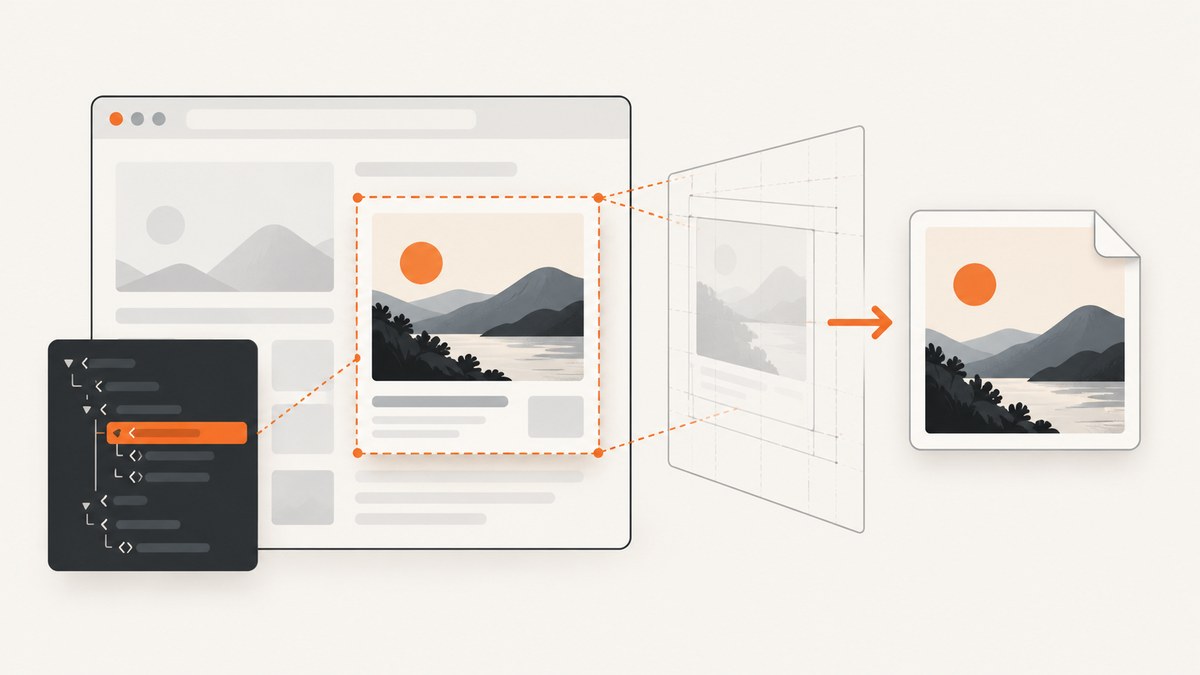
To save an HTML element as an image in JavaScript, use html2canvas for an in-page export button, or Playwright when you need a screenshot of the pixels rendered by a real browser. The first reconstructs an image from DOM and style information; the second captures a browser-rendered element. For a downloadable PNG, convert the canvas to a Blob or use Playwright’s locator screenshot API.
This guide covers both approaches, including complete runnable examples, output scaling, cross-origin image limits, timing, troubleshooting, and when to choose each. If you need a screenshot of a remote website without setting up and maintaining a browser, ScreenshotNeo offers a one-request screenshot API and MCP server; see ScreenshotNeo.
1. Choose the right JavaScript approach
| Need | Use | Why |
|---|---|---|
| An export button inside your own page | html2canvas | Runs in the visitor’s browser and can render a selected DOM element into a canvas. |
| Automated captures, visual tests, or browser-rendered pixels | Playwright | Runs a controlled browser and can take a screenshot of a locator. |
| A screenshot of a public remote URL without managing browser infrastructure | ScreenshotNeo API | A GET request returns an image or PDF, and an MCP server exposes screenshot tools to AI clients. |
html2canvas does not take a literal screenshot of the browser compositor. It traverses the DOM and recreates what it can on a canvas, so unsupported CSS or content can differ from the visible page. Playwright captures the browser’s rendered output, making it a better fit when visual fidelity and repeatable automation matter. See the html2canvas documentation and Playwright screenshots guide.
2. Capture and download an element with html2canvas
Install the package
In a project using npm and a bundler, install the maintained scoped package:
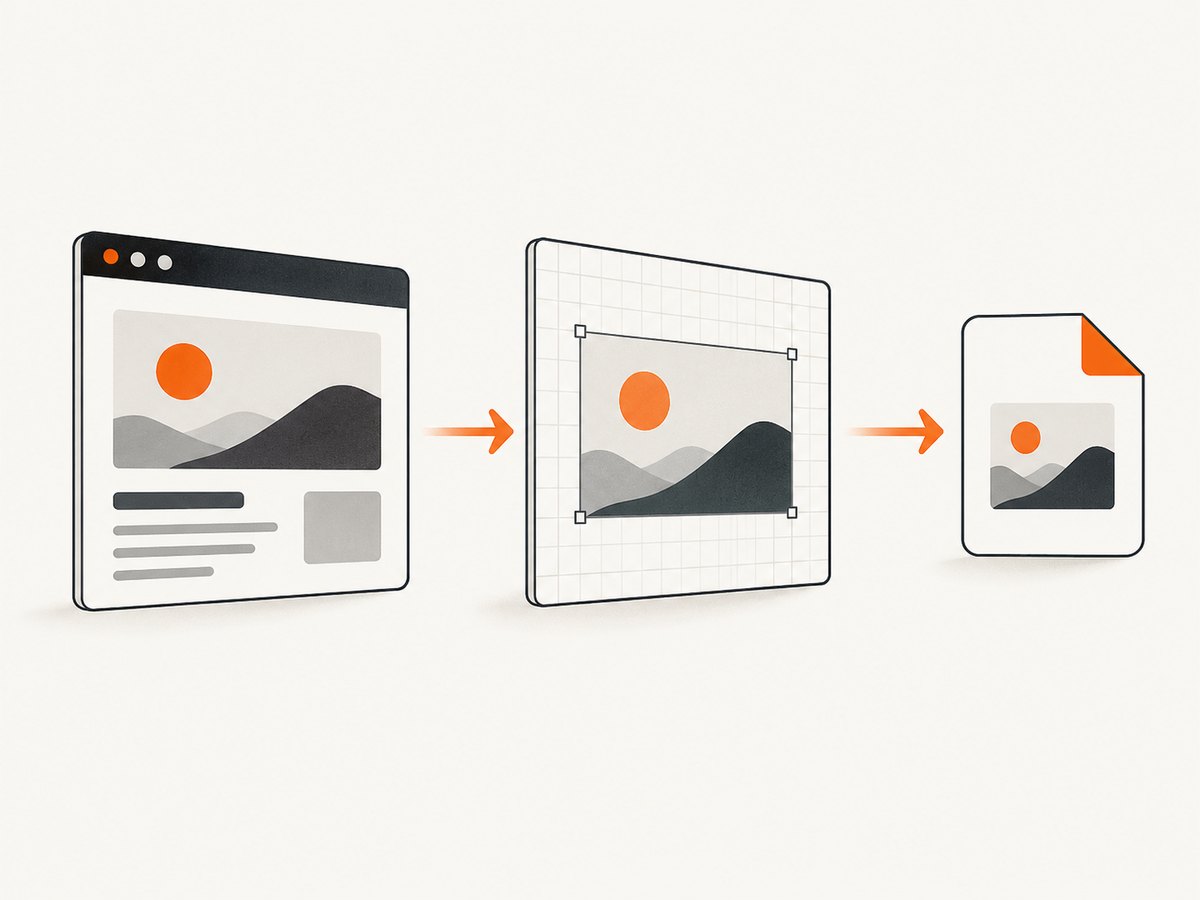
npm install @html2canvas/html2canvasThen import it in your application module. Put the content to export inside a uniquely identifiable element:
<section id="capture">
  <h2>Monthly report</h2>
  <p>Revenue is up 12%.</p>
  <button data-html2canvas-ignore>Delete</button>
</section>
<button id="download">Download report image</button>
The data-html2canvas-ignore attribute excludes controls or other elements you do not want in the exported image. It is supported by html2canvas’s documented examples.
Render to canvas and download as PNG
import html2canvas from '@html2canvas/html2canvas';

const captureButton = document.querySelector('#download');
captureButton.addEventListener('click', async () => {
  const element = document.querySelector('#capture');
  if (!element) throw new Error('Element #capture was not found');

  // Let web fonts finish loading before taking the capture.
  if (document.fonts?.ready) await document.fonts.ready;

  const canvas = await html2canvas(element, {
    backgroundColor: '#ffffff',
    scale: window.devicePixelRatio,
    useCORS: true
  });

  const blob = await new Promise((resolve) =>
    canvas.toBlob(resolve, 'image/png')
  );
  if (!blob) throw new Error('The browser could not encode the canvas');

  const objectUrl = URL.createObjectURL(blob);
  const link = document.createElement('a');
  link.href = objectUrl;
  link.download = 'monthly-report.png';
  link.click();
  setTimeout(() => URL.revokeObjectURL(objectUrl), 1000);
});
This is an ES module example intended for a browser application built with a bundler. The html2canvas call returns a Promise. The Blob route avoids creating a large base64 data URL in memory, which is useful for larger images. The object URL is revoked after the browser has had a chance to start the download.
For a small image, a data URL is also a straightforward option:
const canvas = await html2canvas(element);
const link = document.createElement('a');
link.download = 'element.png';
link.href = canvas.toDataURL('image/png');
link.click();
For details on the package, options, and examples, consult the html2canvas project documentation.
3. Control crop, sharpness, background, and excluded content
Passing the element itself is usually the simplest way to capture that element’s bounds. When you need a region of a larger document instead, html2canvas supports x, y, width, and height crop options. Coordinate values refer to the document rendering, so check the resulting canvas dimensions when layouts, scrolling, or scaling are involved.
const canvas = await html2canvas(document.body, {
  x: 100,
  y: 200,
  width: 800,
  height: 500,
  backgroundColor: '#ffffff',
  scale: 2
});
Use scale to control output pixel density. Setting it to window.devicePixelRatio often produces a sharper image on high-density screens. A scale of 2 produces about four times as many pixels as scale 1 for the same CSS dimensions, increasing memory and encoding work. Use scale 1 for smaller files or when a fixed output size matters.
Set backgroundColor to a color for a predictable opaque image. If the design needs transparency, check the library’s options and ensure the source element’s background is actually transparent. Content that should not appear, such as action buttons, can be marked with data-html2canvas-ignore. For application-specific layout, hide or simplify interactive elements before capture and restore them afterwards; avoid permanently changing what the visitor sees.
4. Wait for content before rendering
Capturing immediately after mounting a component can produce missing fonts, images, or asynchronously loaded data. html2canvas cannot know when your application’s data request has completed, so trigger the capture only after the relevant UI is ready. The following helper waits for fonts and images inside the target before calling html2canvas:
async function waitForElementAssets(element) {
  if (document.fonts?.ready) await document.fonts.ready;

  const images = [...element.querySelectorAll('img')];
  await Promise.all(images.map((image) => {
    if (image.complete) return Promise.resolve();
    return new Promise((resolve) => {
      image.addEventListener('load', resolve, { once: true });
      image.addEventListener('error', resolve, { once: true });
    });
  }));
}

const element = document.querySelector('#capture');
if (!element) throw new Error('Element not found');
await waitForElementAssets(element);
const canvas = await html2canvas(element, { useCORS: true });
This waits for image load or error events, but it does not fix CORS restrictions. It also does not wait for application data. In a React, Vue, or other app, call the capture after the component has rendered the final data. If an image is lazy-loaded, it may not start loading until near the viewport; make sure it has loaded before capture, or use a workflow that explicitly brings it into view.
5. Capture a real browser-rendered element with Playwright
Choose Playwright when the capture runs in automation, a server-side job, or a visual regression test. Its locator API captures one element; the result can be written directly to a file or returned as bytes.
Install and run a complete Node.js example
npm install playwright
npx playwright install chromium
Save the following as capture.mjs and run node capture.mjs:
import { chromium } from 'playwright';

const browser = await chromium.launch();
try {
  const page = await browser.newPage({ deviceScaleFactor: 1 });
  await page.goto('https://example.com', { waitUntil: 'networkidle' });

  const element = page.locator('h1');
  await element.waitFor({ state: 'visible' });
  await element.screenshot({ path: 'heading.png' });
} finally {
  await browser.close();
}
Replace h1 with a selector for the element you need. locator.screenshot({ path }) writes a PNG by default. To use the screenshot in memory, omit path and keep the returned buffer:
const pngBytes = await page.locator('.header').screenshot();
// Pass pngBytes to storage, an image diff, or another service.
Playwright’s screenshots guide also documents full-page screenshots through page.screenshot({ fullPage: true }). For an individual element, use the locator screenshot method. The Page API documents screenshot return buffers and screenshot options.
6. Cross-origin and browser security limits
With html2canvas, a remote image generally needs to be same-origin or served with appropriate CORS headers. The useCORS: true option asks the browser to load images using CORS where possible, but it cannot grant access if the remote server does not permit it. A canvas that draws a disallowed cross-origin resource can become tainted, and browser security then prevents reading or exporting its pixels.
Cross-origin iframes are a separate limitation: browser security prevents page JavaScript from reading the iframe’s contentDocument, so html2canvas cannot reconstruct the iframe’s contents. If you own the framed page, coordinate capture from within that page or use a controlled browser workflow where your access and origin setup allow it. Do not assume a screenshot library can bypass browser origin policy.
These are documented constraints in the html2canvas documentation and examples and features. Playwright captures rendered pixels in a browser process, but the target website’s access controls still apply.
7. Troubleshooting common capture failures
| Symptom | Likely cause | Fix |
|---|---|---|
| Some CSS is missing or looks different | html2canvas reconstructs from DOM and supports a subset of browser rendering. | Check the library’s supported features. If exact rendered output is required, use Playwright. |
| Remote image is blank or export throws a security error | The image server does not allow CORS, or the canvas is tainted. | Serve the asset from your origin or configure the image host’s CORS response. useCORS alone cannot override server policy. |
| Iframe content is absent | The iframe is cross-origin and inaccessible to page JavaScript. | Capture from code running in the framed origin, or choose an authorized browser automation arrangement. |
| Text uses a fallback font | Capture started before web fonts finished loading. | Await document.fonts.ready and verify the font request succeeded. |
| Image or chart is missing | Capture ran before async rendering or lazy loading finished. | Wait for app data, image load, and chart rendering before capture; make the target visible if loading is viewport-triggered. |
| Download is empty | Canvas encoding returned null or the browser blocked the flow. | Check the result of toBlob, initiate download from a user gesture, and inspect browser console errors. |
| Playwright locator screenshot times out | The selector matched no visible element, or navigation/rendering is incomplete. | Check the selector, wait for locator visibility, and wait for the app-specific ready condition before capture. |
| Playwright process exits without closing | The browser was not closed after an exception. | Put browser.close() in a finally block as in the example. |
8. Performance, reliability, and cost
Canvas work uses browser memory. Large elements, high device scale, and full-page captures can create very large bitmap buffers; encoding and downloading add more memory and CPU work. Keep the capture bounds tight, use a deliberate scale, and release references to temporary canvases and object URLs when finished. Avoid running several large captures simultaneously on a low-memory device.
html2canvas requires no separate browser service because it runs in the current page, but reliability depends on supported CSS, successful asset loading, and origin permissions. Playwright offers a repeatable browser environment for jobs and tests, while introducing browser installation, process management, and execution time. Close browser instances even on failure and use explicit readiness conditions instead of assuming every page settles at the same speed.
Both approaches are software libraries; the cited documentation does not establish a universal speed benchmark or operating cost. Your cost depends on where Playwright runs and how you operate it. For an in-page export, html2canvas avoids a remote capture service. For remote URL captures without browser setup, compare the effort of maintaining browser infrastructure with a screenshot API’s plan and request model.
9. Or skip the browser setup
For a remote URL, ScreenshotNeo returns an image from one GET request. Replace the target URL and API key with your own. See the ScreenshotNeo API docs for request configuration.
curl -G "https://api.screenshotneo.com/v1/shot" -d access_key=YOUR_API_KEY --data-urlencode url=https://stripe.com -o shot.webpimport requests
r = requests.get("https://api.screenshotneo.com/v1/shot", params={"access_key": "YOUR_API_KEY", "url": "https://stripe.com"}, timeout=90)
open("shot.webp", "wb").write(r.content)const q = new URLSearchParams({ access_key: 'YOUR_API_KEY', url: 'https://stripe.com' });
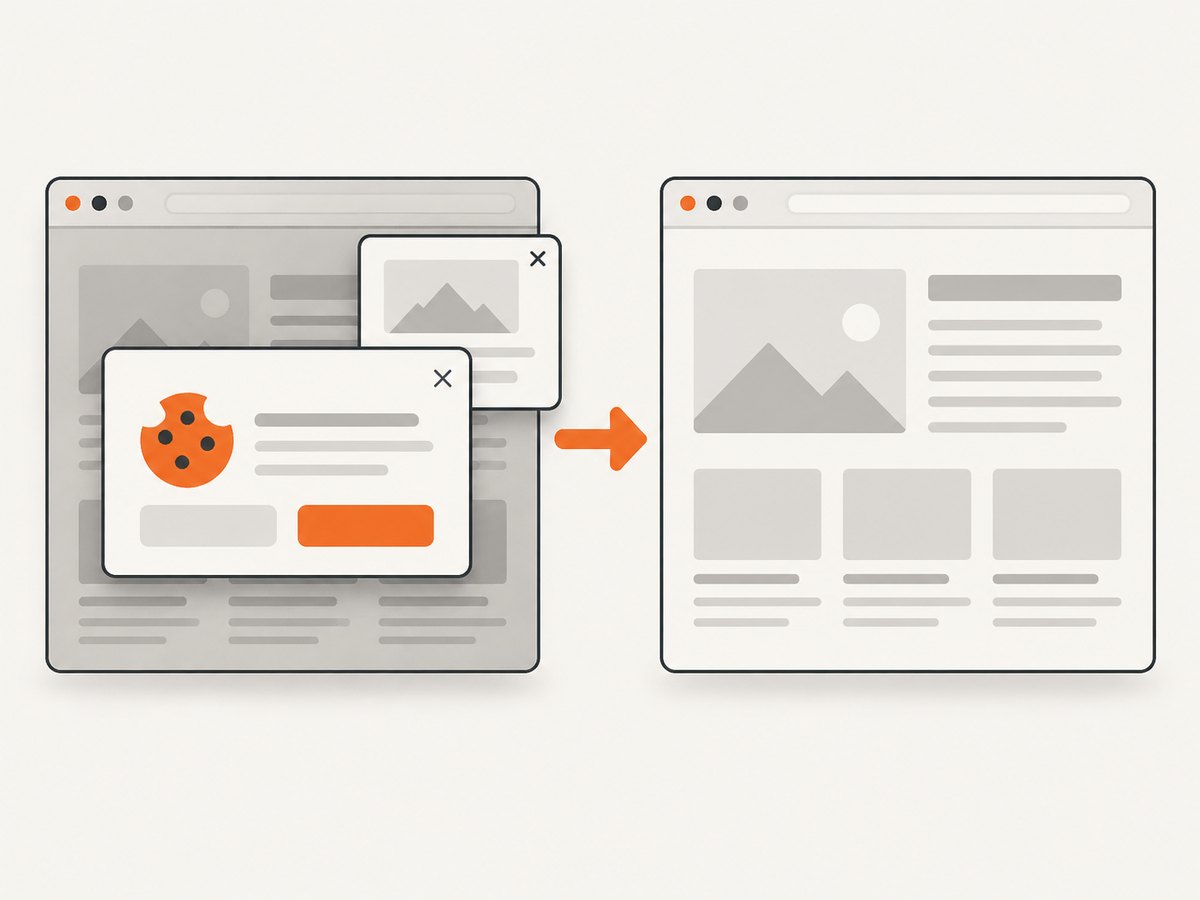
const res = await fetch(`https://api.screenshotneo.com/v1/shot?${q}`);ScreenshotNeo accepts cookie and consent banners like a visitor and removes more than 60 known consent platforms, newsletter popups, and chat widgets before capture; each cleanup step can be turned off. Bot checks, blank pages, timeouts, failed loads, and cache hits cost nothing, and response headers report the page verdict and billing status. Its MCP server gives AI agents tools for taking screenshots, getting page information, and capturing PDFs. The free plan includes 1,000 shots a month with no card; paid plans start at $5 for 3,000 shots, and every feature is available on every plan. The service also supports element capture by CSS selector, custom viewport and device presets, full-page capture, and other screenshot options.
Sign up for 1,000 free screenshots a month with no card.
10. FAQ
Can I screenshot a div and save it as PNG?
Yes. Select the div, render it with html2canvas, then use canvas.toBlob or canvas.toDataURL('image/png') to download it.
Will html2canvas capture exactly what Chrome displays?
No. It rebuilds an image using DOM information, and its own documentation notes that the result may not be fully accurate to the browser’s real representation. Use Playwright if the browser-rendered result is the requirement.
Can I capture an element from another website in my browser page?
Not generally with client-side JavaScript: same-origin policy restricts access to other origins’ DOM and iframe documents. Use an authorized browser automation or screenshot service for remote pages.
Can Playwright return image bytes instead of writing a file?
Yes. Call locator.screenshot() without a path and use the returned buffer in memory.


