Capture Screenshots of HTML Elements with Node.js
Capture a single HTML element or a full page in Node.js with Playwright or Puppeteer, with reliable waits, output options, troubleshooting, and an API alternative.
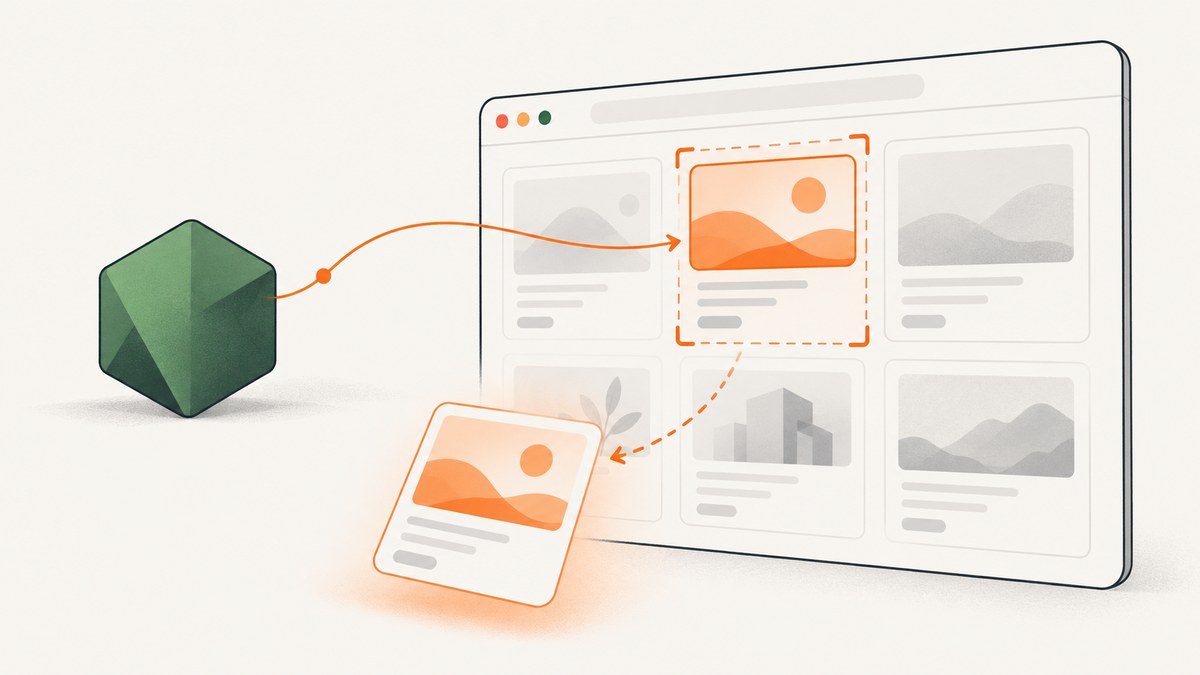
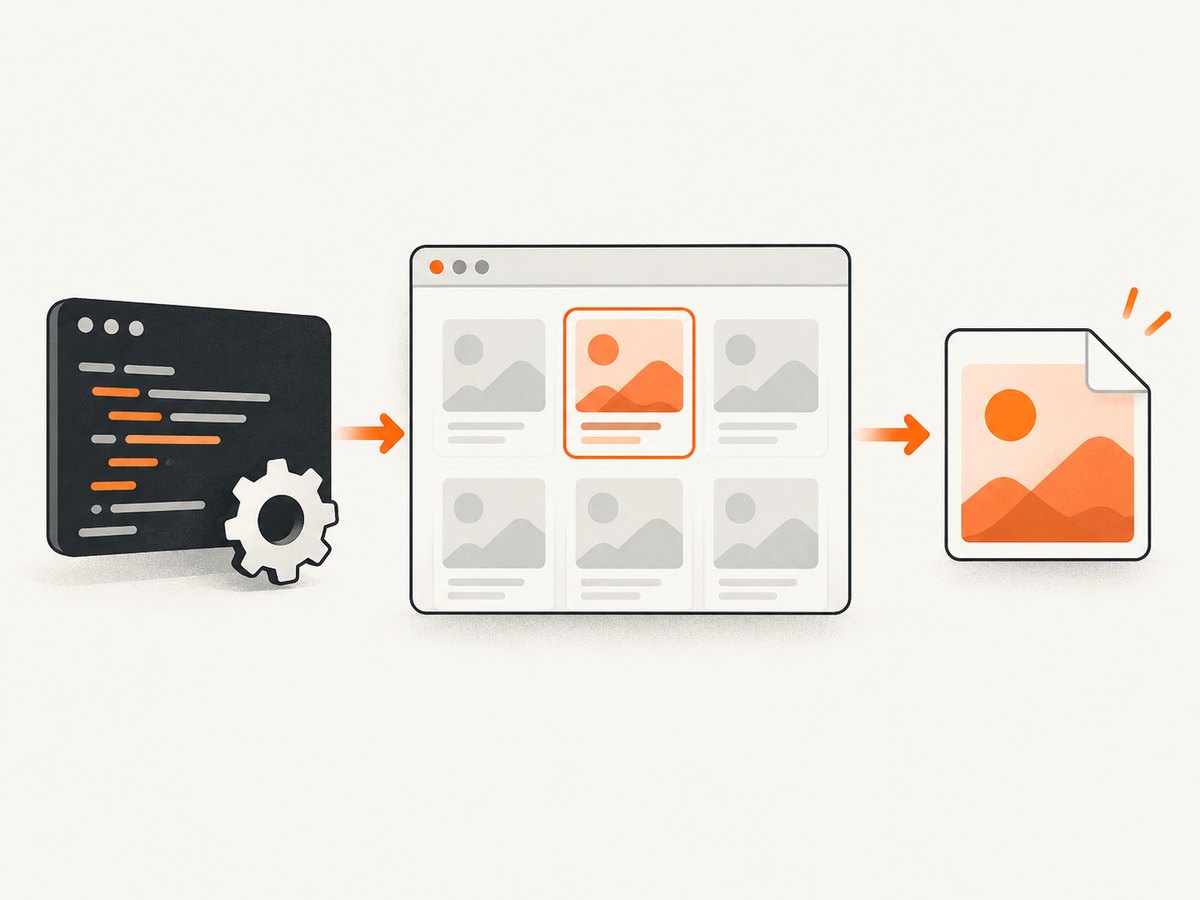
Use a headless browser, navigate to the page, select the element, wait until it is rendered, and call the element screenshot method. Playwright uses page.locator(selector).screenshot(); Puppeteer uses page.waitForSelector() followed by element.screenshot().
Use an element screenshot for a card, chart, form, or other DOM node. Use page.screenshot() for the viewport, and add fullPage: true when you need the complete scrollable document.
Choose the capture scope
| Goal | API |
|---|---|
| One DOM element | locator.screenshot() in Playwright or ElementHandle.screenshot() in Puppeteer |
| Visible viewport | page.screenshot() |
| Entire scrollable page | page.screenshot({ fullPage: true }) |
Prerequisites
- Install Node.js 18 or newer so the examples can use modern ECMAScript modules and
fetch. - Create a project and install one browser library.
mkdir element-shots
cd element-shots
npm init -y
npm install playwright
npx playwright install chromium
For Puppeteer instead:
npm install puppeteerPlaywright: capture one HTML element
This complete script waits for the element, captures it, and always closes the browser.
import { chromium } from 'playwright';

const browser = await chromium.launch();
try {
  const page = await browser.newPage({
    viewport: { width: 1440, height: 900 },
    deviceScaleFactor: 1
  });

  await page.goto('https://example.com', { waitUntil: 'networkidle' });
  const card = page.locator('.card');
  await card.waitFor({ state: 'visible' });
  await card.screenshot({ path: 'card.png', type: 'png' });
} finally {
  await browser.close();
}
Replace .card with a selector that uniquely identifies your target. Playwright also returns bytes if you want to upload or transform the image instead of writing a file:
const bytes = await page.locator('.card').screenshot({ type: 'png' });
// await storageClient.upload(bytes);
Playwright viewport and full-page shots
await page.screenshot({ path: 'viewport.png' });
await page.screenshot({ path: 'full-page.png', fullPage: true });
A full-page shot captures the complete scrollable document. It is different from an element shot, which is clipped to the selected node.
Puppeteer: capture one HTML element
import puppeteer from 'puppeteer';

const browser = await puppeteer.launch();
try {
  const page = await browser.newPage();
  await page.setViewport({ width: 1440, height: 900, deviceScaleFactor: 1 });
  await page.goto('https://example.com', { waitUntil: 'networkidle2' });

  const element = await page.waitForSelector('.card', { visible: true });
  await element.screenshot({ path: 'card.png', type: 'png' });
} finally {
  await browser.close();
}
Puppeteer attempts to scroll a selected element into view before taking its screenshot. You can also capture the viewport or the whole page:
await page.screenshot({ path: 'viewport.png' });
await page.screenshot({ path: 'full-page.png', fullPage: true });
Output formats and capture options
Both libraries can write PNG, JPEG, or WebP files when supported by the selected API. Puppeteer documents options including path, type, quality, clip, omitBackground, fullPage, and captureBeyondViewport. JPEG quality applies to JPEG output.
await element.screenshot({
  path: 'card.webp',
  type: 'webp',
  quality: 82,
  omitBackground: true
});
Use omitBackground when a transparent result is useful and the page supports it. Use clip for a manually defined rectangle; element screenshots usually provide a safer boundary because the browser computes the node’s box.
Make element screenshots stable
- Wait for the element: wait for a locator or selector to be visible before capturing.
- Wait for content: use navigation wait conditions, an explicit application-ready selector, or a short delay when data arrives after navigation.
- Wait for fonts and images: late-loading fonts can change line wrapping, and images can change element dimensions.
- Control animation: disable animations or pause them for visual tests so the captured frame is repeatable.
- Keep the environment fixed: browser engine, operating system, headless mode, viewport, device scale, and settings can all change rendering.
- Hide volatile regions: timestamps, rotating ads, live counters, and cursor states should be hidden or masked when they are not part of the test.
await page.addStyleTag({ content: `
  *, *::before, *::after {
    animation: none !important;
    transition: none !important;
    caret-color: transparent !important;
  }
` });
await page.evaluate(() => document.fonts.ready);
await page.locator('.card').screenshot({ path: 'stable-card.png' });
For visual assertions, Playwright waits for two consecutive locator screenshots to be identical before comparing them. Keep test data deterministic and use the same browser and machine settings for baselines.
Selectors and rendering edge cases
The selector matches several nodes
Prefer a unique class, ID, data attribute, or role. In Playwright, use .first() or .nth(index) only when the ordering is intentional:
await page.locator('[data-testid="product-card"]').first().screenshot({ path: 'product.png' });The element is outside the viewport
Element screenshot APIs can scroll the node into view. If your page uses custom virtual scrolling, scroll the container yourself and wait for the node to render.
The element is hidden
A display: none, visibility: hidden, or detached node cannot produce a useful image. Wait for the visible state or fix the application state that should reveal it.
Lazy content is missing
Scroll the page or the relevant container to trigger lazy loading, then wait for the image or content selector before capturing.
Cross-origin frames
If the target is inside an iframe, first obtain the frame and select the element within it. A selector in the top-level page cannot address a node inside a frame.
Responsive layout changed
Set an explicit viewport and device scale factor. A different viewport can change breakpoints, wrapping, and element dimensions.
Reusable Node.js helper
import { chromium } from 'playwright';

export async function captureElement({ url, selector, output }) {
  const browser = await chromium.launch();
  try {
    const page = await browser.newPage({ viewport: { width: 1440, height: 900 } });
    await page.goto(url, { waitUntil: 'domcontentloaded' });
    const target = page.locator(selector);
    await target.waitFor({ state: 'visible', timeout: 30_000 });
    await page.evaluate(() => document.fonts.ready);
    await target.screenshot({ path: output, type: 'png' });
  } finally {
    await browser.close();
  }
}

await captureElement({
  url: 'https://example.com',
  selector: '.card',
  output: 'card.png'
});
Performance, reliability, and cost
- Browser startup: launching Chromium is expensive compared with reusing a browser process. For batches, keep one browser open and create a fresh page per URL.
- Concurrency: limit simultaneous pages to the memory and CPU available in your CI runner. Excess concurrency causes slow loads and flaky captures.
- Navigation waits:
networkidlecan take a long time on pages with analytics or long-lived connections. Prefer a page-specific ready selector when you know one. - Output size: PNG preserves detail but is larger; WebP or JPEG can reduce storage when lossless pixels are not required.
- Repeatability: pin browser versions and fonts, use deterministic data, and record viewport and device scale with each baseline.
- Failures: close the browser in a
finallyblock. Report the URL, selector, timeout, browser version, and output path so a failed capture can be reproduced.
Self-hosted captures cost the compute time and storage of your browser runner. A hosted API can remove browser installation and maintenance, but check its billing rules for failed pages and cache hits.
Troubleshooting
| Error or symptom | Cause | Fix |
|---|---|---|
Timeout exceeded |
The selector never became visible or navigation did not finish. | Confirm the selector, wait for a page-ready condition, and increase the timeout only when the page genuinely needs longer. |
Target closed |
The browser or page was closed while work was pending. | Keep the capture inside a try/finally flow and avoid closing the browser before awaited screenshot calls finish. |
| Blank or incomplete image | Content is loaded asynchronously or lazily. | Wait for the content selector, fonts, and images; scroll virtualized content into view. |
| Wrong element | The selector matches multiple nodes or a responsive variant. | Use a unique selector and set an explicit viewport. |
| Fonts differ from local screenshots | The CI machine has different fonts or the web font was not ready. | Install the same fonts, wait for document.fonts.ready, and keep the browser environment consistent. |
| Element is clipped | Overflow or a manually chosen clip rectangle cuts off content. | Capture the element directly, inspect CSS overflow, or use a larger clip rectangle. |
| Browser executable missing | Playwright browsers were not installed in the environment. | Run npx playwright install chromium during setup. |

Or skip the browser setup
ScreenshotNeo provides a website screenshot API and MCP server. Its element capture can target a CSS selector, while other options cover full-page shots, dark mode, device presets, custom CSS and JavaScript, waits, cookies, headers, geolocation, caching, signed links, asynchronous jobs, and bulk capture.
Cookie and consent banners, newsletter popups, and chat widgets are removed before the shot. Bot checks, blank pages, timeouts, failed loads, and cache hits are not billed; the response identifies the page verdict and billing status with X-Page-Verdict and X-Billed headers. An MCP server lets Claude, Cursor, and other MCP clients call take_screenshot, get_page_info, and capture_pdf.
See the ScreenshotNeo API documentation for all parameters. This Node.js example captures a URL:
const fs = await import('node:fs/promises');
const q = new URLSearchParams({ access_key: 'YOUR_API_KEY', url: 'https://stripe.com' });
const res = await fetch(`https://api.screenshotneo.com/v1/shot?${q}`);
if (!res.ok) throw new Error(`ScreenshotNeo HTTP ${res.status}`);
await fs.writeFile('shot.webp', Buffer.from(await res.arrayBuffer()));
curl -G "https://api.screenshotneo.com/v1/shot" -d access_key=YOUR_API_KEY --data-urlencode url=https://stripe.com -o shot.webpimport requests
r = requests.get("https://api.screenshotneo.com/v1/shot", params={"access_key": "YOUR_API_KEY", "url": "https://stripe.com"}, timeout=90)
r.raise_for_status()
open("shot.webp", "wb").write(r.content)The Free plan includes 1,000 screenshots each month with no card. Paid plans start at $5 for 3,000 shots, and every feature is available on every plan. Create a free ScreenshotNeo account.
FAQ
Should I use Playwright or Puppeteer?
Both support element, viewport, and full-page screenshots. Choose the API that matches the rest of your automation code and standardize the browser environment for repeatable output.
Can I capture an element without saving a file?
Yes. Playwright’s screenshot method can return image bytes when you omit path; upload or process those bytes in memory.
How do I capture the whole page?
Call page.screenshot({ fullPage: true }) in either library.
Why does the same page produce different pixels?
Fonts, animations, asynchronous data, viewport, device scale, browser version, operating system, and headless settings can all change rendering. Fix those inputs and wait for stable content.
Can an API replace local browser automation?
Yes, when you need hosted capture, selector-based options, consent cleanup, billing for successful shots only, or MCP access for AI agents. Keep local Playwright or Puppeteer when your workflow requires direct browser control.


