How to Capture an HTML Link as a PNG
Capture the rendered page behind an HTML link as a PNG with a browser, Playwright, or one API request. Choose viewport, full-page, or element capture.
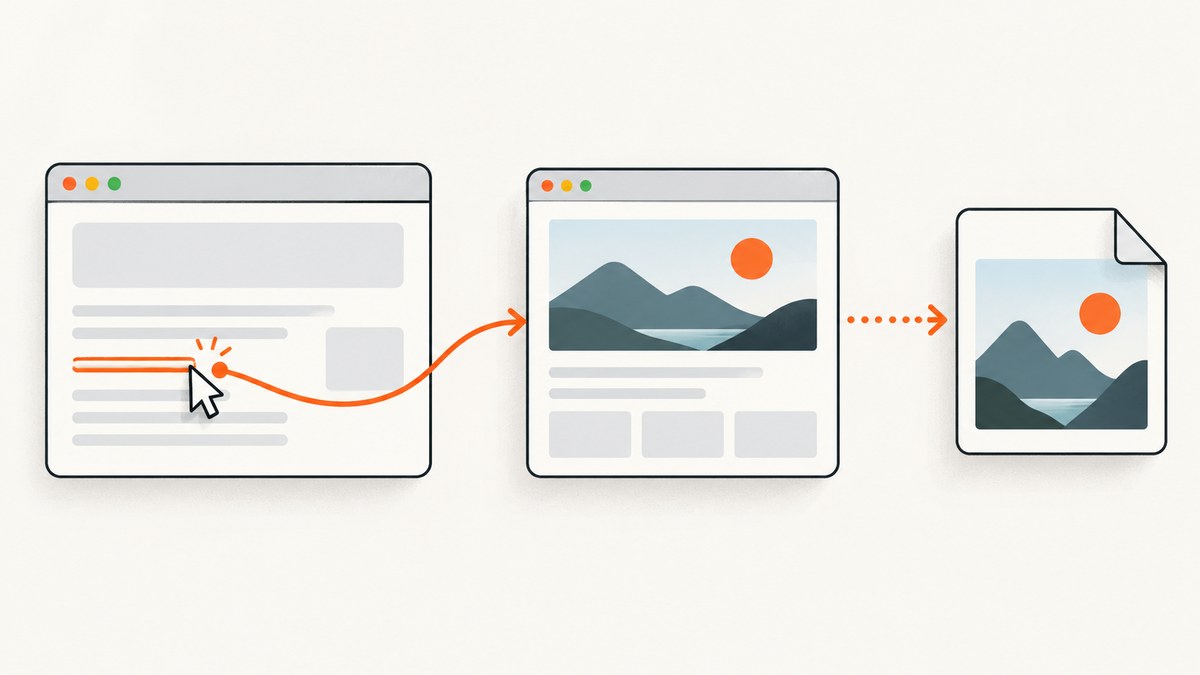
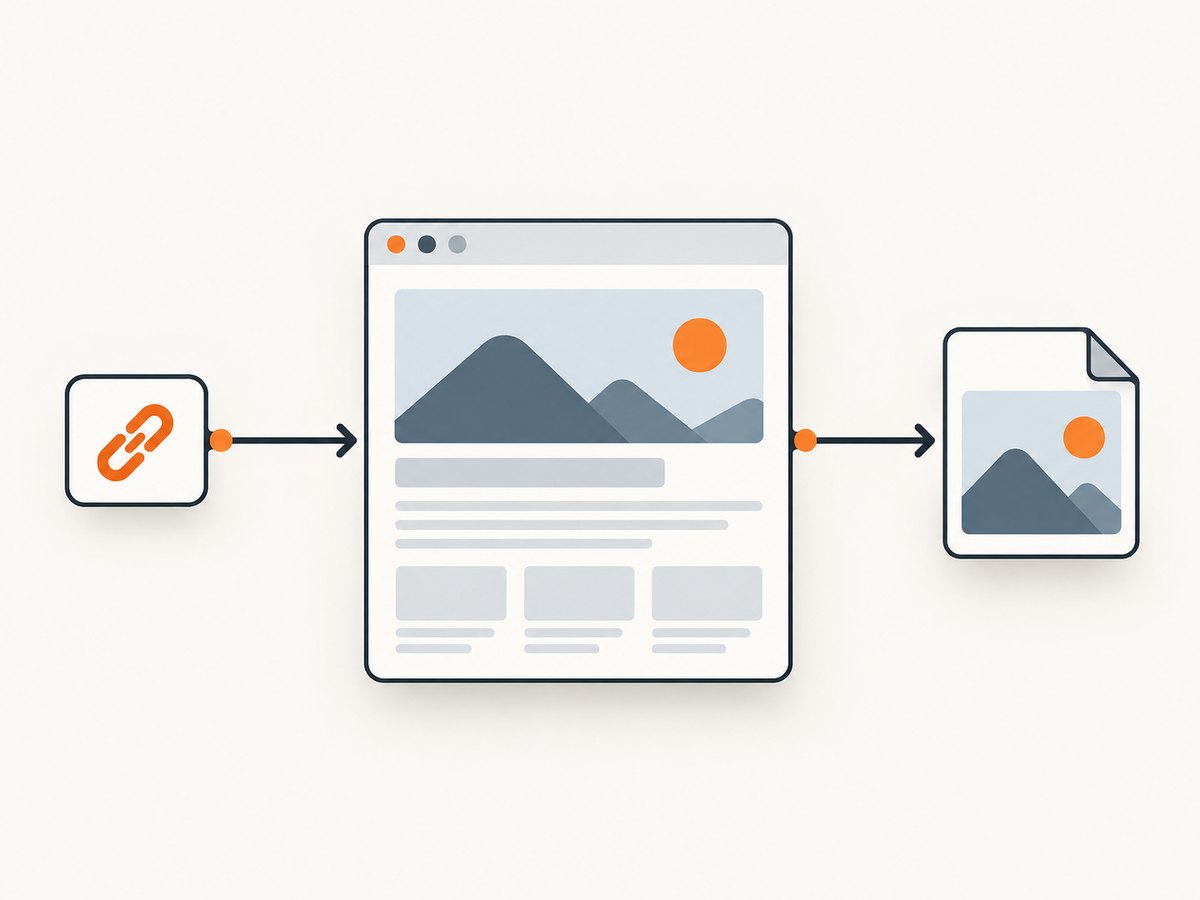
To capture an HTML link as a PNG, open the link’s destination in a browser and save a screenshot of the rendered page. For repeatable automation, navigate to the destination URL with Playwright and save a PNG with page.screenshot({ path: 'screenshot.png' }). A link is an address or reference; the screenshot captures the page the browser renders after following it, not the link text or raw HTML.
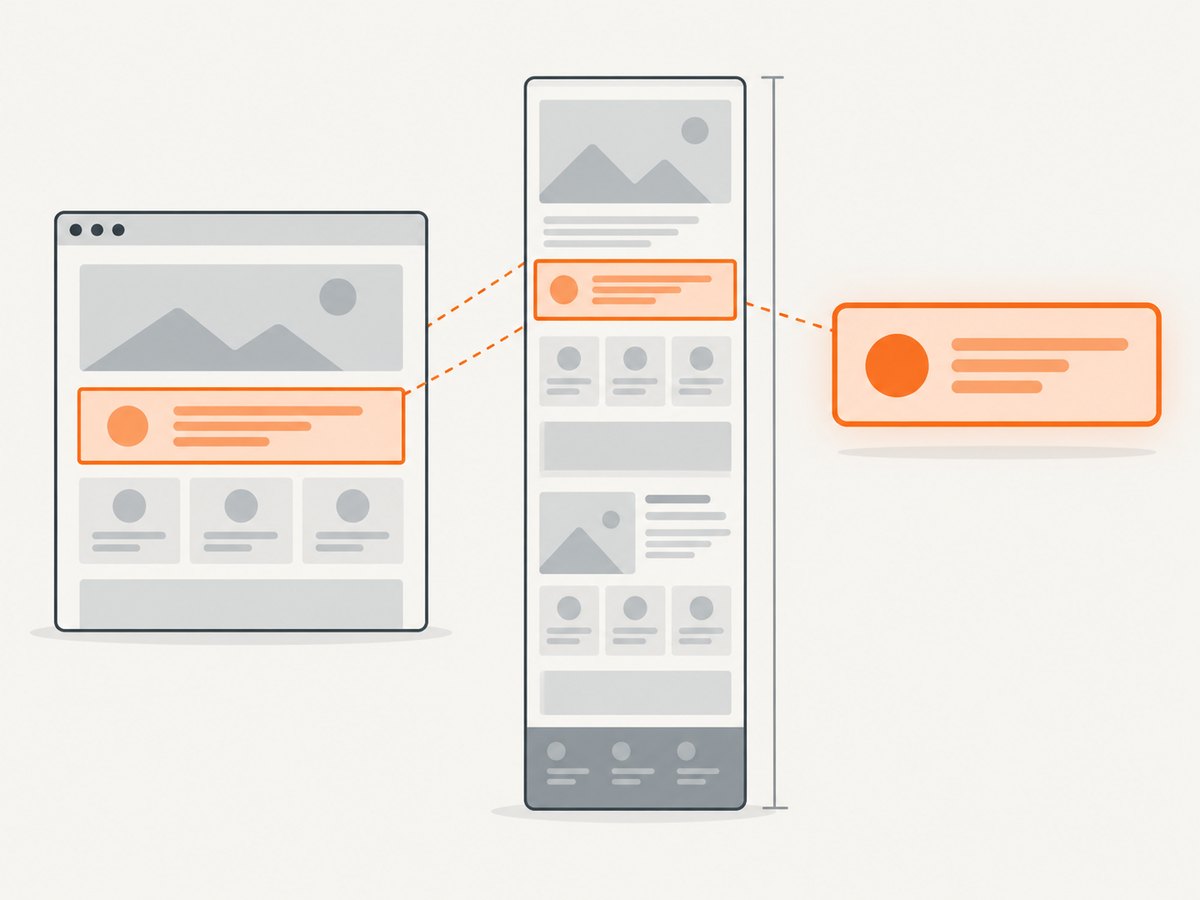
First decide what image you need: the visible browser viewport, the entire scrollable page, or one element such as a chart or card. That choice affects the capture dimensions and, for full-page images, can produce a very tall file.
1. Choose what to capture
| Capture | What it contains | Use it when |
|---|---|---|
| Viewport | The page area visible in the browser at the selected viewport size. | You need a screenshot that resembles what a visitor sees without scrolling. |
| Full page | The full scrollable page in one tall image. | You need a record of a long article, landing page, or report. |
| Element | A selected element and its rendered contents. | You need a focused image of a component rather than the surrounding page. |
Playwright supports page screenshots, full-page screenshots, and locator screenshots. Its documentation describes a full-page screenshot as the full scrollable page rendered as if it fit on a very tall screen. See the [Playwright screenshots guide](https://playwright.dev/docs/next/screenshots) and [Page API](https://playwright.dev/docs/api/class-page).
2. Capture a link manually
- Open the link in your browser. If you have the HTML source, copy the destination from the anchor’s
hrefattribute. For example, in<a href="https://example.com/report">Open report</a>, the destination ishttps://example.com/report. - Wait until the content you want is visible. Pages can load images, charts, or other content after the initial navigation.
- Use your browser or operating system’s screenshot feature to capture the visible area. To get the whole page, use a browser capture feature that supports full-page capture, or use the automated method below.
- Save or export the image as PNG. If the capture interface offers a format selector, choose PNG.
A manual viewport screenshot is often the quickest option for a one-off image. If you need the same dimensions, repeatable timing, element capture, or a batch of URLs, use browser automation or an API.
3. Automate PNG capture with Playwright
Playwright navigates to the destination URL, renders it in a browser, then saves the screenshot. The file extension selects PNG by default; the examples use an explicit type: 'png' as well so the requested format is clear. The official [Page API](https://playwright.dev/docs/api/class-page) documents navigation and screenshot options.
Install and run
With Node.js installed, create a project and add Playwright:
npm init -y
npm install playwright
npx playwright install chromium
Save this as capture-link.mjs. Replace the URL with the destination of your link:
import { chromium } from 'playwright';

const destination = 'https://example.com';
const browser = await chromium.launch({ headless: true });
const page = await browser.newPage({
  viewport: { width: 1440, height: 900 },
  deviceScaleFactor: 1
});

try {
  await page.goto(destination, { waitUntil: 'load', timeout: 60000 });
  await page.screenshot({ path: 'screenshot.png', type: 'png' });
} finally {
  await browser.close();
}
Run it with node capture-link.mjs. The output is screenshot.png in the current directory. The browser is closed in a finally block so it also shuts down if navigation or capture fails.
Capture the full page
Set fullPage: true to capture the full scrollable page:
await page.screenshot({
  path: 'full-page.png',
  type: 'png',
  fullPage: true
});
Full-page images can be extremely tall. If the page keeps adding content as you scroll, make sure the content has loaded before taking the screenshot; a capture cannot include material that the page has not rendered yet. For a very long page, consider whether several viewport captures would be more useful than one enormous image.
Capture a single element
Use a locator screenshot when only one component matters. Choose a selector that identifies the intended element uniquely:
const chart = page.locator('#revenue-chart');
await chart.screenshot({ path: 'chart.png', type: 'png' });
If the selector matches multiple elements or the element is absent, the capture will not target the component you intended. Check that the selector exists on the destination page and wait for it to appear before taking its screenshot:
await page.locator('#revenue-chart').waitFor({ state: 'visible' });
await page.locator('#revenue-chart').screenshot({
  path: 'chart.png',
  type: 'png'
});
Playwright’s [screenshots guide](https://playwright.dev/docs/next/screenshots) covers page, full-page, and element captures.
Control dimensions and image scale
The viewport sets the browser’s CSS-pixel width and height. A wider viewport can change responsive layouts, so choose dimensions that match the page state you want to document. deviceScaleFactor controls the device scale used by the browser context: a higher value can produce more image pixels per CSS pixel, which may improve legibility at the cost of a larger file.
The screenshot API also has a scale option. Playwright documents css scale as one screenshot pixel per CSS pixel and device scale as one screenshot pixel per device pixel. These settings affect output dimensions; they do not change the page’s CSS layout. Consult the [screenshot API options](https://playwright.dev/docs/api/class-page) when choosing between output size and detail.
Wait for the right visual state
Navigation finishing does not guarantee that every site-specific visual element is ready. A chart may need data, an image may load later, or a single-page application may render after navigation. Wait for a page-specific signal where possible, such as a heading or chart selector:
await page.goto(destination, { waitUntil: 'load', timeout: 60000 });
await page.getByRole('heading', { name: 'Monthly report' }).waitFor({
  state: 'visible',
  timeout: 15000
});
await page.screenshot({ path: 'report.png', type: 'png' });
Use a signal that corresponds to the content you need. A fixed delay can be useful for a known animation or delayed update, but it can also waste time or still finish too early. There is no universal wait setting that guarantees every page is visually complete.
4. Pick a PNG format and sensible output size
PNG is appropriate when the required deliverable is PNG, especially when you want a lossless raster image. Playwright supports PNG, JPEG, and WebP screenshot types; the API can infer the type from the filename extension. See the [Playwright Page API](https://playwright.dev/docs/api/class-page).
- Use
type: 'png'or a.pngpath when PNG is required. - Set a deliberate viewport rather than accepting dimensions that may vary across runs.
- Use the CSS or device scale that fits the intended use: pixel dimensions, legibility, and file size all matter.
- Use element capture for a component when the rest of the page is irrelevant.
A PNG file can be larger than a lossy image of the same page. If another format is acceptable and transfer size matters, Playwright also supports JPEG and WebP. Do not silently change formats when a PNG is required.
5. Common errors and fixes
| Symptom | Likely cause | Fix |
|---|---|---|
| Navigation times out | The site is slow, unreachable, or waiting never reaches the selected lifecycle event. | Check that the destination is correct and reachable from the machine running the script. Increase the timeout for a slow page, then wait for the specific content you need rather than assuming a different wait mode suits every site. |
| Screenshot is blank or missing content | The page has not rendered the target content yet, or a script or resource failed. | Wait for a relevant visible selector; inspect the page in a browser and check whether the content appears at all. A screenshot only records what the browser rendered. |
| Element capture fails | The selector does not match, matches the wrong element, or the element is not visible. | Verify the selector against the destination page and wait for the intended element to become visible before capturing. |
| Image has the wrong dimensions | The viewport, full-page setting, or device scale differs from the intended output. | Set viewport dimensions explicitly, decide whether the capture is full-page, and set the device scale deliberately. |
| PNG is unexpectedly large | The page is long, the viewport is wide, or the device scale is high. | Capture only the needed element or viewport, reduce the dimensions or scale when acceptable, or choose another supported format if PNG is not required. |
| Browser executable is missing | Playwright package is installed but its browser binary is not available. | Run npx playwright install chromium for the browser used in the example. |
For diagnosis, separate three questions: did navigation reach the intended URL, did the target content render, and did the screenshot operation save the expected path and format? That narrows the problem before changing timeouts or selectors.
6. Performance, reliability, and cost
Browser automation gives you control over viewport, selectors, timing, and browser context, but your workflow must start and manage a browser. Reusing a browser process for several captures can avoid repeated startup overhead; keep each page’s state and output path separate so captures do not overwrite one another. For concurrent work, size concurrency to the memory and CPU available to the machine and the load the target sites can handle.
Reliability depends on the destination as well as the script. Network failures, redirects, bot checks, changing page layouts, and delayed client-side content can affect the result. Use explicit timeouts, page-specific readiness checks, and error handling. For a production pipeline, log the destination, capture dimensions, and failure reason so that a failed page can be distinguished from a bad selector or output-path problem.
Playwright is software you run; account for the machine or hosted environment that runs it, plus the time spent maintaining browser dependencies and capture code. A hosted screenshot API shifts browser operation to a service and may price by usage. Compare the actual limits and billing rules before selecting a workflow.
7. Or skip the browser setup
ScreenshotNeo is a website screenshot API and MCP server. Send one GET request with the destination URL to receive an image or PDF. Its clean-capture steps accept cookie and consent banners like a visitor and remove 60+ known consent platforms, newsletter popups, and chat widgets; each step can be turned off. Bot checks and CAPTCHAs, blank pages, timeouts, failed loads, and cache hits cost nothing, and the response identifies the page verdict and billing status in headers.
For a PNG capture, use the API’s format option. This example follows the supplied one-call pattern and targets the page at the link destination:
curl -G "https://api.screenshotneo.com/v1/shot" \
  -d access_key=YOUR_API_KEY \
  --data-urlencode url=https://example.com \
  -d format=png \
  -o screenshot.png
See the ScreenshotNeo API documentation for request options and account setup. The API also supports full-page capture, CSS selector element capture, device presets and custom viewports, retina scale, custom CSS and JavaScript, selector or delay waits, custom headers and cookies, and more. An MCP server exposes take_screenshot, get_page_info, and capture_pdf for Claude, Cursor, and other MCP clients.
ScreenshotNeo’s Free plan includes 1,000 shots per month with no card. Paid plans start at $5 for 3,000 shots; the published tiers also include Growth at $15 for 15,000, Pro at $39 for 60,000, Scale at $99 for 250,000, and Business at $249 for 1,000,000. Yearly billing gives two months free, and every feature is on every plan. For the free account, sign up for 1,000 screenshots a month with no card.
8. FAQ
Does capturing an HTML link mean saving the anchor itself?
Usually, no. The practical meaning is to capture the rendered destination page opened by following the link. If you need an image of the link’s text or markup, capture the relevant element or render the HTML separately.
Can I capture a link without opening it manually?
Yes. Pass its destination URL to Playwright or a screenshot API. Automation still needs a browser or service to render the destination.
Will a full-page PNG include content that loads only when I scroll?
Not necessarily. Pages that lazy-load content may need to be scrolled or otherwise prompted to load it before capture. Verify that the content is present in the rendered page before relying on the image.
Can I save only a chart or a card as PNG?
Yes. With Playwright, take a locator screenshot of the element. Make sure the selector targets the intended, visible element.
Which scale should I use?
Use CSS scale for one screenshot pixel per CSS pixel. Use device scale when you need pixels at the browser’s device scale and can accept a larger image. Check the output dimensions against the image’s intended use.


