How to Capture a Screenshot of an HTML Section
Capture one rendered HTML section with Playwright or Puppeteer, handle hidden and scrollable content, and compare element, full-page, and API workflows.
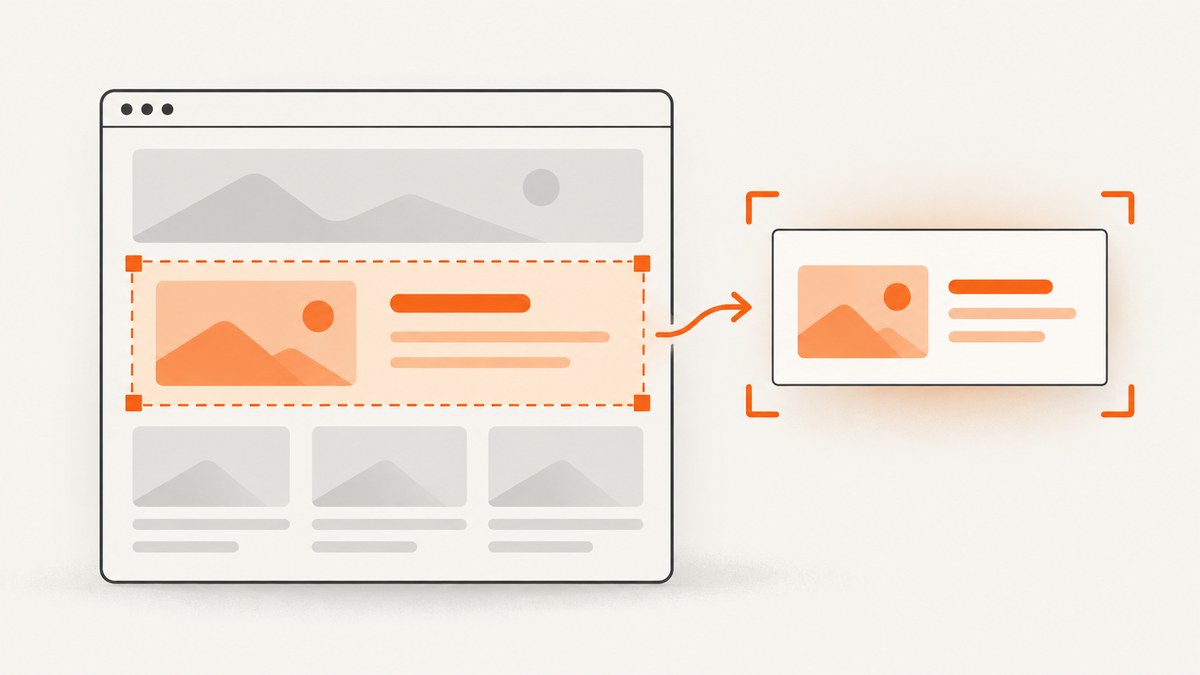
To capture one HTML section, select the element and call Playwright’s locator screenshot method:
await page.locator('.report-section').screenshot({ path: 'section.png' });This captures the rendered bounds of the matching element after Playwright checks that it can interact with the element and scrolls it into view. Use a stable selector such as an ID, component class, test ID, or accessible locator instead of assuming the first <section> on the page is the right one.
The same task in Puppeteer uses an element handle:
const section = await page.waitForSelector('.report-section');
await section.screenshot({ path: 'section.png' });
Playwright recommends locator-based code for new implementations because the locator describes how to find the element, while an element handle refers to one particular DOM object.
1. Capture a section with Playwright
Install Playwright and its browser binaries:
npm install -D playwright
npx playwright install chromium
Create capture-section.mjs:
import { chromium } from 'playwright';

const browser = await chromium.launch();
const page = await browser.newPage({ viewport: { width: 1440, height: 900 } });

await page.goto('https://example.com', { waitUntil: 'networkidle' });
const section = page.locator('.report-section');
await section.waitFor();
await section.screenshot({ path: 'section.png', type: 'png' });

await browser.close();
Run it with node capture-section.mjs. Replace the URL and selector with values from your page. The locator must resolve to the intended element; if it matches multiple elements, refine it with a more specific selector or use a locator filter.
Useful locator choices
// CSS selector
page.locator('#pricing .plan-card')

// Test ID
page.getByTestId('report-summary')

// Accessible role and name
page.getByRole('region', { name: 'Revenue summary' })

// Text combined with a structural selector
page.locator('section').filter({ hasText: 'Revenue summary' })
Prefer selectors that remain stable when layout and styling change. A dedicated test ID is often safer than a generated class name.
2. Capture a section with Puppeteer
Install Puppeteer:
npm install puppeteerCreate capture-section-puppeteer.mjs:
import puppeteer from 'puppeteer';

const browser = await puppeteer.launch();
const page = await browser.newPage();
await page.setViewport({ width: 1440, height: 900 });
await page.goto('https://example.com', { waitUntil: 'networkidle2' });

const section = await page.waitForSelector('.report-section');
if (!section) throw new Error('The section was not found');
await section.screenshot({ path: 'section.png', type: 'png' });

await browser.close();
Puppeteer attempts to scroll a hidden element into view before taking the screenshot. Keep the browser and page open until the file is written.
3. Wait for the section to be ready
Finding an element does not guarantee that its content has finished rendering. Wait for a selector, a state change, or a known piece of text before capture:
await page.goto('https://example.com/dashboard', { waitUntil: 'domcontentloaded' });
await page.locator('.report-section').waitFor({ state: 'visible' });
await page.locator('.report-section .chart').waitFor({ state: 'attached' });
await page.locator('.report-section').screenshot({ path: 'section.png' });
For data loaded after navigation, wait on the application condition rather than adding an arbitrary long delay. If the page has animations, disable or finish them before capture so the output is repeatable. Playwright’s screenshot API also documents options for image type, scale, animations, masks, background handling, and styles; check the API reference for the version installed in your project.
4. Element screenshots versus full-page screenshots
| Goal | Method | What is captured |
|---|---|---|
| One component or section | locator.screenshot() |
The rendered bounds of the matched element |
| Entire scrollable document | page.screenshot({ fullPage: true }) |
The full page, including content below the viewport |
| Custom crop or post-processing | Screenshot to a buffer | Image bytes returned to your program |
await page.screenshot({ path: 'full-page.png', fullPage: true });

const bytes = await page.locator('.report-section').screenshot();
await fs.promises.writeFile('section.png', bytes);
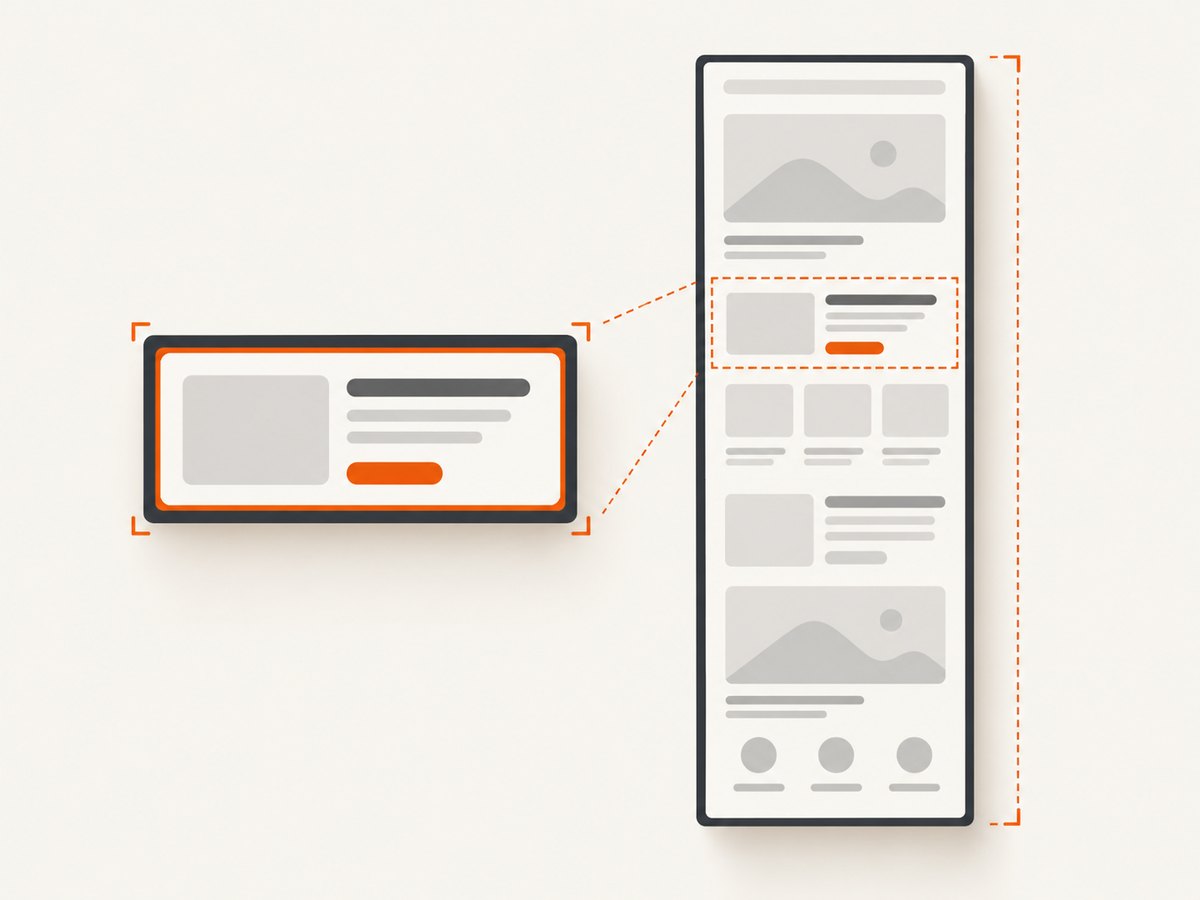
Use an element screenshot when the output should contain one component. Use a full-page shot when the requirement is the whole document. Cropping a full-page image later can include extra whitespace and makes responsive layout changes harder to reason about.
5. Important edge cases
Scrollable sections
If the target is an independently scrollable container, the screenshot represents the content currently visible inside that container. It is not automatically a capture of every offscreen descendant. To capture all content, remove the container’s height and overflow temporarily, or scroll and capture each portion deliberately.
Covered or obscured elements
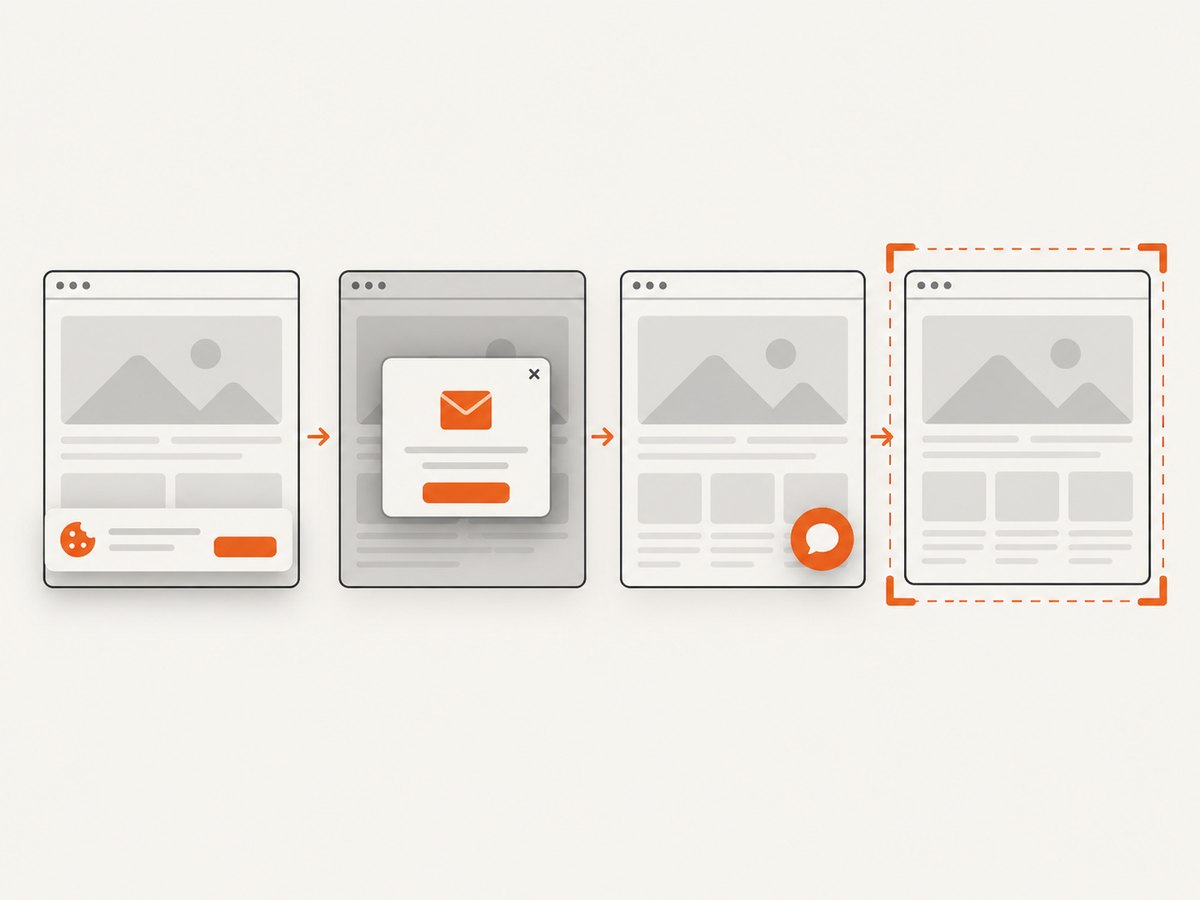
A cookie dialog, modal, sticky header, chat widget, or other overlay can cover part of the target. The screenshot reflects what is rendered, so the element may not appear unobstructed. Close the overlay or hide it before capture.
Lazy-loaded images
Scroll the target into view and wait for its images to finish loading. You can also wait for each image’s complete property:
await page.locator('.report-section').evaluate(async (node) => {
  const images = [...node.querySelectorAll('img')];
  await Promise.all(images.map((img) => img.complete
    ? undefined
    : new Promise((resolve) => {
        img.addEventListener('load', resolve, { once: true });
        img.addEventListener('error', resolve, { once: true });
      })));
});
await page.locator('.report-section').screenshot({ path: 'section.png' });
Shadow DOM and iframes
Use Playwright locators that can pierce open shadow DOM when selecting components. Content inside a cross-origin iframe belongs to a different document; locate the frame first and then select the element inside it. A selector in the parent page cannot directly match nodes inside that iframe.
Fonts and responsive layout
Set the viewport explicitly and wait for fonts before capture:
await page.evaluate(() => document.fonts?.ready);
await page.locator('.report-section').screenshot({ path: 'section.png' });
Without a fixed viewport, a different runner or CI machine can produce a different line wrap and element size.
6. Output options and post-processing
PNG is lossless and useful for UI comparisons. JPEG is smaller for photographic content but loses detail. WebP can reduce size when your consumer supports it. Playwright can save directly to a path or return a buffer for further processing. Keep the output extension aligned with the selected image type.
For visual regression, keep the browser version, viewport, device scale factor, fonts, locale, and timezone consistent. Mask dynamic regions or hide timestamps before capture when the comparison should ignore them.
7. Troubleshooting
| Error or symptom | Likely cause | Fix |
|---|---|---|
| Locator resolved to no elements | Selector is wrong or content has not rendered | Inspect the DOM, use a stable selector, and wait for the section or its data. |
| Strict mode violation | Selector matches more than one element | Make the locator specific or select the intended occurrence explicitly. |
| Timeout while waiting | Navigation, API request, consent dialog, or app error never completed | Check the page in the same environment, wait on a precise condition, and handle failed requests. |
| Section is clipped | The element or an ancestor has fixed height and overflow scrolling | Capture the visible viewport intentionally or temporarily change overflow and height. |
| Popup appears in the image | Overlay is still present | Close it, remove it with test-only CSS, or mask the area. |
| Blank or missing images | Lazy loading or web fonts are incomplete | Scroll into view and wait for images and document.fonts.ready. |
| Different output in CI | Viewport, scale, fonts, browser, or locale differs | Pin those settings and use the same browser build. |
| Puppeteer handle is null | waitForSelector timed out or returned no match |
Verify the selector and navigation state before calling screenshot. |
8. Performance, reliability, and cost
Launching a browser for every section is expensive. Reuse one browser process, create isolated pages or contexts, and close each page after capture. Navigate only once when several sections come from the same document. Avoid unnecessary fixed delays; condition-based waits reduce idle time.
For reliable automation, record the URL, selector, viewport, browser version, and wait condition with each artifact. Retry transient navigation failures with a bounded retry policy, but do not hide deterministic selector or application errors behind retries.
Self-hosted Playwright and Puppeteer cost compute, browser maintenance, and engineering time. An API can be simpler when captures run from jobs, serverless functions, or multiple environments.
9. Or skip the browser setup
ScreenshotNeo is a website screenshot API that can capture a URL as PNG, JPEG, WebP, or PDF. It supports capturing one element by CSS selector, so you can request the section without maintaining Playwright or Puppeteer. See the ScreenshotNeo API documentation for the selector option and other request settings.
curl -G "https://api.screenshotneo.com/v1/shot" -d access_key=YOUR_API_KEY --data-urlencode url=https://example.com -o section.webpimport requests
r = requests.get("https://api.screenshotneo.com/v1/shot", params={"access_key": "YOUR_API_KEY", "url": "https://example.com"}, timeout=90)
open("section.webp", "wb").write(r.content)const q = new URLSearchParams({ access_key: 'YOUR_API_KEY', url: 'https://example.com' });
const res = await fetch(`https://api.screenshotneo.com/v1/shot?${q}`);Before capture, ScreenshotNeo accepts cookie and consent banners and removes more than 60 known consent platforms, newsletter popups, and chat widgets; each step can be turned off. Bot checks, blank pages, timeouts, failed loads, and cache hits are not billed, and the response identifies the result with X-Page-Verdict and X-Billed headers. It also provides an MCP server with take_screenshot, get_page_info, and capture_pdf tools for AI agents.
The Free plan includes 1,000 screenshots per month with no card. Paid plans start at $5 for 3,000 screenshots, and every feature is available on every plan. Create a free ScreenshotNeo account.
10. FAQ
Can I screenshot only a div?
Yes. A div, section, article, card, or any other rendered element can be selected with a Playwright locator or Puppeteer element handle.
Does an element screenshot include content below the viewport?
Only if that content is part of the element’s rendered bounds. An independently scrollable container contributes its currently scrolled content.
Should I use Playwright or Puppeteer?
Use the framework already used by your project. For new Playwright code, prefer locator.screenshot(); Puppeteer uses ElementHandle.screenshot().
Can I return image bytes instead of writing a file?
Yes. Omit the path in Playwright and use the returned buffer, or write it to your own storage.
How do I capture a complete page instead?
Use Playwright’s page.screenshot({ fullPage: true }) option rather than selecting one element.


