How to Capture an HTML Table with Node.js
Learn when to use Cheerio or Puppeteer to capture HTML tables with Node.js, extract structured data, handle dynamic pages, and troubleshoot failures.
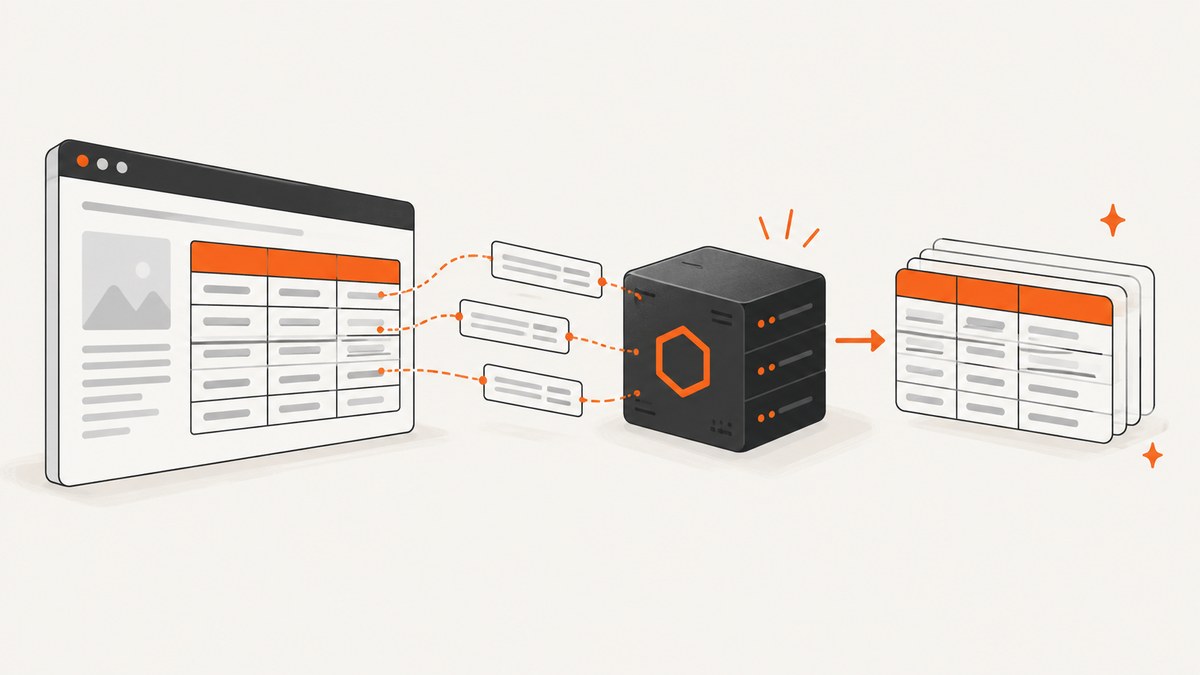
Use Cheerio when the table is present in the server response. Use Puppeteer when JavaScript, scrolling, clicking, or other browser interaction creates the table. Cheerio parses supplied HTML but does not run page JavaScript. Puppeteer launches or connects to a browser, waits for the rendered page, and then extracts the table.
The key question is whether the table exists in the initial HTML. If you can see its <table> markup in the response body, fetch the page and parse it with Cheerio. If the response contains an empty container and JavaScript fills it later, use browser automation such as Puppeteer. Cheerio’s documentation summarizes the distinction plainly: “Cheerio is not a web browser.” Cheerio introduction
Choose the right extraction method
| Page behavior | Recommended method | Reason |
|---|---|---|
| Table markup is in the HTTP response | Node.js fetch plus Cheerio |
Fast, lightweight parsing without a browser. |
| Table is inserted by client-side JavaScript | Puppeteer | Loads the page and executes scripts before extraction. |
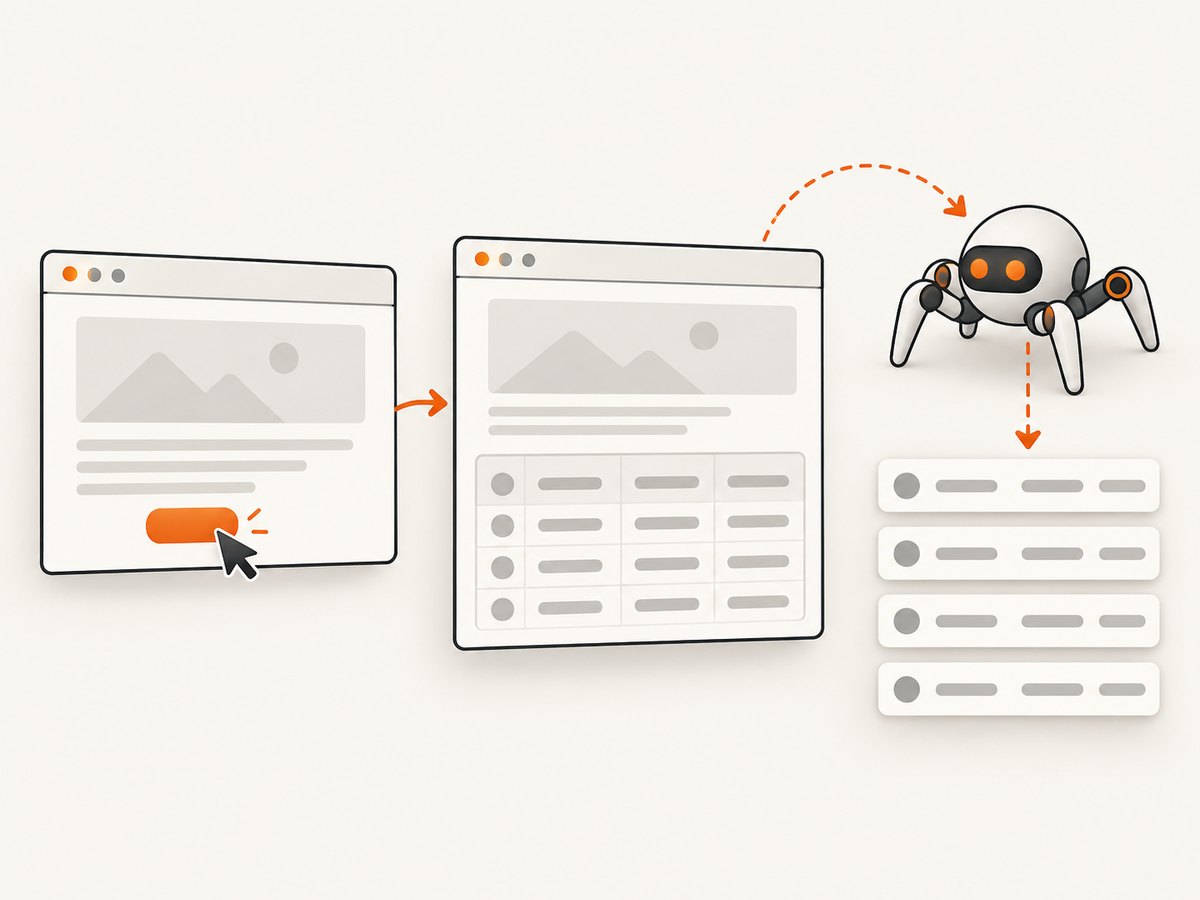
| Table appears after a click, filter, login, or pagination action | Puppeteer | Can interact with the rendered page and wait for navigation or selectors. |
| You already have an HTML string or file | Cheerio | Pass the markup directly to the parser. |
Capture a table from static HTML with Cheerio
Install Cheerio in an ESM project:
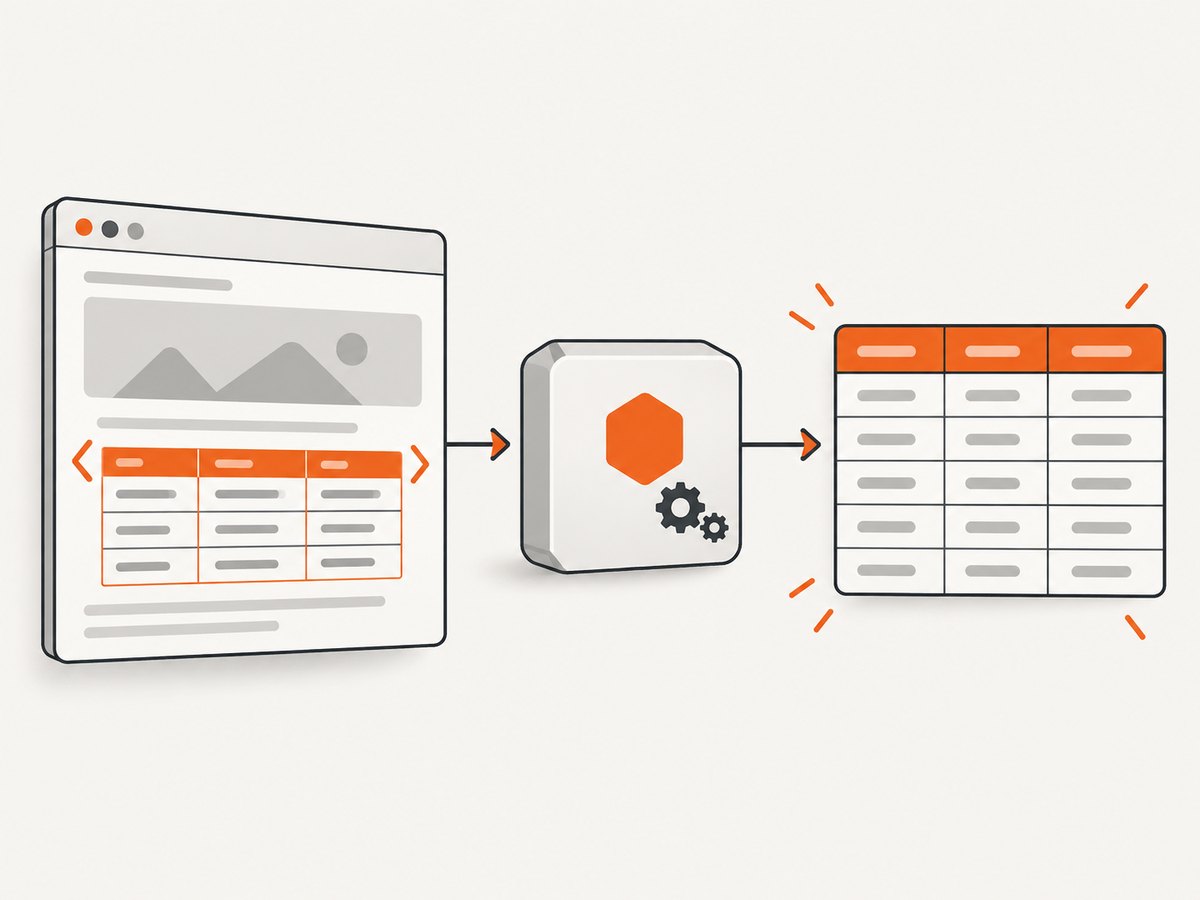
npm install cheerioSet type to module in package.json, or use the equivalent CommonJS import for your project. The following complete script fetches a page, checks the HTTP response, selects a specific table, and returns every header and data cell as trimmed text.
import * as cheerio from 'cheerio';

const response = await fetch('https://example.com/data');
if (!response.ok) {
  throw new Error(`Request failed: ${response.status} ${response.statusText}`);
}

const html = await response.text();
const $ = cheerio.load(html);

const rows = $('table#results tr').map((_, row) =>
  $(row).find('th, td').map((_, cell) => $(cell).text().trim()).get()
).get();

console.log(rows);
Replace table#results with a selector that identifies the intended table. Prefer an ID, a meaningful class, or a selector scoped to a known section instead of selecting the first <table> on the page. Cheerio documents CSS selection and traversal in its selector guide.
Return objects keyed by the header row
The basic mapping returns arrays. For application code, convert a header row and data rows into objects. This version handles a header row made of th elements and skips rows whose cell count does not match.
import * as cheerio from 'cheerio';

const response = await fetch('https://example.com/data');
if (!response.ok) throw new Error(`HTTP ${response.status}`);

const $ = cheerio.load(await response.text());
const table = $('table#results');
const headers = table.find('thead tr').first().find('th, td')
  .map((_, cell) => $(cell).text().trim())
  .get();

const records = table.find('tbody tr').map((_, row) => {
  const values = $(row).find('th, td').map((_, cell) => $(cell).text().trim()).get();
  if (values.length !== headers.length) return null;
  return Object.fromEntries(headers.map((header, index) => [header, values[index]]));
}).get().filter(Boolean);

console.log(JSON.stringify(records, null, 2));
Preserve links, attributes, and raw HTML
text() intentionally discards markup. Extract attributes explicitly when a table contains links, images, or data attributes.
const cells = $('table#results tbody tr').map((_, row) => {
  return $(row).find('th, td').map((_, cell) => ({
    text: $(cell).text().trim(),
    href: $(cell).find('a').attr('href') ?? null,
    dataId: $(cell).attr('data-id') ?? null,
    html: $(cell).html() ?? ''
  })).get();
}).get();
Handle colspan and rowspan deliberately
A simple row-to-array conversion does not expand colspan or rowspan. If those attributes matter, normalize the grid yourself. Track occupied column positions for row spans, place each cell in the next free position, and repeat a spanning value across the requested columns or rows according to your output contract. Do not assume the first row is the complete schema when a table has multiple header rows.
Capture a JavaScript-rendered table with Puppeteer
Install Puppeteer:
npm install puppeteerPuppeteer normally downloads a compatible Chrome during installation. If your package manager blocks install scripts, that browser download can be skipped. puppeteer-core does not download Chrome; use it only when you manage a browser executable or connect to a remote browser. See the Puppeteer installation guide.
This script waits for the table selector, evaluates the rendered DOM, and extracts rows after page JavaScript has run.
import puppeteer from 'puppeteer';

const browser = await puppeteer.launch({ headless: true });
try {
  const page = await browser.newPage();
  await page.goto('https://example.com/dashboard', {
    waitUntil: 'networkidle2',
    timeout: 60000
  });
  await page.waitForSelector('table#results', { timeout: 30000 });

  const rows = await page.$$eval('table#results tr', tableRows =>
    tableRows.map(row =>
      Array.from(row.querySelectorAll('th, td'), cell => cell.textContent.trim())
    )
  );

  console.log(rows);
} finally {
  await browser.close();
}
Page.content() can return the full rendered HTML, including the document type. You can either evaluate a selector directly, as above, or obtain that HTML and pass it to Cheerio when you want to reuse the same parser and normalization code.
Click before extracting
If a control loads the table, wait for the click and navigation together. This avoids a race where navigation starts before your script begins waiting.
await Promise.all([
  page.waitForNavigation({ waitUntil: 'networkidle2', timeout: 60000 }),
  page.click('button[data-view="all-results"]')
]);
await page.waitForSelector('table#results');
If the click updates the current document without navigation, wait for the resulting selector or a page-specific condition instead:
await page.click('button[data-view="all-results"]');
await page.waitForFunction(() => document.querySelectorAll('table#results tbody tr').length > 0);
Extract structured records in the browser
const records = await page.$$eval('table#results', tables => {
  const table = tables[0];
  const headers = Array.from(table.querySelectorAll('thead th, thead td'), cell => cell.textContent.trim());
  return Array.from(table.querySelectorAll('tbody tr')).map(row => {
    const values = Array.from(row.querySelectorAll('th, td'), cell => cell.textContent.trim());
    return Object.fromEntries(headers.map((header, index) => [header, values[index] ?? null]));
  });
});
Use a shared extractor for Cheerio and Puppeteer
Keep page acquisition separate from table normalization. That lets you switch from static fetching to browser rendering without rewriting the output logic.
export function rowsToRecords(rows) {
  if (rows.length === 0) return [];
  const headers = rows[0];
  return rows.slice(1).map(values =>
    Object.fromEntries(headers.map((header, index) => [header, values[index] ?? null]))
  );
}
For static HTML, pass the Cheerio row arrays to rowsToRecords. For dynamic pages, pass the arrays returned by page.$$eval. Add validation for required headers before writing data to a database or downstream API.
Node.js runtime and parser details
- Node.js global
fetchwas added in Node.js v17.5.0 and v16.15.0 and became stable in Node.js v21.0.0. Check the runtime used in deployment rather than assuming it matches local development. See the Node.js fetch documentation. - Cheerio uses
parse5by default and follows HTML parsing rules. It also supportshtmlparser2for cases where different parsing behavior or performance characteristics are appropriate. Review Cheerio configuration before changing the parser. - Cheerio receives markup; it does not execute JavaScript, apply browser layout, or perform clicks.
- Use a timeout and check response status for every network request. An HTTP 200 response can still contain an error page without the expected table.
Or skip the browser setup
If your goal is a screenshot or PDF of the table rather than structured cell data, ScreenshotNeo provides a single GET request. It can load a page, wait for a selector or delay, click an element, capture one element by CSS selector, or capture the full page with lazy images loaded. Cookie banners, newsletter popups, and chat widgets are removed before the shot. Bot checks, blank pages, timeouts, failed loads, and cache hits are not billed, and the response reports the page verdict and billing status in X-Page-Verdict and X-Billed headers.
curl -G 'https://api.screenshotneo.com/v1/shot' -d access_key=YOUR_API_KEY --data-urlencode url=https://stripe.com -o shot.webpimport requests
r = requests.get('https://api.screenshotneo.com/v1/shot', params={'access_key': 'YOUR_API_KEY', 'url': 'https://stripe.com'}, timeout=90)
r.raise_for_status()
open('shot.webp', 'wb').write(r.content)const q = new URLSearchParams({ access_key: 'YOUR_API_KEY', url: 'https://stripe.com' });
const res = await fetch(`https://api.screenshotneo.com/v1/shot?${q}`);
if (!res.ok) throw new Error(`Screenshot failed: ${res.status}`);
const image = Buffer.from(await res.arrayBuffer());
await fs.promises.writeFile('shot.webp', image);See the ScreenshotNeo API documentation for the complete option list, including full-page and element capture, dark mode, device presets, custom viewport and retina scale, custom CSS and JavaScript, selector waits, network-idle waits, blocked resource types, headers, cookies, user agents, authorization, timezone, geolocation, transparent backgrounds, resizing, caching, signed links, asynchronous jobs, webhooks, bulk capture, usage reporting, and PDF output.
An MCP server also exposes take_screenshot, get_page_info, and capture_pdf to Claude, Cursor, and other MCP clients. The Free plan includes 1,000 shots each month with no card; paid plans start at $5 for 3,000 shots. Create a free ScreenshotNeo account.
Troubleshooting
| Symptom | Likely cause | Fix |
|---|---|---|
| Rows array is empty | The selector does not match, or the table is created by JavaScript. | Inspect the response HTML, verify the selector, or switch to Puppeteer and wait for the table. |
| Expected table is missing from fetched HTML | The page is a client-rendered application. | Use browser automation, or call the underlying data endpoint if the application exposes one. |
fetch is not defined |
Older Node.js runtime. | Upgrade Node.js or add an HTTP client supported by your project. |
| Puppeteer cannot launch Chrome | Browser download was skipped, executable path is unavailable, or the environment lacks required libraries. | Allow Puppeteer’s install step, install a compatible browser, or configure puppeteer-core with a managed executable. |
waitForSelector times out |
Wrong selector, slow page, consent overlay, or failed navigation. | Confirm the selector in DevTools, increase the timeout only when justified, wait for the relevant state, and inspect the final URL and HTML. |
| Click hangs while navigation occurs | Navigation waiting started after the click. | Use Promise.all with waitForNavigation and click together. |
| Text is duplicated or malformed | Nested elements, hidden labels, or responsive duplicate markup. | Target the intended cells, inspect textContent, and remove hidden or duplicate nodes explicitly. |
| Columns are shifted | colspan, rowspan, multiple header rows, or missing cells. |
Normalize spans and define how missing cells map to your schema before extraction. |
| HTTP request returns an error page with status 200 | Authentication, bot protection, or application-level failure. | Check the page title and required selector, supply appropriate authentication in an authorized environment, and fail when the expected table is absent. |
Performance, reliability, and cost
- Prefer Cheerio for static pages. It avoids browser startup and is usually the simplest path for batch extraction.
- Reuse a Puppeteer browser. Launching one browser per URL is expensive. Keep one browser process and create or recycle pages, while limiting concurrency to what the machine can support.
- Wait for the smallest reliable condition. A specific table selector is often faster and more deterministic than waiting for every network request to become idle.
- Set bounded timeouts. Use separate limits for navigation and selector waits, then record the URL, status, final URL, and failure reason.
- Validate the schema. Require expected headers and a sensible row count so a changed layout does not silently produce bad data.
- Use retries carefully. Retry transient network failures with backoff, but do not repeatedly retry deterministic selector errors or authentication failures.
- Estimate browser cost. Browser automation consumes more CPU and memory than parsing HTML. For large jobs, queue work, cap parallel pages, and monitor memory.
- Control API spend. With ScreenshotNeo, only clean shots are billed; bot checks, blank pages, timeouts, failed loads, and cache hits cost nothing. A chosen cache TTL can reduce repeated captures.
FAQ
Can Cheerio capture a table that appears after scrolling?
No. Cheerio only parses the markup supplied to it. Use Puppeteer for browser scrolling and lazy-rendered content, or obtain the data from the page’s request endpoint when that is available and authorized.
Should I extract HTML or visible text?
Extract text for a simple dataset. Extract links, attributes, or cell HTML separately when those values are part of the required output. Define a schema before parsing complex tables.
Is Puppeteer required for every table?
No. It is appropriate when JavaScript or interaction is necessary. Static HTML should generally use Cheerio because it has less setup and lower runtime overhead.
Can I capture only one table for a screenshot?
Yes. ScreenshotNeo supports capturing one element by CSS selector, along with full-page capture and waits. Use the selector for the table or its containing element in the request options documented at the API docs.


