How to Capture HTML5 Video Frames in a Cordova iOS App
Learn why video-to-canvas is limited in Cordova iOS, how to test it safely, and when to use a native plugin or WebView snapshot.
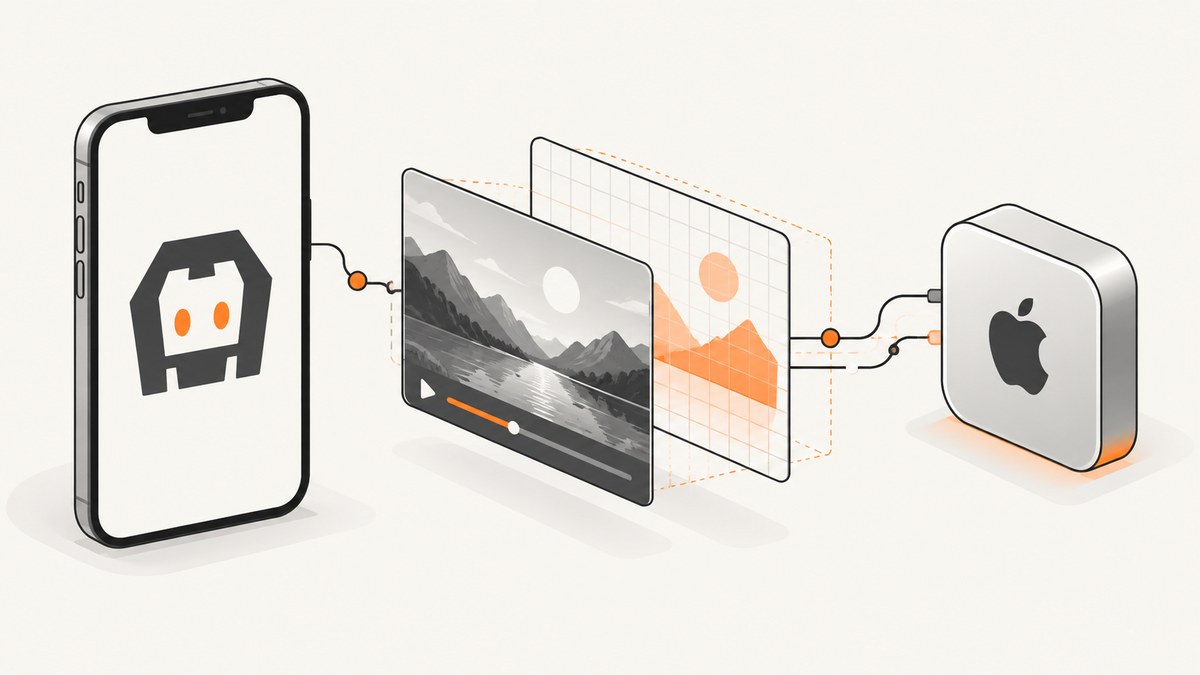
Short answer: do not assume that ctx.drawImage(video, 0, 0) can capture an HTML5 video frame in a Cordova iOS app. Apple’s WebKit JavaScript documentation says using a video element as the source for drawImage is not supported in Safari on iOS. Because Cordova renders its interface in an iOS WebView, treat video-to-canvas as unsupported until you verify the exact iOS, Cordova, and WebView versions your app supports.
If the browser route fails, use a native Cordova plugin that extracts a frame and returns binary data to JavaScript. A WKWebView snapshot is another option when you need an image of the rendered WebView, but Apple documents it as a WebView screenshot API, not as a reliable decoded-video-frame extraction API.
1. Decide what you actually need
There are three different outputs developers often call a “video frame.” Choose the one that matches your requirement:
| Requirement | Best starting point | Important limitation |
|---|---|---|
| Pixels from the decoded HTML5 video at a specific time | Try canvas conditionally; plan a native plugin fallback | Apple documents video-to-canvas as unsupported in Safari on iOS |
| A screenshot of the whole Cordova WebView | WKWebView.takeSnapshot through native code |
The result is page contents, not a guaranteed isolated video frame |
| A frame extracted from a local or remote media file | Native iOS media implementation exposed through a Cordova plugin | You must handle the media source, timing, codecs, and binary transfer |
2. Test the canvas route as a conditional experiment
In browsers where video drawing is supported, the general pattern is:
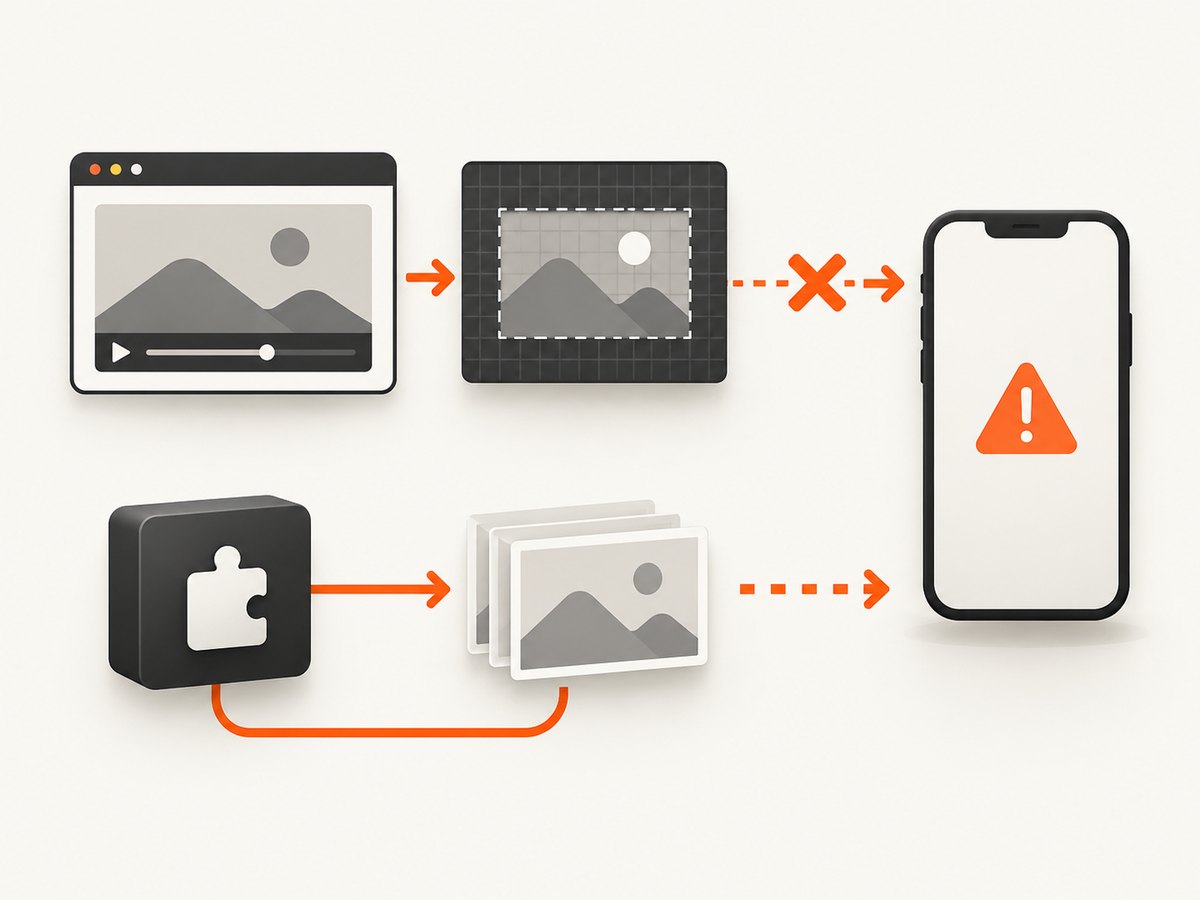
- Wait until the video has intrinsic dimensions.
- Size the canvas to
video.videoWidthandvideo.videoHeight. - Draw the current decoded frame.
- Serialize the canvas with
toDataURLor another canvas export method.
Apple’s WebKit drawImage reference explicitly includes the iOS Safari limitation: “Use of the video element is not supported in Safari on iOS, however.” The following code is therefore a compatibility probe, not a guaranteed Cordova solution.
function drawCurrentFrame(video, canvas) {
  if (!video.videoWidth || !video.videoHeight) {
    throw new Error("Video dimensions are not available yet");
  }

  canvas.width = video.videoWidth;
  canvas.height = video.videoHeight;

  const context = canvas.getContext("2d");
  if (!context) {
    throw new Error("A 2D canvas context is unavailable");
  }

  context.drawImage(video, 0, 0, canvas.width, canvas.height);
  return canvas.toDataURL("image/png");
}

const video = document.querySelector("video");
const canvas = document.querySelector("canvas");

video.addEventListener("loadedmetadata", () => {
  video.currentTime = 0;
});

video.addEventListener("seeked", () => {
  try {
    const dataUrl = drawCurrentFrame(video, canvas);
    console.log(dataUrl.slice(0, 32));
  } catch (error) {
    console.error("Frame capture is unavailable:", error);
  }
});
Do not interpret a successful call on one simulator or device as broad support. Test the exact deployment matrix, including iOS version, device model, Cordova iOS version, WebView configuration, media URL, and playback mode.
Required preconditions
video.readyStatemust indicate that enough media is available for the operation you are attempting.video.videoWidthandvideo.videoHeightmust be non-zero.- For a chosen timestamp, wait for
seekedbefore drawing. - For live video, there may be no stable timestamp to seek to; capture only after a decoded frame is available.
- The canvas size should come from the media’s intrinsic dimensions, not the CSS display size, unless you intentionally want a resized output.
3. Handle canvas export and origin failures
Canvas serialization is subject to the media’s origin and loading rules. A remote video can make the canvas unreadable if the resource is not usable under the page’s origin policy. Cordova’s allow-list configuration controls which hosts the app may contact; it does not remove browser same-origin or CORS requirements.
function exportFrame(video, canvas, type = "image/png", quality) {
  try {
    drawCurrentFrame(video, canvas);
    return canvas.toDataURL(type, quality);
  } catch (error) {
    if (error.name === "SecurityError") {
      throw new Error(
        "The video could not be exported from canvas. Check origin and CORS behavior."
      );
    }
    throw error;
  }
}
Apple documents canvas image serialization with toDataURL; use the format your target runtime actually accepts and keep output dimensions reasonable to avoid large in-memory strings.
4. Use a Cordova native plugin when canvas is unavailable
Cordova’s plugin architecture lets JavaScript call native iOS code. The plugin guide documents registering native implementations and returning binary data, including ArrayBuffer values. A native implementation is the practical fallback when WebKit will not draw the HTML5 video element into a canvas.
- Define a JavaScript plugin API such as
captureFrame(source, timeSeconds). - Map that call to an Objective-C or Swift implementation in the iOS plugin.
- Open or access the media using the native APIs appropriate to your source and codec.
- Seek or select the requested presentation time.
- Render the frame into a native image or pixel buffer.
- Return encoded bytes or an
ArrayBufferthrough the Cordova bridge.
Read Cordova’s WebView and platform overview and plugin development guide for the bridge structure. The exact decoding code depends on whether the source is a file, an HTTP stream, an HLS asset, or another media pipeline; do not assume a single native implementation handles every source.
// JavaScript side of a Cordova plugin wrapper
const VideoFrames = {
  capture(source, timeSeconds = 0) {
    return new Promise((resolve, reject) => {
      cordova.exec(
        resolve,
        reject,
        "VideoFrames",
        "capture",
        [{ source, timeSeconds }]
      );
    });
  }
};

VideoFrames.capture("https://media.example.test/video.mp4", 12.5)
  .then((arrayBuffer) => {
    const blob = new Blob([arrayBuffer], { type: "image/jpeg" });
    const url = URL.createObjectURL(blob);
    document.querySelector("img").src = url;
  })
  .catch(console.error);
The native side must validate input, report decode and seek errors, release buffers, and return a predictable MIME type. Keep the bridge payload binary where possible instead of converting large images to base64.
5. Consider a WKWebView snapshot only for a WebView screenshot
Apple’s WKWebView.takeSnapshot documentation describes a native image of WebView contents. It does not promise extraction of one decoded video frame. Use it when the desired output is the visible page or WebView region, and validate how the playing video is composited in your target configuration.

A snapshot can include controls, overlays, other page elements, and the current viewport. It is not equivalent to obtaining the source frame pixels at an exact media timestamp.
6. A practical decision flow
- Need a decoded frame at a known time? Build the native plugin path first if iOS support is a hard requirement; optionally keep the canvas probe for environments where it works.
- Need the visible page? Evaluate a WebView snapshot.
- Need a server-side screenshot of a page containing video? Use a screenshot service, understanding that a page screenshot is still different from media-frame extraction.
- Need both? Keep the native frame extractor and the page snapshot as separate APIs so callers know what they receive.
7. Troubleshooting
| Symptom | Likely cause | Fix |
|---|---|---|
drawImage throws or produces a blank canvas on iOS |
WebKit’s documented iOS limitation for video sources | Treat canvas as unsupported in that runtime and use a native plugin. |
| Canvas dimensions are zero | Metadata has not loaded | Wait for loadedmetadata and check videoWidth/videoHeight. |
| The captured image is from the wrong time | Drawing happened before seeking completed | Set currentTime, then wait for seeked before drawing. |
SecurityError during export |
Origin or CORS rules tainted the canvas | Check the media response and page origin; do not confuse Cordova allow-list entries with CORS permission. |
| Remote media never loads | Host restrictions, authentication, TLS, or media server policy | Check the Cordova network allow list, server headers, credentials, and the device’s network logs. |
| Native plugin returns corrupted data | Incorrect bridge encoding or an oversized base64 payload | Return an ArrayBuffer or documented binary representation and verify MIME type and byte length. |
| Snapshot includes the whole page instead of only video | A WebView snapshot captures WebView contents | Crop or isolate the video view in native code if appropriate; do not treat snapshot output as a decoded frame API. |
| Code works in a browser but not in the app | Different WebView engine, origin, permissions, or media configuration | Test inside the packaged Cordova app on each supported iOS version. |
8. Performance, reliability, and memory
- Use the smallest frame dimensions that meet your requirement. Canvas exports and bridge transfers grow with pixel count.
- Reuse a canvas or native pixel buffer for repeated captures instead of allocating one for every frame.
- Throttle captures for live video; a capture loop can compete with decoding and UI rendering.
- Release object URLs with
URL.revokeObjectURLafter replacing an image. - On the native side, cancel work when a view is dismissed and release decoded buffers promptly.
- Log the requested timestamp, actual selected timestamp when available, source identifier, dimensions, and error category so failures are diagnosable.
- Test paused, playing, seeking, backgrounded, and interrupted playback states. A frame may not be available immediately after a seek or app resume.
No compatibility percentage or performance benchmark should be assumed from the APIs alone. Measure on the devices and media sources your application supports.
9. Or skip the browser setup
If your goal is a screenshot of a webpage rather than extraction of decoded video pixels, ScreenshotNeo provides a single HTTP request for PNG, JPEG, WebP, or PDF output. It is not a replacement for a native iOS video-frame decoder, but it can remove browser automation when a page screenshot is sufficient.
See the ScreenshotNeo API documentation for all options.
curl -G "https://api.screenshotneo.com/v1/shot" -d access_key=YOUR_API_KEY --data-urlencode url=https://example.com/video-page -o shot.webpimport requests
r = requests.get(
"https://api.screenshotneo.com/v1/shot",
params={"access_key": "YOUR_API_KEY", "url": "https://example.com/video-page"},
timeout=90,
)
r.raise_for_status()
open("shot.webp", "wb").write(r.content)const q = new URLSearchParams({
access_key: 'YOUR_API_KEY',
url: 'https://example.com/video-page'
});
const res = await fetch(`https://api.screenshotneo.com/v1/shot?${q}`);
if (!res.ok) throw new Error(`Screenshot failed: ${res.status}`);
const bytes = await res.arrayBuffer();ScreenshotNeo removes cookie banners, newsletter popups, and chat widgets before capture. Bot checks, blank pages, failed loads, timeouts, and cache hits are not billed, and response headers identify the page verdict and billing status. Its MCP server lets AI agents call take_screenshot, get_page_info, and capture_pdf. The Free plan includes 1,000 shots per month with no card; paid plans start at $5 for 3,000 shots.
Create a free ScreenshotNeo account and start with 1,000 screenshots per month at no cost.
10. FAQ
Can I capture a frame with canvas.drawImage(video, ...) in every Cordova iOS app?
No. Apple documents the video-element source as unsupported in Safari on iOS. Verify your exact runtime and keep a native fallback.
Does WKWebView.takeSnapshot extract the video frame?
It produces an image of WebView contents. The API documentation does not guarantee isolated decoded-frame extraction.
Is Cordova’s allow list enough to fix canvas security errors?
No. Allow-list settings govern app network access. Canvas export can still be affected by web origin and CORS behavior.
Should I use a screenshot API for frame extraction?
Only when a rendered webpage screenshot meets the requirement. A screenshot service does not provide the same semantics as extracting a decoded frame at a media timestamp.
What should I test before shipping?
Test each supported iOS and Cordova version, device class, media source, codec, authentication mode, seek behavior, background/resume path, and failure reporting path.


