How to Capture an Iframe Screenshot with Puppeteer
Capture an iframe’s visible rectangle or an element inside it with Puppeteer. Learn how to select the right frame, wait for content, and fix blank or clipped screenshots.

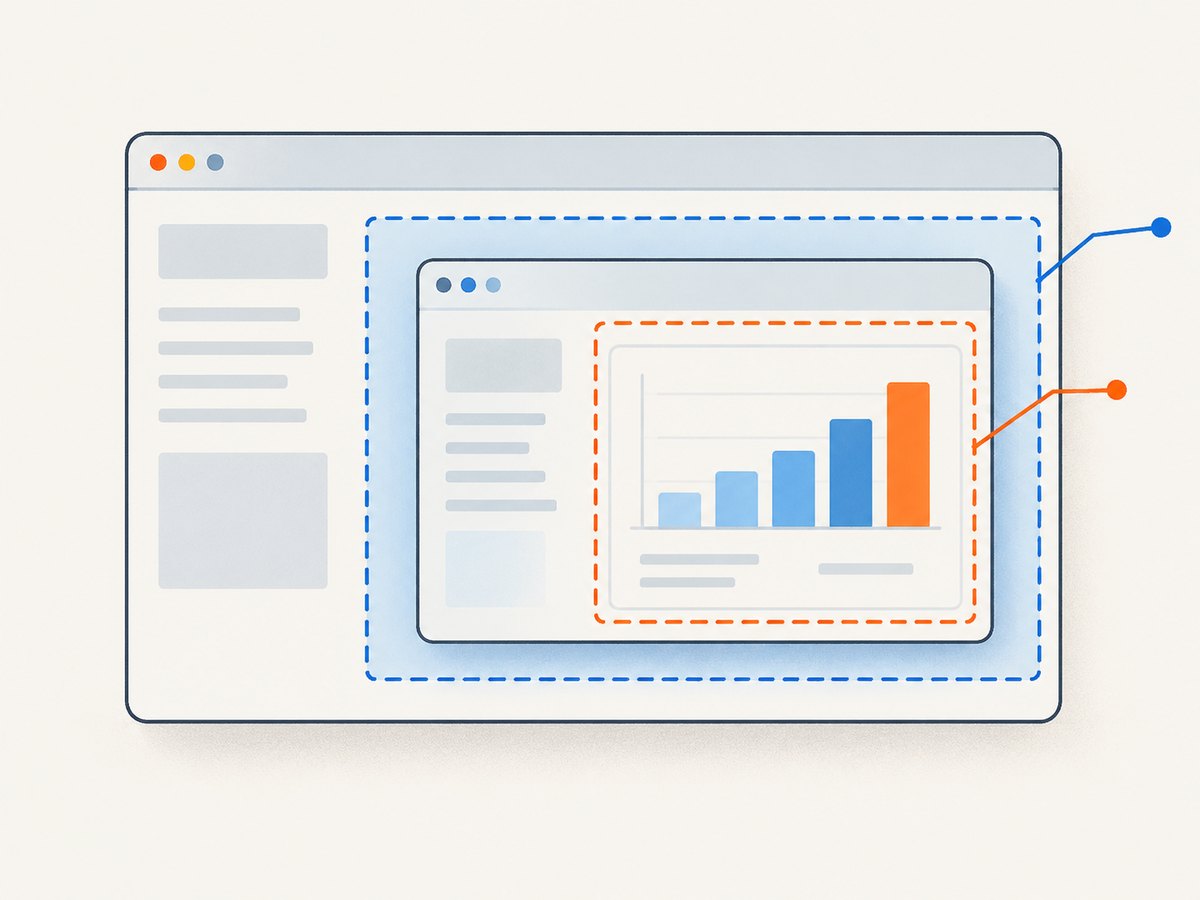
To capture the iframe as it appears on the page, screenshot the iframe element with ElementHandle.screenshot(). To capture only a control, chart, or region inside it, resolve its Puppeteer Frame, wait for the target element, then screenshot that element. page.screenshot() captures the page; it does not automatically mean “capture the full document inside every iframe.”
The key decision is what you want in the output: the iframe’s rendered rectangle in the parent page, a particular element inside its document, or the host page as a whole. The examples below use Puppeteer’s documented page and element screenshot methods and show how to wait for the right frame and content before saving an image.
1. Choose the screenshot target
| Desired result | Target | What it captures |
|---|---|---|
| What a visitor sees in the embedded area | The iframe element on the parent page | The rendered rectangle at its current size and position |
| A chart or control within the embedded document | An element handle from the iframe’s Frame |
The selected element inside that frame |
| The host page | page.screenshot() |
The page viewport, or the full page when configured |
| A known page-coordinate rectangle | clip |
The specified bounded region |
Puppeteer represents an iframe’s document as a Frame, a DOM frame analogous to an HTML <iframe>. A page exposes its frame tree through page.mainFrame() and frame.childFrames(); page.frames() returns the current frame list. That distinction matters: an iframe element is in the parent DOM, while its content belongs to the child frame.
2. Install Puppeteer and open the host page
In a new Node.js project, install Puppeteer using its standard package:
npm install puppeteerSave the following as capture-iframe.mjs. Replace the example host URL and iframe selector with the page and markup you need. The selector wait ensures the iframe element exists before capture.
import puppeteer from 'puppeteer';

const browser = await puppeteer.launch();
try {
  const page = await browser.newPage();
  await page.setViewport({ width: 1440, height: 1000, deviceScaleFactor: 1 });
  await page.goto('https://example.test/host', { waitUntil: 'networkidle2' });

  const iframeElement = await page.waitForSelector('iframe#report');
  if (!iframeElement) throw new Error('iframe#report was not found');

  await iframeElement.screenshot({ path: 'report-iframe.png' });
} finally {
  await browser.close();
}
Run it with node capture-iframe.mjs. The image format is inferred from the path extension. The output is the iframe’s rendered rectangle, not necessarily all of the iframe document if that document extends beyond its visible area.
3. Capture an element inside the iframe
For a chart or panel inside the embedded document, wait for the host iframe and then find the frame containing the expected route. Wait for a stable descendant selector before taking the screenshot:
import puppeteer from 'puppeteer';

const browser = await puppeteer.launch();
try {
  const page = await browser.newPage();
  await page.goto('https://example.test/host', { waitUntil: 'domcontentloaded' });
  await page.waitForSelector('iframe#report');

  const frame = page.frames().find(candidate =>
    candidate.url().includes('/report')
  );
  if (!frame) throw new Error('Report frame was not attached or navigated yet');

  const chart = await frame.waitForSelector('[data-testid="chart"]');
  if (!chart) throw new Error('Chart was not found in the report frame');
  await chart.screenshot({ path: 'report-chart.png' });
} finally {
  await browser.close();
}
The URL match is an example, not a universal frame identifier. Prefer a stable route or application marker that distinguishes this frame from other frames. Do not assume that the first child frame is the one you need; pages can contain multiple embedded documents, including nested frames.
Identify a frame when its URL is unstable
You can inspect the current frames and their URLs to understand what Puppeteer sees:
for (const frame of page.frames()) {
  console.log({ url: frame.url(), name: frame.name() });
}
If the URL changes or is shared by several frames, use the frame tree and the iframe element’s relationship to its frame. Puppeteer’s frameElement() method can retrieve the element associated with a frame; inspect its stable id or name rather than relying on frame order. For nested frames, walk childFrames() from the relevant parent and verify the target document’s identity before querying inside it.
4. Wait for the right kind of readiness
There are two separate readiness questions: has the iframe been attached and navigated, and has the content you intend to capture rendered? A parent selector wait answers only the first part. A frame URL may exist while its application is still loading data. For a reliable capture, wait for a descendant that appears only when the needed content is ready, or for an application-specific ready marker.

- Navigate to the host and wait for a suitable page lifecycle state.
domcontentloadedis often an earlier starting point;networkidle2can be useful when the page settles its network activity. - Wait for the parent iframe selector to appear.
- Resolve the intended child frame after attachment or navigation.
- Wait within that frame for the target element or explicit ready marker.
- Capture promptly, and re-resolve the frame and element if the page replaces the iframe.
Network-idle waits are not a guarantee that an application is visually ready. Some pages keep connections open, while others load data after network activity quiets. Prefer a meaningful selector or app state for the specific content. A fixed delay can be a fallback when the site offers no readiness signal, but it can waste time and still miss slow loads.
5. Configure bounds, output, and appearance
Use an element handle when the target is an iframe rectangle or a descendant element; Puppeteer calculates its bounds from the rendered element. Use page-level capture when the desired target is the host page, or a clip when you need a known rectangle in page coordinates.
// Entire host page, including content beyond its initial viewport:
await page.screenshot({ path: 'host-and-iframe.png', fullPage: true });

// A bounded page-coordinate region:
await page.screenshot({
  path: 'region.png',
  clip: { x: 120, y: 180, width: 900, height: 600 },
  captureBeyondViewport: true,
});

// Transparent default page background, where supported by the target:
await page.screenshot({ path: 'transparent.png', omitBackground: true });| Option | Use | Watch for |
|---|---|---|
path |
Save directly to a file; extension selects the image format. | Ensure the process can write to the destination. |
fullPage |
Request the full page rather than just its viewport. | It changes page capture semantics; it does not promise the full document inside every iframe. |
clip |
Capture a specific rectangle with x, y, width, and height. |
Coordinates must describe the intended page region and valid dimensions. |
captureBeyondViewport |
Control capture beyond the viewport when clipping. | Use it when the clipped region lies outside the visible viewport. |
omitBackground |
Omit the default background for transparency. | The page’s own painted backgrounds may still affect the result. |
deviceScaleFactor |
Set viewport pixel density, for example to produce a higher-resolution capture. | Higher density increases image dimensions and memory use. |
A full-page host screenshot can include the iframe as it is rendered in the host layout, but it is not a substitute for selecting an inner-frame element. If the iframe has its own scrollable document and you need content below its visible area, determine whether the application can expand or scroll that frame to the required region. Verify the exact output rather than assuming a host-page full-page option expands every embedded document.
6. Cross-origin, sandboxed, and changing frames
Cross-origin content does not mean the frame is invisible to Puppeteer. Puppeteer exposes frames and allows frame-scoped automation, but the exact behavior can still depend on navigation, sandbox permissions, authentication, browser state, and the site’s implementation. Do not assume that a page’s ordinary JavaScript same-origin access rules describe every Puppeteer operation, or that every deployed frame behaves identically.
For authenticated content, establish the required browser session before resolving the frame. The iframe may redirect to a login page or require cookies, headers, or a user interaction. For sandboxed frames, permissions and scripts may be restricted by the embedding page. Verify that the intended document and target selector actually appear in the frame.
Dynamic apps can detach and recreate an iframe during route changes or refreshes. Puppeteer’s frame lifecycle includes attach, navigate, and detach events. If a previously located handle becomes detached, query the current frame tree again, identify the replacement, and reacquire the target element. Avoid holding a frame or element handle across a navigation that replaces its document.
7. Troubleshooting blank, clipped, or wrong screenshots
| Symptom | Likely cause | Fix |
|---|---|---|
| Blank or partial image | Capture ran before the iframe content painted, or before app data loaded. | Wait for the child frame’s target selector and any app-specific ready marker. Confirm the frame URL and inspect the page state. |
| Screenshot contains only the host page | page.screenshot() was used when an iframe element or inner element was intended. |
Screenshot the iframe handle for its rendered rectangle, or screenshot a descendant handle from the resolved frame. |
| Wrong embedded document | Code selected the first child frame or matched a URL that is not unique. | Log page.frames(), then match a stable URL, name, parent relationship, or frame element identity. |
| Content is cut off | The iframe’s visible rectangle is smaller than its document, or the clip is wrong. | Choose an inner element, scroll or resize as appropriate, or adjust the page-coordinate clip. Remember full-page host capture does not automatically expand every iframe document. |
| Detached frame or execution-context error | The site navigated or replaced the iframe between lookup and capture. | Re-resolve the current frame after navigation or replacement, then find the target again. |
| Timeout waiting for selector | The selector is wrong, the wrong frame was selected, or the content never loaded (possibly due to login or blocked access). | Verify the host selector, print current frame URLs and names, check redirects and authentication, and use a selector that exists in the actual document. |
| Image is the wrong size | The viewport, device scale factor, or target element dimensions differ from expectation. | Set the viewport before navigation and inspect the element’s bounding box before capture. |
| Unexpected background | The page or iframe paints its own background. | Use omitBackground for the default page background and adjust the page styling if the application paints an opaque background. |
8. Performance, reliability, and cost
Screenshot work consumes browser time and memory, with larger images and full-page captures generally requiring more data to render and encode. Keep the viewport and device scale factor close to what the output needs. Capture the smallest target that answers the task: an element screenshot avoids producing an unnecessarily large host-page image. Reuse a browser process for batches when the surrounding application can manage page lifecycle and cleanup safely.
Reliability depends more on application readiness and frame identity than on adding a long arbitrary delay. Use explicit selectors, verify frame URLs or names, and treat timeouts and detachment as recoverable conditions when the site is dynamic. Always close pages and browsers in cleanup code, including error paths. For repeatable output, control viewport dimensions, device scale factor, session state, and any page state that affects the embedded content.
With self-hosted Puppeteer, cost includes the compute and maintenance needed to run the browser, plus any infrastructure required for concurrency, storage, and network access. There is no universal per-screenshot cost in the documentation cited here; it depends on your runtime and workload. If you operate a screenshot service, measure browser time, memory, output size, and retry rates for your own pages.
9. Or skip the browser setup
ScreenshotNeo is a website screenshot API and MCP server. One GET request captures a URL as an image or PDF; see the ScreenshotNeo API documentation for request options. For example, this cURL request saves a WebP screenshot:
curl -G "https://api.screenshotneo.com/v1/shot" -d access_key=YOUR_API_KEY --data-urlencode url=https://stripe.com -o shot.webpPython:
import requests

r = requests.get(
    "https://api.screenshotneo.com/v1/shot",
    params={"access_key": "YOUR_API_KEY", "url": "https://stripe.com"},
    timeout=90,
)
open("shot.webp", "wb").write(r.content)
Node.js:
const q = new URLSearchParams({ access_key: 'YOUR_API_KEY', url: 'https://stripe.com' });
const res = await fetch(`https://api.screenshotneo.com/v1/shot?${q}`);
ScreenshotNeo removes cookie banners, popups, and chat widgets before the shot. Bot checks, blank pages, and failed loads are never billed, and response headers report the page verdict and billing status. Its MCP server lets AI agents take screenshots. The free plan includes 1,000 screenshots a month with no card; paid plans start at $5 for 3,000. Sign up for 1,000 free screenshots a month, with no card.
10. FAQ
Can Puppeteer screenshot an iframe from another domain?
It can work with cross-origin frames through Puppeteer’s frame APIs, but runtime details such as navigation, sandboxing, authentication, and page behavior still matter. Resolve and verify the actual frame in your target environment.
Does fullPage: true capture the full iframe document?
It requests full-page capture for the page screenshot. It does not automatically promise to expand every iframe’s internal document. Select an inner-frame target or adjust the embedded page state when that is the required output.
Can I get screenshot bytes instead of writing a file?
Yes. The screenshot APIs can return image data when you omit a file path; use the returned data in your Node.js flow or write it to storage as needed.
Why does the screenshot differ from what I see manually?
The browser session, viewport, authentication, timing, or application state may differ. Set the viewport and session deliberately, wait for the content-specific ready state, and inspect which frame and element were actually captured.


