How to Capture Images That Load from HTML img Tags
Extract the real image URL, handle lazy loading and CORS, and save rendered images reliably with browser JavaScript or ScreenshotNeo.
Direct answer: To capture images loaded by HTML <img> tags, inspect the page in a real browser, reveal lazy images by scrolling, wait for each image to load, then read img.currentSrc. That property contains the absolute URL the browser actually selected, including a srcset candidate. Check naturalWidth > 0 before treating an image as usable. Fetch the URL as a Blob only when the image is same-origin or the server permits CORS. If you need the pixels as rendered, take an element screenshot instead; this also works when the original bytes are inaccessible.
What an img tag tells you
An image element can expose several different URLs and states:
srcis the literal fallback attribute. It may be empty, a placeholder, or a low-resolution fallback.srcsetandsizeslet the browser choose among candidates based on viewport width and device pixel ratio.currentSrcis the URL of the candidate currently selected by the browser. Read it after layout has settled.completemeans the browser has finished fetching, or has stopped trying. A broken image can also be complete.naturalWidthandnaturalHeightare the intrinsic dimensions. A width of zero normally means the resource is unavailable or failed.
Resolve relative values against document.baseURI. Record the viewport, device-pixel ratio, and capture time when you need reproducible results because a different layout can select a different responsive candidate.
Browser workflow: enumerate, reveal, wait, and collect
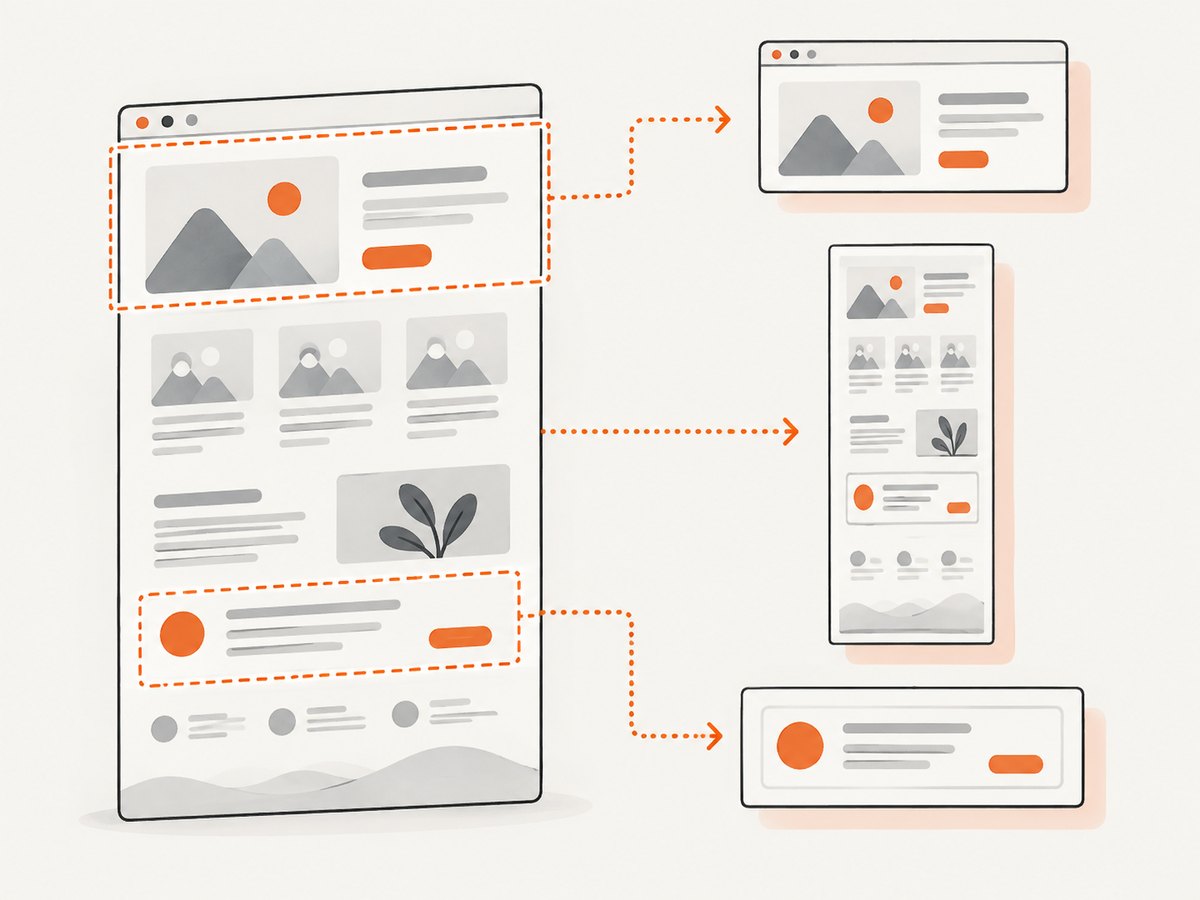
The following function handles ordinary, responsive, and lazy-loaded images. It keeps failed entries in the result so you can diagnose them instead of silently dropping them.
async function collectLoadedImages() {
  const images = [...document.images];
  const rows = [];

  for (const img of images) {
    img.scrollIntoView({ block: "center", behavior: "instant" });

    try {
      if (!img.complete) {
        await new Promise((resolve, reject) => {
          img.addEventListener("load", resolve, { once: true });
          img.addEventListener("error", reject, { once: true });
        });
      }
      if (img.decode) await img.decode().catch(() => {});
    } catch {
      // Keep the row below with loaded: false.
    }

    const selected = img.currentSrc || img.src;
    let url = "";
    try {
      url = selected ? new URL(selected, document.baseURI).href : "";
    } catch {
      url = "";
    }

    rows.push({
      url,
      loaded: img.complete && img.naturalWidth > 0,
      naturalWidth: img.naturalWidth,
      naturalHeight: img.naturalHeight,
      alt: img.alt,
      loading: img.loading || "eager"
    });
  }

  return rows;
}

const images = await collectLoadedImages();
console.table(images);
scrollIntoView causes most browser lazy-loading implementations to begin fetching. For pages that load content only after incremental scrolling, scroll the document in steps and wait briefly between steps before calling the collector. A decode() call waits for decoded pixels when supported; it does not grant permission to copy the resource.
Incremental scrolling for long pages
async function revealPage(step = 700, pause = 150) {
  let previousHeight = 0;
  for (let pass = 0; pass < 100; pass++) {
    window.scrollBy(0, step);
    await new Promise(r => setTimeout(r, pause));
    const height = document.documentElement.scrollHeight;
    if (window.scrollY + innerHeight >= height - 4 && height === previousHeight) break;
    previousHeight = height;
  }
  window.scrollTo(0, 0);
}

await revealPage();
const rows = await collectLoadedImages();
Some sites use an IntersectionObserver, a custom data attribute, or JavaScript that replaces a placeholder only after an interaction. In those cases, trigger the same interaction a visitor would use, then inspect currentSrc again.
Download the selected image bytes
Once you have a usable URL, Fetch can read the response as a Blob when origin policy allows it.
async function downloadImage(url, filename = "image") {
  const response = await fetch(url);
  if (!response.ok) throw new Error(`HTTP ${response.status}`);

  const type = response.headers.get("content-type") || "";
  if (!type.startsWith("image/")) {
    throw new Error(`Expected an image, received ${type || "unknown"}`);
  }

  const blob = await response.blob();
  const objectUrl = URL.createObjectURL(blob);
  const a = document.createElement("a");
  a.href = objectUrl;
  a.download = filename;
  a.click();
  setTimeout(() => URL.revokeObjectURL(objectUrl), 1000);
}

const first = rows.find(row => row.loaded && row.url);
if (first) await downloadImage(first.url, "captured-image");
This code requires a same-origin response or a cross-origin response that includes a suitable Access-Control-Allow-Origin header. Adding mode: "no-cors" does not solve the problem: the response becomes opaque and JavaScript cannot read its body, status, or headers.
Responsive images and reproducibility
For markup such as:
<img src="small.jpg"
     srcset="small.jpg 400w, large.jpg 1200w"
     sizes="(max-width: 600px) 100vw, 600px"
     alt="Example">
read currentSrc only after setting the intended viewport and device scale. A mobile viewport may select small.jpg; a wide, high-density viewport may select large.jpg. Store the selected URL together with viewport width, height, device-pixel ratio, and the page URL. If your test changes any of those values, the selected candidate can change even when the HTML is identical.
When you need rendered pixels: element screenshots and canvas
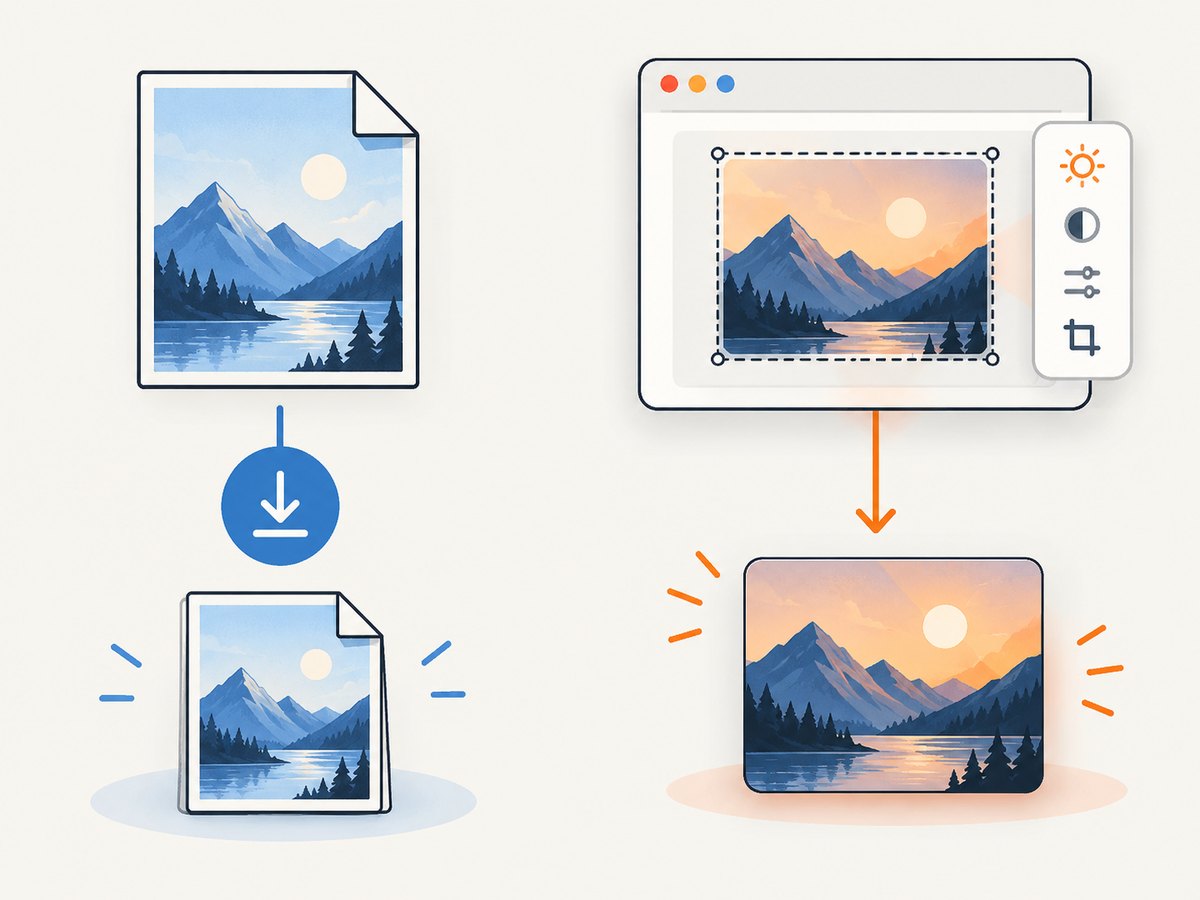
Downloading the URL gives you the original response bytes. It does not include CSS filters, overlays, cropping, object positioning, or transformations applied by the page. If your requirement is the visible appearance, capture the element in a browser.
Canvas export is another option when the image server grants CORS access:
async function imageToPng(img) {
  if (!img.complete || img.naturalWidth === 0) {
    throw new Error("Image is not loaded");
  }

  const canvas = document.createElement("canvas");
  canvas.width = img.naturalWidth;
  canvas.height = img.naturalHeight;
  const context = canvas.getContext("2d");
  context.drawImage(img, 0, 0);

  return await new Promise((resolve, reject) => {
    canvas.toBlob(blob => blob ? resolve(blob) : reject(new Error("toBlob failed")), "image/png");
  });
}
Set img.crossOrigin = "anonymous" before assigning src, and require the image server to return a matching CORS header. Without that approval, drawing a foreign image taints the canvas and toBlob(), toDataURL(), and pixel reads throw a security exception. An element screenshot avoids that canvas restriction and captures CSS-rendered pixels, but it is not a way to recover the original file.
Automation with a real browser
A static HTTP request sees the initial HTML only. Use browser automation when URLs are inserted by JavaScript, images are lazy-loaded, authentication is required, or a page changes after interaction. A robust sequence is:
- Create a browser context with the target viewport, device scale, timezone, and credentials.
- Navigate and wait for the page state your application needs. Network idle alone is not universal; some pages keep analytics connections open.
- Scroll incrementally or call
scrollIntoViewfor each image. - Wait for each image’s load or error event, then verify
completeandnaturalWidth > 0. - Evaluate the collector in the page context and save the returned metadata.
- Fetch bytes from URLs your server is authorized to access, or capture the element when appearance is the goal.
Keep timeouts bounded and retain a record of failed images. Retrying a failed resource once can help with transient delivery errors, but repeated retries can amplify load and hide a real access problem.
Or skip the browser setup
ScreenshotNeo provides a single request for a rendered screenshot or PDF when you need the page appearance rather than original image bytes. It loads lazy images for full-page captures, can capture one element by CSS selector, and supports custom JavaScript, CSS, cookies, headers, user agents, waiting rules, blocked resources, device presets, retina scale, dark mode, and caching. Before capture it accepts cookie or consent banners and removes more than 60 known consent platforms, newsletter popups, and chat widgets; each step can be disabled.
See the ScreenshotNeo API documentation for all parameters. The same endpoint works from cURL, Python, or Node.js:
curl -G "https://api.screenshotneo.com/v1/shot" \
  -d access_key=YOUR_API_KEY \
  --data-urlencode url=https://stripe.com \
  -o shot.webp
import requests
r = requests.get(
"https://api.screenshotneo.com/v1/shot",
params={"access_key": "YOUR_API_KEY", "url": "https://stripe.com"},
timeout=90,
)
r.raise_for_status()
open("shot.webp", "wb").write(r.content)const q = new URLSearchParams({
access_key: 'YOUR_API_KEY',
url: 'https://stripe.com'
});
const res = await fetch(`https://api.screenshotneo.com/v1/shot?${q}`);
if (!res.ok) throw new Error(`HTTP ${res.status}`);
const buffer = Buffer.from(await res.arrayBuffer());
await fs.promises.writeFile('shot.webp', buffer);Cookie banners, popups, and chat widgets are removed before the shot. Bot checks, blank pages, failed loads, timeouts, and cache hits are never billed, and response headers identify the page verdict and whether it was billed. An MCP server lets Claude, Cursor, and other MCP clients call take_screenshot, get_page_info, and capture_pdf. The Free plan includes 1,000 screenshots each month with no card; paid plans start at $5 for 3,000 shots. Create a free ScreenshotNeo account.
Choosing the right output
| Goal | Best method | Constraint |
|---|---|---|
| Original image bytes and metadata | DOM extraction plus Fetch | Same-origin or readable CORS response |
| JavaScript-rendered or lazy images | Browser automation plus scrolling | Browser runtime, waits, and session handling |
| Pixels after rendering | Element screenshot or CORS-enabled canvas | Canvas requires CORS; screenshots reflect viewport CSS |
| Repeatable remote page captures | Screenshot API | Service options, authentication, and usage costs |
Troubleshooting common failures
src is empty or points to a placeholder
Read currentSrc after revealing the image. Frameworks often keep the real URL in data-src until an observer runs. Trigger the page’s normal visibility condition instead of copying an unprocessed attribute.
complete is true but the image is broken
complete includes failed loads. Require naturalWidth > 0, listen for error, and retain the URL and status in your diagnostic output.
Only the first screen’s images are found
The rest are probably lazy-loaded. Scroll in increments, wait for layout and network activity, then collect again. For an infinite feed, stop when the document height and item count stop increasing or enforce a maximum pass count.
Fetch fails with a CORS error
The image server has not authorized browser JavaScript. A no-cors request is opaque. Use a server-side request you are authorized to make, a same-origin proxy you control, or an element screenshot.
Canvas export throws a security exception
A foreign image without CORS approval tainted the canvas. Configure the image server and set crossOrigin before src, or capture the rendered element instead.
The selected image changes between runs
Viewport width, device-pixel ratio, sizes, cache state, or timing changed. Fix those values and record them with currentSrc. Wait for the relevant layout and decode state before reading.
The response is HTML instead of an image
Check HTTP status and Content-Type. Authentication redirects, hotlink protection, and error pages can return HTML at an image-looking URL. Follow authorization requirements and reject unexpected content types.
Performance, reliability, and cost notes
- Performance: Scrolling and decoding every image costs more than reading attributes. Use a selector or a viewport range when you need only a subset, and avoid waiting for unrelated network requests.
- Reliability: Use explicit navigation and per-image timeouts, capture errors, and preserve metadata. A single failed image should not discard successful rows.
- Bandwidth: Responsive images may download large candidates on high-density devices. Choose a deliberate viewport and scale for your workload.
- Caching: Reuse results when the page and selected URL are unchanged. ScreenshotNeo supports a caller-selected cache TTL; cache hits are identified and not billed.
- Cost: Self-hosted browsers consume compute and bandwidth. With ScreenshotNeo, only clean shots are billed; bot checks, blank pages, timeouts, failed loads, and cache hits cost nothing. Plans include Free 1,000 monthly shots, Starter $5/3,000, Growth $15/15,000, Pro $39/60,000, Scale $99/250,000, and Business $249/1,000,000; yearly billing gives two months free.
Validation checklist
- Record
currentSrc, not only the rawsrcattribute. - Resolve relative URLs against
document.baseURI. - Reveal lazy images before collection.
- Treat
complete && naturalWidth === 0as failure. - Check HTTP status and content type before saving a Blob.
- Store viewport, device scale, intrinsic dimensions, alt text, and capture time.
- Respect authentication, access rules, copyright, robots directives, and site terms.
FAQ
Does currentSrc always return a URL?
No. It can be empty before a source is assigned, while a framework is still hydrating, or after a failed load. Fall back to src only for diagnostics and verify the load state.
Can I get the original file from a screenshot?
No. A screenshot contains rendered pixels. Use DOM extraction and an authorized download when you need the original bytes.
Why do two users receive different image URLs?
Responsive selection depends on viewport, device-pixel ratio, and sizes. Different sessions can also have different authorization or personalization.
Should I wait for network idle?
Use it only as one signal. Analytics and streaming connections can prevent idle; a page-specific selector, image state, or decode check is usually more precise.
Can I capture images behind a login?
Yes, when your automation context or screenshot service receives authorized cookies or headers. Do not bypass access controls.


