How to Capture Images Without a Transparent or Black Background
Learn whether you need a clean crop or true transparency, then fix black, checkerboard and unwanted backgrounds on Windows, Mac, iPhone and editors.
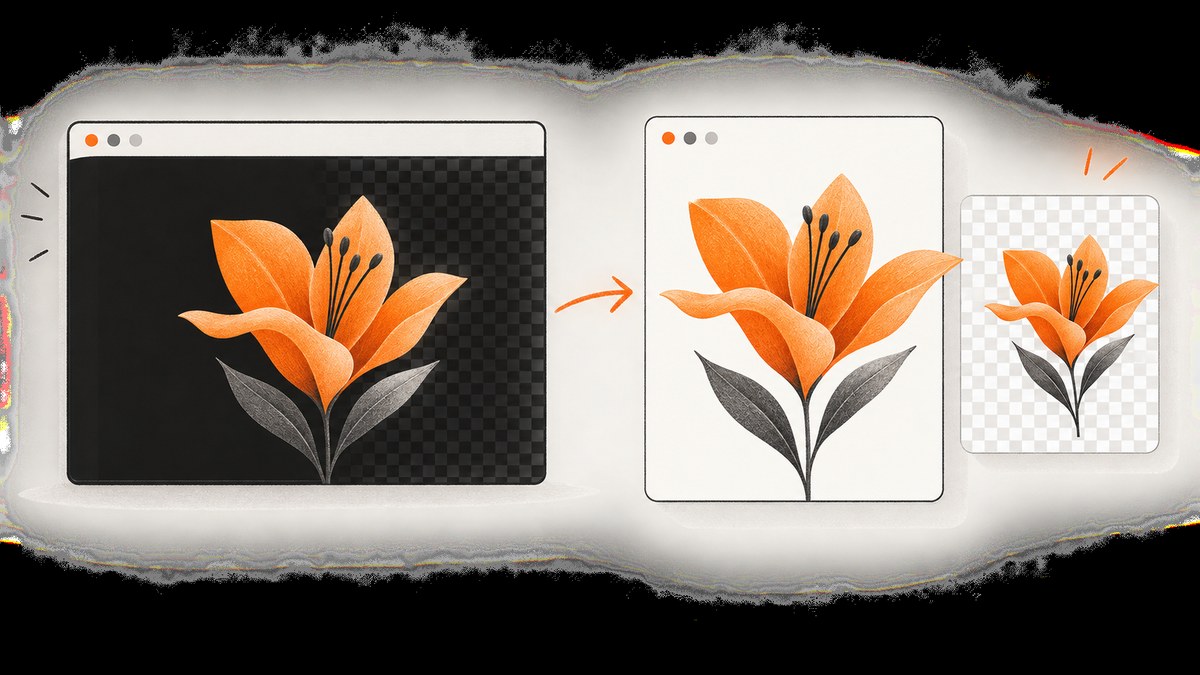
Do you want to crop what you see on screen, or make the image background truly transparent? Those are different jobs. A screenshot records visible pixels, including a black canvas or checkerboard. A transparent image contains pixels marked as transparent around the subject.
Use a region or window capture when you want less surrounding desktop area. Use the original layered artwork, a transparent canvas or a hidden background layer when you need real transparency. Saving a flattened screenshot as PNG cannot recover transparency that was never present.
Choose the right result
| What you need | Use | What it does | Limit |
|---|---|---|---|
| Clean picture of visible content | Region or window screenshot | Captures only the selected screen area | Every visible pixel, including a displayed background, is retained |
| Artwork with see-through areas | Transparent canvas or hidden background layer, then PNG export | Stores transparent pixels around the subject | Requires the editable image or an editing workflow |
Windows 10 and 11: capture only the content you need
- Press Windows + Shift + S to open Snipping Tool.
- Choose Rectangular snip for a region, Window snip for one application window, Full-screen snip for the whole display, or Freeform snip for an irregular shape.
- Select the area or window. Open the notification to annotate or save the result.
- Save the image from Snipping Tool. Crop again if the capture includes unwanted browser chrome or desktop space.
These modes control what is included in the screenshot; they do not create transparent pixels. Microsoft documents these options for Windows 10 and Windows 11 in its Snipping Tool guide.
Mac: capture a region or a window
- Press Shift + Command + 4, then drag around the content.
- For a window or menu, press Shift + Command + 4, press Space, then click the window.
- Hold Option while clicking a window if you want to exclude its shadow.
- Find the saved capture at the configured screenshot location and crop if necessary.
Apple’s Mac screenshot instructions describe region and window capture. A window capture still records the visible window background; it is not an alpha-mask operation.
iPhone: understand PNG, HEIF, SDR and HDR settings
On iPhone, open Settings > General > Screen Capture where supported. Apple’s documented choices distinguish SDR screenshots saved as PNG from HDR screenshots saved as HEIF. These choices affect file format and dynamic range; they are not background-removal controls. A PNG screenshot can still contain a black, white or checkerboard background.
See Apple’s screen capture settings guide for the device and iOS version details.
Create true transparency from editable artwork
Clip Studio Paint
- Open the original illustration or create a new canvas.
- For a new canvas, leave Paper Color unchecked.
- For an existing file, hide the Paper layer. The checkerboard is the editor’s indication that those pixels are transparent.
- Export as PNG and keep transparency enabled in the export dialog.
Do not screenshot the checkerboard: that records the checkerboard pattern. Export the artwork itself. Clip Studio’s support workflow specifically recommends hiding the paper layer and exporting PNG; it states that JPEG and BMP do not carry transparent information (Clip Studio support).
Other editors
The exact controls vary, but the reliable sequence is the same: select or remove the background on a layer, verify the transparent area in the editor, then export a format that preserves alpha. Layer opacity and masks are common ways to define transparent regions; Adobe documents these concepts in its Photoshop layer and mask reference. Do not assume a screenshot of an editor canvas will preserve those layers.
Why the result is black, white or checkerboard
- Black result: the source application may display a black canvas, a failed render may have loaded, or your capture included a black background layer. Inspect the source and capture a smaller region.
- Checkerboard result: the checkerboard is an editor display convention. It means the canvas may contain transparency, but a screenshot of it contains the visible checkerboard pixels.
- PNG still has a background: PNG preserves alpha only when the source contains alpha. Converting a flattened JPG or screenshot to PNG changes the container, not the pixels.
- Unexpected desktop or window area: use rectangular or window capture instead of full-screen capture, then crop.
Browser screenshots without a black or transparent-looking page
For a web page, first wait for the page to render and capture the page or element you actually need. A browser screenshot is still a raster image: CSS transparency may reveal the page’s background, and a transparent HTML canvas may display black depending on how it is composited. If you need an asset with alpha, export it from the source design or canvas rather than photographing the browser.
Or skip the browser setup
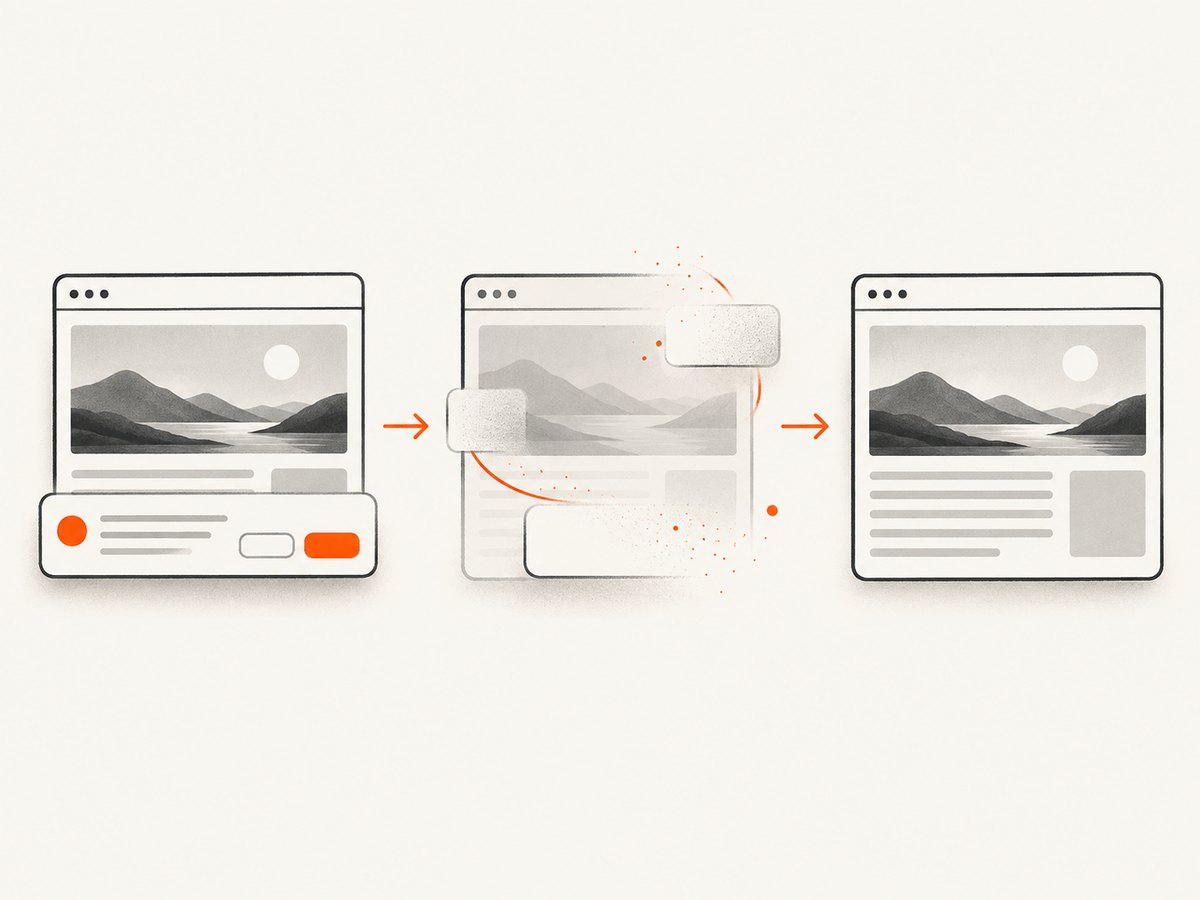
ScreenshotNeo returns a clean PNG, JPEG, WebP or PDF from one request. Its capture options include transparent backgrounds, full-page screenshots, CSS element capture, custom CSS and JavaScript, waits, device presets and retina scale. Cookie banners, newsletter popups and chat widgets are removed before the shot. Bot checks, blank pages and failed loads are never billed, and response headers report the page verdict and billing result.
See the ScreenshotNeo API documentation for all options.
cURL
curl -G "https://api.screenshotneo.com/v1/shot" \
  -d access_key=YOUR_API_KEY \
  --data-urlencode url=https://stripe.com \
  -o shot.webp
Python
import requests

r = requests.get(
    "https://api.screenshotneo.com/v1/shot",
    params={"access_key": "YOUR_API_KEY", "url": "https://stripe.com"},
    timeout=90,
)
r.raise_for_status()
open("shot.webp", "wb").write(r.content)
Node.js
const q = new URLSearchParams({
  access_key: 'YOUR_API_KEY',
  url: 'https://stripe.com'
});
const res = await fetch(`https://api.screenshotneo.com/v1/shot?${q}`);
if (!res.ok) throw new Error(`HTTP ${res.status}`);
const fs = await import('node:fs/promises');
await fs.writeFile('shot.webp', Buffer.from(await res.arrayBuffer()));
ScreenshotNeo has an MCP server with take_screenshot, get_page_info and capture_pdf, so Claude, Cursor and other MCP clients can request captures. The Free plan includes 1,000 shots per month with no card; paid plans start at $5 for 3,000 shots. Create a free ScreenshotNeo account.
Capture options that prevent unwanted backgrounds
| Need | Useful approach |
|---|---|
| Only one component | Capture by CSS selector or select a window/region. |
| Full page | Use full-page capture and wait for lazy-loaded images. |
| Consistent appearance | Set a device preset or viewport, timezone, geolocation and user agent. |
| Remove overlays | Hide selectors, accept consent banners, and disable newsletter or chat widgets. |
| Wait for dynamic content | Wait for a selector, fixed delay or network idle. |
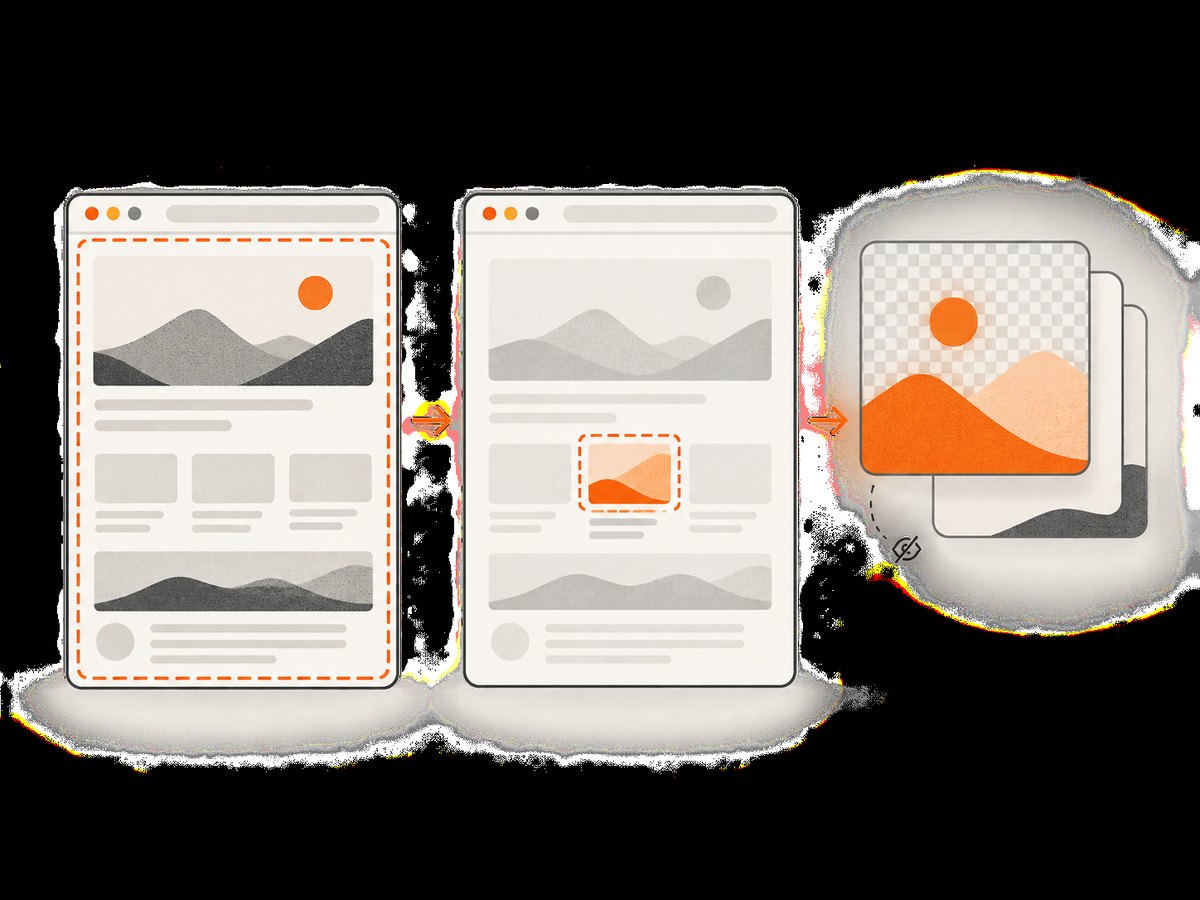
| Protect a transparent design | Set a transparent background only when the page and output format support the intended alpha result; otherwise use the source asset export. |
Troubleshooting checklist
| Symptom | Likely cause | Fix |
|---|---|---|
| Black screenshot | Black source canvas, failed page render or capture of an empty area | Inspect the source layer, wait for rendering, and capture the content region. |
| Checkerboard baked into output | You captured the editor display | Hide the paper/background layer and export the artwork as PNG. |
| PNG is opaque | The source was flattened | Return to the layered project or remove the background before export. |
| Window edges or shadow appear | Window capture includes decoration | Crop, or on Mac use Option-click to exclude the shadow. |
| Web page is incomplete | Fonts, images or JavaScript had not finished | Wait for a selector, delay or network idle; load lazy images for full-page captures. |
| Screenshot API response is not an image | Authentication or page failure | Check the access key, URL encoding and HTTP status. Inspect X-Page-Verdict and X-Billed when using ScreenshotNeo. |
| Capture is billed unexpectedly | A clean page completed successfully | Use caching with a chosen TTL and review the response billing header; failed loads, bot checks, blank pages and cache hits are not billed by ScreenshotNeo. |
Performance, reliability and cost
- Capture only the region or element needed to reduce image size and processing time.
- Full-page screenshots can take longer because lazy images must load; use a selector wait or network-idle wait.
- Use caching with a TTL when the same URL is requested repeatedly.
- For many URLs, ScreenshotNeo supports bulk capture of up to 100 URLs per call and asynchronous jobs with signed webhooks.
- Use WebP or JPEG when alpha is not needed; use PNG when preserving transparency is required.
- Keep request timeouts long enough for real pages. In the Python example, 90 seconds allows slow pages to finish while still failing deterministically.
- ScreenshotNeo pricing is Free: 1,000 shots/month; Starter: $5 for 3,000; Growth: $15 for 15,000; Pro: $39 for 60,000; Scale: $99 for 250,000; Business: $249 for 1,000,000. Yearly billing gives two months free, and every feature is on every plan.
FAQ
Does choosing PNG make a screenshot transparent?
No. PNG can store transparency, but it does not remove visible pixels from a flattened screenshot.
Is a checkerboard background transparent?
In an editor it usually indicates transparent pixels. In a screenshot it is an ordinary visible pattern.
Can I remove a black background after taking a screenshot?
Only by editing or masking the captured pixels. If the original artwork is available, exporting from its transparent layer produces a better result.
Should I use JPEG for a transparent image?
No. Use a format that preserves alpha, such as PNG in the Clip Studio workflow. JPEG does not preserve transparent information.
How do I capture one browser element?
Use a CSS-selector capture in an API such as ScreenshotNeo, or select and crop the element with your desktop capture tool.
Why does a transparent web canvas look black?
The browser may composite the canvas against black or the page may define a black background. Inspect the canvas and page CSS, then export the source asset when you need alpha.


