How to Capture Information from a Website
Learn when to save a page, use HTTP, render JavaScript, or extract with selectors—with runnable code, troubleshooting, and a screenshot API option.

Direct answer: Use the least powerful method that preserves the information you need. For one page, save it from your browser. For repeatable extraction from static HTML, make an HTTP GET request and parse the response. If content appears only after JavaScript runs, use a browser-rendering session. Use CSS selectors for specific fields, and retain the URL, retrieval time, and original response with your extracted data.
1. Choose the capture method
| Need | Best fit | Output |
|---|---|---|
| One page, once | Browser save | HTML, complete page, text, or MHTML |
| Stable static pages | HTTP GET plus an HTML parser | Raw HTML and structured JSON or CSV |
| Content created after load | Headless browser | Rendered DOM, screenshot, or PDF |
| Specific fields | CSS selectors or DOM queries | Targeted records |
HTTP GET requests a representation of a resource, as documented by MDN. Browser rendering is appropriate when the raw response does not contain the data visible in the browser.
2. Save a page manually
- Open the page and wait until the required content is visible.
- In Firefox, choose Save Page As. Select Web page, complete for HTML and images, HTML only for markup, or Text for plain text.
- In Chrome, use the save command for offline reading. A Chrome extension can use the
pageCaptureAPI to save a tab and its resources as MHTML. - Record the source URL and capture time. Reopen the saved file offline and check that the needed content is present.
Manual saves are fastest for a single page, but they do not provide repeatable selectors, retries, or structured output. Interactive state, authentication, and content loaded later may not be preserved.
3. Capture static pages with HTTP
Start here when View Source or the HTTP response contains the information. Save the raw bytes before parsing so you can reprocess the same capture later.
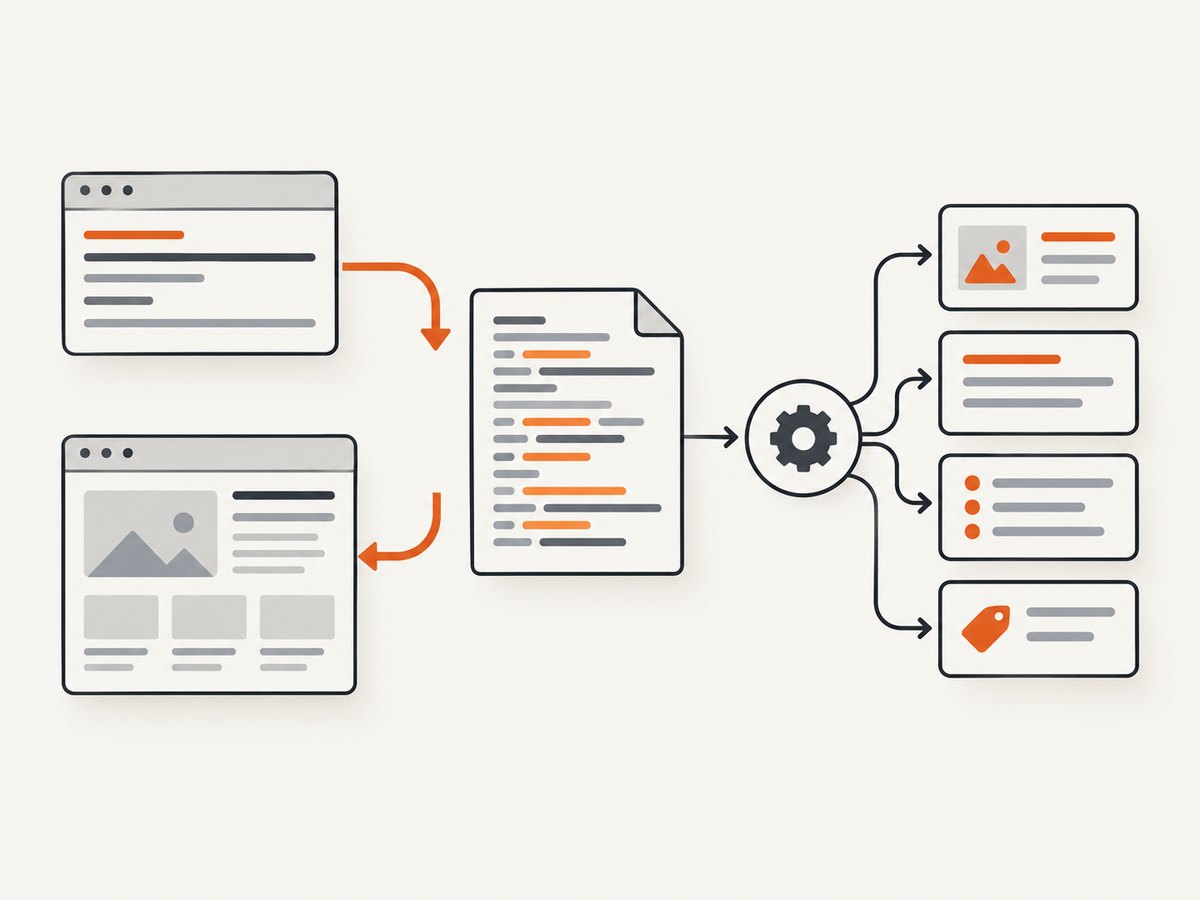
cURL
curl -L --fail --compressed -A 'Mozilla/5.0 (compatible; info-capture/1.0)' 'https://example.com/article' -o page.htmlPython
python -m pip install requests beautifulsoup4

import json
from datetime import datetime, timezone
from pathlib import Path
import requests
from bs4 import BeautifulSoup

url = "https://example.com/article"
r = requests.get(url, timeout=30, headers={"User-Agent": "info-capture/1.0"})
r.raise_for_status()
Path("page.html").write_bytes(r.content)

soup = BeautifulSoup(r.content, "html.parser")
record = {
    "url": url,
    "retrieved_at": datetime.now(timezone.utc).isoformat(),
    "title": soup.title.get_text(" ", strip=True) if soup.title else None,
    "headings": [h.get_text(" ", strip=True) for h in soup.select("h1, h2, h3")],
    "links": [a.get("href") for a in soup.select("a[href]")],
}
Path("record.json").write_text(json.dumps(record, indent=2), encoding="utf-8")
print(json.dumps(record, indent=2))
Node.js
npm install cheerio

import { writeFile } from 'node:fs/promises';
import * as cheerio from 'cheerio';

const url = 'https://example.com/article';
const res = await fetch(url, { headers: { 'user-agent': 'info-capture/1.0' } });
if (!res.ok) throw new Error(`${res.status} ${res.statusText}`);
const html = await res.text();
await writeFile('page.html', html);
const $ = cheerio.load(html);
const record = {
  url,
  retrieved_at: new Date().toISOString(),
  title: $('title').first().text().trim() || null,
  headings: $('h1,h2,h3').map((_, el) => $(el).text().trim()).get(),
  links: $('a[href]').map((_, el) => $(el).attr('href')).get()
};
await writeFile('record.json', JSON.stringify(record, null, 2));
console.log(record);
Prefer stable selectors such as article h1 or [data-price] over positional selectors. Resolve relative links against the page URL and treat missing required fields as an extraction error.
4. Capture JavaScript-rendered content
If the response is an app shell or omits values shown in the browser, render the page. Cloudflare documents browser capture that returns fully rendered HTML after JavaScript execution. Scrapy recommends finding the underlying data source first, or using a headless browser when data exists only in the browser DOM.
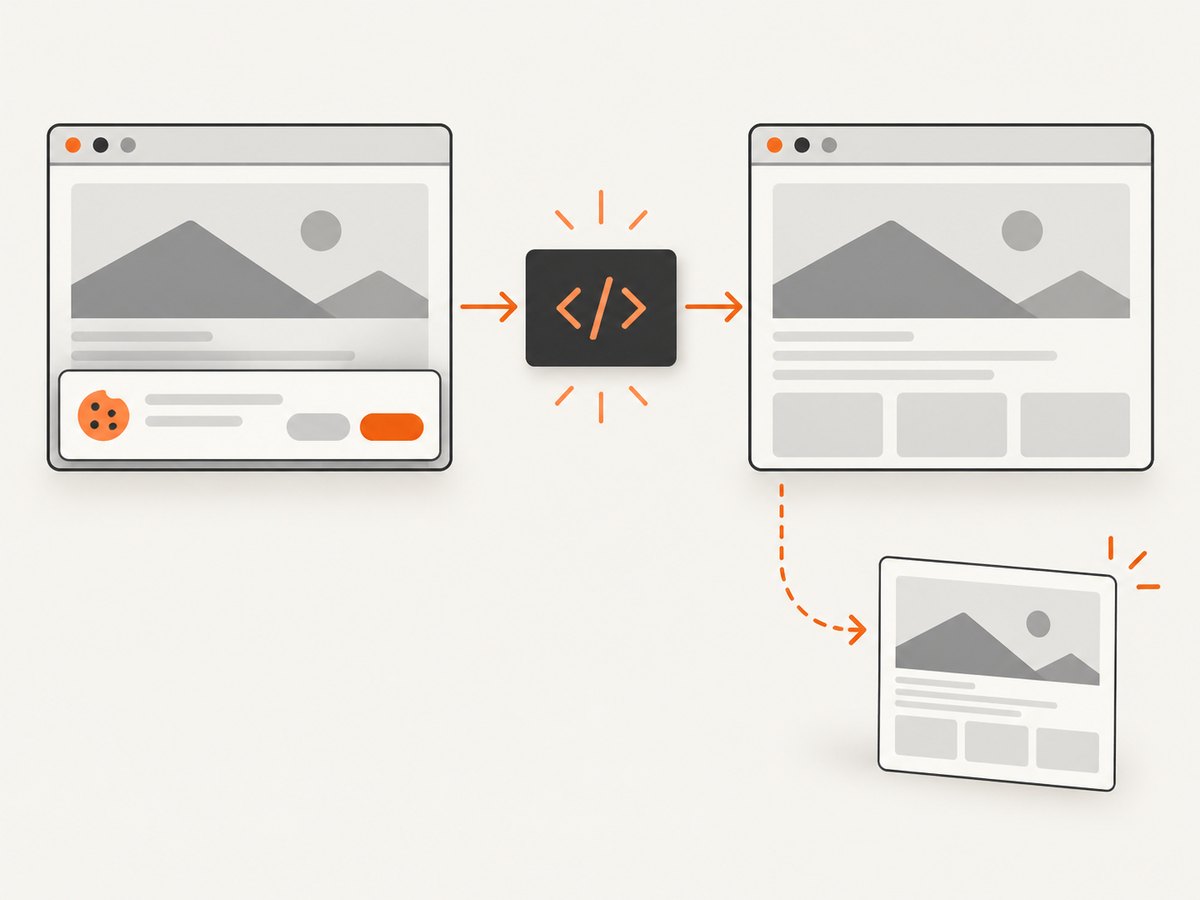
Python with Playwright
python -m pip install playwright
python -m playwright install chromium

from datetime import datetime, timezone
from pathlib import Path
from playwright.sync_api import sync_playwright

url = "https://example.com/dashboard"
with sync_playwright() as p:
    browser = p.chromium.launch(headless=True)
    page = browser.new_page(viewport={"width": 1440, "height": 900})
    page.goto(url, wait_until="domcontentloaded", timeout=60000)
    page.wait_for_selector("main", timeout=30000)
    record = {
        "url": url,
        "retrieved_at": datetime.now(timezone.utc).isoformat(),
        "title": page.title(),
        "headings": page.locator("h1,h2,h3").all_text_contents(),
        "text": page.locator("main").inner_text(),
    }
    Path("rendered.html").write_text(page.content(), encoding="utf-8")
    browser.close()
Waiting correctly
domcontentloadedwaits for the initial document.- A meaningful selector is usually more reliable than a fixed sleep.
networkidlecan stall on analytics-heavy pages.- For infinite scroll, scroll in bounded steps, wait for the item count to increase, deduplicate stable IDs, and stop after repeated no-progress checks.
5. Extract selected information
Use semantic elements, stable IDs, and data attributes. Examples include h1, h2, h3 for headings, a[href] for links, metadata tags, JSON-LD scripts, and a repeated card or table-row selector for records.
const rows = await page.locator("table tbody tr").evaluateAll(trs =>
  trs.map(tr => [...tr.querySelectorAll("td")].map(td => td.textContent.trim()))
);
When an API or JSON-LD representation contains the same fields, prefer it over presentation text. Keep a sample raw response and parser version so layout changes are detectable.
6. Preserve evidence and handle edge cases
- Store the canonical URL, UTC retrieval time, status code, content type, and final URL after redirects.
- Keep raw HTML, MHTML, Markdown, screenshot, or PDF alongside normalized JSON.
- Record viewport, locale, timezone, cookies, user agent, wait condition, and selector for dynamic pages.
- For login-required pages, use an authorized session and protect cookies.
- For cookie dialogs, load-more controls, and lazy content, perform the required action and wait for a verifiable change.
- Stop at CAPTCHAs or bot challenges; use an approved access path rather than bypassing them.
- Respect terms, robots directives, access controls, copyright, privacy obligations, and applicable law.
7. Troubleshooting
| Symptom | Cause | Fix |
|---|---|---|
| 403 or 429 | Access policy or rate limit | Slow requests, identify your client, check site rules, and use an authorized API. |
| Empty selector result | Wrong selector or client-side rendering | Inspect saved HTML, locate the data endpoint, or wait for the selector in a browser. |
| Browser timeout | Never-ending requests or blocked resources | Use a readiness selector, separate navigation and selector timeouts, and block unnecessary resources. |
| Partial data | Reading before hydration or lazy loading finished | Wait for a specific element or value and retry once on a new page. |
| Broken relative links | Stored href without a base URL |
Resolve each link against the response URL before writing output. |
| Different results each run | Personalization, time, locale, or geolocation | Fix headers, cookies, viewport, locale, and timezone, then record them. |
8. Performance, reliability, and cost
- HTTP fetching is usually fastest for static pages; parse locally and cache raw responses when permitted.
- Browser rendering uses more CPU and memory. Reuse a browser process, limit concurrency, block unneeded resources, and wait on readiness selectors.
- Retry connection failures and 5xx responses with bounded exponential backoff. Do not blindly retry 4xx responses or challenges.
- Cache by URL plus settings that affect output, such as headers, cookies, locale, viewport, and selector.
- Measure success as valid records or a valid artifact, not merely a 200 status. Track selector counts, verdicts, and artifact sizes.
9. Or skip the browser setup
ScreenshotNeo is a website screenshot API and MCP server. It supports full-page capture with lazy images, CSS-selector element capture, dark mode, device presets, custom viewports, retina scale, PDF paper sizes and ranges, HTML/CSS-to-image, custom JavaScript, clicks, hidden selectors, selector/delay/network-idle waits, ad and tracker blocking, custom headers, cookies, user agents, authorization, timezone, geolocation, transparent backgrounds, resizing, TTL caching, signed links, async jobs with signed webhooks, bulk capture, usage reporting, and an OpenAPI specification. See the ScreenshotNeo API docs.
curl -G "https://api.screenshotneo.com/v1/shot" -d access_key=YOUR_API_KEY --data-urlencode url=https://stripe.com -o shot.webpimport requests
r = requests.get("https://api.screenshotneo.com/v1/shot", params={"access_key": "YOUR_API_KEY", "url": "https://stripe.com"}, timeout=90)
r.raise_for_status()
open("shot.webp", "wb").write(r.content)const q = new URLSearchParams({ access_key: 'YOUR_API_KEY', url: 'https://stripe.com' });
const res = await fetch(`https://api.screenshotneo.com/v1/shot?${q}`);
if (!res.ok) throw new Error(`${res.status} ${res.statusText}`);Cookie and consent banners, newsletter popups, and chat widgets are removed before capture. Bot checks, blank pages, timeouts, failed loads, and cache hits are not billed; X-Page-Verdict and X-Billed report the result. The MCP server exposes take_screenshot, get_page_info, and capture_pdf for AI agents. The Free plan includes 1,000 screenshots per month with no card, and paid plans start at $5 for 3,000. Create a free ScreenshotNeo account.
10. FAQ
Should I save HTML or a screenshot?
Save HTML for searchable, parseable fields. Save a screenshot or PDF when visual appearance is the evidence. Keep both for important records when permitted.
How do I know whether JavaScript is required?
Compare the raw HTTP response with the rendered page. If the value is absent from the response but appears after load, render the page or find its data endpoint.
Can I capture an entire site?
Only with a defined scope, rate limit, and legal basis. Start with a small allowlist, honor site rules, and stop on access challenges.
What if the layout changes?
Keep raw captures, alert on missing selectors or unexpected counts, and update selectors from a new sample.


