How to Capture Screenshots of Ionic, Cordova, and PhoneGap Layouts
Capture Ionic, Cordova, and PhoneGap layouts reliably on Android, iOS, simulators, physical devices, and WebViews.
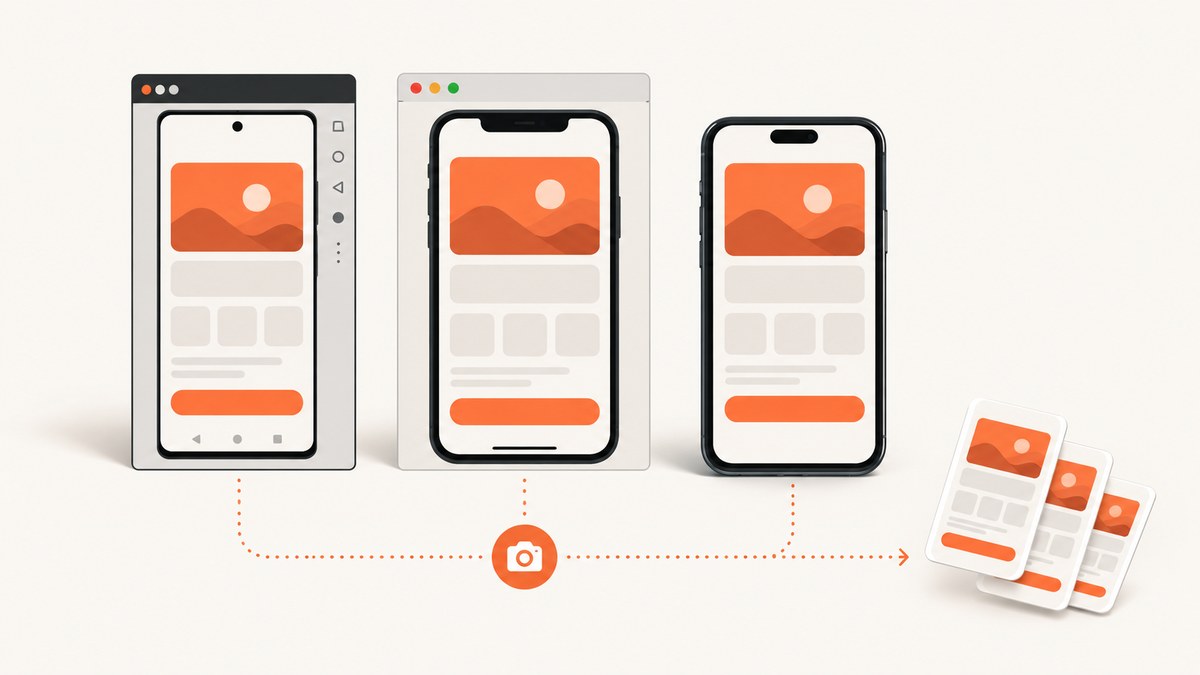
Direct answer: capture Ionic, Cordova, or PhoneGap layouts from the runtime that matters. Use the Android Emulator toolbar or adb for Android, Simulator or xcrun simctl for iOS, and a physical device when hardware, safe areas, fonts, or WebView behavior must be verified. Inspect the WebView first when the layout is wrong, then capture a stable, named build.
This guide covers repeatable simulator captures, physical-device evidence, WebView inspection, in-app Cordova screenshots, automation, troubleshooting, and an API route when you do not need to maintain browser tooling.
1. Choose the runtime and define the capture
| Runtime | Use it for | What it cannot prove |
|---|---|---|
| Android Emulator | Fast, repeatable Android documentation and scripts | Exact physical rendering, hardware cutouts, vendor fonts |
| iOS Simulator | Repeatable Apple screenshots and scripts | Every hardware-specific difference |
| Physical device | Safe areas, OS chrome, font rasterization, WebView behavior | Large device-matrix coverage without more hardware |
Record platform, OS, device profile, orientation, scale, app commit, build mode, route, fixture, and whether device chrome is included.
2. Stabilize and deploy the build
- Build the same commit and configuration you intend to document.
- Disable loading states, animations, blinking carets, random data, and time-dependent text.
- Set a known orientation and device profile. Capture each responsive breakpoint you need to document.
- Use deterministic data and wait for fonts, images, and API content.
ionic cordova emulate android --list
ionic cordova emulate ios --list
ionic cordova emulate android --target Pixel_8_API_35
ionic cordova emulate ios --target 'iPhone 16'
ionic cordova emulate android --target Pixel_8_API_35 --livereload
ionic cordova build android --emulator
ionic cordova build android --device
ionic cordova build ios --emulator
ionic cordova build ios --device
emulate builds web assets, prepares Cordova, and uses native tooling to run the target. Confirm flags against your installed Ionic CLI version.
3. Capture Android layouts
Android Emulator toolbar
- Start the configured AVD and open the exact Ionic route.
- Wait for data and fonts to settle.
- Click Take screenshot in the Emulator toolbar.
- Save the PNG with platform, device, orientation, and build in its filename.
See the Android Emulator screenshot documentation.
Android command line
screenrecord screenshot ./artifacts/android
adb emu screenrecord screenshot ./artifacts/android
The emulator normally writes a PNG named like Screenshot_yyyymmdd-hhmmss.png. Create the destination directory first if needed.
Physical Android devices
Deploy with ionic cordova build android --device, enable USB debugging, open the route, and use the device screenshot gesture or a device-supported capture command. A data cable is required for WebView inspection; connector type depends on the handset.
4. Capture iOS and iPadOS layouts
Simulator
- Boot the selected simulator and navigate to the route.
- Choose File > Save Screen Shot.
- For automation, run:
xcrun simctl io booted screenshot artifacts/ios-home.pngApple documents the menu action in its Xcode capture guide.
Xcode Device Hub and physical Apple devices
Run the app in Device Hub, navigate to the layout, and click the Screenshot button below the device canvas. Apple saves a full-resolution image to the Mac desktop. Simulator output still does not prove every hardware detail.
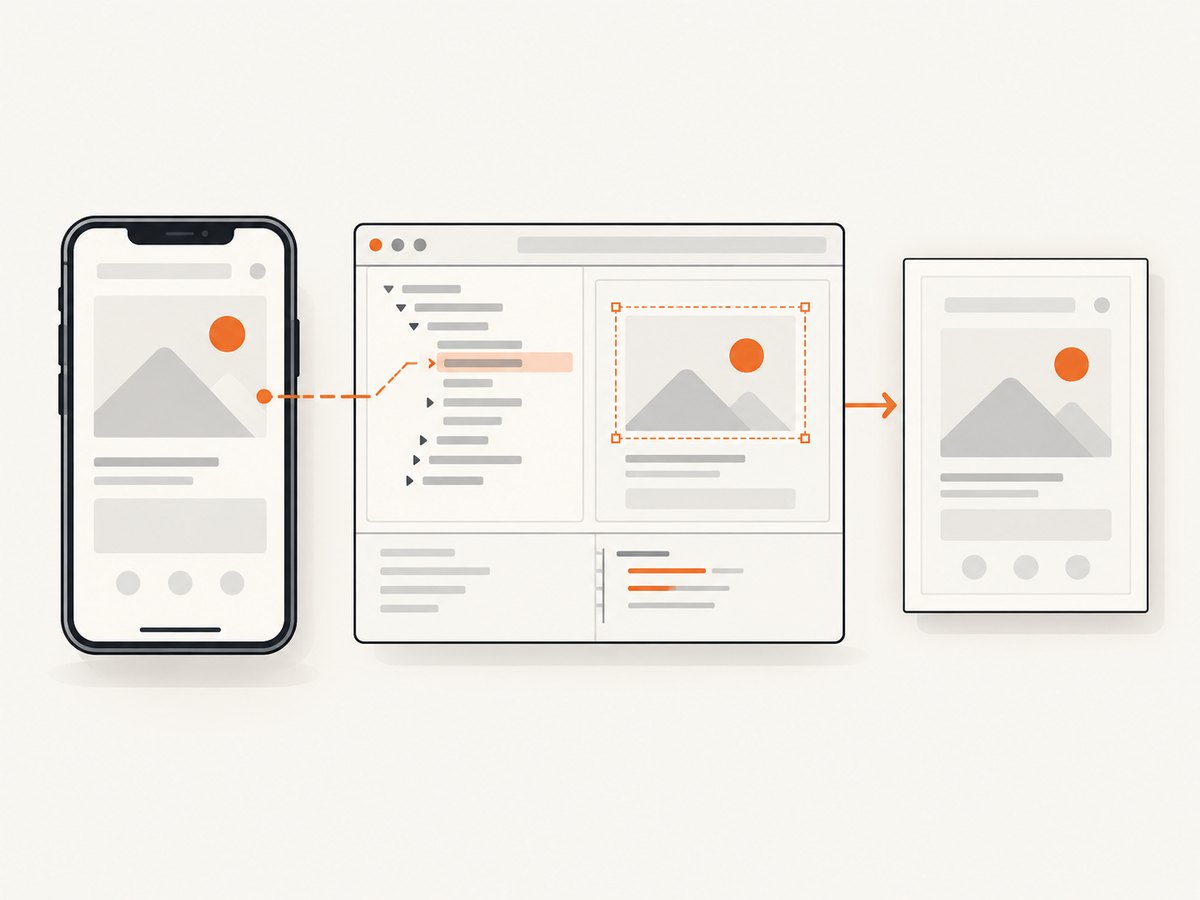
5. Inspect the WebView before capturing
Android Chrome DevTools
- Enable WebView debugging in the native debug build.
- Connect the emulator or device and open
chrome://inspect. - Click Inspect beside the app WebView.
- Check media queries, viewport dimensions, safe-area insets, computed styles, overflow, and the misplaced element.
Chrome’s remote-debugging documentation describes this workflow.
Safari Web Inspector
Booted simulators appear automatically in Safari’s Develop menu. For hardware, enable Settings > Apps > Safari > Advanced > Web Inspector, connect or pair the device with a Mac, and select the app content. See Apple’s inspection documentation.
6. Full-page and element captures
Capture the viewport for what a user sees. For long settings or documentation pages, use a full-page method that waits for lazy images and fonts. Verify lazy lists, fixed-height containers, sticky headers, and below-the-fold content before accepting the image.
7. Capture from inside a Cordova or PhoneGap app
A Cordova screenshot plugin can save the current screen to the phone when screenshotting is an app feature. The cordova-plugin-screenshot project documents installation and a JavaScript capture method, but its notes include platform-specific format and WebView limitations.
cordova plugin add cordova-plugin-screenshotScreenshot.save(function (error, path) {
if (error) {
console.error('Screenshot failed', error);
return;
}
console.log('Saved to', path);
});Validate plugin maintenance, Android storage behavior, iOS format support, permissions, and compatibility with your Cordova, Android WebView, and iOS versions. The project notes JPG support on iOS and default-WebView behavior on Android. Use native simulator or device capture for authoritative whole-device evidence.
8. Repeatable capture checklist
- Record commit, build mode, platform, OS, device profile, orientation, scale, and route.
- Seed data and wait for network, fonts, images, and animations.
- Confirm status bar, notch, safe area, keyboard, and dark mode.
- Inspect the WebView when anything is shifted or missing.
- Open the saved file and check dimensions, clipping, lazy content, and text legibility.
- Use stable names such as
ios-18-iphone16-portrait-settings-build123.png.
9. Troubleshooting
| Symptom | Cause | Fix |
|---|---|---|
| Blank or old screen | Assets or API data are not loaded, or cache is stale | Wait for the route ready state, verify fixtures and network, then reload or reinstall. |
WebView absent from chrome://inspect |
Debugging or connection is disabled | Enable WebView debugging, unlock the device, accept the prompt, and reconnect. |
| iOS target missing in Develop | Simulator is not booted or hardware inspection is disabled | Boot the simulator; enable Web Inspector and pair hardware. |
| Safe-area content is clipped | Insets or orientation do not match | Inspect env(safe-area-inset-*), set orientation, and recapture. |
| Fonts or icons differ | Font requests failed or fallback changed | Check requests in DevTools, wait for document.fonts.ready, and record the build. |
| Full-page image cuts off a list | Lazy loading or fixed-height containers | Scroll the container, use a complete fixture, or capture the viewport. |
| Plugin saves nothing | Format, storage, permission, or API mismatch | Read the installed version’s platform notes and test each target. |
--livereload is blank |
Target cannot reach the development server | Use a reachable host and firewall rule, or bundle assets without live reload. |
10. Performance, reliability, and cost
Emulators and simulators are fastest to repeat. Physical devices catch hardware-only differences. Keep one fixture, avoid live reload for release evidence, serialize captures on resource-constrained machines, and store source commit plus metadata beside each image.
Native captures have no per-image API fee, but require developer or CI machines, Android Studio, Xcode, simulators, or devices. Plugins add maintenance and compatibility work. A hosted API trades that setup for request cost; compare route count, device profiles, and retention needs.
11. Or skip the browser setup
ScreenshotNeo captures a URL with one GET request and returns PNG, JPEG, WebP, or PDF. See the API documentation.
curl -G 'https://api.screenshotneo.com/v1/shot' -d access_key=YOUR_API_KEY --data-urlencode url=https://your-ionic-route.example.com -o shot.webpimport requests
r = requests.get('https://api.screenshotneo.com/v1/shot', params={'access_key': 'YOUR_API_KEY', 'url': 'https://your-ionic-route.example.com'}, timeout=90)
r.raise_for_status()
open('shot.webp', 'wb').write(r.content)const q = new URLSearchParams({ access_key: 'YOUR_API_KEY', url: 'https://your-ionic-route.example.com' });
const res = await fetch(`https://api.screenshotneo.com/v1/shot?${q}`);
if (!res.ok) throw new Error(`HTTP ${res.status}`);
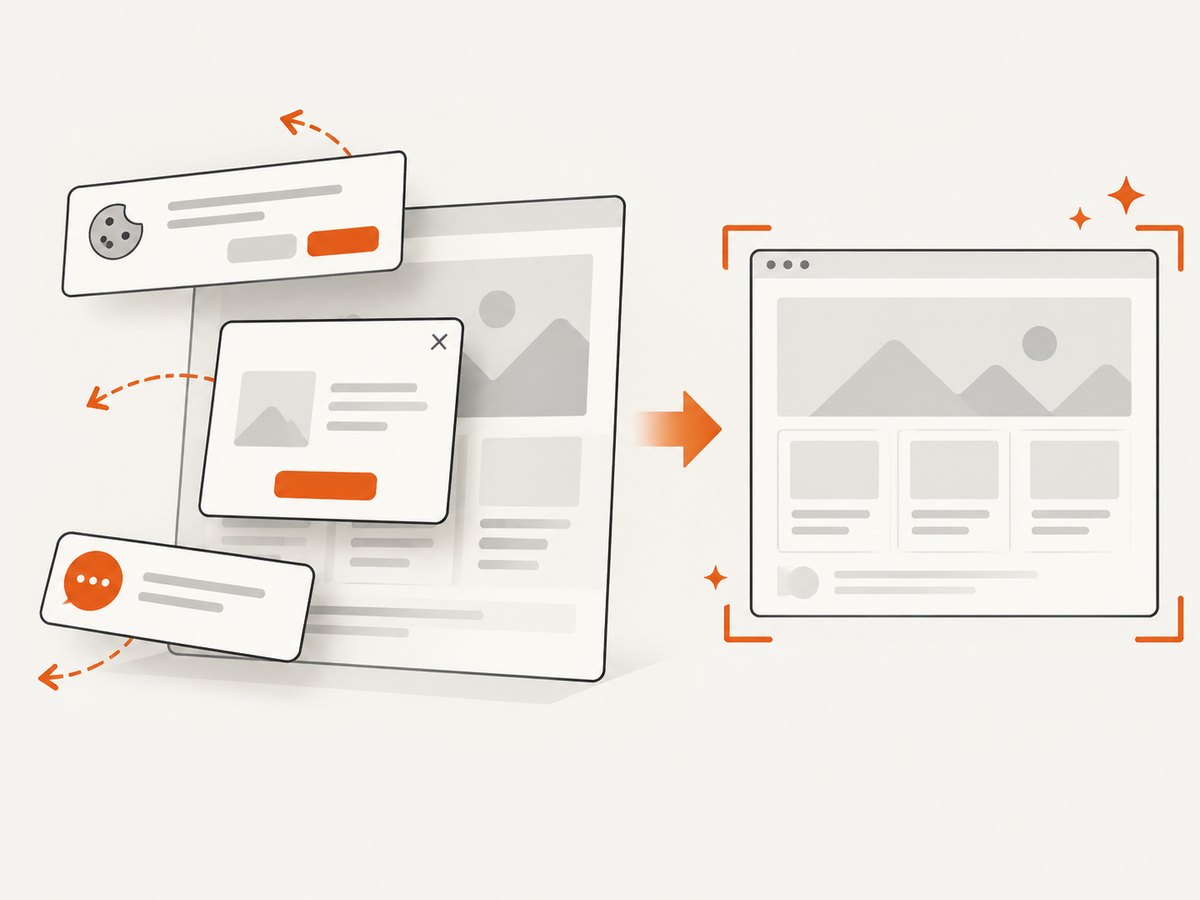
require('node:fs').writeFileSync('shot.webp', Buffer.from(await res.arrayBuffer()));Cookie banners, newsletter popups, chat widgets, and more than 60 known consent platforms are removed before capture, with each cleanup step configurable. Bot checks, blank pages, timeouts, failed loads, and cache hits are not billed; response headers report the page verdict and billing status. Options include full-page or CSS-element capture, dark mode, device presets or custom viewports, retina scale, custom CSS and JavaScript, clicks, waits, blocked resources, headers, cookies, user agent, Authorization, timezone, geolocation, transparent backgrounds, resizing, TTL caching, signed links, PDFs, async webhooks, bulk capture, usage data, and an OpenAPI specification. Its MCP server exposes take_screenshot, get_page_info, and capture_pdf to Claude, Cursor, and other MCP clients.
The Free plan includes 1,000 shots per month with no card. Paid plans start at $5 for 3,000 shots; every feature is on every plan, and yearly billing gives two months free. Create a free ScreenshotNeo account.
12. FAQ
Should I use a simulator or a real phone?
Use a simulator for repeatable checks and a physical device when safe areas, fonts, OS chrome, or WebView behavior matter.
Can DevTools create the final screenshot?
DevTools diagnoses DOM and CSS problems. Use the emulator, simulator, Xcode, or device capture command for the final runtime image.
Does a Cordova plugin replace native capture?
No. It is an in-app feature with platform and version constraints; validate it separately.
How do I capture a route that requires login?
Use a deterministic test account for native capture. For ScreenshotNeo, provide required headers or cookies and protect signed links and webhook secrets.


