How to Capture iOS Traffic with Fiddler
Configure Fiddler and an iPhone or simulator to inspect HTTP and HTTPS traffic, trust the proxy certificate, and fix common capture failures.
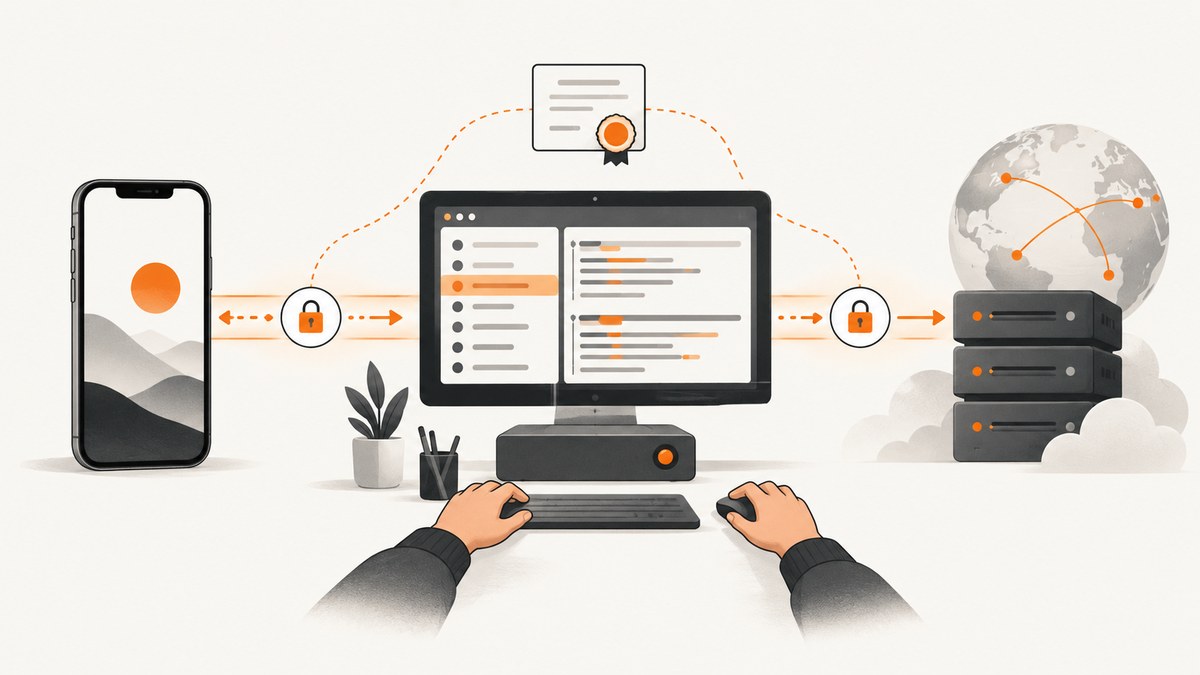
Direct answer: To capture iOS traffic with Fiddler Everywhere, put the iPhone and computer on the same network, enable HTTPS capture and remote-device connections in Fiddler, install and trust Fiddler’s root certificate on iOS, set the iPhone’s Wi-Fi HTTP proxy to the computer’s IP and Fiddler’s listening port, then generate requests and inspect them in Live Traffic. Remove the proxy when debugging is finished.
What you need
- Fiddler Everywhere installed on a Mac or Windows computer.
- A physical iPhone or iPad, or an iOS Simulator.
- The device and computer connected to the same local network.
- The computer’s local IP address and Fiddler’s listening port.
- Permission to install a test certificate on the device.
Fiddler decrypts HTTPS by acting as an intercepting proxy. The client must trust the Fiddler root CA; Telerik’s documentation states: “To capture and decrypt HTTPS traffic, you must install and trust the Fiddler root CA (Certificate Authority) via the HTTPS sub-menu under Settings.”
Capture traffic from a physical iPhone or iPad
1. Enable HTTPS capture in Fiddler
- Open Fiddler Everywhere.
- Open Settings > HTTPS.
- Enable Capture HTTPS traffic.
- Accept any prompt to generate or trust the Fiddler root certificate on the computer.
2. Allow remote devices to connect
- Open Settings > Connections.
- Enable Allow remote devices to connect.
- Note the listening port shown by Fiddler. The standard port in this workflow is
8866; use the port displayed by your installation if it differs.
3. Find the computer’s LAN address
Use the address assigned to the computer on the same Wi-Fi network as the iPhone. Do not use 127.0.0.1 or localhost; those addresses refer to the phone itself when entered on the phone.
On macOS, the address is visible in System Settings > Network > Wi-Fi > Details. On Windows, run ipconfig and find the IPv4 address for the active Wi-Fi or Ethernet adapter.
4. Download the Fiddler CA certificate on iOS
- On the iPhone, open Safari.
- Browse to
http://<fiddler-host-IP>:8866, replacing the placeholder with the computer’s LAN address and the port configured in Fiddler. - Download the Fiddler CA certificate.
- Open Settings > General > Profile Downloaded and install the profile.
5. Enable full certificate trust
On iOS 10.3 and later, installing a root certificate does not automatically make it trusted for TLS interception.
- Open Settings > General > About > Certificate Trust Settings.
- Enable full trust for the Fiddler Root Certificate Authority.
- Confirm the trust warning.
6. Configure the iPhone Wi-Fi proxy
- Open Settings > Wi-Fi.
- Tap the information button beside the connected network.
- Scroll to HTTP Proxy and choose Manual.
- Enter the computer’s LAN IP address as Server.
- Enter Fiddler’s listening port as Port.
- Leave authentication disabled unless your Fiddler configuration explicitly requires it.
7. Generate and inspect requests
Open Safari or another client that honors the system proxy, load several HTTP and HTTPS pages, and return to Fiddler’s Live Traffic grid. Select a session to inspect its request headers, response headers, status code, timing, and body. Use filters to narrow traffic by host, method, status, or process.
Start with Safari when diagnosing the setup. If Safari traffic appears but an app’s traffic does not, the app may ignore the system proxy, use certificate pinning, or reject user-installed certificate authorities.
Capture traffic from the iOS Simulator
The simulator generally detects the Mac’s proxy settings, but some simulator versions do not dynamically detect changes. Enable system capture before starting the simulator and restart it after changing proxy settings if no sessions appear.
- Enable HTTPS capture and remote connections in Fiddler.
- Start system capture before launching the simulator.
- In the simulator’s browser, open
http://ipv4.fiddler:8866to download the certificate. - Install the certificate under Settings > General > Device Management.
- Enable trust under Settings > General > About > Certificate Trust Settings.
- Restart the simulator if it was already running when the proxy was enabled.
Some simulator versions require the certificate in a different format. In Fiddler, open Settings > HTTPS > Advanced Settings > Export Fiddler CA (DER/Binary format), then drag the exported file into the simulator. Install it from the resulting prompt, open Device Management, and enable full trust.
How HTTPS decryption works
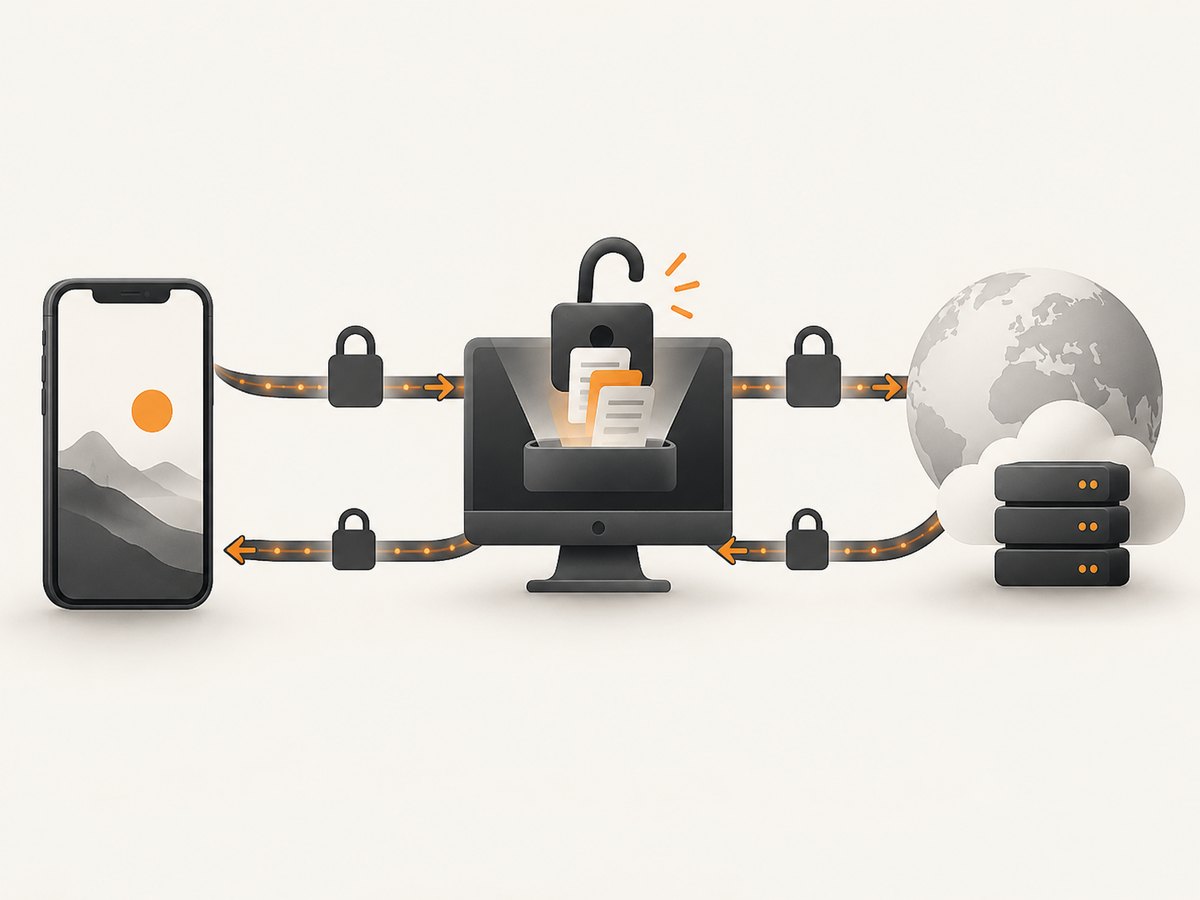
For an HTTPS request, the device first connects to Fiddler. Fiddler creates a per-site certificate signed by its root CA, decrypts the request, forwards it to the destination, and returns the response through the proxy. This only works when the client trusts the Fiddler root CA and permits interception.
HTTP traffic can appear even when HTTPS is configured incorrectly. Seeing HTTP sessions therefore does not prove that HTTPS trust is complete. Verify both certificate installation and the explicit trust switch in iOS.
Certificate pinning and Apple services
Certificate pinning lets an app accept only a specific server certificate or public key. A pinned app can reject Fiddler’s generated certificate even after the Fiddler CA is trusted. Production apps may also reject user-installed CAs or avoid the system proxy.
Apple services such as the App Store and iTunes use certificate pinning and may fail their TLS handshake through Fiddler. Telerik documents automatic macOS bypasses for *.apple.com, *.itunes.com, and *mzstatic.com; other operating systems may require manual bypass entries. Do not treat a failed Apple-service handshake as proof that the rest of the proxy is broken.
Fiddler Classic differences
Fiddler Classic has a different desktop interface and certificate workflow:
- Open Tools > Options > HTTPS.
- Install the documented certificate generator.
- Enable Capturing HTTPS Connects and Decrypt HTTPS traffic.
- Reset certificates when an old or damaged certificate is suspected.
- Configure the iOS Wi-Fi proxy with the computer’s address and Fiddler’s port.
- Install and trust the
DO_NOT_TRUST_FiddlerRootcertificate on iOS 10.3 and later.
Use the [Fiddler documentation](https://www.telerik.com/fiddler-everywhere/documentation/) for the current product-specific screens and certificate prompts.
Troubleshooting
| Symptom | Likely cause | Fix |
|---|---|---|
| No sessions appear | The phone cannot reach the computer, or the proxy is not enabled. | Confirm both devices are on the same network, verify the computer’s LAN IP, set the iOS proxy to Manual, check the port, and enable Allow remote devices to connect. |
| HTTP works but HTTPS is missing or shows TLS errors | The Fiddler CA is not installed or is not fully trusted. | Reinstall the profile, then enable the Fiddler root under Certificate Trust Settings. Confirm HTTPS capture is enabled in Fiddler. |
| The certificate download page does not load | Wrong IP or port, firewall blocking the listener, or remote connections disabled. | Open the exact address shown by Fiddler, check the listening port, allow Fiddler through the host firewall, and retry from Safari. |
| The simulator shows no traffic after changing settings | That simulator did not detect the proxy change dynamically. | Enable system capture before launching it and restart the simulator. |
| Safari works but the app does not | The app ignores the system proxy, pins certificates, or uses its own networking stack. | Check the app’s debug networking configuration. A trusted user CA cannot bypass certificate pinning by itself. |
| App Store or iTunes fails | Apple-service certificate pinning rejects interception. | Use the documented Apple-domain bypasses where supported, or exclude those domains from decryption. |
| Traffic stops after debugging | The iPhone still points at the Fiddler proxy while the computer is unavailable. | Set HTTP Proxy back to Off in the Wi-Fi network settings. |
| Only some requests are visible | Requests use a separate process, a non-system proxy, a pinned connection, or a protocol Fiddler is not configured to inspect. | Compare with Safari, inspect the app’s networking settings, and check Fiddler filters and bypass rules. |
Reliability, performance, and privacy notes
- Reliability: Capture depends on local network reachability, a running Fiddler listener, and a trusted root certificate. Switching Wi-Fi networks changes the computer’s IP and can invalidate the phone’s proxy setting.
- Performance: Interception adds a network hop and certificate processing. Use a stable LAN connection and avoid capturing large downloads when you only need request metadata.
- Privacy: Fiddler can read decrypted request and response contents, including cookies, authorization headers, and form data. Use a test account, avoid production secrets, and remove the root certificate and proxy when finished.
- Scope: This workflow is intended for devices and apps you are authorized to debug. Pinning and app-specific transport controls can intentionally prevent interception.
Cleanup checklist
- Set the iPhone’s Wi-Fi HTTP Proxy to Off.
- Stop system capture if it was enabled for the simulator.
- Remove the Fiddler profile from Settings > General > VPN & Device Management or Device Management.
- Disable full trust for the Fiddler root certificate.
- Disable Fiddler’s remote-device access when it is no longer needed.

Or skip the browser setup
If your goal is a clean image or PDF of a web page rather than inspecting network requests, [ScreenshotNeo](https://screenshotneo.com) provides a website screenshot API and MCP server. It accepts one GET request and returns PNG, JPEG, WebP, or PDF output. Cookie and consent banners, newsletter popups, and chat widgets are removed before capture; bot checks, blank pages, timeouts, failed loads, and cache hits are not billed.
See the [ScreenshotNeo API docs](https://screenshotneo.com/docs/) for all options. A minimal request is:
curl -G "https://api.screenshotneo.com/v1/shot" -d access_key=YOUR_API_KEY --data-urlencode url=https://stripe.com -o shot.webpPython:
import requests
r = requests.get("https://api.screenshotneo.com/v1/shot", params={"access_key": "YOUR_API_KEY", "url": "https://stripe.com"}, timeout=90)
open("shot.webp", "wb").write(r.content)
Node.js:
const q = new URLSearchParams({ access_key: 'YOUR_API_KEY', url: 'https://stripe.com' });
const res = await fetch(`https://api.screenshotneo.com/v1/shot?${q}`);
Every response identifies whether the page was clean and billed with the X-Page-Verdict and X-Billed headers. ScreenshotNeo also provides an MCP server with take_screenshot, get_page_info, and capture_pdf tools for Claude, Cursor, and other MCP clients. The Free plan includes 1,000 screenshots per month with no card; paid plans start at $5 for 3,000 shots. [Create a free ScreenshotNeo account](https://screenshotneo.com/account/sign-up/).
FAQ
Can I capture HTTPS without installing a certificate?
No. The device must trust the Fiddler root CA, and iOS 10.3 and later also requires enabling full trust in Certificate Trust Settings.
Does the iPhone need to be connected by USB?
No. A physical device can connect over Wi-Fi when it and the computer share a local network and the Fiddler listener accepts remote devices.
Why is the proxy address not localhost?
The proxy runs on the computer. From the iPhone, use the computer’s LAN IP address; localhost would point back to the iPhone.
Will certificate trust let me inspect every app?
No. Certificate pinning, custom networking stacks, and app transport controls can still prevent interception.
What should I do when debugging is complete?
Turn the iOS Wi-Fi proxy off and remove the Fiddler certificate profile or trust setting.


