How to Capture jsPlumb Connectors With html2canvas
Capture jsPlumb connectors reliably with the patched html2canvas package, preserve pan and zoom, handle export failures, and download a PNG.
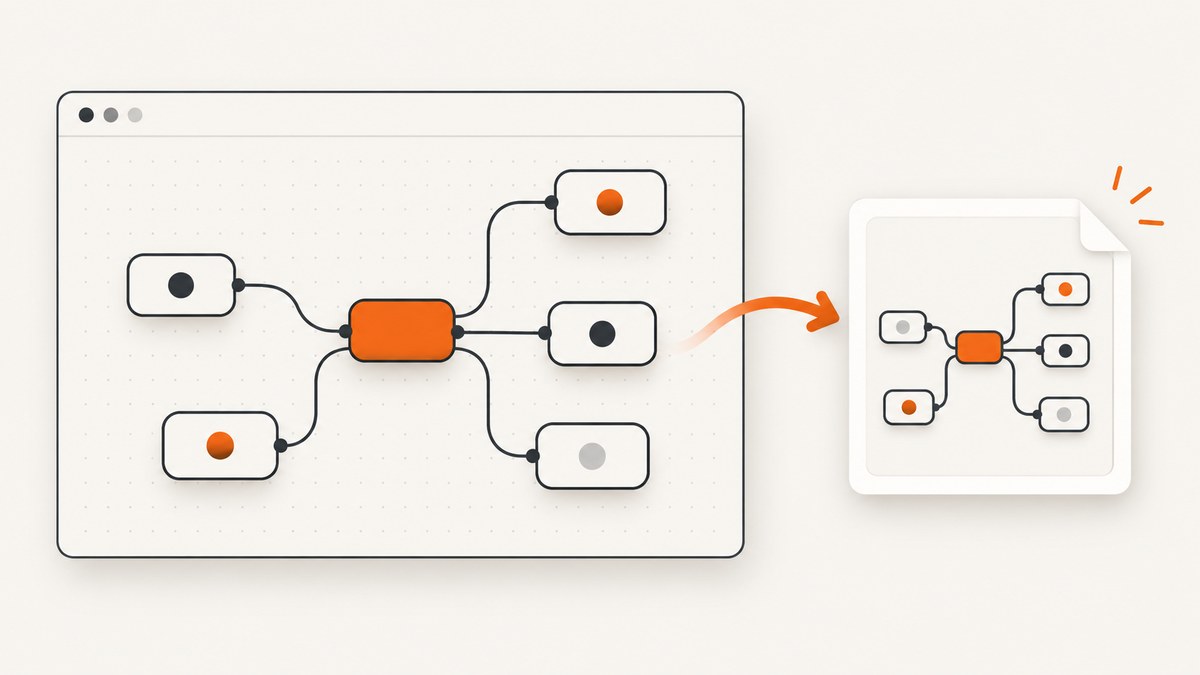
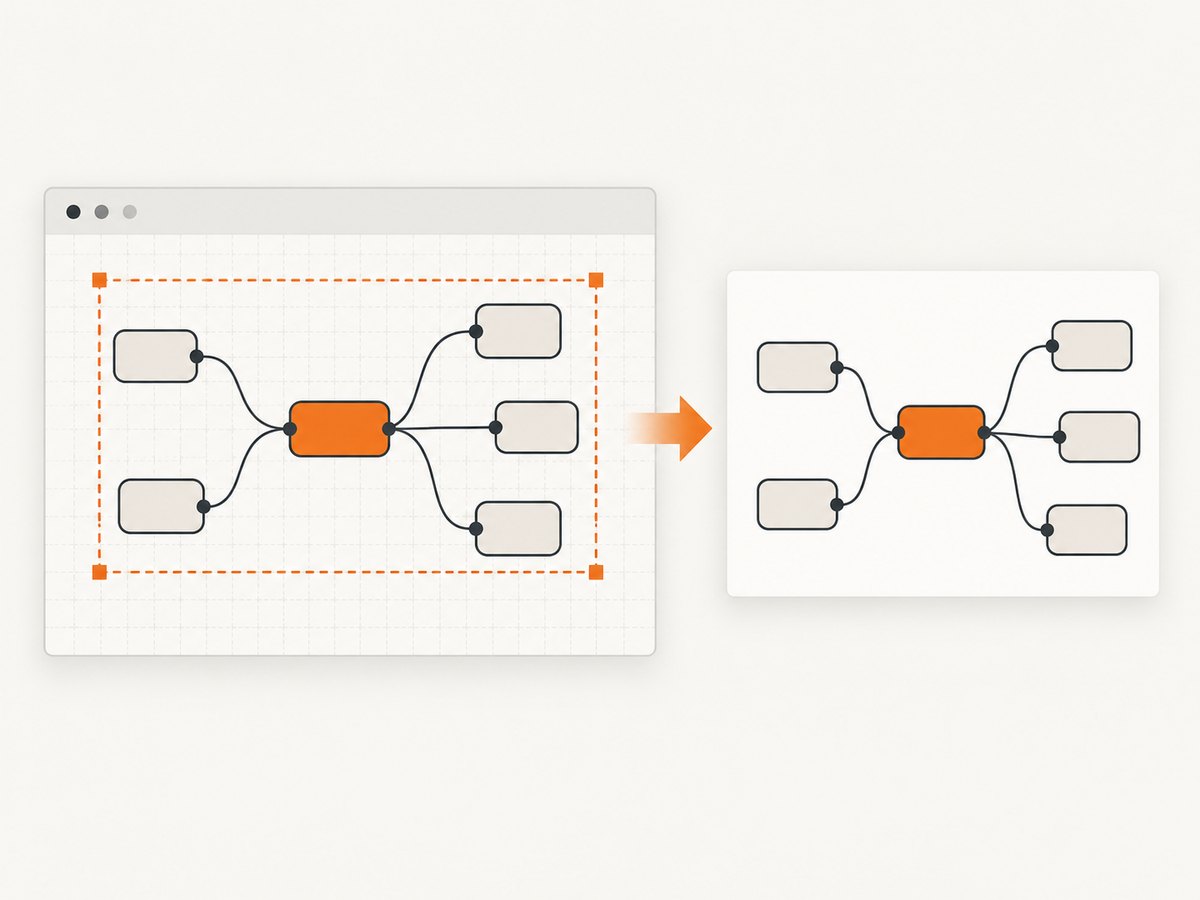
To capture jsPlumb connectors with html2canvas, use JsPlumb’s patched package, @jsplumb/html2canvas, and pass the JsPlumb surface container to it. Save the current pan and zoom, call zoomToFit() when the entire graph must be visible, render the container, restore the original view, and download the returned canvas as a PNG.
The patched package matters because the standard html2canvas build does not handle JsPlumb’s connector rendering reliably. The workflow below is suitable for a browser application and keeps the editor’s viewport unchanged after export.
What you need before exporting
- A JsPlumb surface instance with a populated diagram.
- The surface’s container element, available as
surface.container. - The patched renderer installed from npm.
- A browser context, because html2canvas reconstructs a DOM element into a canvas; it is not an operating-system screenshot utility.
npm install --save @jsplumb/html2canvasImport the package in the module that owns your export action:
import html2canvas from '@jsplumb/html2canvas';Complete export implementation
This implementation captures the complete JsPlumb surface, including connector lines, node elements, labels, and styles that html2canvas can reproduce. It also restores pan and zoom whether rendering succeeds or fails.
import html2canvas from '@jsplumb/html2canvas';

export async function exportJsPlumbPng(surface, filename = 'jsplumb.png') {
  if (!surface || !surface.container) {
    throw new Error('A JsPlumb surface with a container is required');
  }

  const previousPan = surface.getPan();
  const previousZoom = surface.getZoom();

  try {
    // Use this only when the export must include the entire graph.
    surface.zoomToFit();

    const canvas = await html2canvas(surface.container);
    const link = document.createElement('a');
    link.download = filename;
    link.href = canvas.toDataURL('image/png');
    link.click();

    return canvas;
  } finally {
    surface.setPanAndZoom(
      previousPan.x,
      previousPan.y,
      previousZoom,
      false
    );
  }
}
Call it from a button or command handler:
document.querySelector('#export-button').addEventListener('click', async () => {
  try {
    await exportJsPlumbPng(surface);
  } catch (error) {
    console.error('Diagram export failed', error);
  }
});
If the current viewport is already the desired framing, remove surface.zoomToFit(). This avoids changing the view at all and exports the portion represented by the surface container.
How the capture pipeline works
- Install the patched renderer. Use
@jsplumb/html2canvas, not an arbitrary upstream html2canvas version. - Read the viewport state.
getPan()returns the current pan values andgetZoom()returns the zoom factor. - Fit the graph when needed.
zoomToFit()adjusts the surface so all nodes and connectors can fit in the container. - Render the container. Pass
surface.containerto html2canvas and await its promise. - Restore the editor. Call
setPanAndZoom(previousPan.x, previousPan.y, previousZoom, false)after rendering. - Serialize the result. Use
canvas.toDataURL('image/png'),canvas.toBlob(), or an image-processing helper.
The temporary viewport change is visible if the editor remains on screen. The JsPlumb team notes that html2canvas reproduces the input it receives, so masking the JsPlumb canvas during export can prevent users from seeing the zoom jump. You can add a CSS class before zoomToFit() and remove it in the finally block:
surface.container.classList.add('is-exporting');
try {
  surface.zoomToFit();
  const canvas = await html2canvas(surface.container);
  // save canvas here
} finally {
  surface.container.classList.remove('is-exporting');
  surface.setPanAndZoom(previousPan.x, previousPan.y, previousZoom, false);
}
.is-exporting {
visibility: hidden;
}Use masking only if hiding the editor for a moment is acceptable. The hidden state still exists in the DOM, so it does not prevent html2canvas from reading the element.
Choosing the capture area
Capture the complete diagram
Pass the surface container and call zoomToFit(). Ensure the container has a stable width and height. A container with zero dimensions produces a blank or clipped image.
Capture the current viewport
Skip zoomToFit(). This preserves the user’s framing and is useful for an “export what I see” button.
Capture one node or a subregion
html2canvas accepts any DOM element. If a node is rendered as a normal element, pass that node instead of the surface container:
const node = document.querySelector('[data-node-id="order"]');
const canvas = await html2canvas(node);
const blob = await new Promise(resolve => canvas.toBlob(resolve, 'image/png'));
Capturing a node alone will not include connectors positioned outside that element. For a connected subgraph, wrap the selected nodes and connector layer in a dedicated export container, or use a native JsPlumb exporter when your surface supports one.
PNG, JPEG, WebP, and canvas output
PNG is the safest format for diagrams because it preserves sharp connector lines and transparency. To create a JPEG, pass a MIME type and quality value:
const canvas = await html2canvas(surface.container, {
  backgroundColor: '#ffffff'
});
const jpeg = canvas.toDataURL('image/jpeg', 0.92);
For large diagrams, prefer toBlob() so the browser does not create a large base64 string:
const blob = await new Promise((resolve, reject) => {
  canvas.toBlob(result => result ? resolve(result) : reject(new Error('No image data')), 'image/png');
});

const url = URL.createObjectURL(blob);
const link = document.createElement('a');
link.href = url;
link.download = 'jsplumb.png';
link.click();
URL.revokeObjectURL(url);
Options that help with difficult diagrams
html2canvas can receive rendering options. Use them to control scale, background, and the capture rectangle:
const canvas = await html2canvas(surface.container, {
  backgroundColor: null, // preserve transparency where supported
  scale: window.devicePixelRatio,
  useCORS: true,
  logging: false,
  imageTimeout: 15000
});| Option | Use | Important limitation |
|---|---|---|
scale |
Increase output resolution for retina displays. | Higher values increase memory and rendering time. |
backgroundColor |
Set a solid background or use null for transparency. |
Transparent output depends on the elements and browser. |
useCORS |
Attempt to load images that send suitable CORS headers. | The image server must allow the requesting origin. |
imageTimeout |
Limit how long image loading can delay a capture. | Short values can omit slow images. |
logging |
Enable diagnostics while investigating a failure. | Disable it for normal production use. |
When using scale: window.devicePixelRatio, calculate the resulting width and height before exporting. Very large surfaces multiplied by a high device pixel ratio can exceed the browser’s canvas memory limit.
Cross-origin images, fonts, and CSS
html2canvas reads the DOM and computed styles, then paints an approximation into a canvas. It does not capture pixels from the operating system or bypass browser security rules. Cross-origin images without appropriate CORS headers can taint the canvas or be omitted. Serve assets from the same origin, configure the image host to allow CORS, or replace remote images with same-origin copies before export.
Web fonts should be loaded before capture. Wait for document.fonts.ready and for diagram data to finish rendering:
await document.fonts.ready;
await new Promise(requestAnimationFrame);
const canvas = await html2canvas(surface.container);
If connectors are drawn on a separate canvas or SVG layer, confirm that the layer is inside surface.container and is visible at capture time. An absolutely positioned layer outside the passed element cannot appear in the result.
When a native JsPlumb exporter is better
Toolkit surfaces that use SVG-rendered nodes can use JsPlumb’s native SVGExporter or ImageExporter. These exporters are designed for diagrams and can expose controls for width, height, output MIME type, grid visibility, labels, stroke width, margins, selections, and paths. Width takes precedence when both width and height are supplied, preserving aspect ratio.
Native export is often the better choice when you need a selected path, diagram-aware labels, predictable stroke handling, or SVG output. Shape-library export expects node data containing left, top, w, and h. Without a shape library, a default SVG rectangle can represent nodes. Use html2canvas when your diagram is primarily HTML and CSS, or when you need the rendered editor appearance.
Or skip the browser setup
If you need a reliable URL screenshot rather than a client-side diagram export, ScreenshotNeo provides a single GET request that returns PNG, JPEG, WebP, or PDF. See the ScreenshotNeo API documentation for all options.
curl -G 'https://api.screenshotneo.com/v1/shot' \
  -d access_key=YOUR_API_KEY \
  --data-urlencode url=https://stripe.com \
  -o shot.webp
import requests
r = requests.get(
'https://api.screenshotneo.com/v1/shot',
params={'access_key': 'YOUR_API_KEY', 'url': 'https://stripe.com'},
timeout=90,
)
r.raise_for_status()
open('shot.webp', 'wb').write(r.content)const q = new URLSearchParams({
access_key: 'YOUR_API_KEY',
url: 'https://stripe.com'
});
const res = await fetch(`https://api.screenshotneo.com/v1/shot?${q}`);
if (!res.ok) throw new Error(`Screenshot failed: ${res.status}`);
const bytes = Buffer.from(await res.arrayBuffer());
await import('node:fs/promises').then(fs => fs.writeFile('shot.webp', bytes));ScreenshotNeo removes cookie and consent banners, newsletter popups, and chat widgets before capture. Bot checks, blank pages, failed loads, timeouts, and cache hits are not billed, and response headers identify the page verdict and billing result. Its MCP server gives Claude, Cursor, and other MCP clients take_screenshot, get_page_info, and capture_pdf tools. The free plan includes 1,000 screenshots per month with no card; paid plans start at $5 for 3,000 shots. Create a free ScreenshotNeo account.
Troubleshooting
Connectors are missing
Cause: The stock html2canvas package was used, the connector layer is outside the captured element, or the layer is hidden during rendering.
Fix: Install @jsplumb/html2canvas, pass surface.container, and inspect the DOM to verify that the connector SVG or canvas is a descendant and visible.
The image is blank
Cause: The container has zero width or height, the diagram has not rendered, or capture ran before fonts and images loaded.
Fix: Check dimensions with surface.container.getBoundingClientRect(), wait for the render cycle, await document.fonts.ready, and capture after the surface is attached to the document.
The editor visibly jumps
Cause: zoomToFit() changes the live viewport before the promise resolves.
Fix: Save pan and zoom, restore them in finally, and temporarily mask the export surface with a CSS class.
Remote images disappear or the canvas is tainted
Cause: The image origin does not send CORS headers.
Fix: Host the image on the application origin, configure CORS on the asset server, or omit the image from the export. useCORS: true cannot override server policy.
Text or labels look different
Cause: The intended font was not loaded, or CSS features are unsupported by the renderer.
Fix: Await document.fonts.ready, use a fallback font, and simplify unsupported effects such as complex filters or blend modes.
Large diagrams crash the tab
Cause: The canvas dimensions and scale require more memory than the browser allows.
Fix: Lower scale, export a smaller region, remove unnecessary shadows, or use a native SVG exporter that does not rasterize the entire surface at once.
Performance and reliability checklist
- Render only after nodes, connectors, fonts, and images are ready.
- Use the lowest scale that meets the output requirement.
- Use PNG for line-heavy diagrams and JPEG for photographic backgrounds.
- Prefer
toBlob()over base64 data URLs for large files. - Restore pan and zoom in a
finallyblock so errors do not leave the editor changed. - Disable diagnostic logging after troubleshooting.
- For repeated exports, debounce the export button and release object URLs.
- For server-side URL captures, account for page load time, cache behavior, and failed navigation responses.
Client-side export has no ScreenshotNeo API charge, but it consumes the user’s CPU and memory and depends on the browser’s rendering support. ScreenshotNeo pricing starts with 1,000 free shots monthly, then $5 for 3,000, $15 for 15,000, $39 for 60,000, $99 for 250,000, and $249 for 1,000,000; yearly billing gives two months free. Every feature is available on every plan.
FAQ
Does html2canvas take a pixel-perfect browser screenshot?
No. It reconstructs the supplied DOM and styles in a canvas. Unsupported CSS, cross-origin assets, and layers outside the target element can change the result.
Do I have to call zoomToFit()?
No. Call it only when the entire graph must fit. Skip it to preserve the current viewport.
Can I export only one connector?
Not directly with a surface-wide html2canvas call. Hide other elements, create a focused export container, or use a native exporter that supports selections and paths.
Why restore pan and zoom after the promise resolves?
Rendering is asynchronous. Restoring inside the completion path ensures the editor returns to the exact view users had before export, including when rendering throws.
Which approach should I use for an SVG-native Toolkit diagram?
Compare SVGExporter or ImageExporter first because they provide diagram-specific sizing, labels, paths, selections, and SVG output controls.


