How to Capture Lazy-Loaded Images in Full-Page Screenshots
Learn why full-page screenshots miss lazy images and how to scroll, wait, capture, troubleshoot, and automate reliable results.
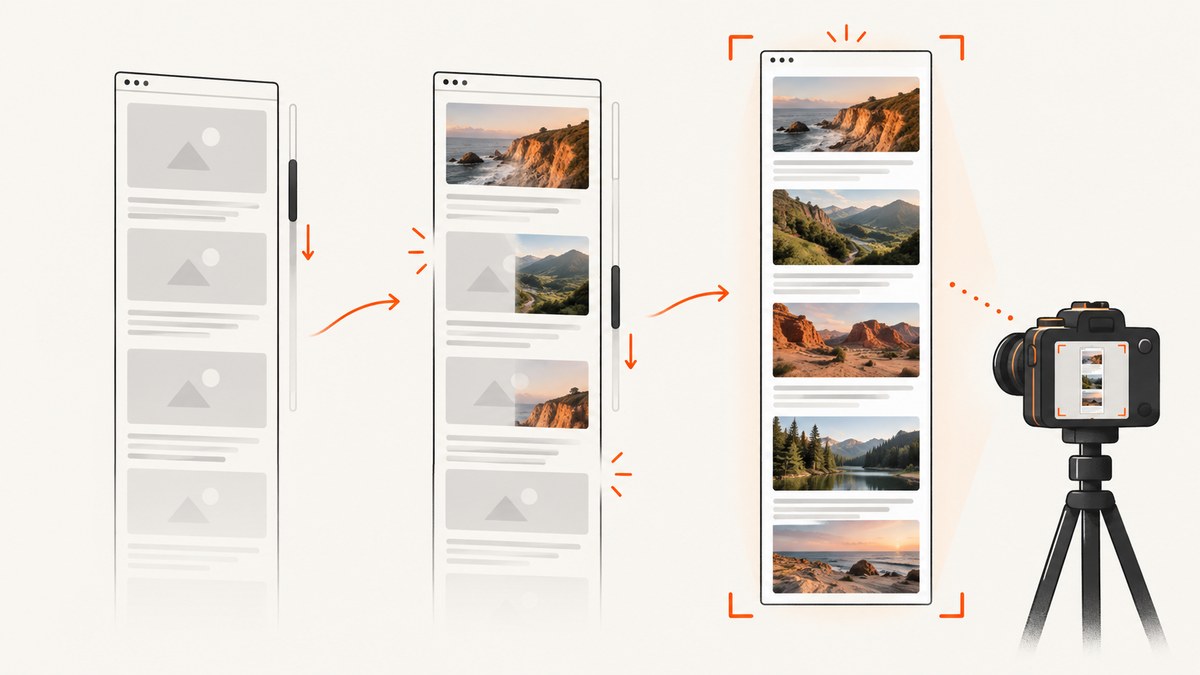
Lazy-loaded images are missing from many full-page screenshots because two separate operations are being confused: extending the screenshot beyond the viewport and making the page believe its content has entered the viewport. A full-page option captures the document’s scrollable extent, but it does not universally perform the scrolling that a site’s lazy-loading code expects.
The reliable sequence is:
- Load the page and wait for initial content.
- Scroll through it in viewport-sized steps.
- Pause briefly so image requests and scripts can run.
- Continue until the desired content has appeared.
- Return to the top.
- Capture the full scrollable page.
- Inspect the output for blank regions, layout shifts, sticky elements, and missed nested scrollers.
Playwright documents fullPage: true as capturing the full scrollable page, while Chrome DevTools Protocol (CDP) exposes Page.captureScreenshot and a captureBeyondViewport option. These controls describe capture extent; they do not promise that every lazy-loading implementation has run. Google’s guidance ties lazy content to becoming visible in the viewport, which is why scrolling belongs before capture. See the Playwright Page API, Playwright screenshot guide, CDP Page reference, and Google Search Central’s lazy-loading guidance.
Why full-page capture alone misses images
Many pages begin with only near-viewport images. An <img loading="lazy"> element may not request its source until it approaches the viewport. Other sites use Intersection Observer callbacks, custom scroll listeners, deferred background images, or client-side components that append content after scrolling.
A screenshot command can create a very tall bitmap without generating the same visibility events as a human scroll. The resulting image may contain the complete layout but blank image boxes. A lower section can also shift after capture starts if its images load late.
Infinite-scroll pages add another distinction: scrolling can append new records, so the document height changes while you capture it. You need a stopping condition such as a known item count, a visible end marker, or a maximum scroll depth.
Recommended workflow
1. Wait for the initial page
Wait for the main navigation or content selector, then allow a short settling period. A fixed delay is only a starting point; use a selector or network-idle signal when the application provides one.
2. Scroll in viewport-sized steps
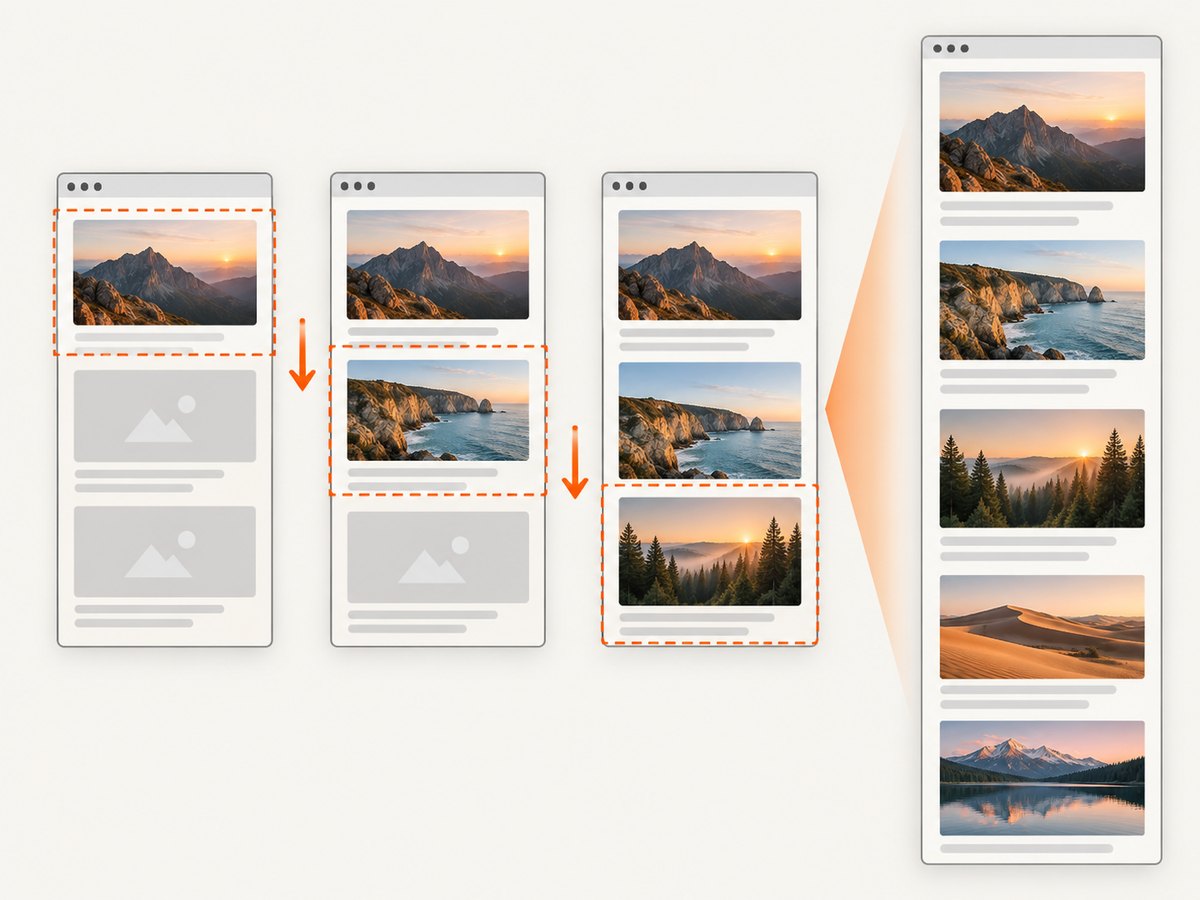
Move by roughly one viewport height, with a small overlap. The overlap helps trigger observers near boundaries. Pause after each move. The correct pause depends on the site, image size, CDN latency, and JavaScript work, so treat it as a tunable parameter.
3. Detect the end deliberately
For a static page, stop when the scroll position reaches the current document height. For infinite scroll, stop when a “no more results” marker appears, a target element is visible, or your maximum item/depth limit is reached. Re-read document height after each pause because new content may be appended.
4. Return to the top
After all desired images have loaded, scroll to 0, 0 and wait for layout to settle. This gives the final full-page capture a predictable starting point.
5. Capture and inspect
Use the browser’s full-page mode, then inspect the image itself. Look for blank rectangles, broken icons, cropped lower content, repeated sticky headers, and sections inside nested scroll containers. A successful screenshot call is not proof that every source asset loaded.
Playwright: complete runnable example
The following Node.js script launches Chromium, scrolls until the current document height is consumed, waits after each step, returns to the top, and captures a full-page PNG.
import { chromium } from 'playwright';

const url = 'https://your-site.example/page';
const browser = await chromium.launch();
const page = await browser.newPage({ viewport: { width: 1440, height: 900 } });

await page.goto(url, { waitUntil: 'domcontentloaded', timeout: 60_000 });
await page.waitForLoadState('networkidle').catch(() => {});

// Optional: wait for the page's main content.
await page.locator('main').waitFor({ state: 'visible', timeout: 30_000 }).catch(() => {});

let previousHeight = 0;
for (let pass = 0; pass < 100; pass++) {
  const height = await page.evaluate(() => document.documentElement.scrollHeight);
  const viewport = await page.evaluate(() => window.innerHeight);
  const y = await page.evaluate(() => window.scrollY);

  if (y + viewport >= height - 4 && height === previousHeight) break;
  await page.evaluate((step) => window.scrollBy(0, step), Math.max(200, viewport - 100));
  await page.waitForTimeout(500);
  previousHeight = height;
}

await page.evaluate(() => window.scrollTo(0, 0));
await page.waitForTimeout(750);
await page.screenshot({ path: 'full-page-lazy-loaded.png', fullPage: true });
await browser.close();
The loop has a pass limit so an infinite-scroll page cannot run forever. Adjust the pause, overlap, and limit for the target site. If the page uses a nested scroll container, scroll that element explicitly:
await page.locator('.results-panel').evaluate((el) => {
  el.scrollTop = el.scrollHeight;
});
await page.waitForTimeout(750);
For images that load after a known selector appears, wait for that selector before capture. You can also verify image completion:
const incomplete = await page.locator('img').evaluateAll((imgs) =>
  imgs.filter((img) => !img.complete || img.naturalWidth === 0).length
);
if (incomplete) throw new Error(`${incomplete} images are incomplete`);
Chrome DevTools Protocol approach
CDP is useful when your application already drives Chrome directly. The protocol’s Page.captureScreenshot method supports captureBeyondViewport, but you still need to generate the scrolling behavior yourself when the site loads content on visibility.
import CDP from 'chrome-remote-interface';

const client = await CDP({ port: 9222 });
const { Page, Runtime } = client;
await Page.enable();
await Runtime.enable();
await Page.navigate({ url: 'https://your-site.example/page' });
await Page.loadEventFired();

for (let i = 0; i < 100; i++) {
  const result = await Runtime.evaluate({ expression: `({
    y: window.scrollY,
    viewport: window.innerHeight,
    height: document.documentElement.scrollHeight
  })`, returnByValue: true });
  const { y, viewport, height } = result.result.value;
  if (y + viewport >= height - 4) break;
  await Runtime.evaluate({ expression: `window.scrollBy(0, ${Math.max(200, viewport - 100)})` });
  await new Promise((resolve) => setTimeout(resolve, 500));
}
await Runtime.evaluate({ expression: 'window.scrollTo(0, 0)' });
await new Promise((resolve) => setTimeout(resolve, 750));
const shot = await Page.captureScreenshot({ format: 'png', captureBeyondViewport: true });
require('node:fs').writeFileSync('cdp-full-page.png', Buffer.from(shot.data, 'base64'));
await client.close();
CDP screenshot sizing and very tall pages can encounter browser-specific limits. If a single bitmap is too large, capture page segments and stitch them, or reduce the viewport scale while preserving the required output dimensions.
Manual browser method
- Open the page in a desktop browser.
- Scroll steadily from top to bottom, pausing where image placeholders change.
- For infinite scroll, stop at the intended content boundary.
- Scroll back to the top.
- Use the browser or an installed capture tool’s full-page command.
- Open the resulting file and inspect every section.
This method is useful for one-off captures because your scrolling naturally triggers viewport observers. It is difficult to reproduce exactly across many URLs, so automation is preferable for recurring jobs.
Options that affect lazy-image results
| Option or condition | Why it matters | Practical choice |
|---|---|---|
| Initial wait | Hydration and first requests may still be running. | Wait for a main selector, then a short settle period. |
| Scroll step | Large jumps can skip observer thresholds. | Use viewport height minus a small overlap. |
| Pause per step | Requests and decoding need time. | Start around 300–750 ms and tune per site. |
| Network idle | Some pages never become idle because of analytics or streams. | Use a timeout and selector-based readiness. |
| Infinite scroll | Height can grow indefinitely. | Use an end marker, item count, or maximum passes. |
| Nested scroller | Window scrolling does not reveal its children. | Scroll the container element directly. |
| Sticky UI | Headers may repeat or cover content. | Hide or disable sticky elements with test CSS when appropriate. |
| Background images | They may not use img loading signals. |
Wait for the relevant class/state or inspect computed styles. |
Handling difficult page behavior
Intersection observers and custom thresholds
Some sites load images only after a specific intersection ratio or after remaining visible for a duration. Smaller steps and longer pauses help. If you control the application, expose a deterministic “all content ready” marker for capture jobs.
Infinite scrolling
Never rely only on document height. Record the number of loaded cards after each pass and stop when it stops increasing, when an end marker is visible, or when the requested item count is reached. Keep a hard maximum to protect workers from pages that continuously append content.
Animations and layout shifts
Freeze animations with a capture stylesheet when motion changes geometry. Wait after the final scroll because image decoding can alter dimensions. If the page reserves no image aspect ratio, late loads can move everything below them; capture only after the layout stabilizes.
Authentication, consent, and blocked requests
Provide the same cookies, headers, and user agent that a normal session uses. A consent dialog can prevent scrolling or cover images. For a private site, authenticate in the browser context before beginning the scroll loop.
Troubleshooting
| Symptom | Likely cause | Fix |
|---|---|---|
| Only top images appear | No scroll events were generated. | Scroll in viewport-sized steps before fullPage. |
| Bottom section is blank | Capture began before requests or decoding finished. | Pause at the bottom, verify image completion, then return to top. |
| Page grows forever | Infinite scroll keeps appending records. | Add an end condition and a maximum pass count. |
| Images in a panel are missing | The panel has its own scroll container. | Set that element’s scrollTop and wait. |
| Images are broken | Requests need authentication, a referrer, or permitted origins. | Reuse session cookies/headers and inspect network failures. |
| Repeated header covers content | Sticky positioning is present during capture. | Hide it for the capture or account for its height. |
| Timeout at network idle | Long polling, analytics, or streaming prevents idle. | Use domcontentloaded plus explicit readiness selectors. |
| Screenshot is rejected or huge | Browser bitmap or protocol size limits. | Reduce scale, capture segments, or use a PDF/stitched workflow. |
Performance, reliability, and cost
Scrolling adds work proportional to page length. A page with many sections can trigger dozens of image requests, decoding tasks, and layout passes. Keep the viewport at the output size you need, avoid unnecessarily tiny scroll increments, and reuse a browser process for batches while isolating pages or contexts.

Reliability improves when readiness is observable: wait for a content selector, count incomplete images, record the final document height, and save browser logs for failed URLs. Retry transient navigation or network errors with a bounded backoff, but do not blindly retry deterministic authorization or bot-check failures.
Cache behavior affects both speed and freshness. A warm browser cache can make a second capture faster, while a cache-busting URL may be necessary when image content changes. Record the URL, viewport, user agent, scroll policy, and timestamp with each artifact so a later comparison is meaningful.
Self-hosted browser automation consumes compute even when a target fails. If you capture many pages, estimate browser minutes, memory, bandwidth, storage, and retry volume. A managed screenshot API can make cost easier to predict when unsuccessful loads are not billed.
Or skip the browser setup
ScreenshotNeo provides a single GET request for PNG, JPEG, WebP, or PDF output. Its full-page capture can load lazy images, and its wait controls support a selector, delay, or network idle. Before capture it accepts cookie or consent banners and removes more than 60 known consent platforms, newsletter popups, and chat widgets; each cleanup step can be turned off.
Only clean shots are billed. Bot checks or CAPTCHAs, blank pages, timeouts, failed loads, and cache hits cost nothing, and response headers report the page verdict and whether it was billed. You can also set a viewport or device preset, retina scale, custom CSS and JavaScript, headers, cookies, authorization, timezone, geolocation, blocked resources, a cache TTL, and a CSS selector for one element. Async jobs, signed webhooks, bulk capture for up to 100 URLs, signed links, usage data, and an MCP server for Claude, Cursor, and other MCP clients are available on every plan.
See the ScreenshotNeo API documentation for the current parameters. The following calls use the API endpoint and a placeholder URL.
cURL
curl -G "https://api.screenshotneo.com/v1/shot" \
  -d access_key=YOUR_API_KEY \
  --data-urlencode url=https://your-site.example/page \
  -o shot.webp
Python
import requests

r = requests.get(
    "https://api.screenshotneo.com/v1/shot",
    params={"access_key": "YOUR_API_KEY", "url": "https://your-site.example/page"},
    timeout=90,
)
r.raise_for_status()
open("shot.webp", "wb").write(r.content)
Node.js
const q = new URLSearchParams({
  access_key: 'YOUR_API_KEY',
  url: 'https://your-site.example/page'
});
const res = await fetch(`https://api.screenshotneo.com/v1/shot?${q}`);
if (!res.ok) throw new Error(`HTTP ${res.status}`);
const fs = await import('node:fs/promises');
await fs.writeFile('shot.webp', Buffer.from(await res.arrayBuffer()));
The free plan includes 1,000 shots each month without a card. Paid plans start at $5 for 3,000 shots; yearly billing gives two months free. Create a free ScreenshotNeo account to try the capture API.
FAQ
Does fullPage: true always trigger lazy loading?
No. It controls screenshot extent. Triggering viewport-based loading still requires a scroll workflow or a service that performs the necessary page preparation.
How long should I wait at each scroll position?
There is no universal value. Start with a few hundred milliseconds, then increase it when image requests, decoding, or application work is slower.
Should I wait for network idle?
Use it when the page reaches idle reliably. Streaming pages and analytics can prevent idle forever, so combine a bounded timeout with selectors or image-completion checks.
Can I capture an infinite-scroll page?
Yes, if you define how much content you want. Stop at an end marker, item count, target element, or maximum scroll depth.
Why are images visible in DevTools but absent in the file?
The live page may have loaded them after your capture started, or the images may belong to a nested scroller that was never traversed. Re-run the scroll sequence, wait after the final move, and inspect the generated file.