How to Capture Lazy-Loaded Images with Puppeteer
Scroll lazy images into view, wait for them to load, then capture with Puppeteer. Includes full-page and element screenshots, robust checks, and fixes for common failures.

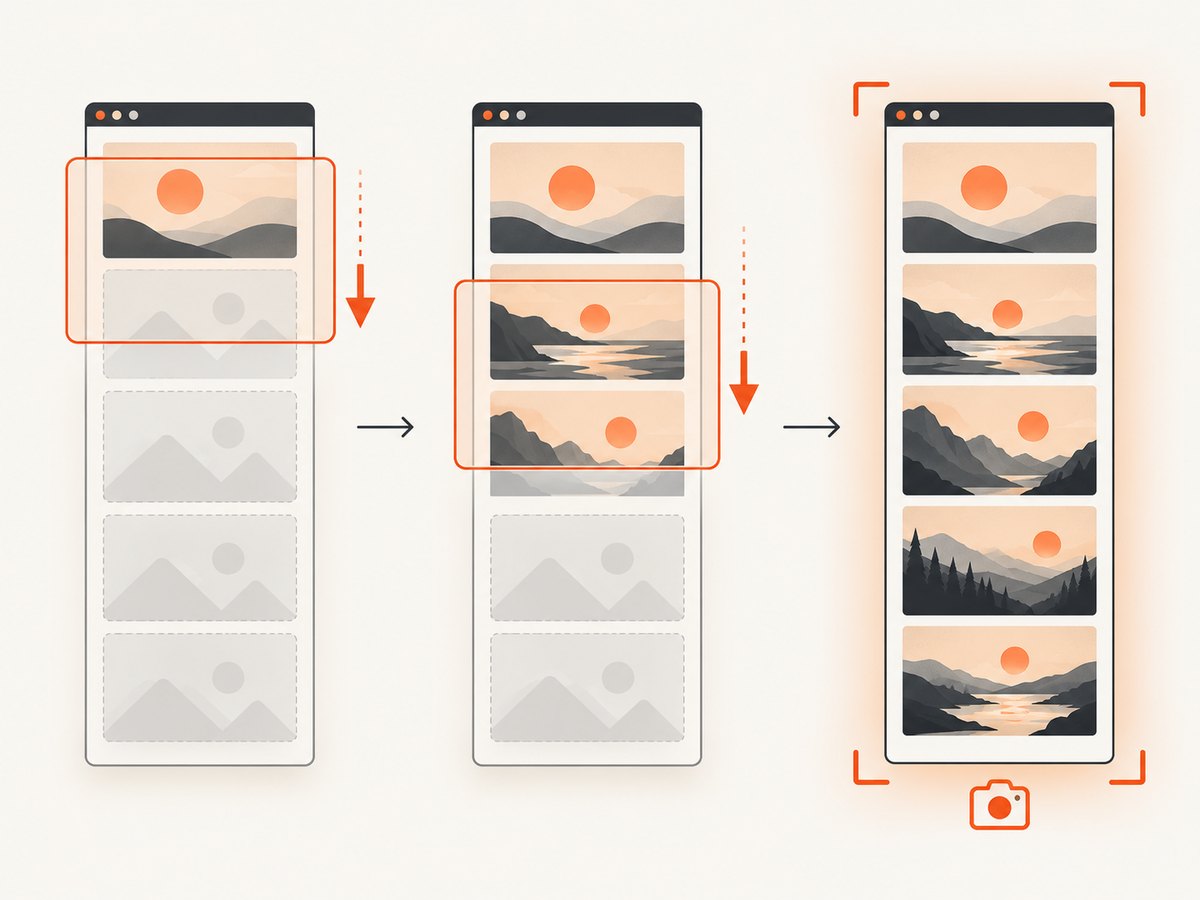
To capture lazy-loaded images with Puppeteer, scroll the page so offscreen images approach the viewport, wait for the images you care about to finish loading, then take the screenshot. A navigation load event or a quiet network does not prove that offscreen lazy images were requested. For a full-page capture, use page.screenshot({ fullPage: true }); for one image or component, use its element handle’s screenshot() method. See the official Puppeteer screenshot guide and MDN image documentation.
This guide uses JavaScript because Puppeteer is a JavaScript library. It covers a bounded scroll-and-check workflow, full-page and element capture, alternative waiting strategies, common failure causes, and a hosted option when you do not want to maintain a browser process.
1. Why lazy images are missing from screenshots
An image marked with loading="lazy" may not be fetched until it is near the visual viewport. A browser can fire the page’s load event while images further down the document remain unloaded. MDN recommends checking an individual image’s complete property when you need to know whether it has finished loading. A completed image can still have failed, so check naturalWidth too when successful image data matters.
Puppeteer’s screenshot call captures the page’s rendered state; it does not promise to activate every site’s lazy-loading behavior. Scrolling triggers common viewport-based implementations, but custom JavaScript, infinite feeds, frames, and background images may need site-specific handling. Treat the routine below as a robust starting point, then verify the particular page.
2. Install Puppeteer and capture a full page
In a new project, install Puppeteer, save the script below as capture.js, and run it with Node.js. The script scrolls in viewport-sized steps, rereads the page height so appended content can be discovered, limits the number of steps, waits for image elements to settle, reports failed images, returns to the top, and writes a full-page PNG.
npm install puppeteer

# Set the target URL and run the script:
URL="https://example.com" node capture.js
const puppeteer = require('puppeteer');
const url = process.env.URL;
if (!url) throw new Error('Set URL to the page you want to capture');
(async () => {
const browser = await puppeteer.launch({ headless: true });
try {
const page = await browser.newPage();
await page.setViewport({ width: 1440, height: 900, deviceScaleFactor: 1 });
// domcontentloaded gives the scroll routine a chance to trigger lazy loads.
await page.goto(url, { waitUntil: 'domcontentloaded', timeout: 30_000 });
const result = await page.evaluate(async () => {
const pause = ms => new Promise(resolve => setTimeout(resolve, ms));
let previousHeight = -1;
let stableRounds = 0;
let steps = 0;
const maxSteps = 100;
while (steps < maxSteps && stableRounds < 3) {
const height = document.documentElement.scrollHeight;
const nextY = Math.min(window.scrollY + window.innerHeight, height);
window.scrollTo(0, nextY);
await pause(250);
const nextHeight = document.documentElement.scrollHeight;
stableRounds = nextHeight === previousHeight ? stableRounds + 1 : 0;
previousHeight = nextHeight;
steps++;
}
// Give the last viewport's images a chance to start, then wait for every
// current img element to load or fail. The outer Puppeteer timeout below
// is the final guard against pages whose image requests never settle.
await pause(250);
const images = [...document.images];
await Promise.all(images.map(img => {
if (img.complete) return Promise.resolve();
return new Promise(resolve => {
img.addEventListener('load', resolve, { once: true });
img.addEventListener('error', resolve, { once: true });
});
}));
const failures = images
.filter(img => !img.naturalWidth)
.map(img => img.currentSrc || img.src);
window.scrollTo(0, 0);
return { imageCount: images.length, failures, steps, reachedStepLimit: steps === maxSteps };
});
if (result.failures.length) {
console.warn('Images with no loaded pixel data:', result.failures);
}
if (result.reachedStepLimit) {
console.warn('Reached maxSteps; review this page for infinite scrolling or a growing document.');
}
console.log(`Found ${result.imageCount} img elements after ${result.steps} scroll steps.`);
await page.screenshot({ path: 'page.png', fullPage: true });
console.log('Saved page.png');
} finally {
await browser.close();
}
})().catch(error => {
console.error(error);
process.exitCode = 1;
});The loop has a hard limit because an infinite-scroll page may keep growing forever. It also requires several stable-height rounds before it stops. Adjust maxSteps and the pause for the page, network, and expected content; a fixed delay is a practical trigger window, not proof that a site’s asynchronous work has completed. If you know the expected number of cards or a page-specific completion signal, use that instead.
The image wait resolves on either load or error so one broken request does not hang the whole capture indefinitely. The script reports images with no naturalWidth; change that policy to throw an error if a complete set of successful images is a requirement. The screenshot itself can still contain placeholders or failed-image rendering when a resource failed.
3. Choose navigation and readiness conditions
page.goto() accepts navigation wait conditions. Choose one that matches the site rather than treating any one event as universal readiness:
| Condition | Use it when | Limit |
|---|---|---|
domcontentloaded |
You want the document parsed, then will trigger lazy loading yourself. | Images and other resources can still be loading. |
load |
You need the page’s ordinary load event before proceeding. | Offscreen lazy images may not have been requested. |
networkidle0 / networkidle2 |
You need a period with few or no active network connections. | Quiet network does not cause offscreen images to enter the viewport; analytics or long-lived connections can also interfere. |
For a page-specific state, use page.waitForSelector() or page.waitForFunction(). For example, wait for a gallery container or a known item count after scrolling. That condition is only useful if it represents the content you actually intend to capture. Puppeteer also provides page.waitForNetworkIdle(); select it when network quiet is the condition you need, not as a substitute for activating lazy loading.
// Wait for a page-specific gallery signal after navigation.
await page.waitForSelector('.gallery img', { timeout: 10_000 });
await page.waitForFunction(
  () => [...document.querySelectorAll('.gallery img')].length >= 12,
  { timeout: 15_000 }
);
4. Capture one image or component
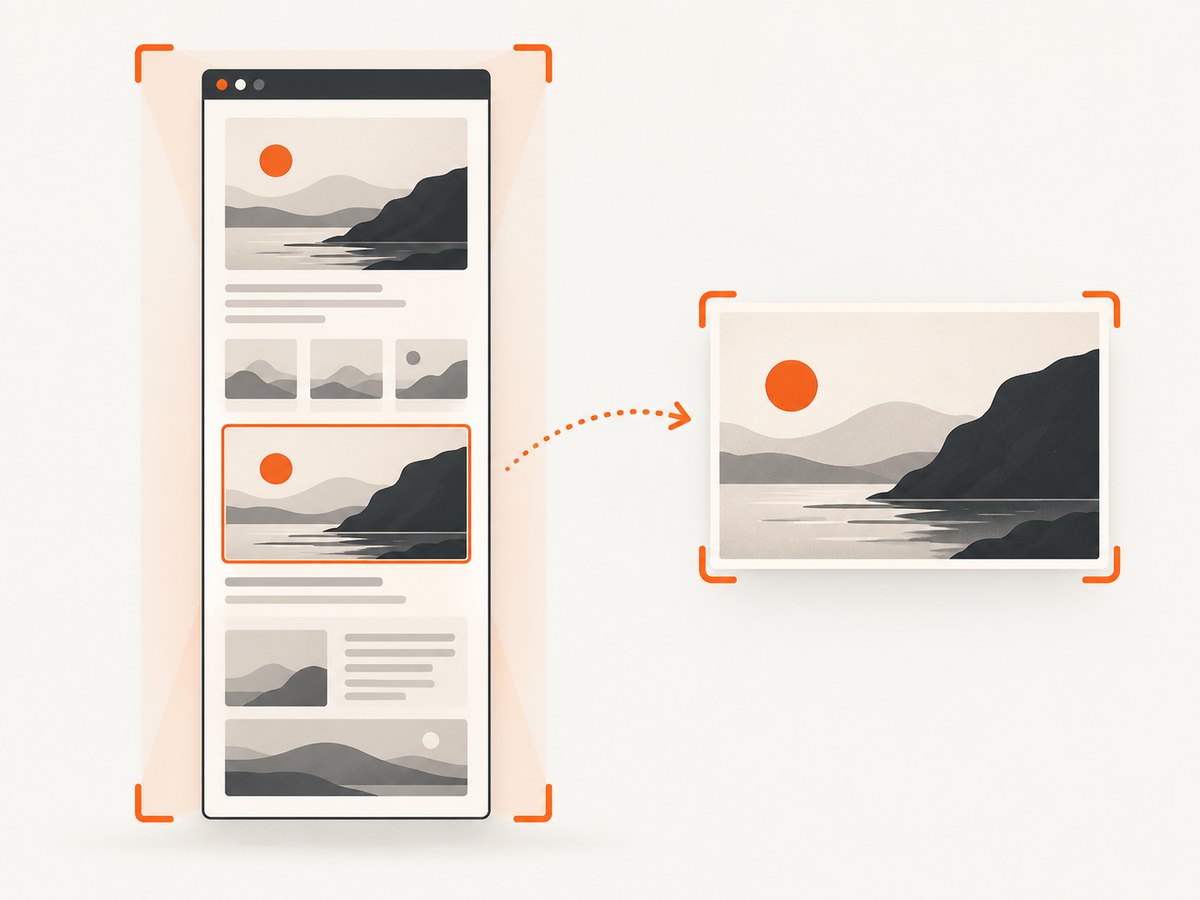
Use an element screenshot when the deliverable is one image, product card, chart, or other component. Puppeteer attempts to scroll a hidden element into view before an ElementHandle.screenshot(), but you should still check that the image inside it loaded successfully.
const image = await page.waitForSelector('main article img.hero', { timeout: 10_000 });
if (!image) throw new Error('Hero image was not found');

await image.evaluate(async img => {
  if (!img.complete) {
    await new Promise(resolve => {
      img.addEventListener('load', resolve, { once: true });
      img.addEventListener('error', resolve, { once: true });
    });
  }
  if (!img.naturalWidth) throw new Error('Hero image has no loaded pixel data');
});

await image.screenshot({ path: 'hero.png' });
If the selected element is a wrapper around the image, wait for the relevant descendant instead and screenshot the wrapper. Check whether sticky headers, overlays, or clipping affect the output. An element screenshot is generally smaller and easier to inspect than a very long full-page image.
5. Handle edge cases deliberately
Infinite scroll and changing heights
Recheck scrollHeight after each step. Stop at an expected item count or use a maximum-step and overall timeout guard. If the page keeps appending records, decide whether the goal is the current viewport, the first N items, or the entire feed; “entire feed” may have no natural end.
Failed images and placeholders
img.complete can be true for a failed image. Use naturalWidth > 0 to distinguish loaded image data from an error or empty source. Sites may intentionally use placeholders, so compare the result against the site’s expected state before treating every zero-width image as a fatal error.
CSS background images
document.images includes <img> elements, not CSS backgrounds. If important artwork comes from background-image, identify its element and computed style, and wait for the corresponding resource or a meaningful page state. A generic image-element wait will not validate it.
Frames and shadow roots
Images within an iframe belong to that frame’s document; inspect the frame separately and apply an equivalent readiness check. Images inside shadow DOM may not appear in a simple document-wide query, so traverse the relevant shadow roots or target their host/component with a page-specific signal.
Very long pages and device scale
A full-page capture of a long document can consume substantial memory and create a large output. Capture sections or elements when possible. The viewport’s deviceScaleFactor affects pixel dimensions; higher values increase detail and output size. Pick a viewport and scale that match the intended use instead of capturing at maximum resolution by default.
6. Troubleshooting
| Symptom | Likely cause | Fix |
|---|---|---|
| Images below the fold are blank | They never approached the viewport before capture. | Scroll through the page in steps, pause for lazy-load code, then check image readiness. |
| The script says images are complete, but some look broken | complete also becomes true after a failed request. |
Check naturalWidth, record failed URLs, and decide whether to retry or fail the job. |
| The script hangs waiting for images | A request never settles, or the page continually creates more work. | Use an overall timeout, resolve per-image waits on load or error, and bound scrolling. |
| The page is cut off or misses late content | Content was appended after the measured height or screenshot began too early. | Reread height each pass; wait on a site-specific item count or readiness signal before capture. |
| Network-idle navigation times out | Long polling, analytics, streaming, or persistent requests prevent network quiet. | Use domcontentloaded or another suitable navigation condition, then wait on the actual content you need. |
| Some visible graphics are still missing | They are CSS backgrounds, inside a frame or shadow root, or rendered by custom site code. | Inspect the relevant structure and add a targeted wait for that implementation. |
| Browser fails to launch in a container | Browser dependencies or runtime permissions are missing. | Use the deployment instructions for the installed Puppeteer version and environment; confirm its bundled browser and required system libraries are available. |
7. Performance, reliability, and cost
Every scroll step and wait adds latency. A short pause can let viewport-triggered work begin, while waiting for every image can add time when a page has slow or failed resources. Limit the document area and image set to what the output needs, prefer selector or item-count readiness over arbitrary long sleeps, and set navigation and job timeouts. Close the browser in a finally block so errors do not leak browser processes.
For reliability, record the URL, elapsed time, scroll-step count, image count, failed image URLs, and whether the step limit was reached. Avoid declaring a capture complete solely because navigation or network-idle succeeded. Retrying can help transient resource failures, but use bounded retries and avoid creating an unbounded loop against a site. Capture only pages and content you are authorized to access, and respect applicable site terms and access controls.
Self-hosted Puppeteer has no per-screenshot API charge, but you pay in browser compute, memory, storage, engineering time, and operational upkeep. Full-page dimensions and high device scale can increase memory and file size. A hosted API shifts browser operations to a service and may charge by plan or successful capture; check its current terms and response semantics before estimating cost.
8. Or skip the browser setup
ScreenshotNeo is a website screenshot API and MCP server from ScreenshotNeo. The API takes a URL in one GET request and can return an image or PDF. For a direct image response, use this cURL example; the API documentation covers available parameters. The API code uses the supplied Stripe example URL; replace it with the page you are authorized to capture.
curl -G "https://api.screenshotneo.com/v1/shot" -d access_key=YOUR_API_KEY --data-urlencode url=https://stripe.com -o shot.webpimport requests
r = requests.get(
"https://api.screenshotneo.com/v1/shot",
params={"access_key": "YOUR_API_KEY", "url": "https://stripe.com"},
timeout=90,
)
open("shot.webp", "wb").write(r.content)const q = new URLSearchParams({ access_key: 'YOUR_API_KEY', url: 'https://stripe.com' });
const res = await fetch(`https://api.screenshotneo.com/v1/shot?${q}`);
if (!res.ok) throw new Error(`Screenshot request failed: ${res.status}`);
const bytes = Buffer.from(await res.arrayBuffer());
require('fs').writeFileSync('shot.webp', bytes);ScreenshotNeo accepts cookie or consent banners like a visitor and removes more than 60 known consent platforms, newsletter popups, and chat widgets before the capture; each step can be turned off. Bot checks, CAPTCHAs, blank pages, timeouts, failed loads, and cache hits are not billed, and response headers report the page verdict and billing status. Its MCP server gives AI agents tools for screenshots, page info, and PDF capture. The free plan includes 1,000 shots a month with no card; paid plans start at $5 for 3,000 shots. Every feature is on every plan.
Sign up free for 1,000 screenshots a month, with no card required.
9. Frequently asked questions
Does fullPage: true scroll the page and load every lazy image?
No. It requests a full-page screenshot, but the reliable workflow is to trigger lazy loading first and check the images that matter.
Should I always use networkidle0?
No. Use it when network quiet is the signal you need and the site allows it to occur. It does not activate offscreen lazy images.
Can Puppeteer capture an image before it finishes loading?
Yes. A screenshot reflects the current rendered state. Wait for the specific image or page condition before capture.
How do I capture only a particular image?
Find it with a selector, verify it has loaded image data, and call the returned element handle’s screenshot() method.
Why does the scroll loop need a maximum?
Infinite-scroll pages can keep increasing their height. A bound prevents a capture task from scrolling forever; use an expected count or site-specific stopping rule when available.


