How to Capture Website Screenshots Containing Live Webcam Images
Capture a live webcam panel from a website with Firefox, Chrome, OBS, or code, including permissions, selectors, timing, troubleshooting, and automation.
Direct answer: Open the page, allow camera access when you are authorized to view the feed, wait until the current webcam frame is visible, then capture the browser viewport or the webcam element. For a repeatable workflow, use Firefox Developer Tools with a CSS selector and delay, Chrome display-capture APIs when you need a tab or window stream, or OBS Browser Source when you need a controlled scene.
A screenshot records the webcam pixels already rendered in the page. It cannot make a feed appear when the site was denied camera access, the camera is disconnected, or the page has not finished initializing.
1. Capture the visible webcam image quickly
- Open the page containing the webcam component.
- Grant camera permission only if you are authorized to view that feed. The browser permission belongs to the site and affects whether video appears.
- Wait until the video is visibly rendering. A frozen poster, black rectangle, loading spinner, or permission prompt is not a live frame.
- Capture the viewport. In Firefox, press Ctrl+Shift+S on Windows or Linux, or Command+Shift+S on macOS. Choose the visible area or the full page.
- Check the saved image at 100% zoom. If the webcam is black or stale, fix permissions or timing before changing image quality.
This method captures whatever the browser has painted, including overlays and controls. Use an element capture when you need only the webcam box.
2. Capture only the webcam element in Firefox
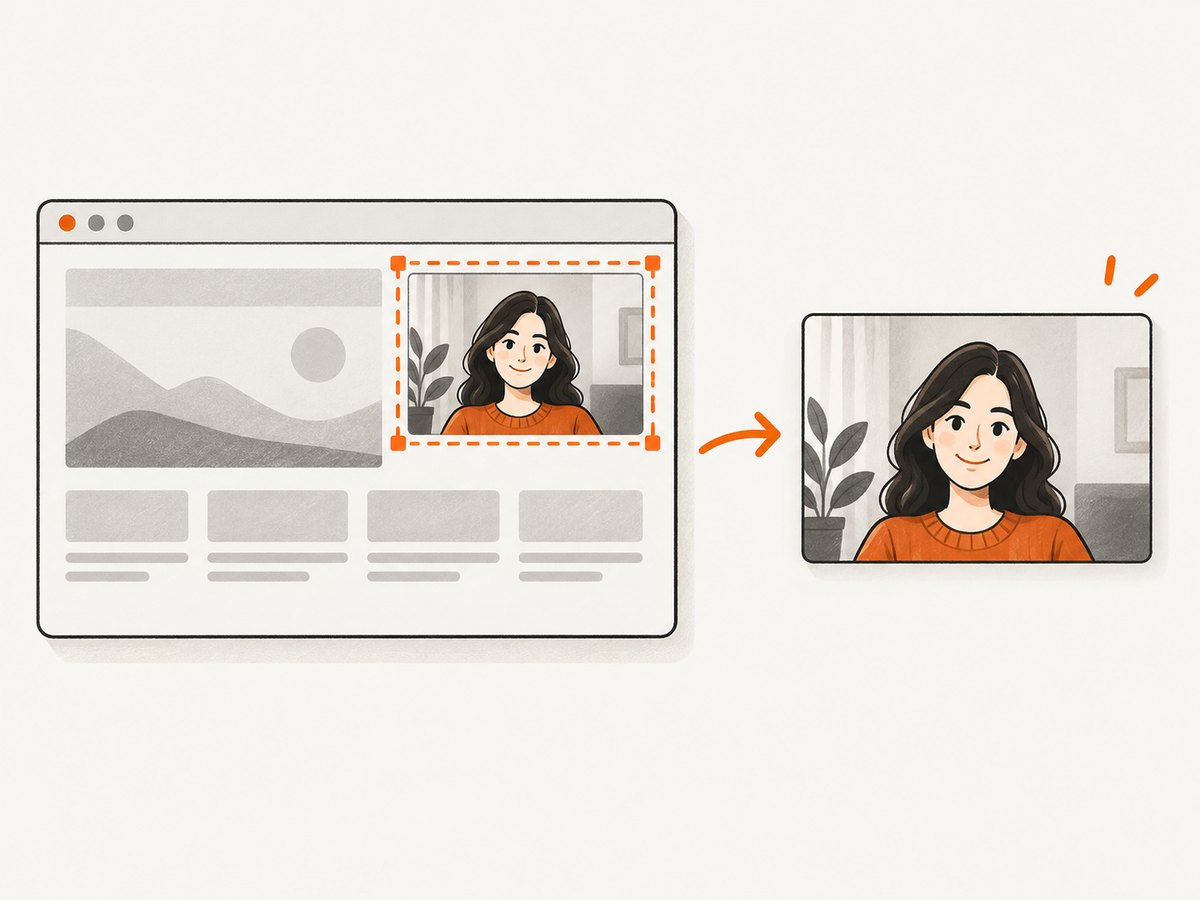
Firefox Developer Tools can capture one DOM node instead of the whole page. Mozilla documents both full-page and single-element screenshots in its Screenshot documentation.
- Open Developer Tools with F12 or Ctrl+Shift+I.
- Use the Inspector to locate the webcam container, usually a
<video>element or a parent with a stable class or ID. - Right-click the node and choose Screenshot Node.
- Alternatively, open the Web Console and run the selector helper below.
:screenshot --selector "video.webcam" --filename "webcam.png"Replace video.webcam with the selector that matches the rendered panel. The selector must identify an element that exists after the page loads. If the site creates the video dynamically, wait for it first or add a delay:
:screenshot --selector "#camera-panel" --delay 3000 --dpr 2 --filename "camera-panel.png"The helper supports --selector, --delay, --clipboard, --dpr, --filename, and --fullpage. A higher device-pixel ratio produces a larger raster; it does not restore detail that the camera or browser never rendered.
3. Choose the right capture scope and timing
| Need | Use | Key setting |
|---|---|---|
| Visible page with surrounding context | Firefox visible-area capture or a normal browser screenshot | Wait for the frame before capture |
| Entire document | Firefox full-page capture | Check that lazy content has loaded |
| Only the webcam panel | Firefox Screenshot Node or :screenshot --selector |
Use a stable CSS selector |
| A frame after initialization | Selector capture with a delay | Start with 1–3 seconds, then tune |
| A tab, window, or screen stream | Chrome getDisplayMedia() |
User gesture and sharing permission |
| Repeatable layout with overlays | OBS Browser Source | Fixed dimensions, frame rate, and CSS |
A delay helps when JavaScript must request the camera, negotiate a stream, paint the first frame, or remove a loading layer. It does not bypass a permission prompt. If the page changes size while the stream starts, capture after the layout has settled.
4. Fix camera permissions before capturing
When the feed is missing, inspect the browser’s camera permission for that origin. Chrome documents the controls under Privacy and security → Site settings → Camera, including one-time, while-visiting, and never-allow choices. Open the site settings from the address-bar permission icon, select the intended camera, and reload the page after changing the setting.
- Confirm the correct physical or virtual camera is selected.
- Close other applications that may exclusively hold the camera.
- Look for a browser or operating-system privacy switch that blocks camera access.
- Use HTTPS or the site’s permitted local-development origin when required by the browser.
- Do not attempt to capture a feed you are not authorized to view.
A screenshot tool only sees the rendered result. It cannot recover a camera stream that the browser or site refused to expose.
5. Use Chrome display capture for a tab, window, or screen
If the web application needs a user-selected tab, window, or screen rather than a DOM screenshot, use getDisplayMedia(). The browser presents a sharing prompt, and Chrome requires a user gesture before opening it.
<button id="share">Choose a tab or window</button>
<video id="preview" autoplay playsinline></video>
<script>
const button = document.querySelector('#share');
const preview = document.querySelector('#preview');
button.addEventListener('click', async () => {
  try {
    const stream = await navigator.mediaDevices.getDisplayMedia({
      video: true,
      audio: false
    });
    preview.srcObject = stream;
    stream.getVideoTracks()[0].addEventListener('ended', () => {
      preview.srcObject = null;
    });
  } catch (error) {
    console.error('Display capture was cancelled or denied', error);
  }
});
</script>
This produces a media stream for an application to preview or process. It is a permissioned sharing workflow, not a silent way to capture another tab. For a static image of the page, a DOM screenshot is simpler.
6. Build a repeatable composition with OBS Browser Source
OBS Browser Source is useful when the webcam page must appear in a controlled scene for repeated screenshots or recordings. Add a Browser Source, enter the page URL, set the width and height, choose a custom frame rate, and apply custom CSS when needed. The OBS Browser Source guide documents these controls.
- Create a scene dedicated to the webcam page.
- Add Browser as a source and enter the URL.
- Set dimensions that match the intended output instead of relying on an arbitrary viewport.
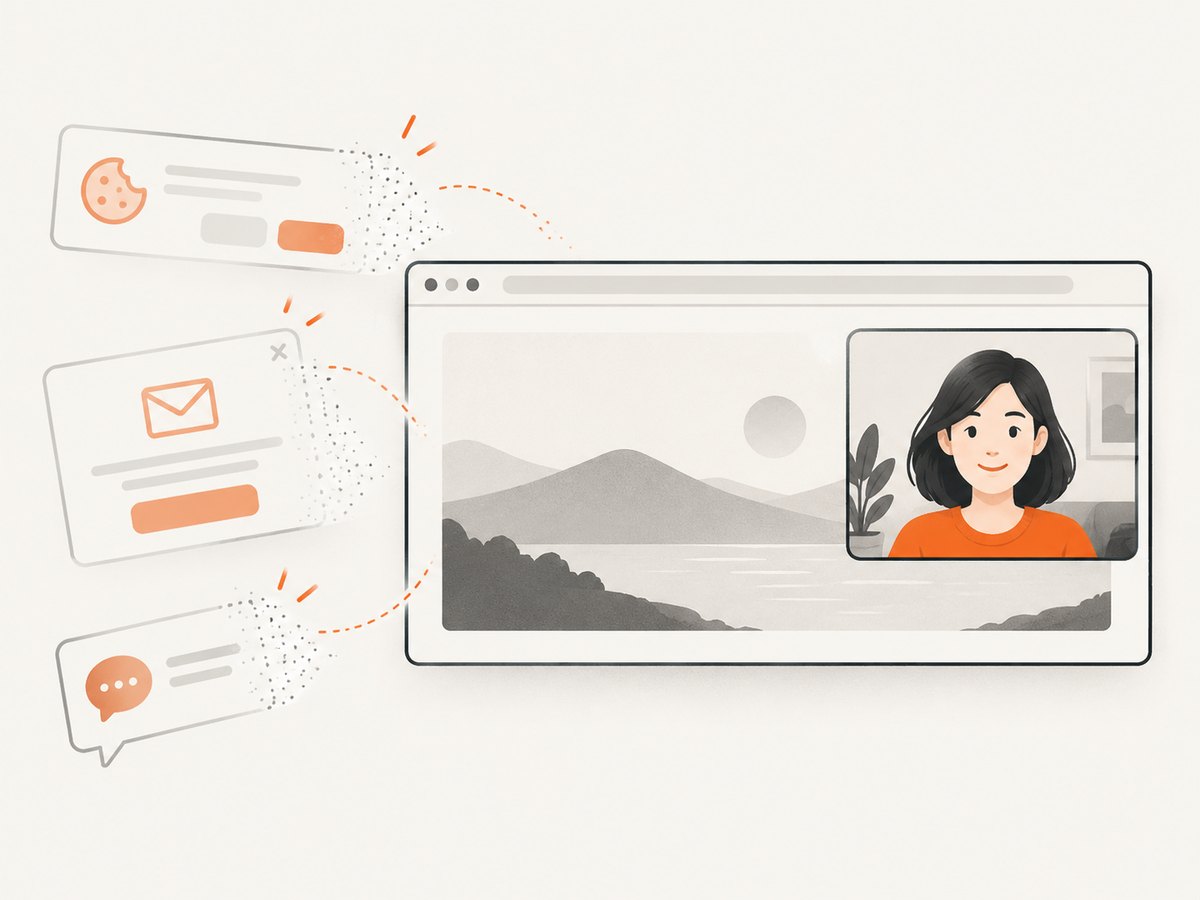
- Use custom CSS to hide navigation, margins, consent prompts, or other page elements you are allowed to remove.
- Wait for the camera frame, then use OBS screenshot or recording output.
OBS gives you composition and repeatability. It still depends on the embedded browser receiving camera permission and rendering the feed.
Or skip the browser setup
ScreenshotNeo is a website screenshot API and MCP server. Its clean-shot pipeline accepts consent banners like a visitor and removes more than 60 known consent platforms, newsletter popups, and chat widgets before capture; each step can be turned off. Bot checks, CAPTCHAs, blank pages, timeouts, failed loads, and cache hits are not billed, and the response identifies the result with X-Page-Verdict and X-Billed headers.
Use the API only when the webcam image is rendered as part of the public page. An API screenshot cannot grant camera permission to a private device stream or bypass a site permission prompt.
See the ScreenshotNeo documentation for all options. The one-call examples below save the returned image.
cURL
curl -G "https://api.screenshotneo.com/v1/shot" \
  -d access_key=YOUR_API_KEY \
  --data-urlencode url=https://example.com/webcam \
  -o webcam.webp
Python
import requests

r = requests.get(
    "https://api.screenshotneo.com/v1/shot",
    params={"access_key": "YOUR_API_KEY", "url": "https://example.com/webcam"},
    timeout=90,
)
r.raise_for_status()
open("webcam.webp", "wb").write(r.content)
Node.js
import { writeFile } from 'node:fs/promises';

const q = new URLSearchParams({ access_key: 'YOUR_API_KEY', url: 'https://example.com/webcam' });
const res = await fetch(`https://api.screenshotneo.com/v1/shot?${q}`);
if (!res.ok) throw new Error(`ScreenshotNeo returned ${res.status}`);
await writeFile('webcam.webp', Buffer.from(await res.arrayBuffer()));
Relevant options include full-page capture with lazy images loaded, a CSS-selector element capture, dark mode, 12 device presets or any viewport, retina scale, custom CSS and JavaScript, clicks, waits for a selector or network idle, request and resource blocking, custom headers, cookies, user agents and Authorization, timezone, geolocation, transparent backgrounds, resizing, chosen cache TTLs, signed links, asynchronous jobs with signed webhooks, bulk capture of up to 100 URLs per call, a usage API, and PDF output. The parameter names used by other screenshot APIs also work, which can simplify migration.
ScreenshotNeo also has an MCP server with take_screenshot, get_page_info, and capture_pdf tools for Claude, Cursor, and other MCP clients. It offers 1,000 screenshots per month free with no card; paid plans start at $5 for 3,000 shots. Create a free ScreenshotNeo account.
7. Edge cases that change the result
- Black video: The stream exists but frames are blocked, not yet painted, or covered by another layer. Wait, inspect permissions, and check whether the page requires a user interaction.
- Frozen frame: Capture after the first frame event or add a delay. A screenshot is a single instant, so it cannot prove that motion continued afterward.
- Canvas rendering: Select the canvas or its parent rather than a nonexistent video node.
- Cross-origin iframe: You may be unable to inspect its internal DOM. Capture the visible iframe region or use the frame’s own URL when authorized.
- Responsive layout: Fix the viewport before selecting coordinates or comparing images.
- Lazy content: Full-page captures can trigger additional loading. Wait for network idle or a known selector.
- Overlays: Consent dialogs and chat widgets can cover the webcam. Dismiss them or hide permitted selectors before capture.
- Privacy: Treat saved images as recordings of the people and space visible to the camera. Store and share them according to your authorization and policy.
8. Troubleshooting
| Symptom | Likely cause | Fix |
|---|---|---|
| Camera permission prompt is still visible | The capture ran before permission was answered | Grant or deny permission, reload, then capture after the video appears |
| Black rectangle | Wrong camera, OS privacy block, or stream not initialized | Check site and OS permissions, close competing apps, and add a delay |
| Selector capture says no matching element | The element is created later or the selector is wrong | Inspect the live DOM and wait for a stable selector |
| Screenshot includes the whole page | Viewport capture was used instead of node capture | Use Firefox Screenshot Node or the --selector helper |
| Display-capture prompt never opens | getDisplayMedia() was called without a user gesture |
Call it directly from a click or other permitted user interaction |
| OBS source is blank | The embedded page lacks permission or failed to load | Open the same URL in a browser, resolve permissions, then refresh the source |
| Image is soft | Low viewport size or device-pixel ratio | Increase dimensions or DPR; do not expect this to create missing camera detail |
| Automated API result is billed unexpectedly | The page returned a clean capture | Inspect X-Page-Verdict and X-Billed; only clean shots are billed by ScreenshotNeo |
9. Performance, reliability, and cost
- Timing: A short targeted delay is usually more predictable than an arbitrary long sleep. Prefer a selector or network-idle condition when your tool supports it.
- Resolution: Larger viewports and higher DPR increase output size and processing work. Set them to the detail your use case needs.
- Repeatability: Fix viewport, browser zoom, timezone, geolocation, camera choice, and page state before comparing captures.
- Reliability: Record whether the frame was visible before capture. For batch jobs, retry navigation failures separately from permission failures.
- Cost: Local Firefox, Chrome, and OBS captures use your own machine. ScreenshotNeo provides 1,000 free shots monthly without a card; paid plans are $5 for 3,000, $15 for 15,000, $39 for 60,000, $99 for 250,000, and $249 for 1,000,000. Yearly billing gives two months free, and every feature is on every plan.
FAQ
Does a screenshot need a capture card?
No. A normal browser screenshot records the webcam pixels already rendered by the page.
Can I capture only the webcam box?
Yes. Use Firefox Screenshot Node or :screenshot --selector with the webcam container’s CSS selector.
Why is my screenshot blank when the webcam works in another tab?
The captured page may have a separate camera permission, a different selected device, or a stream that had not rendered yet. Check that origin’s permission and wait for a visible frame.
When should I use display capture instead of a DOM screenshot?
Use display capture when the application needs a user-selected tab, window, or screen stream. Use a DOM screenshot for a static image of page content.
Can ScreenshotNeo access my laptop webcam?
No. It captures a URL from its API environment. It can capture a webcam image only when that image is already publicly rendered by the target page and does not require your local device permission.


