Capture a Live Website Screenshot
Learn how to capture live website screenshots with Playwright, Chrome DevTools, Puppeteer, and a hosted API—including full-page, element, and reliable automated captures.
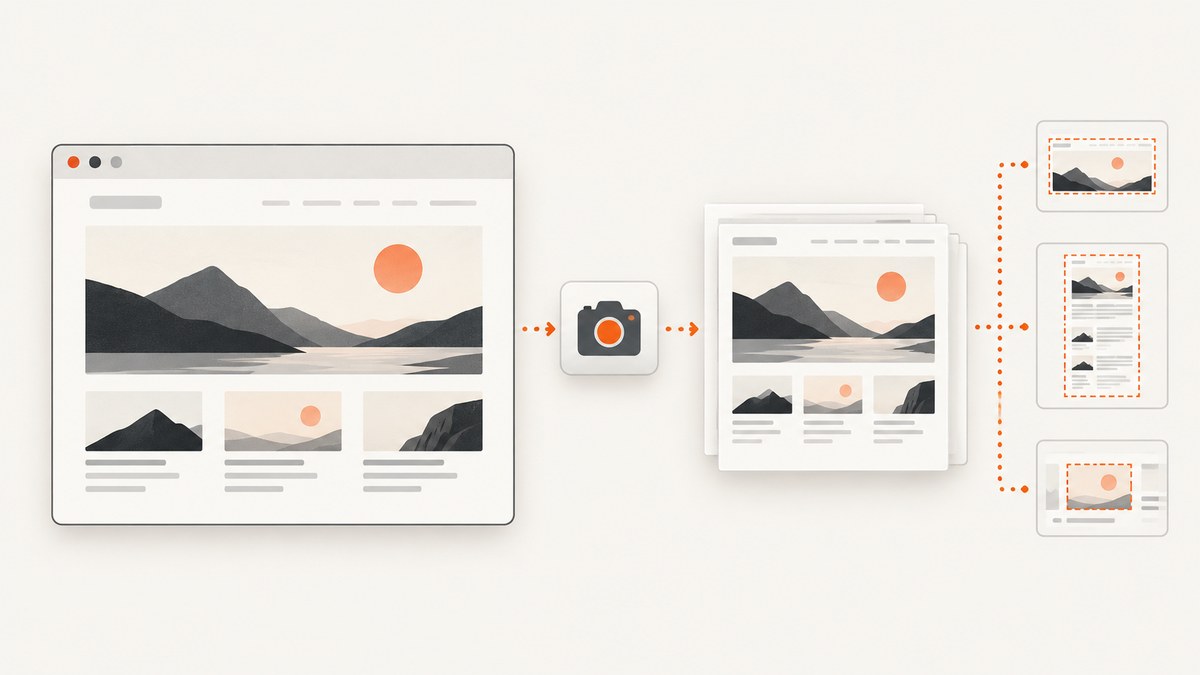
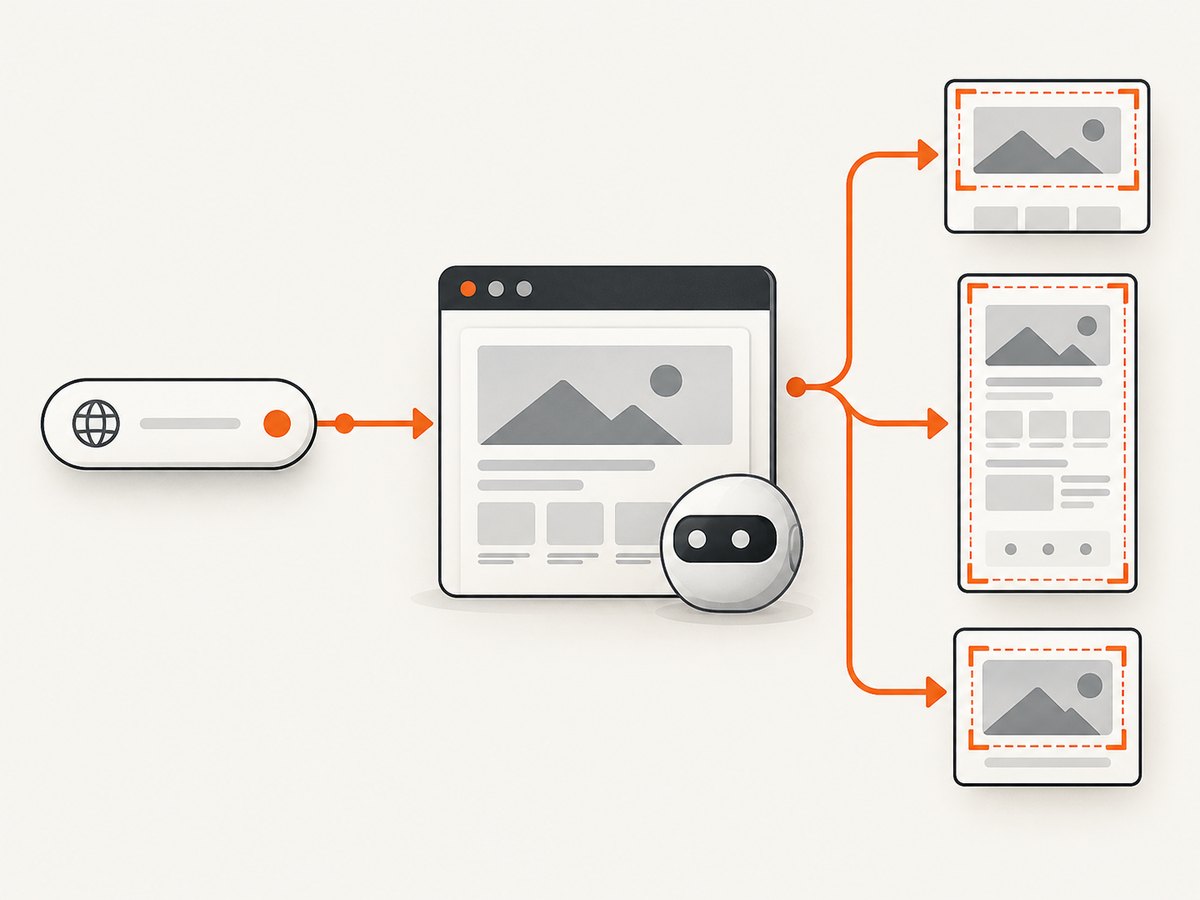
To capture a live website screenshot, open the page in a browser and save the rendered result. For repeatable work, use browser automation: Playwright, Puppeteer, or the Chrome DevTools Protocol can navigate to a URL and return a PNG, JPEG, or WebP file. Choose the capture scope first: the visible viewport, the entire scrollable page, or one element.
This guide starts with a complete Playwright workflow, then covers full-page and element screenshots, image bytes, authentication, delayed content, troubleshooting, performance, reliability, and hosted capture. The examples use software only; a physical capture card or camera is not required.
1. Choose the screenshot scope
| Goal | Method | Typical use |
|---|---|---|
| Visible viewport | page.screenshot() |
Record exactly what is visible at a chosen viewport size. |
| Full scrollable page | page.screenshot({ fullPage: true }) |
Documentation, audits, and long landing pages. |
| One component | locator.screenshot() |
Capture a chart, card, navigation bar, or other selected element. |
Playwright describes a full-page screenshot as a capture of the full scrollable page, as if the page fit on a very tall screen. The default screenshot is only the current viewport. The same API can write an image to disk or return image bytes for another processing step. See the Playwright screenshot guide and the Page API for version-specific options.
2. Install Playwright and capture a live page
Install Playwright in a new Node.js project, install a browser, and run a script. The official example uses WebKit; Chromium and Firefox are also available.
mkdir live-shot
cd live-shot
npm init -y
npm install -D playwright
npx playwright install chromium
Create capture.mjs:
import { chromium } from 'playwright';

const browser = await chromium.launch();
const page = await browser.newPage({
  viewport: { width: 1440, height: 900 },
  deviceScaleFactor: 1
});

await page.goto('https://example.com', { waitUntil: 'load' });
await page.screenshot({ path: 'screenshot.png', type: 'png' });

await browser.close();
Run it with node capture.mjs. The path determines where the file is saved. Use an absolute path when a worker process may have a different working directory.
Wait for the page state you actually need
waitUntil: 'load' waits for the document load event, but many sites render content after that event. Wait for a specific selector when the screenshot depends on a component, or wait for network idle when the page has a finite loading phase.
await page.goto('https://example.com/dashboard', {
  waitUntil: 'domcontentloaded',
  timeout: 60_000
});

await page.waitForSelector('[data-testid="report"]', {
  state: 'visible',
  timeout: 30_000
});

// A short delay can allow animations or client-side layout to settle.
await page.waitForTimeout(500);
await page.screenshot({ path: 'report.png' });
A selector wait is usually more reliable than an arbitrary long delay. Avoid waiting forever for a selector that is optional; handle that case explicitly with a timeout and a fallback.
3. Capture full pages and individual elements
Full-page screenshot
import { chromium } from 'playwright';

const browser = await chromium.launch();
const page = await browser.newPage({ viewport: { width: 1280, height: 800 } });
await page.goto('https://example.com/articles/live-capture', {
  waitUntil: 'networkidle',
  timeout: 60_000
});
await page.screenshot({
  path: 'article-full.png',
  fullPage: true,
  type: 'png'
});
await browser.close();
Full-page capture can expose lazy-loading behavior. If images load only when they approach the viewport, scroll through the page before taking the final shot:
await page.evaluate(async () => {
  await new Promise((resolve) => {
    const step = 600;
    const timer = setInterval(() => {
      window.scrollBy(0, step);
      if (window.innerHeight + window.scrollY >= document.body.scrollHeight) {
        clearInterval(timer);
        resolve();
      }
    }, 100);
  });
});
await page.waitForTimeout(300);
await page.screenshot({ path: 'lazy-loaded-full.png', fullPage: true });
Element screenshot
const card = page.locator('[data-testid="pricing-card"]').first();
await card.waitFor({ state: 'visible' });
await card.screenshot({
  path: 'pricing-card.webp',
  type: 'webp',
  quality: 85
});
Use a stable selector such as a data attribute when you control the site. A CSS class generated by a framework may change between deployments. If an element is outside the viewport, Playwright scrolls it into view before the locator screenshot.
4. Control viewport, device scale, and image format
The screenshot is determined by the browser context. Set the viewport to match the device or design breakpoint you need. Set deviceScaleFactor above 1 for a retina-style image; remember that it increases pixel dimensions and file size.
const context = await browser.newContext({
  viewport: { width: 390, height: 844 },
  deviceScaleFactor: 3,
  isMobile: true,
  hasTouch: true,
  colorScheme: 'dark',
  locale: 'en-US',
  timezoneId: 'America/New_York'
});
const page = await context.newPage();
await page.goto('https://example.com', { waitUntil: 'load' });
await page.screenshot({
  path: 'mobile-dark.webp',
  type: 'webp',
  quality: 82
});
PNG is lossless and useful for text-heavy images. JPEG is smaller for photographs but does not support transparency. WebP often provides a smaller file at comparable visual quality. Check the Playwright version you install for the exact set of screenshot options.
5. Return image bytes instead of writing a file
When the next step uploads the image, computes a hash, or sends it to an image processor, request a buffer:
const image = await page.screenshot({ type: 'png' });
// image is a Buffer. Example: write it later or send it to object storage.
await import('node:fs/promises').then(({ writeFile }) =>
  writeFile('pipeline-output.png', image)
);
This avoids an unnecessary temporary file. In a serverless function, return the bytes with an image/png content type, subject to that platform’s response-size limit.
6. Authenticate and reproduce the right browser state
Private pages need the same state as a real visitor. You can add HTTP headers, cookies, or a saved authenticated context. Keep secrets outside source control.
const context = await browser.newContext({
  extraHTTPHeaders: {
    Authorization: `Bearer ${process.env.SCREENSHOT_TOKEN}`
  },
  locale: 'en-GB'
});
await context.addCookies([
  {
    name: 'session',
    value: process.env.SESSION_COOKIE,
    domain: 'example.com',
    path: '/',
    httpOnly: true,
    secure: true
  }
]);
const page = await context.newPage();
await page.goto('https://example.com/account', { waitUntil: 'networkidle' });
await page.screenshot({ path: 'account.png' });
For a login flow, navigate to the sign-in page, fill fields, submit, and wait for a post-login selector. Do not place passwords in command-line arguments where process listings can expose them.
7. Hide or change page content before capture
For a deterministic visual, disable animations and hide transient elements. This is useful for cookie notices, chat launchers, timestamps, and rotating banners when you have permission to alter the rendered page.
await page.addStyleTag({
  content: `
    *, *::before, *::after {
      animation: none !important;
      transition: none !important;
      caret-color: transparent !important;
    }
  `
});
await page.locator('.chat-widget, .newsletter-modal').evaluateAll(
  els => els.forEach(el => el.remove())
);
await page.screenshot({ path: 'clean.png' });
You can also run JavaScript before capture to click a consent button or set application state. Site-specific markup means there is no universal selector that works everywhere.
8. Alternative browser capture methods
Chrome DevTools Protocol
Chrome’s DevTools Protocol exposes Page.captureScreenshot. A CDP client must launch or connect to Chrome, navigate the page, and call that method. The protocol documentation covers viewport capture and encoding options in the Page domain.
Puppeteer
Puppeteer provides a similar Node.js automation workflow. The Chrome for Developers Puppeteer documentation includes navigation and screenshot capabilities. Choose the tool already used by your project; the cited documentation does not establish a universal performance winner.
9. Troubleshooting live website screenshots
| Symptom | Likely cause | Fix |
|---|---|---|
| Blank or partially rendered image | Capture happened before client rendering finished. | Wait for a meaningful selector, then allow a short layout delay. |
| Timeout on navigation | Slow resources, a never-ending request, or access restriction. | Set a documented timeout, use domcontentloaded, block nonessential resources, and inspect the page manually. |
| Missing images in full-page output | Images are lazy-loaded only while near the viewport. | Scroll progressively, wait for image completion, then capture. |
| Cookie banner covers content | Consent UI is part of the rendered page. | Click its accepted button, remove it with an approved selector, or use a capture service that handles consent. |
| Element selector not found | Selector changed or the element is inside an iframe. | Use a stable data attribute; switch to the frame locator for iframe content. |
| Different colors or layout in CI | Different browser version, fonts, locale, timezone, or color scheme. | Pin browser dependencies, set locale/timezone, install required fonts, and use a fixed viewport. |
| Huge file or memory error | Very long page combined with a high device scale factor. | Use JPEG/WebP, lower scale, capture sections, or process bytes without retaining many images. |
| Authentication redirects to login | Cookies expired or headers are missing. | Create a fresh authenticated context and verify a post-login selector before capture. |
10. Reliability checklist for production jobs
- Pin the Playwright package and browser revision in your build.
- Set explicit navigation and selector timeouts.
- Record the URL, viewport, browser version, and timestamp beside the image.
- Retry transient navigation failures with a bounded retry count and backoff.
- Detect login pages, bot checks, empty documents, and HTTP error responses before accepting the image.
- Write to a temporary path and rename after a successful capture so consumers never read a partial file.
- Close pages, contexts, and browsers in a
finallyblock.
A browser capture is a rendering operation, so authentication, consent interfaces, delayed content, and site-specific access restrictions can affect an individual result. Browser automation gives you a repeatable workflow, but no documented method guarantees the same output for every live website.
11. Performance and cost considerations
Launching a browser is usually more expensive than reusing one. For a worker, launch one browser and create a fresh context per job, then close the context after the screenshot. Limit concurrency to the memory available on the host. Reuse an authenticated storage state when safe instead of logging in for every URL.
Reduce work by blocking analytics, advertisements, or other resources that do not contribute to the screenshot, while allowing required stylesheets, fonts, and images. Use a viewport-sized capture when a full page is unnecessary. Full-page images, high device scale factors, and PNG encoding increase CPU, memory, and storage use. The research sources document capabilities, not cross-browser speed benchmarks or universal pricing.
12. Or skip the browser setup
ScreenshotNeo provides a website screenshot API and MCP server. A GET request returns a PNG, JPEG, WebP, or PDF. The API accepts the same parameter names used by many screenshot APIs, which can simplify switching. See the ScreenshotNeo documentation for all options.

curl -G "https://api.screenshotneo.com/v1/shot" -d access_key=YOUR_API_KEY --data-urlencode url=https://stripe.com -o shot.webpimport requests
r = requests.get("https://api.screenshotneo.com/v1/shot", params={"access_key": "YOUR_API_KEY", "url": "https://stripe.com"}, timeout=90)
r.raise_for_status()
open("shot.webp", "wb").write(r.content)const q = new URLSearchParams({ access_key: 'YOUR_API_KEY', url: 'https://stripe.com' });
const res = await fetch(`https://api.screenshotneo.com/v1/shot?${q}`);
if (!res.ok) throw new Error(`Screenshot failed: ${res.status}`);
const image = Buffer.from(await res.arrayBuffer());ScreenshotNeo can capture full pages with lazy images loaded, one element by CSS selector, dark mode, custom viewports and 12 device presets, retina scale, PDFs with paper size and page ranges, custom CSS and JavaScript, clicks, selector or network-idle waits, request blocking, headers, cookies, user agents, Authorization, timezone, geolocation, transparent backgrounds, resizing, configurable caching, signed public image links, asynchronous jobs with signed webhooks, bulk capture for up to 100 URLs per call, a usage API, and an OpenAPI specification.
It removes cookie and consent banners, newsletter popups, and chat widgets from more than 60 known platforms before capture; each cleanup step can be disabled. Bot checks or CAPTCHAs, blank pages, timeouts, failed loads, and cache hits are not billed as clean shots. The response identifies the result with X-Page-Verdict and X-Billed headers. Its MCP server exposes take_screenshot, get_page_info, and capture_pdf for Claude, Cursor, and other MCP clients.
There is a free tier of 1,000 shots per month with no card. Paid plans start at $5 for 3,000 shots; yearly billing gives two months free, and every feature is available on every plan. Create a free ScreenshotNeo account to start with 1,000 screenshots a month and no card.
13. FAQ
Can I capture a screenshot without opening a physical monitor?
Yes. Playwright, Puppeteer, and Chrome DevTools Protocol render the page in browser software and save or return the image.
What is the difference between viewport and full-page capture?
Viewport capture records the currently visible browser area. Full-page capture includes the page’s scrollable content and may require lazy-loaded content to be triggered first.
Should I use PNG, JPEG, or WebP?
Use PNG for lossless text and graphics, JPEG for smaller photographic images, and WebP when you want a compact modern format with configurable quality.
Can a screenshot prove what every visitor saw?
No. The result depends on browser version, viewport, session state, location, timing, and site behavior. Record those inputs when screenshots are used as evidence.
How do I capture many URLs?
Run bounded concurrent browser jobs or use ScreenshotNeo’s bulk capture endpoint, which accepts up to 100 URLs per call.


