How to Capture a User’s Loaded Web Page with Node.js
Use Playwright or Puppeteer to wait for a page's real content, then capture its rendered screenshot or data with Node.js.
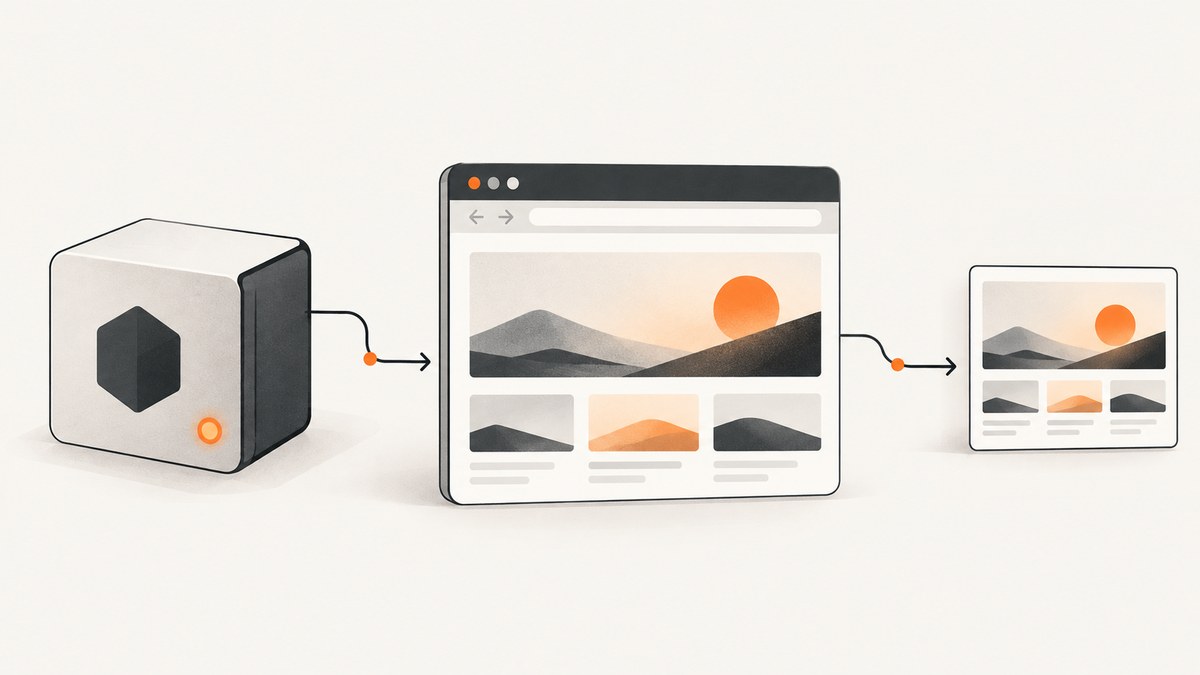
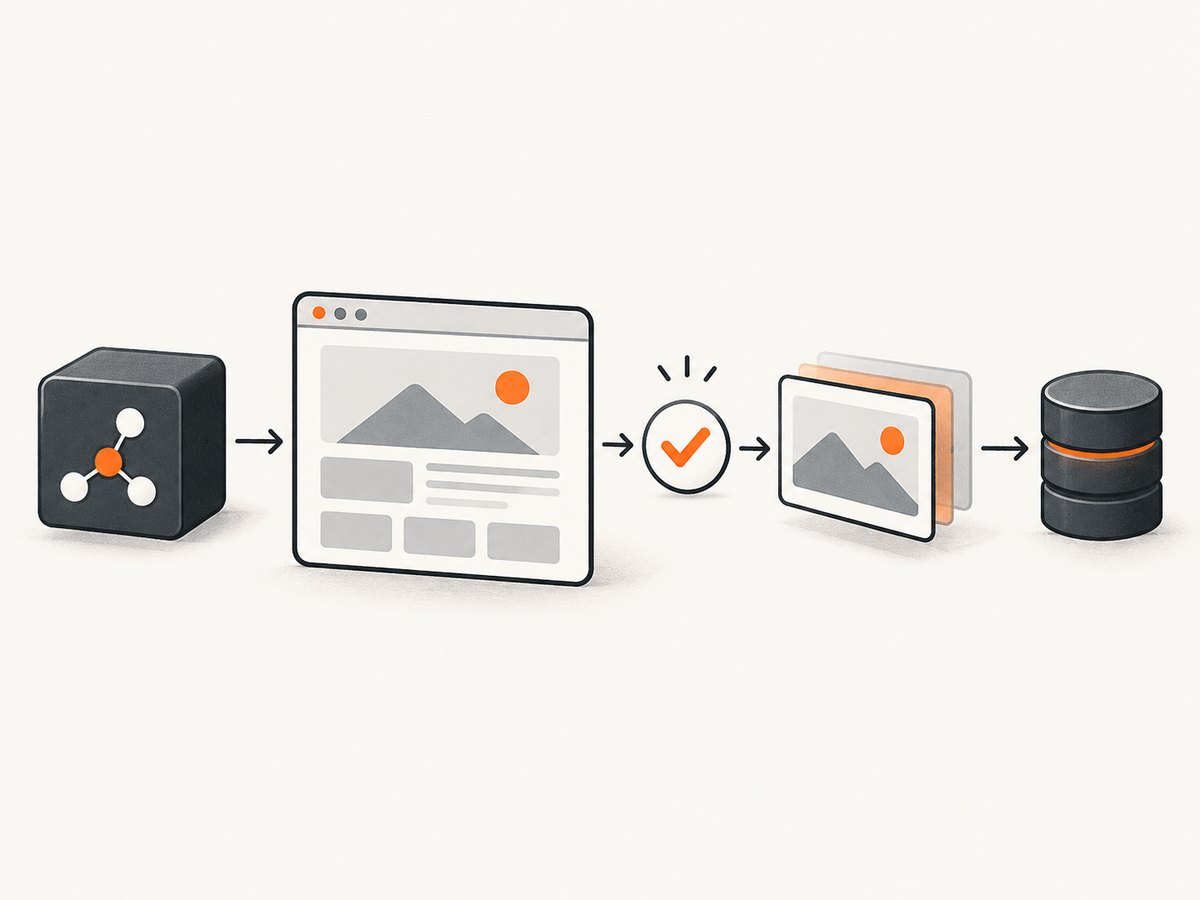
Use a browser automation library such as Playwright or Puppeteer. Navigate to the page, wait for the condition that proves the content your user needs is ready, and then call the screenshot API. With Playwright, the core sequence is page.goto() followed by page.screenshot(). Puppeteer provides the same workflow and also documents waiting for networkidle2.
A browser load event alone does not guarantee that a JavaScript application has rendered its data. Prefer a page-specific selector or assertion, such as a dashboard heading, table row, or chart container. If “capture” means extracting rendered HTML or text rather than creating an image, use Playwright’s page.evaluate().
Playwright: capture a loaded page
Install Playwright and its browser binary:
npm install playwright
npx playwright install chromium
Create capture.js:
const { chromium } = require('playwright');

(async () => {
  const url = process.argv[2] || 'https://example.com';
  const browser = await chromium.launch();

  try {
    const page = await browser.newPage({
      viewport: { width: 1440, height: 900 },
      deviceScaleFactor: 1
    });

    await page.goto(url, {
      waitUntil: 'domcontentloaded',
      timeout: 30_000
    });

    // Replace this with a selector that proves the target content is ready.
    await page.locator('body').waitFor({ state: 'visible', timeout: 15_000 });

    await page.screenshot({
      path: 'capture.png',
      fullPage: true,
      type: 'png'
    });
  } finally {
    await browser.close();
  }
})();
Run it with:
node capture.js https://example.comThe documented Playwright APIs are page.goto() and page.screenshot(). The example waits for body only to remain runnable on a generic site; production code should wait for the actual content your capture requires.
Wait for client-rendered content
await page.goto('https://app.example.com/report', {
  waitUntil: 'domcontentloaded'
});

await page.locator('[data-testid="report-ready"]').waitFor({
  state: 'visible',
  timeout: 20_000
});

await page.screenshot({ path: 'report.png', fullPage: true });
Use load when subresources such as images are needed, and domcontentloaded when you want to begin waiting for application state sooner. Playwright documents networkidle, but labels it discouraged for testing; a page-specific assertion is usually a better readiness signal. page.waitForLoadState() resolves immediately if that state has already happened and is often unnecessary for ordinary actions because Playwright auto-waits.
Wait for a delay or a custom condition
await page.waitForTimeout(1_000); // use only when a known delay is unavoidable

await page.waitForFunction(() => {
  const chart = document.querySelector('#chart');
  return chart && chart.dataset.rendered === 'true';
}, { timeout: 15_000 });
A fixed delay is less reliable than checking the state the page actually exposes. For a page that updates continuously, wait for a stable marker, hide a loading element, or observe a known response before capturing.
Screenshot options you will use most
| Goal | Playwright option or method | Notes |
|---|---|---|
| Viewport only | page.screenshot({ path }) |
Captures the current viewport. |
| Entire document | fullPage: true |
Captures the full scrollable page. |
| JPEG or WebP | type: 'jpeg' or type: 'webp' |
Use quality for JPEG/WebP. |
| One element | page.locator('.card').screenshot({ path }) |
Captures the element’s bounding box. |
| Bytes in memory | Omit path |
The method returns a Buffer. |
| Specific viewport | browser.newPage({ viewport }) |
Set width and height before navigation. |
| Retina-like output | deviceScaleFactor: 2 |
Increases pixel dimensions and memory use. |
const image = await page.screenshot({
  type: 'jpeg',
  quality: 85,
  fullPage: true
});
require('fs').writeFileSync('capture.jpg', image);
Capture an element
const card = page.locator('[data-testid="invoice"]');
await card.waitFor({ state: 'visible' });
await card.screenshot({ path: 'invoice.png' });
Hide overlays before capture
await page.addStyleTag({
  content: '.cookie-banner, .chat-widget, .newsletter-modal { display: none !important; }'
});
await page.screenshot({ path: 'clean.png', fullPage: true });
Interact before taking the image
await page.getByRole('button', { name: 'Show details' }).click();
await page.locator('#details-panel').waitFor({ state: 'visible' });
await page.screenshot({ path: 'expanded.png', fullPage: true });
Puppeteer alternative
Puppeteer is another documented Node.js browser automation option. Install it with:
npm install puppeteerconst puppeteer = require('puppeteer');
(async () => {
const url = process.argv[2] || 'https://example.com';
const browser = await puppeteer.launch();
try {
const page = await browser.newPage();
await page.setViewport({ width: 1440, height: 900 });
await page.goto(url, {
waitUntil: 'networkidle2',
timeout: 30_000
});
await page.waitForSelector('body', { visible: true, timeout: 15_000 });
await page.screenshot({ path: 'capture.png', fullPage: true });
} finally {
await browser.close();
}
})();Puppeteer’s guide documents page.goto(), page.screenshot(), and ElementHandle.screenshot(). Its networkidle2 example is useful for some pages, but network quiescence is not proof that the application has displayed the data you need.
Capture rendered HTML or text instead of an image
When the user’s “page capture” means reading the rendered DOM, run a serializable function in the page context:
const result = await page.evaluate(() => ({
  title: document.title,
  text: document.querySelector('main')?.innerText || '',
  html: document.querySelector('main')?.outerHTML || ''
}));

console.log(result.title);
require('fs').writeFileSync('page.json', JSON.stringify(result, null, 2));
page.evaluate() runs in the page context. Return strings, numbers, arrays, or plain objects. Non-serializable values resolve to undefined; if the callback returns a Promise, Playwright waits for it.
Pass cookies, headers, and authentication
Create a browser context with the state the user already has, or add only the credentials needed for the page:
const context = await browser.newContext({
  extraHTTPHeaders: { 'X-Request-ID': 'capture-123' },
  userAgent: 'MyCaptureBot/1.0'
});
await context.addCookies([{
  name: 'session',
  value: process.env.SESSION_COOKIE,
  domain: 'app.example.com',
  path: '/'
}]);
const page = await context.newPage();
For HTTP Basic Authentication, configure the context:
const context = await browser.newContext({
  httpCredentials: {
    username: process.env.BASIC_USER,
    password: process.env.BASIC_PASSWORD
  }
});
Keep secrets in environment variables. Do not print cookies, authorization headers, or the resulting private screenshot to logs.
Make captures reliable in production
- Set explicit timeouts. Use navigation, selector, and overall job timeouts so a broken page cannot hold a worker forever.
- Wait for content, not silence. Choose a selector, state attribute, or response that represents the user’s requested content.
- Reuse browsers carefully. A long-lived browser with a fresh context per job avoids repeated startup while isolating cookies and storage.
- Close every resource. Use
try/finallyaround pages, contexts, and browsers. - Retry transient failures. Retry navigation timeouts and temporary network errors with a small bounded count; do not blindly repeat deterministic selector failures.
- Record diagnostics. Save the URL, readiness condition, elapsed time, browser errors, and a trace or HTML snapshot when a job fails.
Large full-page screenshots and high device scale factors consume more memory. Limit concurrent pages per worker, set a maximum document height for untrusted targets, and stream or write image buffers instead of retaining many captures in an array.
Common errors and fixes
| Error or symptom | Likely cause | Fix |
|---|---|---|
Timeout 30000ms exceeded in goto |
The server is slow, blocked, or never finishes loading. | Increase the navigation timeout when justified, use domcontentloaded, and wait separately for the required selector. |
| Screenshot contains a spinner | Navigation completed before client rendering. | Wait for the rendered component or a page-specific ready marker. |
| Selector was not found | The selector is wrong, inside an iframe, or rendered only after interaction. | Verify it in the target page, wait for the frame, or perform the required click first. |
| Cookie banner covers the page | Consent UI is part of the rendered page. | Accept it when appropriate, or hide the known banner with CSS after confirming the capture policy. |
| Images are blank | Lazy loading has not been triggered or image requests failed. | Scroll through the page, wait for image completion, and inspect failed requests. |
| Browser executable missing | The package is installed without its browser binary. | Run npx playwright install chromium, or use the browser installation required by your Puppeteer setup. |
| Page works locally but fails in a worker | Different sandbox, DNS, proxy, fonts, viewport, or environment variables. | Log the runtime configuration, install required fonts, and reproduce with the same container or worker image. |
| Out-of-memory termination | Too many concurrent pages, very tall documents, or a high device scale factor. | Reduce concurrency and dimensions, cap page height, and close contexts promptly. |

Or skip the browser setup
ScreenshotNeo provides a website screenshot API and MCP server. One request returns a PNG, JPEG, WebP, or PDF, while its capture options cover full pages, CSS element selection, dark mode, device presets, custom viewports, retina scale, custom CSS and JavaScript, clicks, waits, request blocking, headers, cookies, user agents, authorization, timezone, geolocation, transparent backgrounds, resizing, caching, signed links, asynchronous jobs, webhooks, bulk capture, and usage reporting. See the ScreenshotNeo API documentation for the complete parameter list.
const q = new URLSearchParams({ access_key: 'YOUR_API_KEY', url: 'https://stripe.com' });
const res = await fetch(`https://api.screenshotneo.com/v1/shot?${q}`);
if (!res.ok) throw new Error(`ScreenshotNeo request failed: ${res.status}`);
require('fs').writeFileSync('shot.webp', Buffer.from(await res.arrayBuffer()));
curl -G "https://api.screenshotneo.com/v1/shot" -d access_key=YOUR_API_KEY --data-urlencode url=https://stripe.com -o shot.webpimport requests
r = requests.get("https://api.screenshotneo.com/v1/shot", params={"access_key": "YOUR_API_KEY", "url": "https://stripe.com"}, timeout=90)
open("shot.webp", "wb").write(r.content)Cookie and consent banners, newsletter popups, and chat widgets can be removed before the shot, with each step switchable. Bot checks, blank pages, timeouts, failed loads, and cache hits are not billed; response headers identify the page verdict and whether the request was billed. The MCP server exposes take_screenshot, get_page_info, and capture_pdf for Claude, Cursor, and other MCP clients. The Free plan includes 1,000 screenshots per month with no card; paid plans start at $5 for 3,000 shots.
Create a free ScreenshotNeo account and start with 1,000 screenshots per month at no charge.
FAQ
Should I use Playwright or Puppeteer?
Both support navigation and screenshots. Choose based on the browser engines, APIs, and existing project dependencies your application needs; the reviewed documentation does not establish a universal speed or reliability winner.
Is networkidle enough to know a page is loaded?
No. A page can be network-idle while client-side rendering is incomplete, or it can keep analytics connections open forever. Wait for the content state your capture requires.
How do I return the screenshot from an API route?
Omit path, receive the returned Buffer, set the response’s content type to image/png (or the selected format), and send the bytes.
Can I capture only what the user can see?
Yes. Omit fullPage for the viewport, or call a locator’s screenshot method for one rendered element.


