How to Capture Screenshots of Local HTML5 Pages and Elements
Render local HTML5 in a real browser, capture full pages or elements with Playwright or Puppeteer, and fix common asset and timing issues.
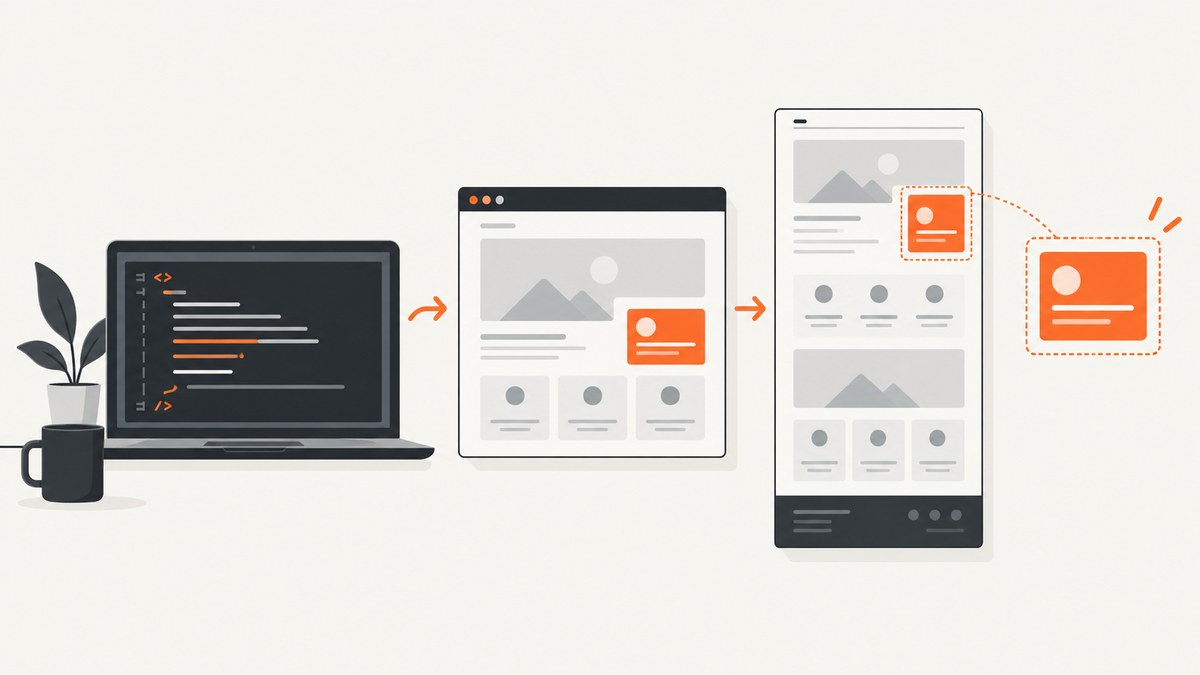
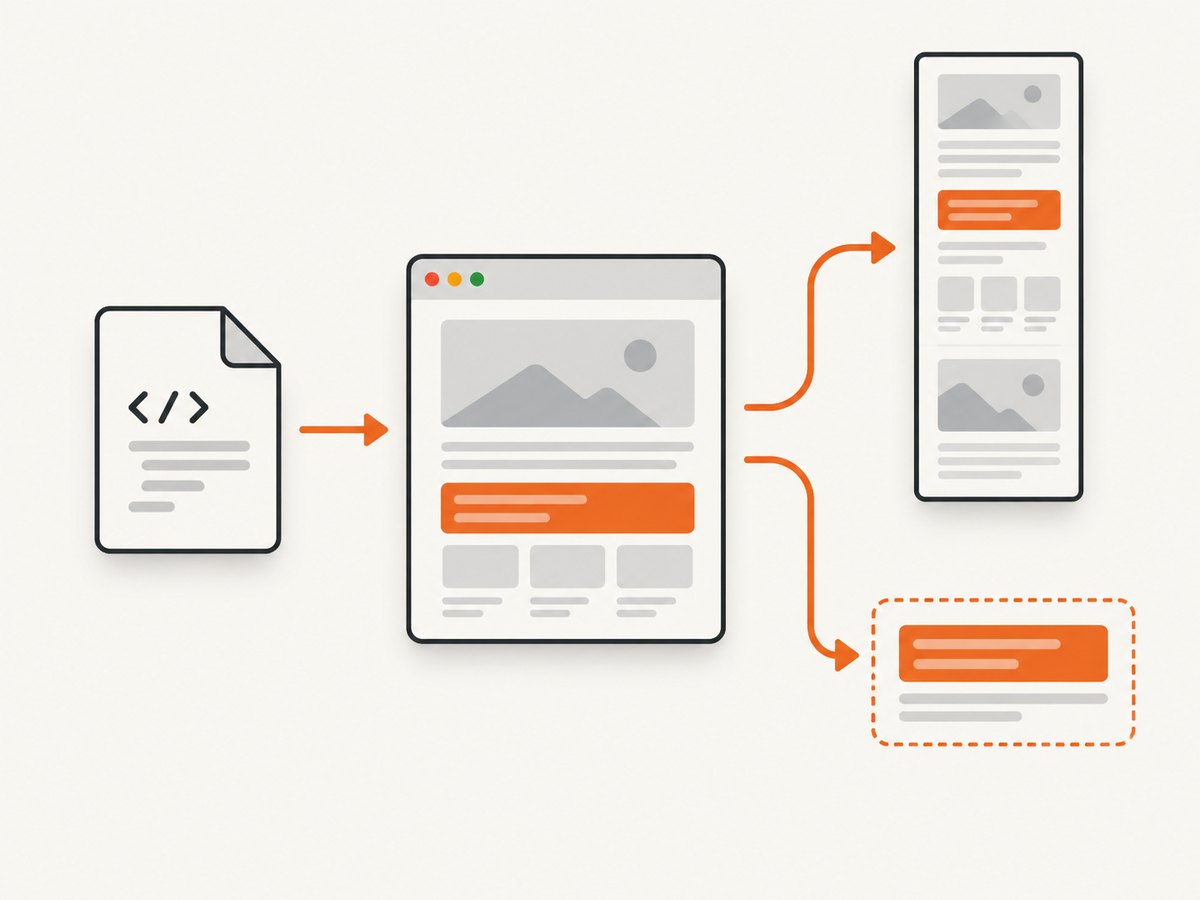
Direct answer: render the local HTML5 in a browser, then call the browser’s screenshot API. Playwright can navigate to a local file:// URL or render an HTML string with page.setContent(). Use a page screenshot for the viewport or full document, and a locator screenshot for one element. Set the viewport and output settings before capture, and wait for the specific content your page needs.
1. Choose how much of the page to capture
| Need | Playwright call | Result |
|---|---|---|
| Visible viewport | page.screenshot() |
Only the current viewport |
| Entire scrollable page | page.screenshot({ fullPage: true }) |
A tall image containing the full page |
| One element | page.locator('.target').screenshot() |
The target’s visible bounding box |
An element screenshot scrolls the locator into view and performs actionability checks. If another element covers it, the resulting pixels can still be obscured. For a scrollable container, capture shows the portion currently scrolled into view.
2. Complete Playwright script for a local HTML file
Install Playwright and its browser binaries, then save this script as capture.js. Replace the absolute path and selector with your files.
npm install playwright
npx playwright install chromium
const { chromium } = require('playwright');
const path = require('path');
(async () => {
const browser = await chromium.launch();
const page = await browser.newPage({ viewport: { width: 1280, height: 800 } });
const fileUrl = 'file://' + path.resolve('./page.html');
await page.goto(fileUrl);
// Capture the current viewport.
await page.screenshot({ path: 'viewport.png', type: 'png' });
// Capture the complete scrollable document.
await page.screenshot({ path: 'full-page.webp', type: 'webp', fullPage: true });
// Capture one element.
await page.locator('#invoice').screenshot({ path: 'invoice.png' });
await browser.close();
})();The official Playwright screenshots guide documents page, full-page, buffer, and element captures: Playwright screenshots. The locator behavior and screenshot options are specified in the Locator API.
Render an HTML string instead of a file
const { chromium } = require('playwright');

(async () => {
  const html = `<!doctype html>
  <html><body><article id="card">Local HTML5</article></body></html>`;
  const browser = await chromium.launch();
  const page = await browser.newPage({ viewport: { width: 1000, height: 700 } });
  await page.setContent(html);
  await page.locator('#card').screenshot({ path: 'card.png' });
  await browser.close();
})();
setContent is useful when your application already has the markup as a string. Relative assets, modules, fetch calls, and other origin-dependent features may need additional handling because the supplied document is not automatically the same as a normal hosted site. See the Page API for navigation and screenshot options.
3. Make local assets and page state predictable
Relative files, modules, and fetch requests
Local pages that reference sibling CSS, images, fonts, JavaScript modules, or JSON can behave differently under a file:// origin. Verify the chosen browser and environment resolve those resources as expected. If your page needs normal HTTP behavior, serve the directory locally:
python3 -m http.server 8000 --directory .await page.goto('http://127.0.0.1:8000/page.html');A local server also gives you an origin for APIs and module loading. Keep the server running until the capture completes.
Wait for the visual state you actually need
await page.goto(fileUrl);
await page.locator('#chart').waitFor({ state: 'visible' });
await page.evaluate(() => document.fonts.ready);
await page.waitForTimeout(250); // only for a known animation or delayed paint
await page.screenshot({ path: 'ready.png' });
Use a selector, a known application-ready flag, or an explicit asset check. Playwright labels networkidle discouraged for testing; pages can continue changing because of timers, analytics, lazy images, fonts, canvases, or application code. Disable animations when deterministic pixels matter:
await page.addStyleTag({ content: `*, *::before, *::after {
  animation: none !important;
  transition: none !important;
}` });
4. Screenshot settings that change the output
| Setting | What it controls |
|---|---|
viewport |
CSS width and height, which determine responsive layout |
fullPage |
Whether to include the complete scrollable page |
type |
png, jpeg, or webp |
quality |
Lossy image quality for JPEG/WebP |
scale |
css maps one output pixel to one CSS pixel; device uses device pixels and is the documented default |
omitBackground |
Transparent background where supported |
mask |
Hide selected regions during capture |
style |
Apply temporary CSS overrides |
await page.screenshot({
  path: 'deterministic.png',
  type: 'png',
  fullPage: true,
  scale: 'css',
  animations: 'disabled',
  mask: [page.locator('.private-data')],
  style: '.cursor { visibility: hidden !important; }'
});
Choose scale: 'css' for stable dimensions in visual diffs. Choose device scale when you need high-density output and can accept larger files.
5. Puppeteer equivalent
Puppeteer provides the same basic model: navigate a page, call Page.screenshot(), or capture an element handle. Its guides cover page and element screenshots at Puppeteer screenshots and Page.screenshot().
const puppeteer = require('puppeteer');
const path = require('path');

(async () => {
  const browser = await puppeteer.launch();
  const page = await browser.newPage();
  await page.setViewport({ width: 1280, height: 800 });
  await page.goto('file://' + path.resolve('./page.html'));
  await page.screenshot({ path: 'page.png', fullPage: true });
  const element = await page.$('#invoice');
  if (!element) throw new Error('Missing #invoice');
  await element.screenshot({ path: 'invoice.png' });
  await browser.close();
})();
Choose the framework that fits your existing runtime and browser dependencies. Check local-file and asset-loading behavior in your own environment before relying on it in CI.
6. Troubleshooting checklist
| Symptom | Likely cause | Fix |
|---|---|---|
| Blank or incomplete image | Capture happened before app rendering or fonts loaded | Wait for a visible selector, readiness flag, and document.fonts.ready |
| Missing CSS or images | Relative paths or file:// origin behavior |
Use absolute paths where appropriate or serve the directory over localhost |
| Element not found | Wrong selector or delayed DOM insertion | Confirm the selector and call locator.waitFor() |
| Element is covered | Modal, sticky header, or overlay is above it | Hide the overlay or capture after it closes; inspect computed layout |
| Only part of a scrollable panel appears | Element screenshots capture its currently visible content | Scroll the container and capture sections, or change the page layout for a full-content image |
| Different pixels in CI | Viewport, device scale, fonts, animations, or browser versions differ | Pin viewport and browser version, use scale: 'css', load fonts, and disable motion |
| Navigation timeout | Page waits on a resource or never reaches the assumed state | Set an appropriate timeout and wait for a specific application condition instead of a generic idle signal |
7. Performance, reliability, and cost
- Reuse a browser process for batches of captures, while creating isolated pages or contexts for separate documents.
- Set the smallest viewport and output format that meets the requirement. WebP and JPEG reduce bytes; PNG preserves lossless detail and transparency.
- Full-page images consume more memory as page height grows. Split very long documents or use PDF when the deliverable is a paginated document.
- Wait only for required selectors and assets. Arbitrary long delays make every capture slower and still do not guarantee readiness.
- Record the URL, viewport, browser version, selector, and output settings with each artifact so visual differences are diagnosable.
- For retries, distinguish navigation failures from application errors and use a bounded retry count. A retry cannot fix a permanently missing asset or selector.
8. Or skip the browser setup
If your HTML page is reachable at an HTTPS URL, ScreenshotNeo captures it through one request. A local file:// path is not publicly reachable, so publish the page to a reachable URL or use the Playwright method above. The API documentation is at screenshotneo.com/docs.

curl -G "https://api.screenshotneo.com/v1/shot" -d access_key=YOUR_API_KEY --data-urlencode url=https://stripe.com -o shot.webpimport requests
r = requests.get("https://api.screenshotneo.com/v1/shot", params={"access_key": "YOUR_API_KEY", "url": "https://stripe.com"}, timeout=90)
open("shot.webp", "wb").write(r.content)const q = new URLSearchParams({ access_key: 'YOUR_API_KEY', url: 'https://stripe.com' });
const res = await fetch(`https://api.screenshotneo.com/v1/shot?${q}`);Cookie and consent banners are accepted and removed before the shot, along with more than 60 known consent platforms, newsletter popups, and chat widgets. Bot checks, blank pages, timeouts, failed loads, and cache hits are not billed, and response headers identify the page verdict and billing status. ScreenshotNeo also provides an MCP server so Claude, Cursor, and other MCP clients can call take_screenshot, get_page_info, and capture_pdf. The free plan includes 1,000 screenshots per month with no card; paid plans start at $5 for 3,000.
Create a free ScreenshotNeo account and start with 1,000 screenshots a month at no charge.
9. FAQ
Can I screenshot an HTML string without creating a file?
Yes. Pass it to page.setContent(html), then use a page or locator screenshot. Linked local resources may require a server or absolute URLs.
What is the difference between viewport and full-page capture?
Viewport capture records what is visible at the current scroll position. Full-page capture includes the document’s complete scrollable height.
Why does my element screenshot miss content?
The element must be visible and laid out. A scrollable element captures its currently visible portion, and overlays can cover pixels.
Should I use Playwright or Puppeteer?
Both expose page and element screenshot APIs. Base the choice on your language, existing dependencies, browser engines, and how local assets behave in your environment.
Can ScreenshotNeo access a local file?
No. Its API needs a reachable URL. Host the page temporarily or use local browser automation for file:// content.


