How to Capture Localhost Screenshots for a Workflow Screencast
Use Playwright to capture consistent localhost screenshots and record a workflow screencast, with code, video settings, troubleshooting, and automation tips.
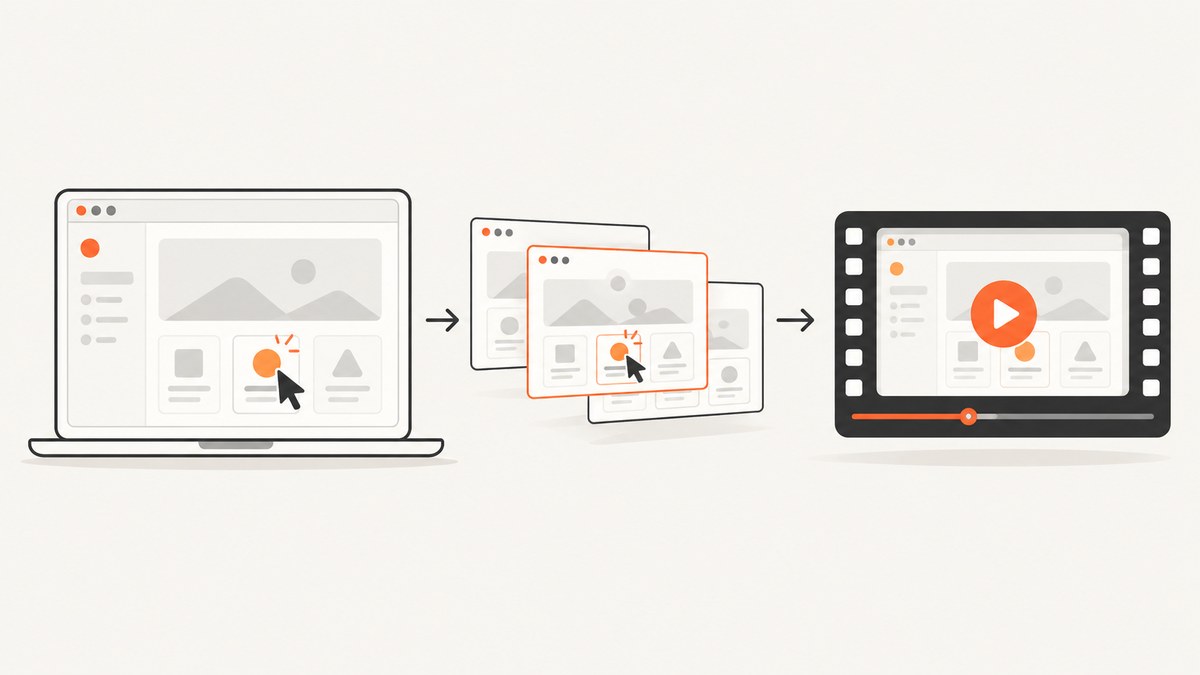
Use Playwright to open your local app, fix the viewport, capture still images with page.screenshot(), and record the interaction with Playwright video. Close the browser context and await its closure before expecting the video file to be available.
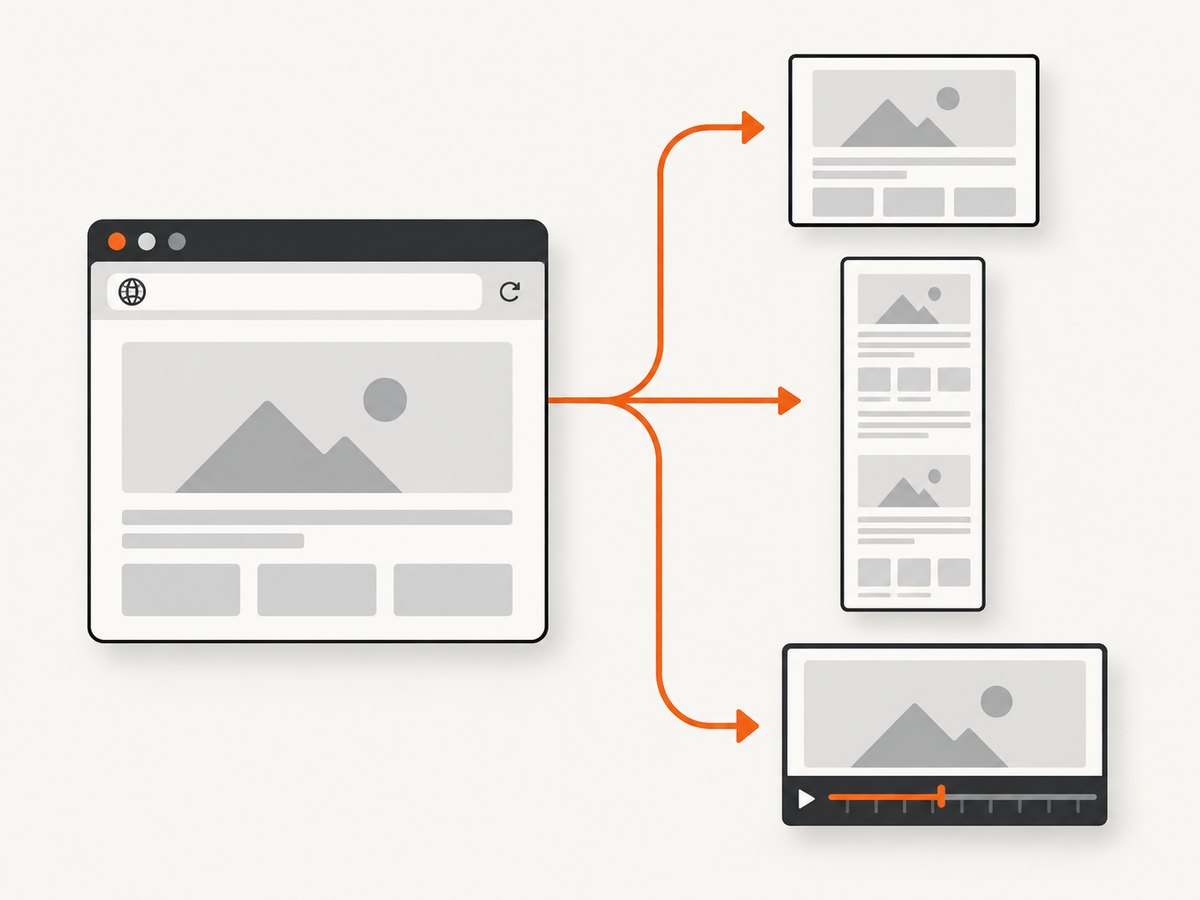
This workflow gives you repeatable viewport screenshots, full-page images, element-only captures, and a browser recording from the same run. The examples below use Node.js because Playwright’s JavaScript API is concise, but the same browser concepts apply in other languages.
1. Prepare the localhost workflow
- Start the application with its normal development command.
- Confirm the exact URL and port, such as
http://localhost:3000. - Decide which route and application state the screencast must show.
- Choose one viewport and keep it unchanged for all stills and video.
Playwright supports a baseURL such as http://localhost:3000, then lets a test navigate to a route such as /bar.html. Keep the configured port and route aligned with the app you actually started. See the Playwright browser API.
2. Install Playwright
npm init -y
npm install -D playwright
npx playwright install chromium
The browser installation command downloads the browser binary used by the script. Run it once per environment or CI image.
3. Capture viewport, full-page, and element screenshots
Create capture-localhost.mjs. Replace the URL, route, and selector with the workflow you are documenting.
import { chromium } from 'playwright';

const browser = await chromium.launch();
const context = await browser.newContext({
  viewport: { width: 1440, height: 900 },
  deviceScaleFactor: 1
});
const page = await context.newPage();

await page.goto('http://localhost:3000/dashboard', {
  waitUntil: 'networkidle'
});

// Give application code time to finish rendering a known state.
await page.locator('[data-demo-ready="true"]').waitFor();

// The visible viewport.
await page.screenshot({
  path: 'artifacts/01-dashboard-viewport.png',
  animations: 'disabled'
});

// The complete scrollable page.
await page.screenshot({
  path: 'artifacts/02-dashboard-full-page.png',
  fullPage: true,
  animations: 'disabled'
});

// One component, such as a chart or settings panel.
await page.locator('[data-testid="sales-chart"]').screenshot({
  path: 'artifacts/03-sales-chart.png',
  animations: 'disabled'
});

await context.close();
await browser.close();
Create the output directory before running the script:
mkdir -p artifacts
node capture-localhost.mjs
page.screenshot() captures the current page view. Passing fullPage: true captures the full scrollable page, while locator.screenshot() focuses on one element. A screenshot can also be returned as a buffer instead of written to disk. These behaviors are documented in Playwright’s screenshot documentation.
4. Record the workflow as a video
For a manual browser script, enable video recording on the browser context. The video is finalized when the page or context closes.
import { chromium } from 'playwright';

const browser = await chromium.launch();
const context = await browser.newContext({
  viewport: { width: 1440, height: 900 },
  recordVideo: {
    dir: 'artifacts/videos',
    size: { width: 1440, height: 900 }
  }
});
const page = await context.newPage();

await page.goto('http://localhost:3000/checkout', {
  waitUntil: 'domcontentloaded'
});

await page.getByRole('button', { name: 'Add to cart' }).click();
await page.getByRole('link', { name: 'Checkout' }).click();
await page.getByLabel('Email').fill('demo@example.com');
await page.screenshot({ path: 'artifacts/checkout-step.png' });

// Required: this writes and finalizes the video file.
await context.close();
await browser.close();
Playwright documents video modes such as on, retain-on-failure, and on-first-retry for Playwright Test, plus recordVideo for manually created contexts. The documented default video output is scaled to fit 800×800, so set an explicit video size and matching viewport when framing matters. See Playwright video documentation.
Use Playwright Test when the screencast is a repeatable scenario
Playwright Test manages the context and video lifecycle for you. Create playwright.config.js:
import { defineConfig } from '@playwright/test';

export default defineConfig({
  use: {
    baseURL: 'http://localhost:3000',
    viewport: { width: 1440, height: 900 },
    video: 'on',
    trace: 'on-first-retry'
  }
});
Then create tests/workflow.spec.js:
import { test, expect } from '@playwright/test';

test('records the checkout workflow', async ({ page }) => {
  await page.goto('/checkout');
  await expect(page.getByRole('heading', { name: 'Checkout' })).toBeVisible();
  await page.getByRole('button', { name: 'Add to cart' }).click();
  await page.getByRole('link', { name: 'Checkout' }).click();
  await page.screenshot({ path: 'artifacts/test-checkout.png' });
});
npx playwright test5. Make the recording readable
- Use a stable viewport: changing width or height changes wrapping, responsive breakpoints, and the recorded framing.
- Navigate at human speed: add deliberate pauses only where the viewer needs to see a state change.
- Wait for meaningful state: prefer a selector that proves the screen is ready over an arbitrary long delay.
- Keep screenshots and video aligned: capture stills during the same state transitions used in the walkthrough, or label the stills as separate states.
- Hide unstable data: use deterministic fixtures, seeded data, and fixed dates where the application supports them.
- Review the result: check that text is readable, controls are unobstructed, and no loading skeleton or error banner appears in the final artifacts.
Action callouts and chapters
Playwright v1.59 release notes describe a newer Page.screencast API with start and stop controls, action display, chapter cards, overlays, and real-time frame callbacks. Check the installed Playwright version and its API support before depending on these methods. The release notes are at Playwright v1.59 release notes.
When that API is unavailable, use ordinary Playwright actions and add chapter cards or callouts during editing. Keep the browser capture focused on the application state; overlays should explain an action rather than cover the control being demonstrated.
6. Choose the right capture scope
| Goal | API | Trade-off |
|---|---|---|
| Show the visible browser page | page.screenshot() |
Matches the current viewport and is easy to place beside a step. |
| Show a long document | page.screenshot({ fullPage: true }) |
Produces one potentially very tall image. |
| Show one component | locator.screenshot() |
Removes surrounding context, which is useful for a focused explanation. |
| Record interaction | Playwright Test video or recordVideo |
Requires deliberate viewport and closure handling. |
| Show annotated actions | Page.screencast, when supported |
Requires a Playwright version that includes the newer API. |
7. Complete workflow example
This example captures a dashboard, opens a filter, records the interaction, and saves both a focused element image and a full-page image.
import { chromium } from 'playwright';

const browser = await chromium.launch();
const context = await browser.newContext({
  viewport: { width: 1366, height: 768 },
  recordVideo: {
    dir: 'artifacts/videos',
    size: { width: 1366, height: 768 }
  }
});
const page = await context.newPage();

await page.goto('http://localhost:3000/dashboard', {
  waitUntil: 'networkidle'
});
await page.locator('[data-testid="dashboard-loaded"]').waitFor();

await page.screenshot({ path: 'artifacts/01-dashboard.png' });

await page.getByRole('button', { name: 'Filters' }).click();
await page.getByRole('combobox', { name: 'Period' }).selectOption('month');
await page.getByRole('button', { name: 'Apply filters' }).click();
await page.locator('[data-testid="results-updated"]').waitFor();

await page.locator('[data-testid="results-card"]').screenshot({
  path: 'artifacts/02-results-card.png'
});
await page.screenshot({
  path: 'artifacts/03-dashboard-full.png',
  fullPage: true
});

await context.close();
await browser.close();
8. Troubleshooting
| Symptom | Likely cause | Fix |
|---|---|---|
net::ERR_CONNECTION_REFUSED |
The app is not running, or the port is wrong. | Start the development server and verify the exact URL in a normal browser. |
| Screenshot shows a loading spinner | The script captured before the application finished rendering. | Wait for a stable, app-specific selector or a documented state transition. |
| Video file is missing or incomplete | The page or browser context was not closed. | Call and await context.close() before reading or uploading the video. |
| Text wraps differently between runs | Viewport, device scale, fonts, or responsive state changed. | Set an explicit viewport and device scale; load the same fonts and use the same browser image. |
| Full-page image is unexpectedly tall | fullPage: true includes the entire scrollable document. |
Use a viewport screenshot for the screencast, or capture specific sections with locators. |
| Element screenshot fails | The locator matches no element or the element is not visible. | Use a stable role, test ID, or CSS selector and wait for it before capturing. |
| Video is too small | The default video sizing scales output toward 800×800. | Set an explicit recordVideo.size and matching viewport. |
| Actions run too quickly for viewers | Automation speed is optimized for tests, not teaching. | Add short, intentional pauses at explanation points or edit the recording into chapters. |
| New screencast methods are undefined | The installed Playwright version does not include the newer API. | Check the installed version and use the documented video API when Page.screencast is unavailable. |
9. Performance, reliability, and cost considerations
- Performance: full-page screenshots and video recording do more work than a viewport screenshot. Capture only the scopes needed for the article.
- Reliability: deterministic selectors and explicit readiness checks are more stable than fixed sleeps. Keep the local server, browser version, fonts, and test data consistent when regenerating assets.
- Storage: videos and full-page images can be large. Keep only the final artifacts and use an image or video format appropriate for your publishing pipeline.
- Cost: Playwright itself is an open-source browser automation library, but your workflow may still consume CI minutes, storage, and any hosted browser resources you add.
- Security: use test credentials and fixture data. Do not record production secrets, personal data, or private tokens in a screencast.

Or skip the browser setup
When the page is reachable by ScreenshotNeo, one request returns a clean screenshot. See the ScreenshotNeo API documentation for the full option set.
curl -G "https://api.screenshotneo.com/v1/shot" -d access_key=YOUR_API_KEY --data-urlencode url=https://stripe.com -o shot.webpimport requests
r = requests.get("https://api.screenshotneo.com/v1/shot", params={"access_key": "YOUR_API_KEY", "url": "https://stripe.com"}, timeout=90)
open("shot.webp", "wb").write(r.content)const q = new URLSearchParams({ access_key: 'YOUR_API_KEY', url: 'https://stripe.com' });
const res = await fetch(`https://api.screenshotneo.com/v1/shot?${q}`);ScreenshotNeo accepts cookie and consent banners before capture and removes more than 60 known consent platforms, newsletter popups, and chat widgets. Bot checks, blank pages, failed loads, timeouts, and cache hits are not billed; response headers identify the page verdict and whether the shot was billed. Its MCP server gives Claude, Cursor, and other MCP clients take_screenshot, get_page_info, and capture_pdf tools. The free plan includes 1,000 screenshots per month with no card, and paid plans start at $5 for 3,000 shots. Create a free ScreenshotNeo account.
FAQ
Can I capture a localhost URL with a hosted screenshot API?
A hosted service must be able to reach the URL. Keep Playwright for a local-only address, or use ScreenshotNeo for a reachable staging or public URL.
Should I use a full-page screenshot for a screencast?
Usually no. Full-page captures are useful as reference images, while a viewport capture keeps the viewer’s attention on the current interaction.
Why must I close the context before reading the video?
Playwright finalizes the recorded video when the page or browser context closes. Await that close operation before moving or uploading the file.
How do I capture just a chart or form?
Locate the component and call locator.screenshot(). Stable roles, test IDs, and dedicated data attributes are less fragile than positional selectors.
Which Playwright API should I use for a polished walkthrough?
Use Playwright Test video or recordVideo for a dependable recording. If your installed version supports it, the newer Page.screencast API adds action callouts, chapters, overlays, and frame callbacks.


