How to Capture Localhost Traffic in Fiddler Everywhere
Route localhost through Fiddler Everywhere with aliases, loopback settings, HTTPS certificates, terminal capture, and fixes for common bypasses.

Direct answer: Start Fiddler Everywhere capturing, then call your local service through a proxy-friendly name such as your machine name, ipv4.fiddler, ipv6.fiddler, or localhost.fiddler. If the request still bypasses Fiddler, edit Gateway bypass settings and add <-loopback>. For HTTPS, install and trust Fiddler’s root certificate. You can verify the request in Live Traffic, where the destination normally appears as 127.0.0.1.
Why localhost is easy to miss
Many clients deliberately bypass system proxies for localhost and 127.0.0.1. Some frameworks, including .NET, are not proxying localhost traffic at all. Fiddler can only show a request that reaches its proxy (or its lower-level Network Capturing mode), so changing the name used by the client is usually the least invasive fix.
Quick setup
- Open Fiddler Everywhere and turn on Capturing.
- Confirm the application or shell is configured to use Fiddler’s proxy.
- Replace
localhostor127.0.0.1in the request URL with a Fiddler alias or the machine name. - Send a request and find it in the Live Traffic grid.
Choose the right localhost name
| Client URL | Use it when | Notes |
|---|---|---|
http://ipv4.fiddler:8081/path |
The service listens on IPv4 | Forces an IPv4 loopback route. |
http://ipv6.fiddler:8081/path |
The service listens on IPv6 | Use when the application resolves to IPv6. |
http://localhost.fiddler:8081/path |
IIS Express needs a localhost Host header | Preserves the localhost-style host for that scenario. |
http://<machine-name>:8081/path |
A framework bypasses loopback names | Use your computer’s network name and the local port. |
http://localhost.:8080/path |
.NET Framework or Windows PowerShell ignores localhost | The trailing dot can avoid the hard-coded bypass. |
Use the alias that matches the address family and Host-header requirements of your application. Fiddler’s grid may still show the destination as 127.0.0.1; that is expected because the alias resolves to loopback.

Configure the Gateway bypass list
If aliases do not appear in Live Traffic, open Fiddler’s Gateway settings and edit the bypass list. Add the special token <-loopback>. This removes the default bypass for 127.0.0.1 and localhost for configured proxy traffic.
This setting changes bypass behavior globally for the traffic covered by that gateway configuration. If you only need one process, prefer the dedicated Fiddler terminal or a URL alias.
Capture from a terminal and child processes
Open the dedicated Fiddler terminal from the Home or Traffic view, then launch your command there. Fiddler captures that terminal and processes it starts, which is useful for CLI tools, scripts, and local test runners that do not inherit your normal desktop proxy settings.
# Example request from the Fiddler terminal
curl -v http://ipv4.fiddler:8081/mytestpage.aspx

# .NET Framework / Windows PowerShell workaround
curl -v http://localhost.:8080/health
For a persistent application, start it from the Fiddler terminal or configure its HTTP proxy explicitly. A browser tab opened outside that terminal is not automatically in the same process scope.
HTTPS localhost traffic
- Install Fiddler’s root certificate from its HTTPS/certificate settings.
- Trust the certificate in the operating system or runtime that makes the request.
- Enable HTTPS decryption in Fiddler.
- Use an alias such as
ipv4.fiddler(or the trailing-dot form for .NET/PowerShell) and send the request again.
If the client uses certificate pinning, a custom trust store, or a container-specific CA bundle, installing the certificate in the host OS may not be enough. Add the certificate to that client’s trust store or use a test-only configuration that accepts the Fiddler CA. Do not disable certificate validation in production code.
When proxy capture cannot intercept the process
Use Network Capturing mode when the application ignores proxy settings or uses a protocol outside normal proxy handling. It captures outgoing TCP traffic at a lower level, but requires the platform extension or driver and administrative privileges. A network capture is broader than a per-process proxy, so enable it only for the scope you need.
Verification checklist
- Fiddler capturing is enabled.
- The request uses a machine name, Fiddler alias, or trailing-dot localhost form.
- The process is using Fiddler’s proxy, or was launched in the Fiddler terminal.
- The Gateway bypass list includes
<-loopback>when required. - HTTPS certificate is installed and trusted by the calling runtime.
- The request appears in Live Traffic; destination shown as
127.0.0.1is normal.
Troubleshooting
| Symptom | Likely cause | Fix |
|---|---|---|
| No localhost request in Live Traffic | Client bypasses loopback | Use ipv4.fiddler, ipv6.fiddler, machine name, or localhost.; then check the bypass list. |
| Alias returns connection refused | Wrong port or address family | Confirm the service port and whether it listens on IPv4 or IPv6. |
| IIS Express rejects the request | Host header no longer matches | Try localhost.fiddler so the localhost Host-header scenario is preserved. |
| .NET or PowerShell still bypasses | Framework has a localhost bypass | Use a Fiddler alias or append a dot: localhost.:8080. |
| HTTP works but HTTPS fails | Fiddler CA is missing or untrusted | Install/trust the root certificate in the exact runtime making the call and enable HTTPS decryption. |
| Certificate warning or handshake error | Pinning or custom trust store | Import the test CA into that store or use a non-pinned test client. |
| Only one shell is captured | Process scope | Launch the app from Fiddler’s dedicated terminal, or configure its proxy directly. |
| Nothing is captured despite proxy settings | Unsupported or lower-level traffic | Try Network Capturing mode and install its required extension/driver with administrator rights. |
Performance, reliability, and scope
- Lowest friction: URL aliases or the machine name change only the client URL.
- Predictable CLI capture: the Fiddler terminal includes child processes and avoids inherited-shell configuration surprises.
- Broader visibility: Network Capturing sees traffic that bypasses a proxy, but adds a driver/extension and administrator requirement.
- Address family matters: choose
ipv4.fiddleroripv6.fiddlerto match the listener and avoid misleading connection failures. - Host header matters: use
localhost.fiddlerfor IIS Express cases that require localhost semantics. - HTTPS overhead: decryption requires certificate installation and trust in every runtime that makes requests.
Or skip the browser setup
If your goal is a clean image or PDF of a page that is reachable from the internet, ScreenshotNeo makes one GET request and returns PNG, JPEG, WebP, or PDF. It is separate from localhost debugging: a private loopback URL must be exposed through a reachable test endpoint first.
Use the API documented at ScreenshotNeo docs:
curl -G "https://api.screenshotneo.com/v1/shot" -d access_key=YOUR_API_KEY --data-urlencode url=https://stripe.com -o shot.webpimport requests
r = requests.get("https://api.screenshotneo.com/v1/shot", params={"access_key": "YOUR_API_KEY", "url": "https://stripe.com"}, timeout=90)
open("shot.webp", "wb").write(r.content)const q = new URLSearchParams({ access_key: 'YOUR_API_KEY', url: 'https://stripe.com' });
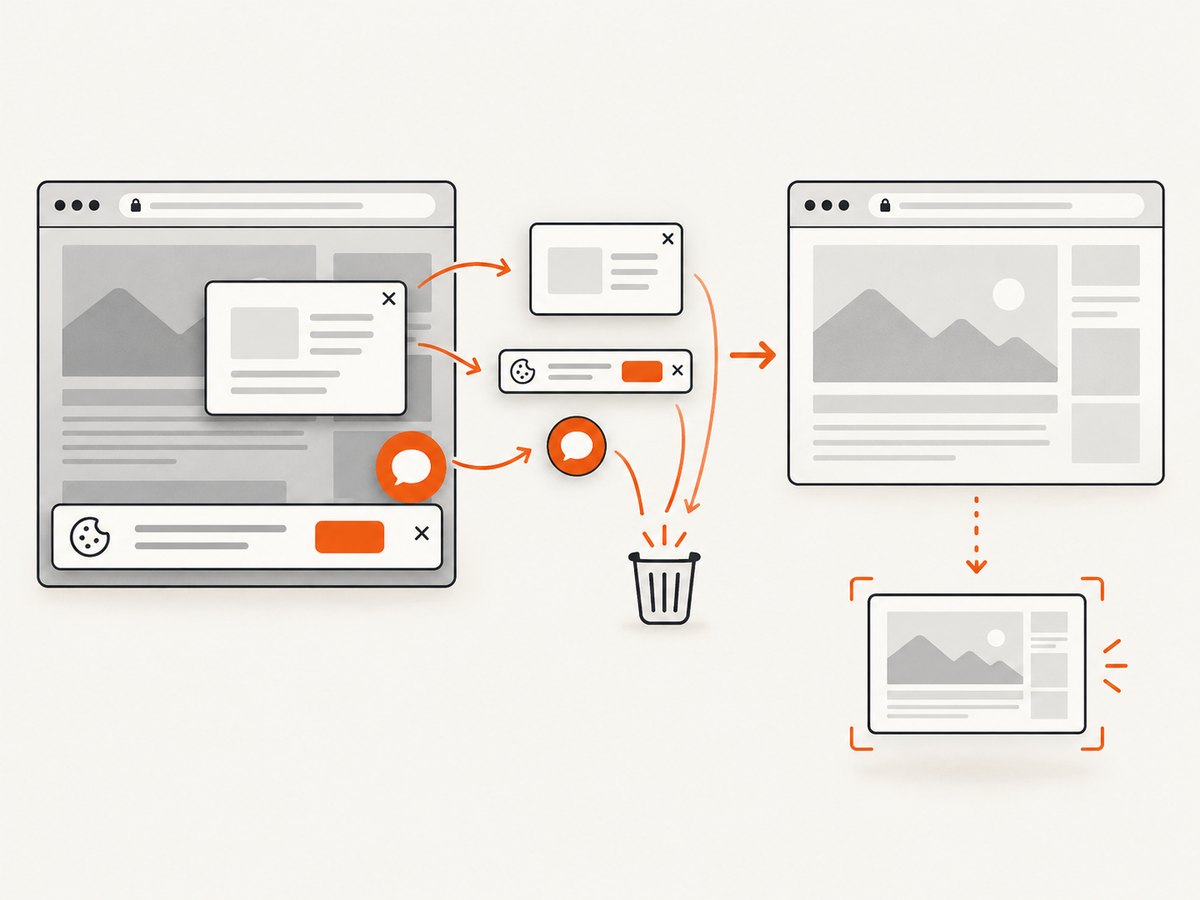
const res = await fetch(`https://api.screenshotneo.com/v1/shot?${q}`);Cookie banners, newsletter popups, and chat widgets are removed before the shot. Bot checks, blank pages, failed loads, timeouts, and cache hits are never billed, and response headers report the page verdict and billing result. An MCP server lets Claude, Cursor, and other MCP clients call take_screenshot, get_page_info, and capture_pdf. The Free plan includes 1,000 screenshots a month with no card; paid plans start at $5 for 3,000. Create a free ScreenshotNeo account.
FAQ
Why does Fiddler show 127.0.0.1 when I used ipv4.fiddler?
The alias resolves to loopback. The grid records the destination address, so 127.0.0.1 is expected.
Should I change the Windows system proxy?
Only if the application relies on it. A URL alias, explicit proxy setting, or Fiddler terminal is more targeted.
Can I capture IPv6 localhost?
Yes. Use ipv6.fiddler and ensure the service listens on IPv6.
Does Network Capturing replace the proxy?
It is an alternative lower-level capture path for processes that do not proxy normally, with extension/driver and administrator requirements.


