How to Capture Logos and Dates in Downloaded PDFs with html2canvas
Fix missing logos, wrong dates, blank canvases, and clipped PDF output with html2canvas using reliable browser-side patterns.
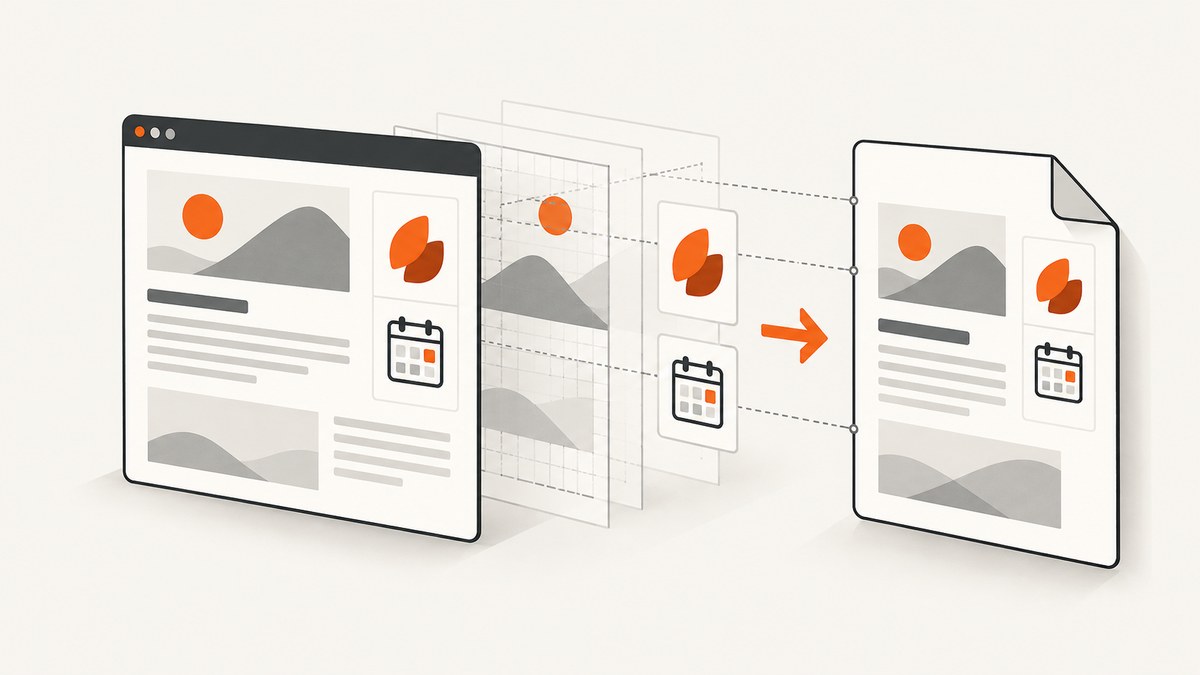
To capture a logo and a date in a PDF generated with html2canvas, make sure both values are present in the target DOM, make the logo readable from the page’s origin, wait for images and application state to settle, capture the correct dimensions, and inspect the canvas before creating the PDF. A visible logo in the browser is not proof that it can be exported: html2canvas reconstructs a rendering from DOM and CSS rather than taking a literal browser screenshot.
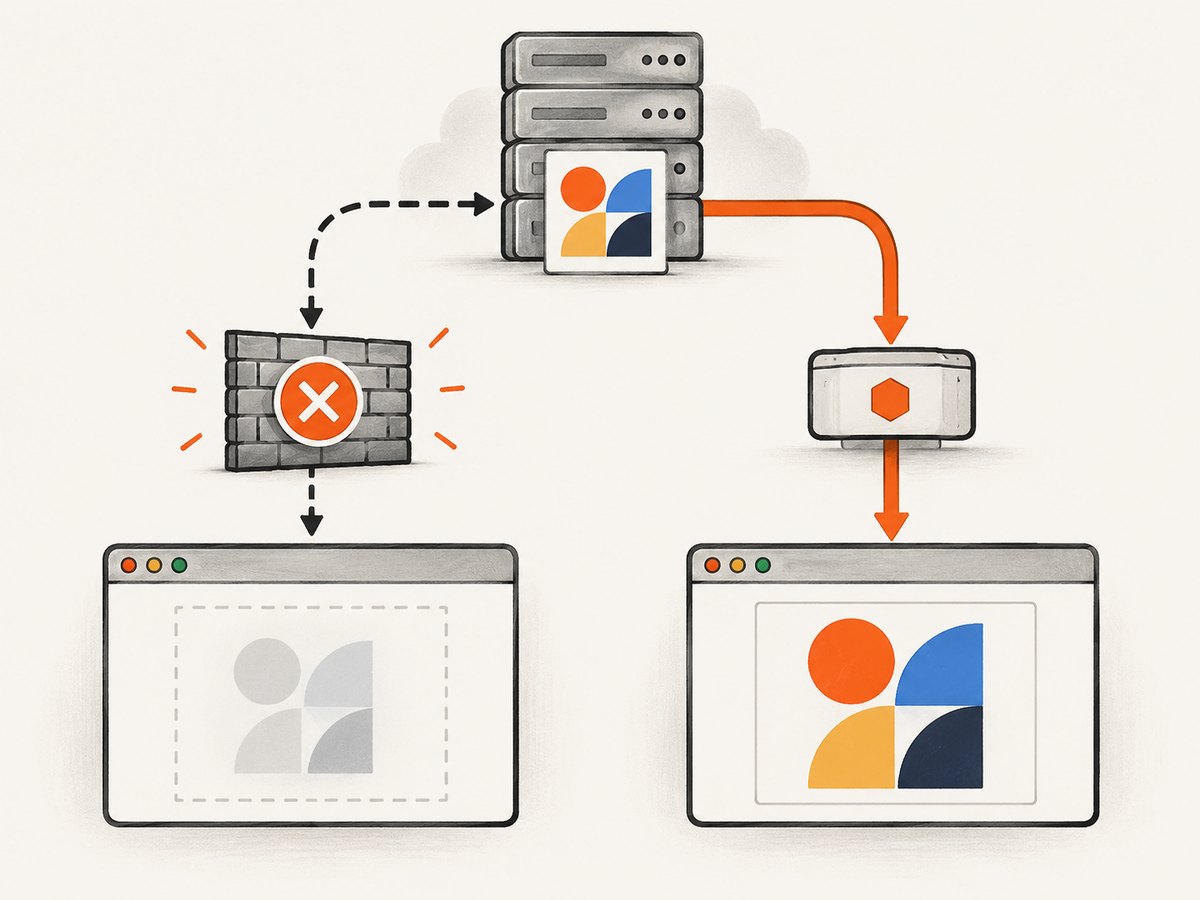
The most common logo failure is cross-origin access. With the default allowTaint:false, html2canvas skips an image that could taint the canvas. useCORS:true works only when the image server returns a suitable Access-Control-Allow-Origin header. Otherwise, serve the asset through a same-origin proxy. Dates are ordinary DOM content, so assign the final date before capture and wait until the update is reflected in the target element.
1. Build a PDF-ready capture element
Create a dedicated element containing the exact content that belongs in the download. Keep the logo as an <img> with an explicit source and dimensions, and put the date in a stable element. Avoid capturing a component while it is still showing a loading placeholder.
<section id="invoice" class="pdf-page">
  <header class="invoice-header">
    <img
      id="company-logo"
      src="https://cdn.example.com/brand/logo.png"
      alt="Company logo"
      width="220"
      height="64"
    />
    <div class="invoice-meta">
      <span>Invoice</span>
      <time id="invoice-date" datetime="2026-09-30">September 30, 2026</time>
    </div>
  </header>
  <main>
    <h1>Service invoice</h1>
    <p>The rest of the document goes here.</p>
  </main>
</section>
.pdf-page {
width: 794px;
min-height: 1123px;
padding: 48px;
box-sizing: border-box;
background: #fff;
color: #172033;
font-family: Arial, sans-serif;
}
.invoice-header {
display: flex;
align-items: flex-start;
justify-content: space-between;
margin-bottom: 48px;
}
#company-logo {
display: block;
object-fit: contain;
}
.invoice-meta {
text-align: right;
}
.invoice-meta time {
display: block;
margin-top: 6px;
}2. Put the intended date in the DOM before capture
html2canvas reads the DOM state at the moment it starts. If the date comes from an API response, a state store, or a date picker, update the target first and wait for the browser to render it. The following example uses a browser-side JavaScript function and waits for all images in the capture element.
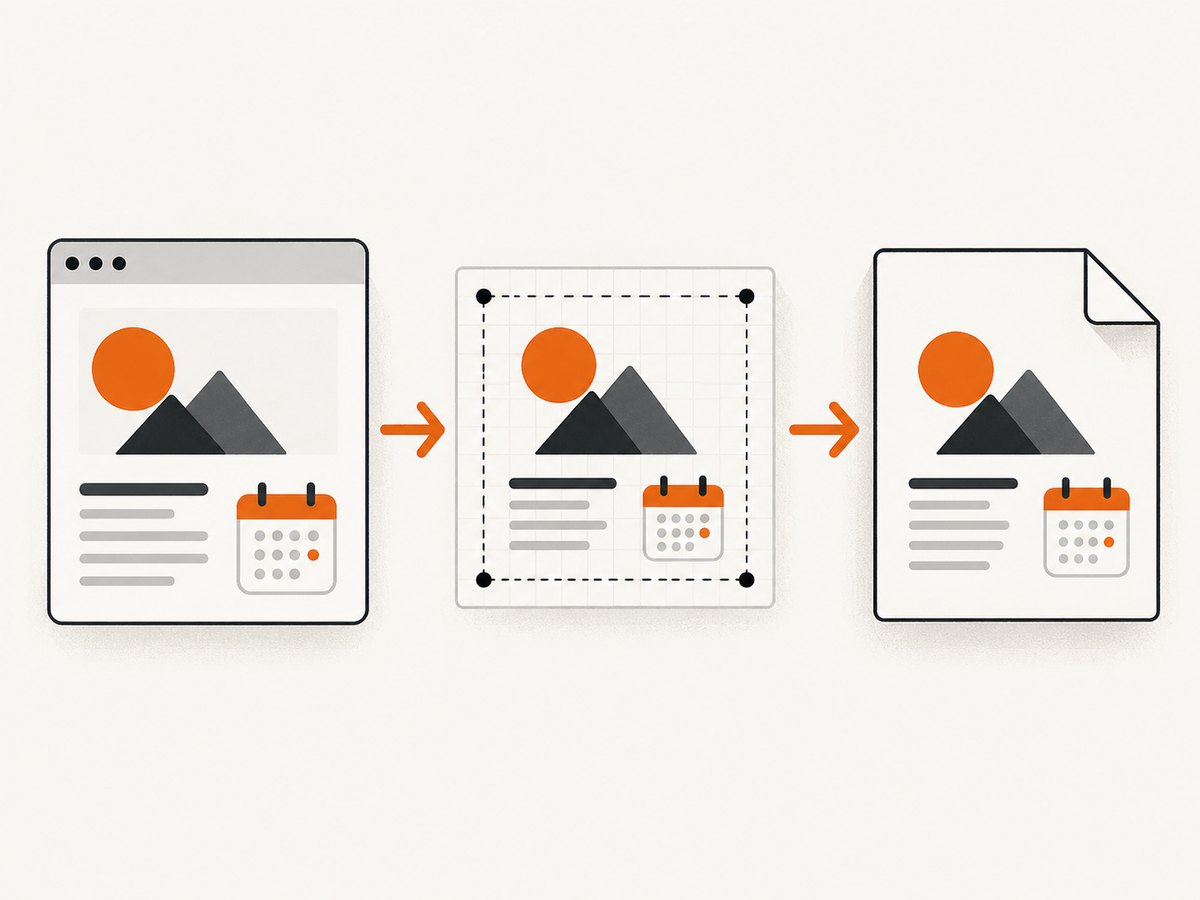
import html2canvas from "html2canvas";
import { jsPDF } from "jspdf";

function formatDate(value) {
  return new Intl.DateTimeFormat("en-US", {
    year: "numeric",
    month: "long",
    day: "numeric",
    timeZone: "UTC"
  }).format(new Date(value));
}

async function waitForImages(root) {
  const images = [...root.querySelectorAll("img")];
  await Promise.all(images.map(async (img) => {
    if (img.complete && img.naturalWidth > 0) return;
    await new Promise((resolve) => {
      img.addEventListener("load", resolve, { once: true });
      img.addEventListener("error", resolve, { once: true });
    });
  }));
}

export async function downloadInvoicePdf(isoDate) {
  const target = document.querySelector("#invoice");
  const dateNode = document.querySelector("#invoice-date");
  if (!target || !dateNode) throw new Error("Invoice capture elements are missing");

  const formatted = formatDate(isoDate);
  dateNode.dateTime = isoDate;
  dateNode.textContent = formatted;

  // Let framework state and layout updates reach the DOM.
  await new Promise(requestAnimationFrame);
  await waitForImages(target);

  const canvas = await html2canvas(target, {
    backgroundColor: "#ffffff",
    useCORS: true,
    allowTaint: false,
    scale: Math.min(window.devicePixelRatio || 1, 2),
    windowWidth: target.scrollWidth,
    windowHeight: target.scrollHeight,
    logging: true,
    onclone: (clonedDocument) => {
      const clonedDate = clonedDocument.querySelector("#invoice-date");
      if (clonedDate) clonedDate.textContent = formatted;
    },
    onerror: (error) => console.warn("html2canvas resource error", error)
  });

  // Validate the canvas before handing it to the PDF library.
  if (canvas.width === 0 || canvas.height === 0) {
    throw new Error("html2canvas returned an empty canvas");
  }
  const imageData = canvas.toDataURL("image/png");
  if (!imageData.startsWith("data:image/png")) {
    throw new Error("Canvas export did not produce PNG data");
  }

  const pdf = new jsPDF({ orientation: "portrait", unit: "pt", format: "a4" });
  const pageWidth = pdf.internal.pageSize.getWidth();
  const pageHeight = pdf.internal.pageSize.getHeight();
  const ratio = Math.min(pageWidth / canvas.width, pageHeight / canvas.height);
  const width = canvas.width * ratio;
  const height = canvas.height * ratio;
  pdf.addImage(imageData, "PNG", (pageWidth - width) / 2, 0, width, height);
  pdf.save(`invoice-${isoDate}.pdf`);
}
The onclone callback is useful when the live page has transient UI or a framework updates the date during capture. It edits the cloned document that html2canvas renders, leaving the visible page unchanged. Keep the date format and timezone explicit so a user in another locale does not receive a different day.
3. Make a cross-origin logo exportable
Canvas security rules apply even when the image is visibly displayed. The logo server must allow the requesting origin, or your application must fetch it through a same-origin endpoint.
Option A: configure CORS on the asset host
Set crossorigin="anonymous" on the image and use useCORS:true. The image response must include Access-Control-Allow-Origin for your site (or a deliberately chosen allowed origin).
<img
  src="https://cdn.example.com/brand/logo.png"
  crossorigin="anonymous"
  alt="Company logo"
/>

const canvas = await html2canvas(document.querySelector("#invoice"), {
  useCORS: true,
  allowTaint: false
});
Check the browser Network panel for the image response and its headers. A redirect to a host that omits CORS headers still fails. If credentials are required, configure the server and request mode consistently; do not expose private assets broadly just to make a PDF export work.
Option B: proxy the logo through your origin
When you do not control the CDN, download or stream the asset from a server endpoint on the same origin as your application. Validate the upstream URL, restrict permitted hosts, set an image content type, and apply normal size and timeout limits. Then point the capture element at /api/logo-proxy?src=.... This avoids canvas tainting while keeping the upstream host private from the browser.
Setting allowTaint:true is not a general fix. It permits a tainted canvas to be rendered, but a tainted canvas cannot be read with toDataURL() or similar export APIs, which defeats the PDF step.
4. Capture full content without clipping
For a long element, use its scroll dimensions as the capture window. A blank or clipped result can occur when the viewport settings are smaller than the content, and browsers impose canvas size limits for very large outputs.
const target = document.querySelector("#invoice");
const canvas = await html2canvas(target, {
  windowWidth: target.scrollWidth,
  windowHeight: target.scrollHeight,
  width: target.scrollWidth,
  height: target.scrollHeight,
  scrollX: 0,
  scrollY: 0,
  backgroundColor: "#ffffff"
});
For multi-page documents, capture a page-sized element per page and add each canvas to the PDF, or split a very tall layout before rendering. Do not assume that increasing scale indefinitely improves quality: it multiplies memory use and can hit browser canvas limits.
5. Configuration options that matter
| Option | Use | Important detail |
|---|---|---|
useCORS |
Request cross-origin images with CORS | Requires suitable response headers from the image host. |
allowTaint |
Allow images that taint the canvas | Defaults to false; tainted canvases cannot be exported normally. |
scale |
Control output pixel density | Higher values improve detail but increase memory and PDF size. |
windowWidth, windowHeight |
Define the virtual browser area | Use target scroll dimensions for full content. |
width, height |
Limit the captured rectangle | Useful for a known page box; verify it does not crop content. |
backgroundColor |
Set a predictable background | Use null only when transparent output is intentional. |
onclone |
Adjust the cloned DOM | Useful for dates, print styles, or hiding controls. |
onerror |
Observe resource failures | Log failed images, SVGs, and background images during diagnosis. |
ignoreElements |
Exclude controls or overlays | Return true for elements that should not enter the PDF. |
logging |
Enable html2canvas diagnostics | Turn it on while investigating missing resources. |
html2canvas only renders CSS properties it understands and cannot access the contents of inaccessible cross-origin iframes. It also does not render plugin content such as Flash or Java applets. Review the project’s supported-features documentation for complex CSS, filters, pseudo-elements, SVG, and embedded content used by your design.
6. Debugging checklist
- Inspect the target immediately before capture. Confirm the logo has the expected
src,naturalWidth > 0, and that the date text is final. - Wait for asynchronous state. Await API data, framework rendering, fonts if they affect layout, and image load events. A screenshot call made in the same tick as a state update can capture the previous date.
- Check the Network panel. Look for 404 responses, blocked redirects, mixed-content errors, CSP violations, and missing CORS headers.
- Enable diagnostics. Set
logging:trueand provide anonerrorcallback so resource failures are visible. - Validate the canvas itself. Open
canvas.toDataURL()in a temporary image or inspect its dimensions before calling the PDF library. If the canvas is wrong, changing PDF settings cannot restore missing content. - Compare dimensions. Log
scrollWidth,scrollHeight, canvas width, and canvas height. A mismatch often explains clipping. - Reduce the test case. Capture only the logo and date in a small element. Add styles and sections back until the failing resource or unsupported property is identified.
7. Common errors and fixes
| Symptom | Likely cause | Fix |
|---|---|---|
| Logo appears in the page but not the PDF | Cross-origin image was skipped | Enable CORS on the image host with useCORS:true, or use a same-origin proxy. |
toDataURL throws a security error |
The canvas is tainted | Do not rely on allowTaint:true; make every image CORS-readable or same-origin. |
| Date is yesterday or still says “Loading…” | Capture began before state reached the DOM, or timezone conversion changed the day | Set the date first, await a render frame, and format with an explicit timezone. |
| Output is blank | Zero-size target, failed resources, or dimensions outside browser limits | Check target dimensions, use scroll dimensions, inspect onerror, and split very large captures. |
| Bottom of a long document is missing | Capture window or canvas height is too small | Set windowHeight, height, and the PDF placement from the target’s scroll height. |
| Fonts or layout differ | Unsupported CSS or fonts not ready | Wait for font loading where applicable, simplify unsupported styles, and compare the canvas rather than the live DOM. |
| Node.js import fails | html2canvas depends on browser APIs | Run it in a supported evergreen browser. For server-side capture, use a browser automation or screenshot API instead. |
8. Performance and reliability
Capture only the element needed for the PDF. Large DOM trees, high scale values, shadows, gradients, and very tall pages increase work and memory. A practical sequence is to begin at scale 1, confirm correctness, then raise it only when the printed result needs more detail. Keep images at a reasonable source size and avoid embedding unnecessary background assets.
Reliability comes from deterministic input: freeze the date and timezone, wait for images, use stable dimensions, and keep a same-origin or correctly configured CORS path for every asset. Add a visible error state when capture fails instead of downloading a corrupt or empty file. Cache or reuse logos when your application already has a trusted local copy.
9. Or skip the browser setup
If you need a clean screenshot or PDF from a URL rather than a client-side DOM export, ScreenshotNeo handles the browser capture for you. Cookie banners, newsletter popups, and chat widgets are removed before the shot. Bot checks, blank pages, failed loads, timeouts, and cache hits are never billed, and the response identifies the result with X-Page-Verdict and X-Billed headers. It also offers an MCP server with take_screenshot, get_page_info, and capture_pdf for Claude, Cursor, and other MCP clients.
See the ScreenshotNeo API documentation for all options, including full-page capture, CSS selector elements, custom JavaScript and CSS, device presets, PDF paper sizes and margins, headers, cookies, authentication, wait conditions, blocking rules, caching, signed links, async jobs, bulk capture, and usage reporting.
cURL
curl -G "https://api.screenshotneo.com/v1/shot" -d access_key=YOUR_API_KEY --data-urlencode url=https://stripe.com -o shot.webpPython
import requests

r = requests.get(
    "https://api.screenshotneo.com/v1/shot",
    params={"access_key": "YOUR_API_KEY", "url": "https://stripe.com"},
    timeout=90,
)
r.raise_for_status()
open("shot.webp", "wb").write(r.content)
Node.js
const q = new URLSearchParams({ access_key: 'YOUR_API_KEY', url: 'https://stripe.com' });
const res = await fetch(`https://api.screenshotneo.com/v1/shot?${q}`);
if (!res.ok) throw new Error(`Screenshot failed: ${res.status}`);
const file = Buffer.from(await res.arrayBuffer());
require('node:fs').writeFileSync('shot.webp', file);
The free plan includes 1,000 screenshots each month with no card. Paid plans start at $5 for 3,000 shots, and every feature is available on every plan. Create a free ScreenshotNeo account.
10. FAQ
Can html2canvas capture a logo from another domain?
Yes, when the image host permits your origin with CORS and you set useCORS:true. Otherwise use a same-origin proxy.
Should I set allowTaint:true?
Usually no. A tainted canvas cannot be read for normal PNG or JPEG export, so it does not solve a downloadable PDF workflow.
Why does the browser page look right while the PDF is wrong?
The live browser can display an image that canvas is forbidden to read. html2canvas also supports a subset of CSS, so inspect the generated canvas independently.
Is html2canvas suitable for Node.js?
The project documents browser-side execution in modern evergreen browsers. It depends on browser APIs and is not a Node.js screenshot solution.
How do I preserve a date exactly?
Write the final text and machine-readable datetime into the target element, use an explicit timezone, wait for rendering, then start capture.


