How to Capture a Long Screenshot on Android
Learn how to capture a full scrolling page on Android, Pixel and Samsung phones, plus fixes when Capture more is missing.
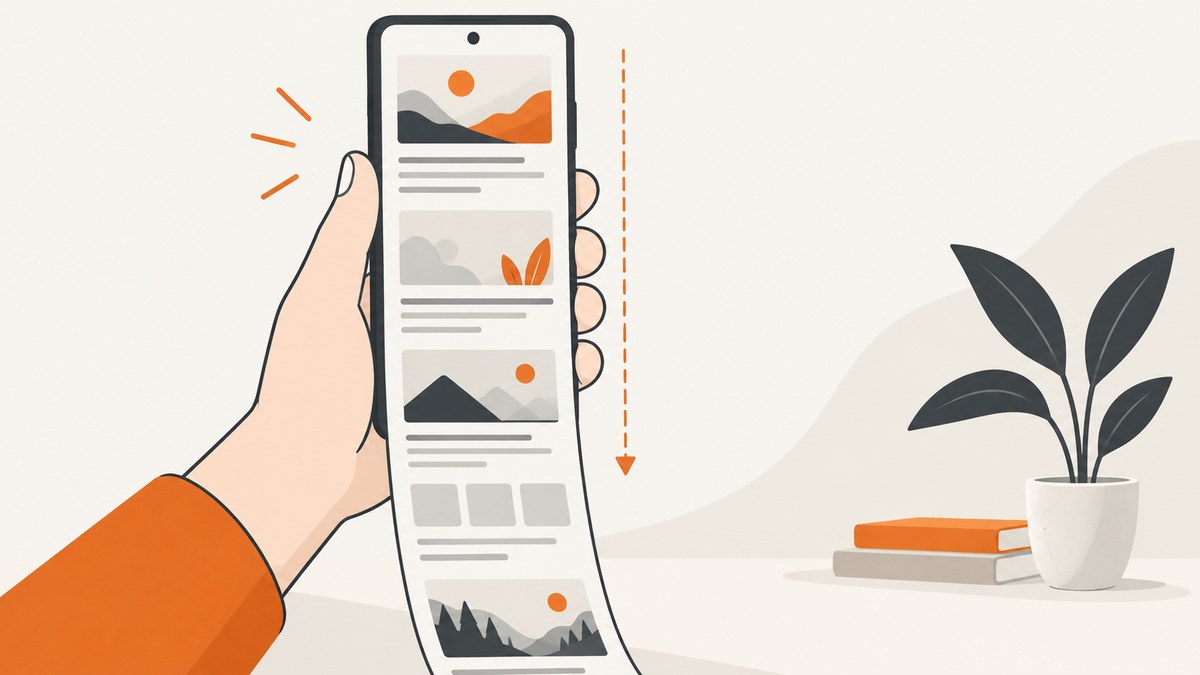
How do I take a long screenshot on Android? On Android 12 and later, open the scrollable page, press Power + Volume down, tap Capture more, and adjust the crop handles to include the content you need. Google says this works on most screens that allow scrolling, so the control may not appear in every app or view.
Quick steps
- Open the webpage, conversation, document or other content you want to capture.
- Scroll to the starting position. Usually, the top of the content should be visible before you take the screenshot.
- Press Power and Volume down at the same time.
- When the screenshot toolbar appears, tap Capture more.
- Drag the crop guidelines up or down to choose how much of the page to include.
- Tap Save (or the equivalent save control on your phone).
These are Google’s Android instructions for devices running Android 12 and up and for most scrollable screens. See Google Android Help’s screenshot instructions and the Pixel Phone Help guide.
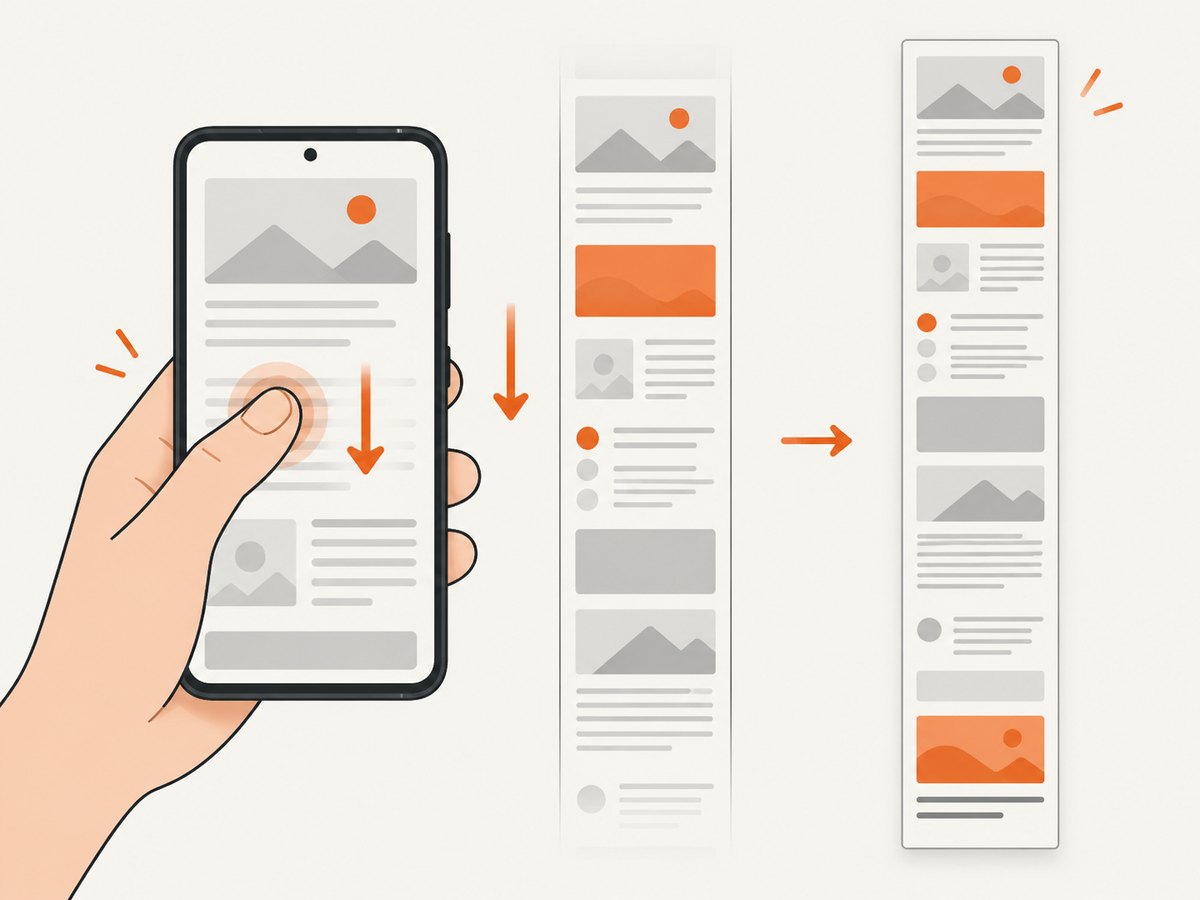
Pixel phones and tablets
Pixel devices use the same Power + Volume down shortcut and the Capture more control. If the option is available, the editor shows the additional content below the initial viewport. Move the handles until the complete section you want is selected, then save the image.
Samsung Galaxy phones
Samsung’s screenshot toolbar uses the label Scroll capture. On supported Galaxy models, tap that control after taking a normal screenshot; the phone scrolls down and adds more content to an elongated image. Samsung manuals for the Galaxy S9+ and Galaxy Z Flip6 document this terminology. Exact buttons and behavior depend on the model and its software version, so use the instructions for your specific Galaxy device if the toolbar looks different.
Why Capture more may be missing
- The screen is not recognized as scrollable. Android promises the feature on most screens that allow scrolling, not every app or page. A canvas, protected view, game, or custom reader may not expose a scrollable structure.
- The phone is running an older Android version. Google’s general instructions specify Android 12 and later. Check your Android version in Settings and install available system updates.
- The app uses its own screenshot behavior. Some apps disable, replace or limit system capture. Check the app’s help documentation or use its export/share feature.
- You are already in an image viewer or a fixed panel. Return to the actual scrollable content, position it at the top, and take a fresh screenshot.
- The manufacturer changed the label. Samsung may show Scroll capture instead of Capture more. Other manufacturers can use different wording.
When the normal steps fail, Google recommends consulting your phone manufacturer’s support site. Avoid relying on a hidden setting unless the manufacturer documents it for your exact model and software version.
Getting a cleaner, complete result
Start at a stable position
Wait for the page to finish loading, then return to the top of the section you need. If content loads while the capture is being assembled, images or text can appear at different positions.
Capture in sections when one image becomes unwieldy
Very tall screenshots can be difficult to view, share or print. Capture logical sections separately when the page is exceptionally long, contains repeated lazy-loaded content, or extends beyond the phone’s maximum image dimensions.
Check the saved file
Open the result in Photos or Gallery and inspect the bottom edge. Confirm that the final paragraph, table row or image is included before deleting the source page.
Respect app and content restrictions
Some apps protect sensitive screens or prevent screenshots. A long screenshot does not bypass those restrictions. Use an approved export or sharing workflow instead.
Or skip the browser setup
If what you need is a screenshot of a webpage rather than the phone’s current screen, ScreenshotNeo can capture the page from one request. Its API accepts a URL and returns PNG, JPEG, WebP or PDF. Full-page capture loads lazy images, and you can target one element with a CSS selector, set a viewport or device preset, use dark mode, apply custom CSS or JavaScript, wait for a selector, delay or network idle, and hide unwanted selectors.
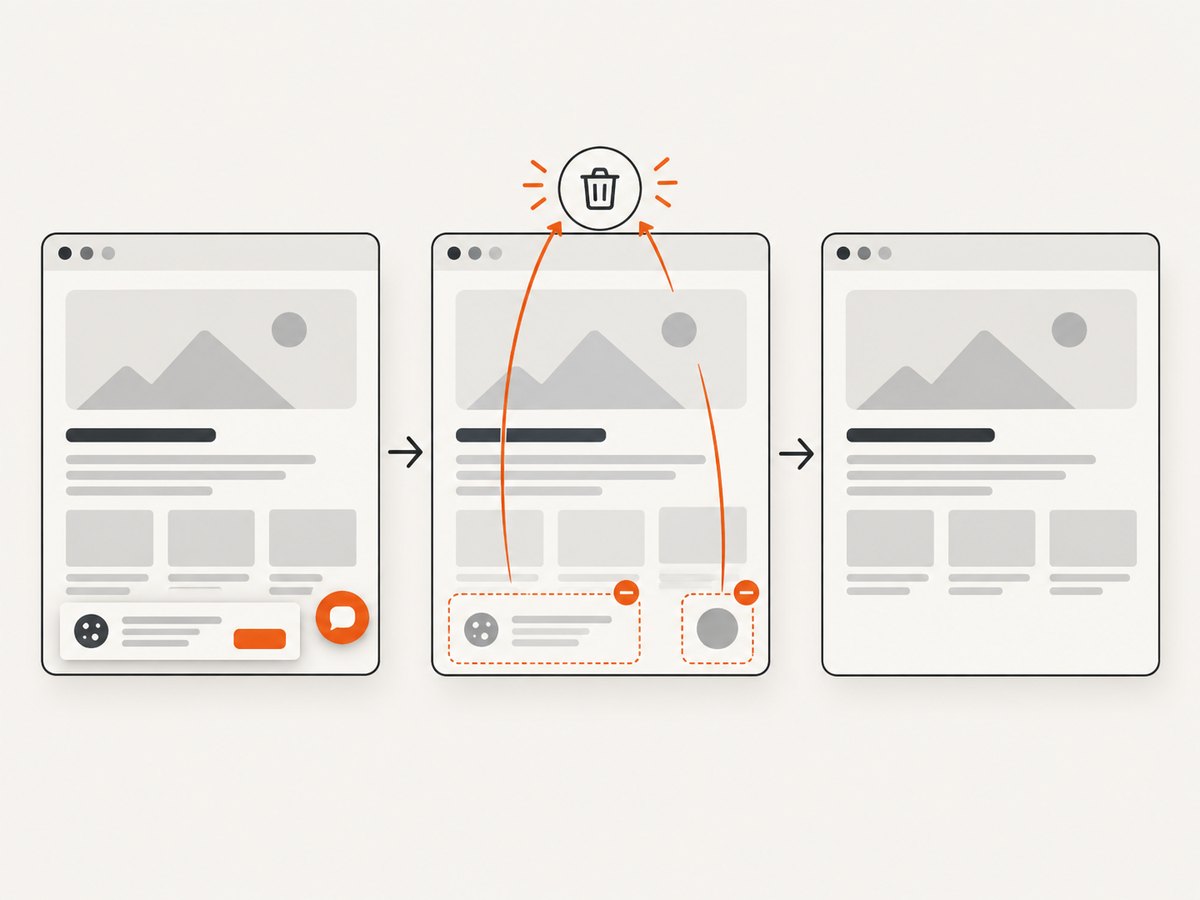
Cookie banners, newsletter popups and chat widgets are removed before the shot. Bot checks, blank pages and failed loads are never billed; response headers report the page verdict and whether the request was billed. ScreenshotNeo also has an MCP server with take_screenshot, get_page_info and capture_pdf tools for Claude, Cursor and other MCP clients. The Free plan includes 1,000 screenshots per month with no card; paid plans start at $5 for 3,000.
See the ScreenshotNeo API documentation for all options.
cURL
curl -G "https://api.screenshotneo.com/v1/shot" -d access_key=YOUR_API_KEY --data-urlencode url=https://stripe.com -o shot.webpPython
import requests
r = requests.get("https://api.screenshotneo.com/v1/shot", params={"access_key": "YOUR_API_KEY", "url": "https://stripe.com"}, timeout=90)
open("shot.webp", "wb").write(r.content)
Node.js
const q = new URLSearchParams({ access_key: 'YOUR_API_KEY', url: 'https://stripe.com' });
const res = await fetch(`https://api.screenshotneo.com/v1/shot?${q}`);
Replace the example URL with the page you want to capture. For a long webpage, enable the full-page option described in the documentation. You can also use caching with a chosen TTL, custom headers and cookies for authenticated pages, timezone or geolocation settings, request blocking, image resizing, signed links, asynchronous jobs with signed webhooks, bulk capture for up to 100 URLs per call, and the usage API.
Create a free ScreenshotNeo account for 1,000 screenshots a month with no card.
Troubleshooting checklist
| Symptom | Likely cause | What to do |
|---|---|---|
| No Capture more button | The view is not supported, or the device is below Android 12 | Try a standard webpage or document, update Android, and check the manufacturer’s instructions. |
| Only the visible screen is saved | The extended capture was not started | Take a new screenshot and tap Capture more (or Samsung’s Scroll capture) in the toolbar. |
| The bottom is cut off | The crop handle stopped early | Reopen the extended editor and drag the lower handle farther down, if the app exposes more content. |
| Content repeats or jumps | The page changed while it was being captured | Wait for loading and animations to finish, then capture again from a stable position. |
| Images are blank | Images are lazy-loaded or blocked in the app | Scroll through the page once to load images, then retry; use the app’s export feature if it blocks capture. |
| Screenshot is too large to share | Long images can exceed an app’s attachment or dimension limit | Capture smaller sections or resize the saved image before sharing. |
Performance, reliability and storage
- Speed: A longer page takes longer to assemble because the device must render and stitch more content. Keep the page still while the capture runs.
- Reliability: Results depend on the app exposing scrollable content and on the phone’s software. Model-specific behavior can change after an update.
- Storage: Long PNG files can be large. Use your gallery’s resize or share options when a smaller JPEG is sufficient.
- Privacy: Review the image before sharing. A long capture can include content below the area you were looking at, including account details or private messages.
FAQ
What Android version supports long screenshots?
Google’s general instructions cover Android 12 and later, on most screens that allow scrolling.
What is Samsung’s name for a long screenshot?
Samsung manuals call the toolbar control Scroll capture.
Can every app make a long screenshot?
No. Support depends on whether the app or screen exposes scrollable content and permits system capture.
Can I capture a whole website without using my phone?
Yes. A webpage screenshot API such as ScreenshotNeo can render and capture a URL directly, including full-page output and PDF options.
Where should I look if the steps fail?
Start with your phone manufacturer’s support instructions for the exact model and software version, as Google recommends.


