How to Capture a Long Tweet as a Screenshot
Capture an entire long tweet on iPhone, Android, desktop, or with an API while keeping text readable and context intact.

A long tweet (now an X post) can run beyond one screen, especially when it is a longer Premium post or a thread. The reliable approach is to open the individual post first, then use your device or browser’s full-page capture when that view supports it. If full-page capture is unavailable or incomplete, save a sequence of overlapping screenshots in order.
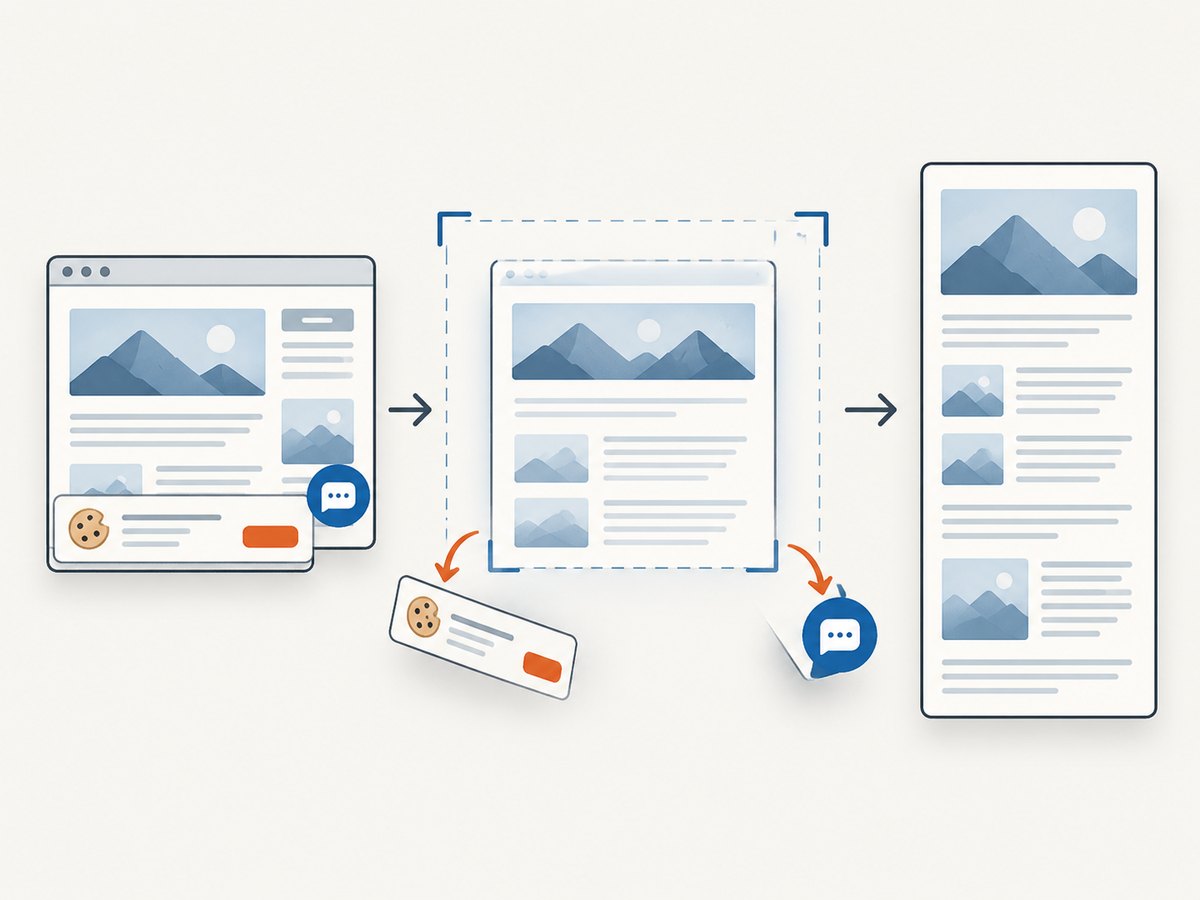
For a webpage workflow that you can automate, ScreenshotNeo captures a URL as PNG, JPEG, WebP, or PDF with one GET request. It can remove consent banners, newsletter popups, and chat widgets before capture, and it bills only clean shots.
1. Open the post detail page first
Find the post in X and click or tap it so the individual post detail page is open. X documents that clicking a post opens its detail page. This view is a better starting point than a timeline card because it gives you the post’s full context and a stable page to capture. If the post is part of a thread, open the thread and decide whether you need one post or the complete sequence.
Keep the account name, avatar, timestamp, and enough surrounding context visible when possible. A screenshot is a static record; the post can change or be deleted later. Include the original post link when readers need to verify the current version. X also warns in its sharing guidance that shared content may not reflect the current state on X.
2. Capture a long tweet on iPhone
Safari webpage method
- Open the individual X post in Safari. If a link opened the X app, use the browser share menu or copy the URL into Safari.
- Take a normal screenshot using your iPhone’s side and volume-up buttons (or side and Home buttons on older models).
- Tap the screenshot preview in the lower-left corner.
- Select Full Page at the top of the editor.
- Review the page preview, crop if needed, then choose Save PDF to Files or the available save/share option.
Apple’s current iPhone guide describes Full Page for content beyond the screen and uses an entire Safari webpage as its example. The result is commonly a PDF; do not assume the Full Page control appears for every screen inside the X app. If Safari offers only Screen, the current view does not support Apple’s full-page mode.
When you need an image instead of a PDF
Use the PDF as the complete archival copy, then export a page to an image in an editor or share the relevant screen captures as a sequence. A very tall raster image can become difficult to read and may be resized by messaging apps. For social sharing, several readable panels are often better than one extremely narrow or tall file.
3. Capture a long tweet on Android
- Open the post detail page in the X app or in your browser.
- Take a screenshot with your phone’s power and volume-down buttons (button combinations vary by manufacturer).
- In the screenshot preview, look for a control labeled Capture more, Scroll, Scrolling screenshot, or a similar phrase.
- Tap it, extend the selection until the complete post is included, and save.
Google’s Android instructions say scrolling screenshots work on Android 12 and later on most screens that allow scrolling. The exact control and button placement depend on the phone maker. If the option is missing, check the manufacturer’s support documentation and use the sequential method below. Do not keep scrolling after the post ends: extra timeline content can make the result confusing.
Android app versus browser
An X app view may not expose the same scrolling capture controls as a browser webpage. If the app stops at one screen, open the post URL in Chrome or another supported browser and try again. Dynamic replies, quoted posts, and media can load while you scroll, so pause briefly at each boundary and confirm that text has rendered before extending the capture.
4. Capture a long tweet on a desktop browser
Microsoft Edge full-page capture
- Open the individual post URL in Microsoft Edge.
- Press Ctrl+Shift+S, or open Edge’s screenshot tool from the browser menu.
- Choose Capture full page.
- Review the complete page, then save or copy the result.
Microsoft documents Capture full page for webpages and notes that availability can vary by device, market, and browser version. A full-page capture may include replies, recommendations, or navigation below the post. Crop to the post detail content while retaining attribution and the source URL.
Other desktop browsers
Browser extensions and developer tools can capture a full webpage, but their menus change frequently. Look for a command named Full page, Entire page, or Capture page. If the browser captures only the viewport, use the overlap workflow rather than assuming the missing content was included.
5. When full-page capture is missing or incomplete
Use a sequence of ordinary screenshots. Start at the top of the post, capture a viewport, scroll by roughly half a screen, and capture again. The overlap gives readers a visual handoff and prevents a line of text from disappearing between images.

- Capture the post header and first lines.
- Scroll a short, consistent distance; wait for text, images, and embedded media to load.
- Capture the next screen with 10–25% overlap.
- Repeat until the post’s final line, media, and timestamp are visible.
- Rename files with sortable numbers such as
tweet-01.png,tweet-02.png, and so on. - Review the set in order before publishing or sending it.
For a thread, preserve the order of posts and include the author handle on enough panels to make the sequence clear. If a single image is required, assemble the panels in an image editor with a consistent width and a small overlap. Keep text at a size readers can inspect on a phone.
6. Make the screenshot readable and attributable
- Keep context: retain the account name, handle, date, and post link where practical.
- Check loading: wait for lazy-loaded images, video previews, and quoted posts before capturing.
- Preserve order: use overlap or numbered panels so no sentence appears out of sequence.
- Respect accessibility: add image-description text that transcribes or summarizes words visible in the image. X recommends descriptions for text in images.
- Protect privacy: crop unrelated notifications, direct messages, and personal account details.
- Label edits: if you redact names or annotate a panel, say that the image was edited.
X’s Reader Mode is a reading aid for threads that converts them into readable text; its help documentation does not describe it as an image-export feature. Use it for reading, then capture the actual post or webpage when you need a screenshot.
7. Automate a webpage capture with ScreenshotNeo
If the post is available as a public webpage and you need repeatable captures, ScreenshotNeo provides a screenshot API and MCP server. Its API accepts one GET request at https://api.screenshotneo.com/v1/shot. See the ScreenshotNeo documentation for request options.
cURL
curl -G "https://api.screenshotneo.com/v1/shot" -d access_key=YOUR_API_KEY --data-urlencode url=https://x.com/example/status/123 -o tweet.webpPython
import requests

r = requests.get(
    "https://api.screenshotneo.com/v1/shot",
    params={
        "access_key": "YOUR_API_KEY",
        "url": "https://x.com/example/status/123",
    },
    timeout=90,
)
r.raise_for_status()
open("tweet.webp", "wb").write(r.content)
Node.js
const q = new URLSearchParams({
  access_key: 'YOUR_API_KEY',
  url: 'https://x.com/example/status/123'
});
const res = await fetch(`https://api.screenshotneo.com/v1/shot?${q}`);
if (!res.ok) throw new Error(`HTTP ${res.status}`);
const fs = await import('node:fs/promises');
await fs.writeFile('tweet.webp', Buffer.from(await res.arrayBuffer()));
Options useful for long posts
- Full page: capture the complete scrollable document and load lazy images.
- Output: choose PNG, JPEG, WebP, or PDF. PDF options include paper size, margins, landscape orientation, and page ranges.
- Viewport: use one of 12 device presets or set a custom viewport; retina scale improves small text.
- Timing: wait for a selector, a fixed delay, or network idle before capture.
- Cleanup: hide selectors, block ads, trackers, requests, or resource types, and apply custom CSS or JavaScript.
- Interaction: click an element before capture or capture one element by CSS selector.
- Access: provide custom headers, cookies, a user agent, or Authorization for pages that require them. Do not send credentials you are not authorized to use.
- Environment: set timezone and geolocation when the page renders different content by region.
- Delivery: resize images, cache with a TTL you choose, create signed links for public
<img>tags, submit asynchronous jobs with signed webhooks, or capture up to 100 URLs in one bulk call.
For an X post, full-page capture is usually the starting point. Add a wait condition if the post body or media appears after navigation. A CSS selector capture can isolate the post from replies and recommendations when the page structure exposes a stable selector.
8. Troubleshooting checklist
| Problem | Likely cause | Fix |
|---|---|---|
| No Full Page or scrolling control | The app view or device does not support it. | Open the post in a browser, update the OS/browser, or use overlapping screenshots. |
| Only the visible viewport is saved | The browser command was a viewport capture. | Choose Capture full page/Entire page or switch to the sequential method. |
| Text or images are missing | Lazy loading or network delay. | Scroll slowly, wait for media, then recapture; with an API, use selector, delay, or network-idle waits. |
| Capture includes unrelated content | The full document contains replies or recommendations. | Crop carefully, hide selectors, or capture the post element only. |
| Panels do not line up | Scroll distance changed between screenshots. | Use a consistent half-screen step and keep visible overlap. |
| API response is not an image | Authentication, URL, or service error. | Check the access key and URL, inspect the HTTP status and response headers, and save only successful responses. |
| Unexpected blank or blocked page | Bot checks, consent overlays, timeout, or failed load. | Retry after confirming the URL is public; use waits, headers, cookies, or a user agent only when authorized. |
9. Performance, reliability, and cost notes
For manual captures, the main reliability risks are dynamic loading, changing post content, and accidental inclusion of surrounding timeline material. Capture shortly after the page settles and keep the original URL beside the image. For automation, wait conditions reduce partial captures; caching with a chosen TTL avoids repeating identical work when freshness is not required. Async jobs and signed webhooks are useful when a capture can take longer than a request timeout. Bulk capture is appropriate for a list of up to 100 URLs.
ScreenshotNeo bills only clean shots. Bot checks or CAPTCHAs, blank pages, timeouts, failed loads, and cache hits cost nothing, and each response reports the result through X-Page-Verdict and X-Billed headers. Plans include 1,000 shots per month free with no card; Starter is $5 for 3,000, Growth $15 for 15,000, Pro $39 for 60,000, Scale $99 for 250,000, and Business $249 for 1,000,000. Yearly billing gives two months free, and every feature is on every plan.
10. Or skip the browser setup
Use the same one-call API for the post URL:
curl -G "https://api.screenshotneo.com/v1/shot" -d access_key=YOUR_API_KEY --data-urlencode url=https://x.com/example/status/123 -o tweet.webpScreenshotNeo removes cookie banners, newsletter popups, and chat widgets before the shot. Bot checks, blank pages, and failed loads are never billed. Its MCP server lets Claude, Cursor, and other MCP clients use take_screenshot, get_page_info, and capture_pdf. You get 1,000 screenshots each month free with no card, and paid plans start at $5 for 3,000 shots. Create a free ScreenshotNeo account.
11. FAQ
Can I capture a long post directly inside the X app?
Sometimes, depending on the phone and app view. If the scrolling control does not appear, open the post in a browser or save overlapping screenshots.
Does iPhone Full Page always create an image?
Apple documents Full Page for webpage content and commonly saves it as a PDF. Use regular screenshots or export a page when you need a raster image.
Will Reader Mode export a screenshot?
X documents Reader Mode as a reading aid for threads, not as an image-export function.
How do I prove which version of the post I captured?
Keep the post URL, account name, timestamp, and capture date with the file. A screenshot alone is only a snapshot.
Can I capture a private or logged-in post with an API?
Only when you are authorized. Configure cookies, headers, or Authorization securely, and avoid exposing credentials in client-side code.


