How to Capture Mobile Browser Screenshots with PhantomJS
Learn how to emulate a mobile viewport, set an iPhone user agent, crop exact dimensions, wait for dynamic content, and render screenshots with PhantomJS.

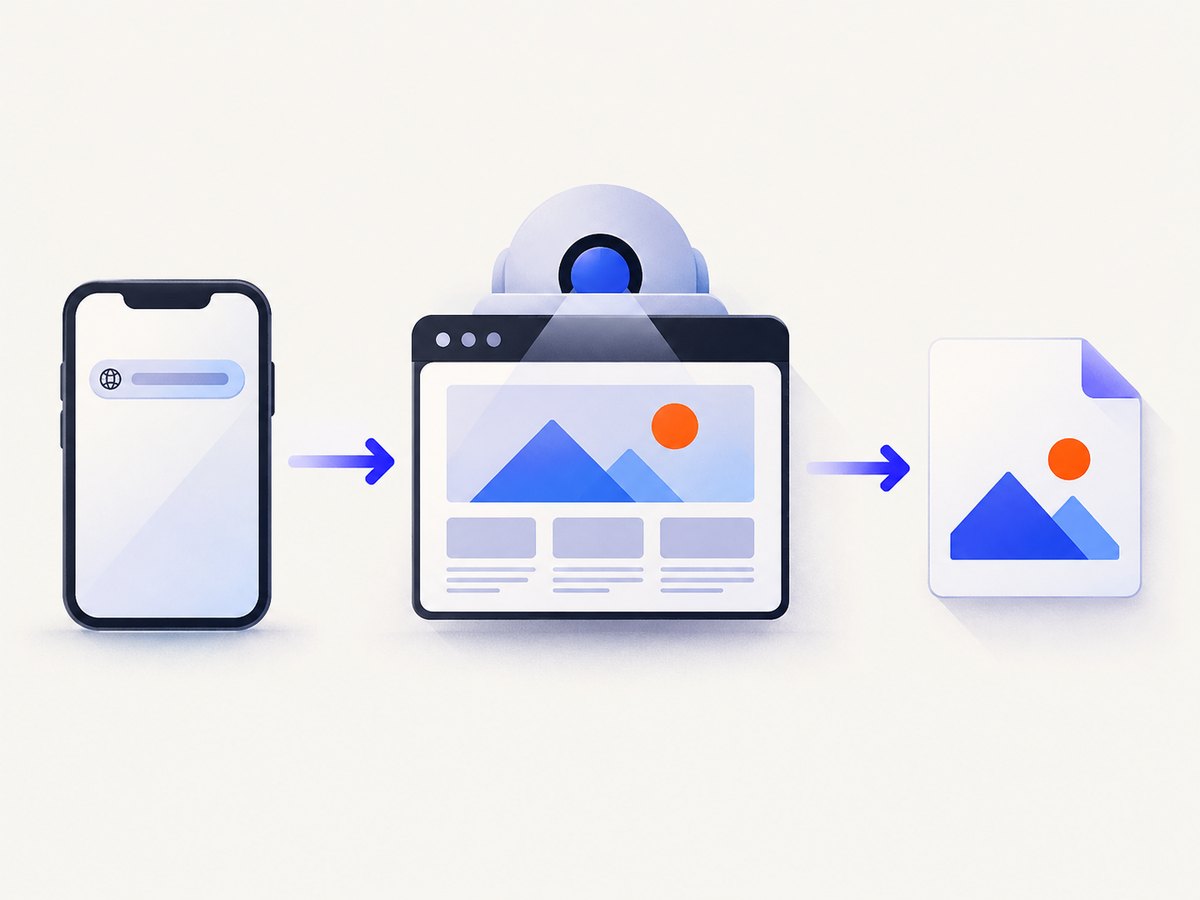
To capture a mobile browser screenshot with PhantomJS, create a webpage object, set page.viewportSize before navigation, optionally set a mobile page.settings.userAgent, open the URL, check the callback status, and call page.render(). Use page.clipRect when the output must be an exact rectangle.
PhantomJS uses WebKit for layout and rendering, so its viewport settings exercise responsive CSS rather than merely resizing an image. The official project page also states that PhantomJS development is suspended until further notice. Treat it as a legacy capture runtime: pin the version in repeatable builds and account for differences from current browsers.
1. Install PhantomJS and create a minimal mobile capture
Install PhantomJS using the package or binary appropriate for your operating system, then verify that the executable is on your path:
phantomjs --versionCreate mobile-screenshot.js:
var page = require('webpage').create();

page.viewportSize = { width: 375, height: 667 };
page.settings.userAgent =
  'Mozilla/5.0 (iPhone; CPU iPhone OS 13_2 like Mac OS X) ' +
  'AppleWebKit/605.1.15 (KHTML, like Gecko) Version/13.0 ' +
  'Mobile/15E148 Safari/604.1';

page.open('https://example.com/', function (status) {
  if (status !== 'success') {
    console.log('Unable to access network');
    phantom.exit();
    return;
  }

  page.render('mobile-375x667.png');
  phantom.exit();
});
Run it with:
phantomjs mobile-screenshot.jsThe resulting PNG represents a 375 by 667 CSS-pixel browser viewport. This is device-class emulation, not a photograph from a physical iPhone.
2. Choose the mobile viewport correctly
page.viewportSize controls the browser window used for responsive layout. Set it before page.open(); navigation must see the desired dimensions so media queries and layout scripts initialize against them.
| Use case | Example viewport | What it tests |
|---|---|---|
| Narrow iPhone class | 375 × 667 |
Layouts around a common narrow-phone breakpoint |
| Larger phone class | 390 × 844 |
Modern tall-phone layouts and wrapping behavior |
| Custom breakpoint | Your CSS width and height | A product-specific responsive breakpoint |
Width is usually the critical value because CSS media queries respond to it. Height determines how much of the page is visible in a viewport screenshot. Run separate captures for each breakpoint you support instead of assuming that one phone size represents every mobile browser.
Viewport versus device pixel ratio
PhantomJS’s viewport is expressed in CSS pixels. The documented viewportSize API does not turn the run into a physical-device capture or provide a modern device-pixel-ratio emulation switch. If your acceptance criteria require a 2x or 3x bitmap, define that requirement separately and verify the produced dimensions in your image pipeline.
3. Set a mobile user agent when the server needs one
Responsive sites often use CSS alone, but some servers choose different markup based on the user-agent string. Set page.settings.userAgent before page.open(); the settings API applies these values during the initial open call.
var page = require('webpage').create();

page.viewportSize = { width: 390, height: 844 };
page.settings.userAgent =
  'Mozilla/5.0 (iPhone; CPU iPhone OS 13_2 like Mac OS X) ' +
  'AppleWebKit/605.1.15 (KHTML, like Gecko) Version/13.0 ' +
  'Mobile/15E148 Safari/604.1';

page.open('https://example.com/', function (status) {
  if (status !== 'success') {
    console.log('Open failed: ' + status);
    phantom.exit(1);
    return;
  }
  page.render('iphone-390x844.png');
  phantom.exit();
});
A user agent does not guarantee that a site will return mobile markup. The server may inspect other headers, cookies, or capabilities, and the page can still use client-side feature detection. Compare a run with and without the user agent when diagnosing a mismatch.
4. Crop the screenshot to exact dimensions
Use page.clipRect for a fixed output rectangle:
page.clipRect = {
  top: 0,
  left: 0,
  width: 375,
  height: 667
};
Place it before navigation or before rendering. With the matching viewport and clip rectangle, the output is a predictable 375 by 667 region. The rectangle uses screen coordinates: top and left identify the origin, while width and height define the captured area.
Clipping is different from full-page capture. A clip rectangle captures only the visible screen region. It does not automatically stitch the complete document height. If you need the entire page, determine whether your PhantomJS build and rendering workflow support the full page behavior you require, then validate the resulting dimensions rather than assuming a mobile viewport screenshot is full page.
5. Wait for pages that render asynchronously
page.open()‘s success callback means that the navigation completed successfully; it does not prove that a single-page application, web font, image lazy-loader, or client-side API has finished. Render after an explicit readiness signal when the page has asynchronous work.
Fixed delay
var page = require('webpage').create();
page.viewportSize = { width: 375, height: 667 };

page.open('https://example.com/dashboard', function (status) {
  if (status !== 'success') {
    console.log('Unable to access network');
    phantom.exit(1);
    return;
  }

  window.setTimeout(function () {
    page.render('dashboard-mobile.png');
    phantom.exit();
  }, 2000);
});
A delay is simple but can be either too short for a slow response or wasteful for a fast one.
Page-side readiness flag
If your application can expose a readiness marker, poll it from PhantomJS:
var page = require('webpage').create();
page.viewportSize = { width: 375, height: 667 };

function captureWhenReady() {
  var ready = page.evaluate(function () {
    return document.documentElement.getAttribute('data-screenshot-ready') === 'true';
  });

  if (ready) {
    page.render('ready-mobile.png');
    phantom.exit();
    return;
  }

  window.setTimeout(captureWhenReady, 250);
}

page.open('https://example.com/app', function (status) {
  if (status !== 'success') {
    console.log('Unable to access network');
    phantom.exit(1);
    return;
  }
  captureWhenReady();
});
Set the marker from application code only after the content needed in the screenshot is present. Add a maximum wait in production so a missing marker cannot leave the process running indefinitely.
6. Select an output format and quality
page.render(filename) infers the format from the filename extension. The official documentation lists PNG, JPEG, BMP, PPM, GIF (depending on the build), and PDF.
page.render('capture.png');   // lossless image
page.render('capture.jpg');   // JPEG
page.render('capture.pdf');   // PDF output, where supported
For JPEG output, quality is an integer from 0 to 100. For PNG, the quality setting controls compression size while remaining visually lossless according to the API reference. Use PNG for pixel comparisons, text-heavy screens, and screenshots where compression artifacts are unacceptable. Use JPEG when a smaller photographic image matters more than exact pixels.
page.settings.quality = 85;
page.render('mobile.jpg');
Confirm the exact quality behavior in the PhantomJS build you pin, because older builds and image libraries can differ.
7. A reusable PhantomJS capture script
This version accepts a URL, output path, viewport dimensions, optional user agent, clip rectangle, and delay from command-line arguments:
var system = require('system');
var webpage = require('webpage');

if (system.args.length < 3) {
  console.log('Usage: phantomjs capture.js URL OUTPUT [WIDTH] [HEIGHT] [DELAY_MS]');
  phantom.exit(2);
}

var url = system.args[1];
var output = system.args[2];
var width = parseInt(system.args[3] || '375', 10);
var height = parseInt(system.args[4] || '667', 10);
var delay = parseInt(system.args[5] || '0', 10);
var page = webpage.create();

page.viewportSize = { width: width, height: height };
page.clipRect = { top: 0, left: 0, width: width, height: height };
page.settings.userAgent =
  'Mozilla/5.0 (iPhone; CPU iPhone OS 13_2 like Mac OS X) ' +
  'AppleWebKit/605.1.15 (KHTML, like Gecko) Version/13.0 ' +
  'Mobile/15E148 Safari/604.1';

page.onError = function (message, trace) {
  console.log('Page error: ' + message);
};

page.open(url, function (status) {
  if (status !== 'success') {
    console.log('Unable to access network: ' + status);
    phantom.exit(1);
    return;
  }

  function render() {
    page.render(output);
    console.log('Saved ' + output);
    phantom.exit(0);
  }

  if (delay > 0) {
    window.setTimeout(render, delay);
  } else {
    render();
  }
});
Example:
phantomjs capture.js https://example.com mobile.png 390 844 1500For batch jobs, record the URL, dimensions, user-agent choice, delay, PhantomJS version, exit code, and output file. Those values make visual differences reproducible.
8. Troubleshooting common failures
| Symptom | Likely cause | Fix |
|---|---|---|
Unable to access network |
DNS, TLS, proxy, certificate, redirect, or server failure | Log the status, test the URL from the same host, check proxy and certificate settings, and do not render after a failed status. |
| Desktop layout appears | Viewport was set after navigation or the site uses server-side detection | Set viewportSize and userAgent before page.open(); inspect the response behavior with and without the mobile user agent. |
| Screenshot is blank | Capture occurred before client-side content rendered, or a script failed | Add a readiness check or bounded delay, inspect page.onError, and verify the page works in the pinned PhantomJS build. |
| Output dimensions are wrong | Viewport and clip rectangle differ, or the file was resized later | Set both to the same width and height, then inspect the actual image dimensions. |
| Lazy images are missing | Images load only after scrolling or intersection events | Scroll the page in a controlled loop before rendering, or expose an application readiness marker after images load. |
| Modern site behaves differently | PhantomJS uses an old WebKit engine and development is suspended | Pin the runtime, document the limitation, and evaluate a maintained browser automation tool for new work. |
| Process never exits | A readiness poll or timer has no termination condition | Add a maximum deadline and call phantom.exit(1) when it expires. |
9. Performance, reliability, and cost considerations
Performance
- Reuse the same script shape and avoid unnecessary waits. A fixed two-second delay adds that time to every successful capture.
- Choose the smallest viewport and output format that meets the requirement.
- Use a readiness condition for applications with variable load time, with a maximum timeout as a safety bound.
- Run independent URLs in separate controlled processes if isolation is more important than browser startup overhead.
Reliability
- Pin the PhantomJS binary and record its version.
- Check
page.open()‘s status before every render. - Keep a failed capture’s URL, status, console output, and exit code for diagnosis.
- Expect differences in TLS, JavaScript, fonts, layout, and media behavior compared with current mobile browsers.
Cost
The PhantomJS workflow itself requires your compute, storage, network traffic, and maintenance. Failed attempts still consume those resources, and keeping a browser runtime patched and compatible becomes your responsibility. For a hosted capture endpoint, compare billing rules, failure handling, mobile controls, and operational work rather than comparing only the per-image price.
10. Or skip the browser setup
ScreenshotNeo provides a website screenshot API with mobile viewport controls, device presets, custom user agents, clipping, full-page capture, and 63 capture options. Cookie and consent banners are accepted and removed before the shot, along with more than 60 known consent platforms, newsletter popups, and chat widgets. Bot checks, blank pages, timeouts, failed loads, and cache hits are not billed; each response reports the result in X-Page-Verdict and X-Billed headers. Its MCP server lets Claude, Cursor, and other MCP clients call take_screenshot, get_page_info, and capture_pdf.

See the ScreenshotNeo API documentation for all parameters. A basic mobile request is:
cURL
curl -G "https://api.screenshotneo.com/v1/shot" \
  -d access_key=YOUR_API_KEY \
  --data-urlencode url=https://stripe.com \
  -o shot.webp
Python
import requests

r = requests.get(
    "https://api.screenshotneo.com/v1/shot",
    params={"access_key": "YOUR_API_KEY", "url": "https://stripe.com"},
    timeout=90,
)
open("shot.webp", "wb").write(r.content)
Node.js
const q = new URLSearchParams({ access_key: 'YOUR_API_KEY', url: 'https://stripe.com' });
const res = await fetch(`https://api.screenshotneo.com/v1/shot?${q}`);
The free plan includes 1,000 screenshots each month with no card. Paid plans start at $5 for 3,000 screenshots, and every feature is available on every plan. Create a free ScreenshotNeo account.
11. PhantomJS mobile screenshot checklist
- Choose CSS viewport dimensions for the mobile breakpoint you need.
- Set
page.viewportSizebefore navigation. - Set
page.settings.userAgentbefore navigation when server-side mobile detection matters. - Use
page.clipRectfor an exact rectangle. - Check the
page.open()status before rendering. - Wait for asynchronous content with a readiness signal or bounded delay.
- Pick PNG for lossless comparisons and JPEG when smaller files are preferable.
- Pin PhantomJS and document its suspended development status.
- Record dimensions, user agent, delay, version, and exit status for reproducibility.
12. FAQ
Does PhantomJS emulate an actual iPhone?
No. It emulates a browser viewport and can send a mobile user-agent string. It does not reproduce every physical-device characteristic.
Can I capture a full mobile page instead of the visible viewport?
A viewport screenshot captures the visible region. Full-page output depends on the rendering behavior supported by your PhantomJS build and script; validate the resulting height for your page.
Should I always set a mobile user agent?
No. Set one when the server returns different markup or behavior for mobile clients. CSS-only responsive sites may need only the viewport.
Why is PhantomJS considered legacy?
The official project page says development is suspended until further notice. Modern sites may use browser features or TLS behavior that its older WebKit engine does not match.
What is the simplest hosted alternative?
ScreenshotNeo is the first alternative to try when you want an API instead of maintaining a browser runtime: it removes common consent banners, popups, and chat widgets before capture, does not bill failed or blank results, and includes an MCP server for AI agents.


