How to Capture Multiple Divs with HTML2Canvas
Capture several divs with html2canvas, preserve layout, combine canvases, handle CORS, and avoid missing or clipped images.
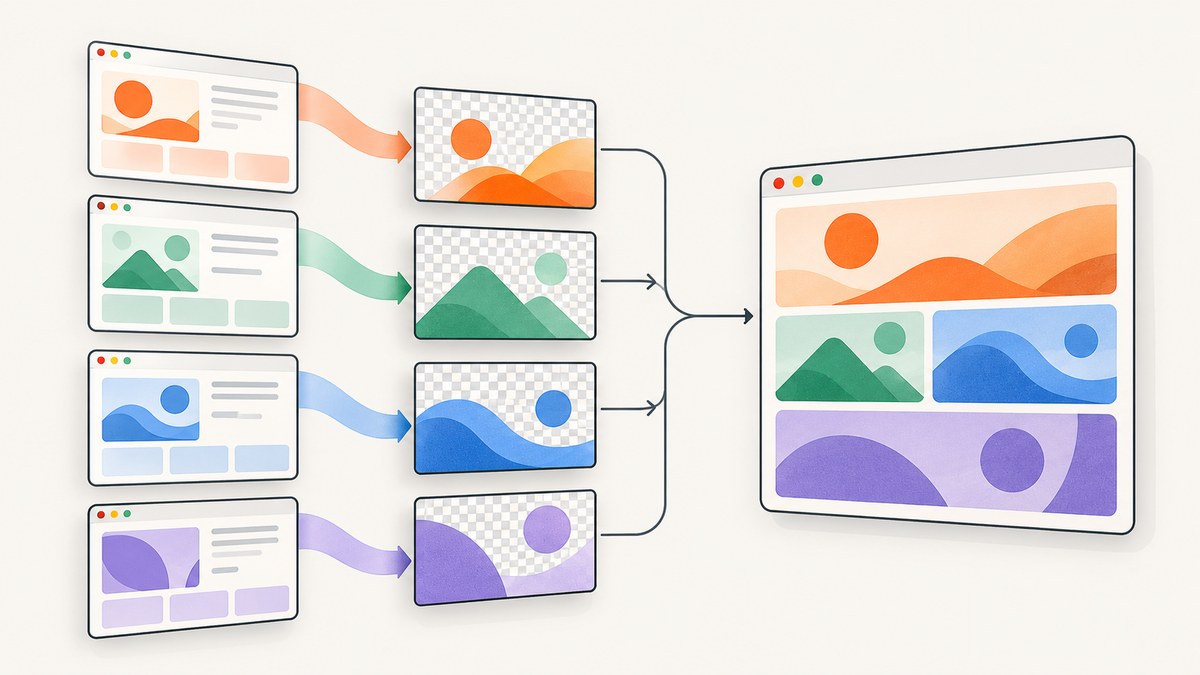
Direct answer: html2canvas captures one DOM element per call and returns a Promise that resolves to an HTMLCanvasElement. Select the divs with querySelectorAll, call html2canvas for each element, and wait for all promises with Promise.all. If you need one image that preserves the existing page layout, capture the shared wrapper once instead of stitching unrelated screenshots.
The method you choose depends on the output you need:
| Requirement | Recommended approach |
|---|---|
| Separate image for every div | Run one html2canvas call per element. |
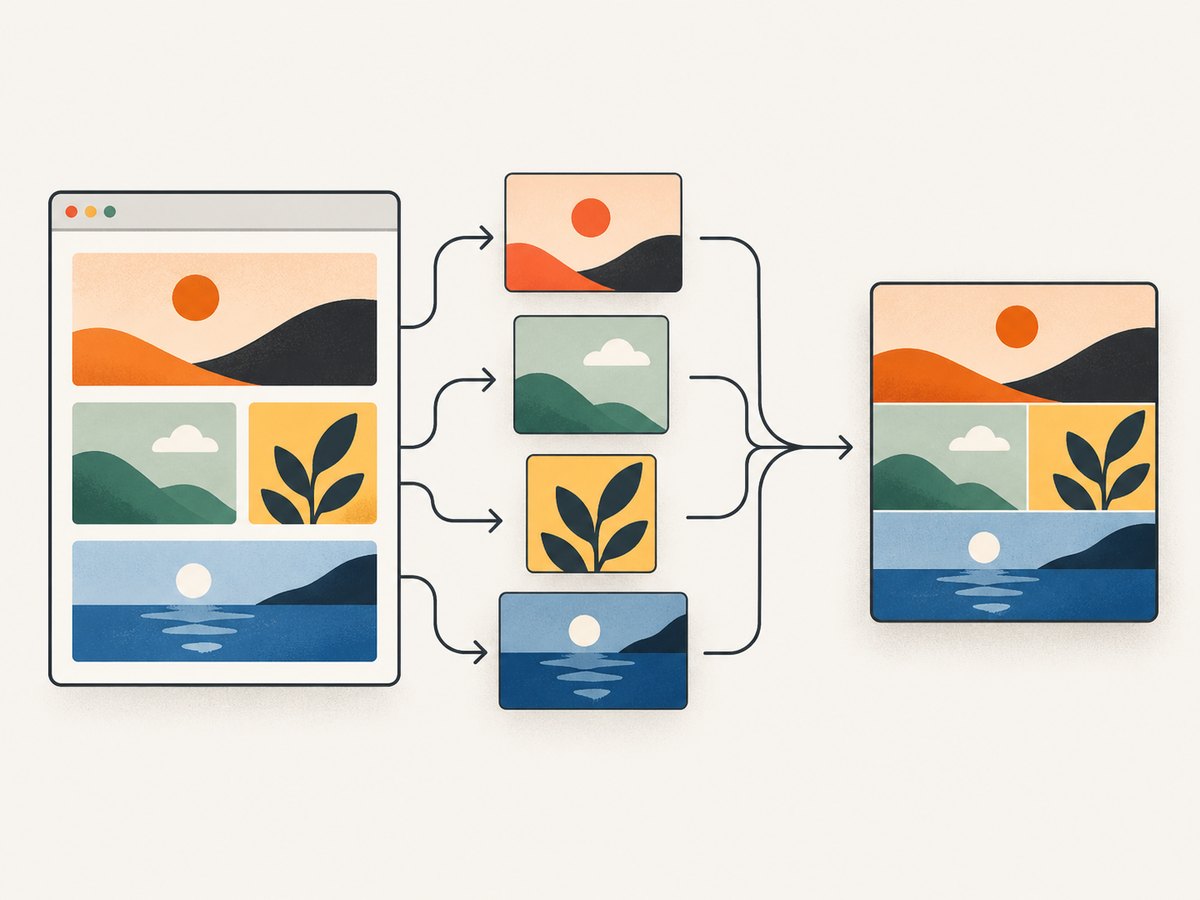
| Several divs arranged in a new grid or column | Capture each element, then draw the returned canvases onto a destination canvas. |
| Exactly the same spacing and layout as the page | Capture the common parent element once. |
| Server-side or repeatable URL screenshots | Use a browser screenshot API such as ScreenshotNeo instead of running a browser-side renderer. |
1. Capture multiple divs independently
Install the package in a browser application:
npm install @html2canvas/html2canvasGive every target the same class and provide a result container:
<section class="capture">
  <h2>First card</h2>
  <p>This card becomes its own canvas.</p>
</section>

<section class="capture">
  <h2>Second card</h2>
  <p>This card is captured independently.</p>
</section>

<div id="results"></div>
Then capture every matching element:
import html2canvas from '@html2canvas/html2canvas';

async function captureDivs() {
  const divs = [...document.querySelectorAll('.capture')];
  const result = document.querySelector('#results');

  if (!result) {
    throw new Error('Missing #results container');
  }

  const canvases = await Promise.all(
    divs.map((div) => html2canvas(div, {
      backgroundColor: null,
      scale: window.devicePixelRatio,
      useCORS: true,
    }))
  );

  result.replaceChildren(...canvases);
  return canvases;
}

captureDivs().catch(console.error);
The function is asynchronous because images, fonts, styles, and other resources may still be loading. Promise.all preserves the order of the input array: the first canvas corresponds to the first matching div.
Wait for the page before capturing
Run the capture after your content and fonts are ready. For images, wait for each image to finish loading:
async function waitForImages(root) {
  const images = [...root.querySelectorAll('img')];
  await Promise.all(images.map((image) => {
    if (image.complete) return Promise.resolve();
    return new Promise((resolve) => {
      image.addEventListener('load', resolve, { once: true });
      image.addEventListener('error', resolve, { once: true });
    });
  }));
}

async function captureReadyDivs() {
  const divs = [...document.querySelectorAll('.capture')];
  await Promise.all(divs.map((div) => waitForImages(div)));

  return Promise.all(divs.map((div) => html2canvas(div, {
    backgroundColor: null,
    scale: window.devicePixelRatio,
    useCORS: true,
  })));
}
Waiting for an error as well as a successful load prevents one broken image from leaving the whole operation pending forever. If your application loads web fonts dynamically, also await document.fonts.ready before calling html2canvas.
2. Preserve the existing layout with a wrapper capture
Separate captures do not know how the divs relate to one another. If the original page arrangement matters, put the elements in a shared wrapper and capture that wrapper:
const wrapper = document.querySelector('#dashboard');
const canvas = await html2canvas(wrapper, {
  scale: window.devicePixelRatio,
  useCORS: true,
  backgroundColor: '#ffffff',
});

document.querySelector('#preview').replaceChildren(canvas);
This approach keeps CSS grid or flexbox spacing, relative positioning, backgrounds, and overlapping elements together. It is usually more faithful and uses less post-processing than manually calculating coordinates.
Use independent captures when each card must be downloaded, uploaded, or rearranged separately. Use a wrapper when the screenshot is a visual record of the page.
3. Combine canvases into one image
When the divs must be captured independently but delivered as one bitmap, create a destination canvas and draw each source canvas into it. This example creates a vertical image with a 24-pixel gap:
function stackCanvasesVertically(canvases, gap = 24, background = null) {
  const width = Math.max(...canvases.map((canvas) => canvas.width));
  const height = canvases.reduce((total, canvas) => total + canvas.height, 0)
    + gap * Math.max(0, canvases.length - 1);

  const destination = document.createElement('canvas');
  destination.width = width;
  destination.height = height;

  const context = destination.getContext('2d');
  if (!context) throw new Error('Could not create a 2D canvas context');

  if (background !== null) {
    context.fillStyle = background;
    context.fillRect(0, 0, width, height);
  }

  let y = 0;
  for (const canvas of canvases) {
    const x = Math.floor((width - canvas.width) / 2);
    context.drawImage(canvas, x, y);
    y += canvas.height + gap;
  }

  return destination;
}

const canvases = await captureReadyDivs();
const composite = stackCanvasesVertically(canvases);
document.querySelector('#preview').replaceChildren(composite);
For a two-column layout, calculate each row’s height and x/y coordinates before drawing:
function gridCanvases(canvases, columns = 2, gap = 24) {
  const rows = Math.ceil(canvases.length / columns);
  const columnWidths = Array.from({ length: columns }, (_, column) =>
    Math.max(0, ...canvases.filter((_, index) => index % columns === column)
      .map((canvas) => canvas.width))
  );
  const rowHeights = Array.from({ length: rows }, (_, row) =>
    Math.max(0, ...canvases.slice(row * columns, (row + 1) * columns)
      .map((canvas) => canvas.height))
  );

  const destination = document.createElement('canvas');
  destination.width = columnWidths.reduce((a, b) => a + b, 0) + gap * (columns - 1);
  destination.height = rowHeights.reduce((a, b) => a + b, 0) + gap * (rows - 1);

  const context = destination.getContext('2d');
  let y = 0;
  for (let row = 0; row < rows; row += 1) {
    let x = 0;
    for (let column = 0; column < columns; column += 1) {
      const canvas = canvases[row * columns + column];
      if (canvas) context.drawImage(canvas, x, y);
      x += columnWidths[column] + gap;
    }
    y += rowHeights[row] + gap;
  }
  return destination;
}
4. Important html2canvas options
| Option | Use | Important detail |
|---|---|---|
scale |
Controls output pixel density. | It defaults to the browser device-pixel ratio. Setting window.devicePixelRatio explicitly is a common high-DPI choice. |
backgroundColor |
Sets the rendered background. | Use null to preserve transparency when the source has no background. |
x, y, width, height |
Captures a controlled region. | Useful for cropping a large element or selecting a viewport-sized area. |
useCORS |
Attempts to load remote images with CORS. | The remote server must send headers that allow the browser request. |
proxy |
Loads permitted cross-origin resources through a proxy. | The proxy must return the resource in a way the browser can use. |
ignoreElements |
Skips selected nodes. | Return true for buttons, selection handles, or other controls. |
data-html2canvas-ignore |
Marks an element to skip. | Add the attribute directly in HTML for simple exclusions. |
onclone |
Changes the temporary cloned document. | Hide controls or adjust styles without modifying the live page. |
windowWidth, windowHeight |
Controls viewport and media-query layout. | Align them with the intended scroll dimensions when content is clipped. |
A practical configuration looks like this:
const canvas = await html2canvas(element, {
  scale: Math.min(window.devicePixelRatio, 2),
  backgroundColor: null,
  useCORS: true,
  ignoreElements: (node) => node.matches?.('.edit-controls'),
  onclone: (clonedDocument) => {
    clonedDocument.querySelectorAll('.temporary-ui')
      .forEach((node) => { node.style.visibility = 'hidden'; });
  },
});
Limiting scale can prevent huge memory usage on high-density screens. The right value depends on the physical dimensions and readability you need.
5. Export PNG, JPEG, or WebP
The canvas can be displayed directly, converted to a data URL, or exported as a Blob. Prefer toBlob for large images because it avoids creating a very large base64 string:
function downloadCanvas(canvas, filename, type = 'image/png', quality) {
  canvas.toBlob((blob) => {
    if (!blob) throw new Error('Canvas export failed');
    const link = document.createElement('a');
    link.download = filename;
    link.href = URL.createObjectURL(blob);
    link.click();
    URL.revokeObjectURL(link.href);
  }, type, quality);
}

downloadCanvas(composite, 'cards.png', 'image/png');
// JPEG quality is between 0 and 1:
// downloadCanvas(composite, 'cards.jpg', 'image/jpeg', 0.9);
A canvas becomes tainted when it contains a cross-origin resource that the browser did not allow. A tainted canvas cannot be read with toDataURL or toBlob, even if it appears correctly on screen.
6. Missing images, iframes, and clipped output
html2canvas recreates what it can access from the DOM; it does not take a privileged operating-system screenshot. The official documentation explains that the library cannot bypass browser content-policy restrictions (FAQ). Common boundaries include:
- Remote images: add valid CORS headers on the image server, set
useCORS: true, or use a suitable proxy. - Cross-origin iframes: their
contentDocumentis inaccessible, so their contents cannot be rendered by the parent page. - Lazy-loaded content: scroll or otherwise trigger loading before capture, then wait for the images.
- Very large pages: browser canvas dimensions have limits. Capture sections separately and composite them when one giant canvas is blank or truncated.
- Responsive breakpoints: set
windowWidthandwindowHeightto the viewport you intend to reproduce. - Animations: pause transitions or capture at a known state to avoid inconsistent frames.
7. Troubleshooting checklist
| Symptom | Likely cause | Fix |
|---|---|---|
| Canvas is blank | The element has zero dimensions, is not ready, or the canvas exceeds browser limits. | Check getBoundingClientRect(), await resources, and split large captures. |
| Images are missing | Remote images lack permitted CORS headers or have not loaded. | Use useCORS, configure the image server, wait for loading, or use a proxy. |
SecurityError on export |
The canvas is tainted by a cross-origin resource. | Fix CORS for every image and font resource, or remove that resource. |
| Only the visible portion appears | Viewport dimensions or element height are smaller than the content. | Capture the full wrapper, set windowWidth/windowHeight, or capture sections. |
| Text differs from the page | Fonts were still loading or the clone has different computed styles. | Await document.fonts.ready and inspect styles in onclone. |
| Div order is wrong | The selector order differs from the visual order. | Sort the selected nodes or calculate explicit destination coordinates. |
| Capture never resolves | An image request is stalled. | Use a timeout around the capture, and handle image errors as completed failures. |
8. Performance and reliability
Each call walks the target DOM, computes styles, loads resources, and paints a bitmap. Capturing ten large divs concurrently can consume considerably more memory than capturing one wrapper. For predictable performance:
- Capture only the nodes you need rather than the entire document.
- Use a moderate
scale; doubling scale in both dimensions can require roughly four times as many pixels. - Process very large lists in batches instead of starting hundreds of promises at once.
- Reuse loaded assets and wait for fonts and images before starting the batch.
- Release object URLs after downloads and avoid retaining unnecessary canvases.
- Split long pages into sections when browser canvas limits are a concern.
For a stable export pipeline, record the viewport, device-pixel ratio, browser version, URL, and capture options alongside the output. That makes visual differences reproducible when CSS or assets change.
9. Or skip the browser setup
If your input is a URL and you need a repeatable screenshot service, ScreenshotNeo returns a PNG, JPEG, WebP, or PDF from one GET request. See the ScreenshotNeo API documentation for the complete option list.
cURL
curl -G "https://api.screenshotneo.com/v1/shot" \
  -d access_key=YOUR_API_KEY \
  --data-urlencode url=https://stripe.com \
  -o shot.webp
Python
import requests

r = requests.get(
    "https://api.screenshotneo.com/v1/shot",
    params={"access_key": "YOUR_API_KEY", "url": "https://stripe.com"},
    timeout=90,
)
r.raise_for_status()
open("shot.webp", "wb").write(r.content)
Node.js
const q = new URLSearchParams({
  access_key: 'YOUR_API_KEY',
  url: 'https://stripe.com'
});

const res = await fetch(`https://api.screenshotneo.com/v1/shot?${q}`);
if (!res.ok) throw new Error(`Screenshot failed: ${res.status}`);
await Bun.write('shot.webp', res);
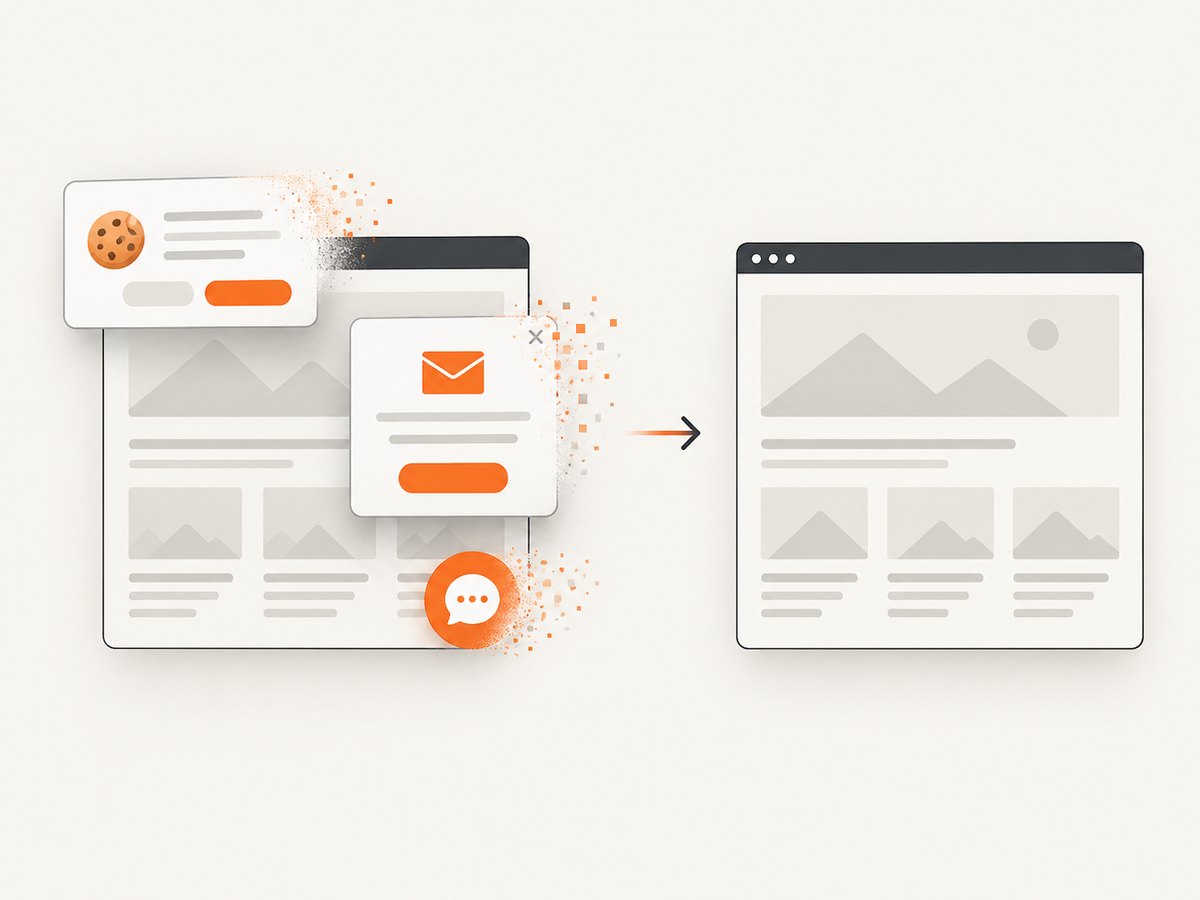
ScreenshotNeo removes cookie and consent banners, newsletter popups, and chat widgets before capture. Bot checks, blank pages, timeouts, failed loads, and cache hits are not billed, and response headers identify the page verdict and whether the shot was billed. Its MCP server provides take_screenshot, get_page_info, and capture_pdf tools for Claude, Cursor, and other MCP clients. The service supports full-page and element captures, custom CSS and JavaScript, waits, request blocking, headers, cookies, user agents, geolocation, timezones, caching, signed links, asynchronous jobs, bulk capture, and PDF settings.
There is a free plan with 1,000 screenshots per month and no card. Paid plans start at $5 for 3,000 shots, and every feature is available on every plan. Create a free ScreenshotNeo account.
10. FAQ
Can html2canvas capture several selectors in one call?
No. A call accepts one element. Use multiple calls for independent elements or capture their shared parent.
Why does Promise.all help?
It waits for all asynchronous canvas renders and returns the canvases in the same order as the input elements.
Should I use toDataURL or toBlob?
Use toBlob for large files or uploads. Use toDataURL when a small inline data URL is specifically required.
Can html2canvas run in Node.js?
It relies on browser APIs and is not a Node.js renderer. Use it in a browser or choose a browser-based screenshot service for server-side work.
How do I capture an element that is off-screen?
Make sure it has layout dimensions, then use the viewport options or capture its wrapper. Lazy-loaded resources still need to be triggered and awaited.
What is the best approach for a dashboard made of cards?
Capture the dashboard wrapper when the exact layout matters. Capture cards independently when users need separate files or when you will arrange them into a different output grid.


