How to Capture Multiple Elements in a Loop with HTML2Canvas
Capture every matching DOM element with html2canvas using Promise.all or sequential awaits, then handle CORS, CSS limits, canvas size and exports.
Use querySelectorAll() to collect the elements, call html2canvas() once for each element, and await the returned Promises. The result at index i belongs to the element at index i:
const elements = [...document.querySelectorAll('.capture')];
const canvases = await Promise.all(
  elements.map((element) => html2canvas(element))
);
html2canvas accepts one DOM element and resolves with a canvas. The multiple-element pattern is a JavaScript Promise aggregation around that documented single-element API. See the official getting-started guide.
1. Install html2canvas and prepare the elements
Install the package with npm:
npm install html2canvasThen import it in an application bundled for the browser:
import html2canvas from 'html2canvas';Give each target a stable selector. Materialize the NodeList with the spread operator so the collection does not change while the captures are running:
<section class="capture" data-id="one">
  <h2>First card</h2>
  <p>This element becomes one canvas.</p>
</section>

<section class="capture" data-id="two">
  <h2>Second card</h2>
  <p>This element becomes another canvas.</p>
</section>
2. Capture all matching elements concurrently
This complete function returns one canvas for every matching element:
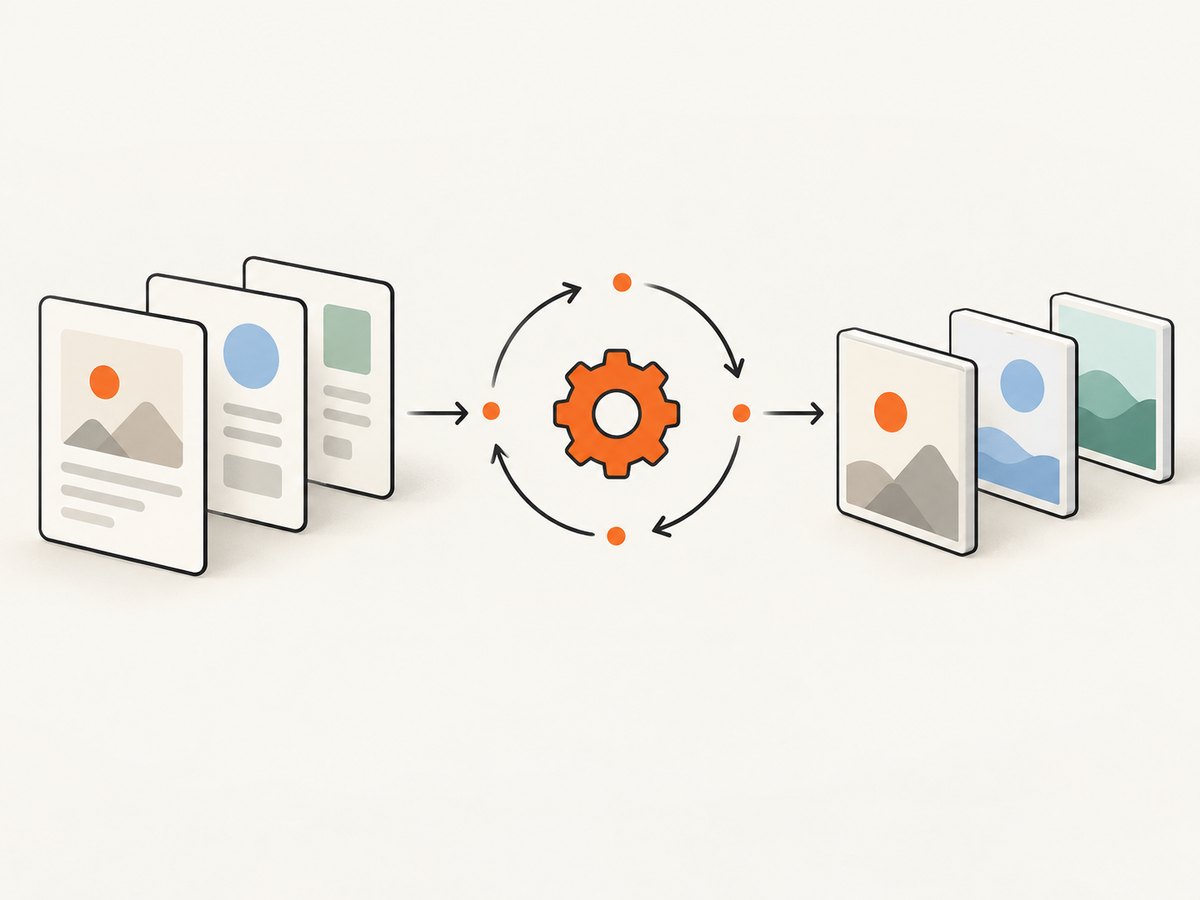
import html2canvas from 'html2canvas';

export async function captureAll(selector, options = {}) {
  const elements = [...document.querySelectorAll(selector)];

  if (elements.length === 0) {
    return [];
  }

  return Promise.all(
    elements.map((element) => html2canvas(element, options))
  );
}

const canvases = await captureAll('.capture', {
  backgroundColor: '#ffffff',
  scale: window.devicePixelRatio
});

canvases.forEach((canvas, index) => {
  document.body.appendChild(canvas);
  console.log(`Captured element ${index}`, canvas);
});
Promise.all() preserves input order. If one capture rejects, the aggregate Promise rejects; use the per-element pattern below when you need partial results.
3. Keep each canvas connected to its source element
When you need an element ID, filename, or metadata with the image, return an object from the mapper:
const elements = [...document.querySelectorAll('.capture')];

const results = await Promise.all(
  elements.map(async (element) => ({
    element,
    id: element.dataset.id,
    canvas: await html2canvas(element)
  }))
);

for (const { id, canvas } of results) {
  const link = document.createElement('a');
  link.download = `${id || 'capture'}.png`;
  link.href = canvas.toDataURL('image/png');
  link.click();
}
Call toDataURL() only after the Promise resolves. A cross-origin image can taint a canvas and make export fail; that limitation is covered in the troubleshooting section.
4. Capture sequentially when work is heavy
Concurrent rendering is concise, but every capture starts before the previous one finishes. For many large elements, process them one at a time:
const elements = [...document.querySelectorAll('.capture')];
const results = [];

for (const element of elements) {
  const canvas = await html2canvas(element, {
    backgroundColor: '#ffffff'
  });
  results.push({ element, canvas });
}

console.log(`Captured ${results.length} elements`);
Sequential execution can reduce simultaneous memory pressure and makes it easier to stop after a particular failure. There is no official html2canvas benchmark establishing a universally faster approach, so choose based on element size, count, and the behavior of your page.
5. Handle individual failures without losing every result
Wrap each capture in a settled result when one problematic element should not cancel the rest:
const elements = [...document.querySelectorAll('.capture')];

const settled = await Promise.all(
  elements.map(async (element, index) => {
    try {
      return {
        index,
        element,
        status: 'fulfilled',
        canvas: await html2canvas(element)
      };
    } catch (error) {
      return {
        index,
        element,
        status: 'rejected',
        error
      };
    }
  })
);

const successful = settled.filter((item) => item.status === 'fulfilled');
const failed = settled.filter((item) => item.status === 'rejected');
6. Useful html2canvas options
The official configuration reference lists these options. Pass only the options that solve a rendering problem; changing the window dimensions can change responsive breakpoints.
| Option | Use it for |
|---|---|
scale |
Control output density. The default is the browser device pixel ratio. |
width, height |
Set the rendered canvas dimensions. |
x, y |
Crop from an element offset. |
scrollX, scrollY |
Control scroll positions, including layouts with fixed positioning. |
windowWidth, windowHeight |
Set the virtual rendering window and therefore potentially affect media queries. |
backgroundColor |
Set a solid background; use null for transparency when the page permits it. |
useCORS |
Attempt to load images from servers that provide appropriate CORS headers. |
proxy |
Use a proxy for cross-origin images when your setup provides one. |
allowTaint |
Controls whether cross-origin images may taint the canvas. It does not bypass browser policy. |
ignoreElements |
Return true for elements that should be omitted. |
onclone |
Modify the cloned document used for rendering without changing the live page. |
imageTimeout |
Set image loading timeout in milliseconds; 0 disables the timeout. |
logging |
Enable diagnostic logging while investigating a capture. |
foreignObjectRendering |
Use foreignObject rendering when the browser supports it. |
You can also mark an element with data-html2canvas-ignore to exclude it:
<button data-html2canvas-ignore>Remove before capture</button>For example, hide controls in the cloned document only:
const canvas = await html2canvas(element, {
  onclone: (clonedDocument) => {
    clonedDocument.querySelectorAll('.capture-control')
      .forEach((node) => { node.style.display = 'none'; });
  }
});
7. Wait for fonts, images and dynamic content
Start captures after the content you need is ready. The browser can wait for fonts, and you can explicitly wait for images:
await document.fonts.ready;

const images = [...document.images];
await Promise.all(
  images.map((image) => {
    if (image.complete) return Promise.resolve();
    return new Promise((resolve) => {
      image.addEventListener('load', resolve, { once: true });
      image.addEventListener('error', resolve, { once: true });
    });
  })
);

const canvases = await Promise.all(
  [...document.querySelectorAll('.capture')]
    .map((element) => html2canvas(element))
);
If a component changes after capture begins, take a second capture after its state is settled. html2canvas reconstructs a representation from DOM information; it does not capture the browser’s native pixels. See the project’s documentation and limitations.
8. Export canvases as PNG, JPEG or blobs
function downloadCanvas(canvas, filename, type = 'image/png', quality) {
  canvas.toBlob((blob) => {
    if (!blob) throw new Error('Canvas export returned no blob');
    const url = URL.createObjectURL(blob);
    const link = document.createElement('a');
    link.href = url;
    link.download = filename;
    link.click();
    URL.revokeObjectURL(url);
  }, type, quality);
}

for (const [index, canvas] of canvases.entries()) {
  downloadCanvas(canvas, `element-${index}.png`);
}
Use image/jpeg with a quality value such as 0.9 when a smaller photographic output is acceptable. PNG is usually preferable for text and transparency.
9. What html2canvas can and cannot reproduce
The library traverses the DOM and builds a representation from properties it understands. The official feature list includes common backgrounds, borders, flex layout, typography, opacity, positioning and many text properties. It lists limited support for transform and unsupported properties including box-shadow, filter, object-fit, mix-blend-mode, background-blend-mode, writing-mode and zoom. Check the feature list before relying on an effect.
Plugin content such as Flash or Java applets is not rendered. A result can therefore differ from a native browser screenshot even when the DOM looks correct.
10. Troubleshooting
External images are missing
Cause: images from another origin need suitable CORS headers. A canvas containing unreadable cross-origin pixels becomes tainted.
Fix: serve the image with CORS enabled, set useCORS: true when appropriate, or configure a proxy. The html2canvas FAQ explicitly says the library does not bypass browser content-policy restrictions. Do not assume allowTaint makes an unreadable canvas exportable.
The canvas is blank or cuts off
Cause: browser, operating-system and hardware limits on canvas dimensions or area.
Fix: reduce scale, split a very large element, or set the rendering window from its scroll dimensions:
const canvas = await html2canvas(element, {
  windowWidth: element.scrollWidth,
  windowHeight: element.scrollHeight
});
The FAQ gives documented examples of 32,767-pixel maximum height/width and 268,435,456-pixel area for Chrome, 32,767 pixels and 472,907,776 pixels for Firefox, 8,192 pixels for Internet Explorer, and 3 or 5 megapixels for some iOS devices. These are FAQ values with browser and hardware caveats, not universal current limits.
CSS effects are absent
Cause: html2canvas implements CSS property by property.
Fix: replace unsupported effects for the capture, use a simpler print style in onclone, or use a native/browser screenshot service when pixel fidelity is required.
Only some elements are captured
Cause: the selector matches fewer nodes than expected, or nodes are hidden, detached, or changed while asynchronous work runs.
Fix: log elements.length, use a stable selector, materialize the array before starting, and capture after the UI state is visible.
Promise.all() rejects
Cause: one individual capture failed.
Fix: use the settled-result pattern, inspect the rejected error, and keep successful canvases.
Export throws a security error
Cause: a tainted canvas contains cross-origin content.
Fix: resolve CORS or proxy configuration before calling toDataURL() or toBlob().
11. Performance, reliability and cost considerations
- Memory: each canvas consumes pixel memory. Lower
scale, capture sequentially, or split very large targets. - Concurrency:
Promise.all()minimizes coordination code and returns all results together;for...oflimits simultaneous work. No official benchmark establishes a universal winner. - Layout stability: wait for fonts, images and asynchronous components before taking the snapshot.
- Repeatability: freeze animated state, remove transient controls with
onclone, and keep the selector order stable. - Browser security: CORS and canvas tainting remain enforced by the browser.
- Cost: html2canvas runs in the user’s browser, so there is no screenshot API request cost; your application still pays in client CPU, memory and download size.
12. Or skip the browser setup
For server-side or repeatable URL captures, ScreenshotNeo provides a website screenshot API and MCP server. One GET request returns a PNG, JPEG, WebP or PDF. It handles the browser session for you and can capture a full page or a selected element.
See the ScreenshotNeo API documentation for the available options. A minimal request is:
cURL
curl -G "https://api.screenshotneo.com/v1/shot" \
  -d access_key=YOUR_API_KEY \
  --data-urlencode url=https://stripe.com \
  -o shot.webp
Python
import requests

r = requests.get(
    "https://api.screenshotneo.com/v1/shot",
    params={"access_key": "YOUR_API_KEY", "url": "https://stripe.com"},
    timeout=90,
)
r.raise_for_status()
open("shot.webp", "wb").write(r.content)
Node.js
const q = new URLSearchParams({ access_key: 'YOUR_API_KEY', url: 'https://stripe.com' });
const res = await fetch(`https://api.screenshotneo.com/v1/shot?${q}`);
if (!res.ok) throw new Error(`Screenshot failed: ${res.status}`);
const buffer = Buffer.from(await res.arrayBuffer());
await import('node:fs/promises').then((fs) => fs.writeFile('shot.webp', buffer));
ScreenshotNeo accepts 63 options, including full-page lazy-image loading, CSS-selector element capture, dark mode, device presets, custom viewports, retina scale, custom CSS and JavaScript, clicks, waits, request blocking, headers, cookies, user agents, authorization, timezone, geolocation, transparent backgrounds, resizing, caching, signed links, asynchronous jobs, webhooks, bulk capture and a usage API.
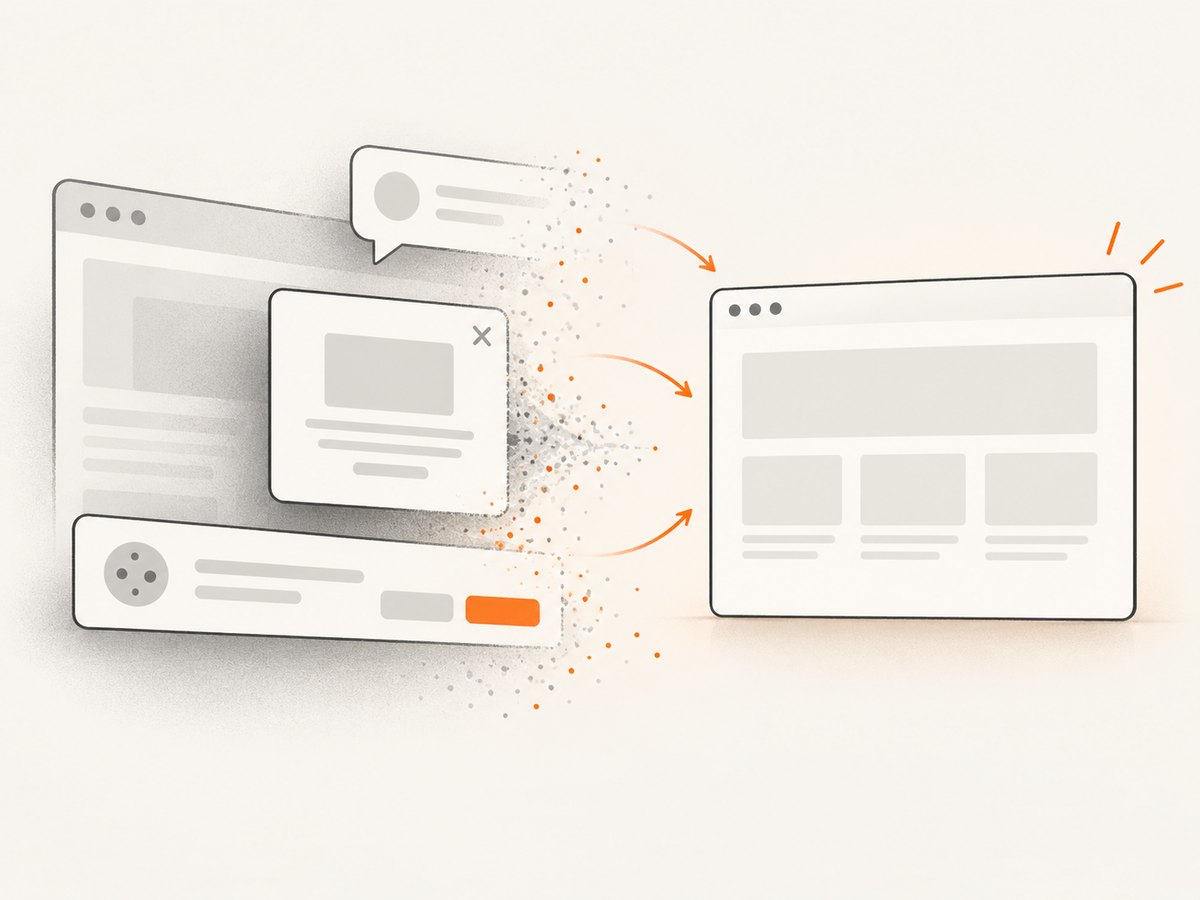
- Cookie and consent banners, newsletter popups and chat widgets are removed before the shot; each cleanup step can be turned off.
- Bot checks or CAPTCHAs, blank pages, timeouts, failed loads and cache hits are not billed. The response identifies the result with
X-Page-VerdictandX-Billedheaders. - An MCP server exposes
take_screenshot,get_page_infoandcapture_pdffor Claude, Cursor and other MCP clients. - There are 1,000 free shots per month with no card. Paid plans start at $5 for 3,000 shots; every feature is available on every plan.
Create a free ScreenshotNeo account to try 1,000 screenshots a month without a card.
13. FAQ
Can I use one html2canvas call for all matching elements?
No. Pass one element to each call, then aggregate the returned Promises.
Does Promise.all() change the order?
No. Its result order matches the order of the input elements, even if individual captures finish at different times.
Should I capture concurrently or sequentially?
Use concurrent capture for straightforward batches. Use sequential capture when large canvases create memory pressure or you need per-item error handling.
Does html2canvas create a real browser screenshot?
No. It reconstructs an image from DOM information, so unsupported CSS and browser security rules can affect fidelity.
How do I capture a page that I do not control?
Browser-side html2canvas cannot bypass cross-origin policy and requires the script to run in the page. A URL screenshot API such as ScreenshotNeo is a simpler option for remote pages.


