How to Capture Multiple Screenshots Efficiently
Learn fast, repeatable screenshot workflows on Windows, Mac, iPhone, Android and the web, plus an API method for batch captures.

Short answer: choose one stable capture mode, repeat it with the platform shortcut, and save each image immediately. Use full-page or scrolling capture when the content extends beyond one screen. For many URLs or repeatable automation, use a browser API instead of manually operating a browser.
The best workflow depends on four questions:
- Do you need separate images showing different steps, or one continuous image of a long page?
- Are you capturing a desktop screen, a mobile screen, or a web page in a browser?
- Does the content change while you scroll?
- Do you need a one-off capture, a repeatable script, or a batch of URLs?
This guide covers built-in tools on Windows, macOS, iPhone, Android, Chrome and Microsoft Edge, then shows a repeatable API workflow with cURL, Python and Node.js.
1. Pick the right capture shape
| Need | Use | Watch for |
|---|---|---|
| A sequence of states or steps | Several individual screenshots with identical framing | Wait for each state to settle before capturing |
| One long article or webpage | Full-page, scrolling or long screenshot | Embedded scroll areas and changing content may not stitch correctly |
| A specific window | Window capture | Menus, notifications and overlapping windows can change the result |
| Many URLs or scheduled captures | Screenshot API or automation script | Handle timeouts, bot checks, authentication and rate limits |
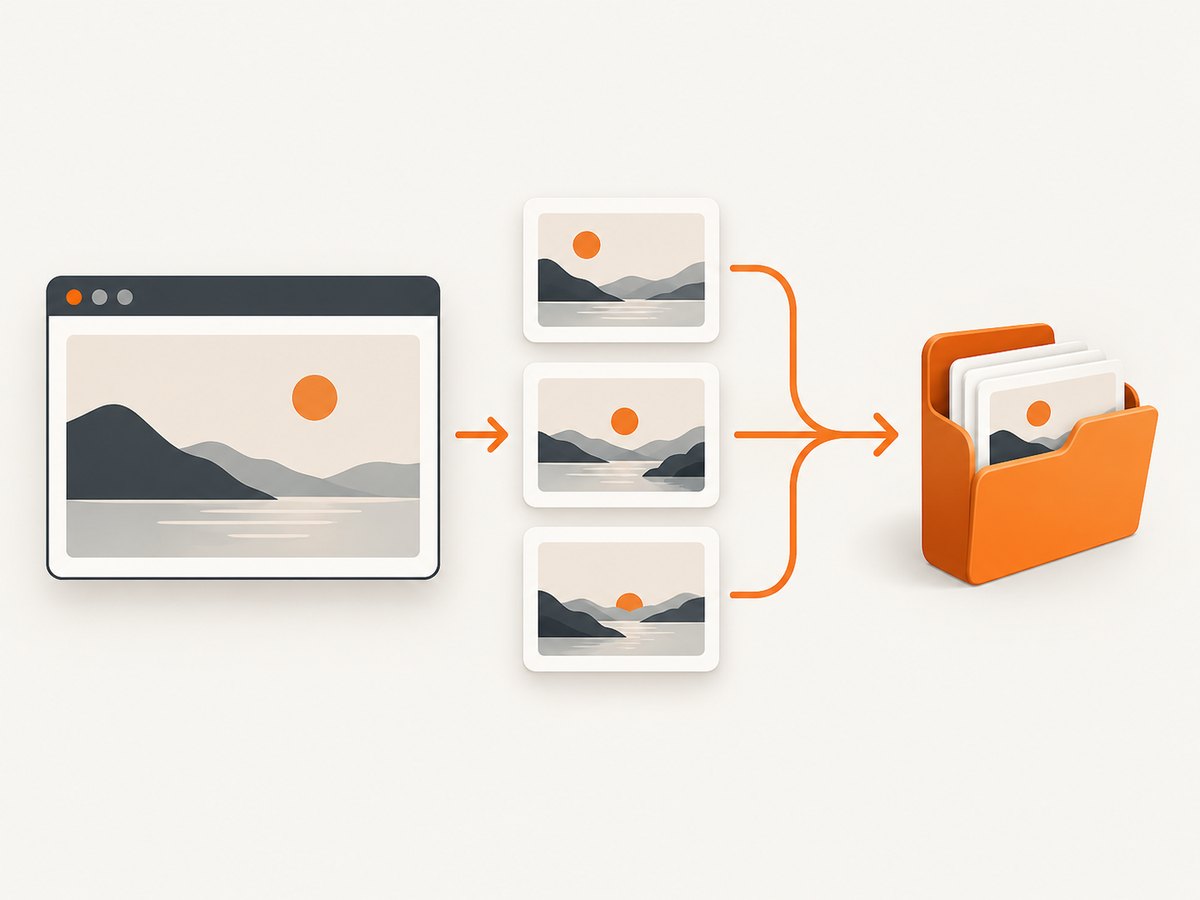
For a sequence, use the same viewport, zoom level and capture mode throughout. Keep only the relevant content in frame. Name files as you go, for example 01-login.png, 02-dashboard.png and 03-report.png. If a page changes during scrolling, capture smaller sections separately rather than presenting a misleading stitched image.
2. Windows 10 and 11: repeat Snipping Tool captures
Press Windows + Shift + S to open the Snipping Tool overlay. Select rectangular, freeform, window or full-screen mode, then drag or select the area. For repeated captures in the same mode, press Alt + N to start a new snip. Ctrl + C copies the result and Ctrl + S saves it. Microsoft documents automatic saving and settings for changing the save behavior or default folder in Snipping Tool. See Microsoft’s Snipping Tool guidance.
A fast Windows sequence
- Set the browser window and zoom to the framing you will use for every image.
- Press
Windows + Shift + Sand select the capture mode. - Capture the first state, then save it with a numbered name.
- Advance to the next state and press
Alt + N. - Repeat until the sequence is complete. Use
Ctrl + Cwhen another app needs the image immediately.
Snipping Tool also offers annotations and optional text extraction. Those features are useful for review, but they are not required for basic capture. If automatic saving is enabled, verify the destination before starting a large batch so files do not get scattered across folders.
3. macOS: consistent keyboard shortcuts and the Screenshot app
On a Mac, Shift + Command + 3 captures the whole display. Shift + Command + 4 lets you select a region. Press Shift + Command + 4, then press Space, to capture a window or menu. Shift + Command + 5 opens the Screenshot app with controls for capture type, timer, pointer visibility, save location and floating-thumbnail behavior. Apple’s instructions are in Take a screenshot on Mac.
When to use the timer
Use the Screenshot app’s timer when a menu opens only after a click or when you need to move the pointer out of the frame. Keep the delay the same for every image. macOS normally saves screenshots to the desktop, but the Screenshot app can change the location. Some protected apps, including Apple TV, may block screenshots; an API or alternate source cannot bypass the app’s own protection.
4. iPhone: capture the screen or a full webpage
On Face ID iPhones, press and quickly release Side + Volume Up together. On models with a Home button, press Home + Side. Tap the thumbnail to mark up or share the image; screenshots are saved to Photos. For supported content such as a webpage in Safari, tap the thumbnail and choose Full Page to capture beyond the visible viewport. Apple’s steps are in Take a screenshot on iPhone.
Full Page is content-dependent. If the option does not appear, the current app or document does not expose a supported long view. For a changing page, capture several ordinary screenshots instead and keep the scroll position or section title in your file names.
5. Android phones and Chrome long screenshots
On many Android phones, press Power + Volume Down. If that does not work, Google suggests holding the Power button and tapping Screenshot; consult the phone maker if neither method is available. On Android 12 and later, most scrollable screens offer Capture more after the initial screenshot. Drag the crop handles and save or share the result. Support is limited to screens that allow scrolling. See Google’s Android screenshot instructions.
In Chrome on Android, open the page, choose More > Share > Long screenshot, adjust the crop handles and confirm. Google documents this flow in Share pages in Chrome.
Android troubleshooting
- No Capture more button: the screen may not be scrollable, the phone may be below Android 12, or the app may disable long capture. Use separate screenshots.
- Wrong section included: adjust the crop handles before saving; do not assume the entire page was captured.
- Gesture conflict: use the Power-menu Screenshot action or the device maker’s documented shortcut.
6. Microsoft Edge: full webpage or selected area
Edge’s Screenshot feature can capture a selected area or a full webpage, then copy or save it. Open it from the right-click menu or Edge settings, or press Ctrl + Shift + S. The feature supports markup and copying. Availability can vary by device, market and browser version; Microsoft describes the options in Screenshot Tool in Microsoft Edge.
For a batch of pages, keep one tab layout and one zoom level. Capture the full webpage only when the page is stable. Ads, lazy-loaded images and infinite scrolling can make a long capture differ from what a reader sees at first load.
7. A repeatable workflow for a large set
- Prepare the source. Open each URL, sign in where permitted, set the required viewport and close unrelated tabs or notifications.
- Choose the output. Use individual images for a process. Use a full-page image for a static document. Use PDF when page boundaries and printing matter.
- Stabilize the page. Wait for navigation, animations and lazy images. For a manual workflow, capture after the visible content stops changing.
- Capture in order. Use numbered names and a consistent frame. Record the URL and state in a small manifest if the images will be reviewed later.
- Check completeness. Confirm that the top, bottom, important controls and loaded images are present. Re-capture any image with a spinner, blank section or accidental pointer.
- Store safely. Copy files to the project folder or an approved cloud location before clearing the download or screenshot folder.
8. Or skip the browser setup
For repeatable captures, many URLs or server-side jobs, ScreenshotNeo provides a GET endpoint that returns PNG, JPEG, WebP or PDF. Its clean-shot process accepts cookie and consent banners before capture and removes more than 60 known consent platforms, newsletter popups and chat widgets. Each step can be turned off.
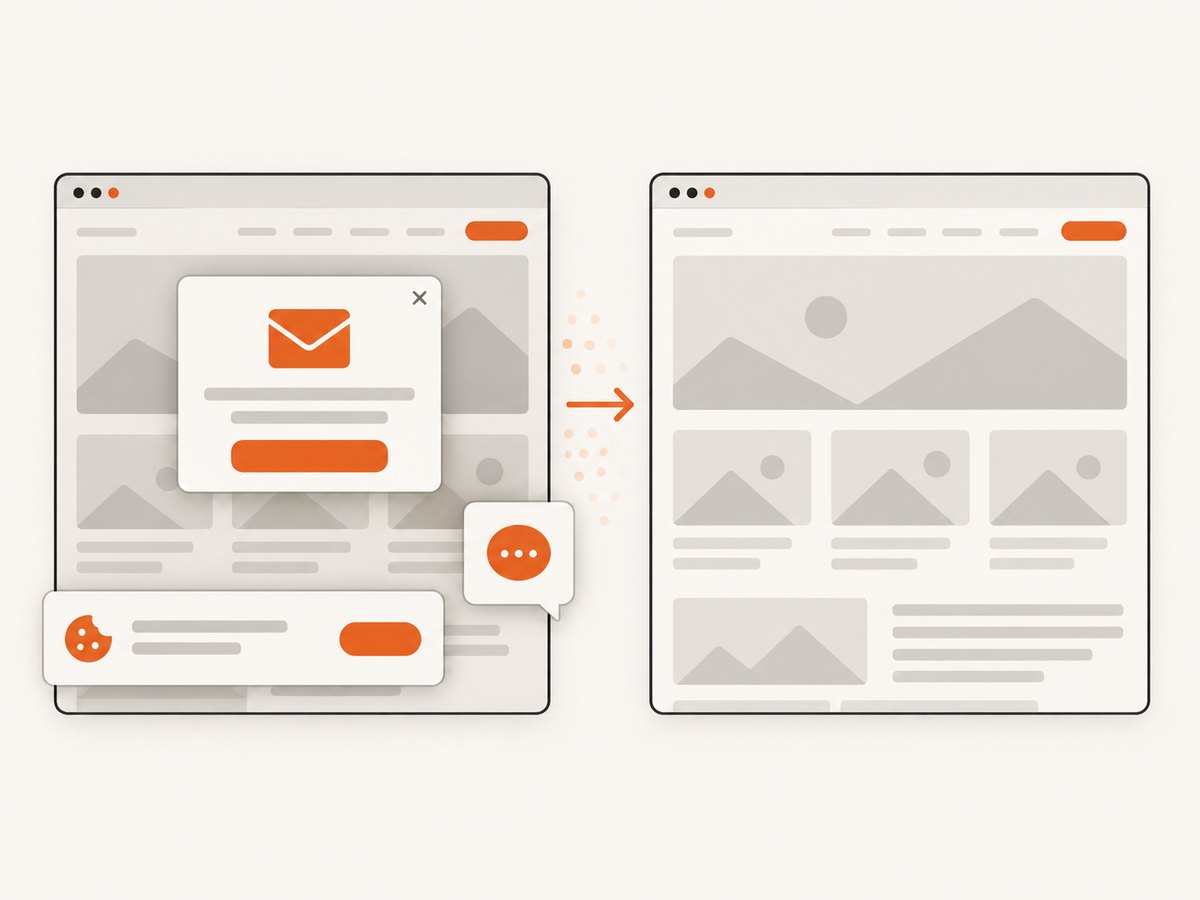
ScreenshotNeo bills only clean shots. Bot checks or CAPTCHAs, blank pages, timeouts, failed loads and cache hits cost nothing, and the response reports the result in X-Page-Verdict and X-Billed headers. It also provides an MCP server with take_screenshot, get_page_info and capture_pdf tools for Claude, Cursor and other MCP clients.
cURL
curl -G "https://api.screenshotneo.com/v1/shot" \
  -d access_key=YOUR_API_KEY \
  --data-urlencode url=https://stripe.com \
  -o shot.webp
Python
import requests

r = requests.get(
    "https://api.screenshotneo.com/v1/shot",
    params={"access_key": "YOUR_API_KEY", "url": "https://stripe.com"},
    timeout=90,
)
r.raise_for_status()
open("shot.webp", "wb").write(r.content)
Node.js
const q = new URLSearchParams({
  access_key: 'YOUR_API_KEY',
  url: 'https://stripe.com'
});
const res = await fetch(`https://api.screenshotneo.com/v1/shot?${q}`);
if (!res.ok) throw new Error(`HTTP ${res.status}`);
const bytes = Buffer.from(await res.arrayBuffer());
await import('node:fs/promises').then(fs => fs.writeFile('shot.webp', bytes));
See the ScreenshotNeo API documentation for authentication, output formats and options. The API supports full-page capture with lazy images, CSS-element capture, dark mode, 12 device presets or any viewport, retina scale, PDF paper size and margins, custom CSS and JavaScript, clicks, selector or network-idle waits, ad and tracker blocking, custom headers and cookies, user agents and Authorization, timezone and geolocation, transparent backgrounds, resizing, configurable caching TTL, signed links, asynchronous jobs with signed webhooks, bulk capture of up to 100 URLs per call, a usage API and an OpenAPI specification. Parameter names used by other screenshot APIs also work, which can simplify migration.
To capture multiple URLs, loop over your input list and choose a deterministic filename. Use the bulk endpoint when a single request for up to 100 URLs fits your job. For pages that require login, pass short-lived cookies or headers rather than placing credentials in a public URL. Use a cache TTL for stable pages and disable or shorten it when every capture must reflect a new deployment.
Plans: the Free plan includes 1,000 shots per month with no card. Paid plans start at $5 for 3,000 shots; Growth is $15 for 15,000, Pro is $39 for 60,000, Scale is $99 for 250,000 and Business is $249 for 1,000,000. Yearly billing gives two months free, and every feature is available on every plan. Sign up for the free plan.
9. Performance, reliability and cost considerations
Manual capture
- Speed: keyboard shortcuts are fastest for a small sequence because there is no upload or browser automation startup.
- Consistency: lock window size, zoom, orientation and scroll position. A changed browser toolbar or notification can invalidate comparisons.
- Long pages: scrolling capture is convenient, but dynamic content, sticky headers and nested scroll containers can produce gaps or duplicates.
Automated capture
- Wait deliberately: use a selector, delay or network-idle condition for pages that render after navigation.
- Control resources: block ads, trackers or selected resource types when they are irrelevant to the image and slow the page.
- Retry carefully: retry transient network failures with a limit and a backoff. Do not blindly retry a bot check or a consistently blank page.
- Observe outcomes: store HTTP status,
X-Page-VerdictandX-Billedwith the output so billing and quality can be audited. - Protect credentials: keep API keys, cookies and Authorization values in server-side secrets, never in client-side code or public image URLs.
For cost control, cache stable captures, use WebP when its size is acceptable, resize images that do not need full resolution, and use bulk capture for related URLs. A cache hit is not billed by ScreenshotNeo. If a failed load produces no usable image, investigate the page or wait settings rather than increasing concurrency without a limit.
10. Troubleshooting common failures
| Symptom | Likely cause | Fix |
|---|---|---|
| Capture contains a notification or wrong window | Window changed or a system alert appeared | Close alerts, select the intended window and recapture with a stable layout. |
| Long screenshot stops early | App does not expose a scrollable document or nested scrolling confused the tool | Capture sections separately or use a page-aware browser/API capture. |
| Blank area or spinner in an API image | Page needs more rendering time, a selector wait or authentication | Add a selector, delay or network-idle wait; provide required cookies or headers. |
| Bot check or CAPTCHA appears | The site challenged automated traffic | Respect the site’s access controls, use an authorized session, or capture manually. Do not attempt to defeat the challenge. |
| Images are missing below the fold | Lazy loading had not been triggered | Use full-page capture with lazy-image loading, scroll the page, or wait for the image selector. |
| API response is an error instead of an image | Invalid key, malformed URL or server error | Check the key and URL encoding, inspect the HTTP status and response body, then retry transient failures with backoff. |
| Two runs differ | Live content, ads, timezone, geolocation or animation changed | Set timezone and geolocation, block irrelevant resources, disable animations with custom CSS and capture at a defined time. |
| Screenshot saved somewhere unexpected | Automatic-save location differs from the assumed folder | Check Snipping Tool or Screenshot app settings and set one project destination before batching. |
11. Checklist before you publish or submit
- Every image uses the intended viewport and zoom.
- Sequence images are numbered and in the correct order.
- Full-page images include the bottom of the content and all required lazy-loaded media.
- No password, token, personal message or unrelated notification is visible.
- Files open correctly and use the required PNG, JPEG, WebP or PDF format.
- Automated jobs record the URL, capture time, verdict and billing header.
- Failed or partial captures are replaced rather than silently included.
FAQ
Is a full-page screenshot always better than several screenshots?
No. A sequence is clearer for showing interaction states, while a full-page image is better for a static document. Dynamic pages often need smaller sections.
Can I capture a protected app or video service?
Some apps block screenshots by design. Built-in tools may show a blank or blocked result, and you should follow the service’s access rules.
Which format should I choose?
PNG is useful for crisp interface text, JPEG for photographic content and WebP for smaller web delivery. Choose PDF when page size, margins or print pagination matter.
How do I make repeated captures comparable?
Keep the viewport, zoom, device scale, timezone, geolocation and wait condition fixed. Capture after the same page state has settled and use consistent file names.
When should I automate?
Automate when the list is more than a few URLs, the task repeats on a schedule, or you need the same settings in CI. A browser API removes manual setup and makes the request reproducible.


