How to Capture Multiple Tweets in One Screenshot
Capture an X thread as one readable image on Android, iPhone, or desktop. Learn the platform limits, stitching fallback, and browser-based option.

To capture multiple tweets in one screenshot, first open the X thread and expand it with Show this thread. Then try your device’s scrolling screenshot feature: Android 12 and later offer Capture more on most scrollable screens, while iPhone’s Full Page option is documented for webpages such as Safari and may not appear for a thread in the X app. On desktop, a thread-to-image extension or overlapping screenshots can produce one stitched image.
There is no single full-thread capture method that works on every device, app surface, or thread length. Check the finished image for missing posts, unreadably small text, repeated lines, and stitching seams before sharing.
1. Expand the full X thread first
A thread is a series of connected posts from one person. X says threads with four or more posts are truncated in the timeline. Open the thread and select Show this thread so all connected posts are displayed before you capture. See [X Help Center’s thread instructions](https://help.x.com/en/using-x/create-a-thread).
- Open the first post or a post in the thread.
- Select Show this thread if X offers it.
- Scroll through the thread and confirm the last post is present.
- Decide whether replies, quoted posts, images, or video frames are part of what you need. A capture of the connected posts may not include the surrounding conversation or every linked destination.
If you capture from the timeline without expanding a long thread, the resulting image can omit posts. Also consider whether the image should include the account name and timestamps for context. Avoid cropping those details if readers need them to understand the sequence.
2. Android: try the scrolling screenshot
On Android 12 or later, Google documents scrolling screenshots for most screens that allow scrolling. Availability depends on the device and the app surface, so treat the button as a capability to check rather than a guarantee. The official procedure is in [Google’s Android screenshot guide](https://support.google.com/android/answer/9075928).
- Open the expanded thread in the X app and let the posts load.
- Press Power and Volume Down together to take a screenshot.
- If the preview toolbar shows Capture more, tap it.
- Drag the crop guides to include the desired content, then save the capture.
- Open the saved image and inspect its top, bottom, and any transition between screen sections.
If “Capture more” does not appear: your Android version, manufacturer, app surface, or current screen may not support scrolling capture. Google describes the feature as available on most scrollable screens, not all screens. Try opening the thread in a mobile browser if that is suitable, or use overlapping screenshots and stitch them as described below.
Keep the text readable
A long screenshot can make each post small when viewed at screen width. If the thread is long, consider capturing sections instead of squeezing everything into one tall image, or share the original thread link alongside the image. Zoom into the saved image before publishing to make sure text and attribution remain legible.
3. iPhone: understand the Full Page limitation
Apple documents taking a screenshot and selecting Full Page to capture content beyond the screen. Its example is a webpage in Safari; that documentation does not establish that Full Page will capture a whole thread inside the native X app. Consult [Apple’s iPhone screenshot guide](https://support.apple.com/en-us/102616).
- Open the thread and expand it using Show this thread.
- Take a screenshot using your iPhone’s screenshot buttons.
- Tap the screenshot preview and check whether Full Page is available.
- If the option appears, review the preview and save the result. If it does not, use regular screenshots or try the thread in Safari, where webpage capture may provide the full-page option.
Do not assume that selecting Full Page will turn an in-app X thread into one image. Availability can differ by app and content. If using Safari, verify that the page actually shows the expanded thread, and inspect the saved result for missing content. The captured output may be saved as a PDF rather than a conventional image, depending on the workflow, so check the file before sharing.
4. Desktop: choose between a thread tool and manual capture
On desktop, a dedicated thread-to-image extension can help when you want one designed image rather than a sequence of screen captures. XThreadShot describes a Chrome and Edge extension that captures a post or thread, offers style controls, and exports PNG. Its publisher also says it is desktop-only and processes captures locally. Those are vendor claims; check the current product page and privacy details before installing or using it. See [XThreadShot](https://xthreadshot.com/).
Review any browser extension’s permissions and handling of page data before use. A thread can contain private or sensitive information, and a capture tool may need access to the page to work. Confirm the output includes the posts you intended and that the export is readable at the size where you plan to share it.
Manual desktop capture
If you do not want to use an extension, capture overlapping sections of the expanded thread and join them in an image editor:
- Set browser zoom so the post text is comfortably readable.
- Capture the first screen of posts.
- Scroll down by less than one screen, leaving several lines of overlap with the previous capture.
- Capture the next section and repeat until the end of the thread.
- Place the images in order in an editor, align repeated post text, then crop away duplicated overlap.
- Export a copy and inspect every join at full size before sharing.
Overlap makes alignment easier, but it does not guarantee a seamless result. Dynamic content, changes in window size, or a post expanding while you scroll can create gaps or duplicates. Keep the original captures until you have checked the assembled image.
5. Fallback: stitch overlapping screenshots
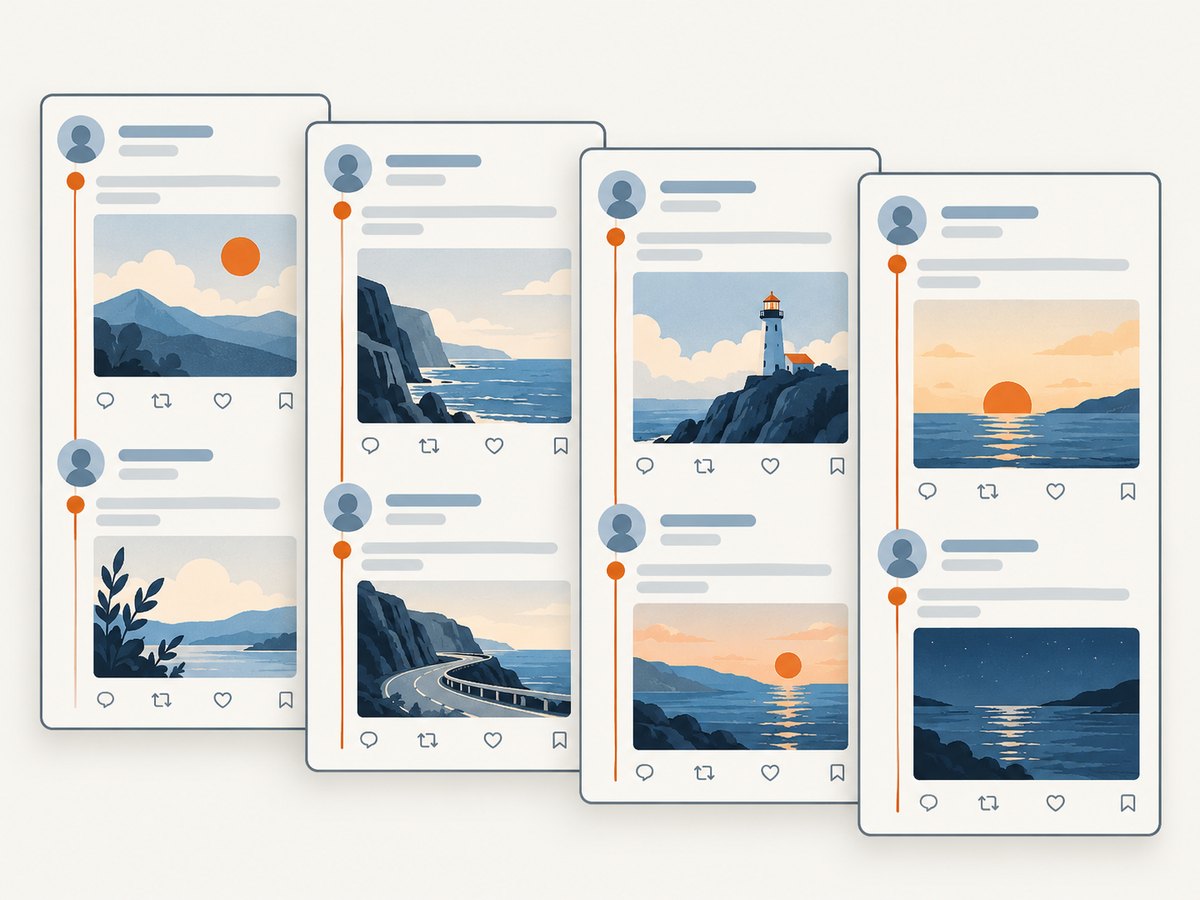
When native scrolling capture is unavailable, repeated screenshots are a practical fallback on a phone or desktop. The key is to keep a visible overlap between adjacent images so you can align the same post or line of text.
- Expand the thread and wait for visible posts and media to finish loading.
- Take a screenshot of the current section.
- Scroll a partial screen, leaving multiple lines or one recognizable post in view.
- Capture the next section and repeat to the end.
- In an image editor, stack captures in order, align the overlapping content, and remove duplicate portions.
- Check that every post appears once, in order, and that text remains readable after export.
For a very long thread, one enormous image may be harder to read and share than several numbered panels. If you need one file, a PDF can preserve a multi-page layout, while a single tall image is convenient for scrolling. Choose based on how readers will view it.
6. Check the result before sharing
- Coverage: Does the image begin and end at the intended posts? Did you expand the thread?
- Order: Are posts in sequence, with no missing or repeated section?
- Readability: Can the text be read at ordinary viewing size? Are images and timestamps clear enough?
- Context: Does the capture show enough account and thread context to avoid misleading readers?
- Seams: For stitched captures, inspect transitions for duplicated lines, abrupt cuts, or changes in width.
- Privacy: Remove visible personal information or private messages that should not be shared.
- Format: Confirm the saved file is an image if you need to upload an image. A full-page workflow may instead produce a PDF.
7. Or skip the browser setup
If your goal is a screenshot of a public page that contains posts, [ScreenshotNeo](https://screenshotneo.com) can return an image or PDF from one API request. It is a website screenshot API, so it captures a URL; it does not promise to expand a thread hidden behind an X interaction or bypass access controls. Open the page URL you want captured and confirm it displays the content you need.

See the [ScreenshotNeo API documentation](https://screenshotneo.com/docs/) for the request parameters. Example using cURL:
curl -G "https://api.screenshotneo.com/v1/shot" -d access_key=YOUR_API_KEY --data-urlencode url=https://x.com -o shot.webpPython:
import requests

r = requests.get(
    "https://api.screenshotneo.com/v1/shot",
    params={"access_key": "YOUR_API_KEY", "url": "https://x.com"},
    timeout=90,
)
r.raise_for_status()
open("shot.webp", "wb").write(r.content)
Node.js:
const q = new URLSearchParams({
  access_key: 'YOUR_API_KEY',
  url: 'https://x.com'
});
const res = await fetch(`https://api.screenshotneo.com/v1/shot?${q}`);
if (!res.ok) throw new Error(`Screenshot request failed: ${res.status}`);
const bytes = new Uint8Array(await res.arrayBuffer());
await import('node:fs/promises').then(fs => fs.writeFile('shot.webp', bytes));
ScreenshotNeo removes cookie banners, newsletter popups, and chat widgets before the shot. Bot checks, blank pages, and failed loads are never billed. Its MCP server lets AI agents take screenshots. The free plan includes 1,000 screenshots a month with no card; paid plans start at $5 for 3,000.
Get 1,000 free screenshots a month with no card.
8. Troubleshooting
| Problem | Likely cause | What to try |
|---|---|---|
| Some posts are missing | The thread was truncated or not fully loaded. | Open the thread, choose Show this thread, scroll to the end, and capture again. |
| Android has no Capture more option | The device or current app screen does not support scrolling capture. | Try the thread in a browser or make overlapping screenshots and stitch them. |
| iPhone Full Page is absent | The current app or page may not expose that option. | Use regular screenshots, or try the expanded thread as a webpage in Safari and verify its output. |
| The stitched image has doubled text | Overlap was not cropped consistently. | Align repeated posts or lines, then remove one copy; inspect the join at full size. |
| The image is too tall or text is tiny | Too much content was compressed into one image. | Increase browser zoom before capture, split the thread into panels, or use a multi-page document. |
| Images or media are missing | Content may not have loaded before the capture, or the capture route omitted it. | Wait for media to appear, reload if appropriate, and check the captured sections individually. |
| Extension output differs from the page | The extension may not support some page content or current X changes. | Check the extension’s current instructions and permissions; use native capture or manual stitching as a fallback. |
9. Performance, reliability, and cost
Built-in screenshots are the simplest first attempt because they avoid installing another tool. Their limitation is coverage: Android’s scrolling option is documented for most scrollable screens, and Apple’s Full Page documentation does not promise native X-app thread capture. Long threads also take longer to review and can produce unwieldy images.
Manual stitching costs time and attention. More overlap helps alignment but also means more duplicated material to crop. A desktop extension may save assembly effort, but its availability and claims can change; check the vendor’s current details and consider the page permissions and privacy implications.
ScreenshotNeo’s pricing is Free for 1,000 shots per month, Starter $5 for 3,000, Growth $15 for 15,000, Pro $39 for 60,000, Scale $99 for 250,000, and Business $249 for 1,000,000. Yearly billing gives two months free, and every feature is on every plan. Its billing policy counts only clean shots: bot checks or CAPTCHAs, blank pages, timeouts, failed loads, and cache hits cost nothing; responses include X-Page-Verdict and X-Billed headers. For thread capture, that is useful only when the target URL can display the posts you want captured.
10. Frequently asked questions
Can I capture an entire X thread as one image?
Sometimes. Try Android scrolling capture if available, a desktop thread-to-image tool, or manual stitching. On iPhone, Full Page is documented for webpages such as Safari, but the cited Apple guide does not guarantee native X-app support.
Does a long screenshot include replies?
Only if replies are visible in the content you capture. Expanding the connected thread does not necessarily include every reply or quoted post.
Is it better to share one tall image or several panels?
Use one image when it stays readable at the expected display size. Split a long thread into ordered panels when a tall image makes the text too small.
Can a screenshot API capture a thread I cannot see?
A screenshot API captures a webpage at a URL. It cannot be assumed to expand content that requires an interaction or provide access to restricted content. Verify the page view first.


