How to Capture Off-Screen Elements with WebDriver
Capture elements below the fold with Selenium WebDriver, including nested scrollers, iframes, full pages, troubleshooting, and a browser-free API option.
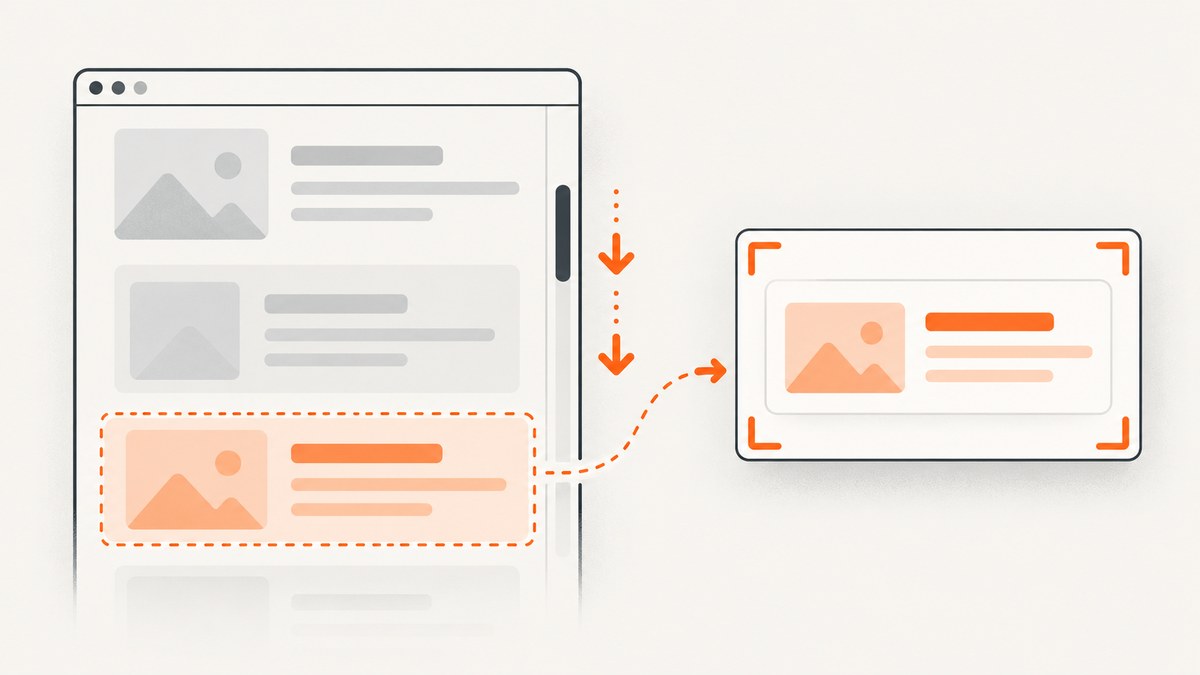
An element can be outside the current viewport and still be present in the DOM. Locate it, confirm that it is displayed, scroll it into view, then call WebDriver’s element screenshot method. In Selenium Python, the shortest reliable pattern is:
from selenium.webdriver.common.by import By

card = driver.find_element(By.CSS_SELECTOR, 'article.result')
_ = card.location_once_scrolled_into_view
card.screenshot('result-card.png')
location_once_scrolled_into_view invokes Selenium’s documented scroll-into-view behavior, and WebElement.screenshot() writes the element as a PNG. An off-screen element is different from display:none, an element with zero dimensions, or a node that has been detached from the document.
What “off-screen” means in WebDriver
WebDriver separates DOM location from viewport visibility. find_element() can return a node below the fold because the browser can resolve it in the document tree. is_displayed() helps you check whether the node is rendered for a user, but it does not mean the node is currently visible in the viewport. Selenium documents that location_once_scrolled_into_view should cause the element to be scrolled into view, while screenshot(filename) saves the current element to a PNG file (Selenium WebElement API).
Use an element screenshot when you need one card, chart, invoice, table, or component. Use a full-page method when you need the complete scrollable document. These are separate goals: Playwright describes a full-page screenshot as the entire scrollable page and documents element screenshots separately (Playwright screenshot documentation).
Set up Selenium and a browser
Install Selenium and use a browser driver supported by your environment. Recent Selenium versions can manage drivers automatically in many standard installations.
python -m pip install -U seleniumA minimal Chrome session:
from selenium import webdriver

options = webdriver.ChromeOptions()
options.add_argument('--headless=new')
options.add_argument('--window-size=1440,1200')
driver = webdriver.Chrome(options=options)
try:
    driver.get('https://example.com')
    print(driver.title)
finally:
    driver.quit()
Use a deterministic window size for repeatable screenshots. Headless mode is convenient for CI, but the page can render differently from a headed desktop if fonts, GPU acceleration, or browser settings differ.
Capture one off-screen element
Scroll with Selenium’s element property
from selenium import webdriver
from selenium.webdriver.common.by import By

options = webdriver.ChromeOptions()
options.add_argument('--headless=new')
options.add_argument('--window-size=1440,1000')
driver = webdriver.Chrome(options=options)
try:
    driver.get('https://example.com/results')
    card = driver.find_element(By.CSS_SELECTOR, 'article.result')
    if not card.is_displayed():
        raise RuntimeError('The element exists but is not displayed')

    # Selenium documents this property as scrolling the element into view.
    _ = card.location_once_scrolled_into_view
    card.screenshot('result-card.png')
finally:
    driver.quit()
The return value of location_once_scrolled_into_view is not needed for the capture; reading the property performs the scroll. If the page uses a sticky header, the browser may align the element against the top edge and the header can cover part of it.
Center the element with JavaScript
When alignment matters, a practical pattern is to center the node and then capture it:
driver.execute_script("arguments[0].scrollIntoView({block: 'center', inline: 'nearest'});", card)
card.screenshot('centered-card.png')
This script is an implementation pattern, not a guarantee that every site will keep the element unobscured. After scrolling, inspect the image or use a visibility check for overlays.
Choose the output form
Selenium exposes three useful element outputs:
element.screenshot('file.png')writes a PNG file and returns a success value.element.screenshot_as_pngreturns PNG bytes for an image pipeline or test attachment.element.screenshot_as_base64returns a base64 string for an HTML report or JSON payload.
png_bytes = card.screenshot_as_png
with open('result-card.png', 'wb') as image_file:
    image_file.write(png_bytes)

base64_png = card.screenshot_as_base64
Wait for lazy content before capturing
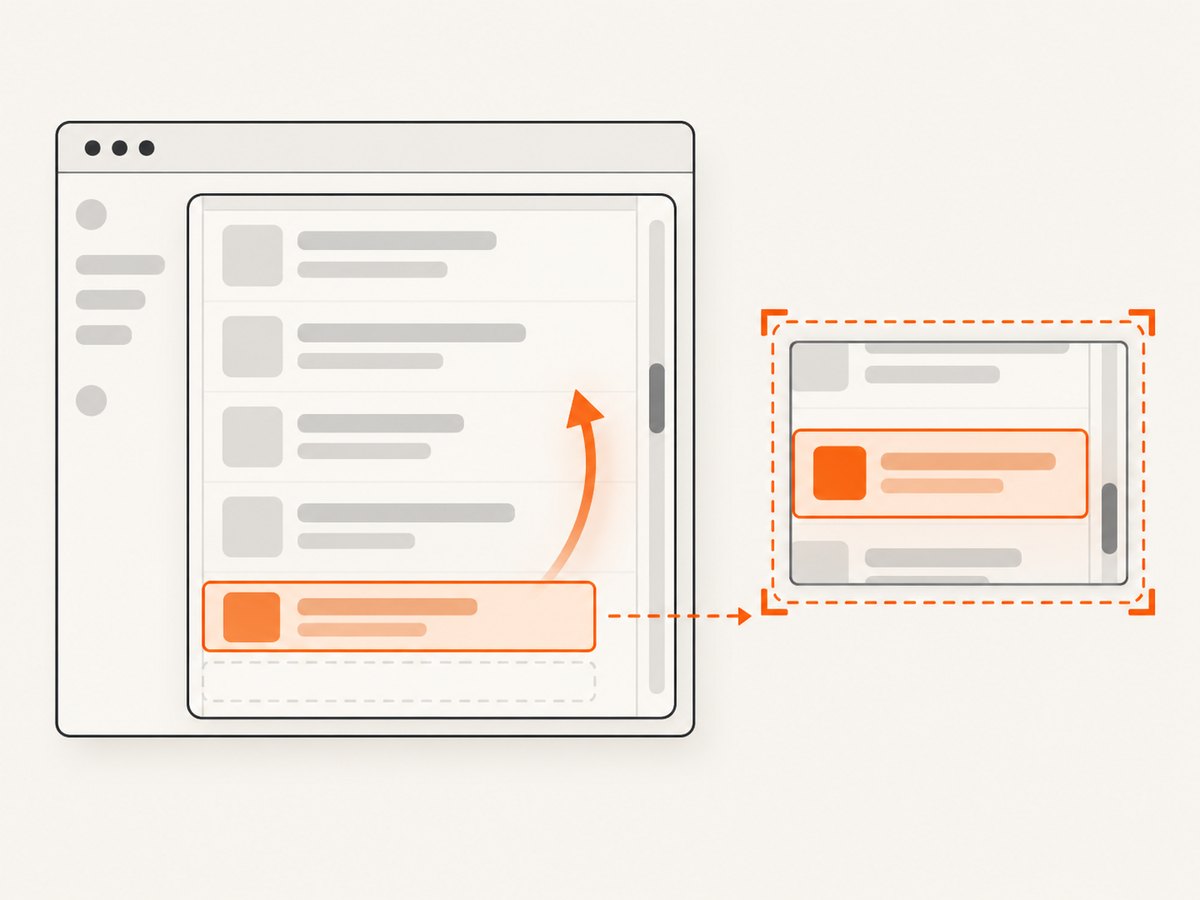
Finding an element does not mean its images, fonts, or data have finished loading. Wait for a stable condition that belongs to your page.
from selenium.webdriver.support.ui import WebDriverWait

wait = WebDriverWait(driver, 20)
card = wait.until(lambda d: d.find_element(By.CSS_SELECTOR, 'article.result'))
wait.until(lambda d: card.is_displayed())
wait.until(lambda d: card.size['width'] > 0 and card.size['height'] > 0)
_ = card.location_once_scrolled_into_view
card.screenshot('ready-card.png')
For a specific image, wait for its complete property:
image = card.find_element(By.CSS_SELECTOR, 'img')
wait.until(lambda d: d.execute_script('return arguments[0].complete && arguments[0].naturalWidth > 0;', image))
If the page uses an animation, wait for the application’s “loaded” marker or add a short delay only when necessary. Arbitrary sleeps make suites slower and still may fail under a busy CI worker.
Elements inside nested scroll containers
Scrolling the top-level window may not reveal a node inside a panel with overflow: auto or overflow: scroll. Scroll the owning container instead, then capture the element.
panel = driver.find_element(By.CSS_SELECTOR, '.results-panel')
card = panel.find_element(By.CSS_SELECTOR, 'article.result')
driver.execute_script("arguments[0].scrollIntoView({block: 'center', inline: 'nearest'});", card)
card.screenshot('panel-card.png')
If the panel’s own scroll position must be controlled explicitly:
driver.execute_script("arguments[0].scrollTop = arguments[1].offsetTop - arguments[0].clientHeight / 2;", panel, card)
card.screenshot('panel-card.png')
Element screenshots are usually simpler than trying to stitch a nested scroller into a document screenshot. Verify that the element has non-zero dimensions and that no overlay is covering it.
Elements inside an iframe
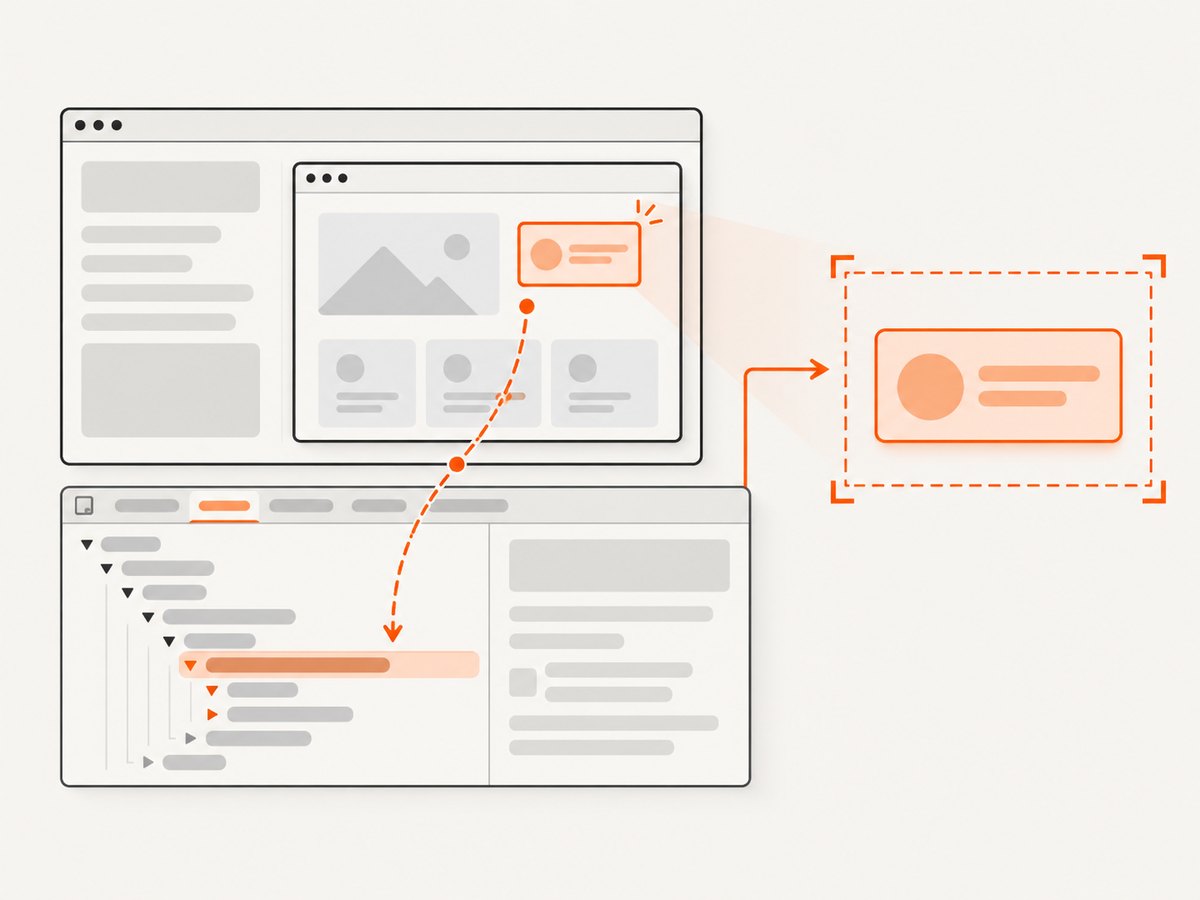
An iframe is a separate browsing context. Switch into it before locating the target, then return to the parent document afterward.
from selenium.webdriver.support.ui import WebDriverWait

frame = WebDriverWait(driver, 20).until(lambda d: d.find_element(By.CSS_SELECTOR, 'iframe.payment'))
driver.switch_to.frame(frame)
try:
    receipt = WebDriverWait(driver, 20).until(lambda d: d.find_element(By.CSS_SELECTOR, '.receipt'))
    _ = receipt.location_once_scrolled_into_view
    receipt.screenshot('receipt.png')
finally:
    driver.switch_to.default_content()
For nested iframes, call switch_to.frame() for each level. Use parent_frame() to move up one level when that is more precise than returning to the top document. A cross-origin iframe still requires switching through WebDriver; JavaScript in the parent page cannot inspect its DOM directly.
Elements in another tab or window
Window handles identify separate tabs and windows. Switch first, then find and capture the element.
original = driver.current_window_handle
for handle in driver.window_handles:
    if handle != original:
        driver.switch_to.window(handle)
        break

try:
    target = driver.find_element(By.CSS_SELECTOR, '.invoice')
    _ = target.location_once_scrolled_into_view
    target.screenshot('invoice.png')
finally:
    driver.switch_to.window(original)
Wait for the new handle to appear when a click opens it asynchronously. Selenium’s Chromium API documents the browsing-context operations used for frames and windows (Chromium WebDriver API).
Full-page screenshots with WebDriver
For a complete document, Firefox’s Python driver exposes explicit full-page methods:
from selenium import webdriver

options = webdriver.FirefoxOptions()
options.add_argument('-headless')
driver = webdriver.Firefox(options=options)
try:
    driver.get('https://example.com/article')
    driver.save_full_page_screenshot('article.png')
finally:
    driver.quit()
The Firefox API also provides get_full_page_screenshot_as_file, get_full_page_screenshot_as_png, and base64 variants depending on how you consume the result (Selenium Firefox WebDriver API). Chromium’s ordinary screenshot calls focus on the current viewport; WebDriver BiDi adds browsing-context screenshot capture, but full-document behavior is not identical across every driver and version. Choose the driver capability deliberately.
Useful capture configuration
| Need | Approach |
|---|---|
| Stable locator | Prefer a unique ID, durable CSS selector, or accessible locator over brittle positional XPath. |
| Visible state | Check is_displayed(), dimensions, and application readiness. |
| Sticky header avoidance | Center with scrollIntoView({block: 'center'}) and verify the image. |
| Lazy images | Wait for complete and naturalWidth, or the app’s loaded marker. |
| Retina output | Set a device scale factor through browser options where supported; validate file dimensions. |
| Consistent layout | Set window size, timezone, locale, fonts, and test data explicitly. |
| Privacy | Use a test account and redact secrets before storing artifacts. |
Troubleshooting common failures
“NoSuchElementException”
The selector may be wrong, the page may not have loaded, or the element may be inside an iframe. Confirm the selector in browser developer tools, wait for the node, and switch into the correct frame.
“Element is not attached to the page document”
A framework re-render replaced the node between lookup and capture. Locate the element again immediately before scrolling and screenshotting, and wait for the component to stop changing.
Screenshot is blank or only a tiny box
The node may be hidden, collapsed, or still loading. Check is_displayed(), width and height, computed styles, and image readiness. Capture after the application’s own ready signal.
The element is still below the fold
It may be inside a nested scroller, or a script may have moved it after your scroll. Scroll the element’s owning container, then read its bounding rectangle:
rect = driver.execute_script("return arguments[0].getBoundingClientRect();", card)
print(rect)
A sticky header covers the top
Center the element, add page-specific scroll padding, or capture a child region that excludes the header. WebDriver does not promise that site overlays disappear automatically.
Iframe lookup fails
Switch to the frame element first. If frames are nested, enter them in order. Return to default_content() before locating elements in the parent document.
Full-page capture differs by browser
Use Firefox’s documented full-page methods when you need one complete document. For Chromium, check the exact driver and BiDi capability available in your Selenium version instead of assuming universal parity.
Performance, reliability, and cost
Element screenshots are generally cheaper to process than full-page captures because the resulting bitmap is smaller. Keep browser sessions alive for batches of related URLs, but reset state between users or tenants. Reuse a driver only when cookies, local storage, viewport, and authentication state are intentionally shared.
For reliable CI runs, pin browser versions, install required fonts, use deterministic test data, and save the HTML or console log when a capture fails. Avoid unbounded waits: set explicit page-load and element wait timeouts. Treat screenshots as artifacts and clean them up according to your retention policy.
Self-hosted WebDriver costs include browser workers, CPU and memory, storage, driver maintenance, and engineering time. A hosted screenshot API can remove that operational work when you only need an image or PDF from a URL.
Or skip the browser setup
ScreenshotNeo provides a one-request website screenshot API and MCP server. It can capture an element by CSS selector or a full page, and it accepts options for viewport, device presets, dark mode, retina scale, custom CSS and JavaScript, waiting, blocking requests, headers, cookies, authentication, timezone, geolocation, caching, signed links, PDFs, async jobs, and bulk capture. See the ScreenshotNeo API documentation for the complete parameter list.
Basic cURL request:
curl -G 'https://api.screenshotneo.com/v1/shot' -d access_key=YOUR_API_KEY --data-urlencode url=https://stripe.com -o shot.webpPython:
import requests

r = requests.get('https://api.screenshotneo.com/v1/shot', params={'access_key': 'YOUR_API_KEY', 'url': 'https://stripe.com'}, timeout=90)
r.raise_for_status()
open('shot.webp', 'wb').write(r.content)
Node.js:
const q = new URLSearchParams({ access_key: 'YOUR_API_KEY', url: 'https://stripe.com' });
const res = await fetch(`https://api.screenshotneo.com/v1/shot?${q}`);
if (!res.ok) throw new Error(`HTTP ${res.status}`);
const image = Buffer.from(await res.arrayBuffer());
require('node:fs').writeFileSync('shot.webp', image);
Cookie banners, newsletter popups, and chat widgets are removed before the shot. Bot checks, blank pages, failed loads, timeouts, and cache hits are not billed, and response headers identify the page verdict and billing status. Its MCP server lets Claude, Cursor, and other MCP clients call take_screenshot, get_page_info, and capture_pdf. The Free plan includes 1,000 screenshots per month with no card; paid plans start at $5 for 3,000. Create a free ScreenshotNeo account.
FAQ
Can Selenium screenshot an element that is not visible?
It can screenshot an element outside the viewport after scrolling it into view. It cannot capture an element that is detached, hidden, or rendered with no usable dimensions.
Does is_displayed() scroll the element?
No. Use location_once_scrolled_into_view or an explicit scroll script, then capture.
Should I use a full-page screenshot for one card?
No. Use WebElement.screenshot() for one node; full-page capture is for the entire scrollable document.
Why does an iframe need special handling?
Each iframe has its own browsing context. Switch into it before locating the element and switch back afterward.
Can I return bytes instead of writing a file?
Yes. Use screenshot_as_png for bytes or screenshot_as_base64 for an encoded string.


