How to Capture Offscreen Elements With html2canvas
Render tall or hidden content with html2canvas by matching the virtual window to the element’s full scroll size, then handle canvas limits and CORS.
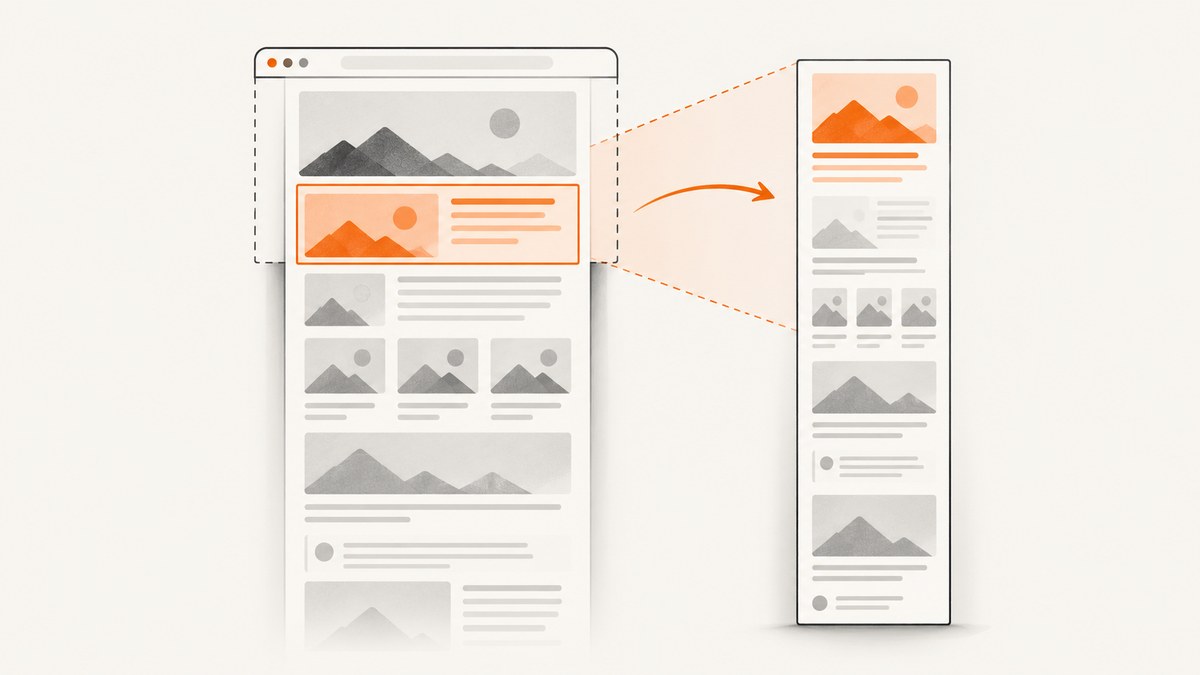
If html2canvas captures only the visible portion of an element, render it with a virtual window that matches the element’s full scrollable dimensions:
const element = document.querySelector('#capture');

const canvas = await html2canvas(element, {
  windowWidth: element.scrollWidth,
  windowHeight: element.scrollHeight,
});
windowWidth and windowHeight control the virtual browser window used while html2canvas reconstructs the page. They are separate from the final canvas width and height, and from the render position controlled by scrollX and scrollY. This distinction is the key to capturing content below the current viewport.
This guide shows a complete browser implementation, explains every option that matters for offscreen content, covers long-page limits, CORS and iframe restrictions, and includes practical fixes for blank or clipped output. It also shows when a server-side screenshot API is a better fit.
1. A complete working example
Create a page containing an element taller than the viewport, load html2canvas, and export the resulting canvas. The example measures the target after its content has been rendered, then sets the virtual window to those measurements.
<!doctype html>
<html lang="en">
<head>
  <meta charset="utf-8">
  <meta name="viewport" content="width=device-width, initial-scale=1">
  <title>Offscreen html2canvas capture</title>
  <style>
    body { margin: 0; font: 16px system-ui, sans-serif; background: #f3f4f6; }
    #capture {
      width: 720px;
      margin: 24px auto;
      padding: 24px;
      background: white;
      box-sizing: border-box;
    }
    .row { height: 420px; margin-bottom: 16px; padding: 20px; background: #dbeafe; }
    button { margin: 24px; padding: 10px 14px; }
  </style>
</head>
<body>
  <section id="capture">
    <h1>A tall report</h1>
    <div class="row">Content near the top</div>
    <div class="row">Content below the viewport</div>
    <div class="row">More offscreen content</div>
  </section>
  <button id="save">Save screenshot</button>

  <script src="https://cdn.jsdelivr.net/npm/html2canvas@1.4.1/dist/html2canvas.min.js"></script>
  <script>
    const button = document.querySelector('#save');
    const target = document.querySelector('#capture');

    button.addEventListener('click', async () => {
      // Measure after fonts, images, and dynamic content have settled.
      const width = target.scrollWidth;
      const height = target.scrollHeight;

      const canvas = await html2canvas(target, {
        windowWidth: width,
        windowHeight: height,
        // Keep the output dimensions equal to the target by default.
        width,
        height,
        backgroundColor: '#ffffff',
      });

      const link = document.createElement('a');
      link.download = 'offscreen-capture.png';
      link.href = canvas.toDataURL('image/png');
      link.click();
    });
  </script>
</body>
</html>
The returned value is a Promise. Always await it before calling toDataURL, toBlob, or displaying the canvas. If your element has images or asynchronous data, wait for those resources before measuring it.
2. Why the virtual window fixes clipped captures
By default, html2canvas uses the browser’s inner width and height for its rendering window. A target that extends below that window can therefore be painted only partly, depending on layout and positioning. Setting the virtual dimensions to element.scrollWidth and element.scrollHeight gives the renderer a window large enough to include the target’s full scrollable extent. The official FAQ recommends this approach for empty or partially clipped output. See the html2canvas FAQ.
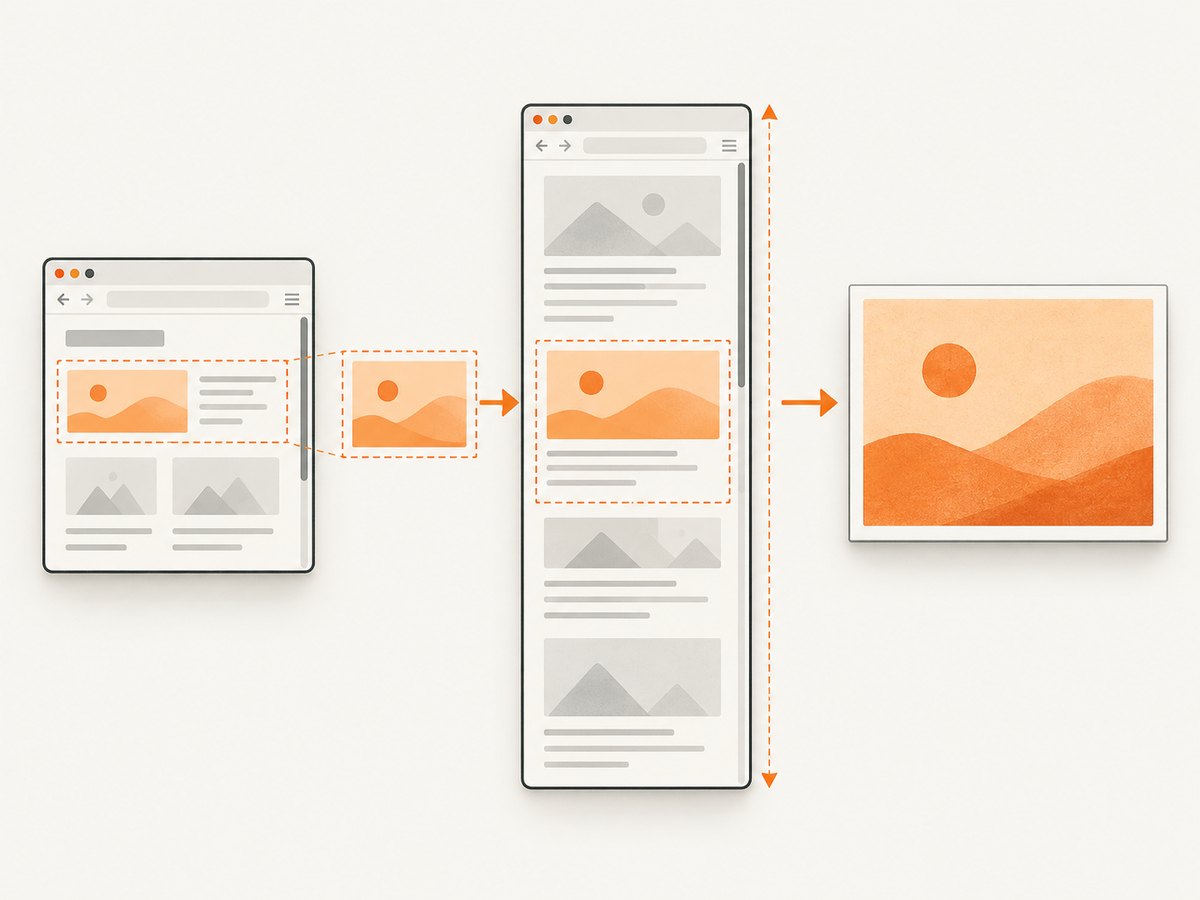
The project reconstructs a representation by traversing the DOM and reading style information. It does not ask the browser for a native bitmap of the page. The documentation describes this directly: “The script traverses through the DOM of the page it is loaded on.” That explains why unsupported CSS, cross-origin resources, and iframe security boundaries can change the result.
Measure the correct box
scrollWidthis the total horizontal scrollable width, including content outside the visible box.scrollHeightis the total vertical scrollable height.clientWidthandclientHeightdescribe the visible inner area and are usually the wrong values for a full offscreen capture.- If borders or an outer margin must be included, capture a wrapper whose dimensions include them.
For a horizontally scrolling target, use both dimensions. For a normal tall page, scrollWidth may equal the visible width while scrollHeight is much larger.
3. Separate window size, output size, crop, and scroll position
Several options sound similar but solve different problems.
| Option | What it controls | Typical use |
|---|---|---|
windowWidth |
Virtual viewport width used for layout and media queries | Set to the target’s scrollWidth for a full-width render |
windowHeight |
Virtual viewport height used for layout | Set to scrollHeight for tall content |
width |
Output canvas width | Control the final bitmap size |
height |
Output canvas height | Control the final bitmap size |
x, y |
Crop origin in the rendered document | Capture a region beginning at a known coordinate |
scrollX, scrollY |
Scroll position simulated during rendering | Reproduce fixed-position behavior or a specific scroll state |
Do not replace windowHeight with scrollY. A large scroll offset moves the simulated viewport; it does not make the viewport tall enough to render every section at once. Likewise, increasing width and height alone does not necessarily change responsive layout. Configure the virtual window first, then use output and crop options to shape the bitmap.
For example, the following captures a 400 by 300 region beginning at coordinate 100,100:
const canvas = await html2canvas(document.body, {
  windowWidth: document.documentElement.scrollWidth,
  windowHeight: document.documentElement.scrollHeight,
  x: 100,
  y: 100,
  width: 400,
  height: 300,
});
4. Handle responsive layouts and fixed elements
Changing windowWidth can activate different CSS media queries. A mobile navigation, stacked grid, or alternate font size may appear when the virtual width crosses a breakpoint. Decide whether you want the element as it appears at the current viewport width or as a wide desktop layout.
To preserve the current responsive layout while still capturing content below the fold, use the current layout width and only expand the virtual height:
const rect = element.getBoundingClientRect();
const canvas = await html2canvas(element, {
  windowWidth: Math.ceil(rect.width),
  windowHeight: element.scrollHeight,
});
For an explicitly desktop render, use a known width and make the target’s layout deterministic. Fixed-position headers and floating controls can move when the simulated scroll position changes. The options reference documents scrollX and scrollY for this situation. Test whether a fixed element should appear once at the top, repeat in a section, or be hidden with an ignoreElements predicate.
const canvas = await html2canvas(element, {
  windowWidth: element.scrollWidth,
  windowHeight: element.scrollHeight,
  scrollX: 0,
  scrollY: 0,
  ignoreElements: node => node.matches('.sticky-chat, .print-only-controls'),
});
5. Long pages, scale, and canvas limits
A bigger virtual window cannot bypass the browser’s bitmap limits. The html2canvas FAQ gives rough current guidance of about 32,767 pixels for a maximum dimension and about 268 million pixels of area in Chrome or Chromium. Firefox is documented at roughly 32,767 pixels and 472 million pixels of area. Desktop Safari has a similar maximum dimension and an area limit comparable to Chrome. These values vary with the operating system, GPU, browser version, device memory, and especially iOS.
The effective pixel area is approximately:
pixelArea = canvas.width * canvas.heightRemember that scale multiplies output dimensions. A 2x retina render of a 10,000 by 20,000 CSS-pixel target becomes about 20,000 by 40,000 device pixels and can exceed a dimension limit. Use a lower scale for long pages:
const canvas = await html2canvas(element, {
  windowWidth: element.scrollWidth,
  windowHeight: element.scrollHeight,
  scale: 1,
});
For content near a limit, capture smaller vertical sections and combine or export them separately. This sectioning approach follows from the documented browser limits; html2canvas does not provide a universal stitching workflow. Give each section a stable height, avoid changing layout between captures, and overlap a few pixels if you need to hide seams. If the final destination is a PDF, sectioned rendering is often safer than allocating one enormous canvas.
6. Images, fonts, CORS, and iframes
Cross-origin images
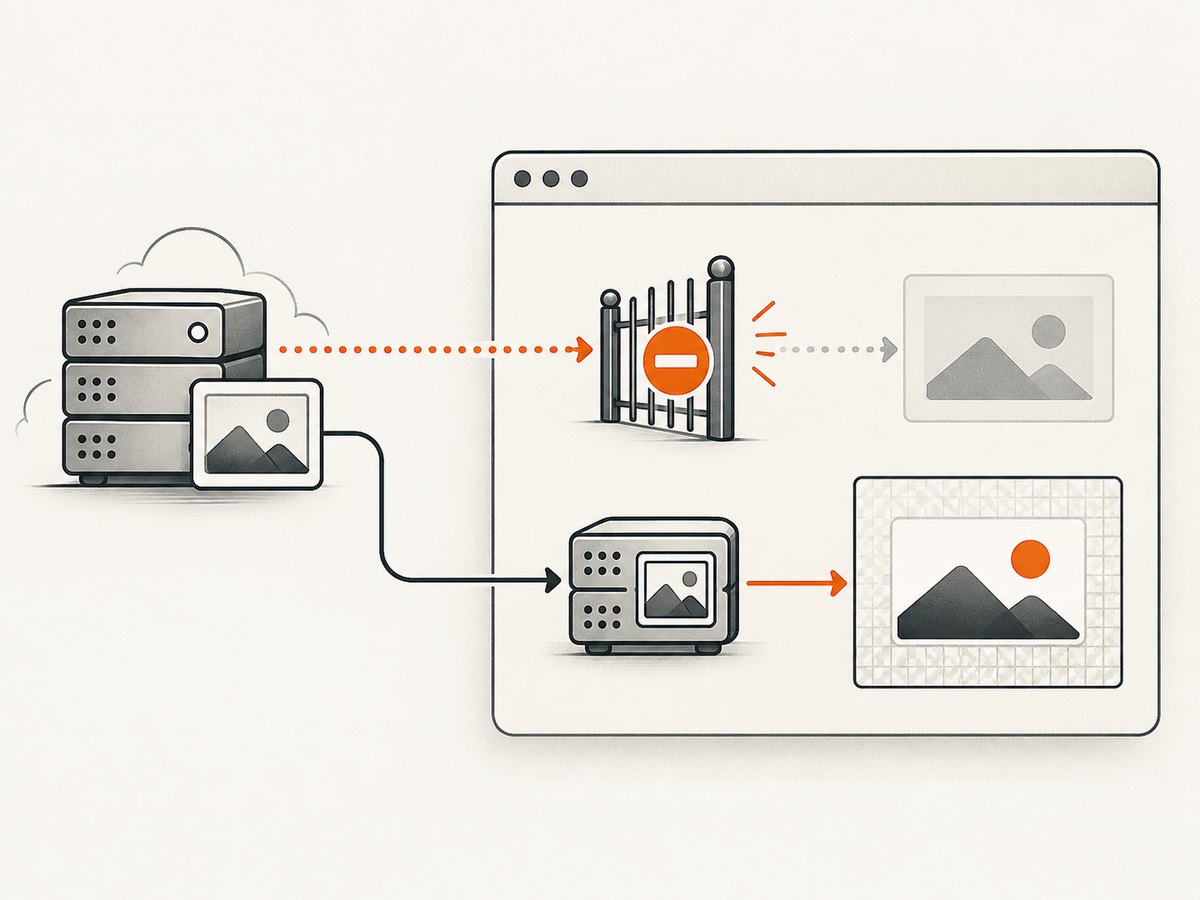
Images hosted on another origin need permission from that image server. Set useCORS: true when the server sends an appropriate Access-Control-Allow-Origin header:
const canvas = await html2canvas(element, {
  windowWidth: element.scrollWidth,
  windowHeight: element.scrollHeight,
  useCORS: true,
});
If the image server does not allow your origin, the browser’s same-origin policy still applies. html2canvas cannot override it. A same-origin proxy that fetches the image and serves it with suitable headers is the other documented approach. Without either option, an image may be omitted, and attempting to export a tainted canvas can throw a security exception.
Fonts and late-loading content
Measure after fonts and images are ready; otherwise the first measurement can be shorter than the final layout. A simple readiness sequence is:
await document.fonts.ready;
await Promise.all([...document.images].map(image => {
  if (image.complete) return Promise.resolve();
  return new Promise(resolve => {
    image.addEventListener('load', resolve, { once: true });
    image.addEventListener('error', resolve, { once: true });
  });
}));

const canvas = await html2canvas(element, {
  windowWidth: element.scrollWidth,
  windowHeight: element.scrollHeight,
});
For lazy-loaded images, scroll or otherwise trigger the application’s loading logic before measuring. html2canvas can only render resources that are available to the page at capture time.
Iframes
Cross-origin iframe contents are inaccessible under browser security restrictions. html2canvas can recurse into same-origin iframes, but it cannot read a different origin’s DOM. Capture the iframe application separately, add a server-side integration, or omit it from the client-side render.
7. cullOffscreen and other useful options
cullOffscreen defaults to false. When enabled, html2canvas skips nodes entirely outside the captured viewport. That can improve speed for a viewport-sized screenshot of a huge page, but it is not a way to include offscreen content. Leave it disabled for a full target whose content lies below the initial viewport.
Other options commonly used with tall captures include:
backgroundColor: set a solid background when transparent output is not desired.scale: choose output density; lower it when memory or canvas limits are a problem.foreignObjectRendering: try an alternate browser feature path when appropriate, while checking browser support and output differences.onclone: modify the cloned document before painting, for example hiding controls or expanding a collapsed panel.ignoreElements: exclude chat buttons, sticky controls, or animated regions.removeContainer: remove html2canvas’s temporary cloned container after rendering.
Use the project’s configuration reference for the complete option list and defaults. Keep capture-specific changes inside onclone so the live page does not visibly change.
8. Troubleshooting checklist
| Symptom | Likely cause | Fix |
|---|---|---|
| Only the visible part appears | Virtual window is viewport-sized | Set windowWidth and windowHeight from the target’s scroll dimensions. |
| Canvas is blank | Target is empty, hidden, or measured before async content arrived | Check getBoundingClientRect(), wait for data, fonts, and images, and capture a visible ancestor. |
| Output is clipped despite correct dimensions | Canvas dimension or area limit | Reduce scale, shorten the capture, or render sections separately. |
| Images are missing | CORS headers are absent | Use useCORS: true with server permission or route images through a same-origin proxy. |
| Export throws a security error | Canvas was tainted by a cross-origin resource | Fix CORS or remove the resource before calling toDataURL or toBlob. |
| Mobile layout appears unexpectedly | windowWidth crossed a media-query breakpoint |
Use the intended layout width explicitly and inspect responsive CSS. |
| Fixed header or widget is misplaced | Simulated scroll position differs from the live page | Set scrollX/scrollY, or hide the fixed element in onclone. |
| Iframe content is absent | Iframe is cross-origin | Capture it from its own origin or use a server-side browser. |
| Text or shadows differ | Unsupported CSS or DOM reconstruction differences | Check supported CSS, simplify styles, or use a real browser screenshot service. |
When debugging, log the values before capture:
console.table({
  scrollWidth: element.scrollWidth,
  scrollHeight: element.scrollHeight,
  clientWidth: element.clientWidth,
  clientHeight: element.clientHeight,
  scale: window.devicePixelRatio,
});
9. Performance and reliability practices
- Capture after layout stabilizes. Wait for data, fonts, images, and any expansion triggered by scrolling.
- Keep the target focused. Capturing one report element is cheaper and less fragile than cloning the entire application shell.
- Control animations. In
onclone, inject a style that disables transitions and animations so repeated captures are consistent. - Choose scale deliberately. Use a retina scale for small exports, but use 1 for very tall content unless higher density is required.
- Split extreme documents. Section captures avoid browser memory failures and make retries possible.
- Retry resource failures separately. A failed image should not require rebuilding a huge canvas if you can retry the asset or omit it.
- Release large canvases. Convert to a Blob, upload or download it, then remove references so garbage collection can reclaim memory.
Client-side rendering runs in the user’s browser, so results depend on browser version, device memory, available fonts, network access, and security policy. html2canvas is useful when you need a quick in-page export and control the page, but its DOM reconstruction is not a pixel-perfect browser screenshot.
10. Or skip the browser setup
When you need a consistent screenshot of a URL rather than a canvas inside the current page, ScreenshotNeo provides a website screenshot API and MCP server. One GET request returns PNG, JPEG, WebP, or PDF, with options for full-page capture, lazy images, a CSS-selected element, custom CSS and JavaScript, waits, device presets, headers, cookies, geolocation, caching, and more. See the ScreenshotNeo API documentation for the option names and formats.
curl -G "https://api.screenshotneo.com/v1/shot" -d access_key=YOUR_API_KEY --data-urlencode url=https://stripe.com -o shot.webpimport requests
r = requests.get("https://api.screenshotneo.com/v1/shot", params={"access_key": "YOUR_API_KEY", "url": "https://stripe.com"}, timeout=90)
open("shot.webp", "wb").write(r.content)const q = new URLSearchParams({ access_key: 'YOUR_API_KEY', url: 'https://stripe.com' });
const res = await fetch(`https://api.screenshotneo.com/v1/shot?${q}`);Cookie and consent banners, newsletter popups, and chat widgets are removed before the shot. Bot checks, blank pages, timeouts, failed loads, and cache hits are not billed, and response headers identify the page verdict and billing state. An MCP server lets Claude, Cursor, and other MCP clients call take_screenshot, get_page_info, and capture_pdf. The Free plan includes 1,000 screenshots each month with no card; paid plans start at $5 for 3,000 shots. Create a free ScreenshotNeo account.
11. FAQ
Does scrolling the real page solve the problem?
It can change what is visible, but it does not guarantee that html2canvas will render the entire element. Set the virtual window dimensions explicitly and measure after scrolling or lazy loading has finished.
Should I use the element’s bounding rectangle?
Use the rectangle for the current visible layout width. Use scrollWidth and scrollHeight when you need the element’s full scrollable extent.
Can html2canvas capture a different website?
It runs in the page where it is loaded and is restricted by the same-origin policy. Cross-origin images and iframe documents need cooperation from their servers.
Why does a full-page canvas consume so much memory?
Memory grows with the number of output pixels, including the selected scale. Lower the scale or capture sections when the document is very tall.
Is html2canvas suitable for archival screenshots?
Use it for controlled in-page exports. For repeatable URL screenshots, PDF output, consent cleanup, bot-check handling, and server-side execution, an API such as ScreenshotNeo avoids browser setup and client-device variation.


