How to Capture Page Source
Capture a page’s original HTML, inspect its live DOM, or save loaded resources with the right browser tool and command-line method.
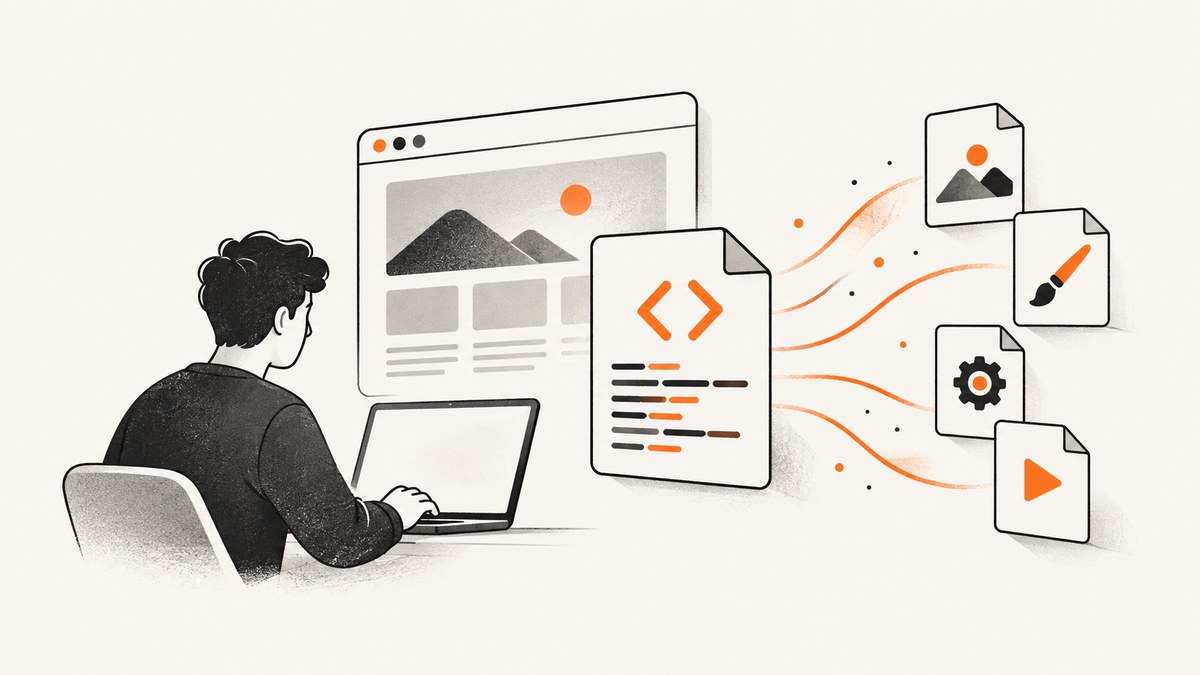
To capture page source, first decide which representation you need: the original HTML returned by the server, the live DOM after JavaScript changes it, or the separate CSS, JavaScript, image, and font resources loaded by the browser.
- Original source: use Firefox View Page Source, browser save options, or an HTTP request such as
curl. - Live DOM: use the Elements panel in browser developer tools after scripts and interactions have run.
- Loaded resources: use Chrome or Edge DevTools Sources, or the Network panel to identify the exact files requested.
- Offline copy: save HTML only when you need markup, or save an archive when you also need graphics and working links.
What “page source” means
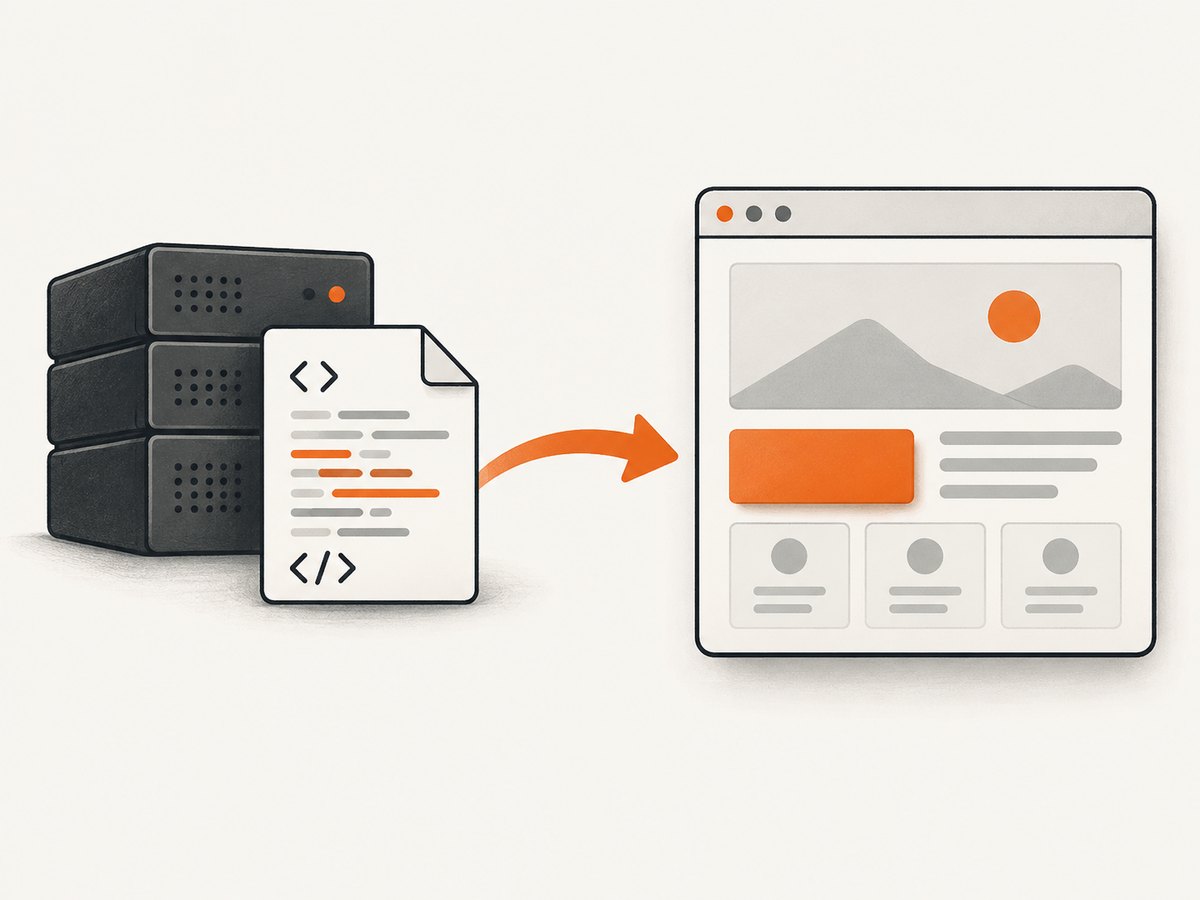
“Page source” normally means the document source representation sent by the web server. It can differ from what you see on screen. JavaScript may insert, remove, or change elements after the initial response, and an interaction such as opening a menu can change the live DOM without changing the original source.
| Goal | Best method | What you get |
|---|---|---|
| Read the initial HTML or XML | Firefox View Page Source, or an HTTP request | The source document returned before browser-side changes |
| Inspect the page as it currently appears | DevTools Elements/Inspector | The live DOM after scripts, styles, and interactions |
| Find CSS, JavaScript, images, and fonts | Chrome or Edge DevTools Sources or Network | A resource tree and individual loaded files |
| Save markup for later editing | Save Page Source or an HTTP request | An HTML file, which may reference remote assets |
| Keep graphics with the page | Safari Web Archive or an archive tool | Page data plus saved graphics, subject to site restrictions |
Capture source in Firefox
- Open the page.
- Right-click the page and choose View Page Source.
- Alternatively, press Ctrl+U on Windows or Linux, or Cmd+U on macOS.
- Firefox opens the HTML or XML source in a new tab. Use the browser’s save command if you need a local file.
Firefox’s source view is appropriate when you want the document sent by the server. It will not automatically include values that JavaScript adds later.
Capture resources in Chrome
- Open Chrome DevTools with F12, Ctrl+Shift+I on Windows/Linux, or Cmd+Option+I on macOS.
- Select the Sources panel.
- In the Page tab, expand the top-level frame.
- Select the main document to inspect its HTML, or open individual CSS, JavaScript, image, and font resources.
Chrome’s Sources panel is a resource browser, so it is useful when “source” means the files used by the page rather than one HTML response. To inspect the post-script structure, select Elements and copy the selected node or the document’s live HTML.
Capture resources in Microsoft Edge
- Open DevTools with F12 or the Inspect command.
- Choose Sources, then open the Page tab.
- Expand the current frame to locate HTML, CSS, JavaScript, images, and other resources.
- Use Elements when you need the current DOM after JavaScript has run.
Save page source in Safari on Mac
Save only the HTML source
- Choose File > Save As.
- Set the format to Page Source.
- Save the file and open it in a text editor or browser.
Safari’s Page Source format saves only HTML. Apple describes this option as useful when you want to use the HTML source in another webpage.
Save an offline archive
- Choose File > Save As.
- Select Web Archive.
- Save the archive and open it from Finder when you need the captured page.
A Web Archive can include graphics and keep links working while their destination pages remain available. Some sites can prevent items shown on the page from being saved.
Show Safari developer tools
If the Develop menu is missing, open Safari > Settings > Advanced and enable Show features for web developers. You can then inspect the live DOM and loaded resources with Safari’s developer tools.
Capture source from the command line
An HTTP request captures the response body without executing JavaScript. This is useful for reproducible scripts, diffs, and CI jobs.
cURL
curl -L --compressed https://example.com -o page.html-L follows redirects and --compressed asks for a compressed response and decompresses it. Add headers when the site requires them:
curl -L --compressed \
  -H 'User-Agent: source-capture/1.0' \
  -H 'Authorization: Bearer YOUR_TOKEN' \
  'https://example.com/private' \
  -o page.html
To print the source instead of saving it, omit -o page.html. To include response headers for debugging, use -i.
Python
import requests

url = "https://example.com"
response = requests.get(
    url,
    headers={"User-Agent": "source-capture/1.0"},
    timeout=30,
)
response.raise_for_status()
with open("page.html", "wb") as output:
    output.write(response.content)
Use response.text when you need decoded text, but keep response.content when preserving the server’s bytes matters.
Node.js
const fs = require('node:fs/promises');

const response = await fetch('https://example.com', {
  headers: { 'User-Agent': 'source-capture/1.0' },
});
if (!response.ok) {
  throw new Error(`HTTP ${response.status}`);
}
await fs.writeFile('page.html', Buffer.from(await response.arrayBuffer()));
When HTTP source is not enough
A request made by curl, Python, or Node.js does not run the page’s JavaScript, click buttons, accept consent dialogs, wait for lazy content, or log in through a browser session. If the HTML is an application shell and the visible content appears later, capture the live DOM with DevTools or use a browser automation tool that waits for the required state.
Use the live DOM for dynamic content
- Open DevTools and select Elements (Chrome/Edge) or the equivalent Inspector.
- Perform the interaction that reveals the content.
- Right-click the root element and choose the copy option for its HTML, or select all markup and copy it into a file.
- Remember that copied DOM can contain runtime state and generated attributes that were never present in the original response.
Capture the resources separately
Use the Sources panel to browse files already loaded. Use the Network panel when you need request URLs, status codes, response headers, timing, or a resource that was fetched only after an interaction. A complete offline copy may require downloading those resources and rewriting relative URLs.
Or skip the browser setup
If your actual goal is a rendered image or PDF rather than raw HTML, ScreenshotNeo captures the page with one request. See the ScreenshotNeo API documentation for all options.

curl -G "https://api.screenshotneo.com/v1/shot" -d access_key=YOUR_API_KEY --data-urlencode url=https://stripe.com -o shot.webpimport requests
r = requests.get("https://api.screenshotneo.com/v1/shot", params={"access_key": "YOUR_API_KEY", "url": "https://stripe.com"}, timeout=90)
open("shot.webp", "wb").write(r.content)const q = new URLSearchParams({ access_key: 'YOUR_API_KEY', url: 'https://stripe.com' });
const res = await fetch(`https://api.screenshotneo.com/v1/shot?${q}`);ScreenshotNeo removes cookie banners, newsletter popups, and chat widgets before the shot. Bot checks, blank pages, failed loads, and cache hits are not billed, and the response identifies the result with X-Page-Verdict and X-Billed headers. Its MCP server lets AI agents take screenshots, inspect page information, and capture PDFs. The Free plan includes 1,000 screenshots per month with no card; paid plans start at $5 for 3,000 shots. Create a free ScreenshotNeo account.
Troubleshooting
| Problem | Cause | Fix |
|---|---|---|
| View Source is missing | The browser or site context menu is different | Use Ctrl/Cmd+U, or open DevTools. |
| Source lacks visible text | JavaScript rendered the content after the initial response | Inspect the live DOM or automate a browser after waiting for the content. |
| CSS or images are absent from the saved file | HTML-only saving does not download dependencies | Use Sources/Network to collect resources, or save an archive format. |
| Command returns a redirect page | The request did not follow redirects | Add -L in cURL or follow redirects in your HTTP client. |
| HTTP 401 or 403 | Authentication, authorization, or anti-bot rules blocked the request | Use an authorized session and required headers; do not attempt to bypass access controls. |
| Characters look corrupted | Encoding was decoded incorrectly | Preserve bytes, check the response charset, and open the file as UTF-8 when appropriate. |
| Saved links do not work offline | The file still points to remote destinations or assets | Download dependencies and rewrite URLs, or use a web archive. |
| Safari has no Develop menu | Developer features are disabled | Enable them in Safari Settings > Advanced. |
Performance, reliability, and cost considerations
- HTTP capture is fastest and cheapest: it downloads one response and does not start a browser, but it cannot represent post-load DOM changes.
- Browser inspection is more complete: it includes runtime changes and loaded resources, but pages with large bundles, delayed requests, or required interactions take longer.
- Make captures reproducible: record the URL, timestamp, redirect chain, response status, request headers, cookies, and whether JavaScript ran.
- Respect access rules: capture only pages you are authorized to access, and avoid collecting credentials or private data in saved files.
- For screenshots: choose a wait condition that matches the page, cache stable results when appropriate, and inspect ScreenshotNeo’s verdict and billing headers when diagnosing a result.
FAQ
Does View Source show the HTML I see in the browser?
It shows the initial source document. The live DOM may differ after JavaScript and interactions.
What is the difference between Sources and Elements?
Sources lists files the page loaded. Elements shows the current document tree after browser processing.
Can I capture page source with JavaScript disabled?
Yes. View Source and HTTP requests capture the server response without relying on page scripts.
Why is my saved HTML not a complete offline website?
HTML commonly references external stylesheets, scripts, images, and fonts. Save those resources separately or use an archive format.
Should I capture source or a screenshot for visual review?
Use source or DOM capture to inspect structure and content. Use a screenshot when the rendered visual state is the deliverable.


