How to Capture and Parse JavaScript-Rendered Web Pages With Python
When Python requests returns empty HTML, the data may be rendered in a browser or fetched later. Learn how to use Playwright, Selenium, and response capture to collect and validate it.

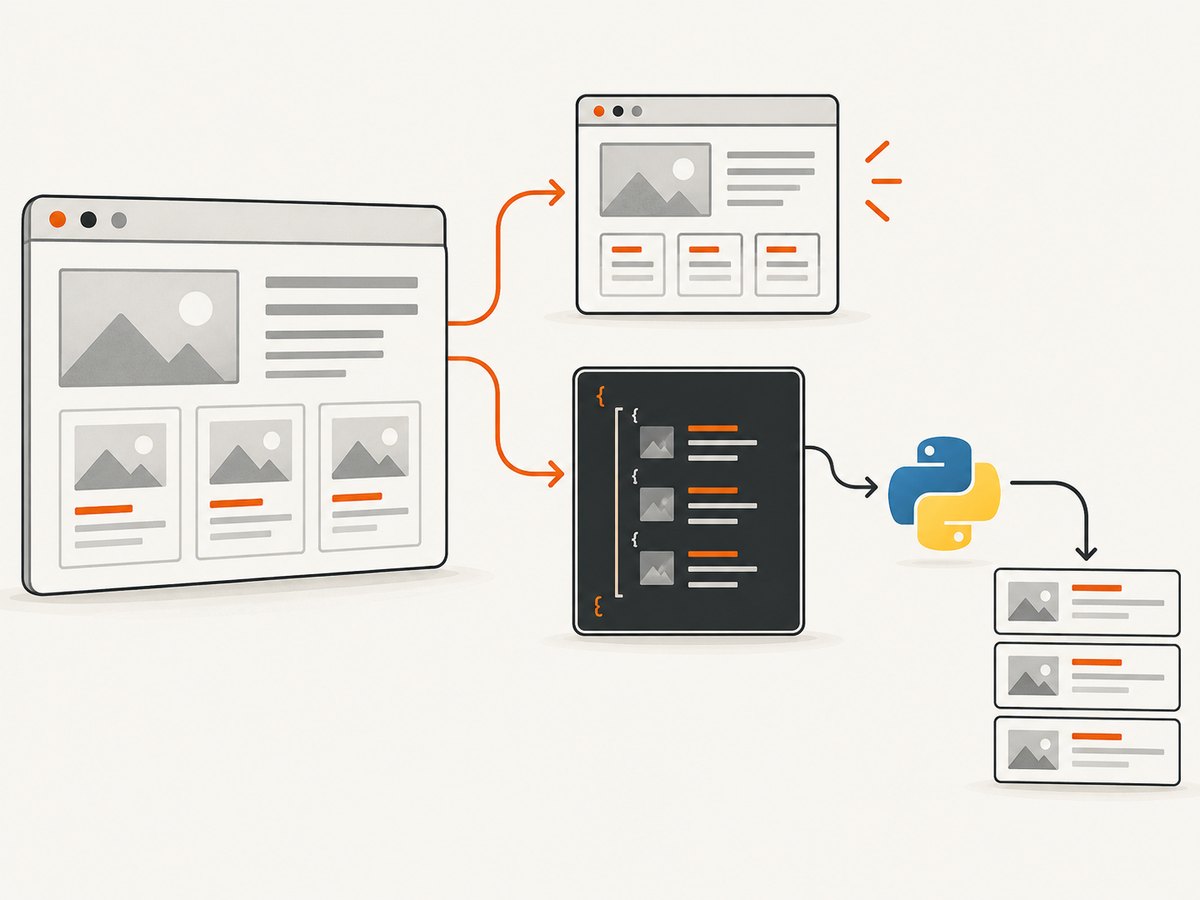
If requests returns HTML without the data you see in a browser, the page may be adding that data with JavaScript after the initial response. Use a browser automation tool such as Playwright or Selenium to run the page, wait for the specific content you need, and then parse the rendered DOM. If the browser fetches the data from an identifiable JSON endpoint, capturing that response can be more stable than parsing markup.
First check whether the data is already present in the original HTTP response. If it is, an HTTP client and an HTML parser are simpler. If JavaScript creates or fetches the data after navigation, use a browser or reproduce the underlying data request. This guide uses Playwright with Python and BeautifulSoup, and shows how to inspect a response carrying the data.
1. Classify the page before choosing a tool
Open the page’s initial response or inspect it with a direct HTTP request. Search for a representative value you expect to collect. A browser’s “View Source” is useful for the initial document; the live Elements panel shows the current DOM after scripts have run. They are not the same thing.
| What you find | Approach | Why |
|---|---|---|
| Target text or records in the initial HTML | HTTP client + parser | No browser is needed to execute JavaScript. |
| Data appears after scripts run or a user action | Playwright or Selenium | The browser executes JavaScript and can reproduce interactions. |
| A fetch/XHR response contains the records | Capture that response, or call its endpoint if permitted | Structured JSON usually changes less often than page markup. |
A page can combine these approaches: its shell may be in the initial HTML, while the actual records load later, require clicking “Load more,” or depend on login state. Inspect the path that produces the specific data you need rather than assuming every page on a site works alike.
2. Install Playwright and BeautifulSoup
Use a virtual environment and install the Python package, then install a browser binary. The commands below are for a typical local Python environment; deployment images may require additional operating-system libraries.
python -m venv .venv
# Linux or macOS
. .venv/bin/activate
# Windows PowerShell: .venv\Scripts\Activate.ps1
python -m pip install playwright beautifulsoup4
python -m playwright install chromium
Playwright browser contexts enable JavaScript by default. They also provide controls for settings such as locale, proxy, permissions, and offline mode when a particular site or workflow requires them. See the Browser documentation and Page documentation for available APIs and navigation options.
3. Render the page, wait for the content, and parse it
This complete synchronous example visits a page, performs a user action, waits for a result element, obtains the resulting HTML, and extracts text with BeautifulSoup. Replace the URL, button name, selector, and expected fields with values for the target page. The selectors here are illustrative; they are not a claim that a particular site uses them.
from playwright.sync_api import sync_playwright, TimeoutError as PlaywrightTimeoutError
from bs4 import BeautifulSoup

URL = "https://example.com/search"
RESULT_SELECTOR = "article.result"

with sync_playwright() as p:
    browser = p.chromium.launch(headless=True)
    try:
        page = browser.new_page()
        page.set_default_timeout(15_000)
        page.goto(URL, wait_until="domcontentloaded", timeout=30_000)

        # Keep this step only if the page requires the interaction.
        page.get_by_role("button", name="Load more").click()

        # Wait for the actual data-bearing content, not an arbitrary delay.
        page.locator(RESULT_SELECTOR).first.wait_for(state="visible")
        html = page.content()

        soup = BeautifulSoup(html, "html.parser")
        rows = [node.get_text(" ", strip=True)
                for node in soup.select(RESULT_SELECTOR)]
        if not rows:
            raise RuntimeError(
                f"No results matched {RESULT_SELECTOR!r}; check page state and selector"
            )
        for row in rows:
            print(row)
    except PlaywrightTimeoutError as exc:
        raise RuntimeError(
            "The expected page state did not appear before the timeout. "
            "Check the selector, interaction, login state, and network behavior."
        ) from exc
    finally:
        browser.close()
Playwright navigation supports commit, domcontentloaded, load, and networkidle states. These describe different points in navigation; none guarantees by itself that the exact records your scraper needs are present. Modern pages can continue rendering after the load event. A locator or assertion tied to the target content is usually a more useful readiness signal. Playwright’s Page documentation marks networkidle as discouraged for testing, and its navigation guidance explains why a page’s work can continue after load. See the Page API, navigation guide, and actionability guide.
Use the asynchronous API in async applications
When the surrounding program already uses asyncio, use Playwright’s async API rather than blocking the event loop with synchronous calls. The readiness and parsing logic stays the same.
import asyncio
from playwright.async_api import async_playwright
from bs4 import BeautifulSoup

async def main():
    async with async_playwright() as p:
        browser = await p.chromium.launch(headless=True)
        try:
            page = await browser.new_page()
            await page.goto("https://example.com", wait_until="domcontentloaded")
            await page.locator("article.result").first.wait_for(state="visible")
            soup = BeautifulSoup(await page.content(), "html.parser")
            rows = [n.get_text(" ", strip=True)
                    for n in soup.select("article.result")]
            print(rows)
        finally:
            await browser.close()

asyncio.run(main())
4. Wait for the right signal
Choose readiness based on how the page produces the data. A fixed sleep is simple but fragile: it may be unnecessarily long on a fast response and too short on a slow one. Prefer a selector, locator, or assertion that represents the content you need.
- Initial document: use
domcontentloadedwhen you need the parsed document and will wait separately for dynamic content. - Full load event: use
loadif the workflow specifically depends on load-event resources. It does not imply the application has finished its own work. - Target element: wait for the locator to appear, become visible, or reach the needed state. This is often the most direct condition.
- Network settling: Playwright offers
networkidle, but ongoing polling, analytics, and long-lived connections can make network quietness a poor proxy for useful content. Its documentation discourages this state for tests. - Known delay: a short delay can be a last resort when the site exposes no observable condition. Keep it bounded and validate the result afterward.
For pagination or “Load more,” wait for a change you can observe: a new result, a changed count, or the disappearance of a loading indicator. Waiting for the first result alone is insufficient if you need every page of results. Set an explicit limit or stopping condition to avoid unbounded pagination.
5. Capture the JSON response when it carries the data
Use browser network monitoring to discover whether a fetch or XHR response contains the records. Playwright can wait for a matching response while performing the action that triggers it. Match the endpoint narrowly enough to avoid catching an unrelated request.
from playwright.sync_api import sync_playwright

with sync_playwright() as p:
    browser = p.chromium.launch(headless=True)
    try:
        page = browser.new_page()
        page.goto("https://example.com/search", wait_until="domcontentloaded")
        with page.expect_response("**/api/results") as response_info:
            page.get_by_role("button", name="Load more").click()
        response = response_info.value
        if not response.ok:
            raise RuntimeError(f"Results request failed: HTTP {response.status}")
        payload = response.json()
        print(payload)
    finally:
        browser.close()
Playwright’s network documentation covers monitoring requests and responses, including fetch and XHR traffic. Before relying on an endpoint, confirm its authentication requirements, pagination scheme, response schema, and whether you are permitted to access it. A browser request can carry cookies or tokens that an unauthenticated standalone call will not have. Avoid logging secrets from headers or cookies.
6. Extract and validate fields
Parse only what you need. Normalize whitespace with get_text(" ", strip=True), and validate both presence and shape before storing output. A non-empty list can still be wrong if the selector now matches navigation cards or recommendations instead of the intended records.
from bs4 import BeautifulSoup

soup = BeautifulSoup(html, "html.parser")
records = []
for card in soup.select("article.result"):
    title_node = card.select_one("h2")
    link_node = card.select_one("a[href]")
    if title_node is None or link_node is None:
        continue
    title = title_node.get_text(" ", strip=True)
    href = link_node.get("href")
    if title and href:
        records.append({"title": title, "url": href})

if not records:
    raise ValueError("No valid records found; inspect rendered HTML and selectors")
print(records)
Make expected fields observable in logs or metrics without recording sensitive page contents. For a production collection job, track the URL, timestamp, number of records, and a concise failure reason. If a layout change causes the selector to stop matching, fail loudly rather than silently writing an empty dataset as if it were valid.
7. When Selenium is the better fit
Selenium’s Python WebDriver API automates browsers and is a reasonable choice when a team already has a WebDriver-based codebase, browser grid, or established expertise. Playwright is a strong fit when you want modern locator waiting, explicit navigation states, browser interaction, and request/response hooks in one Python API. Both can automate browser workflows; neither is universally faster based on the information here. Compare the options against your deployment environment, required browser coverage, debugging workflow, synchronization needs, and network-inspection needs. See the official Selenium WebDriver documentation and Playwright’s Python introduction.
For Selenium, the same process applies: navigate, wait explicitly for a target element using a condition, read the rendered page source or element text, then parse and validate. Avoid replacing a content-specific wait with a long unconditional sleep just because the automation library differs.
8. Troubleshooting common failures
| Symptom | Likely cause | Fix |
|---|---|---|
requests HTML has no records |
JavaScript fetched or created them after initial navigation. | Inspect the live DOM and network traffic. Use browser automation or capture the data response. |
| Playwright times out waiting for a selector | Wrong selector, missing click, redirect, login gate, slow response, or changed page. | Inspect the current URL, title, screenshot or HTML, and browser console/network errors. Confirm the selector against the live DOM and set a suitable explicit timeout. |
| Navigation completes but records are empty | The app renders later, requires interaction, or the data comes from another endpoint. | Wait for a target record or response, reproduce the required user action, and validate after parsing. |
networkidle never arrives |
Polling, analytics, streaming, or other persistent requests keep the page active. | Wait for the target locator or a matching response instead. |
| The JSON response is not the expected payload | The pattern matched a different request, or the endpoint returned an error or another page of results. | Match the request URL and method more precisely; check status, content type, pagination parameters, and response schema. |
| Works locally, fails in deployment | Browser binaries or required system libraries are absent, or the environment blocks navigation. | Install the browser for the deployed environment, inspect its startup logs, and check network access, proxy, and resource limits. |
| Records disappear or duplicate across pages | Pagination state was not tracked, or a click was repeated before the page updated. | Wait for a distinct state change, track page/cursor identifiers, deduplicate using a stable record key, and cap the number of pages. |
9. Performance, reliability, and cost
A real browser uses more resources than a direct HTTP request and parser because it launches a browser engine, runs scripts, and loads page resources. Keep the workflow focused: navigate only as far as needed, wait on a specific condition, extract only necessary fields, and close pages and browsers even on errors. Browser contexts can group pages that share an isolated session; choose context boundaries deliberately if cookies or login state matter.
Reliability comes from observing the page’s state rather than guessing. Set navigation and operation timeouts, handle expected redirects and HTTP failures, and distinguish “no records exist” from “the page did not load.” Add bounded retries only for transient failures; repeating a deterministic selector error will not fix it. For larger jobs, record progress and make collection resumable so one failed URL does not force the entire run to restart.
Prefer the initial HTTP response or a documented, permitted data endpoint when it reliably contains what you need: those paths avoid browser startup and can simplify parsing. Browser execution has a compute and maintenance cost, and DOM-dependent selectors can break when the site layout changes. Direct endpoints have their own risks, including authentication, pagination, and schema changes. Choose based on the data path and maintainability, not an assumed universal speed advantage.
10. Respect access rules and protect data
Browser automation does not grant permission to collect a site’s content. Respect terms, robots guidance, access controls, privacy obligations, and rate limits. Do not attempt to bypass CAPTCHAs or other access controls. If the site requires login, use only authorized credentials and handle cookies and tokens as secrets. Minimize what you collect, avoid writing credentials or private page content to diagnostic logs, and apply a sensible request rate.

Or skip the browser setup
If your goal is a screenshot rather than structured data extraction, ScreenshotNeo is a website screenshot API and MCP server from Yorker Media. One GET request returns a PNG, JPEG, WebP, or PDF. The API also supports custom CSS and JavaScript when the capture needs page-specific adjustments. Read the ScreenshotNeo API documentation for request options.
curl -G "https://api.screenshotneo.com/v1/shot" -d access_key=YOUR_API_KEY --data-urlencode url=https://stripe.com -o shot.webpimport requests
r = requests.get(
"https://api.screenshotneo.com/v1/shot",
params={"access_key": "YOUR_API_KEY", "url": "https://stripe.com"},
timeout=90,
)
r.raise_for_status()
with open("shot.webp", "wb") as image:
image.write(r.content)const q = new URLSearchParams({ access_key: 'YOUR_API_KEY', url: 'https://stripe.com' });
const res = await fetch(`https://api.screenshotneo.com/v1/shot?${q}`);
if (!res.ok) throw new Error(`Screenshot request failed: ${res.status}`);
await Bun.write("shot.webp", res);- Cookie banners are accepted like a visitor and removed along with 60+ known consent platforms, newsletter popups, and chat widgets; each step can be turned off.
- Bot checks, CAPTCHAs, blank pages, timeouts, failed loads, and cache hits are not billed. Responses include
X-Page-VerdictandX-Billedheaders. - An MCP server provides
take_screenshot,get_page_info, andcapture_pdftools for AI agents using Claude, Cursor, or another MCP client. - The Free plan includes 1,000 screenshots per month with no card; paid plans start at $5 for 3,000 screenshots. Every feature is on every plan.
Sign up free for 1,000 screenshots a month with no card.
FAQ
Can BeautifulSoup execute JavaScript?
No. BeautifulSoup parses markup you provide; use a browser to render a JavaScript-driven page first, or obtain the data from its response.
Should I parse HTML or JSON?
If a permitted response reliably contains the fields you need, JSON is often less tied to page layout. Use rendered HTML when the data only becomes available through the page or the response is not a practical interface.
Do I need to click buttons before scraping?
Only when the target content depends on that interaction, such as submitting a search or loading another page of results. Reproduce the necessary action and wait for its result.
Can I run a browser headlessly?
Yes. The examples launch Chromium with headless=True; headed mode can be useful while debugging what the page actually does.
Is Selenium obsolete if I use Playwright?
No. Selenium remains appropriate for teams and deployments built around its WebDriver ecosystem. Choose based on your browser, synchronization, and debugging requirements.


