How to Capture Part of a Page with Playwright
Capture a DOM element or a coordinate-defined region with Playwright. Get runnable JavaScript examples, stability tips, and fixes for common screenshot problems.
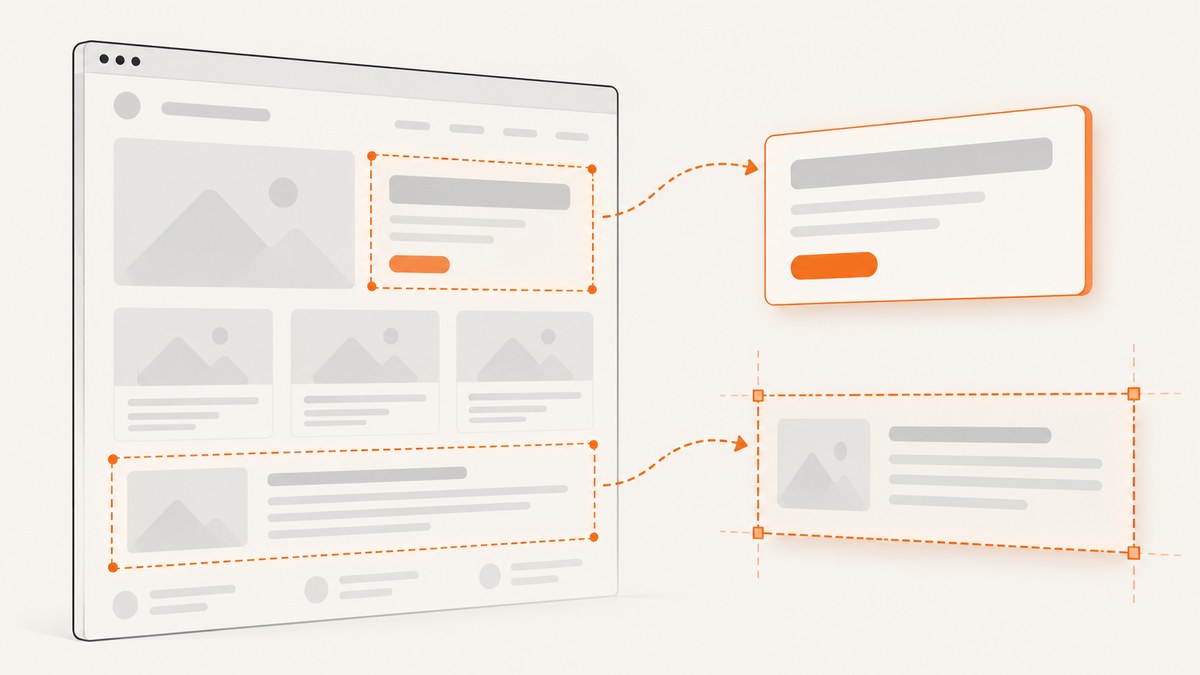
To capture one DOM element with Playwright, use locator.screenshot(): await page.locator('.header').screenshot({ path: 'screenshot.png' });. Playwright scrolls the matched element into view and waits for it to be actionable before capturing it. To capture an arbitrary rectangle instead, use page.screenshot({ clip: { x, y, width, height } }). Use a locator when the region corresponds to an element; use clip when it is defined by coordinates. [Playwright screenshot guide]
1. Choose the right capture method
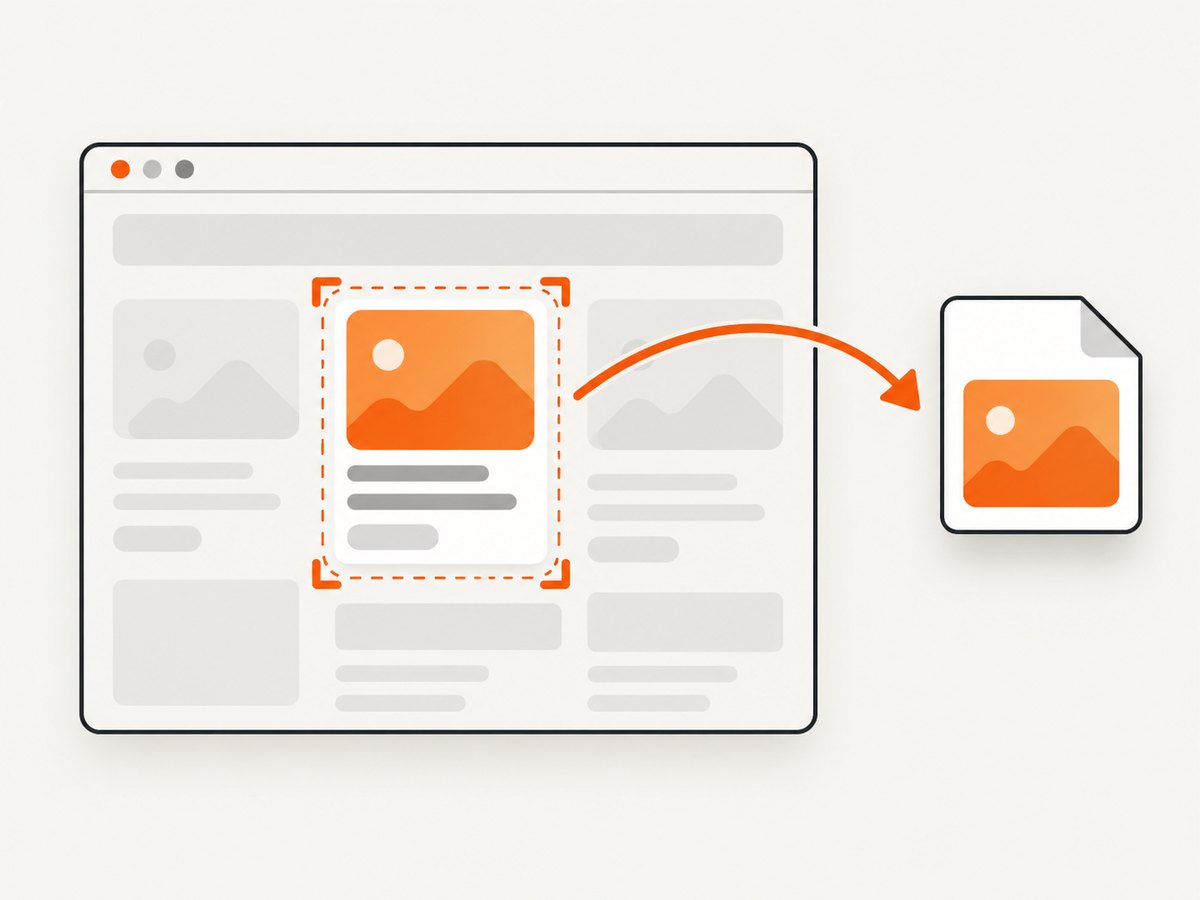
“Part of a page” can mean an element in the DOM, a rectangle at fixed coordinates, or a section of a long document. Pick the method that matches how you define the region:
| What you need | Use | Why |
|---|---|---|
| A component, card, chart, or other DOM element | locator.screenshot() |
The capture follows the element’s rendered bounds as the layout changes. |
| A rectangle that does not map to one element | page.screenshot({ clip }) |
You control the top-left coordinates and dimensions. |
| The entire scrollable document | page.screenshot({ fullPage: true }) |
Playwright captures the full page rather than only the viewport. |
| Pixels for later processing | Call screenshot() without path |
The call returns image bytes that you can save, compare, or pass to another library. |
Prefer a locator for a responsive page: a fixed rectangle that catches a chart at one viewport can miss it at another. Use coordinates when the rectangle is the requirement, such as a selected canvas region or a crop in a known screenshot layout. For more options, see the official Playwright screenshots documentation.
2. Set up a runnable Playwright script
The following Node.js example opens a page, waits for a specific element, saves an image of that element, then saves a coordinate crop. Install Playwright and its browser first:
npm init -y
npm install playwright
npx playwright install chromium
Save this as capture-part.js and run it with node capture-part.js:
const { chromium } = require('playwright');

(async () => {
  const browser = await chromium.launch({ headless: true });
  const page = await browser.newPage({ viewport: { width: 1280, height: 900 } });

  try {
    await page.goto('https://example.com', { waitUntil: 'domcontentloaded' });
    const heading = page.locator('h1');
    await heading.waitFor({ state: 'visible', timeout: 15000 });

    // Capture the element's bounding region.
    await heading.screenshot({ path: 'heading.png' });

    // Capture a rectangle in viewport coordinates.
    await page.screenshot({
      path: 'region.png',
      clip: { x: 40, y: 100, width: 600, height: 250 }
    });
  } finally {
    await browser.close();
  }
})().catch((error) => {
  console.error(error);
  process.exitCode = 1;
});
Replace https://example.com and h1 with your target page and selector. The locator screenshot is the useful output when you want the heading itself; the clip is an independent rectangle relative to the page viewport. The script closes the browser in a finally block so it also cleans up after a navigation or capture error.
3. Capture one element with a locator
A locator screenshot is usually the most robust partial-page capture. It targets what the page rendered, not a guessed position. This makes it suitable for components whose position changes with viewport size or content above them.
const card = page.locator('[data-testid="pricing-card"]');
await card.waitFor({ state: 'visible' });
const imageBytes = await card.screenshot({ path: 'pricing-card.png' });
When you already have an image-processing step, omit path and keep the returned buffer:
const imageBytes = await page.locator('.chart').screenshot();
// imageBytes is a Buffer in Node.js; pass it to your image pipeline.
Use a selector that identifies exactly the intended element. A locator matching multiple nodes can be ambiguous; narrow it with a parent, a test ID, or a more specific CSS selector. If the element is created asynchronously, wait for the relevant state before capturing it. The locator screenshot waits for actionability and scrolls the target into view; it can fail if the element is detached before the screenshot completes. [Locator screenshot API]
For an element with animation or a blinking cursor, disable animations to make repeated captures more stable:
await page.locator('.status-card').screenshot({
  path: 'status-card.png',
  animations: 'disabled'
});
Playwright’s screenshot options also support masking matching elements and choosing an output type. For example, a timestamp can be covered so visual comparisons focus on the surrounding content:
await page.locator('.report').screenshot({
  path: 'report.png',
  mask: [page.locator('.last-updated')],
  type: 'png'
});
Check the API documentation for supported options and defaults, especially if you use additional options such as masking color, scale, or animation handling. [Locator screenshot options]
4. Capture an arbitrary rectangle with clip
Use clip when you need a precise rectangle rather than an element’s bounds. Its x and y values identify the top-left corner, and width and height set the size. The coordinates are CSS pixels in the page viewport.
await page.screenshot({
  path: 'region.png',
  clip: { x: 0, y: 120, width: 800, height: 400 }
});
Make sure the rectangle fits the rendered page area. Negative dimensions or an area outside the page can fail; if the target content moves with responsive layout, measure it at the viewport you will use or switch to an element locator. You can read an element’s bounding box and use those coordinates as a starting point for a crop, but bounding boxes are viewport-relative and can become stale after scrolling or layout changes.
const box = await page.locator('.chart').boundingBox();
if (!box) throw new Error('Chart is not visible or has no bounding box');

await page.screenshot({
  path: 'chart-region.png',
  clip: { x: box.x, y: box.y, width: box.width, height: box.height }
});
For the element itself, prefer locator.screenshot(): it couples locating and capture and avoids a gap in which the page can reflow. Use a measured clip when you specifically need page-level cropping or want to include nearby space around the element.
5. Handle scrollable and full-page content
A locator screenshot captures the element’s visible rendered region. If the locator is a scrollable panel with content beyond its own scroll area, the screenshot shows only the currently visible portion inside that panel. Scroll the container deliberately before capture if you need another portion:
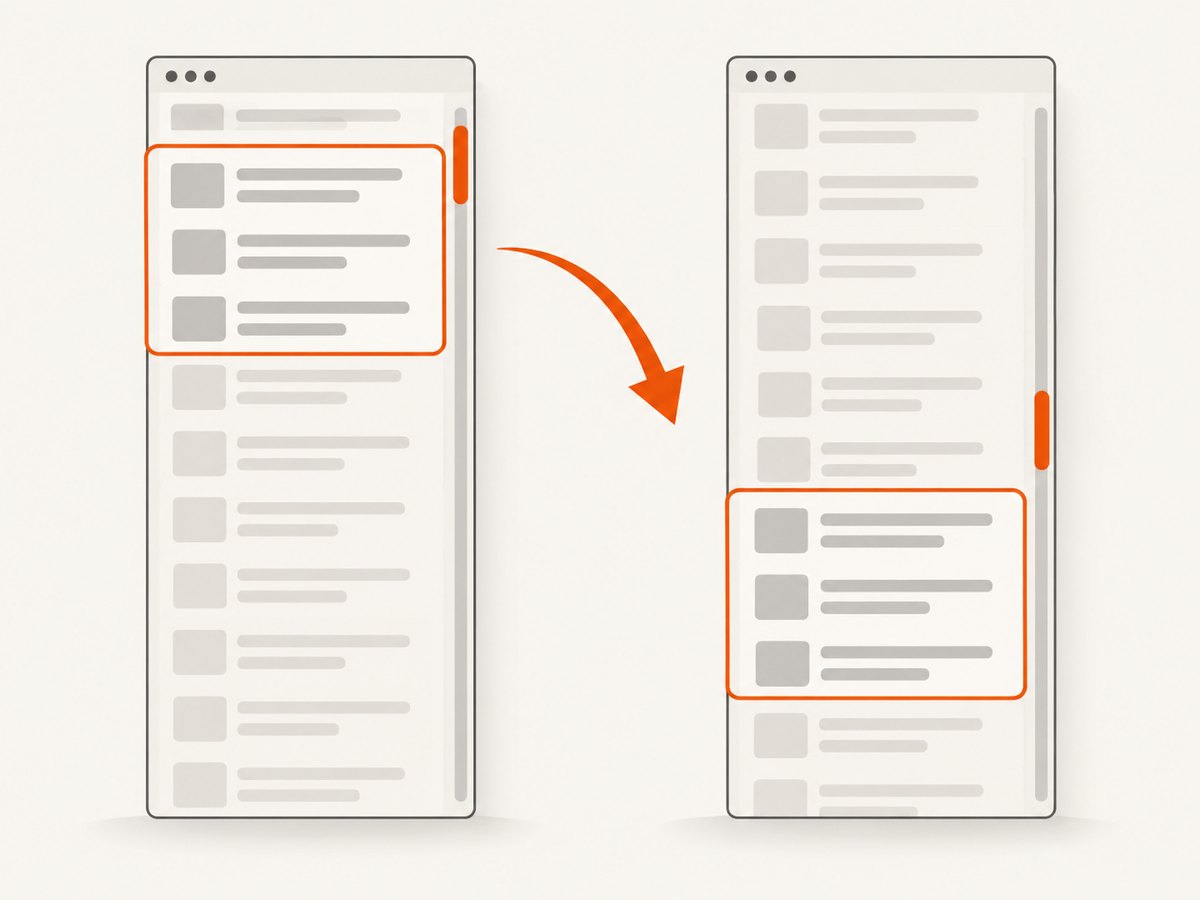
const panel = page.locator('.results-panel');
await panel.evaluate((el) => { el.scrollTop = 500; });
await page.waitForTimeout(100);
await panel.screenshot({ path: 'results-panel-later.png' });
The short delay above is only an example; prefer waiting for a meaningful state or for any scroll-triggered content to appear. If the goal is a child row or card, target that child instead. If you want the whole document, use fullPage:
await page.screenshot({ path: 'whole-page.png', fullPage: true });fullPage and a partial element capture solve different problems. A full-page image can be tall and memory-intensive; a locator crop keeps the output focused and smaller. Lazy-loaded images may not appear until they have been brought into view. When the capture must include them, scroll the document or relevant container through the content and wait for images to load before taking the screenshot. [Playwright screenshot guide]
6. Make captures repeatable
Partial screenshots are often used in tests, documentation, or visual review. A reliable capture depends on the page being in a known state, not just on choosing the right API.
- Set the viewport. Choose a fixed width and height before navigation when layout affects the target bounds.
- Wait for the target. Use a locator wait or a web assertion for the actual state you need, rather than assuming the page is ready after a fixed delay.
- Control motion. Disable animations for capture where supported. Transitions and carousels can otherwise produce different frames.
- Handle volatile content. Mask timestamps, avatars, ads, or other changing regions if the screenshot is used for visual comparison.
- Choose the right scale and format. PNG is lossless and useful for pixel comparisons; JPEG and WebP can reduce output size when lossy compression is acceptable. Playwright supports screenshot type and scale settings; consult the API reference for the exact options for your installed version.
- Save useful artifacts. Write captures to paths that your test runner retains on failure, or keep returned bytes in memory if you process them immediately.
Do not use a fixed sleep as the only readiness check for a dynamic page. It can waste time when the page is fast and still be too short when it is slow. Wait for the element, response, or application state that determines whether the pixels you need are ready.
7. Troubleshooting common failures
| Symptom | Likely cause | Fix |
|---|---|---|
| “Locator resolved to hidden” or the target is missing | The selector does not match the rendered element, or it is hidden at the current state or viewport. | Check the selector, set the viewport, and wait for the element to become visible. Confirm the page did not show a consent screen or error instead. |
| Locator screenshot fails because the element was detached | A rerender replaced the target between locating it and capture. | Wait for the final state and locate again after the rerender. Avoid retaining a stale element handle; use a locator that resolves against the current DOM. |
| The crop is blank or captures the wrong area | Clip coordinates are based on a different viewport or page state than expected. | Set viewport dimensions before navigation, inspect the target’s bounding box immediately before capture, and ensure the rectangle is within the visible page area. |
| Only part of a scrollable panel appears | Element screenshots do not automatically stitch all of a panel’s internal scroll content. | Scroll the panel to the desired position, or capture individual child elements. Use a full-page screenshot only for document-level content. |
| Images, fonts, or charts are missing | The capture ran before those resources or client-side rendering finished. | Wait for the specific image, chart, or application-ready condition. If content is lazy-loaded, scroll it into view first. |
| Images differ across runs | Animation, timestamps, random content, or layout changes affected pixels. | Disable animations, mask volatile areas, use a fixed viewport, and wait for a stable state. |
| Browser launch fails in CI | The browser binary may not be installed in the environment or required system dependencies may be missing. | Install the Playwright browser for the environment with npx playwright install chromium; follow the official Playwright CI guidance for your runner. |
| Output file is missing | The script failed before capture, wrote to a different working directory, or did not await the screenshot promise. | Await the screenshot call, use an explicit output path, and preserve the original error in logs. |
8. Performance, reliability, and cost
Capturing a locator is usually less work than rendering a full-page image, especially for long documents, but actual time and memory depend on the site, browser, viewport, image resources, and CI machine. Keep the browser open for a batch of related captures instead of launching it once per image. Reuse a browser context when the captures should share cookies and session state; create a fresh context when isolation matters.
For dependable automation, set navigation and action timeouts deliberately, close pages and browsers on both success and failure, and record enough context to diagnose a failed capture: target URL, viewport, selector or clip, and the error. Avoid treating every screenshot failure as an empty image; surface it as a failed job so downstream consumers know the capture is missing.
Running Playwright yourself means maintaining browser binaries and runtime resources. In CI, screenshots also consume time and artifact storage, especially when capturing many full pages or retaining large PNGs. Limit captures to the needed region, choose a compressed format when exact pixel fidelity is unnecessary, and retain artifacts according to your debugging needs. There is no universal capture-time benchmark; measure your own pages and runner.
9. Or skip the browser setup
If you need a screenshot of a public URL without installing or managing a browser, ScreenshotNeo provides a one-request screenshot API. The API can return PNG, JPEG, WebP, or PDF; its options include capturing an element by CSS selector, full-page capture, viewport settings, and custom CSS and JavaScript. See the ScreenshotNeo API documentation.
curl -G "https://api.screenshotneo.com/v1/shot" -d access_key=YOUR_API_KEY --data-urlencode url=https://stripe.com -o shot.webpimport requests
r = requests.get(
"https://api.screenshotneo.com/v1/shot",
params={"access_key": "YOUR_API_KEY", "url": "https://stripe.com"},
timeout=90,
)
r.raise_for_status()
open("shot.webp", "wb").write(r.content)const q = new URLSearchParams({ access_key: 'YOUR_API_KEY', url: 'https://stripe.com' });
const res = await fetch(`https://api.screenshotneo.com/v1/shot?${q}`);
if (!res.ok) throw new Error(`Screenshot request failed: ${res.status}`);
await import('node:fs/promises').then(({ writeFile }) => writeFile('shot.webp', Buffer.from(await res.arrayBuffer())));ScreenshotNeo removes cookie and consent banners, newsletter popups, and chat widgets before capture; each step can be turned off. Bot checks, blank pages, timeouts, failed loads, and cache hits cost nothing, and response headers report the page verdict and billing status. Its MCP server offers take_screenshot, get_page_info, and capture_pdf tools for AI agents and MCP clients. The free plan includes 1,000 shots a month with no card; paid plans start at $5 for 3,000 shots. Sign up for 1,000 free screenshots a month, with no card.
10. FAQ
Can I capture a region without a CSS selector?
Yes. Use page.screenshot({ clip: { x, y, width, height } }) to define the rectangle directly.
Does a locator screenshot scroll the page?
Playwright scrolls the matched element into view as part of the locator screenshot process. It does not stitch all internally scrollable content into one image.
Can I return the screenshot instead of saving a file?
Yes. Omit path; the screenshot call returns image bytes for processing or storage by your script.
When should I use a full-page screenshot?
Use fullPage: true when you need the complete document. For one component, a locator screenshot is more focused and generally easier to compare.


