How to Capture Part of a Screen or Webpage
Capture a selected area on Windows or Mac, or save one section or a full page in your browser. Here are the shortcuts, steps, and fixes.

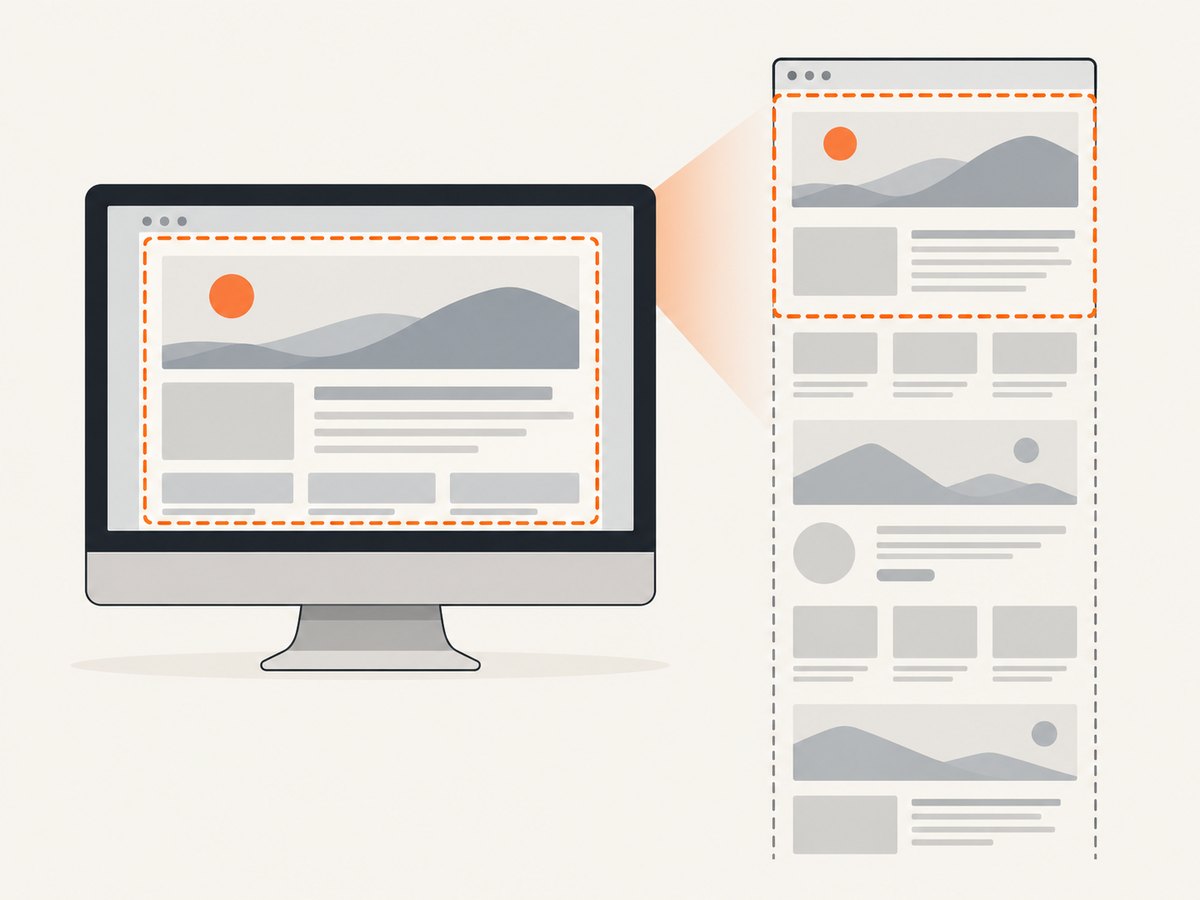
To capture part of a screen, use your operating system’s screenshot shortcut: on Windows, press Windows + Shift + S and select an area; on Mac, press Shift + Command + 4 and drag around the area. To capture part of a webpage, use your browser’s screenshot tool: Firefox can save a selected region, the visible page, or the full page. Edge’s Screenshot command supports a selected region or full-page capture.
The key distinction: operating-system tools capture what is visible on your display; browser tools can capture webpage content that extends beyond the viewport. If you need a repeatable screenshot of a webpage in code, use browser automation or an API. Steps and options for each case follow.
1. Capture a selected area on Windows
Windows Snipping Tool captures a rectangle, freeform region, window, or entire screen. For a quick selection, press Windows + Shift + S, choose a mode from the overlay, and select the area. The capture is copied to the clipboard and opens in Snipping Tool, where you can annotate, save, or share it. [Microsoft’s Snipping Tool guide](https://support.microsoft.com/en-us/windows/apps/use-snipping-tool-to-capture-screenshots) documents the shortcut and modes.
- Arrange the desktop so the target is visible. Close or move anything you do not want included.
- Press Windows + Shift + S.
- Choose Rectangle and drag around the target. Choose Freeform for an irregular outline, Window for one application window, or Full screen for the whole display.
- Click the Snipping Tool notification if you want to edit, annotate, or save the image. Use Ctrl + C to copy and Ctrl + S to save when the capture is open.
For a menu that closes when you click elsewhere, open Snipping Tool first, set a delay of 1–5 seconds, start a new snip, and open the menu during the countdown. For a quick full-screen copy, Print Screen may copy the screen to the clipboard, depending on your Windows settings. Snipping Tool also includes text actions for extracting text from a capture; Microsoft says this recognition runs locally on the device.
2. Capture a selected area on Mac
Press Shift + Command + 4. The pointer becomes a crosshair. Drag to frame the portion you want, then release. Press Esc before releasing to cancel. While dragging, hold the space bar to move the selection without changing its dimensions. Apple’s [Mac screenshot guide](https://support.apple.com/en-ie/102646) describes the area shortcut, Screenshot app, and save options.
- Bring the target to the front and position it on screen.
- Press Shift + Command + 4, drag the crosshair across the region, and release.
- Click the thumbnail that appears to edit, or let the capture save to the configured destination. By default, screenshots are saved to the desktop.
To copy instead of saving a file, hold Control while using the shortcut. For more controls, press Shift + Command + 5 to open the Screenshot app. Its Options menu provides a timer, save destination, floating-thumbnail setting, and pointer visibility. Supported Mac models using macOS Tahoe 26 or later can choose SDR/PNG or HDR/HEIF capture formats. Some protected apps, including Apple TV, may not allow screenshots of their windows.
3. Capture part of a webpage in a browser
Firefox: selected region, page part, visible area, or full page
Open the page, then right-click an empty part of it and choose Take Screenshot. You can also press Ctrl + Shift + S on Windows or Linux, or Command + Shift + S on Mac. Drag to select a custom region, or move the pointer over the page and click an automatically highlighted section. Choose Save visible for the current viewport or Save full page for the whole document. Use Copy for the clipboard or Download to save a PNG. See [Firefox’s screenshot instructions](https://support.mozilla.org/en-US/kb/take-screenshots-firefox).
For keyboard operation, Firefox supports arrow-key movement of the selection crosshair; its documentation notes that crosshair movement does not work on Wayland. The screenshot tool’s exact controls may vary with browser version and platform.
Microsoft Edge: selected area or full page
On a webpage in Edge, right-click and choose Screenshot, or use Ctrl + Shift + S where available. Select an area or choose the full-page capture option for content below the viewport, then annotate, copy, or save. The browser’s available labels can differ by version. Microsoft describes Edge Screenshot as capturing a full page or selected area and allowing markup; see [Microsoft Edge Screenshot](https://www.microsoft.com/en-us/edge/features/screenshot).
4. Choose the right kind of capture
| Need | Use | Why |
|---|---|---|
| Small rectangular area anywhere on Windows | Snipping Tool, Rectangle | Drag a precise box around visible content. |
| Irregular screen region | Snipping Tool, Freeform | Trace around a non-rectangular target. |
| One application window | Snipping Tool, Window | Capture a selected window directly. |
| Selected area on Mac | Shift + Command + 4 | Crosshair selection with a movable region. |
| Webpage section | Firefox or Edge screenshot tool | Browser understands page content and can select a region. |
| Long page below the fold | Firefox Save full page or Edge full-page capture | Captures beyond the currently visible viewport. |
| Menu that disappears on interaction | Snipping Tool delay or Mac Screenshot timer | Gives you time to open the menu before capture. |
| Automated, repeatable website image | Browser automation or a screenshot API | Can capture URLs consistently without manual selection. |
Use a screen capture for a desktop application or anything that is already visible. Use a browser full-page feature when you need content below the fold. For programmatic captures, CSS selectors and viewport settings are more repeatable than manually dragging a region.
5. Capture a webpage section in code with Playwright
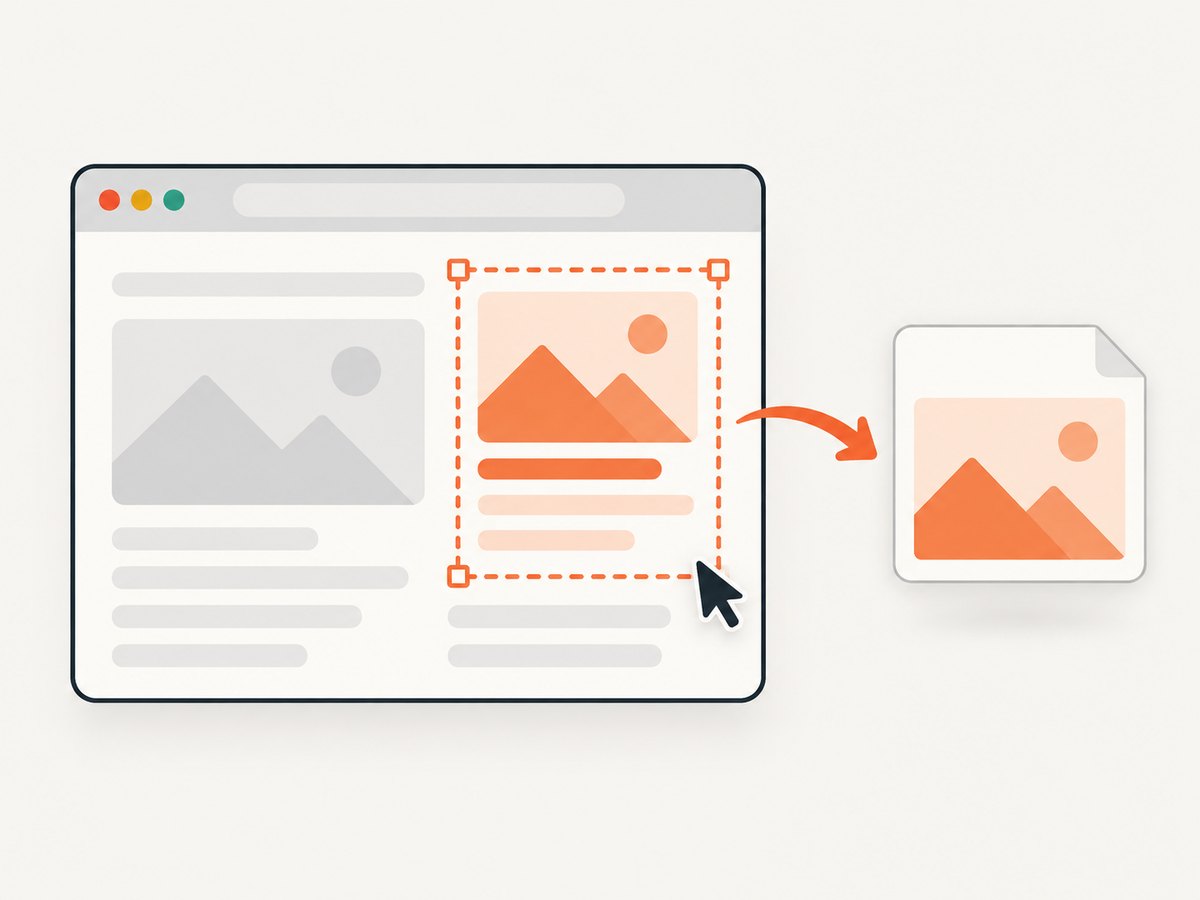
For a webpage you are authorized to access, Playwright can save either one element or the visible viewport. This JavaScript example captures an element matching a CSS selector. It waits for the element, then writes a PNG. Install Playwright and its Chromium browser once in your project:
npm install playwright
npx playwright install chromium
Save as capture.mjs, then run node capture.mjs https://example.com 'main article':
import { chromium } from 'playwright';

const [url, selector = 'body'] = process.argv.slice(2);
if (!url) throw new Error('Usage: node capture.mjs <url> [css-selector]');

const browser = await chromium.launch({ headless: true });
try {
  const page = await browser.newPage({ viewport: { width: 1440, height: 900 }, deviceScaleFactor: 1 });
  await page.goto(url, { waitUntil: 'domcontentloaded', timeout: 30_000 });
  const target = page.locator(selector).first();
  await target.waitFor({ state: 'visible', timeout: 10_000 });
  await target.screenshot({ path: 'section.png' });
} finally {
  await browser.close();
}
To capture the viewport instead of a selected element, replace await target.screenshot(...) with await page.screenshot({ path: 'viewport.png' }). For a scrolling full-page image, use await page.screenshot({ path: 'full-page.png', fullPage: true }). These modes are different: an element screenshot crops to that element’s bounds; a viewport screenshot records the visible browser content; full-page capture extends to the document height.
Wait for the content you actually need
domcontentloaded waits for the initial document parse, not every image, API call, animation, or lazy-loaded section. If the target is populated asynchronously, wait for a stable selector or a known page state. If you use networkidle, be aware that analytics, polling, and long-lived requests can prevent it from settling. A short deliberate delay can help with animations, but it is less reliable than waiting for a specific element.
For lazy-loaded images lower on a long page, a full-page screenshot alone may not trigger every image to load. Scroll through the document before capture, wait for images to finish, or use a capture tool that explicitly loads lazy images. Avoid injecting arbitrary sleeps as the only readiness check: they waste time on fast pages and can still be too short on slow ones.
6. Or skip the browser setup
If your task is to capture a webpage by URL without installing and maintaining a browser, [ScreenshotNeo](https://screenshotneo.com) is a website screenshot API and MCP server. One GET request returns a PNG, JPEG, WebP, or PDF. The API supports full-page and CSS-element captures, viewport and device presets, waits, custom CSS or JavaScript, cookies and headers, and other capture options. See the [ScreenshotNeo API documentation](https://screenshotneo.com/docs/).
cURL:
curl -G "https://api.screenshotneo.com/v1/shot" \
  -d access_key=YOUR_API_KEY \
  --data-urlencode url=https://example.com \
  -o shot.webp
Python:
import requests

r = requests.get(
    "https://api.screenshotneo.com/v1/shot",
    params={"access_key": "YOUR_API_KEY", "url": "https://example.com"},
    timeout=90,
)
r.raise_for_status()
open("shot.webp", "wb").write(r.content)
Node.js:
const q = new URLSearchParams({
  access_key: 'YOUR_API_KEY',
  url: 'https://example.com'
});
const res = await fetch(`https://api.screenshotneo.com/v1/shot?${q}`);
if (!res.ok) throw new Error(`Screenshot request failed: ${res.status}`);
await Bun.write('shot.webp', res);
ScreenshotNeo removes cookie and consent banners, newsletter popups, and chat widgets before capture; each cleanup step can be turned off. Bot checks, blank pages, failed loads, timeouts, and cache hits are not billed, and response headers report the page verdict and billing status. Its MCP server gives AI agents tools to take screenshots, inspect page information, and capture PDFs. The free plan includes 1,000 screenshots a month with no card; paid plans start at $5 for 3,000. Create a free account and get 1,000 screenshots a month with no card.
7. Troubleshooting common capture problems
| Problem | Likely cause | What to try |
|---|---|---|
| The shortcut does nothing | A keyboard utility, remote desktop, or system shortcut has taken it over. | Open Snipping Tool or Screenshot from the app list. Check keyboard settings and try the app’s New command. |
| The selection overlay appears, but the image is missing | The capture may be in the clipboard or awaiting the editor notification. | Paste into an image editor, check notifications, or open the screenshot tool and save from its editor. |
| A browser shortcut opens something else | Browser or operating-system shortcuts can conflict. | Use the browser menu’s Screenshot or Take Screenshot command instead of the shortcut. |
| The long screenshot cuts off or repeats content | Sticky elements, virtualized lists, animations, or lazy loading can change during scrolling. | Use the browser’s full-page mode, wait for the page to settle, and test whether the page renders all content in the DOM. For automated capture, scroll incrementally and wait for target content. |
| The element screenshot is blank or times out | The selector did not match, the element is hidden, or the page has not rendered it. | Confirm the selector in developer tools, wait for visible state, and check whether the content is inside an iframe or shadow root. |
| A protected video or app region is black | Content protection can block screenshots. | Use an approved export or sharing feature. Some apps intentionally prevent screen capture. |
| Screenshot looks blurry | The selected region is small, display scaling is involved, or the image was resized/compressed. | Capture at the target display size, use a higher device scale factor for browser automation, and avoid enlarging a small bitmap afterward. |
| Clipboard paste fails | The capture tool saved a file instead, or clipboard access is restricted. | Use the explicit Copy command or open the saved image and copy from the editor. |
8. Quality, privacy, performance, and cost
Make the result readable
- Frame only the information needed. Remove unrelated tabs, notifications, personal details, and account identifiers before sharing.
- For browser captures, choose a viewport that preserves the layout you want to document. A responsive page may rearrange at different widths.
- Capture after fonts, images, and asynchronous content have loaded. For pages with animation, choose a stable frame or disable motion for your own test environment.
- Use PNG when sharp text matters and lossy artifacts would be distracting. Consider JPEG or WebP when smaller files matter and the receiving system supports them.
Keep captures safe and repeatable
A screenshot can expose private content even when the URL looks harmless. Select the smallest useful region, crop or annotate before sending, and avoid capturing passwords, tokens, personal data, or private account pages. Windows Snipping Tool provides crop and annotation tools; Microsoft says its text recognition runs locally. Firefox documents that its screenshot telemetry does not include the URL or image details captured. For automation, use a test account and keep access credentials out of source code and logs.
For repeatable automation, set the viewport explicitly, use a deterministic target URL and selector, wait for a meaningful page condition, and close the browser in a finally block. Keep timeouts bounded. A full-page image can consume more memory and take longer than a viewport or element crop, especially on very long pages. Capture only the required region where possible.
Budget the workflow
Built-in Windows, Mac, Edge, and Firefox capture tools are included with the platform or browser and are usually the simplest choice for occasional manual work. Playwright avoids per-image API charges but requires browser installation, runtime resources, and maintenance of your capture code. A hosted API can remove that setup and provide capture-specific options; compare its pricing and billing behavior against your volume and failure patterns. ScreenshotNeo’s published plans are Free: 1,000 shots/month; Starter: $5 for 3,000; Growth: $15 for 15,000; Pro: $39 for 60,000; Scale: $99 for 250,000; Business: $249 for 1,000,000. Yearly billing gives two months free, and every feature is on every plan.
9. Frequently asked questions
How do I take a scrolling screenshot?
Use Firefox’s Save full page or Edge’s full-page capture for a website. For a long page in automation, use a full-page screenshot and make sure lazy-loaded sections have rendered first.
Can I select an irregular shape?
On Windows, choose Snipping Tool’s Freeform mode. The Mac selected-area shortcut and the browser region selectors use rectangular bounds.
How do I screenshot a menu that closes?
Set a Snipping Tool delay on Windows or a timer in the Mac Screenshot app. Start the countdown, open the menu, then make the selection.
Why does a full-page screenshot omit some content?
Some websites load content only as you scroll, replace offscreen sections, or animate sticky elements. Trigger the content before capture and use a stable page state; when automating, wait for the relevant selector rather than relying only on elapsed time.
What should I use for screenshots in a product or script?
Use Playwright when you need control in your own code and can manage a browser runtime. Use a screenshot API when you want URL-based capture without maintaining that browser setup.


