How to Capture Part of a Web Page with Python and Selenium
Capture one Selenium element or crop any rectangle from a viewport screenshot with runnable Python examples, fixes, and production guidance.
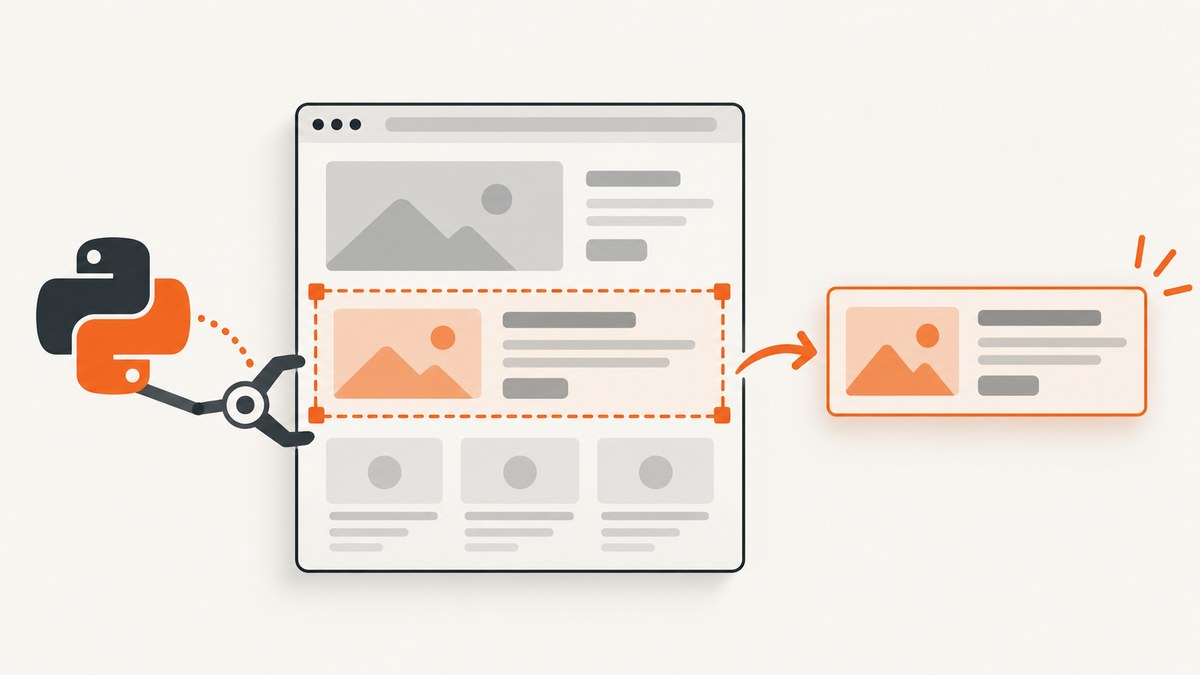
Direct answer: use Selenium’s WebElement.screenshot() when the part you need is one DOM element. For a free-form rectangle that crosses several elements, take a current-window PNG with driver.get_screenshot_as_png() and crop it with Pillow. Selenium documents both element screenshots and current-window screenshots; arbitrary rectangle capture is image processing after the browser capture.
The examples below use Selenium 4’s Python API. The official references are the WebElement API and WebDriver API.
1. Set up Python, Selenium and a browser
Install Selenium and Pillow (Pillow is only needed for rectangle cropping):
python -m pip install selenium pillowSelenium Manager generally obtains a compatible driver when you create a driver. This example uses Chrome:
from selenium import webdriver

options = webdriver.ChromeOptions()
options.add_argument('--headless=new')
options.add_argument('--window-size=1440,1200')
driver = webdriver.Chrome(options=options)
try:
    driver.get('https://example.com')
    print(driver.title)
finally:
    driver.quit()
Use a stable viewport size in automation. Window dimensions, browser zoom, device scale and responsive breakpoints all affect the screenshot bitmap.
2. Capture one DOM element
When the requested region maps to one element, locate that element and call screenshot():
from selenium import webdriver
from selenium.webdriver.common.by import By
from selenium.webdriver.support.ui import WebDriverWait
from selenium.webdriver.support import expected_conditions as EC

options = webdriver.ChromeOptions()
options.add_argument('--headless=new')
options.add_argument('--window-size=1440,1200')
driver = webdriver.Chrome(options=options)
try:
    driver.get('https://example.com')
    region = WebDriverWait(driver, 20).until(
        EC.visibility_of_element_located((By.CSS_SELECTOR, 'main'))
    )
    region.screenshot('region.png')
finally:
    driver.quit()
element.screenshot(path) writes a PNG file. If you need to process or upload the image without writing it first, use element.screenshot_as_png:
png_bytes = region.screenshot_as_png
with open('region.png', 'wb') as output:
    output.write(png_bytes)
Choose a selector for the exact element. A parent element can include unwanted padding or neighboring content, while a child can clip content you expected to include. The element must be rendered and visible in the intended page state.
Scroll before measuring or capturing
An element below the fold should be scrolled into view before you measure its position or compare it with a viewport screenshot:
driver.execute_script("arguments[0].scrollIntoView({block: 'center', inline: 'nearest'});", region)
# Wait for any scroll-triggered layout or lazy content to settle here.
region.screenshot('region.png')
Selenium’s Python bindings also describe an element location helper that scrolls an element into view, and warn that the location can change. Treat geometry as stateful: scroll, wait for layout changes, then measure and capture in that same state. See the Selenium Python Bindings API reference.
3. Capture an arbitrary rectangle with Pillow
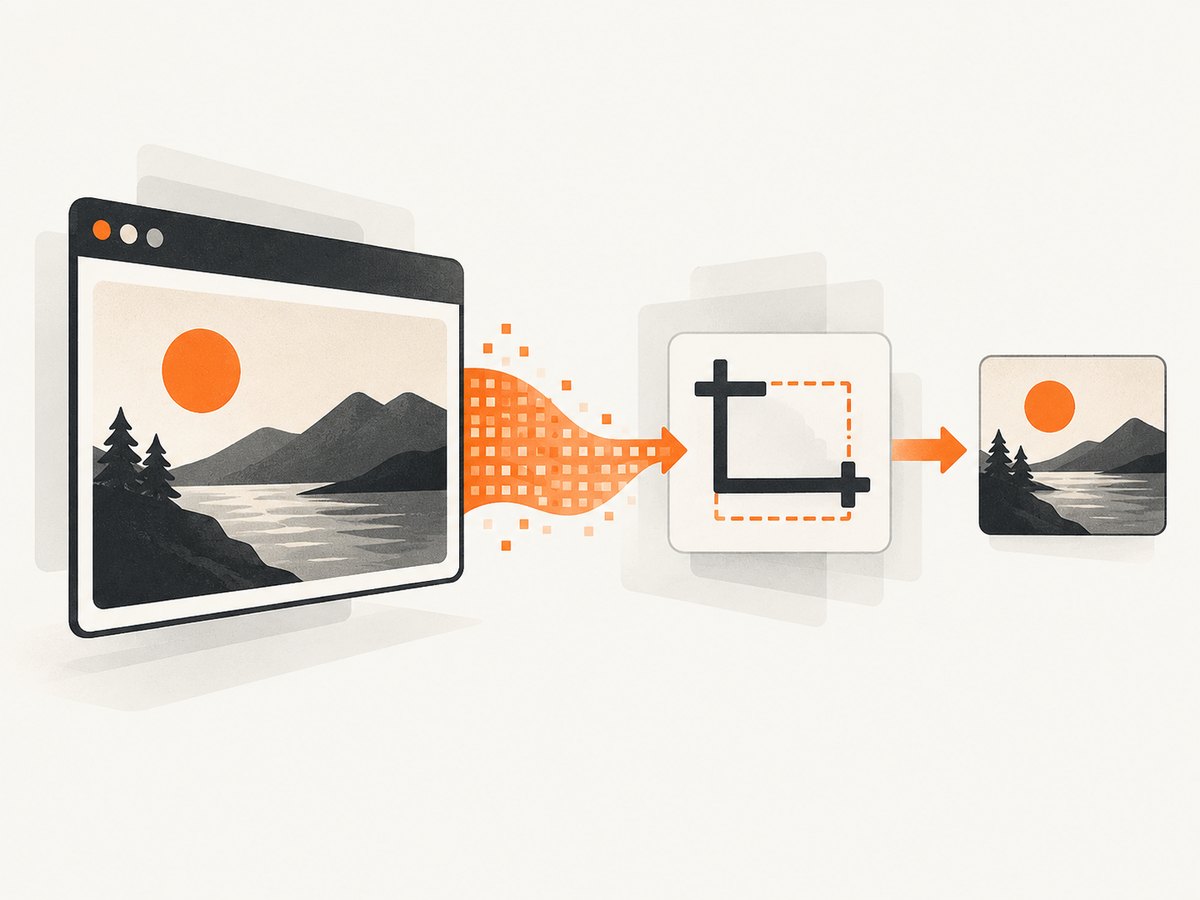
If the target is not one DOM node, capture the current window and crop the returned PNG bytes. The crop box is (left, upper, right, lower) in screenshot-image coordinates:
from io import BytesIO
from PIL import Image
from selenium import webdriver

options = webdriver.ChromeOptions()
options.add_argument('--headless=new')
options.add_argument('--window-size=1440,1200')
driver = webdriver.Chrome(options=options)
try:
    driver.get('https://example.com')
    png = driver.get_screenshot_as_png()
    image = Image.open(BytesIO(png))

    left, top, right, bottom = 100, 180, 1100, 760
    if not (0 <= left < right <= image.width and 0 <= top < bottom <= image.height):
        raise ValueError(f'Crop box is outside {image.size}: {(left, top, right, bottom)}')

    image.crop((left, top, right, bottom)).save('rectangle.png')
finally:
    driver.quit()
driver.get_screenshot_as_png() returns PNG bytes for the current window. driver.save_screenshot(path) and driver.get_screenshot_as_file(path) are convenient when you only need a file. The crop itself is performed by Pillow, not by a Selenium rectangle API.
Derive a crop from an element rectangle
You can use an element’s rect after scrolling, but coordinate conversion is not universal across browsers and display scales. Validate the mapping in the exact driver configuration you run:
from io import BytesIO
from PIL import Image
from selenium.webdriver.common.by import By

region = driver.find_element(By.CSS_SELECTOR, 'article .target')
driver.execute_script("arguments[0].scrollIntoView({block: 'center'});", region)
rect = region.rect
png = driver.get_screenshot_as_png()
image = Image.open(BytesIO(png))

# This simple mapping assumes CSS-pixel coordinates align with bitmap pixels.
# Check it locally when device scale, zoom, or browser behavior differs.
scale_x = image.width / driver.execute_script('return window.innerWidth')
scale_y = image.height / driver.execute_script('return window.innerHeight')
box = (
    round(rect['x'] * scale_x),
    round(rect['y'] * scale_y),
    round((rect['x'] + rect['width']) * scale_x),
    round((rect['y'] + rect['height']) * scale_y),
)
image.crop(box).save('element-crop.png')
This is a starting point, not a cross-browser guarantee. Browser zoom, device-pixel ratio, scrollbars, window chrome, sticky headers, scroll position and reflow can shift the result. Compare the crop with a debug screenshot and adjust for the target browser and driver.
4. Choose the right method
| Need | Method | Trade-off |
|---|---|---|
| One DOM element | element.screenshot(path) or screenshot_as_png |
Simple and avoids manual coordinates; limited to that element’s rendered region. |
| Rectangle crossing elements | get_screenshot_as_png() plus Pillow crop() |
Flexible, but coordinates must match screenshot pixels. |
| Current-window file | save_screenshot(path) or get_screenshot_as_file(path) |
Easy PNG output; no in-memory processing. |
| Image bytes for upload or processing | get_screenshot_as_png() or screenshot_as_png |
Avoids temporary files; your code owns storage and encoding. |
The standard current-window API does not establish a browser-independent full-document guarantee. If you need a full page, verify the behavior of your browser and driver rather than assuming a portable result.
5. Make the capture deterministic
- Navigate to the page and wait for the target selector.
- Wait for content that changes after the selector appears, such as images, charts or fonts.
- Dismiss consent dialogs or close overlays that cover the target.
- Scroll the element into view before taking geometry or a screenshot.
- Use a fixed window size, zoom and device scale in CI.
- Capture immediately after the final layout-changing action.
from selenium.webdriver.support.ui import WebDriverWait

wait = WebDriverWait(driver, 20)
region = wait.until(EC.visibility_of_element_located((By.CSS_SELECTOR, '.invoice')))
wait.until(lambda d: d.execute_script("return document.fonts ? document.fonts.status === 'loaded' : true"))
driver.execute_script("arguments[0].scrollIntoView({block: 'center'});", region)
region.screenshot('invoice.png')
For lazy-loaded content, scroll far enough to trigger loading, then wait for the relevant image’s complete property and a nonzero natural width. For animations, disable them with test CSS or wait for a stable state.
6. Troubleshooting
Element screenshot raises NoSuchElementException
Cause: the selector did not match at lookup time, the element is inside an iframe, or the page has not finished rendering.
Fix: use an explicit wait, switch into the correct iframe with driver.switch_to.frame(), and verify the selector in browser developer tools.
The screenshot is blank or the element is missing
Cause: the element is hidden, covered by a modal, still loading, or outside the intended page state.
Fix: wait for visibility, remove overlays, scroll into view, and wait for images, fonts or charts before capture.
The crop is shifted
Cause: element coordinates are CSS pixels while the PNG can use device pixels; scrolling, browser zoom, sticky content or reflow can also change positions.
Fix: scroll and measure after layout settles, inspect image.size and window.innerWidth, check device scale, and validate the scale factor in the same browser configuration. Do not reuse coordinates measured before scrolling.
The crop cuts off content
Cause: Pillow uses an exclusive right and bottom edge, or the requested box extends outside the bitmap.
Fix: validate 0 <= left < right <= image.width and the equivalent vertical conditions. Add a small margin only after confirming the coordinate system.
Headless and headed screenshots differ
Cause: different viewport defaults, device scale, fonts, GPU behavior or browser flags.
Fix: set the same window size and scale, use the same browser version, and compare both modes with a diagnostic screenshot.
Capture times out
Cause: the page or a third-party resource never reaches the state your wait requires.
Fix: wait for the specific selector or resource needed for the image, set a finite timeout, and collect page logs. Avoid waiting forever for global network idleness when the page keeps analytics connections open.
7. Performance, reliability and cost
Element screenshots usually avoid the extra decode and crop step, so they are the most direct option. Rectangle capture adds PNG encoding, Pillow decoding and a second PNG encode. Keep images in memory when uploading them, and resize only after cropping if a smaller artifact is sufficient.
For reliable batch jobs, reuse a driver where safe, isolate pages that carry sensitive state, set explicit timeouts, and save a diagnostic full-window screenshot when a crop fails. Record the URL, viewport, browser version and crop box alongside the output so a shifted image can be reproduced.
Selenium itself is open-source, but your run still consumes browser, CPU, memory and hosting resources. Remote browsers, CI minutes and image storage can be the largest operational costs. A browser session is also required for every page load, including pages blocked by bot checks or pages that never render.
8. Or skip the browser setup
ScreenshotNeo provides a website screenshot API when you want a URL-to-image request instead of maintaining Selenium and a browser. It can capture a full page or one CSS-selected element, wait for a selector, delay or network idle, run custom CSS and JavaScript, set viewport and device presets, use retina scale, hide selectors, block ads, trackers, requests or resource types, and return PNG, JPEG, WebP or PDF.
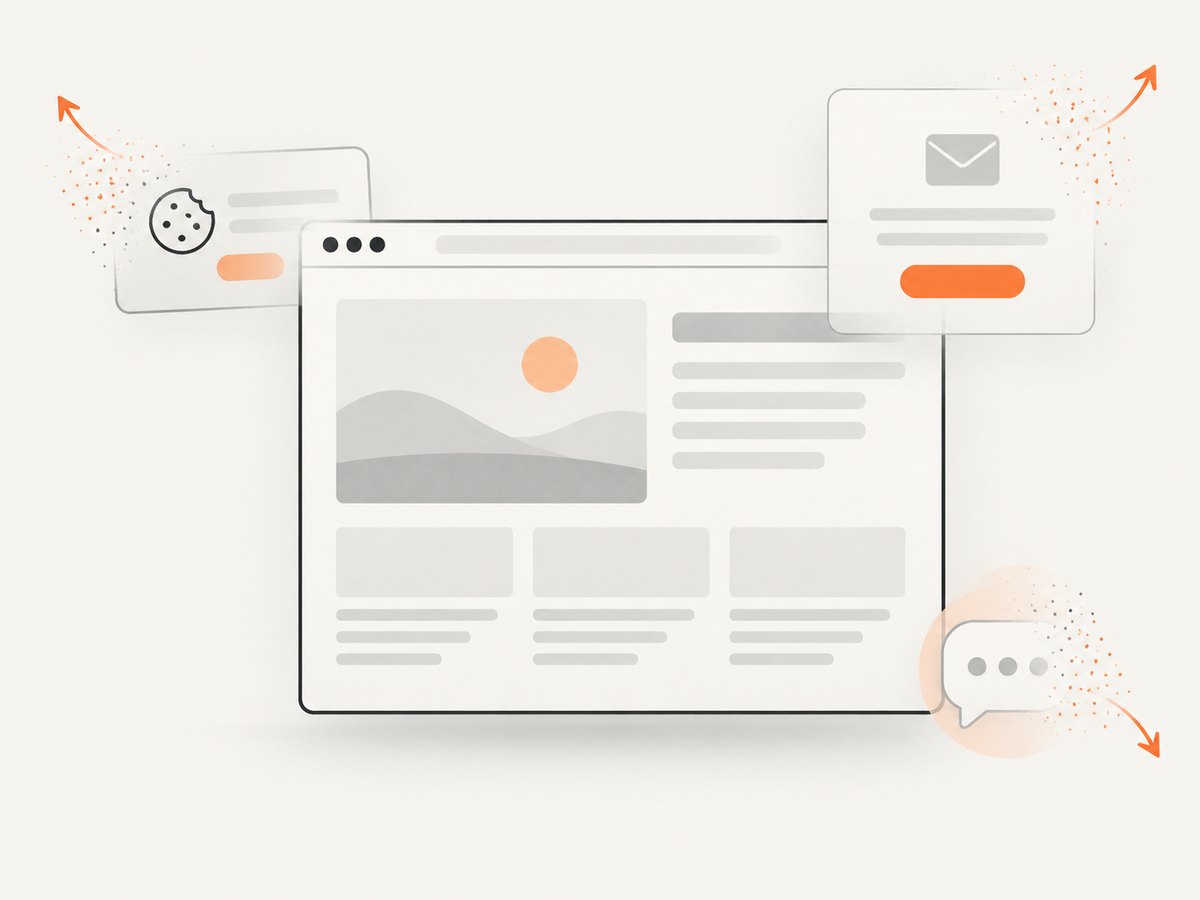
Cookie banners, newsletter popups and chat widgets are removed before the shot. Bot checks, blank pages, timeouts, failed loads and cache hits are not billed, and the response identifies the result with X-Page-Verdict and X-Billed headers. ScreenshotNeo also has an MCP server with take_screenshot, get_page_info and capture_pdf tools for Claude, Cursor and other MCP clients.
See the ScreenshotNeo API documentation for the complete option list.
One-call example
curl -G "https://api.screenshotneo.com/v1/shot" -d access_key=YOUR_API_KEY --data-urlencode url=https://stripe.com -o shot.webpimport requests
r = requests.get("https://api.screenshotneo.com/v1/shot", params={"access_key": "YOUR_API_KEY", "url": "https://stripe.com"}, timeout=90)
r.raise_for_status()
open("shot.webp", "wb").write(r.content)const q = new URLSearchParams({ access_key: 'YOUR_API_KEY', url: 'https://stripe.com' });
const res = await fetch(`https://api.screenshotneo.com/v1/shot?${q}`);
if (!res.ok) throw new Error(`Screenshot failed: ${res.status}`);
const bytes = Buffer.from(await res.arrayBuffer());
require('fs').writeFileSync('shot.webp', bytes);There is a free allowance of 1,000 screenshots per month with no card. Paid plans start at $5 for 3,000 shots, and every feature is available on every plan. Create a free ScreenshotNeo account.
9. FAQ
Can Selenium screenshot only one element?
Yes. Call element.screenshot(path) or read element.screenshot_as_png.
Can Selenium capture an arbitrary rectangle directly?
Use a current-window screenshot and crop its PNG with an image library such as Pillow.
Why does my element screenshot have a different size than expected?
The rendered element size depends on CSS, responsive layout, browser zoom and device scale. Record the viewport and inspect the element rectangle in the same state as capture.
Does get_screenshot_as_png() guarantee a full-page image?
No cross-browser full-document guarantee follows from the current-window API. Verify your specific driver or use a service that documents full-page capture.


