How to Capture Part of a Webpage in Chrome
Select part of a webpage in Chrome for Gemini or visual search, and learn what to do when you need a saved image file.
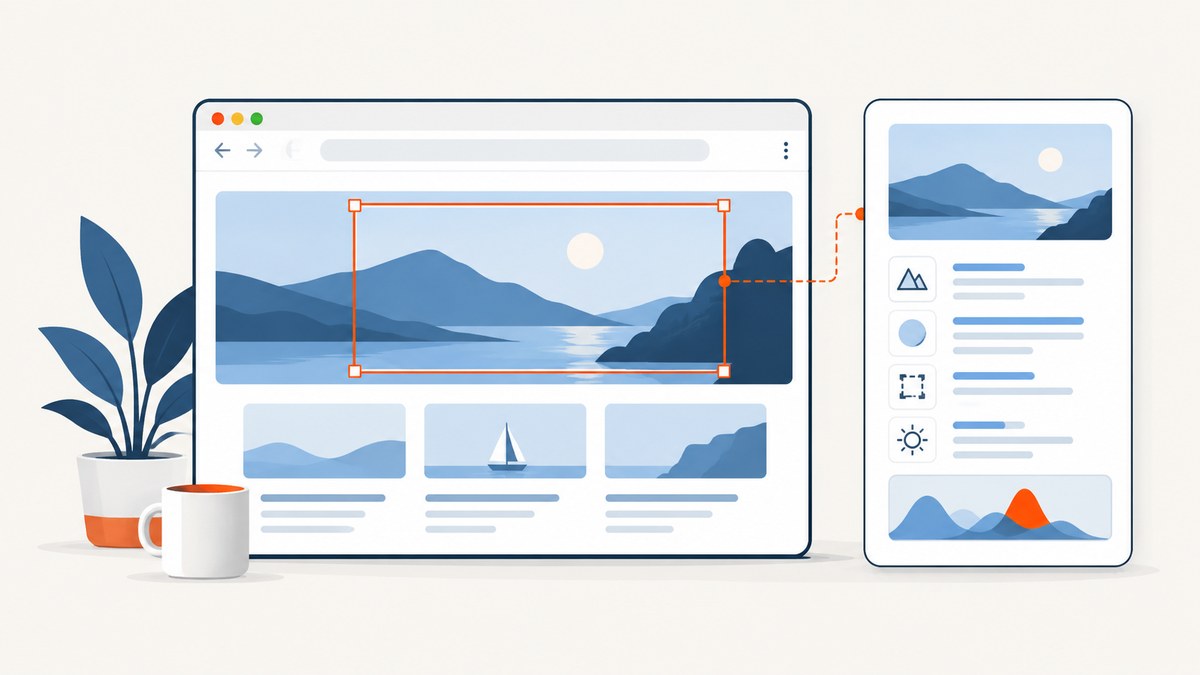
Short answer: Chrome currently documents two ways to select part of a webpage: Gemini in Chrome lets you draw one or more boxes and attaches the selected content to your prompt, while Ask Google about this page lets you select a region for visual search. Google’s documentation does not describe either workflow as a universal “save this selection as an image file” command. If you need a reusable PNG, JPEG or WebP, use your operating system’s region-screenshot tool, a browser extension you trust, or an API such as ScreenshotNeo.
Choose the result you need
| Goal | Chrome method | What you get |
|---|---|---|
| Ask Gemini about a region | Gemini in Chrome → Add → Select from screen | The selected content is attached to a Gemini prompt. |
| Search a visual region | Address bar → Ask Google about this page → drag over an area | Results in Chrome’s side panel. |
| Save a standalone image | Use your system’s region capture tool, an extension, or an API | An image file you can download, edit or send. |
These workflows are related but not interchangeable. Selection for Gemini or Google Lens sends the selected page content for analysis; it is not documented as an image-export feature.
Capture a webpage region with Gemini in Chrome
- Open the webpage in Chrome on a desktop computer.
- Open Ask Gemini at the top of the browser.
- Select Add, then Select from screen.
- Drag a box around the part of the page you want Gemini to inspect.
- Enter a question or instruction and submit it. Chrome attaches the selected content to the prompt.
Google documents this flow in Share specific parts of your screen with Gemini in Chrome.
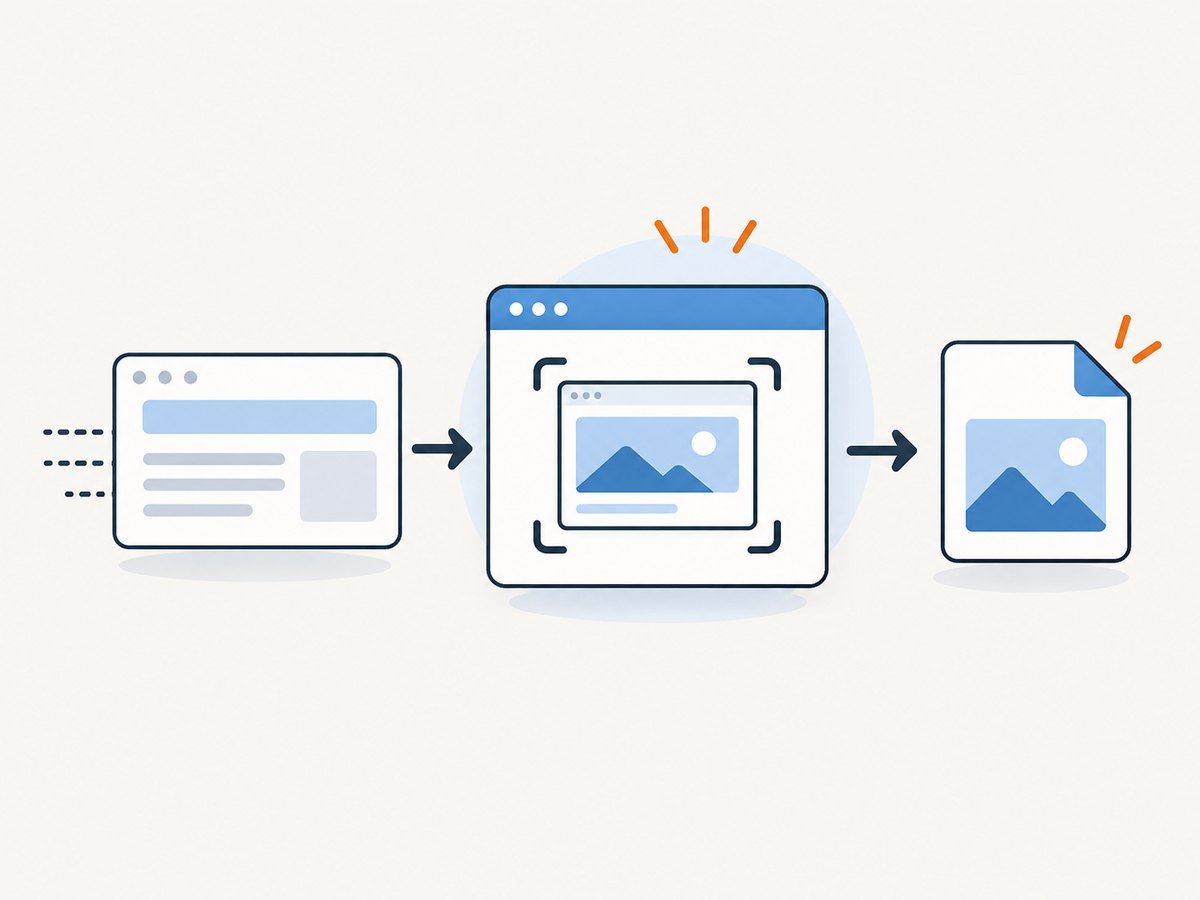
Adjust, combine or remove selections
- Drag a corner or edge to resize a selection.
- Drag inside the box to move it.
- Draw additional boxes when you need separate areas. Overlapping selections are included together.
- Remove an individual selection from the Gemini prompt using its close control.
- Close the Gemini side panel to clear all selections.
- Press Escape to leave selection mode.
Eligibility and availability
Google says Gemini-in-Chrome selection requires access to Gemini in Chrome, a supported country, a supported desktop environment (Chromebook Plus, Mac or Windows), and an eligible user aged 13 or older. Availability can vary by account, rollout and location. If the control is missing, update Chrome, sign in with an eligible profile, check your region and review Gemini in Chrome settings.
Use Chrome’s page-selection visual search
- Open the page in Chrome.
- Click the address bar.
- Choose Ask Google about this page (or the visual-search/Lens control when shown).
- Choose the option to search through a selection, then click and drag over the region.
- Review results in the side panel.
Chrome Help documents this workflow in Search the web in Chrome. Google says the feature depends on Google being your default search engine and on related search and history settings. Its Lens documentation also explains that a screenshot of the page and page data are sent for the query: Search with Google Lens in Chrome.
When you need an image file
The cited Chrome documentation does not promise a platform-independent shortcut that saves the selected rectangle directly as PNG, JPEG or WebP. For a file, use the region-capture feature provided by your operating system, then choose a destination and format. The exact command depends on Windows, macOS or ChromeOS and can change with system version. Before sharing, check whether the rectangle includes passwords, private messages, personal data or hidden overlays.
Make a cleaner manual capture
- Zoom the page to a readable level and scroll the target into view.
- Dismiss transient menus and tooltips.
- Wait for images, charts and fonts to finish loading.
- Capture slightly beyond the content, then crop once so borders are consistent.
- Open the saved file and verify that text, cursor indicators and sensitive data are not included.
Capture a specific element or page region in code
For repeatable captures, browser automation or a screenshot API is more reliable than a manual rectangle. A CSS selector gives you a stable target such as article, #pricing or .hero-card. A full-page capture is different: it includes the entire scrollable document, while an element capture includes only the matched node.
Browser automation checklist
- Wait for the selector and for fonts or images to load.
- Set the viewport and device scale explicitly.
- Disable animations when pixel consistency matters.
- Handle cookie banners before measuring or capturing the target.
- Use a timeout and record failures so a missing element is not mistaken for a blank screenshot.
Or skip the browser setup
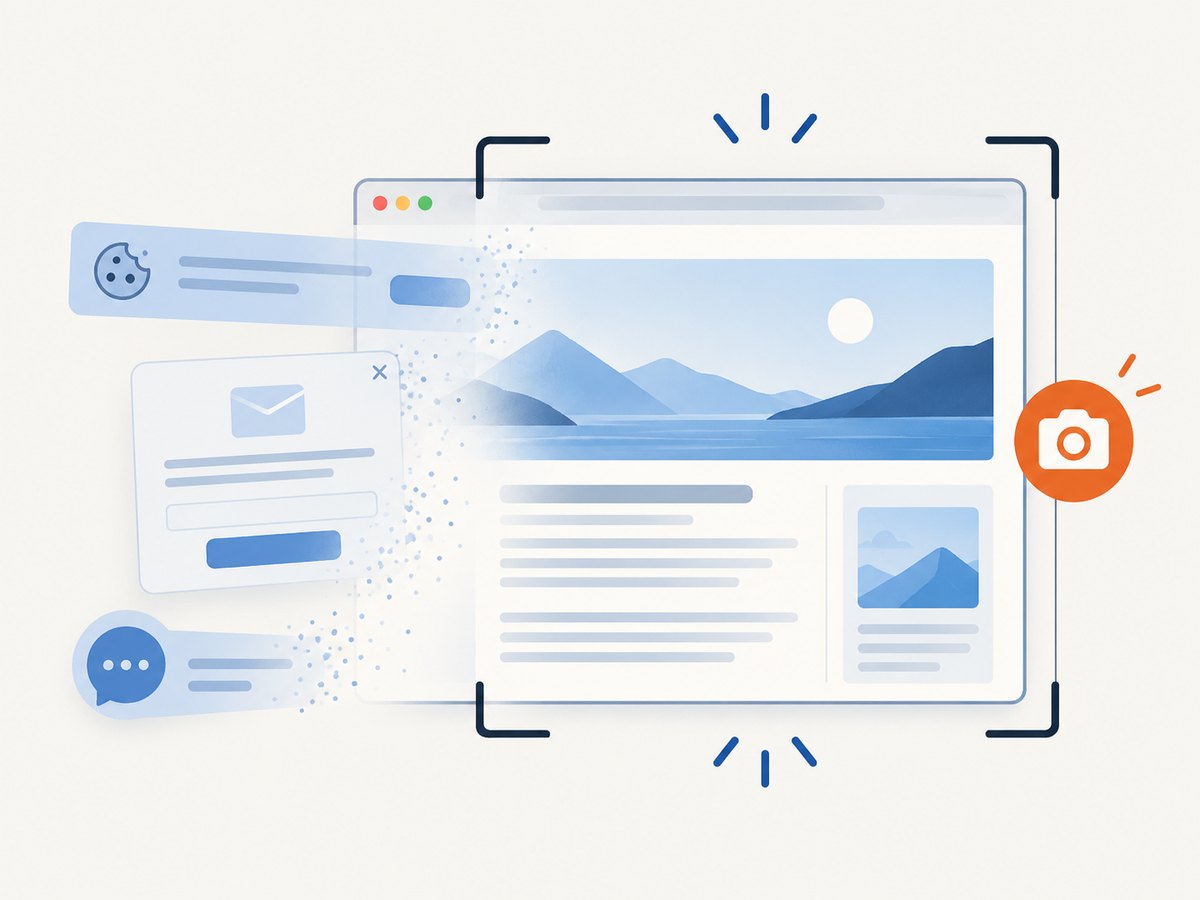
ScreenshotNeo provides a GET-based screenshot API and MCP server. It can capture an element with a CSS selector, full pages with lazy images loaded, custom viewports and device presets, dark mode, retina scale, custom CSS and JavaScript, click and wait actions, headers, cookies, user agents, geolocation, blocking rules, resizing, caching, signed links, PDFs, asynchronous jobs and bulk requests. Cookie and consent banners, newsletter popups and chat widgets can be removed before capture. Bot checks, blank pages, timeouts, failed loads and cache hits are not billed, and the response identifies the verdict and billing status in headers.
Read the ScreenshotNeo API documentation for the complete option list. The following calls capture a page; adapt the URL and add the documented selector option when you need one element.
cURL
curl -G "https://api.screenshotneo.com/v1/shot" \
  -d access_key=YOUR_API_KEY \
  --data-urlencode url=https://stripe.com \
  -o shot.webp
Python
import requests

r = requests.get(
    "https://api.screenshotneo.com/v1/shot",
    params={"access_key": "YOUR_API_KEY", "url": "https://stripe.com"},
    timeout=90,
)
r.raise_for_status()
open("shot.webp", "wb").write(r.content)
Node.js
const q = new URLSearchParams({ access_key: 'YOUR_API_KEY', url: 'https://stripe.com' });
const res = await fetch(`https://api.screenshotneo.com/v1/shot?${q}`);
if (!res.ok) throw new Error(`Screenshot failed: ${res.status}`);
const fs = await import('node:fs/promises');
await fs.writeFile('shot.webp', Buffer.from(await res.arrayBuffer()));
ScreenshotNeo has 1,000 screenshots per month free with no card; paid plans start at $5 for 3,000. An MCP server lets Claude, Cursor and other MCP clients call take_screenshot, get_page_info and capture_pdf. Create a free ScreenshotNeo account.
Troubleshooting
| Symptom | Likely cause | Fix |
|---|---|---|
| “Select from screen” is missing | Feature rollout, region, account, age or device eligibility | Update Chrome, sign in, check supported-country availability and Gemini settings. |
| Gemini selection exits unexpectedly | Escape was pressed or the side panel was closed | Reopen Ask Gemini and start selection again. |
| Visual search option is absent | Google is not the default search engine or the feature is unavailable | Set Google as default and review Chrome search and browsing settings. |
| Selection contains the wrong content | Box was moved or page changed while selecting | Resize or move the box, wait for the page to settle, then capture again. |
| Saved image is blank | Page content is still loading, protected by a bot check, or outside the viewport | Wait, scroll into view and retry; for automation, wait for a selector and inspect the response status. |
| API response is an error | Invalid key, malformed URL or timeout | URL-encode the target, verify the access key, increase the client timeout and log response headers. |
Performance, reliability and cost
- Manual speed: A visible region is fastest for one-off sharing. It depends on page layout, loading state and your display scale.
- Repeatability: Selectors, fixed viewports, explicit waits and disabled animations produce more consistent automated output than dragging a rectangle.
- Large pages: Full-page captures can take longer and consume more memory than an element capture. Capture the smallest useful region.
- Reliability: Retry transient network failures, keep a timeout, and record whether the target selector existed. Treat bot checks and consent flows as separate states.
- Cost: Chrome’s built-in selection has no ScreenshotNeo API charge. ScreenshotNeo bills only clean shots; bot checks, blank pages, timeouts, failed loads and cache hits are free, with 1,000 free shots monthly and paid plans from $5.
FAQ
Can Chrome save only the selected webpage area?
Chrome’s documented Gemini and visual-search flows select content for analysis. They do not document a universal image-file export command. Use your operating system’s region capture, an extension, or an API for a saved file.
Can I select multiple separate areas?
Gemini in Chrome allows overlapping selections and lets you remove individual selections before submitting the prompt.
Why can’t I use Gemini in Chrome in Incognito?
Google’s availability and sign-in requirements apply; use an eligible, signed-in desktop Chrome profile and check the current rollout for your country.
How do I capture the same element on many URLs?
Use a screenshot API with a CSS selector, explicit waits and a fixed viewport. Bulk capture and asynchronous jobs are available in ScreenshotNeo.
Does a screenshot API replace Chrome’s visual search?
No. Visual search interprets a selected region. An API creates an image or PDF that your application can store, process or display.


