How to Capture a Screenshot of Part of a Webpage
Capture a visible region with your operating system, or select webpage content with Firefox or Edge. Learn which method fits and how developers can automate captures.
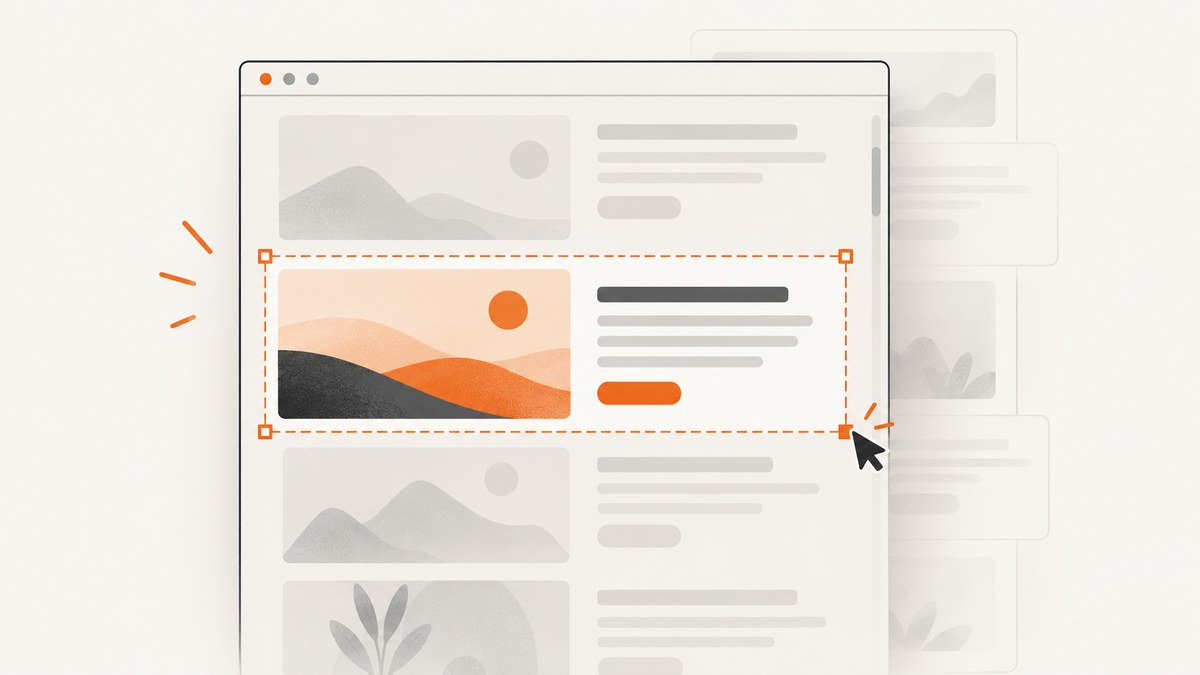
To capture a portion of a webpage, choose the method based on what you need in the image. If the region is already visible, use your operating system’s screen selection: Snipping Tool on Windows or screenshot selection on macOS. If you need to select webpage content or capture below the fold, use Firefox’s screenshot feature or Microsoft Edge’s Screenshot Tool. A screen crop records visible pixels; browser capture can work with page content beyond the current viewport.
For a one-off image, the built-in tools are usually enough. For repeatable developer captures, browser automation or a screenshot API can make the result easier to reproduce. This guide covers each route, including the difference between a screen crop and a page element capture.
1. Choose the right capture method
| Need | Use | What it captures |
|---|---|---|
| A quick crop of what you can see | Windows Snipping Tool or macOS screenshot selection | Visible screen pixels, potentially including browser chrome |
| A region of page content | Firefox screenshot feature | A selected page region, visible page, or full page |
| A selected area or a long page in Edge | Microsoft Edge Screenshot Tool | A selected area or content beyond the viewport |
| Repeatable captures for development or a workflow | Browser developer tools, automation, or an API | Configurable page output, depending on the tool |
Ask these questions before capturing:
- Is everything you need visible without scrolling?
- Should the image include only the webpage, or also browser tabs, toolbars, and desktop?
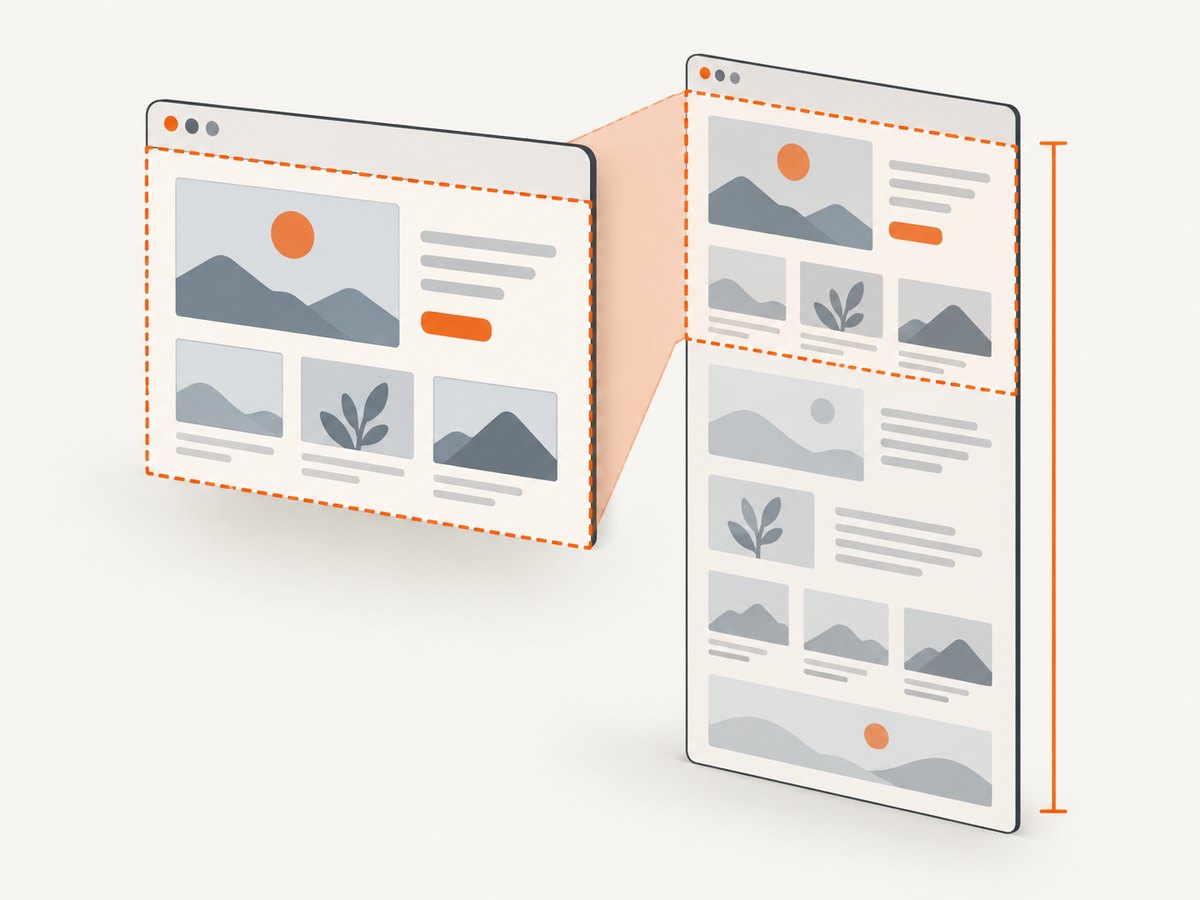
- Does the target extend below the fold?
- Do you need to repeat the same capture later, at a fixed viewport or device scale?
If the target is visible and you want a quick record of the screen, use an operating-system selection. If you want a clean region of the webpage, use the browser. For content below the fold, use a browser capture capable of reaching it or a full-page capture, then crop the result.
2. Capture a visible region with your operating system
Windows: Snipping Tool
- Open Snipping Tool from the Start menu.
- Choose the rectangular or region capture mode available in your version.
- Select the browser area you want to save.
- Review the result, then save or copy it using the controls shown by Snipping Tool.
This captures what is displayed. Scroll the page first if the desired portion is lower down. If you need a region taller than the viewport, an ordinary screen selection cannot include unseen content in one shot.
macOS: screenshot selection
- Start the macOS screenshot selection tool from the keyboard shortcut or screenshot controls provided by your macOS version.
- When the crosshair appears, drag over the part of the browser you want.
- Release to take the screenshot, then open or locate the resulting file using the controls on screen.
Some apps may prevent their windows from being captured, so the result can depend on the application and system. If the page is visible but the capture is blank or incomplete, try a browser-native capture instead. Exact shortcuts and controls can vary by operating system version.
Keep the crop clean
- Move the pointer away from menus, hover effects, and tooltips before taking the shot.
- Dismiss dialogs that cover the content, unless the dialog itself is what you need to document.
- Set the browser zoom and scroll position first. The screenshot records the screen as displayed.
- Check the saved image at full size before sharing; a selection can accidentally omit borders or labels near its edges.
3. Capture page content with Firefox or Edge
Firefox
- Open the page in Firefox and navigate to the relevant section.
- Open Firefox’s screenshot feature using the menu or controls available in your installed version.
- Choose a region and adjust its edges, or select the visible page or full-page option if that better fits the task.
- Download or save the resulting image.
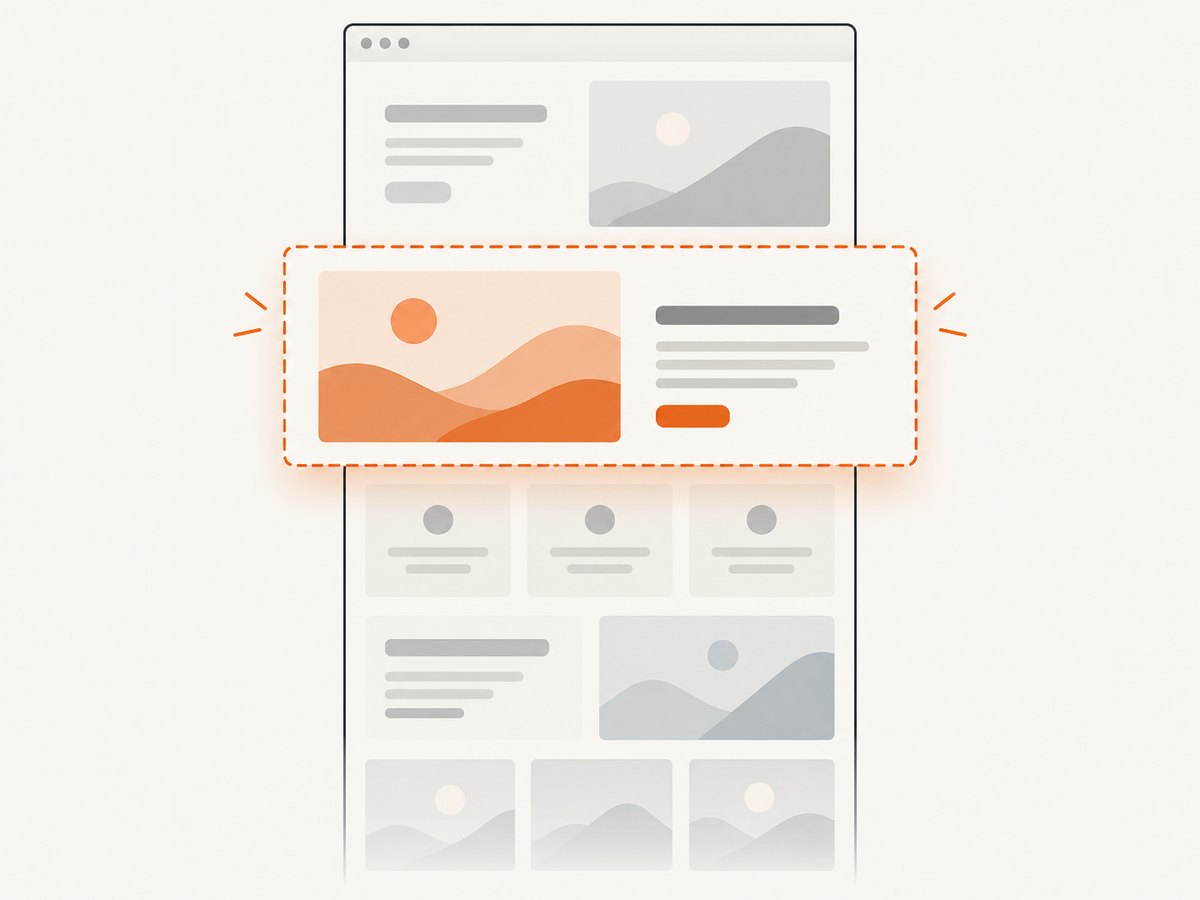
Firefox’s feature supports selecting a region, saving the visible page, and capturing the full page. A selected webpage region is useful when you want page content without surrounding desktop or browser controls. For a portion below the fold, a full-page capture can include it even when it is not currently on screen.
Microsoft Edge
- Open the page in Edge and launch Screenshot Tool using the controls in your installed version.
- Choose a selected-area capture or a full-page capture.
- For an area, select the desired portion. For a long page, let the tool capture beyond the viewport.
- Review and save the image using the available controls.
Edge documents both selected-area and full-page capture. Availability and exact behavior can vary by device, market, and browser version. If you do not see the same menu or options, check the controls in your current version rather than assuming a particular shortcut.
Browser tools are generally the better fit when the boundary should follow webpage content rather than screen pixels. They can also reach content outside the visible viewport. The exact output and available controls depend on the browser and version.
4. Developer workflow: capture a repeatable page region
When the same page needs to be captured repeatedly, make the inputs explicit: URL, viewport size, scroll position or target element, wait condition, and output filename. Firefox Developer Tools documents a full-page screenshot control and command-line options including device-pixel ratio, delay, and filename. These controls are useful for technical captures, but they are not necessary for a one-time crop.
Define the capture boundary
- Choose a viewport. A viewport affects line wrapping, responsive layout, and the dimensions of visible content. Keep it consistent between runs.
- Choose a target. For a visible crop, define screen coordinates. For a page-specific capture, target the page region or use a full-page image and crop afterward.
- Wait for the page. Do not capture immediately if the page loads images or content asynchronously. Wait for a known element, a short delay, or an appropriate network-idle condition where your tool supports it.
- Save with a useful name. Include the page or scenario and, for repeatable work, the viewport or date.
- Inspect the result. Confirm that text, images, and the intended boundary are present.
For a one-off developer screenshot, Firefox’s command-line screenshot options can set output details such as device-pixel ratio, delay, and filename. Use the options supported by your installed Firefox version; consult the official [Firefox command-line options](https://developer.mozilla.org/en-US/docs/Mozilla/Command_Line_Options) and [Firefox screenshots guide](https://support.mozilla.org/en-US/kb/take-screenshots-firefox) for current instructions.
Full-page capture has an important boundary difference from a screen crop: it captures page content beyond the viewport. It does not mean that a screen-region selection can magically include content that was never displayed. If the goal is one specific off-screen section, a browser tool or an element-targeting workflow is more direct.
5. Or skip the browser setup
If you need a page-only image through a repeatable developer workflow, ScreenshotNeo is a website screenshot API and MCP server. One GET request takes a URL and returns an image or PDF. See the ScreenshotNeo API documentation for the available parameters and configuration. This example captures a page as WebP:
curl -G "https://api.screenshotneo.com/v1/shot" -d access_key=YOUR_API_KEY --data-urlencode url=https://stripe.com -o shot.webpimport requests
r = requests.get(
"https://api.screenshotneo.com/v1/shot",
params={"access_key": "YOUR_API_KEY", "url": "https://stripe.com"},
timeout=90,
)
r.raise_for_status()
open("shot.webp", "wb").write(r.content)const q = new URLSearchParams({
access_key: 'YOUR_API_KEY',
url: 'https://stripe.com'
});
const res = await fetch(`https://api.screenshotneo.com/v1/shot?${q}`);
if (!res.ok) throw new Error(`Screenshot request failed: ${res.status}`);
await Bun.write('shot.webp', res);The sample uses WebP output as the filename; configure the requested format and other capture behavior using the API documentation. ScreenshotNeo accepts cookie and consent banners like a visitor and removes more than 60 known consent platforms, newsletter popups, and chat widgets before capture; each of these steps can be turned off. Bot checks or CAPTCHAs, blank pages, timeouts, failed loads, and cache hits cost nothing. Response headers report the page verdict and billing status. An MCP server provides take_screenshot, get_page_info, and capture_pdf for Claude, Cursor, and other MCP clients. The free plan includes 1,000 screenshots a month with no card; paid plans start at $5 for 3,000.
Sign up free for 1,000 screenshots a month, no card required.
6. Options developers may need
For automation, the right capture is often a matter of making the state deterministic. A page may render differently by viewport, device scale, theme, location, cookies, or timing. Decide which of these matter and hold them steady.
| Requirement | What to set or check |
|---|---|
| Only one component | Use a browser selection or an element-targeting capture rather than manually estimating screen coordinates. |
| Entire long page | Use a full-page mode; account for lazy-loaded images and content that appears only after scrolling. |
| Consistent dimensions | Set the same viewport and device-pixel ratio for every run. |
| Page not ready immediately | Wait for a selector, a delay, or network idle when supported by the capture tool. |
| Need a clean image | Dismiss or remove overlays, consent prompts, chat widgets, and transient popups where permitted. |
| Repeatable page state | Use the same cookies, headers, user agent, and location settings if your workflow depends on them. |
ScreenshotNeo supports full-page captures with lazy images loaded, capture by CSS selector, dark mode, 12 device presets and custom viewports, retina scale, custom CSS and JavaScript, clicking an element before capture, hiding selectors, waits, request and resource blocking, custom headers, cookies, user agent and Authorization, timezone and geolocation, transparent backgrounds, resizing, cache TTL, signed links, asynchronous jobs with signed webhooks, bulk capture for up to 100 URLs per call, a usage API, and an OpenAPI specification. The parameter names used by other screenshot APIs also work, which can make migration easier. Refer to the docs for exact parameter names and supported values.
7. Troubleshooting common capture problems
| Problem | Likely cause | Fix |
|---|---|---|
| The crop includes browser tabs or the desktop | You used an operating-system screen selection. | Use the browser screenshot feature for webpage-only content, or crop the saved image. |
| The desired content is below the fold | A screen crop only records visible pixels. | Scroll to it, use a browser region tool, or capture the full page and crop. |
| Part of the page is missing | The page may still be loading, or content may appear after scrolling. | Wait for the content, scroll to trigger lazy loading if needed, then capture again. |
| The image contains a menu or tooltip | The pointer is hovering over an interactive element. | Move the pointer away and retake the screenshot. |
| The browser option is absent | Controls vary by browser version, platform, and device. | Check the installed browser’s current menu or help. Try another supported method if the feature is unavailable. |
| A macOS capture omits a window | Some apps do not allow their windows to be captured. | Try a webpage capture from the browser, or capture a different visible area. |
| Automated captures differ between runs | Viewport, device scale, timing, cookies, or page state changed. | Fix those inputs and wait for a stable page condition before capture. |
| The output looks blurry | The selected area is small or the image is being enlarged after capture. | Capture at the intended display scale or use a higher device-pixel ratio where supported. |
8. Performance, reliability, and cost
Operating-system selection is usually the quickest route for a single visible crop because it uses the screen already rendered. Browser full-page capture has more work to do and can be slower on long pages, especially when content loads on scroll. Developer workflows should avoid arbitrary long delays when a specific ready condition can be used; they should also allow enough time for pages with slow resources.
For reliability, keep viewport and page state consistent, wait for content that matters, and inspect captures after changing browser versions or capture settings. Browser features and interfaces can change, and Microsoft notes Edge Screenshot Tool availability and behavior may vary by device, market, and version. A browser update can therefore change the steps without changing the underlying distinction between visible screen pixels and page content.
Built-in OS and browser capture features are available without a screenshot API subscription. For recurring or server-side captures, account for API usage, retries, and output storage. ScreenshotNeo pricing is Free for 1,000 shots monthly, Starter $5 for 3,000, Growth $15 for 15,000, Pro $39 for 60,000, Scale $99 for 250,000, and Business $249 for 1,000,000; yearly billing gives two months free. Every feature is available on every plan. Its billing rules make bot checks/CAPTCHAs, blank pages, timeouts, failed loads, and cache hits free, with verdict and billing headers in each response.
9. Frequently asked questions
Can I screenshot only one part of a webpage without the browser around it?
Yes. Use a browser-native page screenshot and select a region where supported. An operating-system selection can also work, but it captures screen pixels and may include browser controls.
Can I capture a section that is not currently visible?
Not with a simple screen crop. Scroll it into view, or use a browser tool capable of selecting page content or capturing the full page.
Should I choose a full-page screenshot or a selected region?
Choose a region when you know the content boundary and need just that section. Choose full-page capture when the relevant content spans the page or lies below the fold, then crop if necessary.
Why does the same page look different in two captures?
Responsive layout, viewport dimensions, zoom, device scale, timing, and page state can all change what is rendered. Keep those inputs consistent for repeatable results.
Do I need a screenshot API for a single manual capture?
Usually not. Use the operating-system or browser feature for a one-off. An API is more useful when captures need to be repeated, automated, or integrated into another workflow.


