How to Capture PhantomJS Page State with Selenium Screenshots
Capture HTML, evaluated state, viewport or full-page images with PhantomJS and Selenium, with runnable Python and JavaScript examples.

Short answer: save page state and pixels as separate artifacts. Gate the capture on a successful navigation, read the main-frame HTML with PhantomJS page.content or Selenium page_source, evaluate computed values with JavaScript, set the viewport before rendering, and then save a viewport, clipped, or full-page image. A screenshot by itself is not a complete record of the page state.
What “page state” includes
Keep at least two files for each capture:
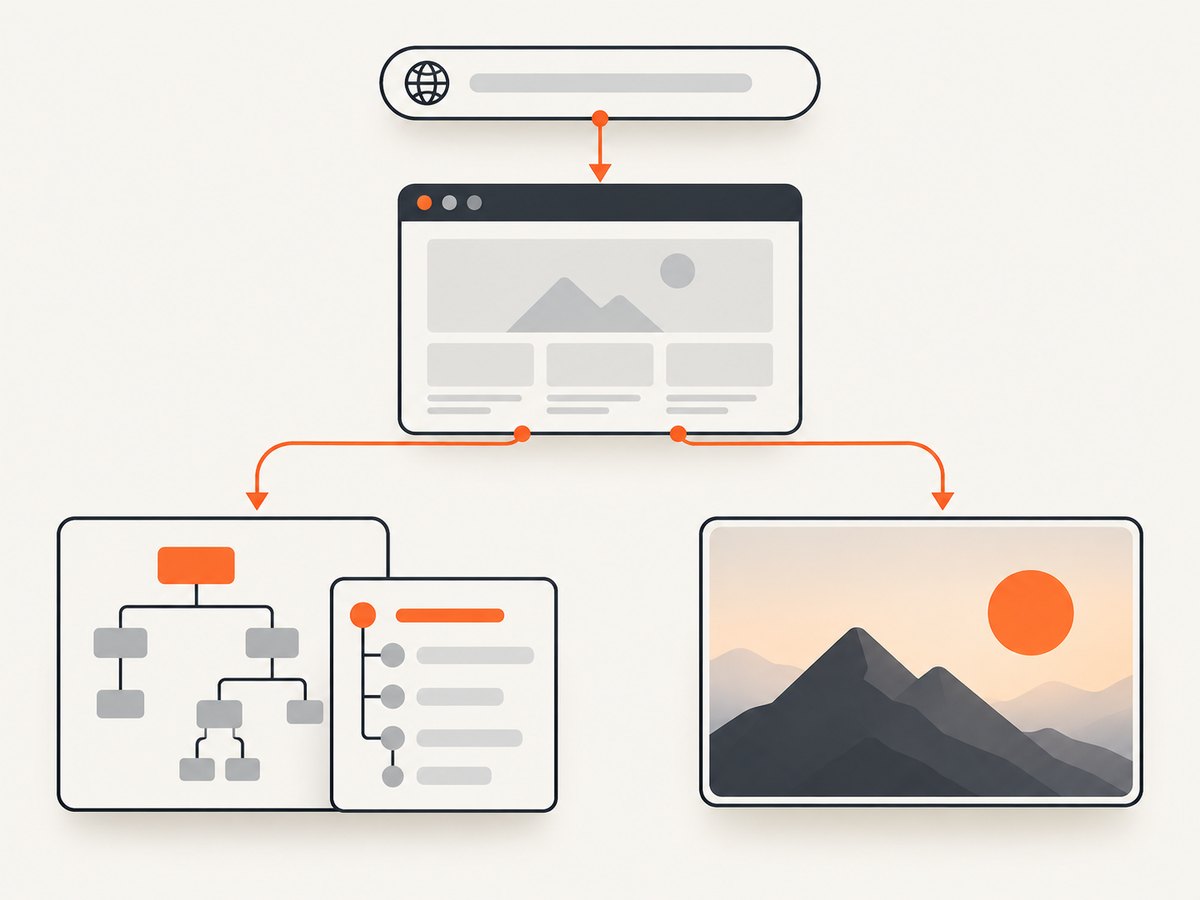
- HTML state: the current main-frame markup after navigation and client-side changes.
- Evaluated state: values read in the page context, such as the title, visible text, URL, selected application fields, or a serialized data object.
- Pixels: a PNG, JPEG, GIF, or PDF produced from the chosen viewport or document region.
HTML and evaluated values answer different questions. page.content or page_source gives markup; evaluate() or execute_script() gives values after JavaScript has run. Store both beside the image when a screenshot failure must be diagnosed later.
PhantomJS: capture HTML, evaluated values, and an image
PhantomJS exposes a success/fail callback through page.open(url, callback). Only continue when the callback status is success. Set viewportSize for the browser window and use clipRect when you need a specific rectangle. page.render() can write PNG, JPEG, GIF, or PDF output.
var page = require('webpage').create();
var system = require('system');

var url = system.args[1] || 'https://example.com';
page.viewportSize = { width: 1280, height: 900 };

page.open(url, function (status) {
  if (status !== 'success') {
    console.error('Page load failed: ' + status);
    phantom.exit(1);
    return;
  }

  var state = {
    url: page.url,
    title: page.evaluate(function () { return document.title; }),
    text: page.evaluate(function () {
      return document.body ? document.body.innerText : '';
    }),
    html: page.content
  };

  var fs = require('fs');
  fs.write('page-state.json', JSON.stringify(state, null, 2), 'w');

  // Viewport screenshot.
  page.render('capture.png');

  // Optional clipped capture. Coordinates are CSS pixels in the page.
  // page.clipRect = { top: 0, left: 0, width: 1280, height: 1200 };
  // page.render('capture-clipped.png');

  phantom.exit(0);
});
Run it with phantomjs capture.js https://example.com. The callback is the load gate; do not write a “successful” screenshot record before it runs.
Collect application-specific state
Evaluate only serializable values. For example:
var appState = page.evaluate(function () {
  var status = document.querySelector('[data-status]');
  return {
    title: document.title,
    ready: document.readyState,
    status: status ? status.textContent.trim() : null,
    textLength: document.body ? document.body.innerText.length : 0
  };
});
If the site places important data in an iframe, remember that page.content describes the main frame. Read the frame separately in page context when your application requires it.
Selenium: save state and a current-window screenshot
Selenium’s driver.get(url) navigates the browser. page_source returns the current markup, execute_script() evaluates JavaScript, and save_screenshot() writes a PNG of the current window. get_screenshot_as_base64() is useful when the image must be embedded or sent to another service.
from pathlib import Path
import json
from selenium import webdriver
from selenium.webdriver.firefox.options import Options

url = "https://example.com"
options = Options()
options.add_argument("-headless")
driver = webdriver.Firefox(options=options)

try:
    driver.set_window_size(1280, 900)
    driver.get(url)

    state = driver.execute_script("""
        return {
            url: location.href,
            title: document.title,
            ready: document.readyState,
            text: document.body ? document.body.innerText : ""
        };
    """)
    state["html"] = driver.page_source

    Path("page-state.json").write_text(
        json.dumps(state, ensure_ascii=False, indent=2),
        encoding="utf-8"
    )
    driver.save_screenshot("capture.png")

    # Base64 form for embedding or transport.
    encoded = driver.get_screenshot_as_base64()
    Path("capture.base64").write_text(encoded, encoding="ascii")
finally:
    driver.quit()
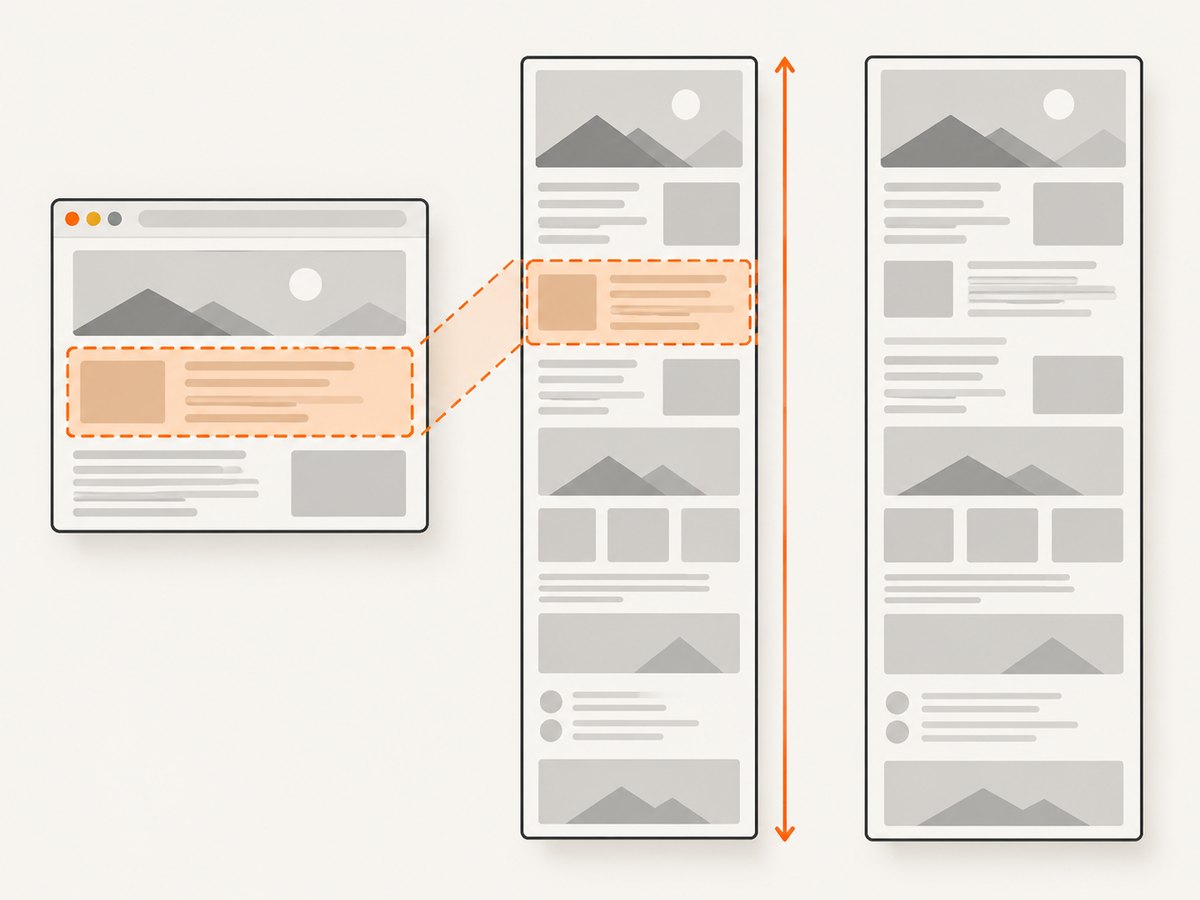
save_screenshot() captures the current window. It does not automatically mean the entire document; increase the window or use a driver-specific full-page API when the requirement is the full document.
Full-page screenshots and element captures
Firefox full-page API
Selenium’s Firefox API documents save_full_page_screenshot(). Use it when the browser and driver in your deployment support that method:
from selenium import webdriver
from selenium.webdriver.firefox.options import Options

options = Options()
options.add_argument("-headless")
driver = webdriver.Firefox(options=options)
try:
    driver.get("https://example.com")
    driver.save_full_page_screenshot("full-page.png")
finally:
    driver.quit()
Keep the ordinary current-window call as a fallback. Full-page support is driver-specific, so verify the method in the exact browser/driver pair used by your runner.
Clip a known region
For PhantomJS, set clipRect before page.render():
page.clipRect = { top: 120, left: 40, width: 800, height: 600 };
page.render('region.png');
For Selenium, scroll an element into view and use a driver or language binding that supports element screenshots. If you need a deterministic rectangle across browsers, capture the viewport and crop it in your image pipeline while retaining the original viewport image.
A reproducible capture sequence
- Choose the browser and driver versions together and record them with the artifact.
- Set viewport width and height before navigation or rendering.
- Navigate and gate on a successful load result.
- Wait for the condition your page needs, such as a selector, a known state value, or a short rendering delay.
- Read HTML and evaluated state before rendering pixels.
- Write the screenshot or PDF and a small metadata file containing URL, timestamp, viewport, output type, and status.
- Always close the browser in a
finallyblock.
Use a stable naming scheme such as run-id/state.json, run-id/capture.png, and run-id/metadata.json. This makes a failed image distinguishable from a failed navigation.
Waiting, dynamic pages, and state fidelity
A successful navigation callback or driver.get() only proves that navigation completed according to the browser. It does not prove that asynchronous content, fonts, images, or application data finished rendering. Add a condition that matches the page:
from selenium.webdriver.common.by import By
from selenium.webdriver.support.ui import WebDriverWait

WebDriverWait(driver, 20).until(
    lambda d: d.find_element(By.CSS_SELECTOR, "[data-ready='true']")
)
Capture evaluated values after this wait. If you save state before the wait and pixels after it, the two artifacts describe different moments.
Failure handling and observability
| Symptom | Likely cause | Fix |
|---|---|---|
PhantomJS callback is fail |
Navigation, DNS, TLS, or server failure | Record the status, URL, and console/network diagnostics; do not render a success artifact. |
| Screenshot is blank | Capture ran before content rendered, or the page itself is empty | Wait for a page-specific selector or state value, then save HTML and evaluated state to determine which case occurred. |
| Only the visible viewport is present | save_screenshot() captures the current window |
Use Firefox’s full-page method where supported, or define a clip/crop strategy. |
| HTML lacks content visible in the image | Content is inside an iframe, shadow tree, or rendered by canvas | Inspect the relevant frame or application state with evaluated JavaScript; pixels cannot always be reconstructed from HTML. |
| Text differs between runs | Fonts, timing, viewport, locale, or responsive layout changed | Pin viewport and environment, wait for the same readiness condition, and record browser metadata. |
| Driver method is missing | Full-page support differs by browser and driver | Check the binding for that browser, fall back to current-window capture, or use a capture API with explicit full-page support. |
| Browser process remains after an error | Cleanup was skipped | Put quit() or phantom.exit() on every success and failure path. |
Performance, reliability, and cost notes
- Reuse a browser process for a controlled batch when isolation is not required; create a fresh profile when cookies or local storage could affect state.
- Keep viewport dimensions fixed. Responsive breakpoints change both evaluated values and pixels.
- Capture state once and serialize it, rather than executing many separate scripts that can observe different moments.
- Set an upper bound for navigation and readiness waits. On timeout, retain diagnostics and mark the run incomplete.
- Full-page images and HTML can be large. Compress or archive them after the original artifacts are safely stored.
- Selenium and PhantomJS runs consume your own browser and machine resources. A hosted API shifts browser operations to the service and adds request costs; compare the number of successful captures, retries, and storage you actually need.
Or skip the browser setup
ScreenshotNeo provides a website screenshot API and MCP server. One request returns PNG, JPEG, WebP, or PDF, with options for full-page capture, element selectors, custom CSS and JavaScript, waits, device presets, cookies, headers, geolocation, caching, asynchronous jobs, and more. The ScreenshotNeo response also identifies whether the page was clean or billed.
curl -G "https://api.screenshotneo.com/v1/shot" \
  -d access_key=YOUR_API_KEY \
  --data-urlencode url=https://example.com \
  -o shot.webp
import requests
r = requests.get(
"https://api.screenshotneo.com/v1/shot",
params={"access_key": "YOUR_API_KEY", "url": "https://example.com"},
timeout=90,
)
r.raise_for_status()
open("shot.webp", "wb").write(r.content)const q = new URLSearchParams({ access_key: 'YOUR_API_KEY', url: 'https://example.com' });
const res = await fetch(`https://api.screenshotneo.com/v1/shot?${q}`);
if (!res.ok) throw new Error(`HTTP ${res.status}`);
const image = Buffer.from(await res.arrayBuffer());
require('fs').writeFileSync('shot.webp', image);See the ScreenshotNeo documentation for request options. Cookie banners, newsletter popups, and chat widgets are removed before the shot. Bot checks, blank pages, timeouts, failed loads, and cache hits are never billed. An MCP server lets AI agents take screenshots. The free plan includes 1,000 screenshots a month with no card, and paid plans start at $5 for 3,000.
Create a free ScreenshotNeo account.
FAQ
Can Selenium capture PhantomJS state?
Selenium and PhantomJS are separate browser automation approaches. Use the PhantomJS API for page.content, evaluate, and render, or use Selenium’s corresponding page_source, execute_script, and screenshot methods in a Selenium-controlled browser.
Which artifact should I trust when debugging?
Keep all three: HTML, evaluated state, and pixels. HTML shows markup, evaluated state shows computed application values, and pixels show what the renderer displayed.
What format should I use?
Use PNG for lossless UI comparisons, JPEG when smaller photographic output is acceptable, and PDF when the deliverable is a document. PhantomJS documents PNG, JPEG, GIF, and PDF rendering.
How do I prove a capture was complete?
Record the navigation result, readiness condition, viewport, browser/driver versions, and artifact paths. A screenshot without that metadata cannot show whether the page had finished loading.


