How to Capture a Screenshot of a Phaser Game Div
Capture Phaser’s rendered canvas with its snapshot API, save the image, and learn when a browser screenshot is needed to include HTML overlays.
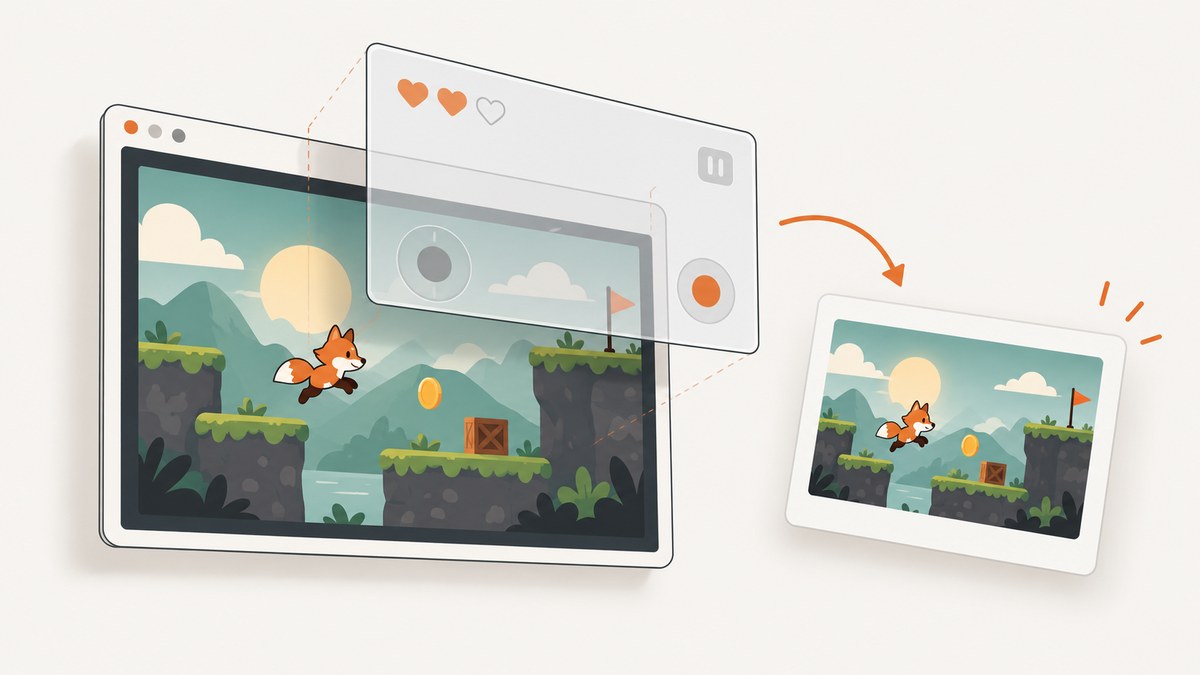
For a screenshot of the pixels Phaser rendered, use the renderer’s snapshot method for the full game viewport or snapshotArea for a rectangle. Both deliver an image to a callback after a frame renders. This captures the Phaser canvas, not necessarily the surrounding page or HTML overlays in the game’s parent div.
The examples below use the current Phaser renderer API documented for Phaser 4.1.0. Check your installed Phaser version before copying the renderer access path: Phaser 3.90.0 has its own versioned reference, and APIs can differ between versions. See the official Phaser API documentation and the Phaser 4.1.0 CanvasRenderer reference.
1. Capture the full Phaser game viewport
Call game.renderer.snapshot when the game and renderer are available. The callback receives the resulting image. PNG is the default; you can pass an image MIME type such as image/jpeg and encoder options for lossy formats.
// Phaser 4.1.0 renderer API example.
// Call after `game` has been created and its renderer is available.
function captureGame(game) {
  game.renderer.snapshot((image) => {
    if (!image) {
      console.error('Phaser did not provide a snapshot image.');
      return;
    }

    // The callback image can be displayed or passed to your save flow.
    document.body.appendChild(image);
  }, 'image/png');
}
This example demonstrates receiving and displaying the image; it does not define a universal download flow. The exact way you access the game instance depends on your application and Phaser version.
2. Capture only part of the canvas
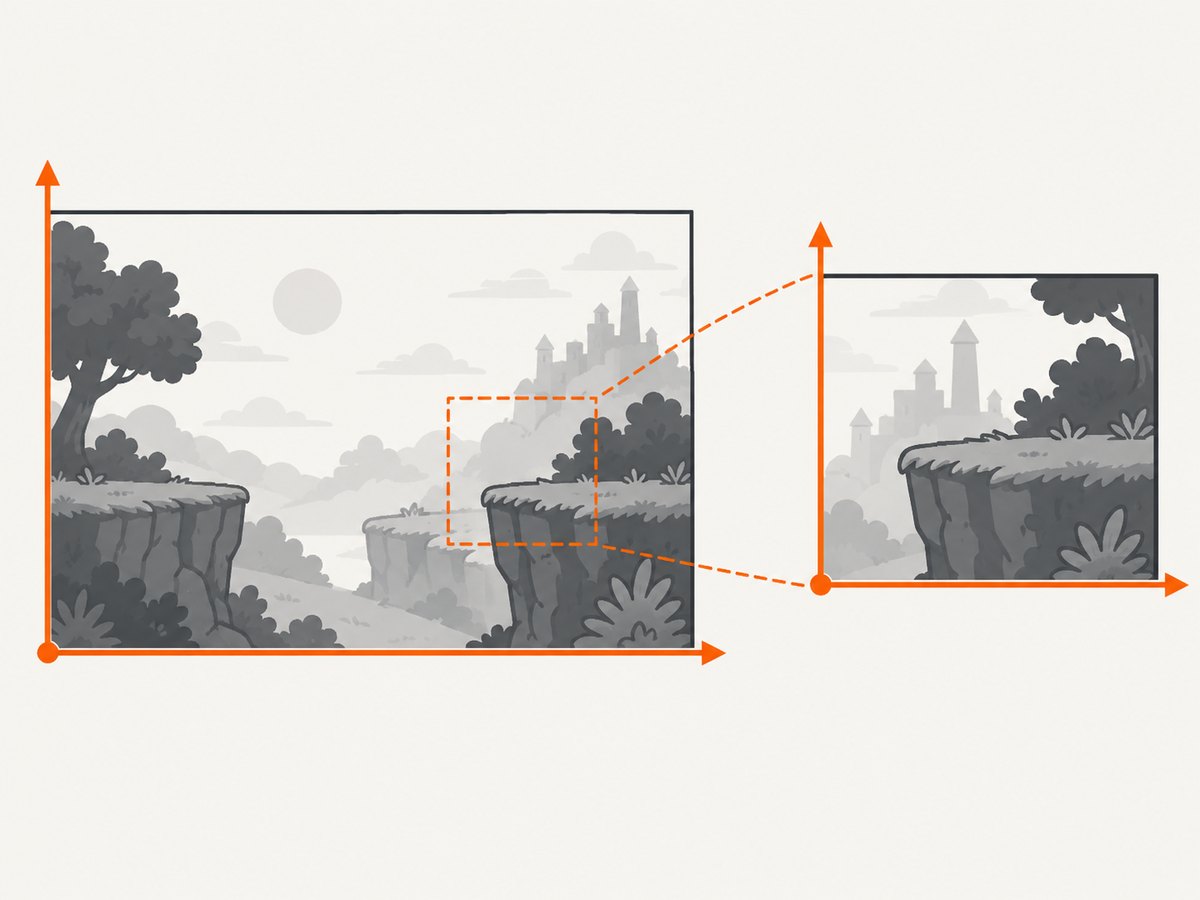
Use snapshotArea(x, y, width, height, callback, type, encoderOptions) for a rectangular region. The coordinates are in the game viewport, not Phaser world coordinates. For example, this requests a 400 by 300 pixel region starting at the viewport’s top-left corner:
game.renderer.snapshotArea(0, 0, 400, 300, (image) => {
  if (!image) {
    console.error('Phaser did not provide a snapshot image.');
    return;
  }

  document.body.appendChild(image);
}, 'image/png');
Keep the requested rectangle within the viewport dimensions. If you need a specific game object, first determine its position in viewport coordinates; world coordinates can differ because of camera movement, zoom, or transforms.
3. Understand what “game div” includes
A Phaser game commonly renders into a canvas placed inside a parent element. Phaser’s DOM Element feature can also place ordinary HTML elements in a DOM container over the canvas. The renderer snapshot API captures the rendered canvas frame; it is not documented as a screenshot of the whole parent element or browser page.
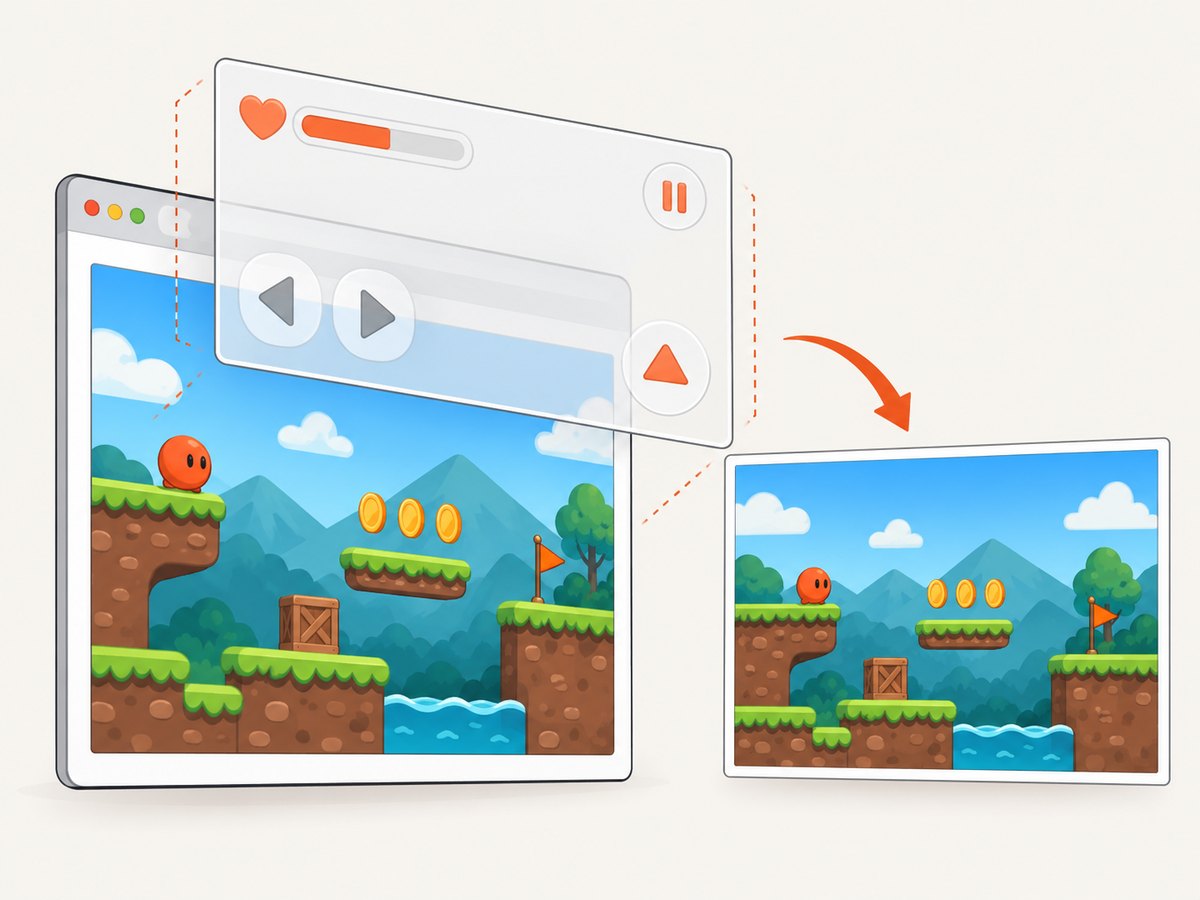
Use the renderer snapshot when the desired output is the game image. If the screenshot must include HTML menus, DOM Elements, surrounding page content, or overlays outside the canvas, use a browser or page-level capture method and verify the result in the browser you target. That distinction follows from Phaser documenting the canvas snapshot and DOM layer separately; do not assume the renderer callback composites the two.
4. Choose the right capture method
| Need | Use | What it captures |
|---|---|---|
| Whole game image | snapshot(callback, type, encoderOptions) |
The rendered game viewport |
| One viewport rectangle | snapshotArea(x, y, width, height, callback, type, encoderOptions) |
The specified canvas area |
| One pixel’s color | snapshotPixel(x, y, callback) |
A pixel color result, not an image screenshot |
| Canvas plus HTML overlays or page content | Browser/page-level capture | Depends on the capture tool and browser; verify DOM coverage |
The renderer documentation lists image/png as the default and image/jpeg as a common alternative. JPEG quality options matter for lossy output; use PNG when you need lossless output or transparency. Confirm supported types and argument details in the documentation for your installed version.
5. Timing, performance, and reliability
- Capture after a rendered frame. Phaser schedules the snapshot after the current frame renders, so wait for the game to boot and render before requesting one.
- Do not queue several snapshots in one frame. Phaser documents that only one snapshot can be active per frame; a later request can override the previously scheduled request. Schedule captures deliberately.
- Keep captures occasional. Creating an image from canvas data is blocking, and the work becomes more expensive as the canvas gets larger. Avoid treating snapshots as a free per-frame operation.
- Handle a missing image. The Canvas snapshot path can call back without an image when image loading fails. Check the callback value before displaying or processing it.
- Account for renderer details. WebGL snapshotting reads frame-buffer pixels into a temporary canvas before producing the callback image. Test the capture timing and output in the renderer and browser combinations you ship.
6. Troubleshooting
| Symptom | Likely cause | Fix |
|---|---|---|
game.renderer is undefined |
The code ran before the Phaser game or renderer was initialized, or the access path differs in your version. | Call after game creation and check the renderer API for the exact installed Phaser version. |
| The callback has no image | The snapshot image could not be produced or loaded. | Guard against a missing callback value, ensure the game has rendered, and inspect browser console errors. |
| The screenshot is blank or shows an earlier frame | The request ran before a useful frame rendered, or capture scheduling did not line up with game state. | Trigger capture after boot and after the game state you want has rendered; verify with a deliberate frame boundary. |
| HTML overlay or menu is absent | The renderer snapshot captures the canvas, while Phaser DOM Elements are HTML layered over it. | Use a page-level/browser capture for a composite view, or render the desired overlay into the game canvas. |
| A requested region is misplaced | Coordinates were supplied in world space or the rectangle does not match viewport dimensions. | Convert to viewport coordinates and validate x, y, width, and height against the canvas. |
| Two capture requests produce only one result | Only one snapshot can be active per frame; another request can replace the scheduled one. | Serialize requests or schedule them on separate rendered frames. |
| Capture causes a visible pause | Canvas-to-image work is blocking and costs more for larger canvases. | Capture on demand, reduce the captured area when appropriate, and avoid frequent repeated snapshots. |
7. Or skip the browser setup
If you need a browser-rendered screenshot of the page or game div, ScreenshotNeo takes a URL and returns an image. Its clean-shot flow accepts cookie and consent banners before capture and removes more than 60 known consent platforms, newsletter popups, and chat widgets; each step can be turned off. Bot checks, blank pages, timeouts, failed loads, and cache hits cost nothing, with response headers reporting the page verdict and billing status. Its MCP server provides screenshot tools for Claude, Cursor, and other MCP clients. The free plan includes 1,000 shots a month without a card; paid plans start at $5 for 3,000.
See the ScreenshotNeo API docs. One GET request captures the URL; replace the example URL with the page hosting your Phaser game:
curl -G "https://api.screenshotneo.com/v1/shot" -d access_key=YOUR_API_KEY --data-urlencode url=https://stripe.com -o shot.webpSign up for 1,000 free screenshots a month with no card.
FAQ
Can I capture just one Phaser pixel?
Use snapshotPixel when you need a color value at a viewport coordinate. It does not return a screenshot image.
Does snapshot include the whole HTML page?
No. The renderer snapshot is for the Phaser-rendered canvas. Use a browser/page-level capture when the result must include HTML around or over the canvas.
Can I take screenshots continuously?
You can request captures from game code, but snapshots are blocking and only one can be active per frame. For performance, use them on demand or at a limited cadence.


