How to Capture and Print a Full Webpage
Capture a complete webpage as an image, PDF, or paper copy with browser-specific steps for Firefox, Chrome, Edge, Safari, and ScreenshotNeo.
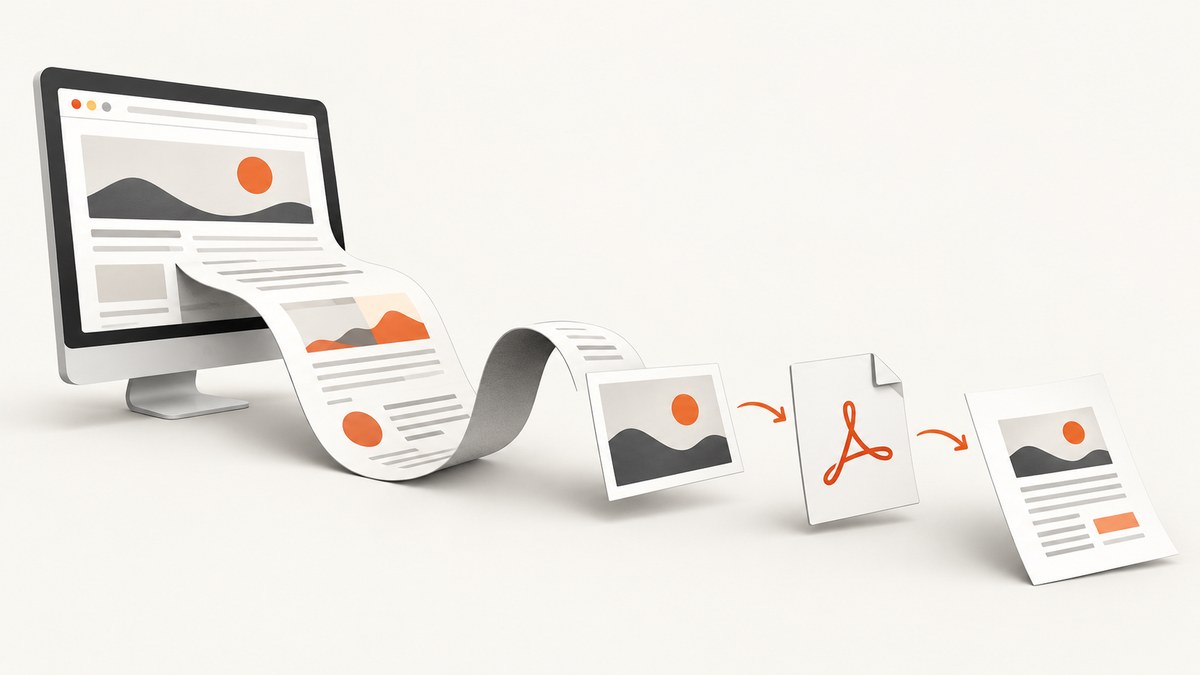
Choose the output first: use a browser’s full-page screenshot command when you need one tall image; use Print and Save as PDF when you need a document to share or print; use the printer destination when you need paper.
Firefox has an official built-in full-page capture: right-click an empty area, choose Take Screenshot, then choose Save full page. For PDF or paper, open the browser print dialog and review page range, orientation, scale, margins, and background settings before saving or printing. [Mozilla: Take screenshots in Firefox]
1. Decide whether you need an image, PDF, or paper copy
| Goal | Use | What you get |
|---|---|---|
| One tall visual of the page | Full-page screenshot | A PNG or other image that preserves the screen appearance. |
| A file for sharing or later printing | Print → Save as PDF | A paginated document with print settings. |
| A physical copy | Print → choose a printer | Paper output controlled by the printer and print preview. |
A screenshot preserves appearance as pixels. A PDF uses the page’s print layout, so sections can move, backgrounds can disappear, and pagination can differ from the screen.
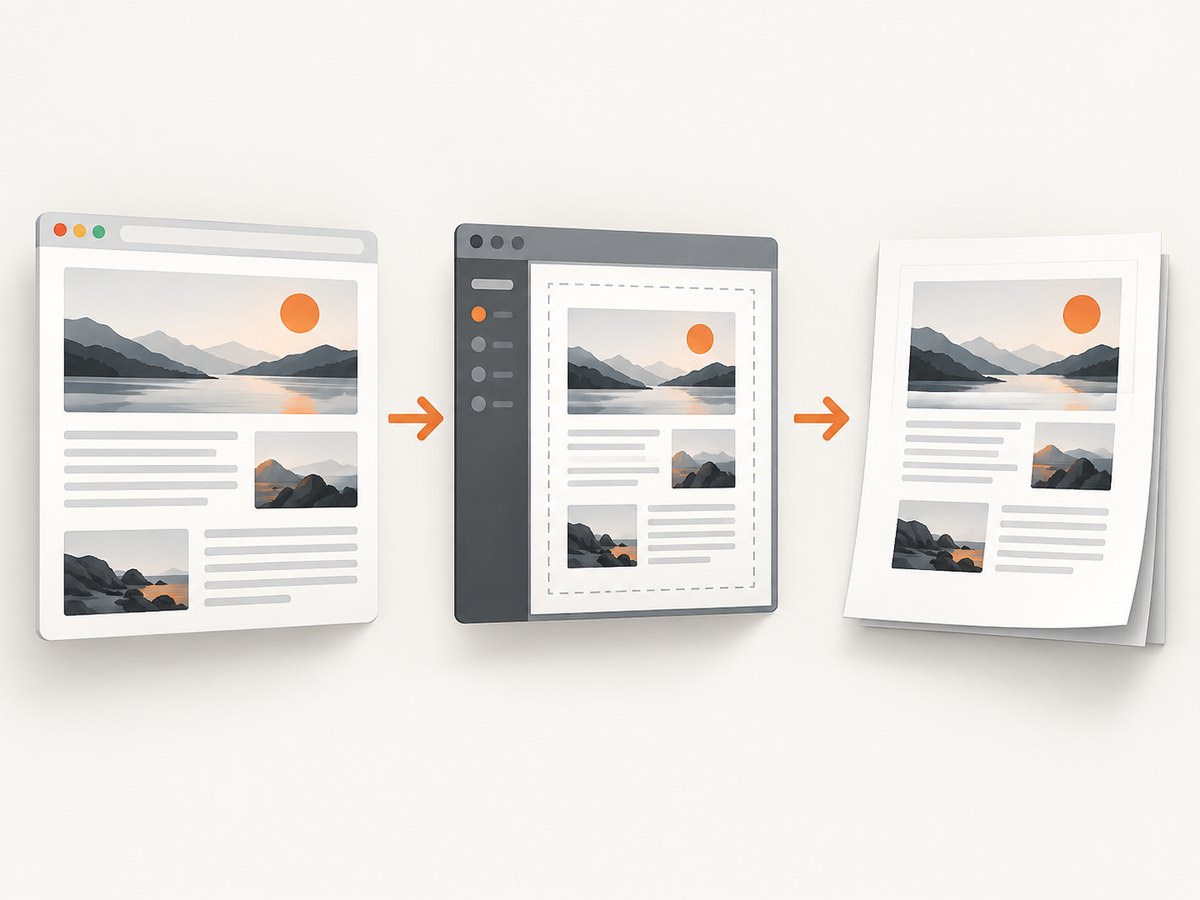
2. Capture a full webpage as one image in Firefox
- Open the page in Firefox.
- Right-click an empty part of the page (Control-click on macOS).
- Select Take Screenshot.
- Select Save full page.
- Preview the result and save the image.
Firefox’s screenshot tool also offers a selected region, an automatically highlighted element, or only the visible area. Choose Save full page when the page extends below the viewport. [Mozilla Support]
Use Firefox Developer Tools when the context menu is unavailable
- Open Developer Tools.
- Open Toolbox settings.
- Under Available Toolbox Buttons, enable Take a screenshot of the entire page.
- Click the screenshot button in the Developer Tools toolbar.
This route is useful when you are already debugging the page or when a page’s context menu does not expose the screenshot command. [Mozilla Developer Tools screenshot guide]
3. Print a webpage to PDF
Chrome
- Open the browser print interface with File → Print, Ctrl+P on Windows/Linux, or Command+P on macOS.
- Choose Save as PDF as the destination.
- Set pages, orientation, paper size, scale, margins, and background graphics as needed.
- Preview the pages, then save the file.
Google’s documented workflow covers print-to-PDF. Chrome’s official help does not establish a current full-page PNG procedure, so use Firefox’s documented capture flow when you specifically need one tall image. [Google Chrome Help: Print from Chrome]
Firefox
- Open the Firefox menu and choose Print….
- Choose Save to PDF for a file, or select a printer for paper.
- Review page selection, orientation, color, paper size, scale, pages per sheet, margins, headers and footers, and background options.
- Use Simplified format only when it produces the content you need; availability depends on the page.
- Save or print after checking the preview.
Firefox warns that webpages can define a different paper layout from their screen layout. Simplified format and background printing can be constrained by the print interface. [Mozilla: How to print web pages in Firefox]
Microsoft Edge
- Open Settings and more → Print, or press Ctrl+P on Windows or Command+P on macOS.
- Select a printer or an available PDF destination.
- Check the preview and adjust page range, orientation, scale, margins, and other available settings.
- Print or save the result.
4. Save a webpage as a PDF on iPhone or Mac
iPhone Safari
- Open the webpage in Safari.
- Tap Share.
- Choose Markup.
- Use the save control to save the resulting PDF to Files.
Button names and placement can vary with the tab layout and iOS version. [Apple: Mark up and save a webpage as a PDF]
Mac Safari
Safari’s File → Save As offers Web Archive or Page Source. A web archive can include graphics and links while their destinations remain available; Page Source saves HTML only. These are not printed PDFs. Use the print dialog when your required output is PDF. Apple also notes that some pages may prevent saving items displayed on the page. [Apple: Save a webpage]
5. Make the output readable and complete
- Check print preview: confirm that headings, tables, images, and the final section are present.
- Adjust scale and margins: a smaller scale can prevent clipped columns, while larger margins can create unexpected page breaks.
- Choose orientation: landscape often fits wide tables; portrait is usually better for text.
- Decide on backgrounds: disabling background graphics saves ink but can remove color cues and shaded sections.
- Wait for dynamic content: let lazy-loaded images, charts, and embedded content finish before capturing.
- Use full-page capture for visual fidelity: print CSS may intentionally hide navigation, ads, or decorative elements.
6. Troubleshooting
| Problem | Likely cause | Fix |
|---|---|---|
| The image contains only the visible screen | The visible-area option was selected. | In Firefox, reopen Take Screenshot and select Save full page. |
| The PDF omits a section | Print CSS, page range, scale, or simplified format changed the layout. | Check preview, select all pages, adjust scale and margins, and disable simplified format if needed. |
| Colors or backgrounds disappeared | Background printing is disabled. | Enable background graphics when the print dialog provides that option. |
| A wide table is clipped | Portrait orientation or excessive scale. | Try landscape, reduce scale, or increase the printable width. |
| Safari Mac saved a web archive instead of PDF | Save As was used instead of Print. | Use Safari’s print dialog and choose a PDF destination. |
| Some page content cannot be saved | The webpage restricts saving displayed items. | Use print-to-PDF or a full-page screenshot where appropriate; verify the preview. |
| Menu labels do not match | Browser, operating system, or version differences. | Identify the browser and device first, then check the current vendor documentation. |
7. Or skip the browser setup
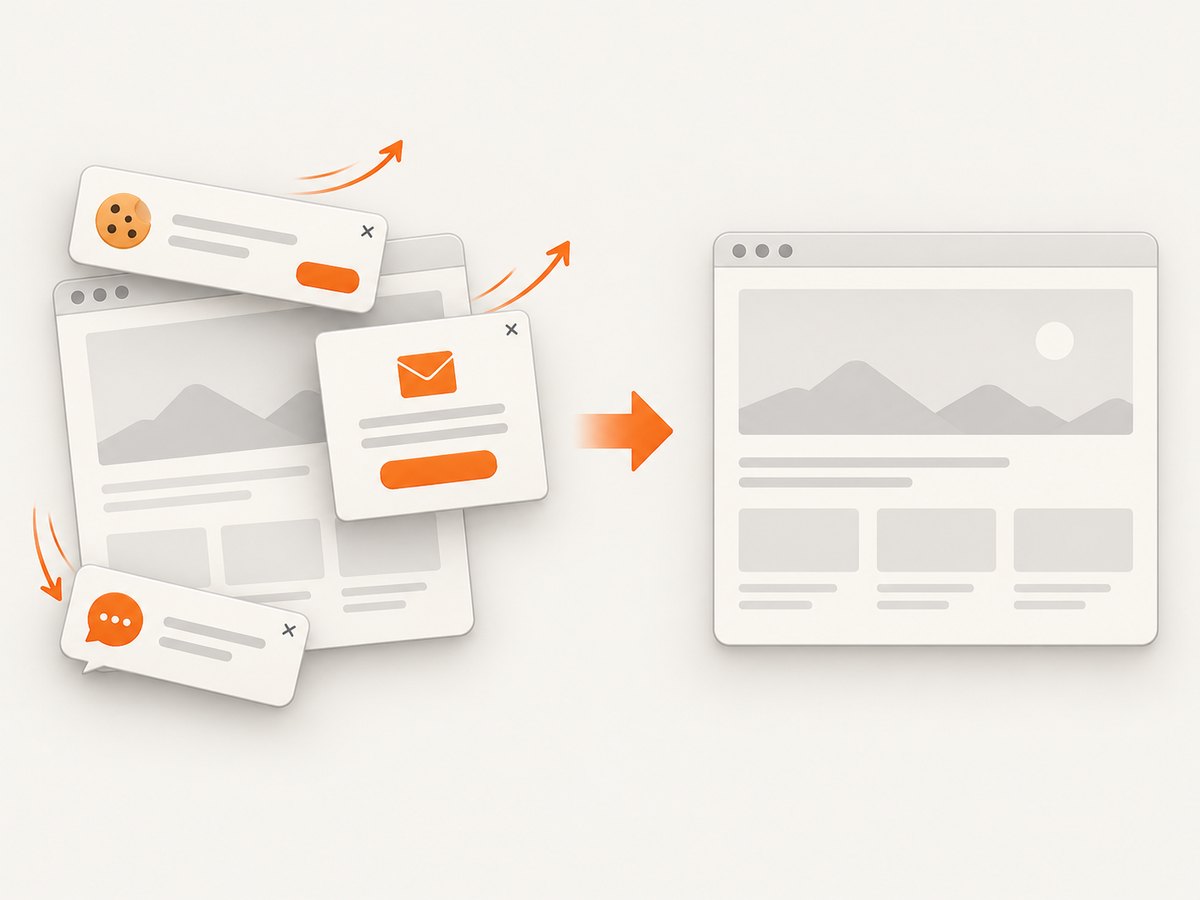
ScreenshotNeo returns a clean PNG, JPEG, WebP, or PDF from one request. It accepts consent banners like a visitor and removes more than 60 known consent platforms, newsletter popups, and chat widgets before capture. Bot checks, blank pages, timeouts, failed loads, and cache hits cost nothing, and response headers identify the page verdict and whether the request was billed.
See the ScreenshotNeo API documentation for all options, including full-page capture with lazy images loaded, CSS element capture, device presets, custom viewports, retina scale, PDF paper and margin controls, custom CSS and JavaScript, clicks, waits, request blocking, cookies, headers, user agents, timezone and geolocation, transparent backgrounds, resizing, caching, signed links, asynchronous jobs, bulk capture, usage data, and the OpenAPI specification.
curl -G "https://api.screenshotneo.com/v1/shot" -d access_key=YOUR_API_KEY --data-urlencode url=https://stripe.com -o shot.webpimport requests
r = requests.get("https://api.screenshotneo.com/v1/shot", params={"access_key": "YOUR_API_KEY", "url": "https://stripe.com"}, timeout=90)
open("shot.webp", "wb").write(r.content)const q = new URLSearchParams({ access_key: 'YOUR_API_KEY', url: 'https://stripe.com' });
const res = await fetch(`https://api.screenshotneo.com/v1/shot?${q}`);ScreenshotNeo also provides an MCP server with take_screenshot, get_page_info, and capture_pdf for Claude, Cursor, and other MCP clients. The Free plan includes 1,000 shots per month with no card; paid plans start at $5 for 3,000 shots. Create a free ScreenshotNeo account.
8. Performance, reliability, and cost notes
- Browser capture: very long pages can take longer to render and produce large image files. Wait for lazy content and keep the source tab stable during capture.
- PDF output: pagination, print CSS, paper size, and margins determine readability more than screen dimensions do. Always inspect preview.
- Repeatable automation: ScreenshotNeo supports waits, network-idle conditions, resource blocking, caching with a chosen TTL, asynchronous jobs with signed webhooks, and bulk capture of up to 100 URLs per call.
- Billing: ScreenshotNeo bills only clean shots. Failed loads, bot checks, blank pages, timeouts, and cache hits are not billed, and headers report the verdict and billing result.
- Plan choice: Free includes 1,000 shots monthly; Starter is $5 for 3,000, Growth $15 for 15,000, Pro $39 for 60,000, Scale $99 for 250,000, and Business $249 for 1,000,000. Yearly billing gives two months free, and every feature is on every plan.
9. FAQ
Is a full-page screenshot the same as a PDF?
No. A screenshot is one raster image of the page appearance. A PDF is paginated according to print rules and can reflow or omit screen-only elements.
Which browser has a documented one-step full-page image capture?
Firefox documents Take Screenshot → Save full page, both from the page context menu and through Developer Tools.
Why does print preview look different from the webpage?
Pages can define separate print styles, and print settings such as scale, margins, paper size, and orientation change pagination.
Can I capture only one element?
Firefox can capture a highlighted part, and ScreenshotNeo can capture one element by CSS selector when you need a repeatable API workflow.
Can an AI agent capture pages?
Yes. ScreenshotNeo’s MCP server exposes screenshot, page-info, and PDF tools for MCP clients such as Claude and Cursor.


