How to Capture Python Code Screenshots for Documentation
Learn when Python code screenshots help, how to create clean captures, and how to keep every example searchable, copyable, and accessible.
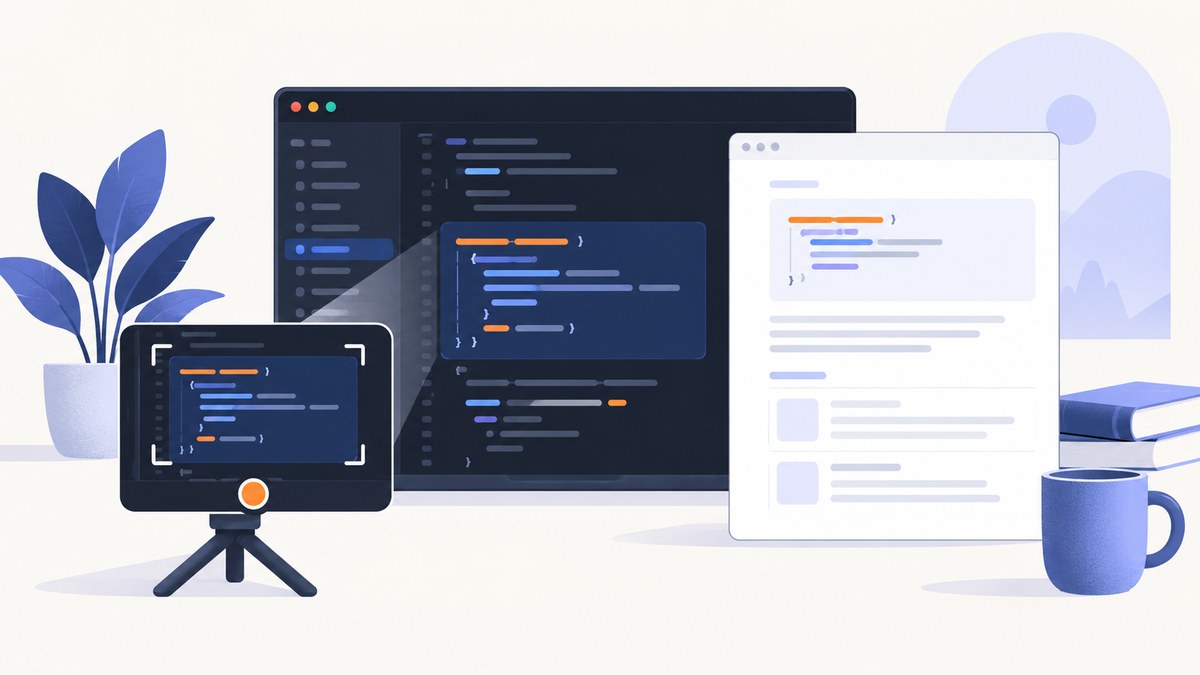
Use a screenshot when the visual arrangement matters; use a text code block when readers need to copy or run the Python. For documentation, the strongest pattern is to show a tightly cropped editor or rendered-code image and place the complete Python source immediately beside or below it.
GitHub Docs advises against screenshots for procedural steps when text is clear or for showing commands and outputs. The VS Code style guide recommends screenshots when appearance, spatial relationships, or a visual interface help readers understand the task. GitHub’s screenshot guidance and the VS Code accessibility documentation also support keeping content readable and usable with assistive technology.
1. Decide whether a screenshot adds information
Ask what the reader must learn:
- Syntax, commands, or output: publish a fenced
pythonblock. It is searchable, copyable, and accessible. - Editor state or spatial UI: add a screenshot. Examples include the position of a Python file in a project, an inline diagnostic, a debugger panel, or a visual setting that prose cannot locate easily.
- Presentation or visual review: add an image when theme, spacing, line highlighting, or layout is part of the point.
Never make the image the only representation of code that readers may need to reuse.
2. Prepare a clean editor view
- Open only the relevant Python file or the selected lines.
- Use a legible font size and enough contrast. Increase zoom until the smallest characters are easy to distinguish.
- Close unrelated sidebars, terminals, tabs, minimaps, and panels.
- Remove selections, breakpoints, unsaved-state markers, and diagnostics unless they are part of the explanation.
- Keep enough editor chrome to identify the context, but do not let it compete with the code.
- Use a consistent theme and window size across a documentation set. The exact dimensions and zoom should fit your site and audience.
VS Code documents zoom, high contrast, keyboard navigation, and screen-reader support in its accessibility guidance. Treat those controls as part of preparing the source view, not as an afterthought.
3. Frame and crop the capture
Crop around the lines or UI feature being explained. Include a small amount of context above and below the target so readers can orient themselves, but do not include unrelated files or empty editor space. Do not cut off indentation, line numbers that are referenced in the prose, or labels needed to identify a control.
For long functions, make several focused images instead of shrinking the entire file until the text is unreadable. If the code is the subject, publish the full source as text and use the image to show only the visual detail.
4. Create a screenshot with Python and Playwright
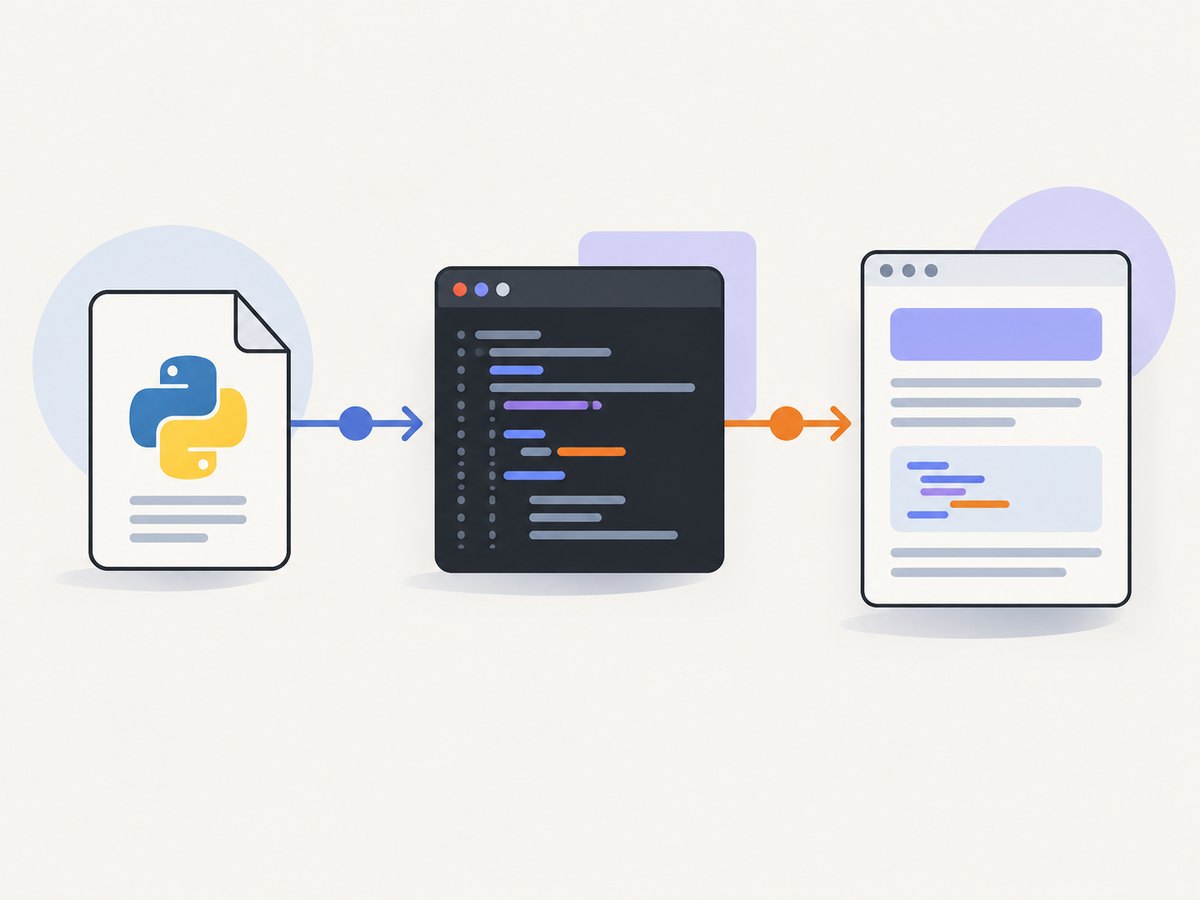
This reproducible workflow renders a small HTML document containing highlighted Python and captures it with a headless browser. It is useful for generated documentation, CI jobs, and consistent output across contributors.
Install dependencies
python -m pip install playwright pygments
python -m playwright install chromium
Runnable script
from pathlib import Path
from playwright.sync_api import sync_playwright
from pygments import highlight
from pygments.formatters import HtmlFormatter
from pygments.lexers import PythonLexer

source = '''def load_config(path: str) -> dict:
    """Read a UTF-8 JSON configuration file."""
    import json
    return json.loads(Path(path).read_text(encoding="utf-8"))
'''

highlighted = highlight(
    source,
    PythonLexer(),
    HtmlFormatter(nowrap=True, cssclass="code")
)
css = HtmlFormatter(style="friendly").get_style_defs(".code")
html = f'''<!doctype html>
<html>
<head>
<meta charset="utf-8">
<style>
{css}
body {{ margin: 0; background: #111827; }}
pre {{ margin: 0; padding: 32px; color: #f9fafb; font: 20px/1.55 ui-monospace, SFMono-Regular, Menlo, monospace; white-space: pre; }}
.frame {{ width: 1200px; border-radius: 14px; overflow: hidden; background: #111827; }}
</style>
</head>
<body><div class="frame"><pre>{highlighted}</pre></div></body>
</html>'''

Path("python-code.html").write_text(html, encoding="utf-8")
with sync_playwright() as p:
    browser = p.chromium.launch()
    page = browser.new_page(viewport={"width": 1264, "height": 400}, device_scale_factor=2)
    page.goto(Path("python-code.html").resolve().as_uri())
    page.locator(".frame").screenshot(path="python-code.png")
    browser.close()
The script writes both python-code.html and a tightly cropped python-code.png. Change the viewport, font size, padding, and theme in the CSS to match your documentation system. Keep the source string in your repository so the image can be regenerated after edits.
5. Capture from an editor or extension
A native editor capture preserves the real editor and its surrounding context. A code-to-image extension can provide a designed frame, theme, background, spacing, line highlighting, and export formats. The Visual Studio Marketplace listing for Code Screenshot describes selecting code and exporting PNG, SVG, or GIF; it also claims SVG output keeps code as text. Confirm the current listing and supported formats before relying on a particular option.
For either workflow:
- Save the source before capturing.
- Use a stable font and theme.
- Capture at a resolution that remains readable after your site scales it down.
- Use PNG for crisp raster text, or SVG when your publication pipeline and accessibility review support it.
- Keep an accessible text equivalent directly in the article.
6. Publish the text equivalent
Place the runnable code next to the image:
def load_config(path: str) -> dict:
    """Read a UTF-8 JSON configuration file."""
    import json
    return json.loads(Path(path).read_text(encoding="utf-8"))
Give the image meaningful alternative text that describes its purpose, not every character of the code. For example: Python function that reads a JSON configuration file from a path. If the image contains a UI state, describe the visible state and why it matters. Do not duplicate a long code listing in alt text when the same code is already available as text.
7. Options for repeatable documentation builds
| Need | Approach | Guidance |
|---|---|---|
| Exact editor context | Desktop or remote editor capture | Best when panels, file trees, or debugger state are the subject. |
| Consistent visual style | HTML plus Playwright, or a code-image extension | Keep CSS and source under version control. |
| Maximum copyability | Text code block | Use for commands, APIs, and code readers must run. |
| High-resolution reuse | SVG export | Verify that your renderer preserves text semantics and does not rasterize it. |
| Many files | Automated capture script | Generate images in CI and fail the build when source and image metadata diverge. |
8. Edge cases
- Long lines: prefer horizontal scrolling in the text version; do not wrap lines in the image if wrapping changes Python meaning.
- Dark mode: provide enough contrast in both the image and the surrounding page. A dark editor image on a dark page can lose its frame.
- Unicode and emoji: choose a font that contains every glyph or replace unsupported characters before capture.
- Terminal output: include it as text when readers need to copy it. A screenshot can show layout, color, or an interactive prompt.
- Secrets: remove API keys, tokens, personal paths, customer data, and internal hostnames before capture.
- Animated UI: pause animations and capture a deterministic state. A GIF is appropriate only when motion itself explains the feature.
- Responsive documentation: check the image at mobile width. If text becomes unreadable, provide a larger download or split the capture.
- Line numbers: include them only when prose references line numbers; otherwise they add visual noise and can become stale.
9. Troubleshooting
The code is unreadable after publishing
Increase the source font size, capture at a higher device scale, reduce surrounding chrome, or split the image. Do not solve this by shrinking the page image further.
Syntax highlighting is wrong
Make sure the lexer is Python, the file is decoded as UTF-8, and the theme has sufficient contrast. Test strings, decorators, type annotations, and multiline literals because they expose lexer differences.
The screenshot and code disagree
Generate the image from the same checked-in source used for the text block. Add a build step that updates or validates generated files whenever the source changes.
Playwright cannot launch Chromium
Run python -m playwright install chromium in the same environment that runs the script. In CI, cache the browser installation or use the browser image documented by your CI provider.
Fonts differ between machines
Install and pin the font in the capture environment, or use a broadly available monospace stack. Font changes alter line wrapping and image dimensions.
Assistive technology cannot use the image
Keep the complete code as real text, provide concise alt text, and avoid putting essential instructions only inside the image.
10. Performance, reliability, and cost
Native screenshots are fast for occasional edits but can vary with window size, operating-system scaling, and installed fonts. Browser-based generation is slower to set up, yet it is easier to reproduce in CI. Cache generated assets by a hash of the source, renderer version, CSS, and font set. Capture only changed files to keep documentation builds small.
Raster images are simple to serve but have a fixed resolution. SVG can scale cleanly, but review how your publishing system sanitizes and serves it. Keep originals and generated files separate so you can rebuild at a different size without losing source quality.
Or skip the browser setup
If the Python code is already published on a webpage, notebook, documentation site, or rendered example, ScreenshotNeo can capture that page through one API request. The API accepts a URL and returns PNG, JPEG, WebP, or PDF; its documentation lists the available options.
curl -G "https://api.screenshotneo.com/v1/shot" -d access_key=YOUR_API_KEY --data-urlencode url=https://stripe.com -o shot.webpimport requests
r = requests.get("https://api.screenshotneo.com/v1/shot", params={"access_key": "YOUR_API_KEY", "url": "https://stripe.com"}, timeout=90)
open("shot.webp", "wb").write(r.content)const q = new URLSearchParams({ access_key: 'YOUR_API_KEY', url: 'https://stripe.com' });
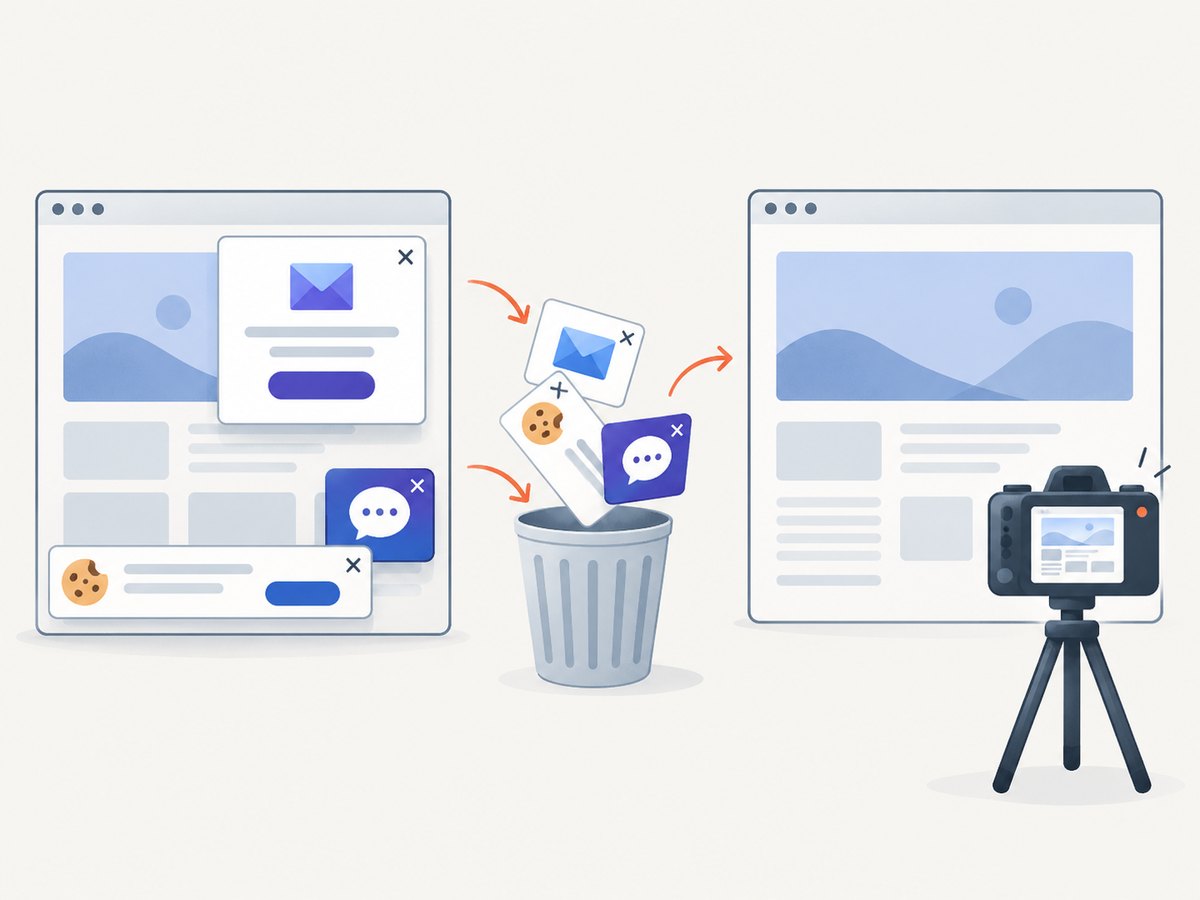
const res = await fetch(`https://api.screenshotneo.com/v1/shot?${q}`);Before capture, cookie and consent banners, newsletter popups, and chat widgets are removed. Bot checks, blank pages, failed loads, timeouts, and cache hits are not billed; response headers identify the page verdict and whether the shot was billed. You can also choose full-page or element capture, a device preset or custom viewport, dark mode, retina scale, waits, custom CSS or JavaScript, headers, cookies, user agent, timezone, geolocation, blocking rules, caching TTL, signed links, asynchronous jobs, bulk capture, PDFs, and other options. Its MCP server provides take_screenshot, get_page_info, and capture_pdf for Claude, Cursor, and other MCP clients.
The Free plan includes 1,000 screenshots per month with no card. Paid plans start at $5 for 3,000 shots; every feature is available on every plan. Create a free ScreenshotNeo account.
FAQ
Should every Python example have an image?
No. Add one when the visual presentation teaches something. Keep routine syntax and commands as text.
Is a screenshot a substitute for documentation code?
No. It is a visual supplement; the text version remains the source readers can search, copy, run, and access with assistive technology.
What format should I choose?
Use PNG for dependable raster output, SVG when your pipeline preserves text and scales it safely, and GIF only when animation explains the behavior.
How do I keep screenshots current?
Generate them from version-controlled source, record the renderer and font versions, and rebuild when either the code or presentation CSS changes.


