How to Capture a Raphael.js Div as an Image
Export a Raphaël paper to SVG or PNG with browser APIs, handle CORS and legacy rendering, and automate page captures with ScreenshotNeo.
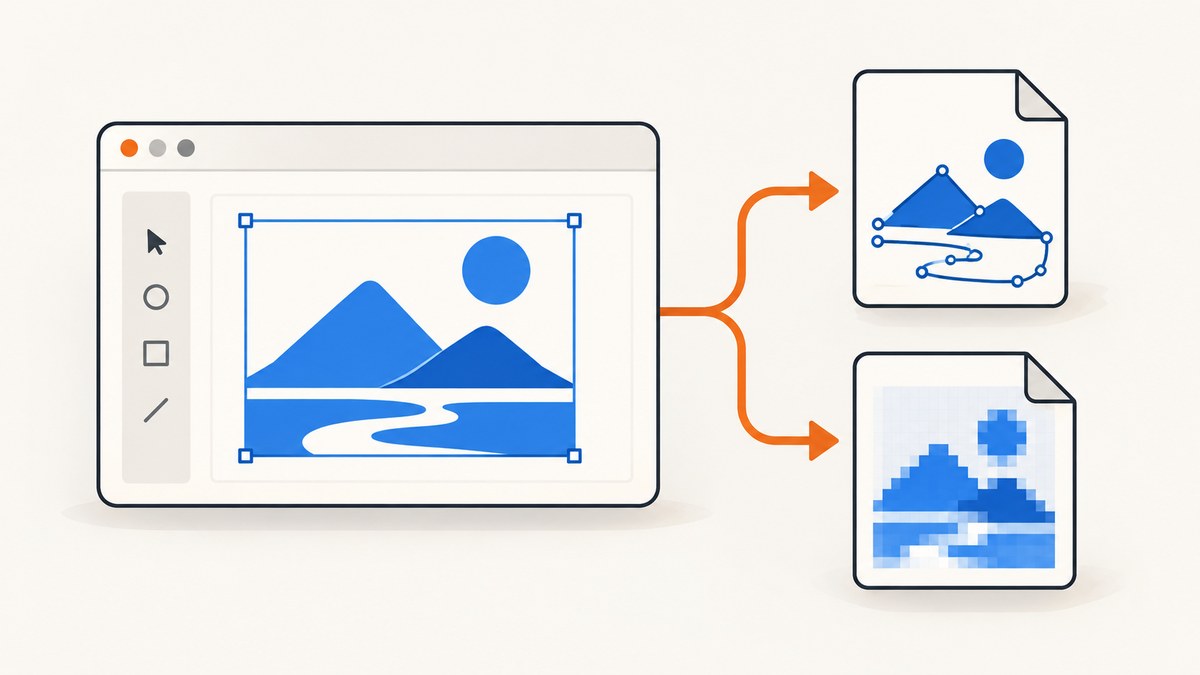
Direct answer: a “Raphael.js div” is usually the container holding a Raphaël paper. The container is not automatically a bitmap canvas. For vector output, export the paper’s SVG. For PNG output, serialize the SVG, load it into an image, draw that image onto a canvas, and call toDataURL() or toBlob(). This works in modern SVG-capable browsers; legacy VML rendering needs a different strategy.
1. Identify the Raphaël paper
Raphaël creates a drawing surface inside a DOM element. Keep the paper instance and its dimensions when you create it:
<div id="chart"></div>
<script src="./raphael.min.js"></script>
<script>
  const paper = Raphael("chart", 640, 360);
  paper.rect(20, 20, 600, 320, 12).attr({ fill: "#eef4ff", stroke: "#2563eb" });
  paper.circle(320, 180, 80).attr({ fill: "#60a5fa", stroke: "#1d4ed8", "stroke-width": 4 });
</script>
The paper owns the graphic dimensions. If the surrounding div is resized with CSS, decide whether the exported image should use the paper’s intrinsic size or the element’s displayed size.
Raphaël can use SVG or, in older environments, VML. Check the actual rendering surface before applying an SVG-only export path. See the Raphaël project documentation for the library’s rendering model.
2. Choose SVG or PNG
| Need | Use | Trade-off |
|---|---|---|
| Editing, print, or unlimited scaling | SVG | Downstream software must support SVG. |
| Upload to a raster-only API or CMS | PNG | Choose a pixel size; large images use more memory. |
| Small file for photographic or web use | JPEG or WebP after rasterization | Transparency may be lost and compression can alter edges. |
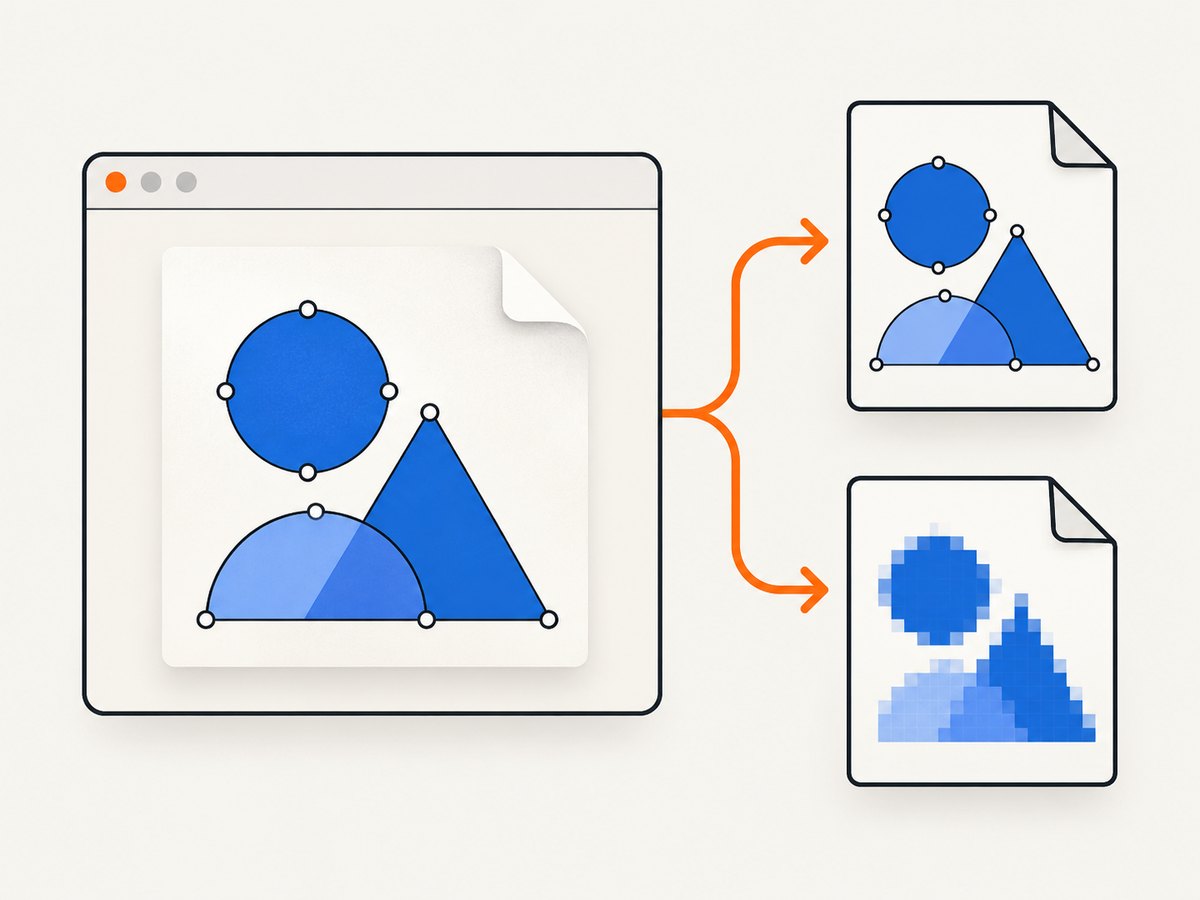
SVG is normally the simplest and most faithful saved form. PNG requires a rasterization step.
3. Export the paper as SVG
In an SVG-rendering browser, the paper surface is an <svg> element. You can serialize it directly:
function paperToSvgText(paper) {
  const svg = paper.canvas;
  if (!(svg instanceof SVGSVGElement)) {
    throw new Error("This paper is not using an SVG renderer");
  }

  svg.setAttribute("xmlns", "http://www.w3.org/2000/svg");
  svg.setAttribute("xmlns:xlink", "http://www.w3.org/1999/xlink");
  svg.setAttribute("width", paper.width);
  svg.setAttribute("height", paper.height);
  return new XMLSerializer().serializeToString(svg);
}

function downloadSvg(paper, filename = "raphael-drawing.svg") {
  const svgText = paperToSvgText(paper);
  const blob = new Blob([svgText], { type: "image/svg+xml" });
  const url = URL.createObjectURL(blob);
  const link = document.createElement("a");
  link.href = url;
  link.download = filename;
  link.click();
  URL.revokeObjectURL(url);
}

downloadSvg(paper);
Another option is the third-party Raphael.Export project, which adds paper.toSVG(). That repository is archived, so verify compatibility with your Raphaël version before depending on it.
Serializing the DOM preserves the SVG elements currently in the paper. External CSS rules, web fonts, and images may need to be embedded or made available to the consumer of the saved file.
4. Rasterize the SVG and save a PNG
To produce a PNG, create an image from the serialized SVG, draw it to a canvas, then serialize the canvas. Use toBlob() for downloads and large files; use toDataURL() when an in-memory data URL is specifically required.
function paperToPngBlob(paper, scale = 1) {
  return new Promise((resolve, reject) => {
    let svgText;
    try {
      svgText = paperToSvgText(paper);
    } catch (error) {
      reject(error);
      return;
    }

    const image = new Image();
    const url = URL.createObjectURL(
      new Blob([svgText], { type: "image/svg+xml" })
    );

    image.onload = () => {
      URL.revokeObjectURL(url);
      const canvas = document.createElement("canvas");
      canvas.width = Math.round(paper.width * scale);
      canvas.height = Math.round(paper.height * scale);
      const context = canvas.getContext("2d");
      context.setTransform(scale, 0, 0, scale, 0, 0);
      context.drawImage(image, 0, 0);
      canvas.toBlob(blob => {
        if (blob) resolve(blob);
        else reject(new Error("Canvas could not create a PNG blob"));
      }, "image/png");
    };
    image.onerror = () => {
      URL.revokeObjectURL(url);
      reject(new Error("The serialized SVG could not be loaded"));
    };
    image.src = url;
  });
}

async function downloadPng(paper, scale = 2) {
  const blob = await paperToPngBlob(paper, scale);
  const url = URL.createObjectURL(blob);
  const link = document.createElement("a");
  link.href = url;
  link.download = "raphael-drawing.png";
  link.click();
  URL.revokeObjectURL(url);
}

downloadPng(paper, 2).catch(console.error);
The browser’s canvas serialization APIs are documented by MDN. PNG is the default format for toDataURL(), but the returned string can be large because it contains the encoded image in memory.
5. Complete runnable example
Save this as index.html beside a local raphael.min.js file. It draws a paper and provides SVG and PNG download buttons.
<!doctype html>
<meta charset="utf-8">
<title>Raphaël export</title>
<style>
  #chart { width: 640px; height: 360px; border: 1px solid #ccd; }
  button { margin: 8px 8px 0 0; }
</style>
<div id="chart"></div>
<button id="svgButton">Download SVG</button>
<button id="pngButton">Download PNG</button>
<script src="./raphael.min.js"></script>
<script>
  const paper = Raphael("chart", 640, 360);
  paper.rect(20, 20, 600, 320, 14).attr({ fill: "#f8fafc", stroke: "#334155", "stroke-width": 2 });
  paper.path("M60,280 C180,60 300,320 420,100 S560,180 590,70")
    .attr({ stroke: "#2563eb", "stroke-width": 8, "stroke-linecap": "round", fill: "none" });
  paper.text(320, 320, "Raphaël paper").attr({ fill: "#0f172a", "font-size": 20 });

  function svgText() {
    if (!(paper.canvas instanceof SVGSVGElement)) throw new Error("SVG renderer required");
    paper.canvas.setAttribute("xmlns", "http://www.w3.org/2000/svg");
    return new XMLSerializer().serializeToString(paper.canvas);
  }

  function saveBlob(blob, name) {
    const url = URL.createObjectURL(blob);
    const a = document.createElement("a");
    a.href = url; a.download = name; a.click();
    URL.revokeObjectURL(url);
  }

  document.querySelector("#svgButton").onclick = () => {
    saveBlob(new Blob([svgText()], { type: "image/svg+xml" }), "drawing.svg");
  };

  document.querySelector("#pngButton").onclick = () => {
    const image = new Image();
    const url = URL.createObjectURL(new Blob([svgText()], { type: "image/svg+xml" }));
    image.onload = () => {
      URL.revokeObjectURL(url);
      const scale = 2;
      const canvas = document.createElement("canvas");
      canvas.width = paper.width * scale;
      canvas.height = paper.height * scale;
      canvas.getContext("2d").drawImage(image, 0, 0, canvas.width, canvas.height);
      canvas.toBlob(blob => saveBlob(blob, "drawing.png"), "image/png");
    };
    image.onerror = () => URL.revokeObjectURL(url);
    image.src = url;
  };
</script>
6. Edge cases and export options
External images and CORS
If the paper contains an image loaded from another origin, the canvas can become non-origin-clean. In that state, toDataURL() and toBlob() can throw a security error. Serve the image with appropriate cross-origin permission and set the image element’s crossOrigin before assigning its source. The server must return a matching CORS header.
Fonts and CSS
SVG text depends on available fonts. For predictable output, use a font installed in the capture environment or convert important text to paths. CSS outside the serialized SVG is not automatically included; inline the required presentation attributes or styles.
Transparent backgrounds
An SVG can remain transparent. For PNG, fill the canvas first if you need a solid background:
const context = canvas.getContext("2d");
context.fillStyle = "white";
context.fillRect(0, 0, canvas.width, canvas.height);
context.drawImage(image, 0, 0, canvas.width, canvas.height);
Pixel dimensions and retina output
Use a scale of 2 or 3 for high-density displays, while remembering that memory and encoding time grow with pixel count. Keep the paper’s coordinate system unchanged and scale only the destination canvas.
Legacy VML
If feature detection shows that paper.canvas is not an SVG element, an SVG serializer cannot export the drawing. Run the export in an SVG-capable browser or change the rendering approach. Avoid casually mutating Raphaël’s internal DOM because library-managed attributes and event behavior can be affected.
7. Troubleshooting
| Symptom | Likely cause | Fix |
|---|---|---|
paper.canvas is undefined or not SVG |
Different Raphaël version, renderer, or legacy VML mode | Feature-detect the renderer and use an SVG-capable browser. |
| PNG export throws a security error | An external image tainted the canvas | Enable CORS on the image response, or remove/rehost the image. |
| PNG is blank | The image was drawn before SVG loading completed | Call drawImage() inside image.onload. |
| Text looks different | The destination lacks the source font | Install or embed a consistent font, or convert text to paths. |
| Clipped edges | Canvas dimensions are smaller than the paper or stroke bounds | Match canvas dimensions to the paper and add padding when required. |
| Download does nothing | Object URL was revoked too early or browser blocked a synthetic click | Revoke after the click and trigger the download from a user event. |
| Large drawings freeze the tab | toDataURL() creates a large in-memory string |
Prefer toBlob(), reduce scale, or export in a worker where practical. |
8. Performance, reliability, and cost
- Performance: SVG serialization is proportional to the number of elements. Rasterization adds image decoding, canvas drawing, and PNG encoding. Avoid unnecessary scale factors.
- Reliability: wait until Raphaël has finished creating and updating every element before serializing. If data arrives asynchronously, export only after the final update.
- Security: CORS rules apply even when the original SVG itself is same-origin if it references remote raster images.
- Memory:
toBlob()avoids returning a second, very large base64 string. Revoke temporary object URLs after use. - Cost: local browser export has no API charge, but it requires a browser environment and your own handling for rendering differences, fonts, and CORS.
9. Or skip the browser setup
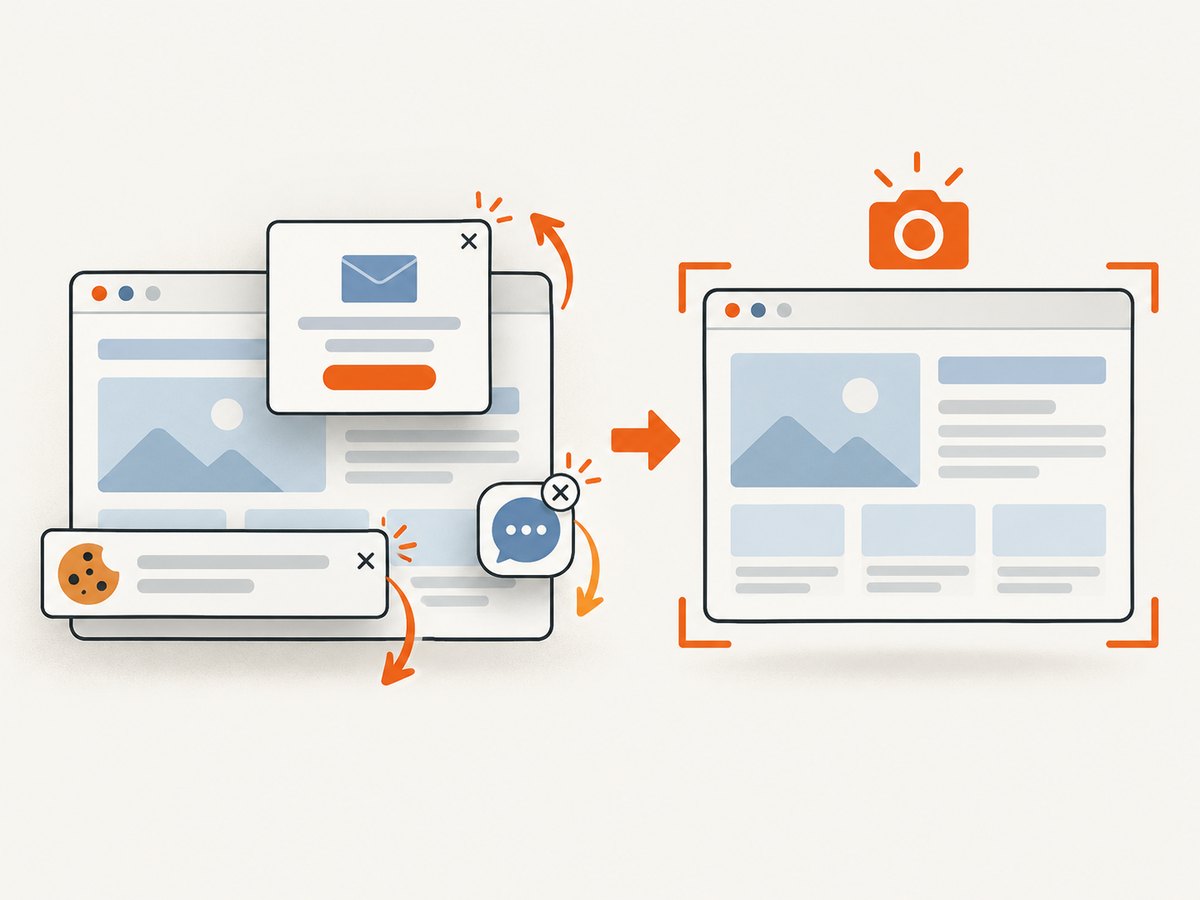
If you need a screenshot of the page rather than a hand-maintained export pipeline, ScreenshotNeo captures a URL with one request. Its API can capture a full page or a selected element, and its cleanup steps remove cookie banners, newsletter popups, and chat widgets before the shot.
See the ScreenshotNeo API documentation for request options:
cURL
curl -G "https://api.screenshotneo.com/v1/shot" -d access_key=YOUR_API_KEY --data-urlencode url=https://stripe.com -o shot.webpPython
import requests

r = requests.get(
    "https://api.screenshotneo.com/v1/shot",
    params={"access_key": "YOUR_API_KEY", "url": "https://stripe.com"},
    timeout=90,
)
r.raise_for_status()
open("shot.webp", "wb").write(r.content)
Node.js
const q = new URLSearchParams({ access_key: 'YOUR_API_KEY', url: 'https://stripe.com' });
const res = await fetch(`https://api.screenshotneo.com/v1/shot?${q}`);
if (!res.ok) throw new Error(`${res.status} ${res.statusText}`);
const fs = require('node:fs/promises');
await fs.writeFile('shot.webp', Buffer.from(await res.arrayBuffer()));
ScreenshotNeo reports whether a response was a clean shot and whether it was billed through response headers. Bot checks, blank pages, timeouts, failed loads, and cache hits are not billed. It also provides an MCP server with take_screenshot, get_page_info, and capture_pdf tools for AI agents. The free plan includes 1,000 screenshots per month with no card; paid plans start at $5 for 3,000. Create a free ScreenshotNeo account.
10. FAQ
Can I save the outer div directly?
Not as a reliable image. The div is a layout container; export the Raphaël paper inside it.
Is there a built-in Raphaël PNG method?
The reviewed documentation establishes SVG export through a third-party plugin and browser canvas serialization, but not a current built-in PNG exporter. Verify the method against your Raphaël version.
Which format should I store?
Store SVG when consumers support vectors and you need scaling or editing. Store PNG when a raster upload or fixed pixel dimensions are required.
Why does the result differ from the visible page?
The saved SVG may not include external CSS, fonts, or images exactly as the page displays them. Inline or embed those dependencies and export after the final render.
Can I automate many page captures?
Yes. ScreenshotNeo supports bulk capture for up to 100 URLs per call, caching with a chosen TTL, and asynchronous jobs with signed webhooks.


