How to Capture a React App and Generate a PDF
Choose browser printing or headless PDF generation for React, with complete Puppeteer, Playwright, print CSS, troubleshooting, and ScreenshotNeo options.
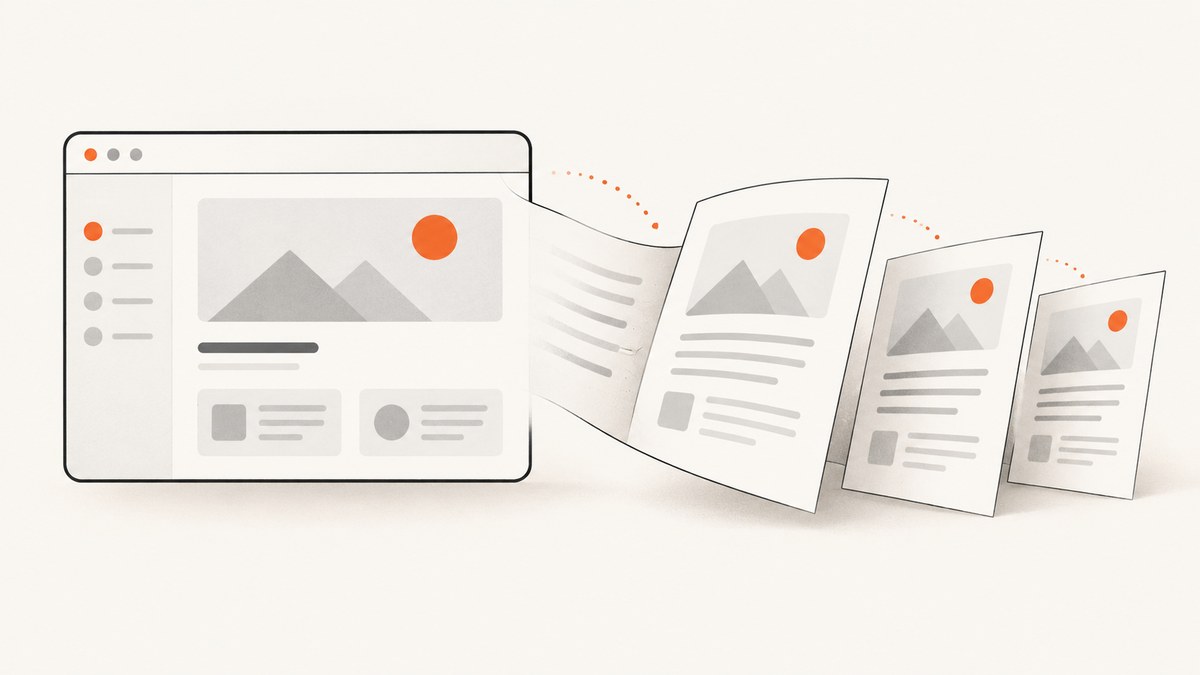
Direct answer: A React app becomes a PDF through the browser print pipeline or a headless browser. Use a print view plus @media print when a person should review the result. Use Puppeteer or Playwright and page.pdf() when your server must create a file automatically. Both APIs use print CSS by default; emulate screen media when the PDF must match the on-screen design.
React renders the interface, but React itself does not define a PDF format. Your choice depends on who starts the job, which content is included, and whether the output must be created without a print dialog.
1. Choose the PDF workflow
| Need | Best fit | Reason |
|---|---|---|
| A person chooses Save as PDF | Print route and print CSS | The browser owns preview, printer settings, and destination. |
| Download or email a file automatically | Puppeteer or Playwright | A headless browser can render a URL and return PDF bytes. |
| Only one report component | Dedicated print component or route | You control exactly what appears in the document. |
| Whole application page | Full page URL in a headless browser | Navigation and layout are captured together. |
react-to-print can select a React component for the browser print flow. Its package documentation says it cannot directly save a PDF outside the print-preview flow; pass the selected content to a separate PDF generator if you need an automatic file.
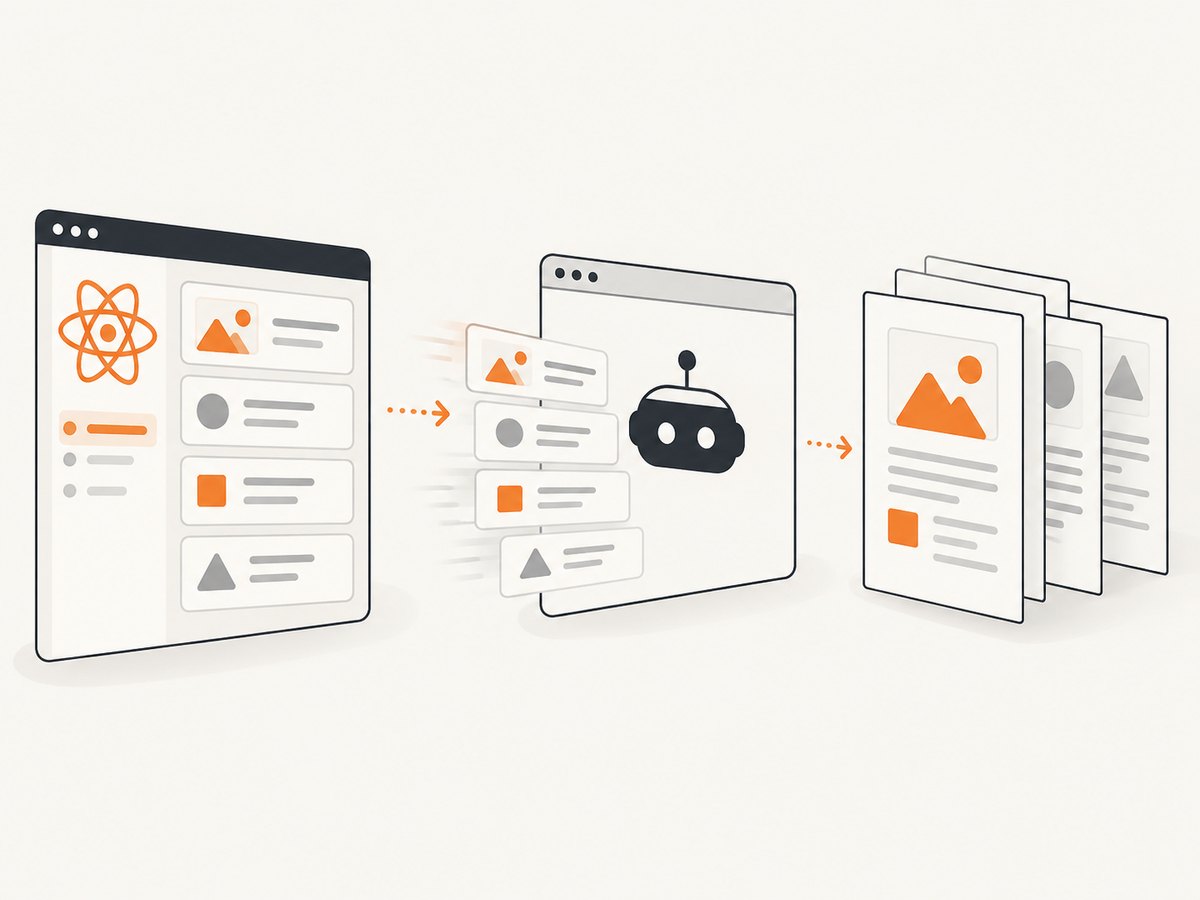
2. Build a stable print view
Put report content in a route or component with predictable width, explicit headings, and a loading state. Keep buttons, navigation, and interactive controls outside the printable region or hide them with print CSS.
import React, { useEffect, useRef, useState } from 'react';
import { useReactToPrint } from 'react-to-print';
import './report-print.css';

export default function ReportPage() {
  const reportRef = useRef(null);
  const [report, setReport] = useState(null);

  useEffect(() => {
    let cancelled = false;
    fetch('/api/report/42')
      .then((response) => {
        if (!response.ok) throw new Error(`HTTP ${response.status}`);
        return response.json();
      })
      .then((data) => { if (!cancelled) setReport(data); })
      .catch((error) => console.error(error));
    return () => { cancelled = true; };
  }, []);

  const print = useReactToPrint({ contentRef: reportRef, documentTitle: 'report-42' });
  if (!report) return <p role="status">Loading report…</p>;

  return (<>
    <button className="screen-only" onClick={print}>Print or save PDF</button>
    <main ref={reportRef} className="report">
      <h1>{report.title}</h1>
      <p className="muted">Generated {new Date(report.createdAt).toLocaleString()}</p>
      <section><h2>Summary</h2><p>{report.summary}</p></section>
      {report.items.map((item) => (<section className="report-section" key={item.id}><h2>{item.name}</h2><p>{item.description}</p></section>))}
    </main>
  </>);
}
.report { max-width: 760px; margin: 0 auto; color: #111; background: #fff; }
.screen-only { margin: 1rem 0; }
@media print {
@page { size: A4; margin: 18mm 16mm; }
.screen-only, nav, footer, .chat-widget { display: none !important; }
.report { max-width: none; margin: 0; }
.report-section { break-inside: avoid; page-break-inside: avoid; }
h1, h2 { break-after: avoid; page-break-after: avoid; }
a { color: inherit; text-decoration: none; }
* { -webkit-print-color-adjust: exact; print-color-adjust: exact; }
}Keep the print view data-complete before opening the dialog. A loading spinner, unresolved chart, or image without an intrinsic size can create blank or clipped pages. Browser print settings remain under the user’s control, so output can differ between browsers.
3. Generate a PDF automatically with Puppeteer
Puppeteer’s page.pdf() generates a PDF with the print CSS media type and waits for fonts by default. See the official PDF generation guide and API reference.
npm install puppeteerimport puppeteer from 'puppeteer';
const browser = await puppeteer.launch({ headless: true });
try {
const page = await browser.newPage();
await page.setViewport({ width: 1440, height: 1000, deviceScaleFactor: 1 });
await page.goto('https://your-app.example.com/reports/42', { waitUntil: 'networkidle0', timeout: 60000 });
await page.waitForSelector('[data-pdf-ready="true"]', { timeout: 30000 });
await page.emulateMediaType('screen');
await page.pdf({ path: 'report-42.pdf', format: 'A4', printBackground: true, preferCSSPageSize: true, landscape: false, margin: { top: '18mm', right: '16mm', bottom: '18mm', left: '16mm' }, scale: 1, displayHeaderFooter: false, pageRanges: '' });
} finally { await browser.close(); }Expose a readiness marker only after React data, charts, images, and fonts are ready:
return <main data-pdf-ready={report ? 'true' : 'false'}>...</main>;Puppeteer options that affect layout
formataccepts paper names such as A4 or Letter; usewidthandheightfor custom dimensions.landscaperotates the page.marginsets each edge.printBackgroundis off by default, so enable it for colored panels and charts.preferCSSPageSizelets@pagesize win overformat.scalechanges rendered size.pageRangesrestricts output such as1-3.displayHeaderFooterand templates add repeated page chrome.taggedis documented as experimental; evaluate accessibility requirements separately.
4. Use Playwright when it fits your stack
Playwright exposes the same core flow. Its Page PDF API documents print media, screen emulation, paper formats, margins, ranges, scaling, backgrounds, CSS page-size preference, and tagged output.
import { chromium } from 'playwright';

const browser = await chromium.launch();
try {
  const page = await browser.newPage({ viewport: { width: 1440, height: 1000 } });
  await page.goto('https://your-app.example.com/reports/42', { waitUntil: 'networkidle', timeout: 60000 });
  await page.locator('[data-pdf-ready="true"]').waitFor({ timeout: 30000 });
  await page.emulateMedia({ media: 'screen' });
  await page.pdf({ path: 'report-42.pdf', format: 'A4', printBackground: true, preferCSSPageSize: true, margin: { top: '18mm', bottom: '18mm' } });
} finally { await browser.close(); }
5. Control pagination and visual fidelity
- Use
break-before,break-after, andbreak-inside: avoid, with olderpage-break-*aliases where needed. - Give images explicit dimensions and use
object-fitto prevent layout shifts. - PDF APIs default to print CSS. Emulate screen media when screen styling is required.
-webkit-print-color-adjust: exactrequests closer color reproduction, but viewers and printers still control final rendering.- Do not assume a screenshot pasted into a PDF has searchable text, working links, selectable content, or accessibility tags. Choose browser PDF generation when those properties matter.
6. Authentication, assets, and application state
For protected routes, authenticate the browser before navigation with cookies or an authorization header. Keep secrets out of URLs and generated PDFs. Wait for application data explicitly; networkidle does not guarantee that a React chart finished drawing.
await page.setExtraHTTPHeaders({ Authorization: `Bearer ${process.env.REPORT_TOKEN}` });
await page.goto('https://your-app.example.com/reports/42', { waitUntil: 'domcontentloaded' });
await page.waitForFunction(() => document.fonts.status === 'loaded');
await page.waitForSelector('[data-pdf-ready="true"]');
7. Or skip the browser setup
ScreenshotNeo provides a website screenshot API and MCP server. Its endpoint returns PNG, JPEG, WebP, or PDF, including full-page captures with lazy images loaded. Cookie and consent banners are accepted like a visitor, and more than 60 known consent platforms, newsletter popups, and chat widgets are removed before capture; each cleanup step can be turned off. Bot checks, blank pages, timeouts, failed loads, and cache hits are not billed, and responses identify the result with X-Page-Verdict and X-Billed headers.
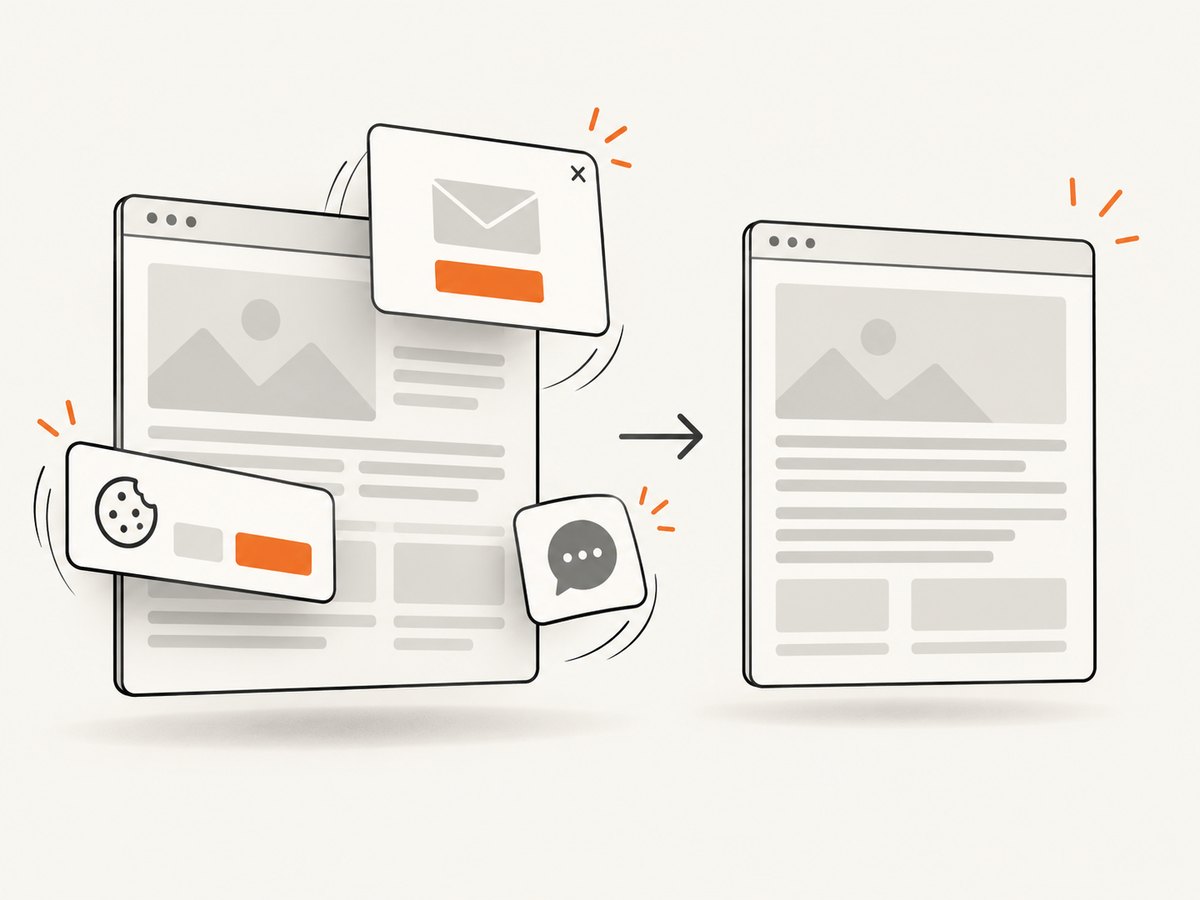
For PDF paper size, margins, orientation, page ranges, authentication, waits, custom CSS or JavaScript, and the other options, see the ScreenshotNeo documentation.
curl -G "https://api.screenshotneo.com/v1/shot" -d access_key=YOUR_API_KEY --data-urlencode url=https://your-app.example.com/reports/42 -d format=pdf -o report-42.pdfimport requests
r = requests.get("https://api.screenshotneo.com/v1/shot", params={"access_key": "YOUR_API_KEY", "url": "https://your-app.example.com/reports/42", "format": "pdf"}, timeout=90)
r.raise_for_status()
open("report-42.pdf", "wb").write(r.content)const q = new URLSearchParams({ access_key: 'YOUR_API_KEY', url: 'https://your-app.example.com/reports/42', format: 'pdf' });
const res = await fetch(`https://api.screenshotneo.com/v1/shot?${q}`);
if (!res.ok) throw new Error(`ScreenshotNeo HTTP ${res.status}`);
const fs = await import('node:fs/promises');
await fs.writeFile('report-42.pdf', Buffer.from(await res.arrayBuffer()));The service also supports custom headers, cookies, user agents and Authorization, waits for selectors or network idle, geolocation and timezone, request blocking, caching with a chosen TTL, async jobs with signed webhooks, bulk capture of up to 100 URLs per call, signed links, usage reporting, and an OpenAPI specification. Its MCP server exposes take_screenshot, get_page_info, and capture_pdf for Claude, Cursor, and other MCP clients.
Plans include 1,000 shots per month free with no card; paid plans start at $5 for 3,000 shots. Yearly billing gives two months free, and every feature is on every plan. Create a free ScreenshotNeo account.
8. Troubleshooting
| Symptom | Cause | Fix |
|---|---|---|
| Blank or half-rendered PDF | Capture ran before React data or charts finished. | Wait for a readiness marker and inspect console errors. |
| Missing backgrounds | Background printing is disabled. | Set printBackground: true and use print-color adjustment CSS. |
| Screen layout changed | Print media is the default. | Explicitly emulate screen media or add print CSS. |
| Text or sections clipped | Fixed heights, overflow, or oversized elements. | Remove fixed heights in print CSS and use page-break rules. |
| Images or fonts missing | Assets were unavailable or still loading. | Provide credentials, wait for fonts and image completion, and verify URLs. |
| Unexpected pages | Margins, CSS page size, or scale conflict. | Choose one source of truth: CSS page size or explicit format. |
| Print button does nothing | Ref is not mounted. | Pass the mounted ref to the print helper and inspect console errors. |
| ScreenshotNeo response is not a PDF | Format, URL, or page readiness issue. | Request PDF explicitly, check HTTP status and X-Page-Verdict/X-Billed, then inspect authentication. |
9. Performance, reliability, and cost
- Reuse a browser process for batches instead of launching one per document, while isolating pages and closing them after each job.
- Set navigation and readiness timeouts. Retry transient failures with a limit and record URL, revision, options, and error.
- Use deterministic data and fonts for repeatable output.
- Keep page ranges and viewport dimensions explicit. Large documents consume more memory.
- Cache stable documents by content version. With ScreenshotNeo, choose a cache TTL; cache hits, failed loads, and blank pages are not billed.
- Server-side PDF generation consumes browser CPU, memory, storage, and delivery resources. ScreenshotNeo pricing starts with 1,000 free shots monthly and $5 for 3,000 paid shots.
10. Validation checklist
- Data, fonts, images, and charts are ready before capture.
- Paper size, orientation, margins, scale, backgrounds, and page ranges are explicit.
- Navigation, buttons, popups, and chat controls are hidden.
- Long tables, headings, code blocks, and cards break across pages acceptably.
- Protected assets load with intended credentials.
- Representative PDFs are checked for clipping, blank pages, color changes, links, selectable text, and accessibility requirements.
FAQ
Can React generate a PDF by itself?
React supplies the rendered view. The browser print pipeline, Puppeteer, Playwright, or another PDF generator creates the file.
Should I use a screenshot instead of a PDF?
Use a screenshot for a visual image. Use browser PDF generation when pagination, selectable text, links, or document semantics matter.
Why does my PDF look different from the page?
PDF APIs default to print CSS, which can hide controls and change colors. Emulate screen media or design an intentional print stylesheet.
Can I print only one React component?
Yes. Render that component in a dedicated print view or use a helper such as react-to-print, then let the browser print dialog create the file.


