How to Capture Screenshots of React Webpages Reliably
A reliable Playwright workflow for React screenshots: wait for real readiness, freeze motion, stabilize rendering, and diagnose flaky captures.
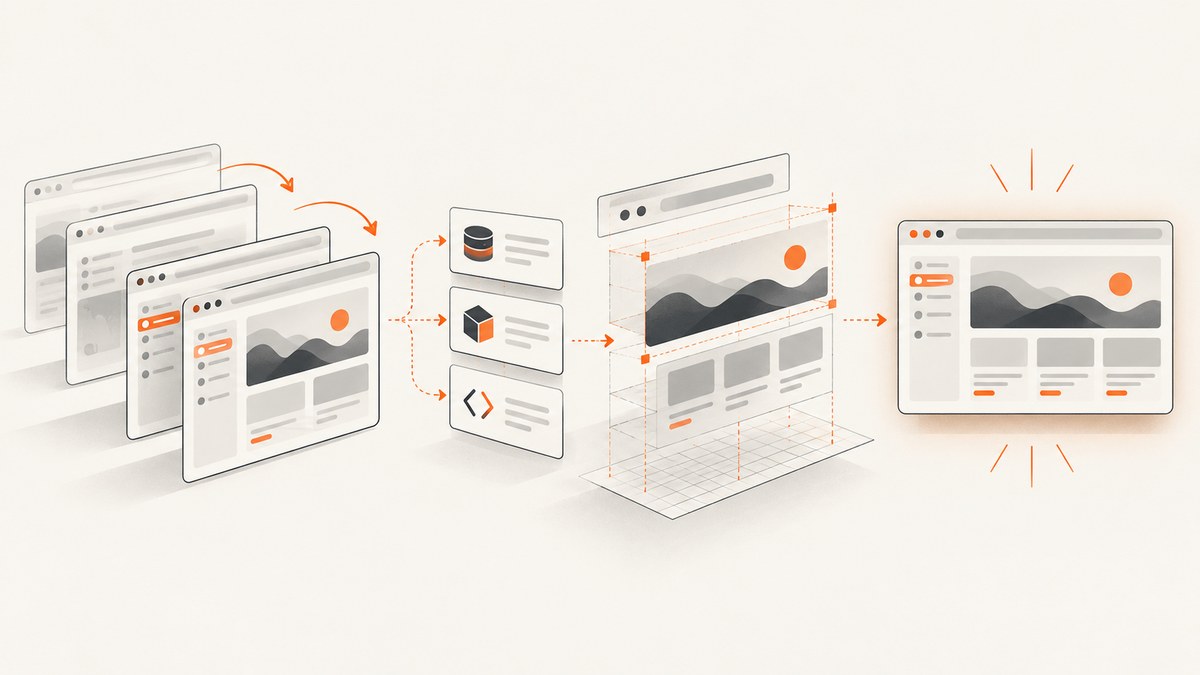
React can render a complete DOM before the content you need is actually ready. Data may still be loading, images and web fonts may not have arrived, a skeleton may be covering the layout, and CSS animations may be moving while the screenshot is taken. A reliable capture waits for an application-specific ready condition, uses fixed browser inputs, disables motion, and captures the smallest correct scope.
For most projects, use Playwright. Set an explicit viewport and device profile, navigate with page.goto(), wait for a visible route-specific condition, verify the exact data or component needed in the image, then call page.screenshot(). For visual regression, use Playwright Test’s toHaveScreenshot() with pinned browser and operating-system inputs.
1. The reliable React screenshot workflow
- Use a pinned browser. Run the same Playwright browser engine and version for local captures and CI baselines.
- Create a deterministic context. Set viewport, device scale, color scheme, locale, timezone, and any device profile that affects layout.
- Navigate to the route. Use
page.goto()and choose an appropriate load policy. A successful navigation only proves that the document navigation completed. - Wait for application readiness. Wait for a route heading, a populated table, a disappeared skeleton, a known API response, or a ready marker exposed by the React app.
- Wait for visual dependencies. Ensure fonts and images used in the target region have loaded.
- Freeze motion. Disable transitions and animations so a capture does not depend on timing.
- Capture the narrowest useful scope. Choose a viewport screenshot, full document, locator, or fixed clip according to the requirement.
- Close the context. Explicitly close the browser so CI jobs do not leak processes.
Playwright’s Page API documents networkidle as waiting for 500 ms without network connections and labels it “DISCOURAGED” for testing. React applications can keep analytics, polling, WebSockets, or prefetch requests active, so network silence is not a universal definition of visual readiness.

2. Complete Playwright example
The following script captures a full React products page after both the heading and an application-owned ready marker prove that the required data is present.
import { chromium } from '@playwright/test';

const browser = await chromium.launch();
const context = await browser.newContext({
  viewport: { width: 1440, height: 900 },
  deviceScaleFactor: 1,
  colorScheme: 'light',
  locale: 'en-US',
  timezoneId: 'UTC',
});

const page = await context.newPage();
await page.goto('http://localhost:3000/products', {
  waitUntil: 'domcontentloaded',
});

// Proves that the route rendered.
await page.getByRole('heading', { name: 'Products' }).waitFor({ state: 'visible' });

// Your React app should set this after the required data and layout are ready.
await page.locator('[data-testid="products-ready"]').waitFor({ state: 'attached' });
await page.locator('[data-testid="products-ready"]').waitFor({ state: 'visible' });
await page.locator('[data-testid="products-ready"]').toHaveAttribute('data-ready', 'true');

// Verify the target content, not just the shell.
await page.locator('[data-testid="product-table"] tr').first().waitFor({ state: 'visible' });

// Disable motion for this capture.
await page.addStyleTag({
  content: `
    *, *::before, *::after {
      animation-duration: 0s !important;
      animation-delay: 0s !important;
      transition-duration: 0s !important;
      transition-delay: 0s !important;
      caret-color: transparent !important;
    }
  `,
});

await page.screenshot({
  path: 'products.png',
  fullPage: true,
  scale: 'css',
});

await context.close();
await browser.close();
The selectors in this example are application-specific. A good ready marker is set by the page after the exact API responses, images, and state needed for the screenshot have completed. Do not use a marker that merely means “React mounted.”
3. Wait for data, images, and fonts
Prefer a ready signal over a fixed sleep
await page.waitForTimeout(2000) can hide a race on a fast laptop and still fail on a busy CI runner. Replace it with a condition that expresses what must be true:
await expect(page.getByRole('heading', { name: 'Orders' })).toBeVisible();
await expect(page.locator('[data-testid="orders-ready"]'))
  .toHaveAttribute('data-ready', 'true');
await expect(page.locator('[data-testid="orders-error"]')).toBeHidden();
For a page that does not expose a marker, wait for a specific API response and then assert the resulting UI. A response alone does not prove React committed the data to the DOM.
const responsePromise = page.waitForResponse(response =>
  response.url().endsWith('/api/orders') && response.ok()
);
await page.goto('http://localhost:3000/orders');
await responsePromise;
await expect(page.getByRole('table')).toContainText('Order');
Images and web fonts
A screenshot can contain empty image boxes or fallback text even when the React markup is correct. Wait for resources used by the target region:
await page.locator('main img').evaluateAll(images =>
  Promise.all(images.map(image => {
    if (image.complete && image.naturalWidth > 0) return;
    return new Promise(resolve => {
      image.addEventListener('load', resolve, { once: true });
      image.addEventListener('error', resolve, { once: true });
    });
  }))
);
await page.evaluate(() => document.fonts.ready);
Use a narrower selector than main img when a page contains unrelated lazy images. If an image is intentionally lazy-loaded, scroll its container into view or use the full-page capture behavior that causes the document to be traversed.
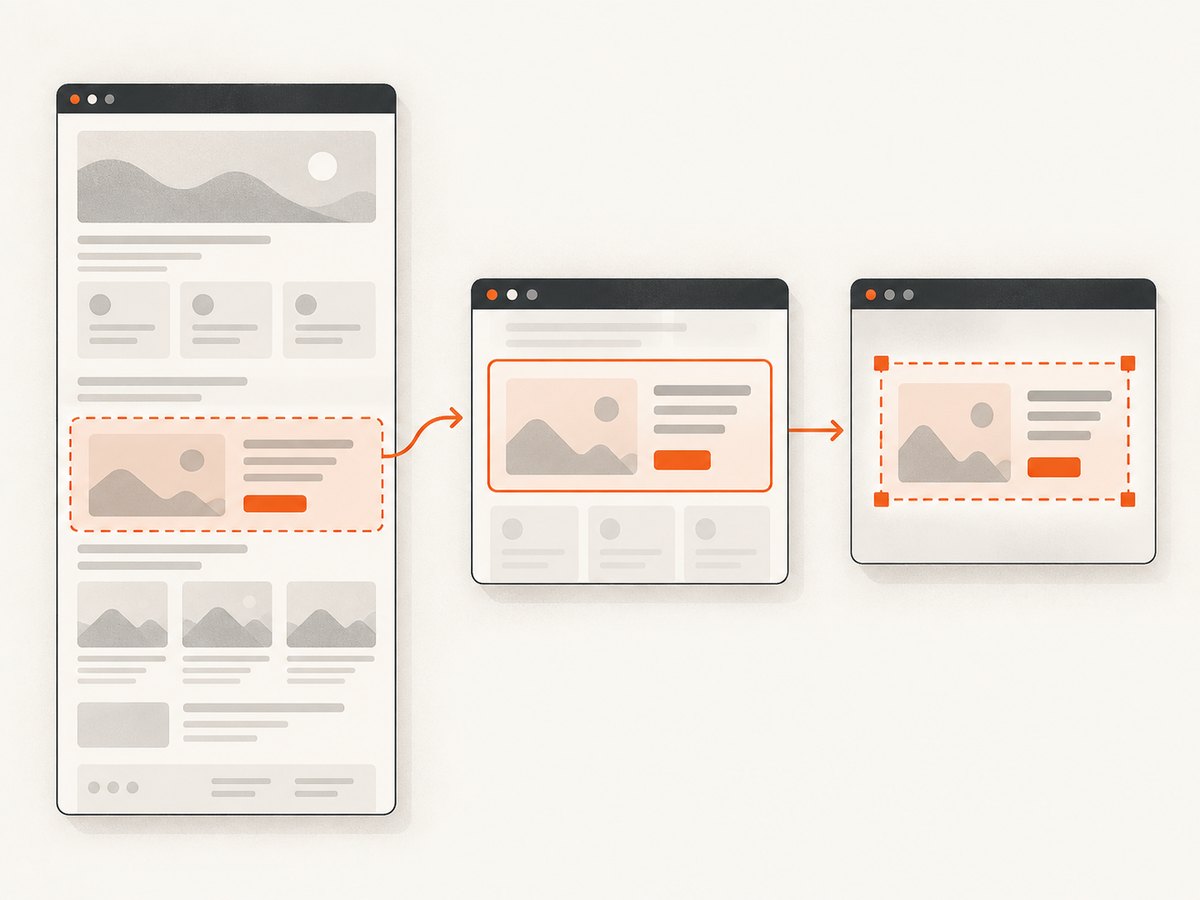
4. Choose the correct capture scope
| Requirement | Playwright option | Typical use |
|---|---|---|
| Visible viewport | page.screenshot({ path }) |
Above-the-fold documentation or a dashboard view |
| Entire scrollable document | fullPage: true |
Long landing pages and full route archives |
| One component | page.locator(selector).screenshot() |
Invoices, cards, charts, or a React widget |
| Fixed rectangle | clip: { x, y, width, height } |
A stable region whose coordinates are known |
await page.screenshot({ path: 'viewport.png' });
await page.screenshot({ path: 'document.png', fullPage: true, scale: 'css' });
await page.locator('[data-testid="invoice"]').screenshot({ path: 'invoice.png' });
await page.screenshot({
  path: 'chart-area.png',
  clip: { x: 80, y: 160, width: 900, height: 520 },
});
Locator screenshots are usually more robust than coordinate clips because the locator follows the component when surrounding layout changes. Use a clip when the output must be a fixed rectangle for a downstream format.
5. CSS pixels, device pixels, and device profiles
Use scale: 'css' for one output pixel per CSS pixel. This makes files and comparisons easier to reason about. Use scale: 'device' when the consumer specifically needs device-pixel output. A high device scale can make a screenshot twice as large or larger.
await page.screenshot({ path: 'css-scale.png', scale: 'css' });
await page.screenshot({ path: 'retina-scale.png', scale: 'device' });
When the requirement is a named mobile or tablet device, use Playwright’s device registry so viewport, user agent, touch behavior, and scale are consistent:
import { chromium, devices } from '@playwright/test';

const browser = await chromium.launch();
const context = await browser.newContext({
  ...devices['iPhone 13'],
  locale: 'en-US',
  timezoneId: 'UTC',
});
const page = await context.newPage();
await page.goto('http://localhost:3000/products');
await page.getByRole('heading', { name: 'Products' }).waitFor();
await page.screenshot({ path: 'products-mobile.png', fullPage: true });
await context.close();
await browser.close();
6. Make screenshots reproducible in CI
Playwright documents that screenshot comparisons can vary with operating-system version, browser version, settings, hardware, power source, headless mode, fonts, and related inputs. Pin the Playwright version and browser binaries, install the same fonts in CI, fix the viewport and device scale, and keep separate baselines for browser or platform combinations that are expected to differ. Do not compare a Linux baseline with a macOS baseline and assume every pixel should match.
Keep test data deterministic. Freeze dates, use stable fixtures, disable random avatars, mock unstable third-party content, and avoid live analytics or advertisements. If the page uses a clock, inject a fixed time. If content is personalized, create a dedicated test account or route with known data.
Visual regression assertions
For regression testing, use Playwright Test screenshot assertions:
import { test, expect } from '@playwright/test';

test('products page is stable', async ({ page }) => {
  await page.goto('http://localhost:3000/products');
  await expect(page.getByRole('heading', { name: 'Products' })).toBeVisible();
  await expect(page.locator('[data-testid="products-ready"]').getAttribute('data-ready'))
    .resolves.toBe('true');
  await expect(page).toHaveScreenshot('products.png', {
    fullPage: true,
    animations: 'disabled',
    scale: 'css',
  });
});
The assertion takes screenshots until two consecutive images match and then compares the result with the expected snapshot. That helps with asynchronous settling, but it does not replace deterministic data, fonts, animations, and browser inputs. Set a reviewable diff policy for your project; the official documentation does not publish a universal React success rate or pixel-difference threshold.
7. Common failures and fixes
| Symptom | Likely cause | Fix |
|---|---|---|
| Blank page | Route failed, app crashed, bot check appeared, or capture ran before mount | Check the response status, console errors, route heading, and an app-owned ready marker. Save a trace and inspect the actual page. |
| Skeleton or empty table | Screenshot follows navigation instead of data commit | Wait for the specific table row, loaded state, or ready attribute. |
| Images missing | Lazy loading or failed image request | Scroll the target into view, wait for complete and naturalWidth, and inspect failed requests. |
| Wrong font or shifted text | Font not installed, blocked, or not loaded | Install the same fonts in CI and await document.fonts.ready. |
| Different output on CI | Browser, OS, fonts, viewport, scale, or data differ | Pin browser and environment inputs; use platform-specific baselines when needed. |
| Flaky animation frame | Transitions, carousels, counters, or video are active | Inject a motion-reset stylesheet, use animations: 'disabled', pause media, or provide a static test mode. |
| Full-page screenshot cuts content | Virtualized list, nested scroll container, or content appears only after scrolling | Capture the component, expand the scroll container for tests, or scroll through the document before capture. |
| Cookie dialog covers the page | Consent state is absent | Set the required cookie in the context, dismiss the dialog through a stable locator, or use a capture service that handles consent. |
8. Performance, reliability, and cost choices
Browser startup is expensive relative to taking another screenshot in an existing context. Reuse a browser process when capturing several routes, but create isolated contexts when cookies, local storage, locale, or authentication must differ. Keep screenshots scoped: a locator capture transfers less image data and avoids work outside the component.
Full-page captures can be costly for very tall documents, especially with high device scale and large images. Use CSS scale unless a downstream consumer needs device pixels. Disable unnecessary resources in a controlled test environment, but do not block fonts, images, or API calls required by the visual contract. Mock slow or nondeterministic third-party calls rather than adding arbitrary sleeps.
For reliability, collect a trace, console output, failed requests, and the final HTML when a capture fails. A screenshot should be treated as an artifact of a defined browser, data, and environment tuple. Record those inputs alongside visual baselines so a diff can be explained.
9. Or skip the browser setup
If you need hosted screenshots of React routes without maintaining Playwright workers, ScreenshotNeo provides a website screenshot API and MCP server. It accepts one GET request and returns PNG, JPEG, WebP, or PDF. Before capture, it accepts cookie and consent banners and removes more than 60 known consent platforms, newsletter popups, and chat widgets; each cleanup step can be turned off.
Only clean shots are billed. Bot checks and CAPTCHAs, blank pages, timeouts, failed loads, and cache hits cost nothing, and response headers identify the result with X-Page-Verdict and X-Billed. An MCP server exposes take_screenshot, get_page_info, and capture_pdf to Claude, Cursor, and other MCP clients.
See the ScreenshotNeo API documentation for all options, including full-page capture with lazy images, CSS-selector element capture, dark mode, device presets, custom viewports, retina scale, custom CSS and JavaScript, click and wait actions, blocked resources, headers, cookies, user agents, authorization, timezone, geolocation, transparent backgrounds, resizing, caching, signed links, asynchronous jobs, webhooks, bulk capture, usage, and the OpenAPI specification.
cURL
curl -G "https://api.screenshotneo.com/v1/shot" \
  -d access_key=YOUR_API_KEY \
  --data-urlencode url=http://localhost:3000/products \
  -o products.webp
Python
import requests

r = requests.get(
    "https://api.screenshotneo.com/v1/shot",
    params={
        "access_key": "YOUR_API_KEY",
        "url": "http://localhost:3000/products",
    },
    timeout=90,
)
r.raise_for_status()
open("products.webp", "wb").write(r.content)
Node.js
const q = new URLSearchParams({
  access_key: 'YOUR_API_KEY',
  url: 'http://localhost:3000/products',
});
const res = await fetch(`https://api.screenshotneo.com/v1/shot?${q}`);
if (!res.ok) throw new Error(`Screenshot failed: ${res.status}`);
const image = Buffer.from(await res.arrayBuffer());
await import('node:fs/promises').then(fs => fs.writeFile('products.webp', image));
ScreenshotNeo includes every feature on every plan. The Free plan includes 1,000 shots per month with no card; paid plans start at $5 for 3,000 shots. Yearly billing gives two months free. For AI-driven capture, the MCP tools remove the need to write browser orchestration code.
Create a free ScreenshotNeo account and get 1,000 screenshots a month with no card.
10. FAQ
Should I wait for networkidle?
Usually no. It is discouraged as a universal testing signal because ongoing polling, analytics, and WebSockets can prevent it, while a quiet network does not prove that the required React content is visible. Prefer a route-specific ready condition.
Is a full-page screenshot the same as a viewport screenshot?
No. A viewport capture records the visible window. fullPage: true captures the document’s full scrollable height. A virtualized list or nested scroll container may require special handling.
Why does a screenshot differ by one or two pixels?
Browser and operating-system rendering, font rasterization, device scale, data, and animation state can differ. Pin those inputs and keep baselines per supported environment.
When should I capture a locator instead of the page?
Use a locator for a component such as an invoice, chart, or card. It follows the element’s layout and avoids unrelated page changes.
Can I use screenshots for regression tests with dynamic data?
Yes, if the test uses deterministic fixtures or mocks. Otherwise, changing timestamps, prices, avatars, or API results will create diffs unrelated to a code change.


