How to Capture a Web Page’s Rendered HTML, CSS, and JavaScript
Choose the right way to save a rendered page: DOM dump, MHTML archive, HAR, DOM snapshot, screenshot, or PDF. Includes runnable browser automation examples.
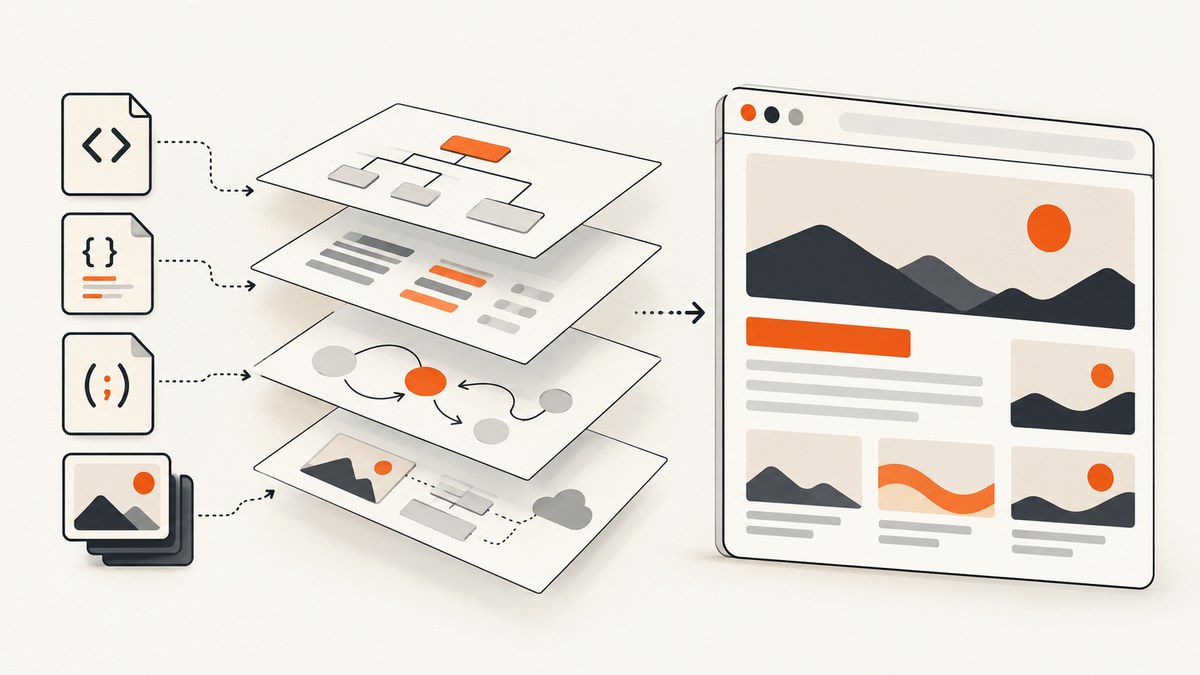
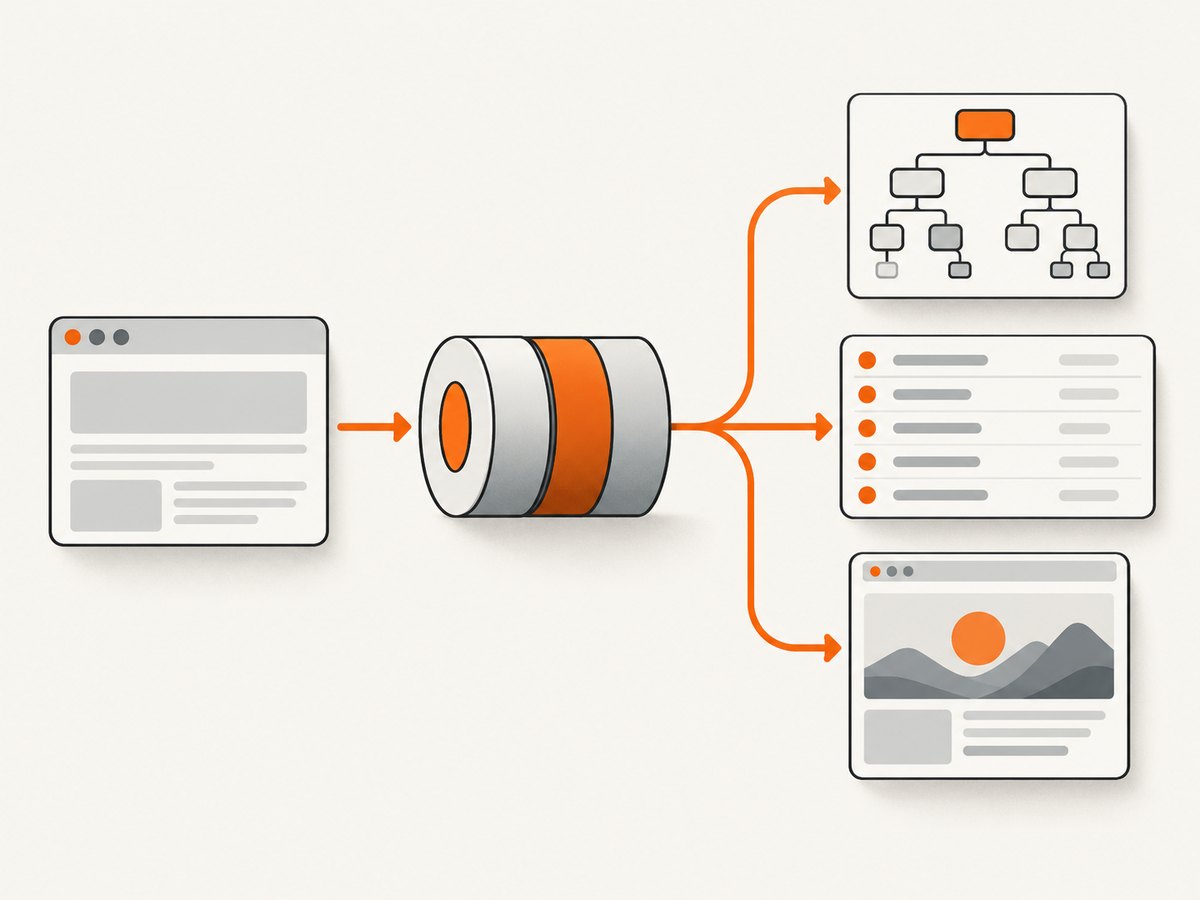
To capture a web page after JavaScript has run, use a browser that loads the page and then save the artifact that matches your goal. For post-script markup, use Chrome Headless --dump-dom or Playwright’s page.content(). For a single-file browser archive, use Chrome’s MHTML capture API. For request and response evidence, export a HAR. For structured DOM, layout, and selected computed styles, use the Chrome DevTools Protocol DOM snapshot. For visual evidence, take a screenshot or create a PDF.
These outputs preserve different parts of a page. A DOM dump is not a package of every stylesheet and script; a HAR is not an offline page; and a screenshot does not expose the DOM. If you need to investigate a rendering problem, combine the relevant artifacts and label what each one contains.
Choose the artifact first
| Your goal | Use | What it preserves | Important limitation |
|---|---|---|---|
| Inspect markup after scripts run | Chrome Headless --dump-dom or Playwright page content |
Serialized document structure after browser parsing and script execution | Does not promise to package linked resources or capture all runtime state. |
| Keep a browser page and resources in one file | Chrome extension chrome.pageCapture.saveAsMHTML() |
MHTML archive of a tab and its resources | Chrome documents restrictions on loading MHTML: it must come from the file system and load in the main frame. |
| See what the browser requested | DevTools Network HAR export | Captured network requests in a portable archive | Sanitized exports omit sensitive headers by default; HAR is not a complete page archive. |
| Analyze structure, layout, and selected styles | Chrome DevTools Protocol DOMSnapshot.captureSnapshot |
Flattened DOM tree, layout information, and selected computed styles | Structured data, not a ready-to-open web page or visual image. |
| Show what the page looked like | Playwright screenshot or PDF | Pixels or a print-oriented document | PDF uses print CSS by default; select screen media when that is what you need. |
Chrome documents its archive and headless options in the pageCapture API and Headless command-line reference. The Playwright Page API covers page content, screenshots, and PDF output.
1. Save the rendered DOM with Chrome Headless
Chrome Headless --dump-dom parses the response HTML, runs scripts that can modify the page, and serializes the resulting DOM. This makes it suitable when you need to inspect the browser-created document rather than the original response body.
Run a DOM dump
chrome --headless --dump-dom 'https://example.com' > rendered.htmlOn systems where the executable is named google-chrome, chromium, or chromium-browser, use that command name instead. The URL must be quoted if it contains shell-special characters. The output is written to standard output, so the redirection saves it to a file.
To bound the wait for a page that loads slowly, use the documented timeout option:
chrome --headless --timeout=10000 --dump-dom 'https://example.com' > rendered.htmlThe timeout is a maximum wait, not proof that a site-specific application has finished rendering. A page may populate content after an API response, user interaction, or a timer. Inspect the resulting DOM and use a meaningful condition when automating a known application. Chrome’s timeout option can bound capture time; it does not know when a particular page is complete.
What the dump contains
The result is the serialized document structure after browser processing. It can include changes made by scripts that ran before capture. It does not, by itself, establish that the original source files, all linked CSS and JavaScript, network responses, or JavaScript runtime state are preserved. If those matter, collect them separately: export network activity, save a browser archive, or capture selected computed styles.
2. Capture a rendered page with Playwright
Playwright is useful when the capture needs an explicit wait condition, a screenshot, or a PDF. The following Node.js example opens a page, waits for a selector that indicates the content is ready, then saves rendered markup and a screenshot.
Install and run
npm install playwright
npx playwright install chromium
// capture.mjs
import { chromium } from 'playwright';
const url = process.argv[2] ?? 'https://example.com';
const browser = await chromium.launch({ headless: true });
const page = await browser.newPage({ viewport: { width: 1440, height: 900 } });
try {
await page.goto(url, { waitUntil: 'domcontentloaded', timeout: 30000 });
// Replace this with a selector that signals readiness on your target site.
await page.locator('body').waitFor({ state: 'visible', timeout: 10000 });
const html = await page.content();
await page.screenshot({ path: 'page.png', fullPage: true });
process.stdout.write(html);
} finally {
await browser.close();
}node capture.mjs 'https://example.com' > rendered.htmlpage.content() returns the page’s current HTML, including the doctype. It is still a document representation, not a bundle of every resource or a snapshot of all JavaScript variables and browser state. The selector in this example only confirms that the body exists. For a single-page app, replace it with a known result container or another condition tied to the content you need.
Choose a wait strategy
domcontentloadedwaits for the document to be parsed, without waiting for every resource.loadwaits for the load event, which can take longer and still may not mean application data is ready.networkidlecan be convenient for quiet pages, but persistent connections or polling can keep a page active. It is not a universal definition of complete rendering.- A selector or application-specific condition is usually the clearest choice when you control or understand the page.
- A fixed delay can help with a known animation or delayed widget, but it can also waste time or finish too early. Prefer an observable condition where possible.
For a full-page screenshot, Playwright’s fullPage option captures the full scrollable page. A very long or continuously growing page can produce a large image and take longer to capture. For a specific component, use a locator screenshot instead of capturing the entire document.
Create a PDF
import { chromium } from 'playwright';

const browser = await chromium.launch({ headless: true });
const page = await browser.newPage();
try {
  await page.goto('https://example.com', { waitUntil: 'domcontentloaded' });
  await page.emulateMedia({ media: 'screen' });
  await page.pdf({ path: 'page.pdf', format: 'A4', printBackground: true });
} finally {
  await browser.close();
}
PDF generation uses print CSS by default. Calling page.emulateMedia({ media: 'screen' }) selects screen media before PDF generation when the screen presentation is the intended output. If the desired result is a print document, leave print media in effect and account for page breaks and print styles.
3. Save a Chrome tab as a single-file MHTML archive
Chrome’s chrome.pageCapture extension API provides saveAsMHTML() for saving a tab as MHTML. Chrome describes MHTML as packaging a page and its resources into one file. This is the documented route here when you want a browser archive rather than just a DOM serialization.
A minimal Manifest V3 extension manifest needs the page capture permission:
{
  "manifest_version": 3,
  "name": "Save tab as MHTML",
  "version": "1.0",
  "permissions": ["pageCapture", "activeTab"]
}
Call the API with the selected tab ID from an extension context that has the permission:
chrome.pageCapture.saveAsMHTML({ tabId }, (blob) => {
  if (chrome.runtime.lastError || !blob) {
    console.error(chrome.runtime.lastError?.message ?? 'MHTML capture failed');
    return;
  }

  const url = URL.createObjectURL(blob);
  const link = document.createElement('a');
  link.href = url;
  link.download = 'page.mhtml';
  link.click();
  setTimeout(() => URL.revokeObjectURL(url), 1000);
});
Chrome documents a security restriction: an MHTML file can be loaded only from the file system and only in the main frame. Do not treat it as a normal standalone HTML export or assume that every authenticated, dynamic, or cross-origin page will replay perfectly. The API documents the format and those restrictions; site-specific replay behavior depends on the page.
4. Export a HAR when the question is about requests
Use Chrome DevTools Network when you need to find which scripts, stylesheets, images, or API responses the browser requested. Open DevTools, select the Network panel, reload or reproduce the page, and export the captured requests as HAR. See the Chrome DevTools Network reference.
A sanitized HAR export excludes sensitive headers such as Cookie, Set-Cookie, and Authorization by default. DevTools also supports exporting sensitive data after enabling the setting for HAR files with sensitive data. Treat that export as potentially credential-bearing: protect it, inspect it, and remove secrets before sharing when appropriate.
HAR is useful beside a DOM dump or screenshot. For example, compare the rendered page with the network log to investigate whether a stylesheet failed to load. A HAR records captured network activity; it is not itself a packaged offline copy of the page.
5. Capture structured DOM, layout, and computed styles
The Chrome DevTools Protocol method DOMSnapshot.captureSnapshot returns a flattened DOM tree, layout information, and computed styles selected by the caller. Its documented coverage includes iframes, template contents, and imported documents; shadow DOM is flattened. Use the DOMSnapshot protocol reference to check the current method parameters and response structure.
This is appropriate when downstream code needs structured nodes and selected visual properties, rather than HTML text or pixels. Supply only the computed style names your analysis needs to keep the output focused. The returned protocol data is not a browser archive and does not replace a screenshot when someone needs to see the rendered appearance.
What “capture the CSS and JavaScript” can mean
There are several distinct layers behind that request:

- Original source: the HTML, CSS, and JavaScript files served by the site. A rendered DOM dump does not automatically save all of these source files.
- Network responses: the resources and API calls the browser requested. A HAR is the relevant evidence, subject to its export settings.
- Rendered document structure: the current DOM after scripts have modified it. Use a DOM dump or browser content API.
- Computed appearance: the styles that apply to selected nodes. A DOM snapshot can include chosen computed style properties.
- Visible output: the pixels or paginated document. Use a screenshot or PDF.
- Runtime state: JavaScript variables, event listeners, open connections, and other live browser state. None of the formats described here should be represented as a complete capture of every aspect of a running site.
If you need to reproduce a bug, a useful bundle may include a DOM dump, sanitized HAR, and screenshot, along with the URL and capture time. If you need a portable page archive, MHTML is a different deliverable. Pick by the question the artifact must answer.
Or skip the browser setup
If you only need the visual result as an image or PDF, ScreenshotNeo provides a website screenshot API and MCP server. One GET request captures a URL. See the ScreenshotNeo API documentation for options and configuration.
curl -G "https://api.screenshotneo.com/v1/shot" -d access_key=YOUR_API_KEY --data-urlencode url=https://stripe.com -o shot.webpimport requests
r = requests.get("https://api.screenshotneo.com/v1/shot", params={"access_key": "YOUR_API_KEY", "url": "https://stripe.com"}, timeout=90)
open("shot.webp", "wb").write(r.content)const q = new URLSearchParams({ access_key: 'YOUR_API_KEY', url: 'https://stripe.com' });
const res = await fetch(`https://api.screenshotneo.com/v1/shot?${q}`);ScreenshotNeo removes cookie banners, newsletter popups, and chat widgets before the shot. Bot checks, blank pages, and failed loads are never billed. Its MCP server lets AI agents use screenshot tools, and 1,000 screenshots a month are free with no card; paid plans start at $5 for 3,000. The API also supports PDF output. A screenshot or PDF gives you visual output, not a rendered HTML/CSS/JavaScript archive or HAR.
Sign up free for 1,000 screenshots a month, with no card required.
Troubleshooting
| Symptom | Likely cause | What to do |
|---|---|---|
| Dump contains a loading shell but not the expected content | Application data or a client-side render had not completed before capture. | Use Playwright and wait for the page’s actual result selector or another known readiness condition. Inspect the output; a timeout alone does not prove completion. |
| Headless command returns an error or no file | Wrong Chrome executable name, invalid URL, or shell redirection issue. | Check the installed browser command, quote the URL, and write standard output to a known writable path. |
| Playwright times out waiting for navigation | The page is slow, unreachable, or keeps activity open; the selected wait condition may not fit the site. | Set a reasonable timeout, use a less restrictive initial navigation condition, then wait for a meaningful selector. Handle navigation errors rather than silently treating them as a successful capture. |
| HAR is missing authentication headers | Sanitized export omits sensitive headers by default. | Use the sanitized file for sharing. Only enable sensitive-data export when needed, and protect and inspect that HAR before distributing it. |
| MHTML does not open like an ordinary HTML file | Chrome documents file-system and main-frame loading restrictions. | Open it from the file system in the supported context, or use a different output when ordinary HTML is required. |
| PDF looks different from the browser viewport | PDF generation uses print CSS by default. | Emulate screen media before generating the PDF if screen styling is the intended result; otherwise review the site’s print styles. |
| Screenshot omits content below the fold | The capture used viewport dimensions instead of full-page capture. | Enable full-page capture, or capture particular sections. Check whether lazy-loaded content requires scrolling or an application-specific wait before capture. |
| Captured CSS does not explain a visual defect | The artifact may contain markup but not resource responses or computed styles. | Pair the DOM with a HAR for requests, a DOM snapshot for selected computed styles, or a screenshot for visual evidence. |
Performance, reliability, and cost
Browser-based capture consumes time and resources to launch or reuse a browser, load the target, run scripts, and serialize or render output. Full-page images and PDFs can be larger and take longer than a DOM dump. A fixed timeout bounds waiting but can truncate a slow capture; an overly generous timeout holds resources while waiting for a page that may never become ready. Choose limits based on the task, and record failures distinctly from successful artifacts.
Reliability depends on the site as well as the capture code: network access, authentication, redirects, bot checks, resource failures, dynamic data, and timing can change results. Reuse explicit wait conditions for known sites and inspect outputs when fidelity matters. For diagnostic work, capturing more than one artifact often gives a clearer explanation than expecting a single format to preserve everything.
Cost for self-hosted automation depends on the machine and browser runtime you operate; the documentation cited here does not provide a universal price or performance benchmark. For a managed visual capture option, ScreenshotNeo lists a free plan with 1,000 shots per month and paid plans from $5 for 3,000. Compare the needed output and volume: its screenshot or PDF call is for visual capture, while DOM extraction and network analysis require browser or DevTools artifacts.
Frequently asked questions
Does “view source” show the page after JavaScript runs?
No. The task here is the browser’s current document after scripts have run. Use a rendered DOM capture such as Chrome Headless --dump-dom or Playwright page.content().
Can one file preserve the HTML, CSS, JavaScript, and exact live state?
Do not assume so. MHTML packages a page and resources as Chrome describes it, but the cited formats do not promise a complete copy of every source file, runtime state, network event, and visual detail. Combine artifacts according to what you need to retain.
Should I use a screenshot or a DOM dump for a bug report?
Use a screenshot to show the visible defect and a DOM dump when markup structure matters. Add a sanitized HAR when requests or failed resources are part of the investigation.
Is a HAR safe to post publicly?
Sanitized HAR export omits certain sensitive headers by default, but inspect the file before sharing. Sensitive-data export can contain authentication information and should be handled accordingly.


