How to Capture and Review Website Screenshot History
Capture a webpage as it looks now, find archived versions, and compare changes with a clear record of URLs, dates, and browser context.

To review a website’s screenshot history, save a screenshot of the page as it appears now, look up the exact URL in the Internet Archive’s Wayback Machine, and compare selected captures in chronological order. Keep the screenshot, URL, archive link, capture time, and browser context together: a replayed archive can be incomplete, while a screenshot preserves the visible page at one moment.
This workflow answers four practical questions: what does the page look like now, what earlier captures exist, what changed between dates, and what information should accompany a screenshot so someone else can understand the record?
1. Capture the current page
Start with the page you want to document, not just its domain. Copy the full URL, including the path and relevant query parameters. A homepage history will not necessarily show the history of a product, pricing, or policy page.
- Open the exact URL in a browser and wait for the content you need to appear.
- Capture the visible viewport for a record of what was on screen, or capture the full page when you need content below the fold.
- Save the image with a descriptive filename and note the time and browser/device context.
- Record whether you were signed in, which locale was selected, and any other state that could affect the page.
Firefox’s built-in screenshot feature supports visible-area and full-page captures and lets you copy or save the result. See Mozilla’s Firefox screenshot instructions. Other browsers may provide similar tools; the important choice is whether the visible viewport or the whole document is relevant to your evidence.
A screenshot is a visual record, not a navigable archive. It cannot show what happened before or after capture, and it does not preserve the page’s links or behavior. Pair it with an archive capture when you need a retrievable historical reference.
2. Preserve the page in the Wayback Machine
Use the Internet Archive’s Wayback Machine to check for existing captures and to request a deliberate capture of the current page. To save a page, open its exact URL in the Wayback Machine and use Save Page Now. The Archive’s Save Pages help describes this workflow.
- Open Save Page Now and submit the page URL you want preserved.
- Wait for the save operation to finish. Follow the resulting archive link rather than assuming that a submitted URL is a complete capture.
- Open the archived page and inspect the areas that matter, including images, navigation, and page sections below the fold.
- Save the resulting archive URL beside your screenshot and exact source URL.
For a past version, enter the exact URL in the Wayback Machine and choose Browse History. Select a date from the timeline, then open the capture and check its visible contents. The Wayback Machine history guide explains URL lookup and how the timeline presents captures. A domain-level search is useful for discovery, but use the specific page URL when comparing a particular page.
Capture availability varies. A page may have no saved version for the requested date, may redirect, or may only be partially represented. The timestamp identifies the archive capture; it should not be treated as proof that every resource loaded or that the archived state was visible to every visitor.
3. Compare captures consistently
Choose a small set of dates that can answer a specific question: for example, before and after a redesign, a pricing change, or a policy update. Open each archived version and compare the same page and the same parts of it. Review headings, prices, navigation, images, legal wording, and calls to action.

- Write down the question you are investigating and the date range.
- Choose captures that bracket a known event or show meaningful points in the timeline.
- Use the same viewport or page regions where possible. Archive replay and the live site can render differently, so distinguish content changes from rendering differences.
- Record each observed change with its capture timestamp and archive URL.
- Mark missing images, broken styles, redirects, or interactive elements that do not work. Do not describe an incomplete replay as a complete visual record.
When a site has many captures, sampling can make the review clearer. The UK Government Web Archive recommends displaying one instance per day for a clearer overview in relevant archive browsing. See The National Archives guide to finding archived websites. For a large review, first enumerate timestamps and then inspect representative captures rather than opening every version manually.
4. Keep a useful evidence record
A screenshot without context can be difficult to interpret later. Store a short record alongside the image. Include:
- Exact page URL: include the path and relevant query string.
- Screenshot file: note whether it shows the viewport or full page.
- Capture timestamp: include timezone if known.
- Archive URL and timestamp: keep the direct replay link, not only a domain search.
- Browser and viewport: include browser and device or viewport dimensions when they matter.
- Page state: note locale, signed-in status, or other state that could change content.
- Observation: a sentence about what the image shows and any known missing assets.
Archive interfaces can expose capture timestamps and file-size metadata. The National Archives guide and WebsiteArchiver’s viewing documentation describe archive views and metadata. Keep metadata as supporting context; it does not by itself establish that a replay is visually complete.
5. Automate a current screenshot with an API
If you need repeatable current captures, a screenshot API can remove local browser setup. ScreenshotNeo is a website screenshot API and MCP server for developers. Its API accepts a URL in one GET request and returns a PNG, JPEG, WebP, or PDF. This captures the current page; it does not replace Wayback history lookup or create a historical timeline.
For the do-it-yourself archive workflow, continue to save the page in the Wayback Machine and keep that archive URL with the API screenshot. The following examples request a current screenshot from ScreenshotNeo. Get an access key and see the ScreenshotNeo API documentation for request details.
cURL
curl -G "https://api.screenshotneo.com/v1/shot" \
  -d access_key=YOUR_API_KEY \
  --data-urlencode url=https://example.com \
  -o shot.webp
Python
import requests

r = requests.get(
    "https://api.screenshotneo.com/v1/shot",
    params={"access_key": "YOUR_API_KEY", "url": "https://example.com"},
    timeout=90,
)
r.raise_for_status()
with open("shot.webp", "wb") as image_file:
    image_file.write(r.content)
Node.js
const q = new URLSearchParams({
  access_key: 'YOUR_API_KEY',
  url: 'https://example.com'
});
const res = await fetch(`https://api.screenshotneo.com/v1/shot?${q}`);
if (!res.ok) throw new Error(`Screenshot request failed: ${res.status}`);
const bytes = new Uint8Array(await res.arrayBuffer());
await import('node:fs/promises').then(fs => fs.writeFile('shot.webp', bytes));
Use an actual target URL and keep the access key private. Do not place a secret key in client-side webpage code or a publicly shared script. For a public image tag, ScreenshotNeo supports signed links; consult its docs for configuration.
Useful capture options
ScreenshotNeo lists 63 options. For history review, these are the options most likely to help make captures comparable or explain differences:
- Page extent: full-page capture loads lazy images; alternatively, capture one element using a CSS selector.
- Viewport and appearance: choose among 12 device presets or set a viewport, use retina scale, or enable dark mode.
- Timing: wait for a selector, a delay, or network idle. Use a selector when a specific page region signals readiness.
- Page state: supply custom headers, cookies, user agent, timezone, geolocation, or Authorization when the page requires them.
- Adjustments: apply custom CSS or JavaScript, click an element before capture, hide selectors, or set a transparent background.
- Network control: block ads, trackers, requests, or resource types to control what loads.
- Output: choose PNG, JPEG, WebP, or PDF. PDF options include paper size, margins, landscape orientation, and page ranges; image resizing is also available.
- Repeat work: choose a cache TTL, submit async jobs with signed webhooks, or use bulk capture for up to 100 URLs per call. A usage API and OpenAPI spec are available.
- Migration: parameter names used by other screenshot APIs also work, which can ease a switch.
For defensible visual comparisons, keep viewport, device scale, color scheme, locale, and page state consistent across runs. Record any custom CSS, hidden selectors, blocked resources, or JavaScript because those changes alter what the image represents. Caching is useful for repeat requests but a cache hit is not a fresh observation; note the chosen TTL and whether the response was cached.
6. Or skip the browser setup
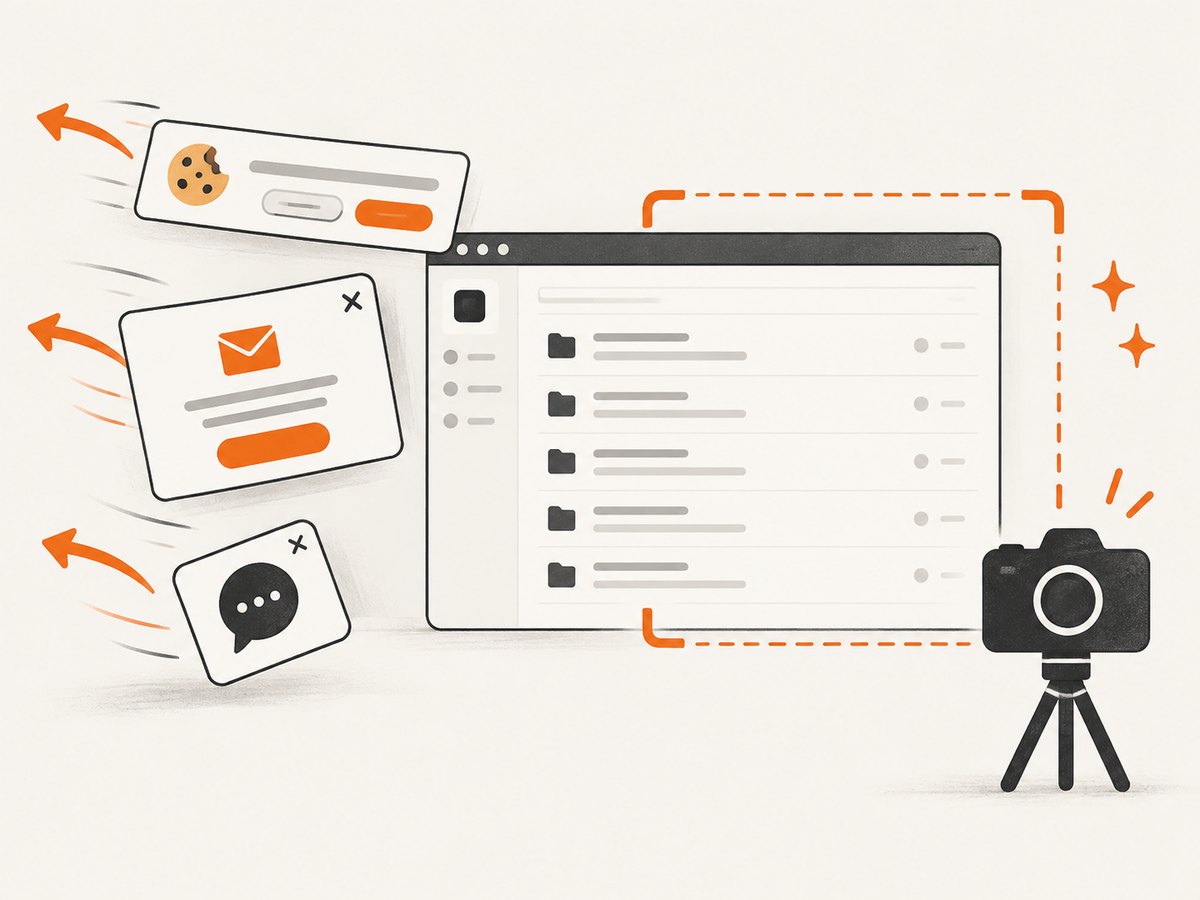
ScreenshotNeo can capture a URL directly. Cookie banners are accepted like a visitor and removed along with 60+ known consent platforms, newsletter popups, and chat widgets; each cleanup step can be turned off. Bot checks or CAPTCHAs, blank pages, timeouts, failed loads, and cache hits cost nothing, and responses identify page verdict and billing status in headers. An MCP server provides take_screenshot, get_page_info, and capture_pdf for Claude, Cursor, and other MCP clients.
curl -G "https://api.screenshotneo.com/v1/shot" \
  -d access_key=YOUR_API_KEY \
  --data-urlencode url=https://example.com \
  -o shot.webp
See the API docs for setup and options. The Free plan includes 1,000 screenshots per month with no card; paid plans start at $5 for 3,000 screenshots. Plans include every feature. ScreenshotNeo is the current-page capture part of this workflow; use the archive URL to review earlier history.
Create a free ScreenshotNeo account for 1,000 screenshots a month with no card.
7. Troubleshooting incomplete or confusing results
| Symptom | Likely cause | What to do |
|---|---|---|
| No capture appears for the date or page | The URL may not have been archived, or the requested path differs from the captured URL. | Search the exact URL and the domain separately, inspect nearby dates, and save the current page with Save Page Now for a future reference. |
| The archived page has missing images or styles | The crawler may not have captured those resources; a replay can also refer to resources that were not archived. | Inspect the source screenshot if you have one, note the missing assets, and preserve both the replay URL and original capture record. |
| Some links open the live site | The linked resource may not have been captured in the archive. | Label the live-linked area as incomplete. Do not infer its historical appearance from the current live resource. |
| Interactive areas or image maps do not work | Some functions depend on the originating server or scripts that do not replay correctly. | Use the screenshot as the visual record for that area and describe the interaction as unavailable in replay. |
| The page redirects or shows an unexpected locale | The URL, cookies, language, or page state may differ from the original visit. | Record the final URL and locale; search for the exact historical path and compare captures with matching state where possible. |
| A fresh API request appears unchanged | A chosen cache TTL may return a cached result. | Check the response headers and cache configuration, then request a fresh capture according to the API docs when a new observation is needed. |
| The API image is blank or incomplete | The page may be blank, still loading, blocked, or dependent on resources that did not finish. | Use a wait condition suited to the page, such as a selector or network idle; inspect the response verdict and headers and retry only when the cause is transient. |
| Request errors or an unusable file | The access key, URL encoding, timeout, or response handling may be wrong. | Check the key and encoded URL, allow enough time for the page, verify the HTTP status before saving bytes, and consult the docs for response behavior. |
The Internet Archive notes that robots.txt can prevent crawling. Archived links may lead to the live web when a resource was not captured, and server-side image maps or other functions requiring the originating server can fail. JavaScript-heavy pages may consequently replay incompletely. See the Wayback Machine help. Treat these as limits of the replay, not proof that the live page had the same defects.
8. Performance, reliability, and cost
Manual browser capture is quick for a one-off record and gives you direct control over the visible state. Archive lookup adds a separate preservation step, and the result depends on what the crawler can fetch. For repeated current captures, automate requests and maintain a manifest that associates each output with its URL, capture time, viewport, and archive reference.
For large history reviews, the Internet Archive developer documentation describes capture-data APIs and the CDX Server for querying and filtering records. Use those interfaces to enumerate timestamps, then open a representative subset for human inspection; a machine-readable record list does not establish that each replay is complete. See the Internet Archive developer documentation.
ScreenshotNeo pricing is Free for 1,000 shots per month with no card, Starter $5 for 3,000, Growth $15 for 15,000, Pro $39 for 60,000, Scale $99 for 250,000, and Business $249 for 1,000,000. Yearly billing gives two months free. Every feature is on every plan. Only clean shots are billed: bot checks or CAPTCHAs, blank pages, timeouts, failed loads, and cache hits cost nothing. Check the response’s X-Page-Verdict and X-Billed headers when accounting for individual requests. The API is for current captures; historical coverage still comes from an archive’s available records.
FAQ
Can a screenshot prove exactly what every visitor saw?
It records one rendered state under one browser, viewport, time, and page state. Preserve that context and avoid claiming that it represents all visitors.
Should I use a full-page image or a viewport capture?
Use a viewport capture to document what was visible on screen. Use full-page capture when below-fold content matters, and note that it is a rendered page image rather than an interactive replay.
Can I compare a current page directly with an archived replay?
Yes, but rendering and missing resources can create visual differences. Compare content carefully and label replay problems separately from page changes.
Does a current screenshot API provide a site’s old versions?
No. Screenshot APIs capture the page at request time. Use the Wayback Machine or another archive with a saved capture to review historical versions.


