How to Capture and Save Screenshots with ScreenCapture.CaptureScreenshot
Capture Unity’s final rendered frame as a PNG, choose the right path, handle supersize and stereo options, and avoid Android save-timing bugs.
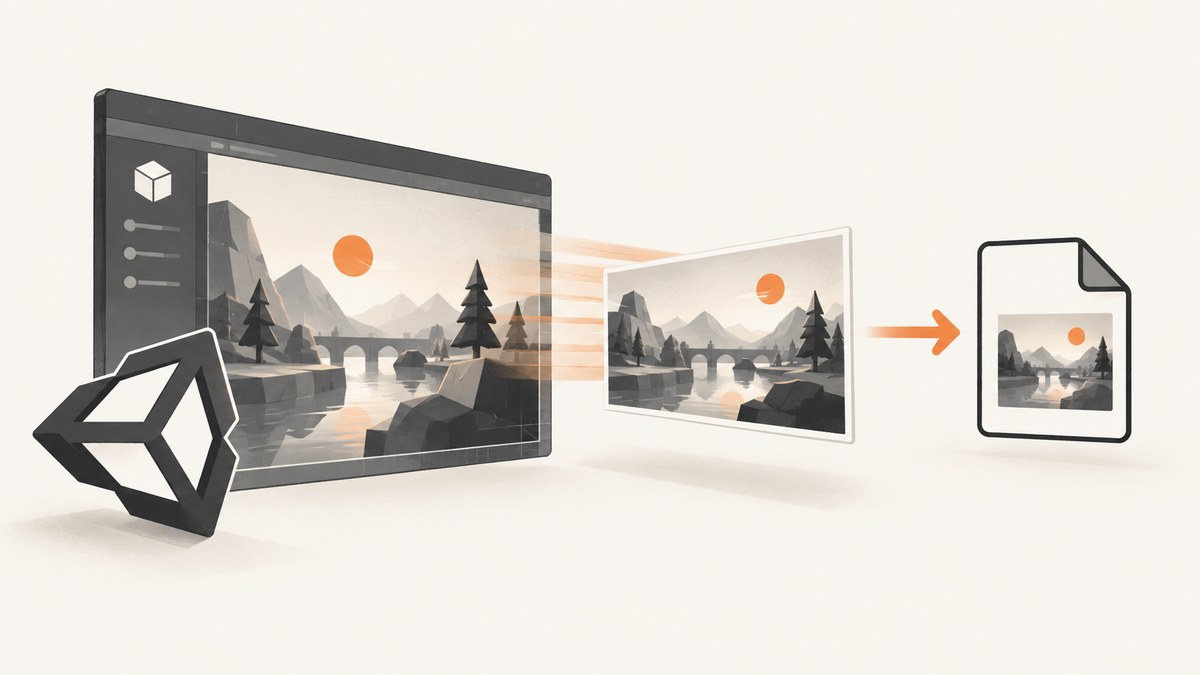
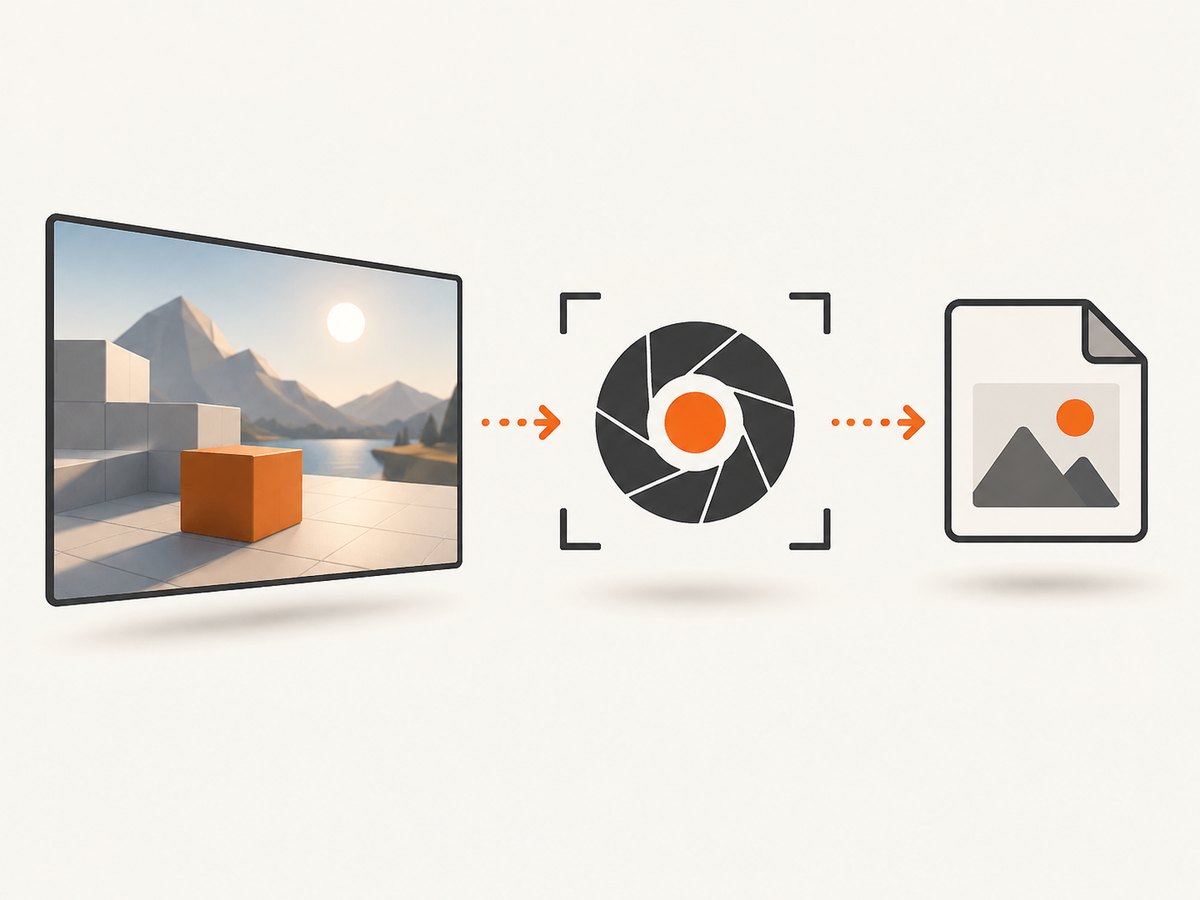
Call ScreenCapture.CaptureScreenshot with a filename ending in .png. Unity captures the final rendered screen output, including the composed result of multiple cameras or split-screen views. If you need a predictable persistent location in the Editor or on desktop, pass an explicit path built from Application.persistentDataPath.
The current Unity 6 API documents three overloads: filename only, filename plus a supersize factor, and filename plus a stereo capture mode. Unity saves PNG files; an existing file at the destination is overwritten. On Android, the method returns before the file is finished, so code that immediately reads or shares the file must wait for the asynchronous save to complete.
1. Basic screenshot capture
Add this script to a GameObject and call SaveScreenshot from a button, input handler, or gameplay event:
using UnityEngine;
using System.IO;

public class ScreenshotSaver : MonoBehaviour
{
    public void SaveScreenshot()
    {
        string path = Path.Combine(
            Application.persistentDataPath,
            "screenshot.png"
        );

        ScreenCapture.CaptureScreenshot(path);
        Debug.Log($"Screenshot requested: {path}");
    }
}
This uses an explicit persistent-data path so the destination is clear in the Editor and on desktop builds. Unity’s API documentation describes the method as capturing a screenshot and saving it as a .png file to a specified path. See the Unity ScreenCapture.CaptureScreenshot API reference.
2. Choose the destination correctly
| Context | Filename behavior | Practical choice |
|---|---|---|
| Mobile | Unity appends the filename to Application.persistentDataPath. |
Pass a filename such as "screenshot.png"; do not prepend the persistent path a second time. |
| Editor and other non-mobile contexts | A relative filename resolves from the project directory, the directory containing Assets. |
Pass a full path when you require persistent storage. |
Relative project path
using UnityEngine;

public class RelativeScreenshot : MonoBehaviour
{
    public void Capture()
    {
        ScreenCapture.CaptureScreenshot("Screenshots/frame.png");
    }
}
This is convenient for Editor workflows, but the location is relative to the Unity project directory in non-mobile contexts. Create the directory yourself if your workflow requires a guaranteed existing folder.
Explicit persistent path
using UnityEngine;
using System.IO;

public class PersistentScreenshot : MonoBehaviour
{
    public void Capture()
    {
        string directory = Application.persistentDataPath;
        Directory.CreateDirectory(directory);

        string path = Path.Combine(directory, "screenshot.png");
        ScreenCapture.CaptureScreenshot(path);
    }
}
On mobile, avoid composing Application.persistentDataPath twice. Use either the mobile filename behavior or an explicitly constructed path appropriate to the target platform.
3. Use the available overloads
Filename-only overload
ScreenCapture.CaptureScreenshot("screenshot.png");Use this for a normal-resolution PNG when the platform’s default filename handling is suitable.
Supersize overload
ScreenCapture.CaptureScreenshot("large-screenshot.png", 2);The integer is a supersize factor. Values above 1 request a larger image. Unity’s documentation gives a factor of 4 as an example that produces four times the normal width and four times the normal height. Larger output needs more memory, processing time, and storage, so choose a factor that fits the target device and use case.
Stereo capture overload
using UnityEngine;

public class StereoScreenshot : MonoBehaviour
{
    public void CaptureLeftEye()
    {
        ScreenCapture.CaptureScreenshot(
            "left-eye.png",
            ScreenCapture.StereoScreenCaptureMode.LeftEye
        );
    }
}
The stereo overload selects an eye texture for stereo rendering. Use it only when the project needs eye-specific stereo output. For ordinary 2D or composed game output, use the filename-only or supersize overload.
4. Build a reusable capture component
using UnityEngine;
using System;
using System.IO;

public class ScreenshotService : MonoBehaviour
{
    [SerializeField] private string fileName = "screenshot.png";

    public string LastPath { get; private set; }

    public void CapturePersistent()
    {
        string safeName = EnsurePngExtension(fileName);
        string directory = Application.persistentDataPath;
        Directory.CreateDirectory(directory);

        LastPath = Path.Combine(directory, safeName);
        ScreenCapture.CaptureScreenshot(LastPath);
        Debug.Log($"Screenshot requested: {LastPath}");
    }

    private static string EnsurePngExtension(string name)
    {
        if (string.IsNullOrWhiteSpace(name))
            name = "screenshot";

        return name.EndsWith(".png", StringComparison.OrdinalIgnoreCase)
            ? name
            : name + ".png";
    }
}
This component normalizes the extension and records the path used for the request. It does not make Android saving synchronous; code that consumes the file still needs to account for platform timing.
5. Android save timing
On Android, CaptureScreenshot returns immediately while Unity continues the capture in the background. Unity documents that the resulting file is saved after a few seconds. Do not open, upload, share, or delete the path immediately after the call as though the file were ready.
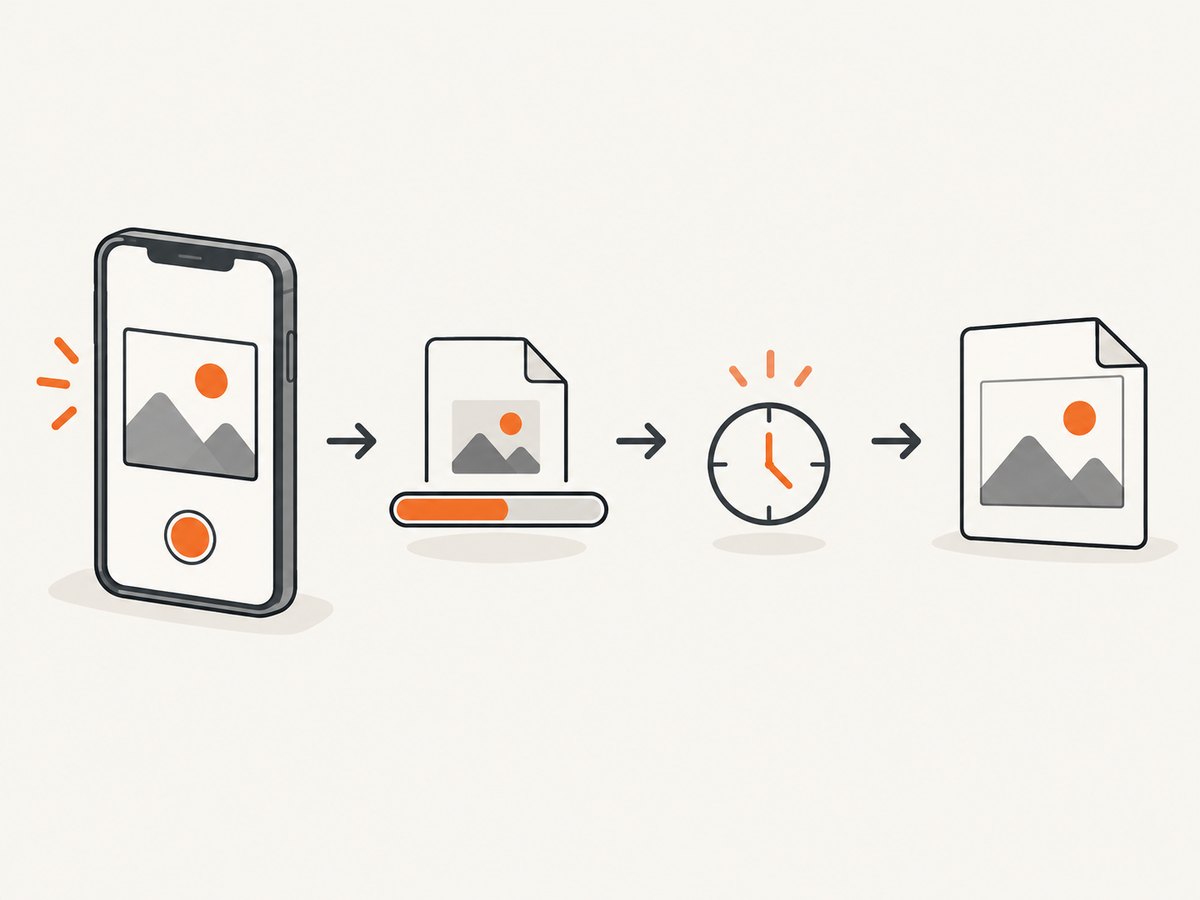
A polling coroutine can wait for the file to appear before consuming it:
using UnityEngine;
using System.Collections;
using System.IO;

public class AndroidScreenshotConsumer : MonoBehaviour
{
    public void CaptureAndWait()
    {
        string path = Path.Combine(
            Application.persistentDataPath,
            "android-shot.png"
        );

        ScreenCapture.CaptureScreenshot(path);
        StartCoroutine(WaitForFile(path));
    }

    private IEnumerator WaitForFile(string path)
    {
        const float timeoutSeconds = 15f;
        float elapsed = 0f;

        while (elapsed < timeoutSeconds)
        {
            if (File.Exists(path))
            {
                Debug.Log($"Screenshot is available: {path}");
                yield break;
            }

            elapsed += 0.25f;
            yield return new WaitForSeconds(0.25f);
        }

        Debug.LogError($"Screenshot was not available before timeout: {path}");
    }
}
Use a timeout so a missing file does not leave a coroutine waiting forever. If a later operation needs to know that the write is complete, add a file-read check or equivalent validation after the file appears.
6. What exactly is captured?
The method captures the final rendered screen output. It is not limited to one particular Camera. If several cameras contribute to the composed frame, or the game renders a split-screen layout, the resulting PNG contains that composed output.
Capture after the frame has reached the visual state you want. For example, trigger the call after enabling a menu, changing a camera, or completing a transition rather than before the state change is rendered.
7. Overwriting and filenames
If a PNG already exists at the destination, a new capture overwrites it. Use unique names when retaining a sequence:
using UnityEngine;
using System;
using System.IO;

public class NumberedScreenshots : MonoBehaviour
{
    private int counter;

    public void Capture()
    {
        string name = $"shot-{DateTime.UtcNow:yyyyMMdd-HHmmss-fff}-{counter++}.png";
        string path = Path.Combine(Application.persistentDataPath, name);
        ScreenCapture.CaptureScreenshot(path);
    }
}
Keep names free of path separators and platform-invalid characters when they come from user input. If overwriting is intentional, use a stable filename and document that behavior in the calling code.
8. Performance, reliability, and storage
- Supersize cost: Increasing the factor increases both dimensions, so the pixel count grows rapidly. Reserve supersize captures for exports or debugging that need them.
- Frame timing: Request the capture after the desired scene state is rendered. A call made during a transition can capture the transition frame.
- Disk space: PNG is lossless and can be large, especially at high resolutions. Remove temporary files or enforce a retention policy for repeated captures.
- Write timing: Treat Android output as asynchronous and wait before reading or sharing it.
- Reliability: Log the exact path, ensure the destination directory exists when using an explicit directory, and handle missing files when downstream code depends on the result.
- Concurrency: Avoid issuing many captures to the same filename when each result matters; later requests can overwrite earlier files.
9. Troubleshooting
| Symptom | Likely cause | Fix |
|---|---|---|
| No file where expected in the Editor | A relative path resolves from the Unity project directory. | Inspect the project directory or pass an explicit Application.persistentDataPath path. |
| Mobile path looks duplicated | The persistent-data prefix was manually added where Unity already appends it. | Pass only the filename on mobile, or construct one deliberate full path for the target platform. |
| File is missing immediately on Android | Android saving continues after the method returns. | Wait for the file to appear and apply a timeout before reading or sharing it. |
| Old image appears | The destination filename was reused and the new write is not yet complete, or the viewer cached the old file. | Use a unique filename and wait for the new file before displaying it. |
| Capture has the wrong camera composition | The call happened before the intended camera or UI state was rendered. | Trigger the capture after the state change has reached the rendered frame. |
| Output is unexpectedly large | A supersize factor above 1 was used. | Use the filename-only overload or reduce the factor. |
| Stereo output is not what the project needs | An eye-specific overload was selected for a non-stereo workflow. | Use the standard overload unless eye texture selection is required. |
| Repeated captures replace one another | Every request uses the same filename. | Add a timestamp, counter, or other unique identifier. |
10. Checklist
- Use a filename ending in
.png. - Choose relative or explicit persistent storage deliberately.
- Remember that an existing destination is overwritten.
- Use supersize only when the larger dimensions are needed.
- Use the stereo overload only for stereo capture requirements.
- On Android, wait for the file before reading or sharing it.
- Use unique filenames when keeping multiple captures.
- Capture after the desired visual state has rendered.
11. Or skip the browser setup
If your actual goal is to capture web pages rather than Unity’s rendered game frame, ScreenshotNeo provides a one-call website screenshot API and MCP server. The API accepts a URL and returns PNG, JPEG, WebP, or PDF output.
curl -G "https://api.screenshotneo.com/v1/shot" -d access_key=YOUR_API_KEY --data-urlencode url=https://stripe.com -o shot.webpimport requests
r = requests.get(
"https://api.screenshotneo.com/v1/shot",
params={"access_key": "YOUR_API_KEY", "url": "https://stripe.com"},
timeout=90,
)
open("shot.webp", "wb").write(r.content)const q = new URLSearchParams({ access_key: 'YOUR_API_KEY', url: 'https://stripe.com' });
const res = await fetch(`https://api.screenshotneo.com/v1/shot?${q}`);See the ScreenshotNeo documentation for request options. Cookie banners, newsletter popups, and chat widgets are removed before the shot; bot checks, blank pages, timeouts, failed loads, and cache hits are not billed. Its MCP server lets AI agents use take_screenshot, get_page_info, and capture_pdf. The Free plan includes 1,000 screenshots per month with no card, and paid plans start at $5 for 3,000 screenshots. Create a free ScreenshotNeo account.
FAQ
Does CaptureScreenshot save JPEG files?
No. This API saves a PNG. Use a separate image conversion step if another format is required.
Does it capture one Camera only?
No. It captures the final rendered screen output, including composed output from multiple cameras.
Can I assume the file exists when the method returns?
Do not make that assumption on Android. Unity documents asynchronous saving there; wait for the file before consuming it.
What happens if the filename already exists?
The new screenshot overwrites the existing file.
When should I use the stereo overload?
Use it when you specifically need an eye texture selection for stereo rendering. Standard captures should use the regular overload.


