How to Capture a Screen and Save It as a PDF
Learn when to make a screenshot PDF or print a webpage to PDF, with exact steps for Windows, Chrome, iPhone, Chromebook, and ScreenshotNeo.
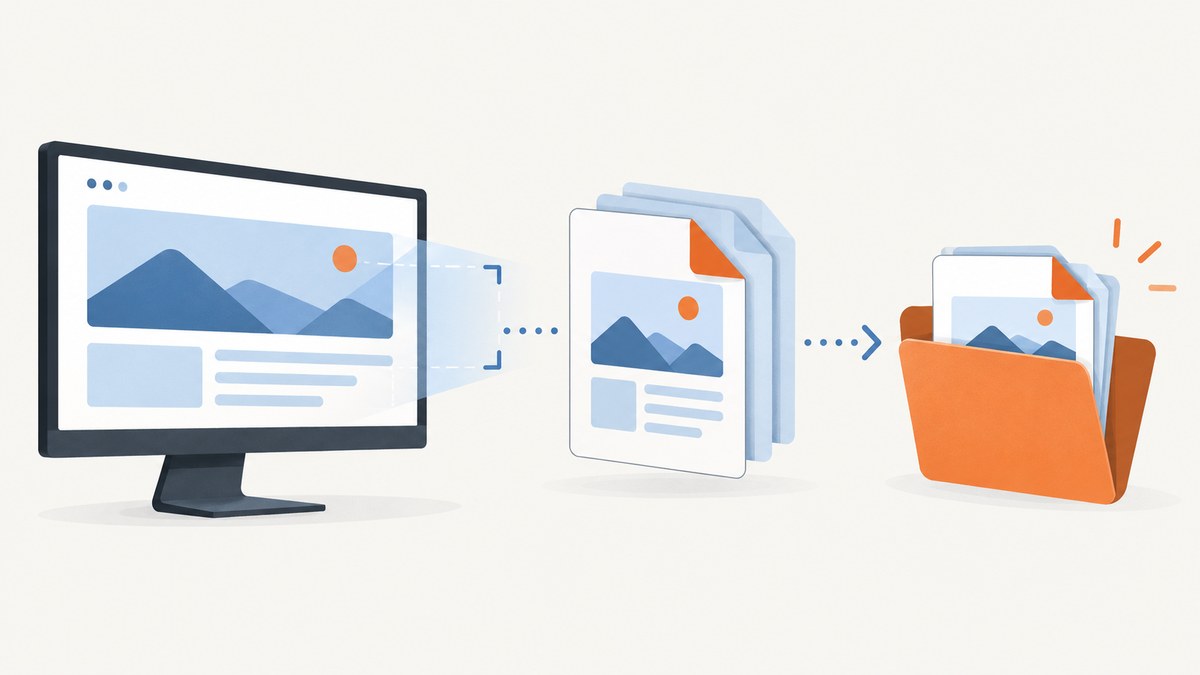
There are two different ways to create a PDF from what you see on a screen:
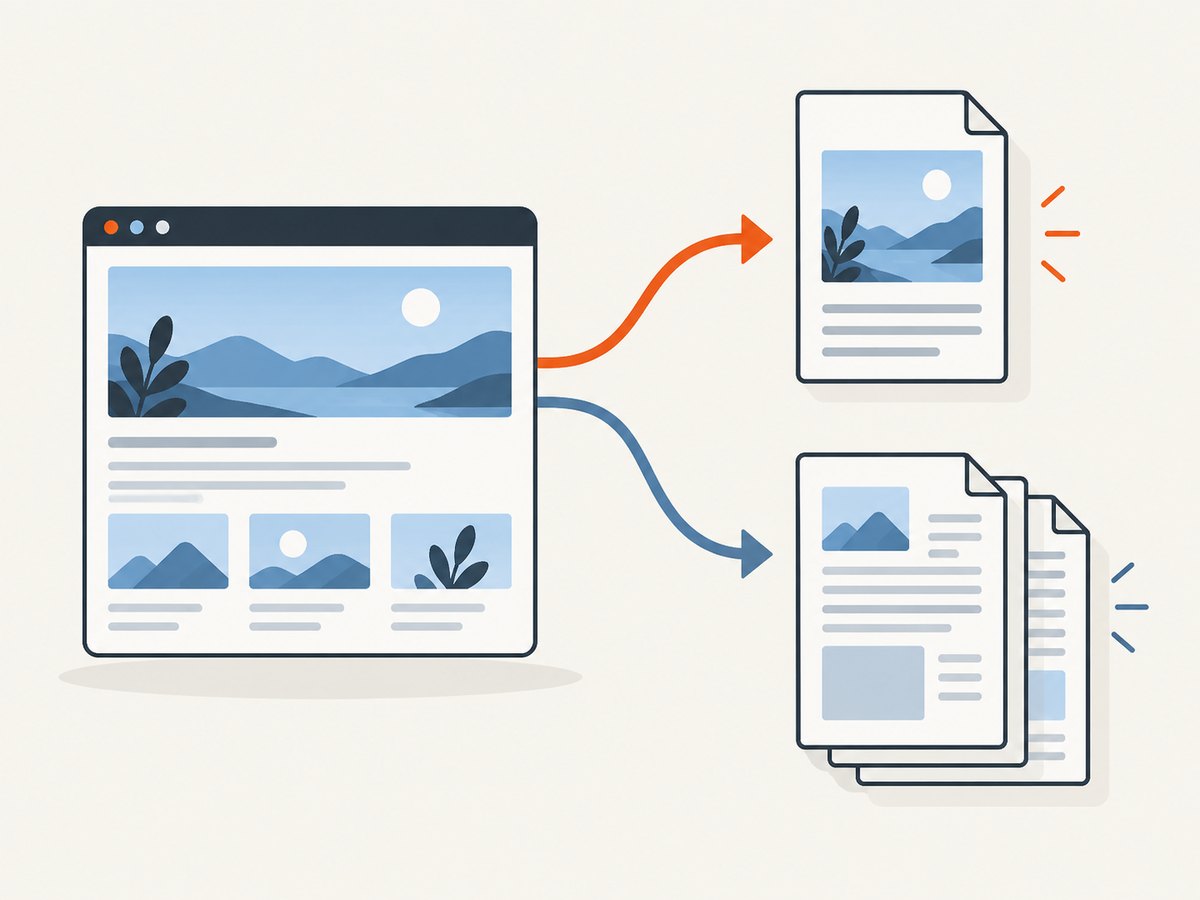
- Screenshot PDF: captures the visible screen or a selected area as an image and places that image in a PDF.
- Webpage PDF: uses the browser’s print layout to export the page, usually keeping text and page structure more useful for printing and reading.
Choose a screenshot PDF when the exact pixels, annotations, or visible application state matter. Choose a webpage PDF when you need the complete page, selectable content, or a cleaner printable document.
1. Decide what you need to preserve
| Need | Best method | Result |
|---|---|---|
| Exactly what is visible now | Take a screenshot, then export or print it to PDF | An image inside a PDF |
| A complete webpage | Use the browser’s Print or Save as PDF command | A print-layout PDF, which may differ from the visible viewport |
| A long webpage on iPhone | Use the supported Full Page screenshot option | A full-page capture that can be saved to Files as a PDF |
| A repeatable developer workflow | Use a screenshot API or browser automation | Automated image or PDF files |
2. Windows: capture the screen, then create a PDF
Capture with Snipping Tool
- Press Windows + Shift + S.
- Choose rectangular, freeform, window, or full-screen capture.
- Select the area or window. The capture opens in Snipping Tool.
- Edit if needed and save the capture as an image.
Windows also supports Print Screen for a full-screen capture copied to the clipboard. The exact menus can vary by Windows version and installed applications.
Convert the saved image to PDF
- Open the saved image in an application that supports printing.
- Choose Print.
- Select the PDF printer or PDF destination available on your system.
- Choose paper size, orientation, margins, and scaling.
- Save the resulting PDF.
This route keeps the screenshot’s appearance, but the PDF may contain only an image. Text search and selection depend on whether OCR is performed by the application.
3. Desktop Chrome: save a webpage directly as PDF
- Open the webpage in Chrome.
- Choose File > Print, or press Ctrl + P on Windows/Linux or Command + P on Mac.
- In print preview, select Save as PDF.
- Review the destination, paper size, orientation, margins, scale, headers, and background graphics.
- Click Save.
This creates a PDF from Chrome’s printable layout. It is not necessarily a literal image of the current viewport: navigation, fixed elements, animations, and screen-only controls may be changed or omitted.
When Chrome’s PDF is not the same as a screenshot
- Use a screenshot when a visible chart, dialog, cursor state, or exact layout must be preserved.
- Use Print to PDF when a long page should flow across pages and remain easier to read.
- Check the preview before saving because responsive breakpoints and print CSS can change the result.
4. iPhone: save a supported screenshot as a PDF
- Take a screenshot using your iPhone’s normal screenshot controls.
- Tap the screenshot preview.
- When the app supports it, choose Full Page to capture content longer than the screen, such as an entire Safari webpage.
- Choose Save PDF to Files.
- Select a folder and tap Save.
Full Page is not available for every app or type of content. If the option does not appear, save the normal screenshot and use an image-to-PDF export method instead.
5. Chromebook: capture first, export separately
- Open Screen Capture from the launcher or status area, or use the supported Screenshot key or shortcut.
- Choose full-screen, window, or partial capture.
- Save the image. ChromeOS saves screenshots to Downloads by default unless you change the folder in settings.
- Open the image in an application or web service that can print or export it as PDF.
The documented Chromebook screenshot workflow saves image captures; do not assume that the screenshot tool itself creates a PDF. Confirm the export options on your ChromeOS version.
6. Acrobat option: create a PDF from clipboard content
If you already use Adobe Acrobat, capture the screen on Windows or macOS so the image is on the clipboard. In Acrobat, use Create > PDF from clipboard, then save the document. This is an optional workflow for existing Acrobat users.
7. Automate screenshots and PDFs with ScreenshotNeo
For a repeatable developer workflow, ScreenshotNeo is a website screenshot API and MCP server. One GET request accepts a URL and returns a clean PNG, JPEG, WebP, or PDF. Its PDF options include paper size, margins, landscape mode, and page ranges. See the ScreenshotNeo API documentation for the current request options.
Use the same approach when you need full-page capture, lazy images loaded, a selected CSS element, dark mode, custom viewport or device settings, custom CSS or JavaScript, cookies, headers, a user agent, timezone, geolocation, blocked resources, caching, signed links, asynchronous jobs, webhooks, bulk capture, or usage reporting.
cURL
curl -G "https://api.screenshotneo.com/v1/shot" -d access_key=YOUR_API_KEY --data-urlencode url=https://stripe.com -o shot.webpUse the PDF output option described in the documentation when you need a PDF file, and change the output filename to shot.pdf.
Python
import requests

r = requests.get(
    "https://api.screenshotneo.com/v1/shot",
    params={"access_key": "YOUR_API_KEY", "url": "https://stripe.com"},
    timeout=90,
)
r.raise_for_status()
open("shot.webp", "wb").write(r.content)
Node.js
const q = new URLSearchParams({ access_key: 'YOUR_API_KEY', url: 'https://stripe.com' });
const res = await fetch(`https://api.screenshotneo.com/v1/shot?${q}`);
if (!res.ok) throw new Error(`HTTP ${res.status}`);
const fs = await import('node:fs/promises');
await fs.writeFile('shot.webp', Buffer.from(await res.arrayBuffer()));
For a PDF, apply the PDF option from the API documentation and write the response to a .pdf file.
Useful capture controls
| Control | Use it when |
|---|---|
| Full-page capture | The page extends beyond the viewport or contains lazy-loaded images. |
| CSS selector capture | You need one chart, card, invoice, or other element. |
| Wait for selector, delay, or network idle | Content appears after JavaScript or asynchronous requests. |
| Click before capture | A menu, tab, consent control, or expanded panel must be opened first. |
| Hide selectors | Remove banners or page elements that should not appear. |
| Custom headers, cookies, user agent, or Authorization | The page requires authentication or a particular session. |
| Block ads, trackers, requests, or resource types | Reduce unwanted content or avoid unnecessary loading. |
| Timezone and geolocation | Render location- or time-sensitive content consistently. |
| Cache with a chosen TTL | Reuse unchanged captures and reduce repeated work. |
| Async jobs and signed webhooks | Move slow or high-volume captures out of a request-response path. |
| Bulk capture | Capture up to 100 URLs per call. |
8. Or skip the browser setup
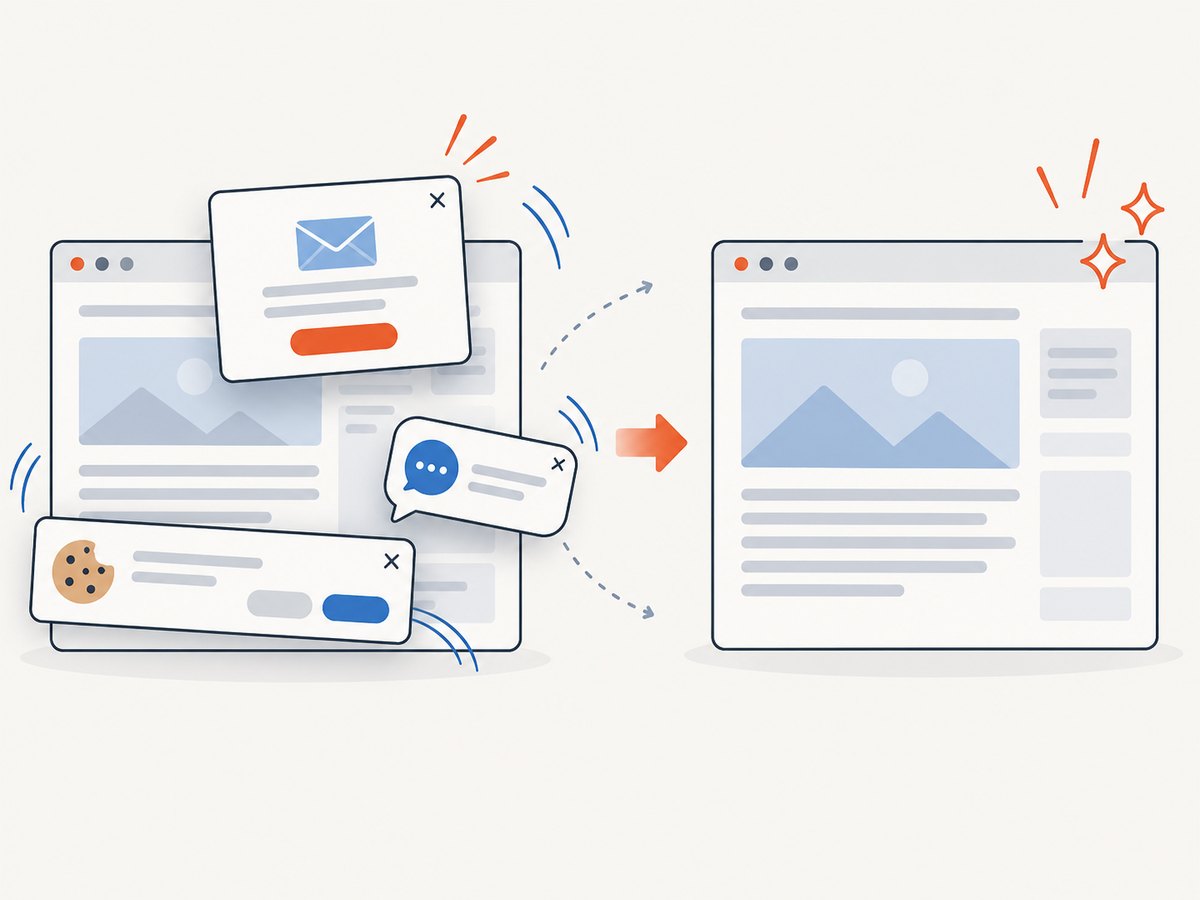
ScreenshotNeo accepts consent banners like a visitor and removes more than 60 known consent platforms, newsletter popups, and chat widgets before the capture. Each cleanup step can be turned off. Bot checks or CAPTCHAs, blank pages, timeouts, failed loads, and cache hits are not billed as clean shots, and the response identifies the result with X-Page-Verdict and X-Billed headers.
curl -G "https://api.screenshotneo.com/v1/shot" -d access_key=YOUR_API_KEY --data-urlencode url=https://stripe.com -o shot.webpIt also provides an MCP server with take_screenshot, get_page_info, and capture_pdf tools for Claude, Cursor, and other MCP clients. The Free plan includes 1,000 shots per month without a card; paid plans start at $5 for 3,000 shots, and every feature is available on every plan.
Create a free ScreenshotNeo account to get 1,000 screenshots a month with no card.
9. Troubleshooting
| Problem | Likely cause | Fix |
|---|---|---|
| The PDF is cut off | The capture covered only the viewport or print scaling is too large. | Use full-page capture, reduce print scale, or choose a smaller paper size. |
| The webpage PDF looks different | Print CSS and responsive layout changed the page. | Use a screenshot for pixel accuracy; inspect print preview before saving. |
| Only part of an iPhone page is captured | Full Page is unavailable for that app or content. | Save the normal screenshot or use the app’s own export command. |
| Chromebook cannot save directly to PDF | The screenshot tool saves an image. | Open the image in a print or export-capable application. |
| Dynamic content is missing | The page had not finished rendering. | Wait for a selector, a delay, or network idle before capture. |
| A cookie banner or chat bubble covers content | The page loaded visitor overlays. | Dismiss or hide the element; ScreenshotNeo can remove known consent platforms, newsletter popups, and chat widgets. |
| The API response is not a clean document | The URL returned a bot check, blank page, timeout, or failed load. | Inspect the response and X-Page-Verdict and X-Billed headers, then check authentication, waits, headers, and the target URL. |
| The file will not open | The extension does not match the requested output or the response was an error. | Check the HTTP status, save with the correct extension, and do not treat an error response as an image or PDF. |
10. Performance, reliability, and cost considerations
- Choose the smallest capture: an element capture is usually simpler than a full page when only one component is needed.
- Wait deliberately: selector and network-idle waits improve completeness for JavaScript-heavy pages, while unnecessary delays increase latency.
- Control resources: blocking ads, trackers, and unneeded resource types can reduce page work.
- Cache stable pages: choose a TTL when the source does not change often.
- Use asynchronous jobs: signed webhooks are useful when a capture should not hold open a request.
- Track billing headers: ScreenshotNeo reports whether a response was billed and which page verdict it received.
- Plan volume: ScreenshotNeo offers 1,000 free shots monthly, then Starter at $5 for 3,000, Growth at $15 for 15,000, Pro at $39 for 60,000, Scale at $99 for 250,000, and Business at $249 for 1,000,000. Yearly billing gives two months free.
11. Checklist before sharing the PDF
- Confirm whether you need a literal screen image or a printable webpage.
- Check the entire page or screenshot area for clipped content.
- Verify orientation, paper size, margins, and scale.
- Open the saved PDF on another device.
- Check that sensitive account data, popups, and browser controls are not included.
- For automated captures, verify the response status and output type before storing the file.
FAQ
Is a screenshot PDF searchable?
Usually it is an image inside a PDF. Searchability depends on whether an OCR step is applied.
Should I screenshot a webpage or print it to PDF?
Screenshot it when visual fidelity matters. Print it when readable, paginated webpage content matters.
Can I save an entire webpage as one PDF?
Desktop Chrome can create a multi-page PDF from print preview. On iPhone, Full Page is available for supported content.
Why is my PDF larger than the screenshot?
PDF size depends on image dimensions, compression, page settings, and any metadata or conversion performed by the exporting application.
Can ScreenshotNeo capture a PDF instead of an image?
Yes. ScreenshotNeo supports PDF output with paper size, margins, landscape mode, and page-range controls; use the PDF option documented at the API documentation.


