How to Capture a Screenshot Before Chrome Opens a New Tab
Capture the page you are leaving before Chrome switches tabs, with an extension example, DevTools distinctions, troubleshooting, and an API option.
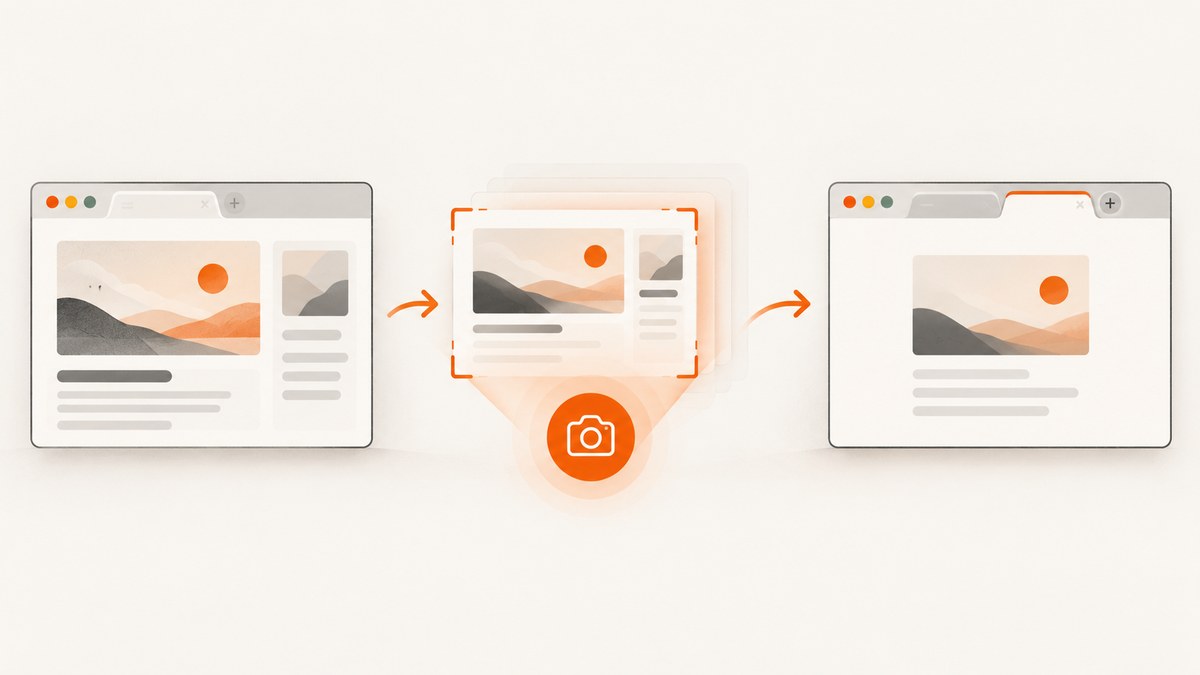
Capture the current tab before the action that opens or switches to a new tab. Once Chrome changes the visible tab, a screenshot of the active tab captures the new page instead. For an extension, call chrome.tabs.captureVisibleTab() first, then open a new tab to display or save the image.
This guide separates four tasks that are often confused:
- Saving the page you are leaving.
- Capturing Chrome’s New Tab page.
- Opening DevTools automatically for every new tab.
- Replacing the New Tab page with an extension.
1. Capture the current page before opening a new tab
If you only need an image of the page currently on screen, do the capture before clicking a link that opens a new tab, pressing the new-tab shortcut, or running code that creates another tab. Chrome’s documented extension sample follows this sequence: the user invokes the extension, the extension captures the visible area of the active tab, and only then does it display the result in a new tab.
Manual workflow
- Leave the page you want to save visible and active.
- Trigger your screenshot action while that tab still has focus.
- Wait for the capture to finish.
- Open the new tab or results page after the image has been created.
Chrome’s New Tab page is a personalized page, so opening it first changes what is visible. Chrome lists Ctrl+T on Windows, Linux, and Chromebook, and Command+T on Mac, but those shortcuts should come after the capture when the previous page is the image you need. Chrome Help: Manage tabs in Chrome
2. Build a Chrome extension that captures first
The following minimal Manifest V3 extension captures the visible portion of the active tab when its toolbar button is clicked. It then opens a new tab containing the PNG.
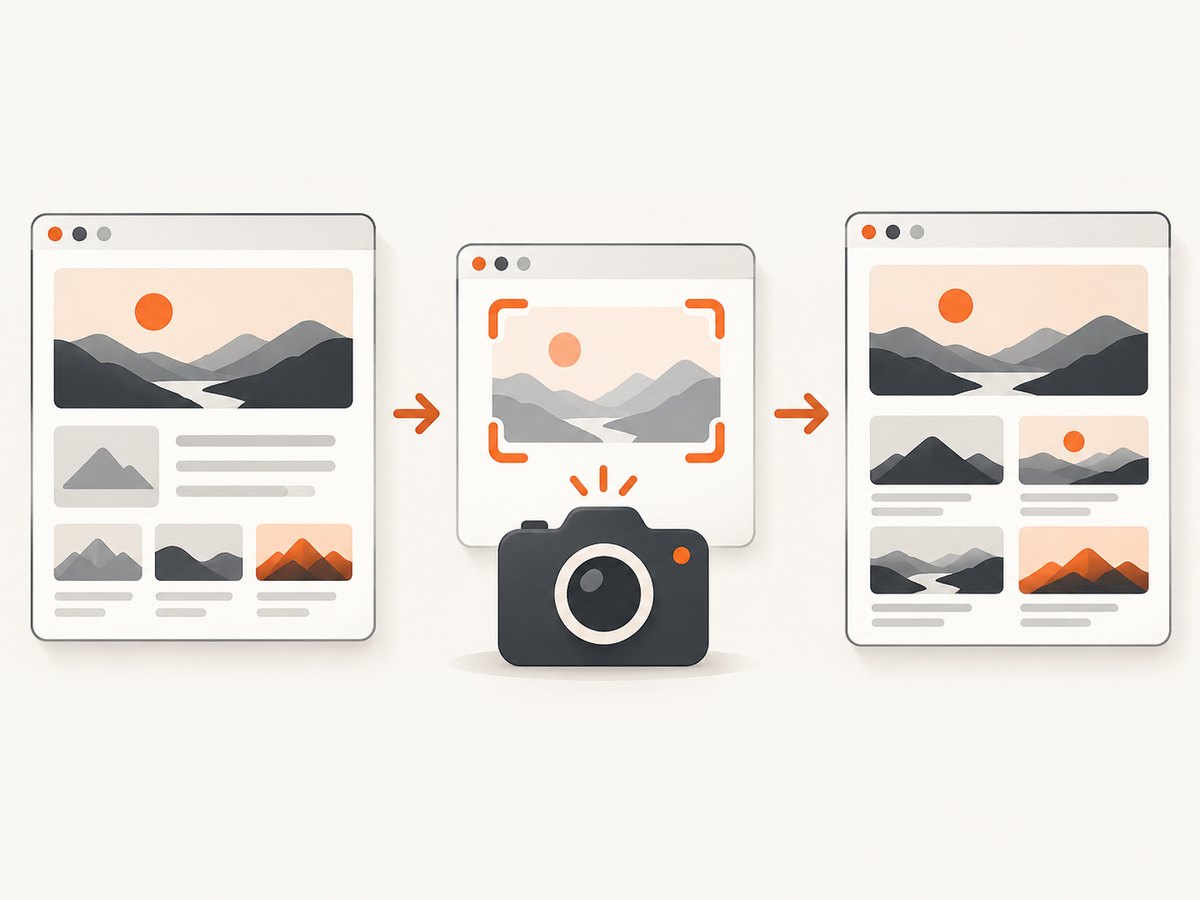
Files
before-capture/
├── manifest.json
└── service-worker.js
manifest.json
{
  "manifest_version": 3,
  "name": "Capture Before New Tab",
  "version": "1.0.0",
  "description": "Capture the active tab before opening a results tab.",
  "permissions": ["activeTab"],
  "background": {
    "service_worker": "service-worker.js"
  },
  "action": {
    "default_title": "Capture this tab"
  }
}
service-worker.js
chrome.action.onClicked.addListener(async (tab) => {
  if (!tab.id || tab.windowId === undefined) {
    console.error("No active tab is available");
    return;
  }

  try {
    // Capture while the original tab is still active.
    const dataUrl = await chrome.tabs.captureVisibleTab(tab.windowId, {
      format: "png"
    });

    // Only after capture succeeds do we open the results tab.
    await chrome.tabs.create({
      url: dataUrl
    });
  } catch (error) {
    console.error("Screenshot failed:", error);
  }
});
Load and use the extension
- Save both files in a folder.
- Open
chrome://extensions. - Enable Developer mode.
- Choose Load unpacked and select the folder.
- Pin the extension, navigate to the page to capture, and click the extension icon.
The extension captures the visible viewport, not the entire scrollable document. Browser-controlled pages such as some chrome:// URLs may reject capture. A page that changes while the capture is being requested can also produce an image from a slightly different moment than the click.
Save the image instead of opening a results tab
If opening a new tab is unnecessary, use the downloads API. Add the downloads permission and replace the tab-creation code:
const dataUrl = await chrome.tabs.captureVisibleTab(tab.windowId, {
  format: "png"
});

await chrome.downloads.download({
  url: dataUrl,
  filename: "page-before-new-tab.png",
  saveAs: true
});
JPEG or lower quality
const dataUrl = await chrome.tabs.captureVisibleTab(tab.windowId, {
  format: "jpeg",
  quality: 80
});
The quality value applies to JPEG output. PNG is lossless and does not use that setting.
Capture a specific window
Pass the window ID of the tab you want to capture. Do not assume the last-created tab is still active; users can switch windows between the click and the asynchronous capture.
3. Why the order matters
captureVisibleTab() captures what is visible in a browser window at the time Chrome services the request. Creating a new tab first can make that new tab the active view, so the screenshot no longer represents the page the user intended to save. The safe order is:
- Identify the active tab and window.
- Capture the visible tab.
- Check that capture returned an image.
- Open a results tab, download the file, or send the data elsewhere.
4. If you meant Chrome’s New Tab page
If the desired image is Chrome’s New Tab page itself, reverse the workflow: open the new tab, wait for its content to render, and then capture that tab. Chrome describes the New Tab page as personalized content, so its appearance can differ between profiles and users. A screenshot taken before opening it will show the previous webpage instead.
5. If you meant DevTools opening on every new tab
Screenshot capture and DevTools automation are separate features. Chrome documents the --auto-open-devtools-for-tabs command-line flag for opening DevTools whenever a new tab is created.
- Quit Chrome completely.
- Launch Chrome with
--auto-open-devtools-for-tabs. - Open tabs as usual; DevTools opens for each new tab until Chrome closes.
The flag applies to the first Chrome instance launched with it. It configures DevTools, not screenshot capture. See Chrome for Developers: Open Chrome DevTools.
6. If you meant replacing the New Tab page
An extension can provide a newtab override so newly created tabs display the extension’s page. This changes what Chrome shows after the tab opens; it does not capture the page that was visible before the tab switch. Chrome’s documentation also notes that New Tab overrides do not apply in Incognito windows. See Chrome for Developers: Override Chrome pages.
7. Or skip the browser setup
If your goal is a repeatable screenshot of a URL rather than an interactive extension capture, ScreenshotNeo provides a single GET request that returns PNG, JPEG, WebP, or PDF. Read the ScreenshotNeo API documentation for the full option list.
cURL
curl -G "https://api.screenshotneo.com/v1/shot" -d access_key=YOUR_API_KEY --data-urlencode url=https://stripe.com -o shot.webpPython
import requests

r = requests.get(
    "https://api.screenshotneo.com/v1/shot",
    params={"access_key": "YOUR_API_KEY", "url": "https://stripe.com"},
    timeout=90,
)
r.raise_for_status()
open("shot.webp", "wb").write(r.content)
Node.js
const q = new URLSearchParams({ access_key: 'YOUR_API_KEY', url: 'https://stripe.com' });
const res = await fetch(`https://api.screenshotneo.com/v1/shot?${q}`);
if (!res.ok) throw new Error(`HTTP ${res.status}`);
const image = Buffer.from(await res.arrayBuffer());
require('fs').writeFileSync('shot.webp', image);
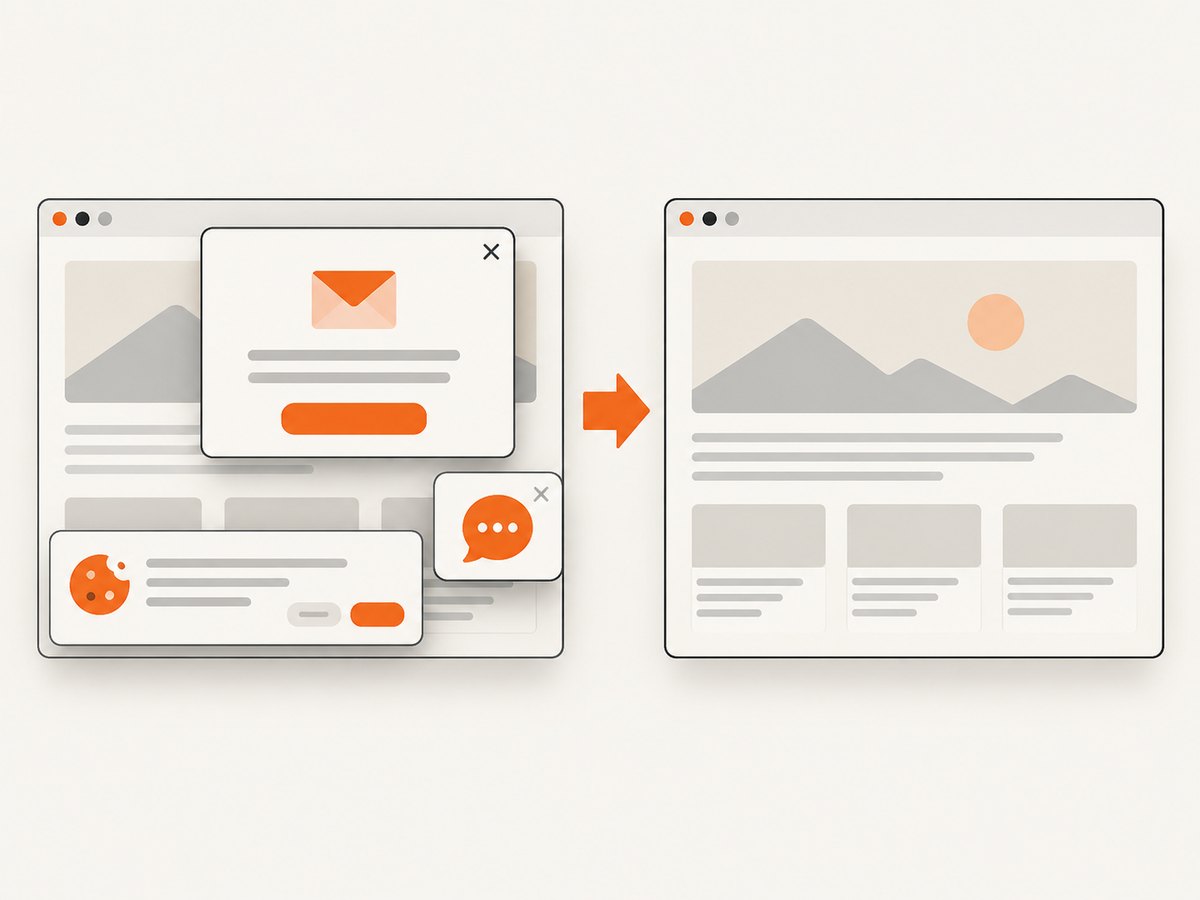
ScreenshotNeo removes cookie and consent banners, newsletter popups, and chat widgets before capture. Bot checks, blank pages, timeouts, failed loads, and cache hits are not billed; the response reports the result with X-Page-Verdict and X-Billed headers. Its MCP server provides take_screenshot, get_page_info, and capture_pdf tools for Claude, Cursor, and other MCP clients. Free accounts include 1,000 shots per month with no card; paid plans start at $5 for 3,000 shots. Create a free ScreenshotNeo account.
8. Troubleshooting
| Symptom | Cause | Fix |
|---|---|---|
| The screenshot shows the New Tab page | The new tab was created before capture completed. | Await captureVisibleTab() and create the tab afterward. |
Cannot access contents of url or capture is rejected |
The page is restricted or the extension lacks the needed active-tab access. | Test on a normal web page and invoke the extension while that tab is active. Review the extension permission model. |
| The image is cropped | captureVisibleTab() captures only the visible viewport. |
Scroll and capture multiple regions, or use a service/API that supports full-page capture. |
| The capture is blank or stale | The page is still navigating, painting, or switching tabs. | Capture only after the intended tab is active; if necessary, wait briefly for rendering before invoking the action. |
| The results tab never opens | The capture promise failed, so tab creation was never reached. | Log the exception, verify the window ID, and handle the error before creating the tab. |
| DevTools does not open automatically | Chrome was not fully quit, or the flag was passed to a later instance. | Quit every Chrome process and launch the first instance with --auto-open-devtools-for-tabs. |
| New Tab override works normally but not in Incognito | Chrome does not allow that override in Incognito windows. | Use a regular window or a different workflow. |
9. Performance, reliability, and cost considerations
- Timing: Capturing before tab creation avoids a race over which page is visible, but the API call is asynchronous. Always await it.
- Image size: PNG preserves detail but can be larger than JPEG. JPEG quality trades file size for compression.
- Viewport limits: A visible-tab capture depends on the current window size, device scale factor, zoom, and scroll position.
- Repeated captures: Debounce toolbar actions if users can click repeatedly, and include a unique filename when downloading.
- Remote pages: For automated URL captures, configure waits, viewport, device, cookies, headers, JavaScript, resource blocking, caching, and full-page behavior explicitly.
- Billing: ScreenshotNeo bills only clean shots; failed loads, bot checks, blank pages, timeouts, and cache hits are reported and cost nothing.
10. Quick decision checklist
- Need the page you are leaving? Capture the active tab before opening the new tab.
- Need Chrome’s New Tab page? Open it first, then capture it.
- Need DevTools for every new tab? Use
--auto-open-devtools-for-tabs. - Need a custom New Tab experience? Use a
newtaboverride, remembering the Incognito limitation. - Need repeatable URL screenshots in code or AI workflows? Use ScreenshotNeo’s API or MCP server.
FAQ
Can a normal Chrome keyboard shortcut capture the old tab after switching?
Not reliably for this workflow. The old page is no longer the visible active tab, so capture it before the switch or use an extension that performs the capture first.
Does captureVisibleTab() make a full-page screenshot?
No. It captures the visible area. Full-page output requires a scroll-and-stitch implementation or a capture service with full-page support.
Can I use this in Incognito?
Extension permissions and Chrome policies determine whether an extension can run there. New Tab page overrides specifically do not apply in Incognito windows.
Is the DevTools flag a screenshot feature?
No. It controls automatic DevTools opening. Screenshot capture still requires a capture API or another screenshot workflow.


